

How to Add a New Email Alert Template in AvidTrak
1. In this tutorial you will learn how to add a new email alert template in AvidTrak. You can schedule email alerts in AvidTrak for any number of scenarios related to your call tracking accounts. The most common alerts are related to completed calls or short duration phone calls. Setting up a template allows you to quickly setup alerts as you do not need to repeat information in the alert fields.

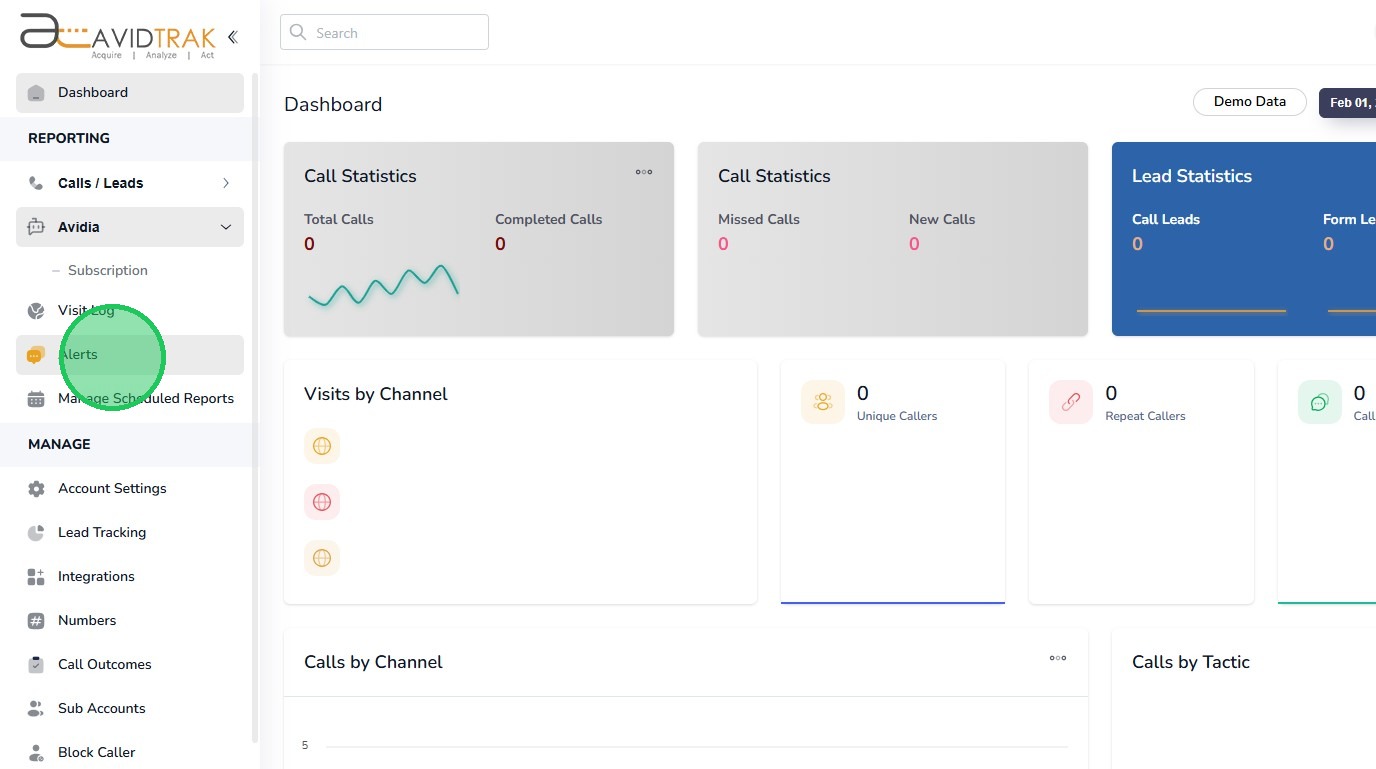
2. After logging into your account, navigate to the left menu bar and Click the Alerts link.
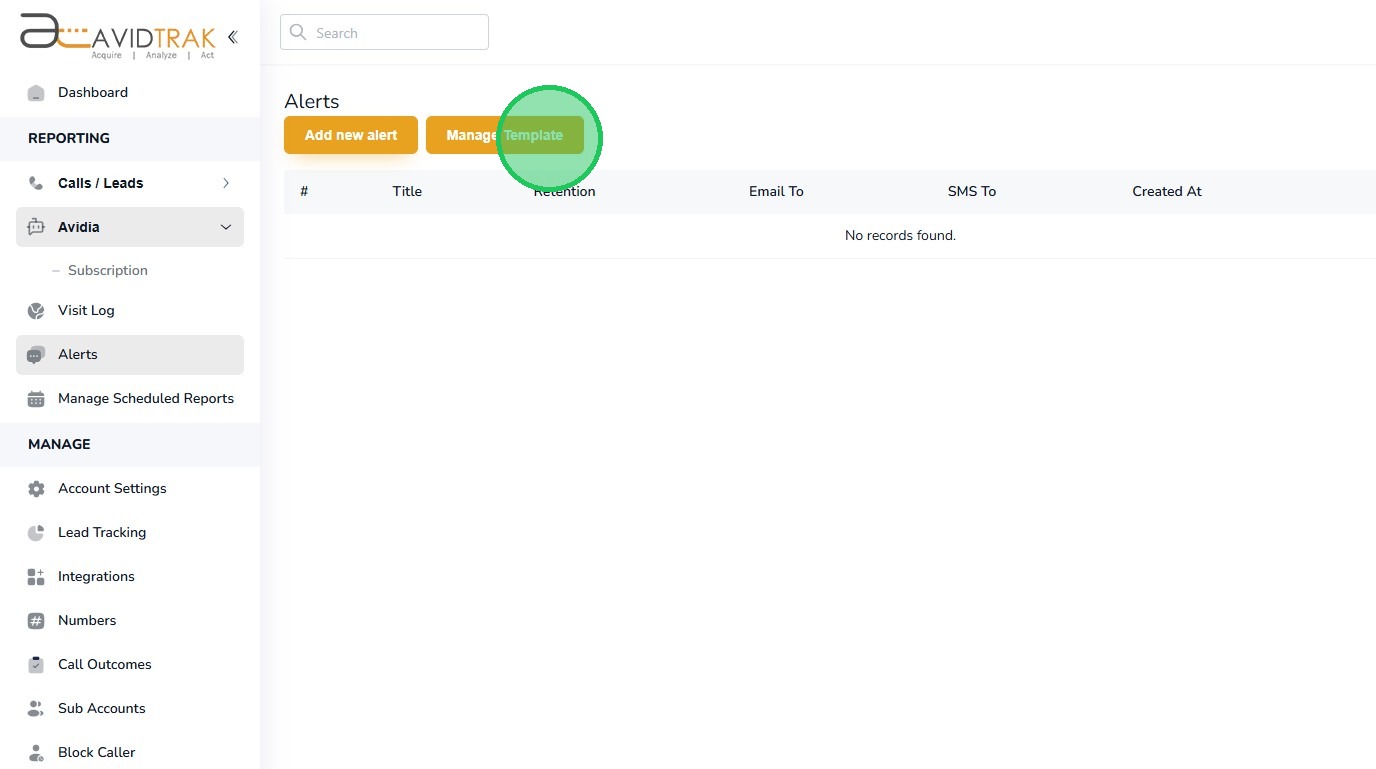
3. Click the “Manage Template” button.
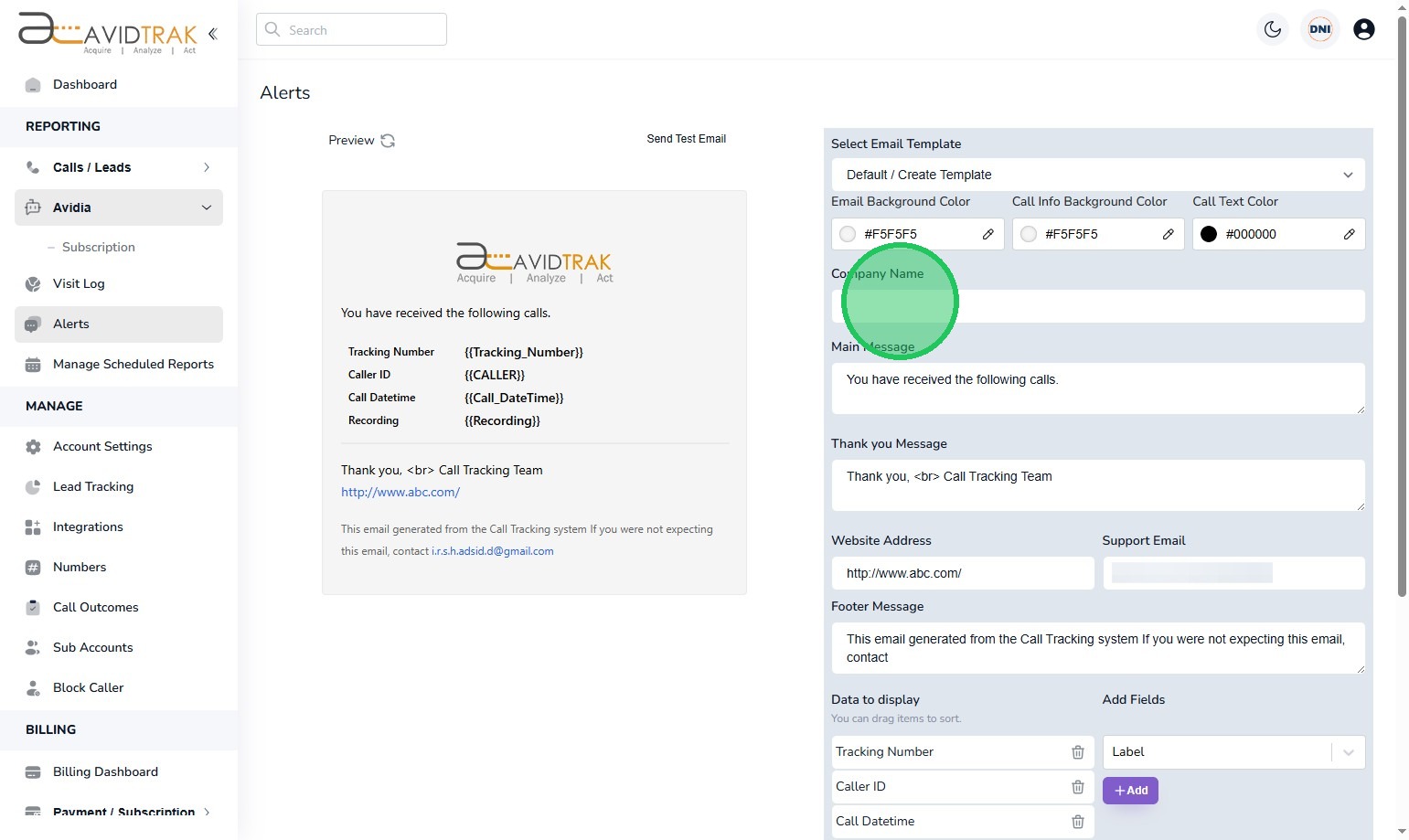
4. Next in the company name field enter your company name.
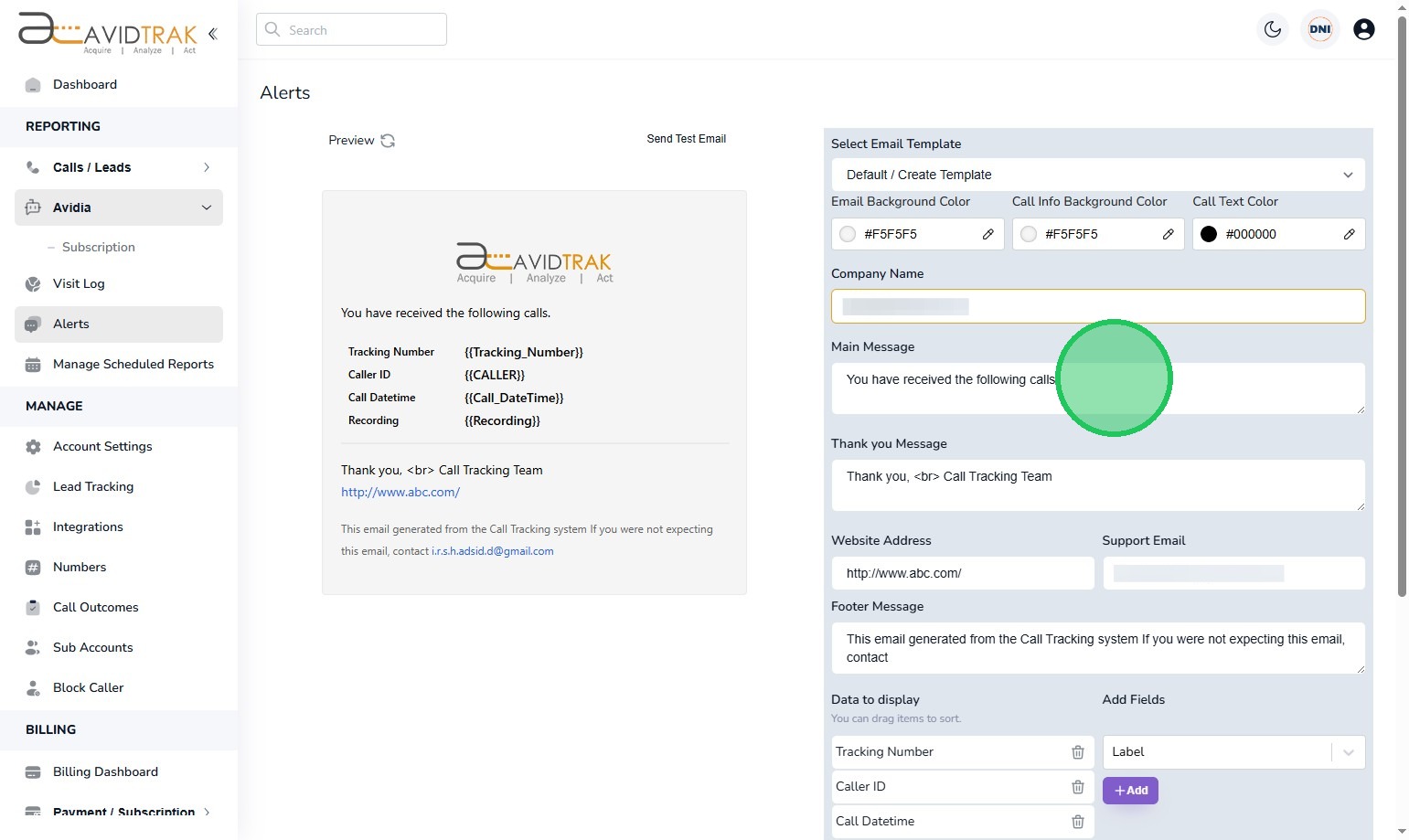
5. In the Main Message field enter a message that is suitable for your audiences.
6. Next, in the Thank you message field, enter a message that is suitable for placement at the bottom of the email. You can use the default place holder values, or you can alter the message to your use case.
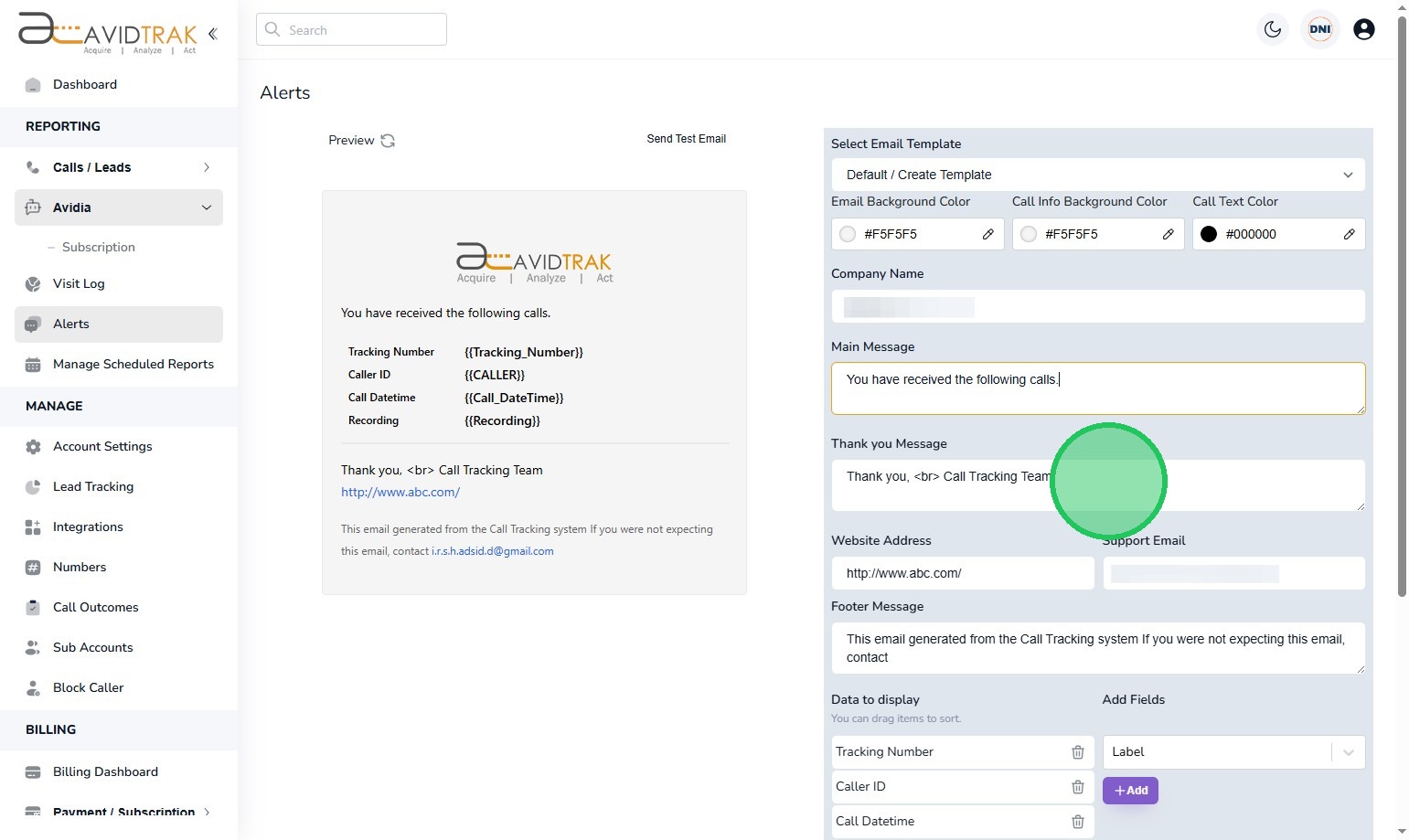
7. In the website address field, enter your domain name or leave blank.
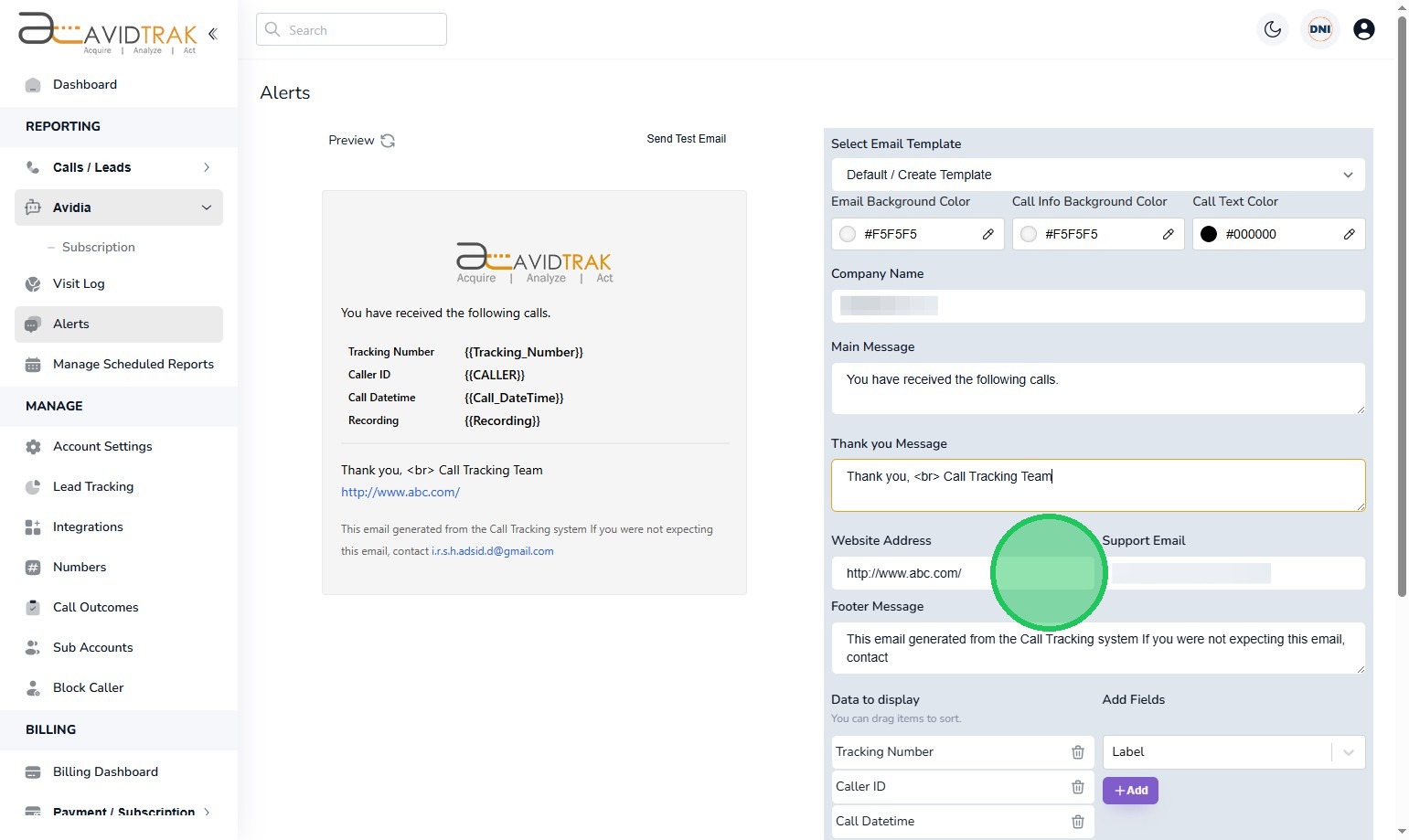
8. In the support email field enter your email address or any email address that helps the email recipient contact you for assistance.
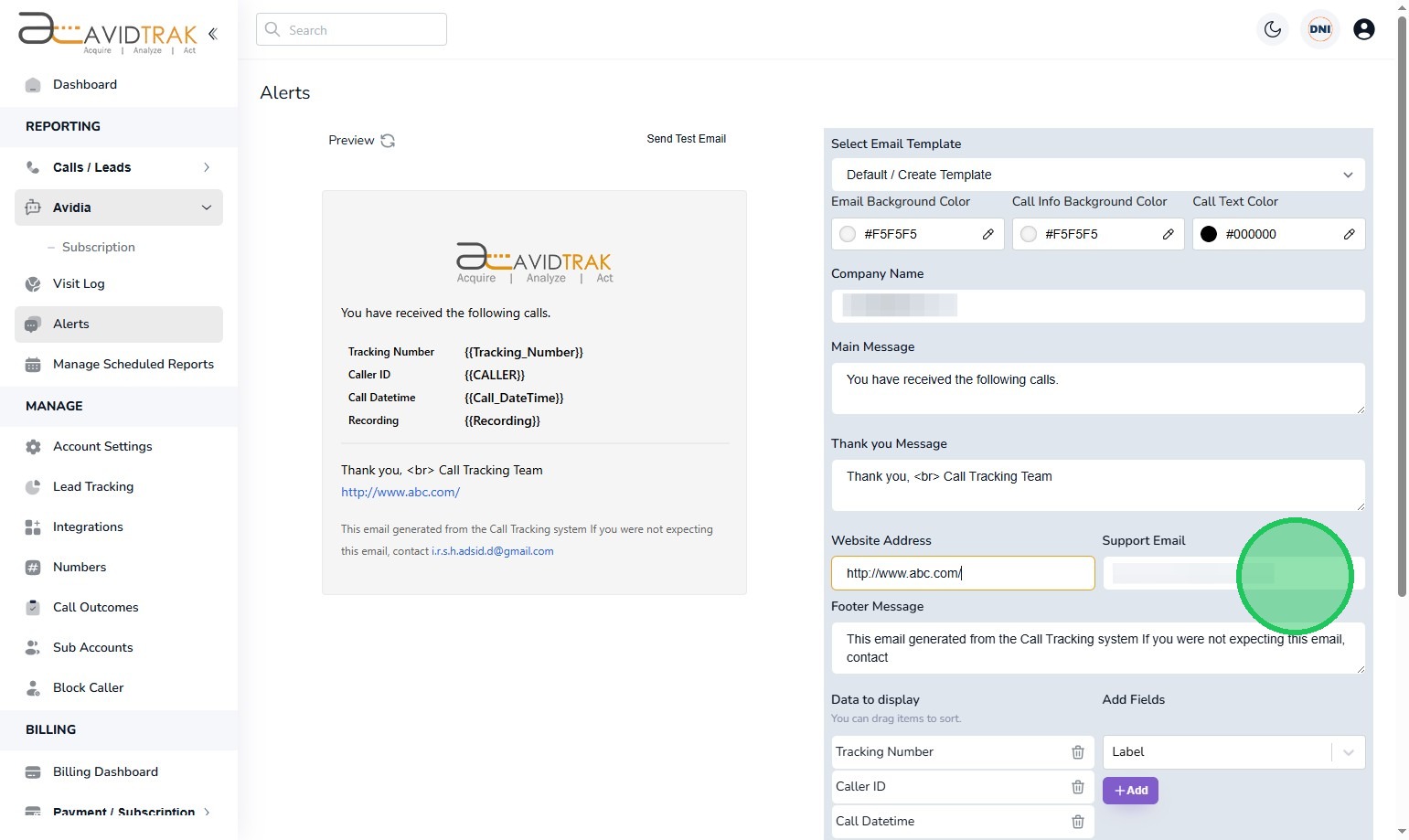
9. Next, in the Footer message field, enter an opt-out email address that would allow the email recipient to contact you in case they wish to opt out of receiving future emails.
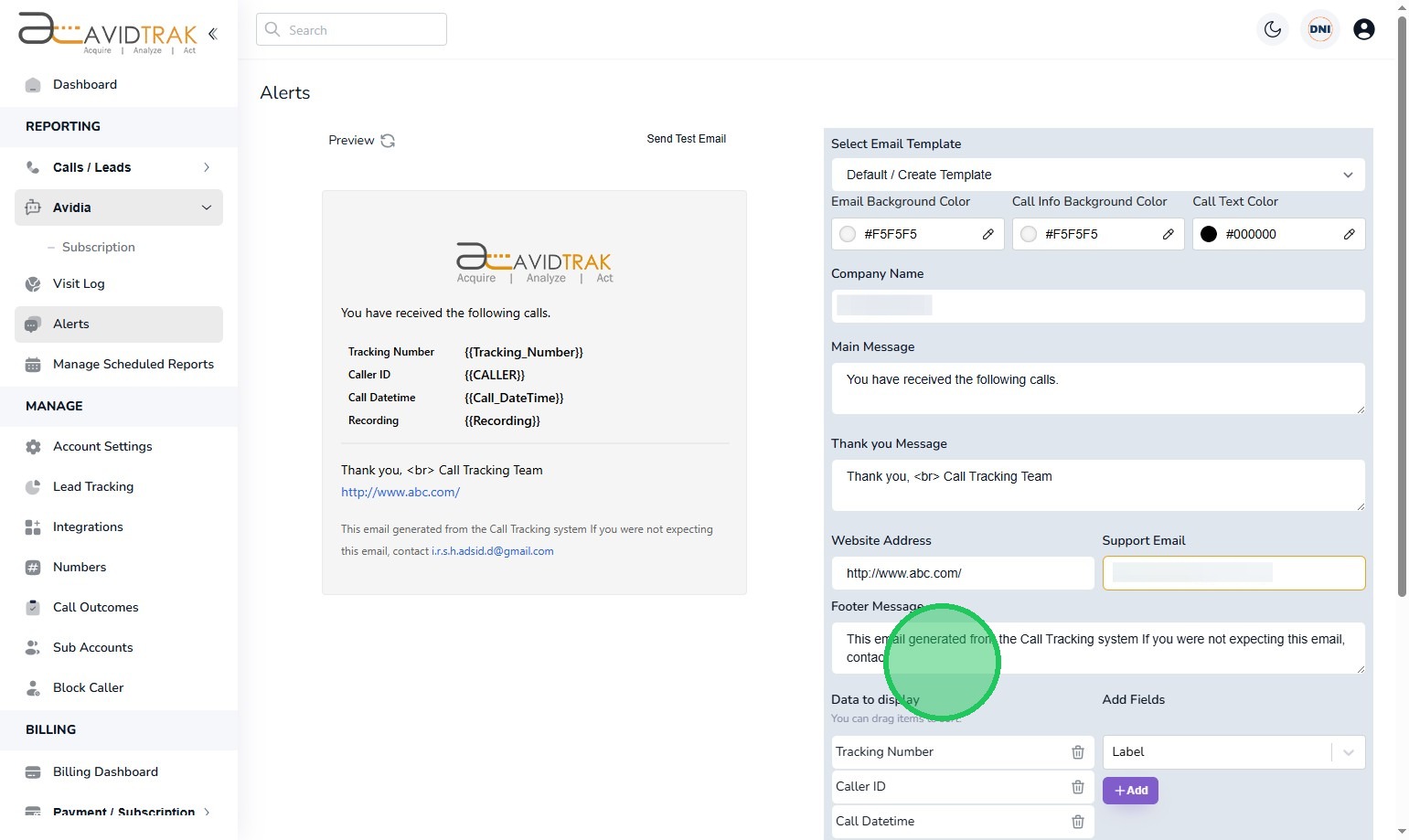
10. Next, select the variable fields that you wish to report in your report. For example, you may select the number label to be incorporated into the report. Add as many as eight variables to your report.
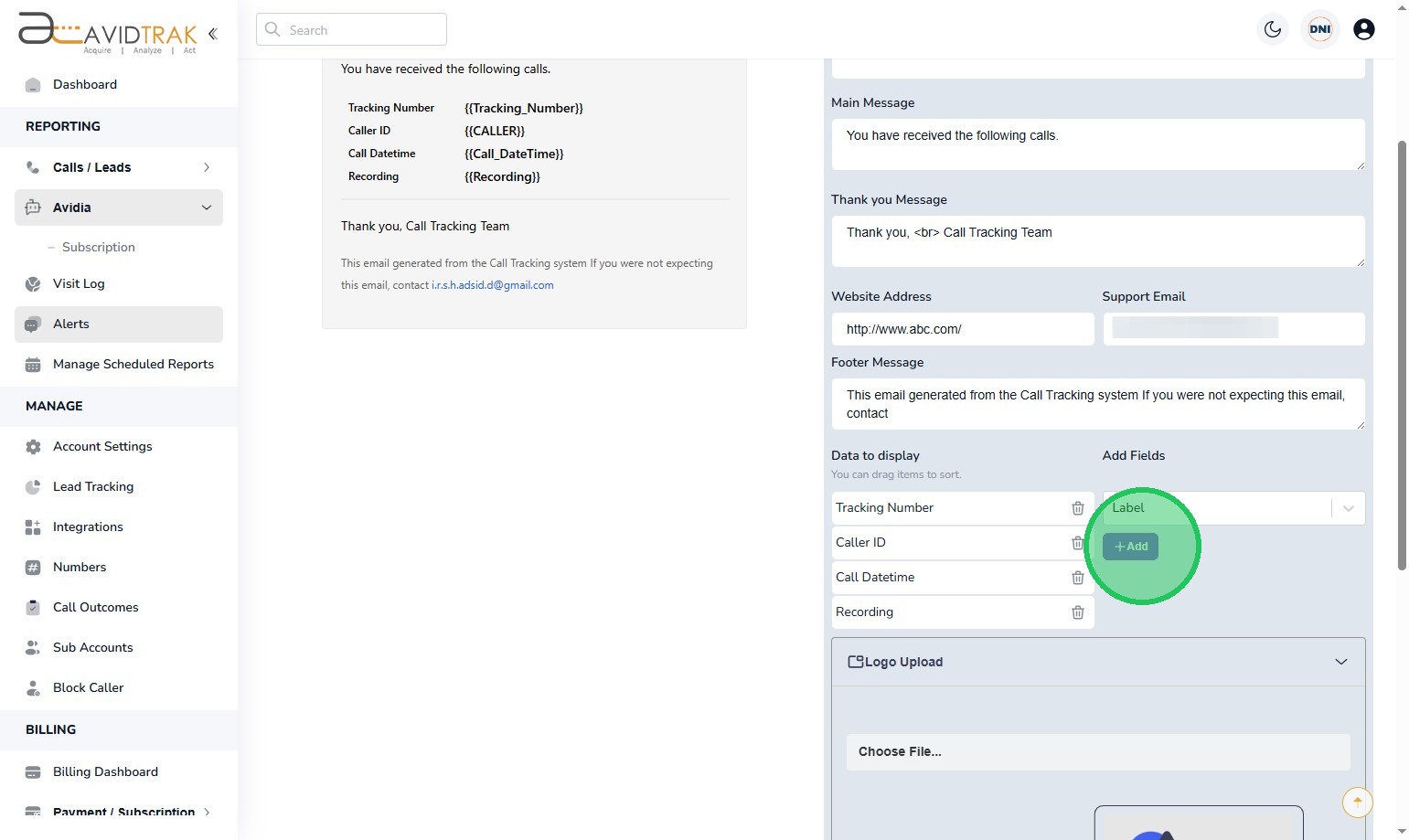
11. Next, if you wish to add your business logo to your email, click the “Logo Upload” button.
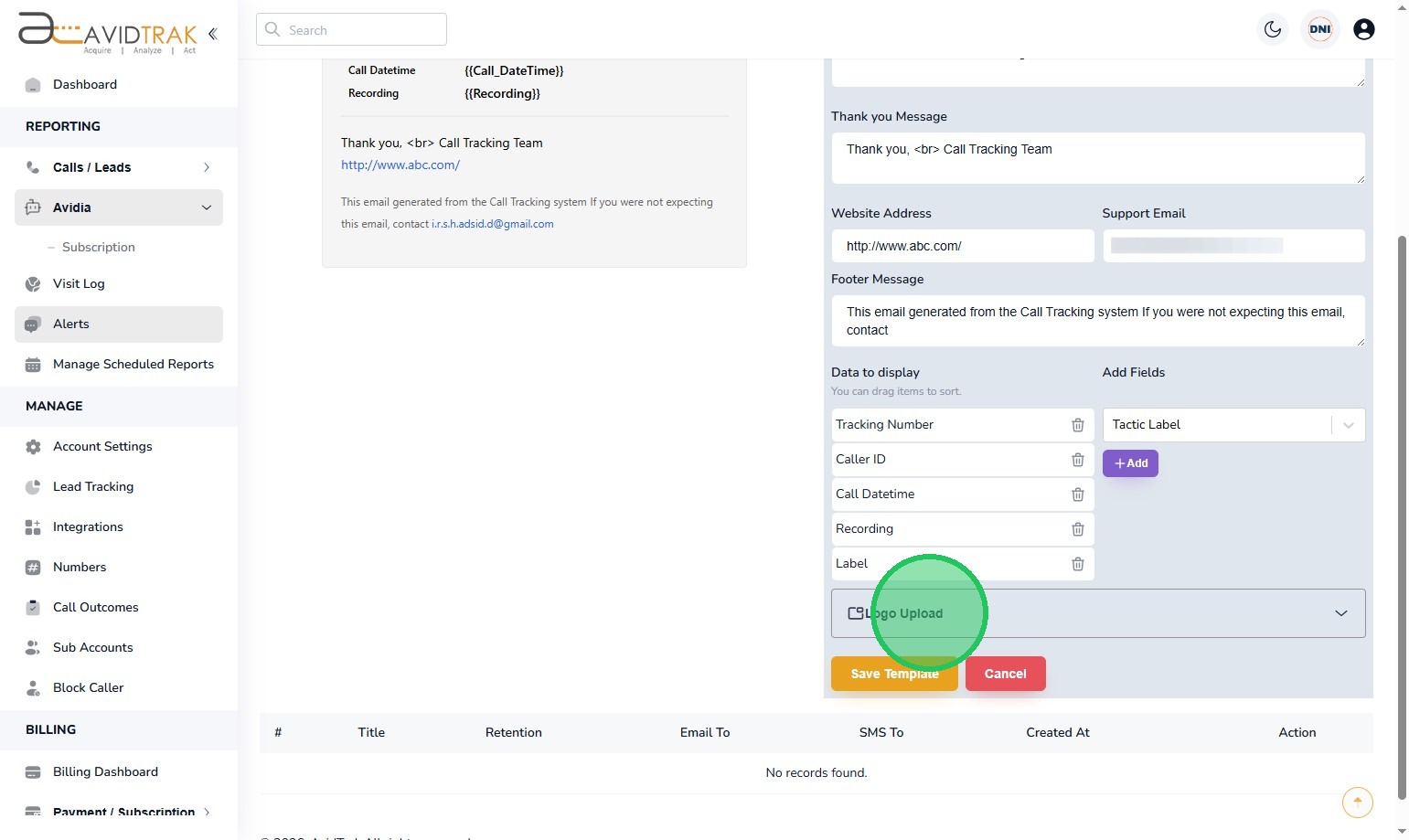
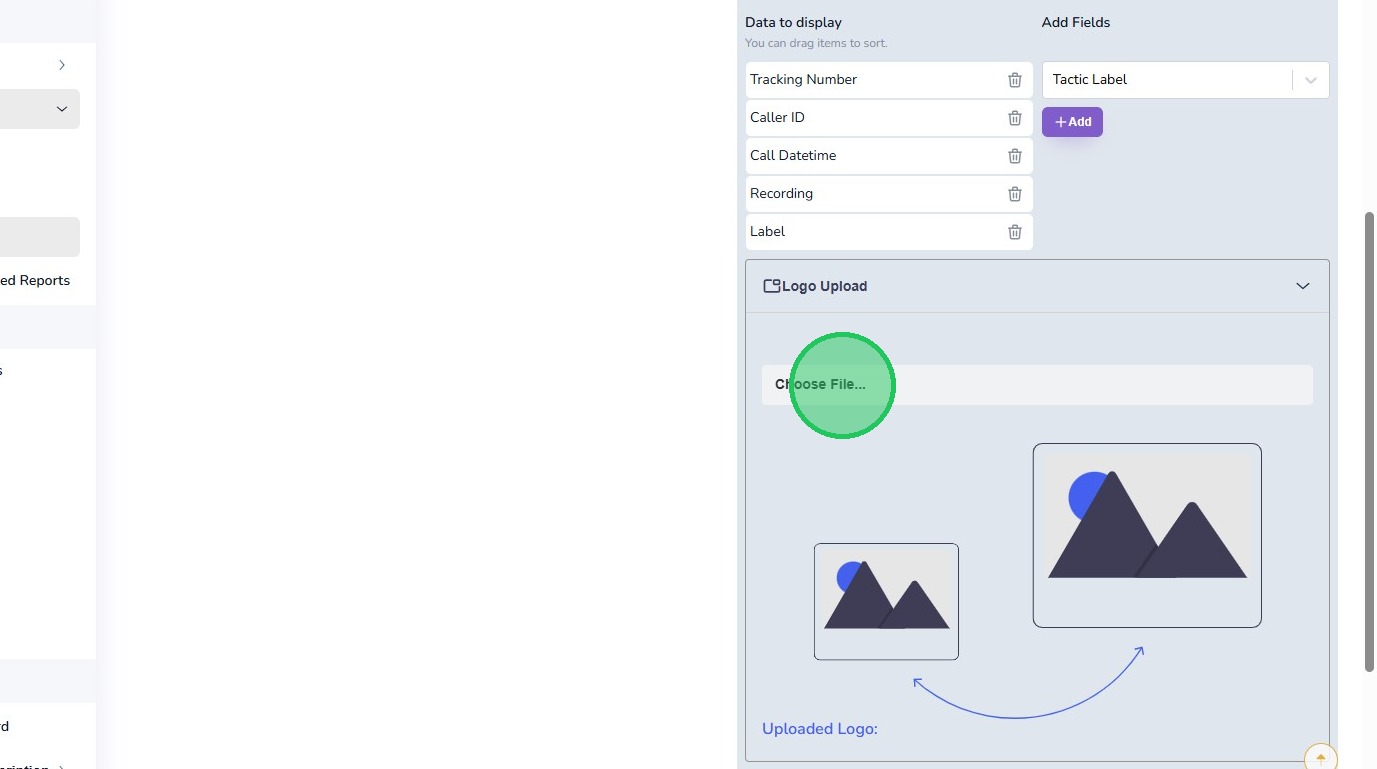
12. Navigate to the “Choose File” field and select your logo file. Pro Tip for best results of rendering your logo, for a rectangular logo, your logo should be 200 pixels wide by 50 pixels in height. If you have a square logo, we recommend 140 by 140 pixels.
13. After you have uploaded your logo, click the Preview icon to render an example of the email.
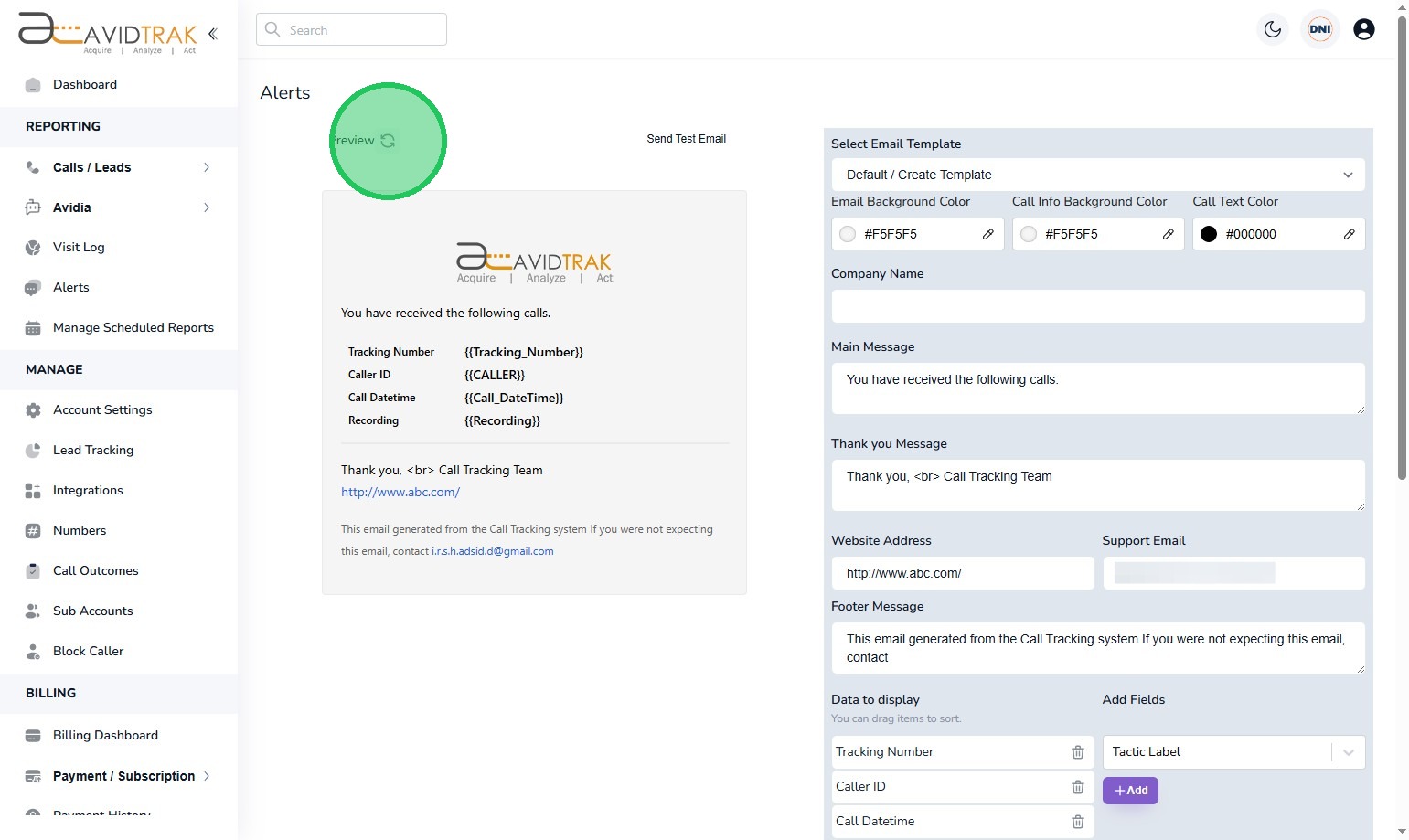
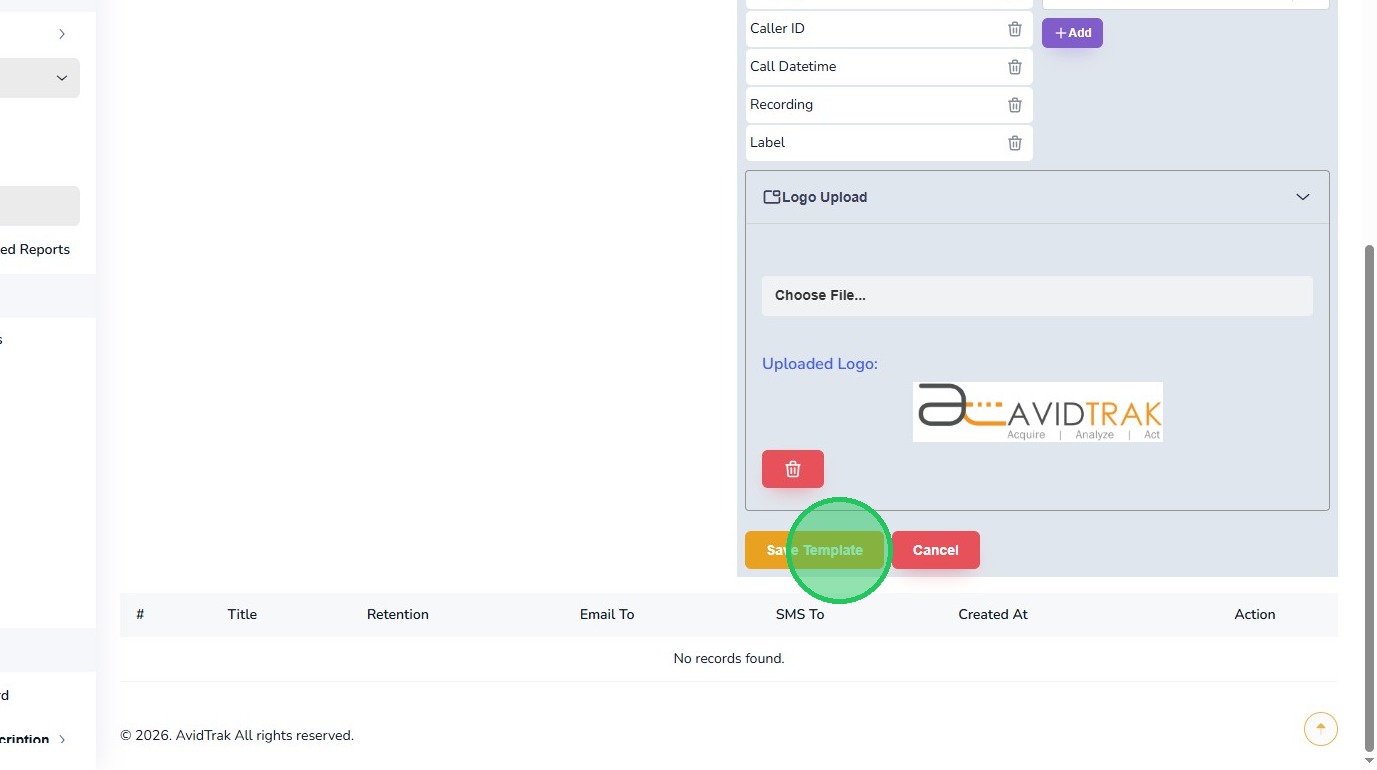
14. If the example results of the preview are satisfactory click the “Save Template” button to save your settings.
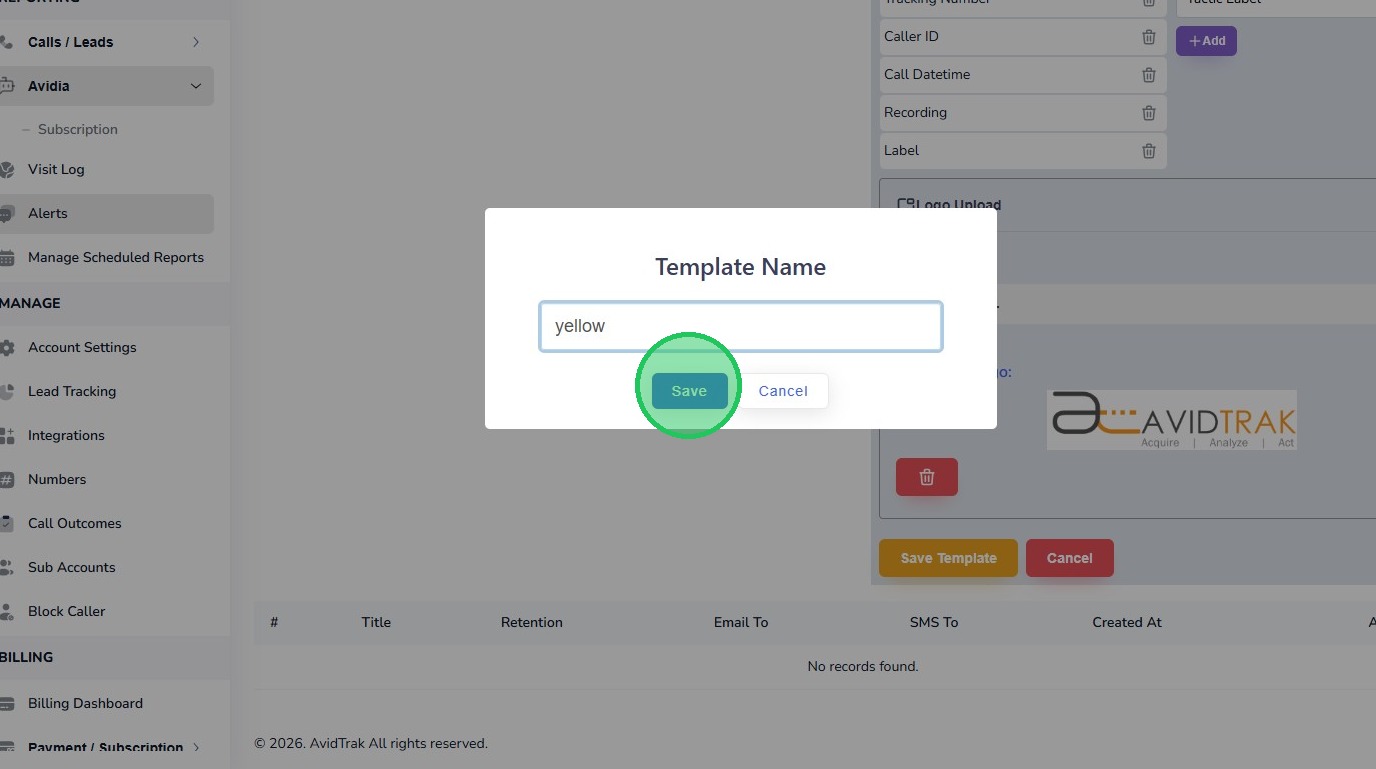
15. Next, enter the template name and click the “Save” button.
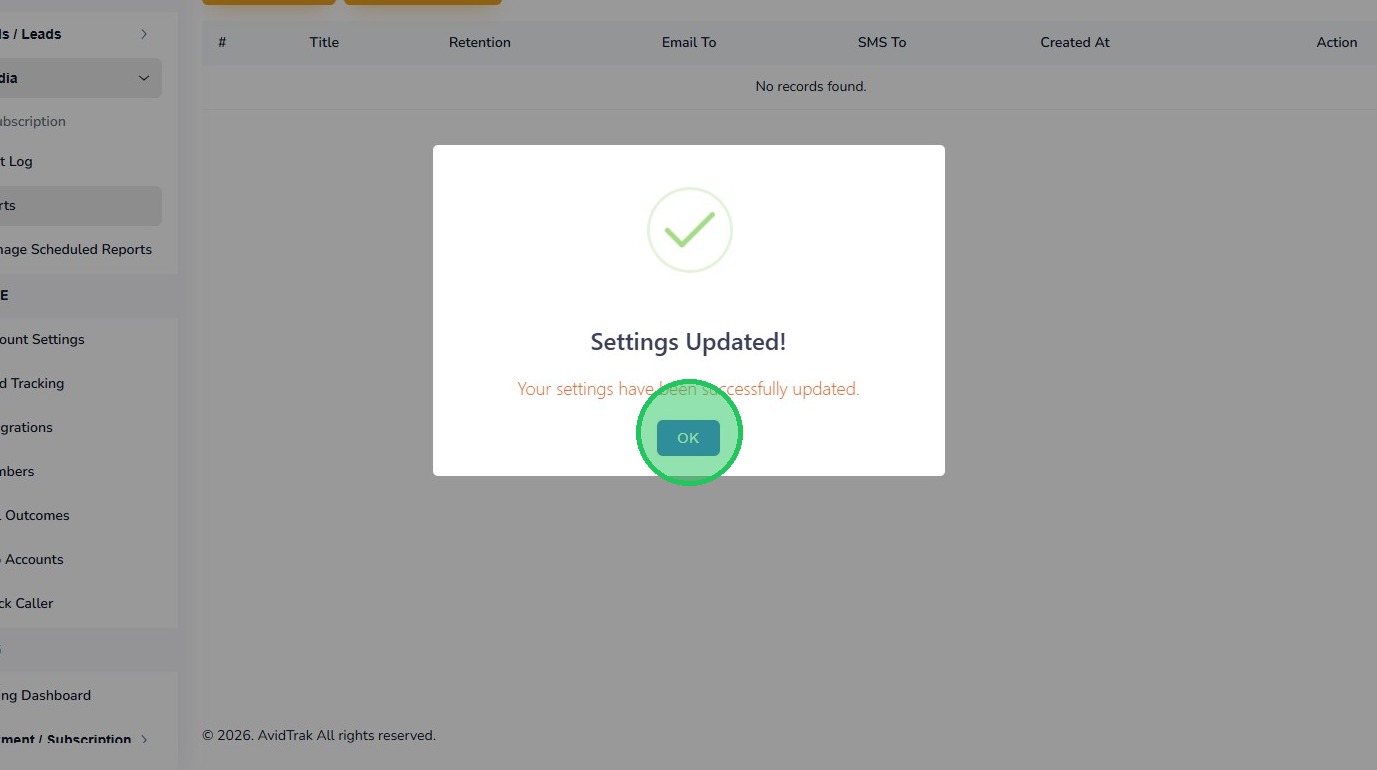
16. Click the “OK” button to your save setting.
17. This completes the tutorial for How to Add a New Alert Template in AvidTrak. If you have questions or need any kind of additional assistance please do not hesitate to contact our support team by emailing support@avidtrak.com

