

How to Enable or Disable an Existing Sub-Agent Account User
1. In this tutorial you will learn how to Enable or Disable an existing Sub-Agent User Account. This feature comes in handy when access to a client’s account by a team member may need to be deactivated either temporarily or permanently. We also provide the account administrator the ability to enable access to client accounts in case the sub-agency account was deactivated inadvertently.

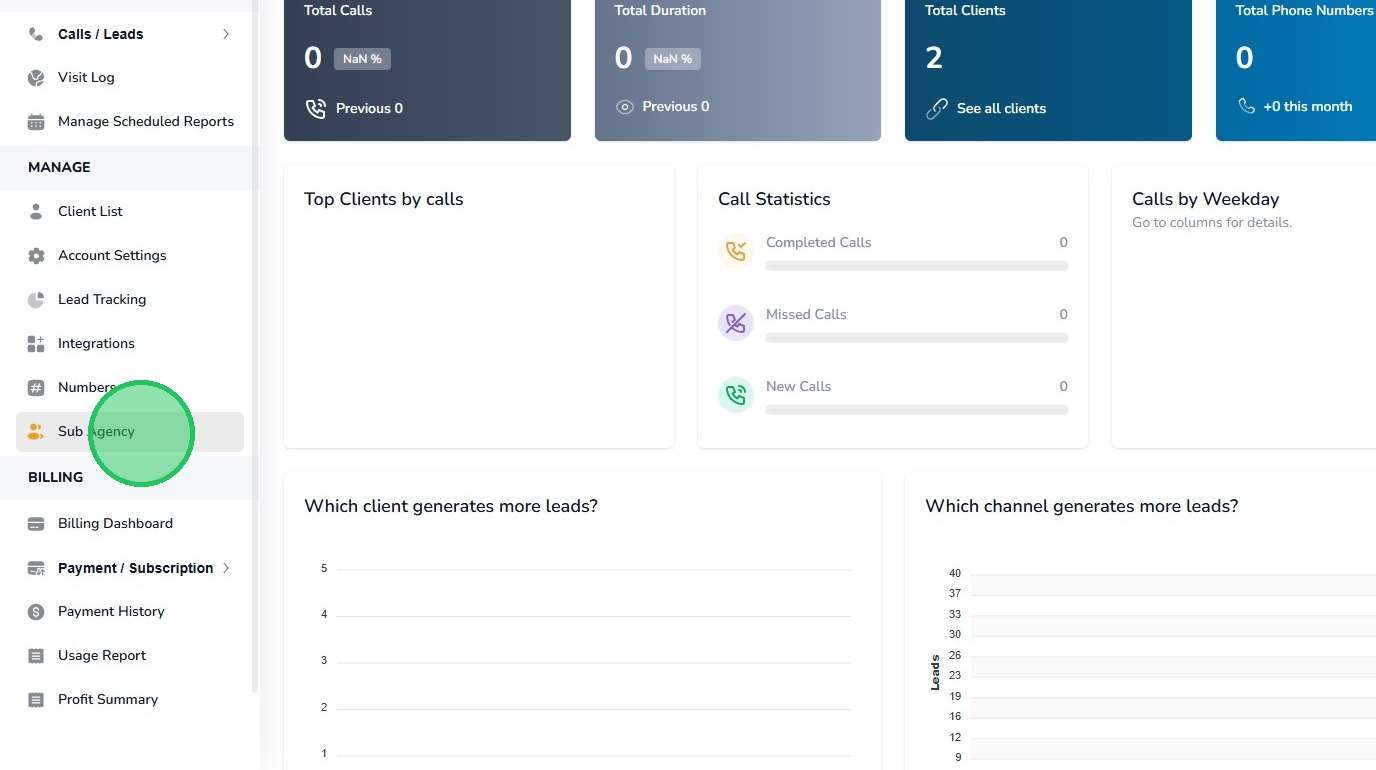
2. After you have successfully logged into your Agency account as an Administrator, navigate to the left navigation area, and find and click the Sub Agency link that appears under the Manage menu section.
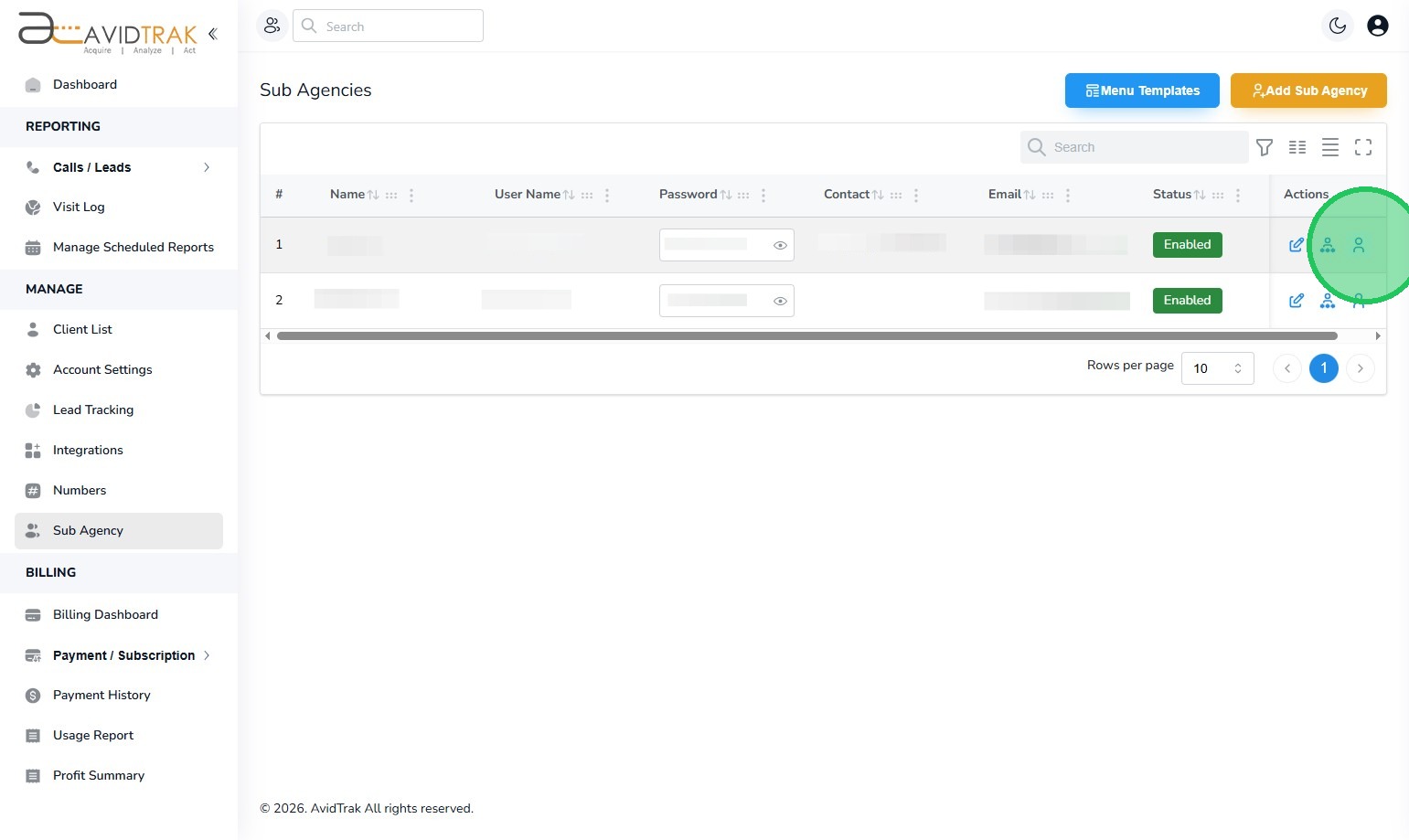
3. The page that opens renders all the sub-agents that you have setup. To disable a particular sub-agent-user find the sub agent and click the blue icon that appears on the right side of the screen.
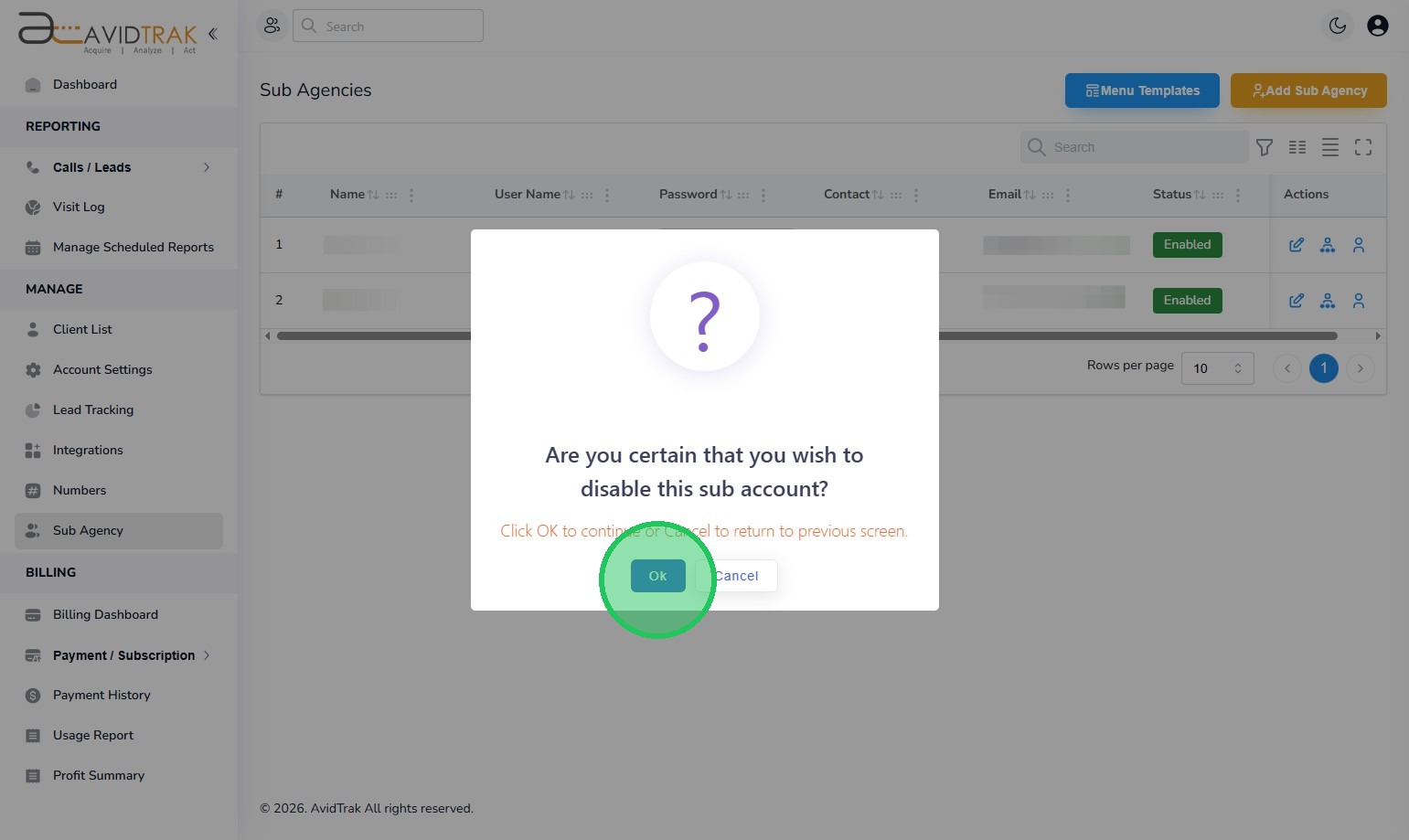
4. Click the “OK” button to reconfirm your intent to deactivate access for that sub-agent.
5. Click the “OK” button to reconfirm and save your settings.
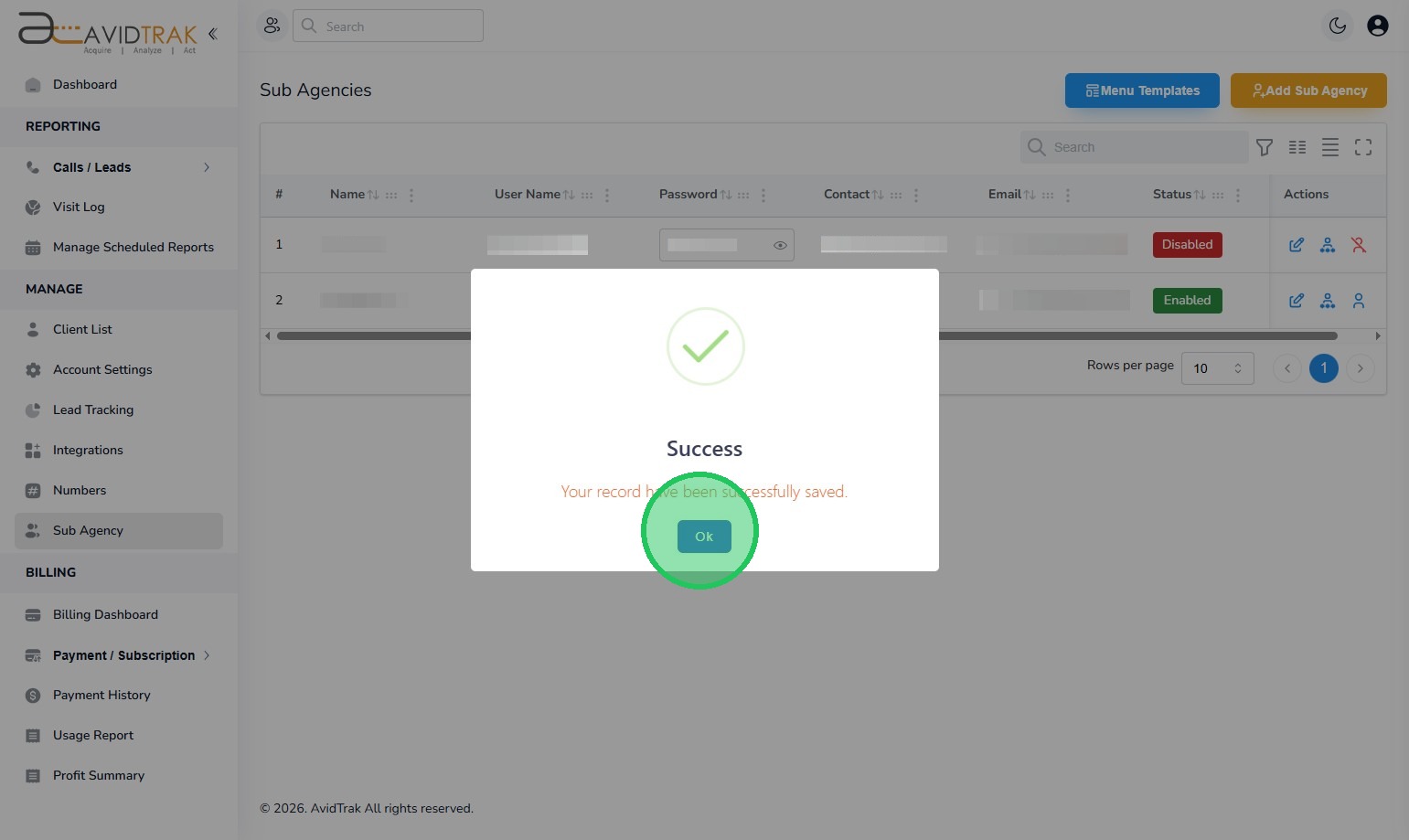
6. After a sub-agency has been disabled, the icon on the right side will appear in red. To re-enable the sub-agency, click the red icon on the right side of the screen.
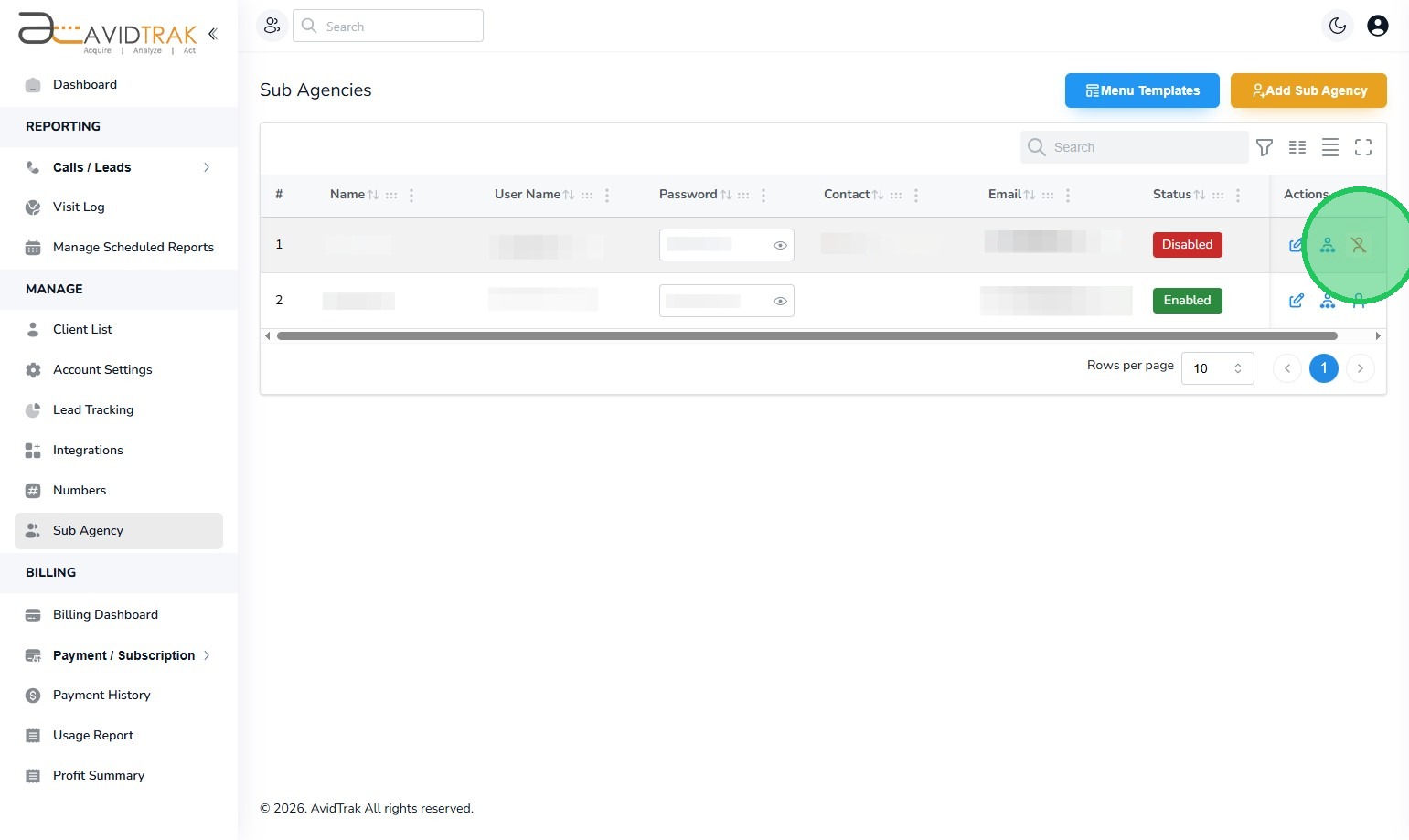
7. Click the “OK” button to reconfirm your settings.
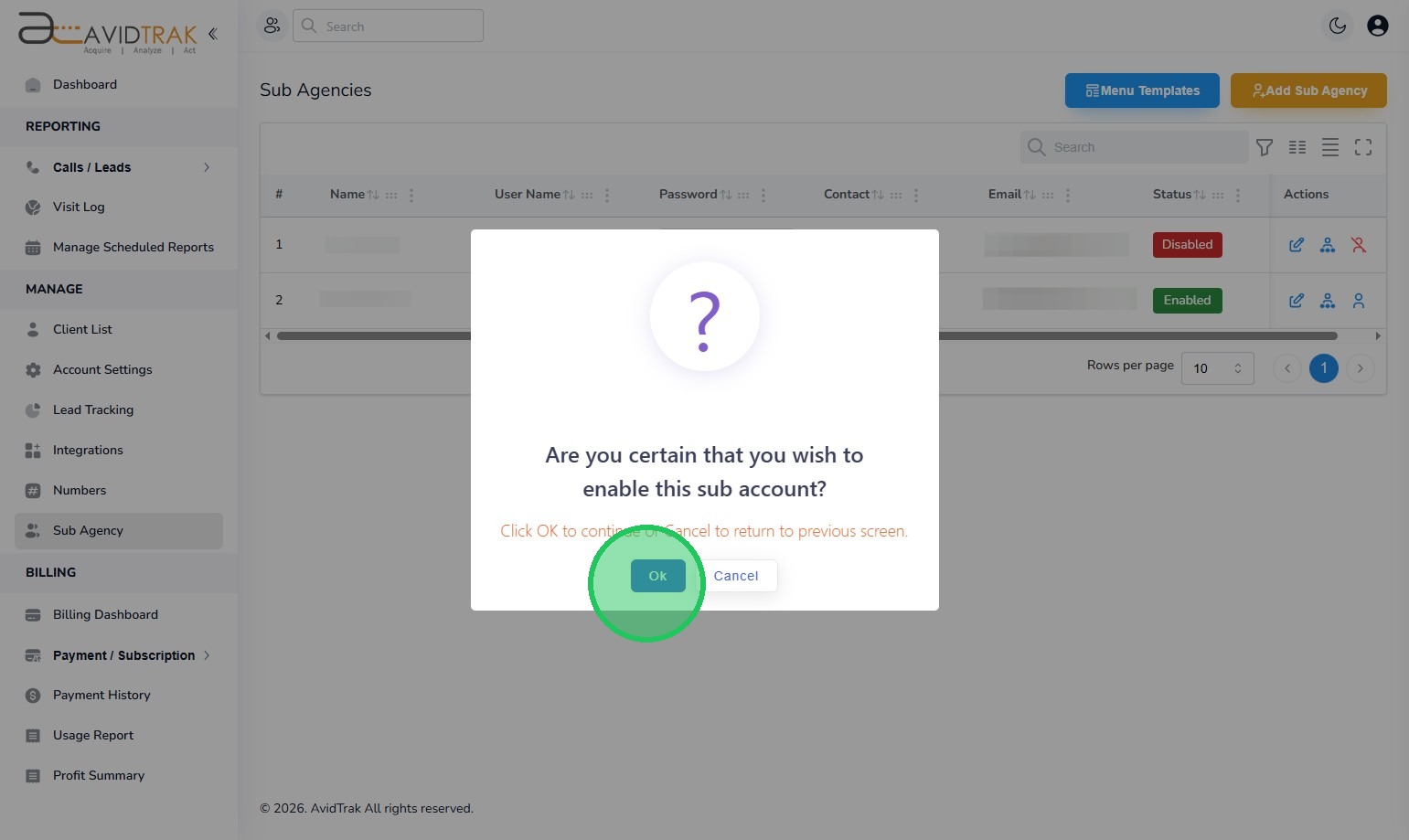
8. Click the “OK” button to reconfirm your intent.
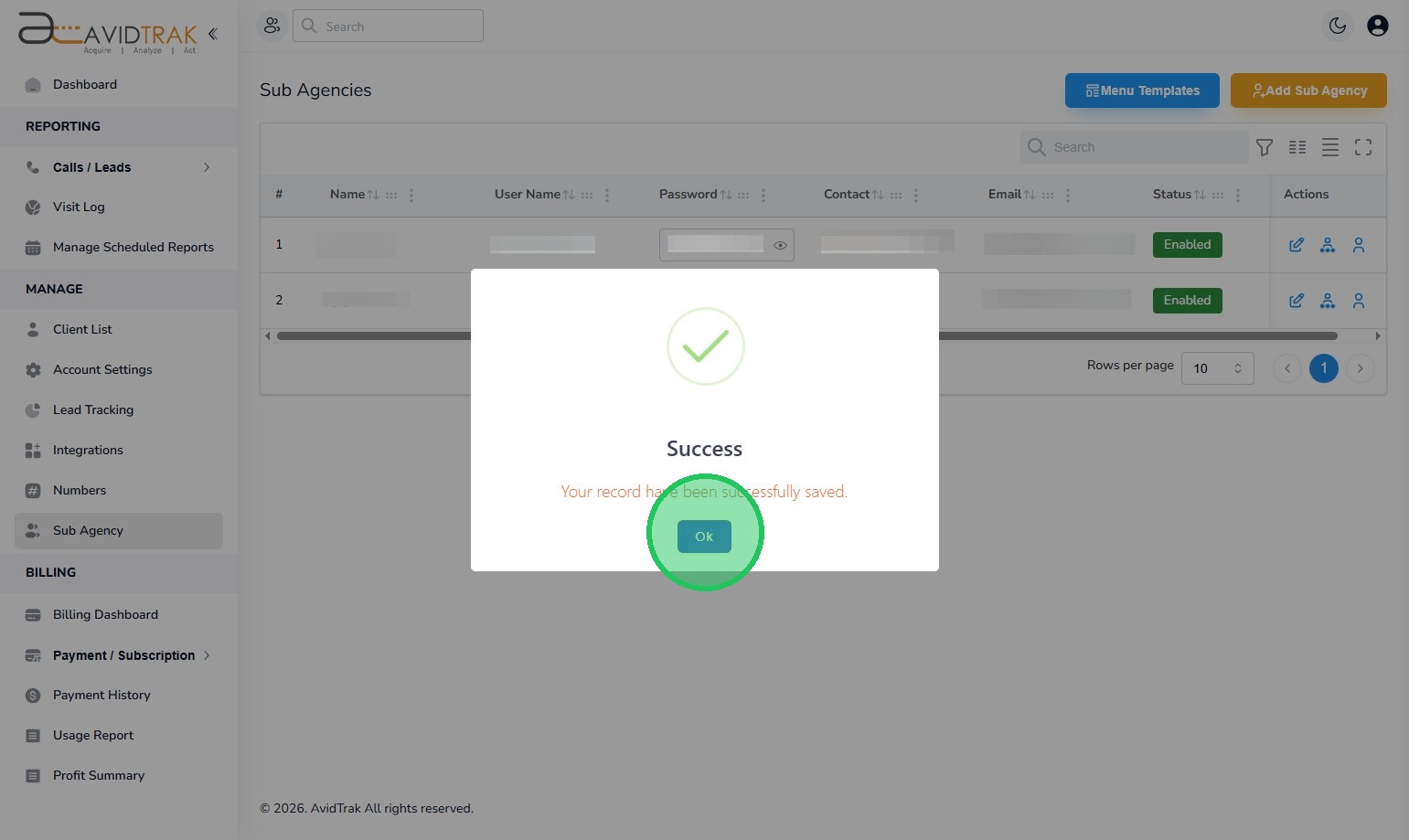
9. The previously deactivated sub-agent user is now enabled.
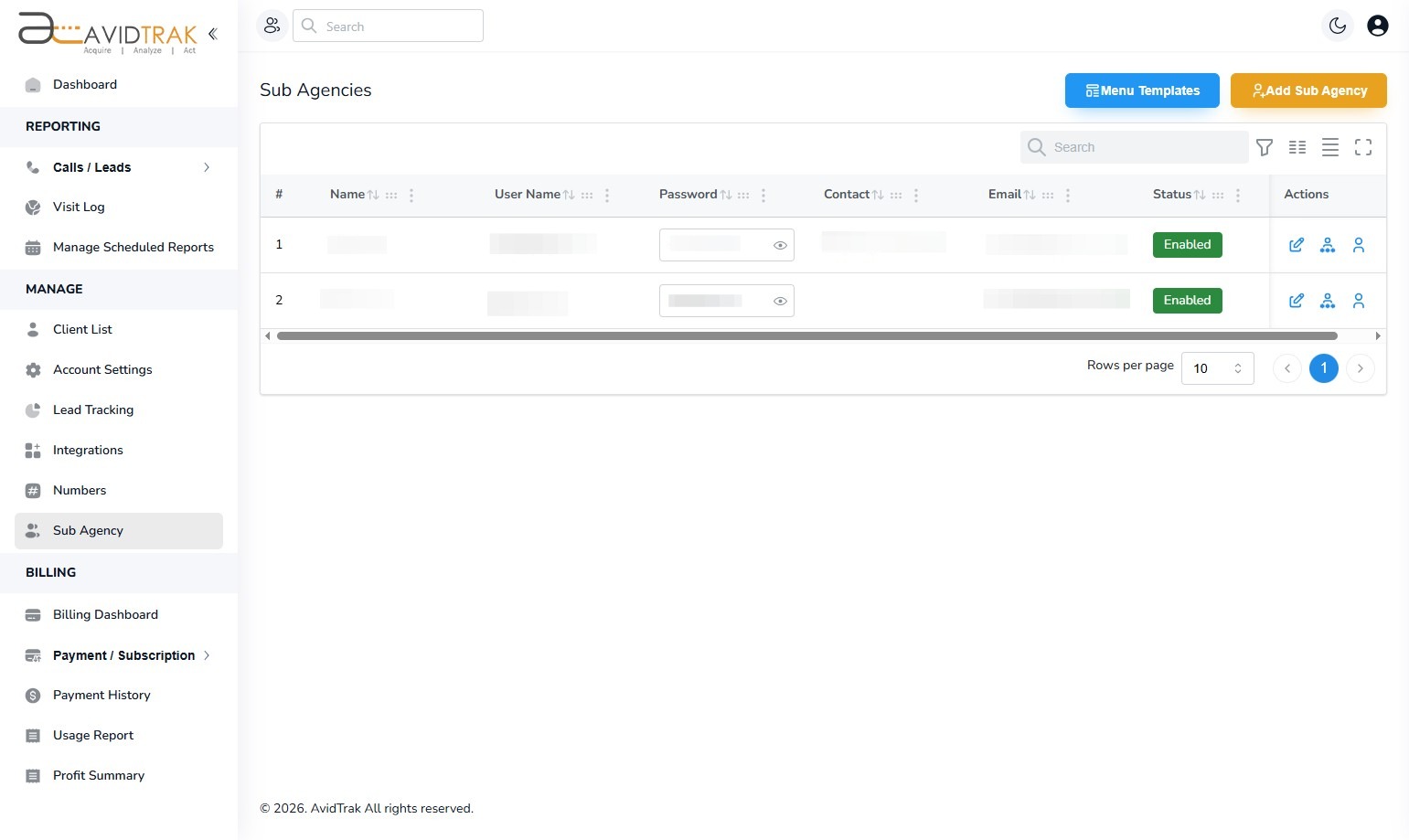
10. This completes the tutorial on How to Enable or Disable a Sub-Agent User Account. If you face any difficulty in implementing these instructions or have questions related to this feature, please do not hesitate to email support@avidtrak.com

