

Create and Edit Menu Templates for Clients
1. In this tutorial you will learn how to Create and Edit Menu Templates for Clients. An agency utilizes client templates to restrict the data that a client may be able to view in their respective account. It is not imperative that a template be setup, and if a template is not setup, then AvidTrak will display to your client all available fields and reports.

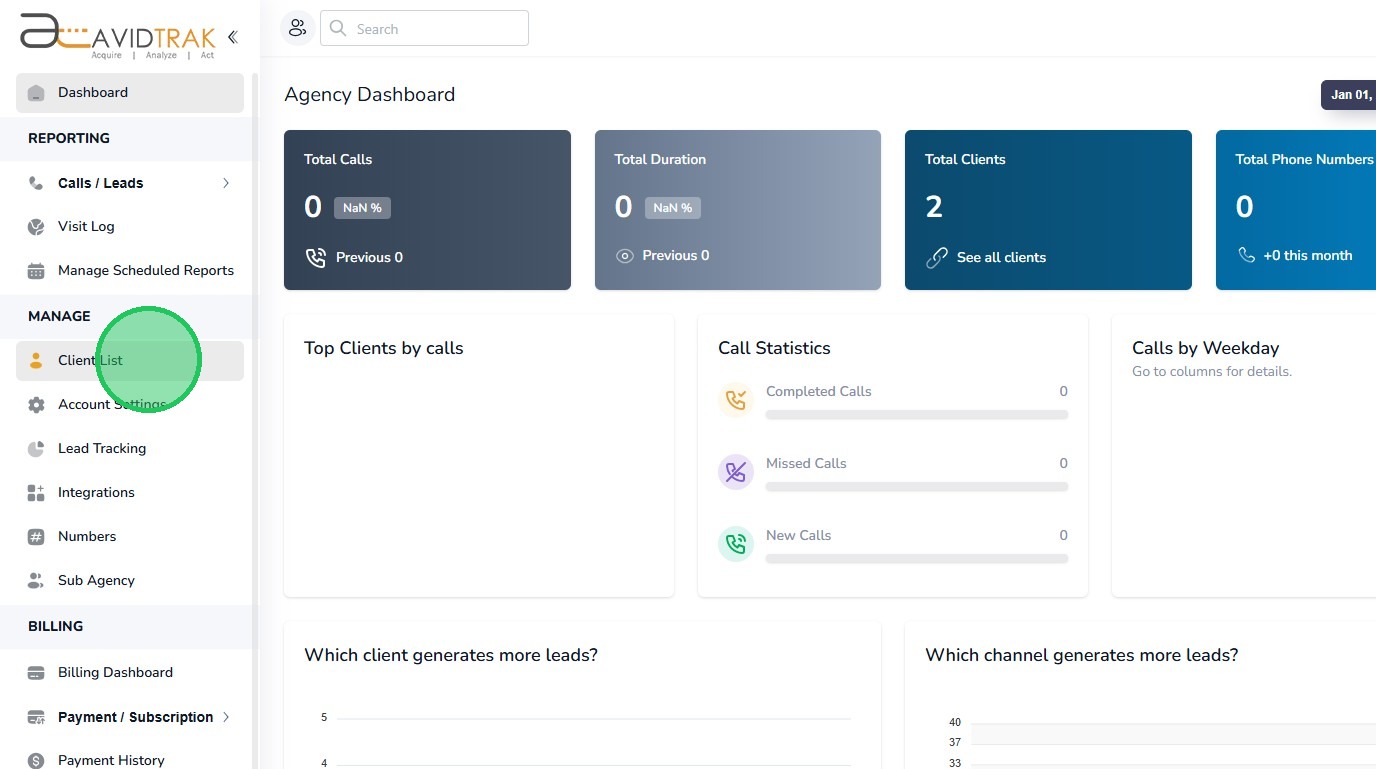
2. After you have successfully logged into your Agency account as an Administrator, navigate to the left navigation area, and find and click the Client List link that appears under the Manage menu section.
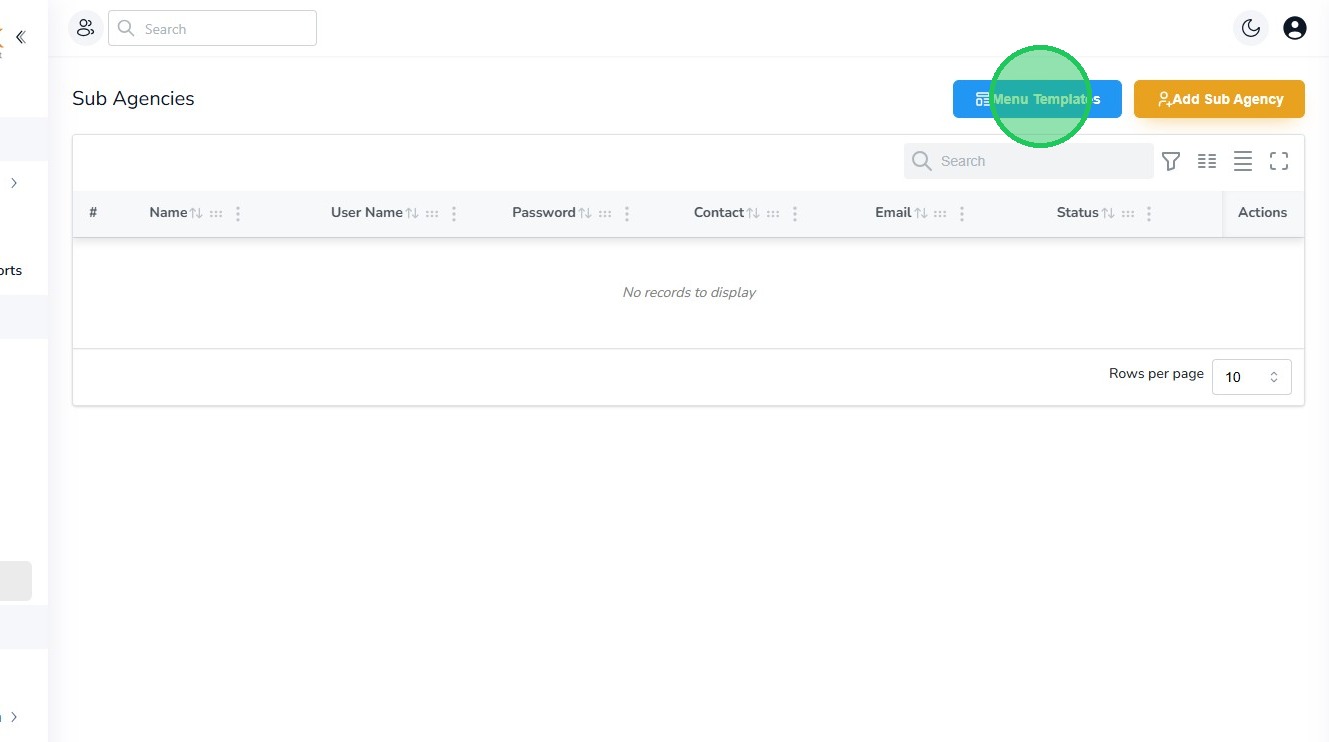
3. Next, Click the “Menu Templates”
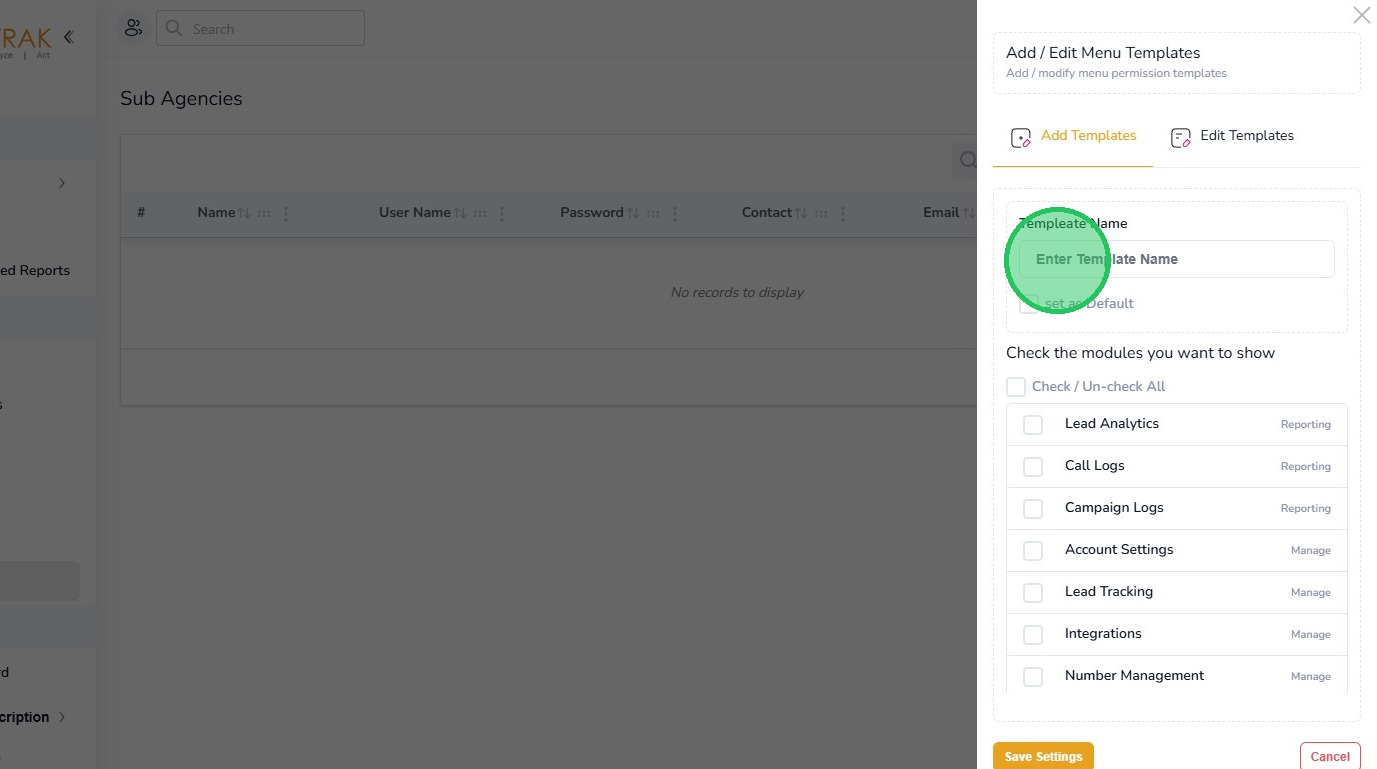
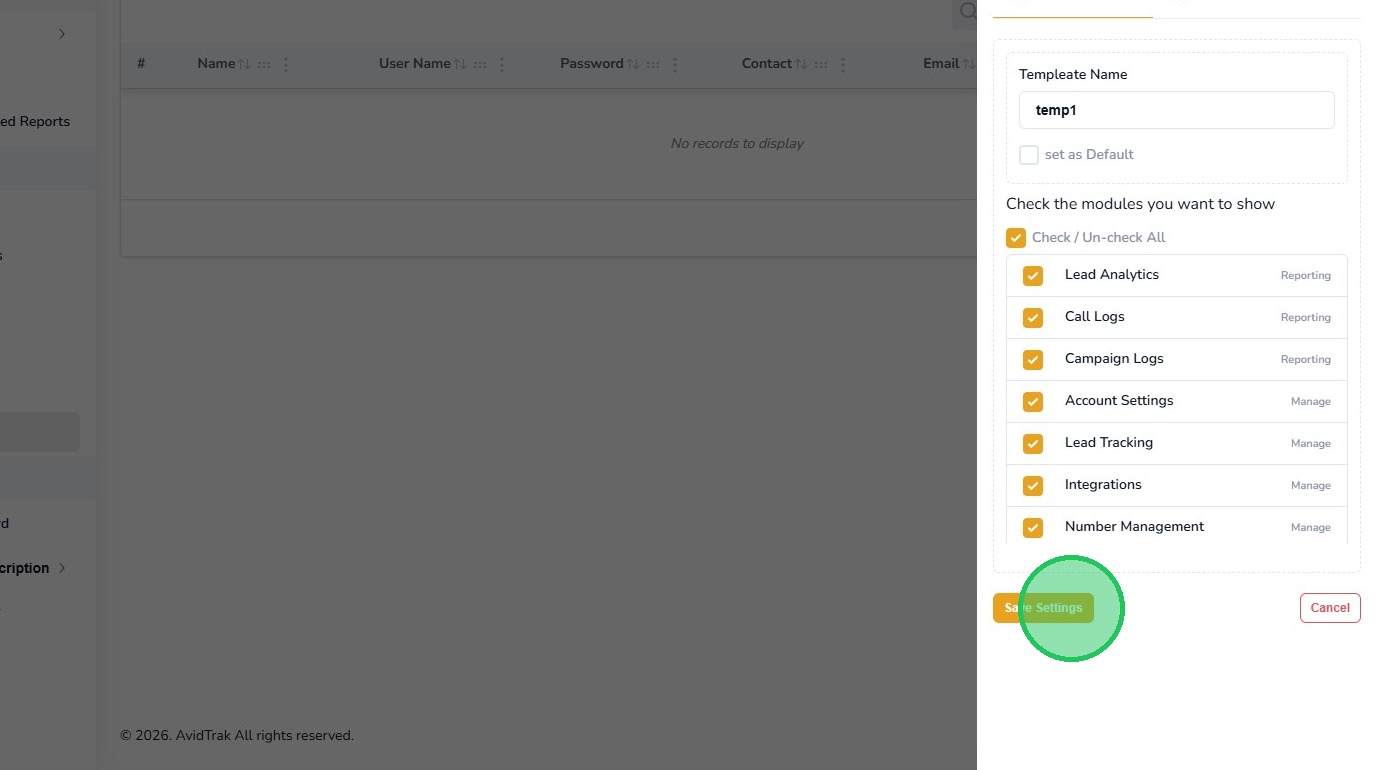
4. Next, Click the “Template Name” field and enter a suitable name for your template.
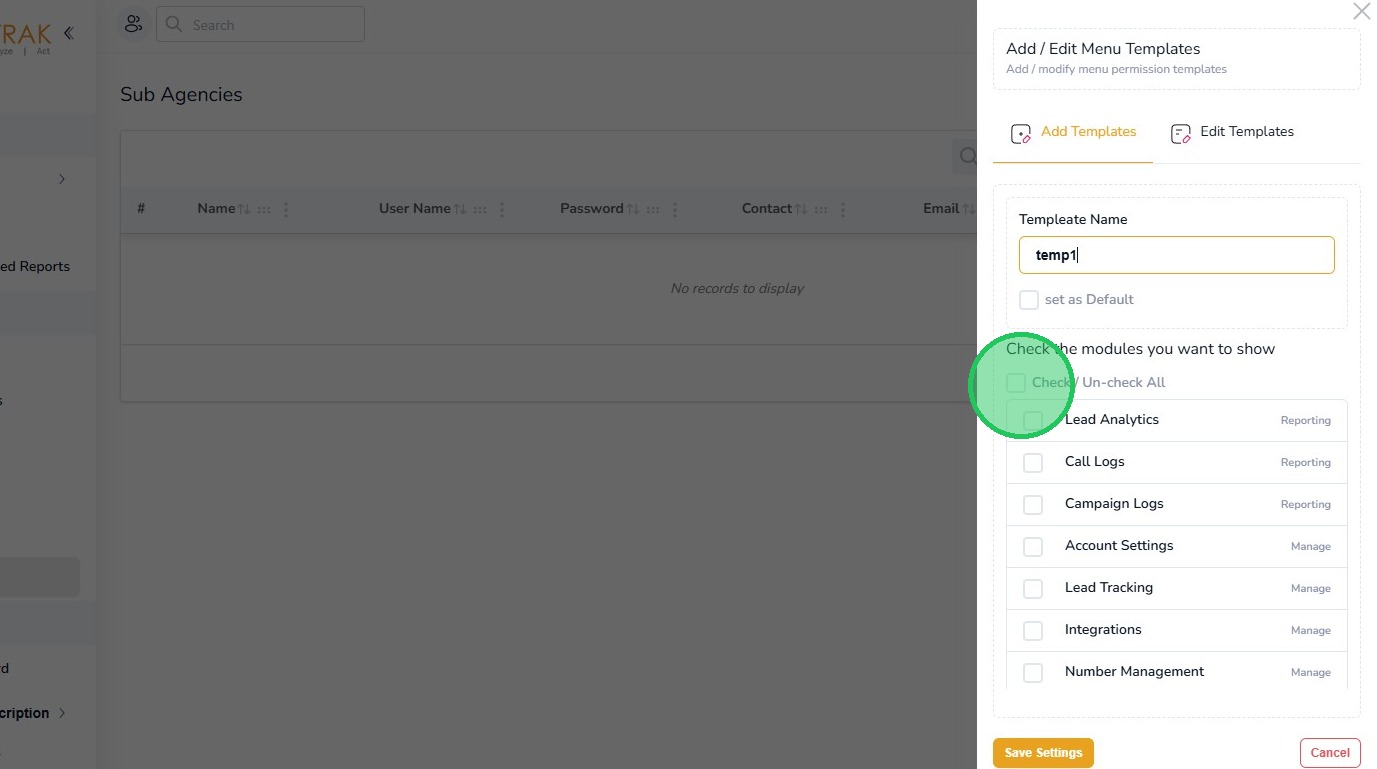
5. Click the “Check/Un-check All” field to select all or remove all selected fields and reports. Pro Tip: To customize the menu template, uncheck ALL the fields and manually select the fields and reports you wish to incorporate into your template. If you make a mistake don’t worry. You may always amend a template after it is created.
6. After you have completed your selection be sure to save your work by clicking the “Save Settings” button.
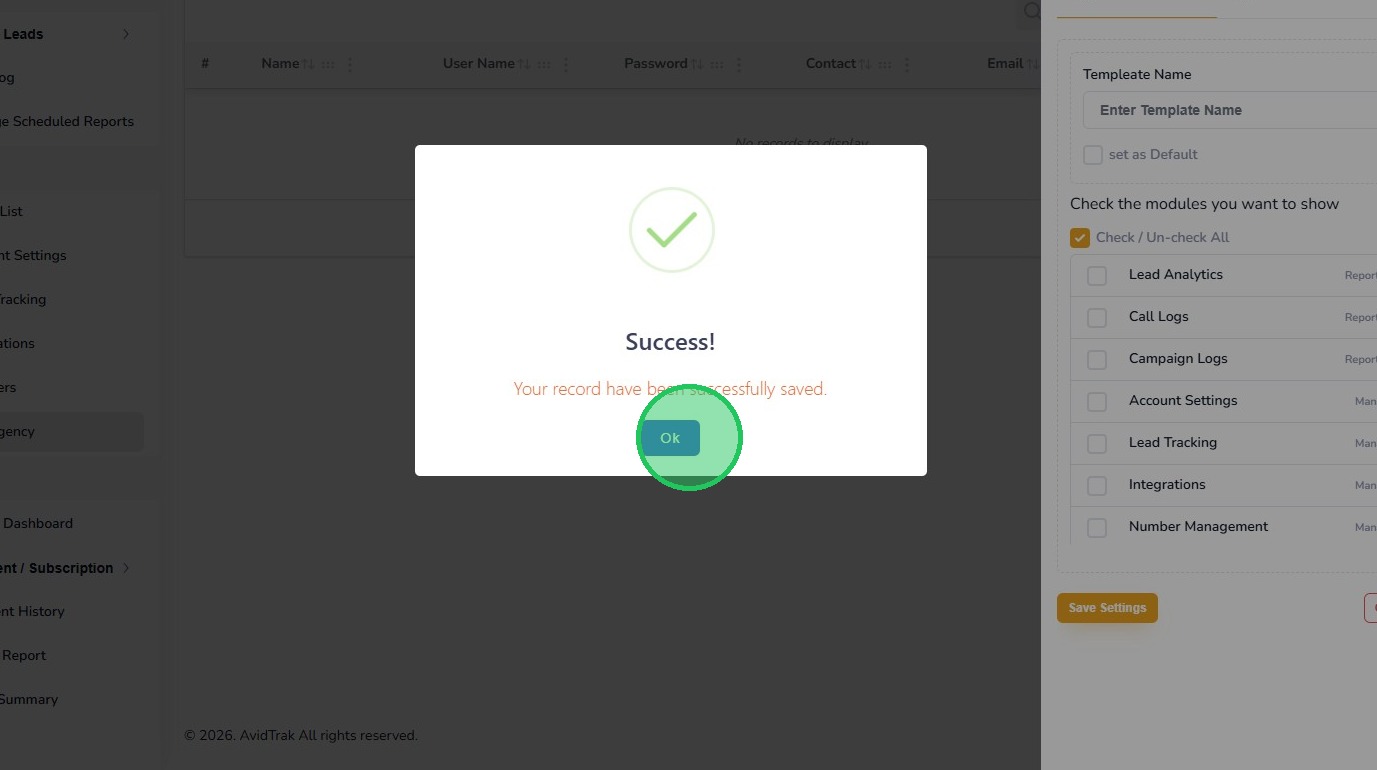
7. Click the “OK” button to save the settings.
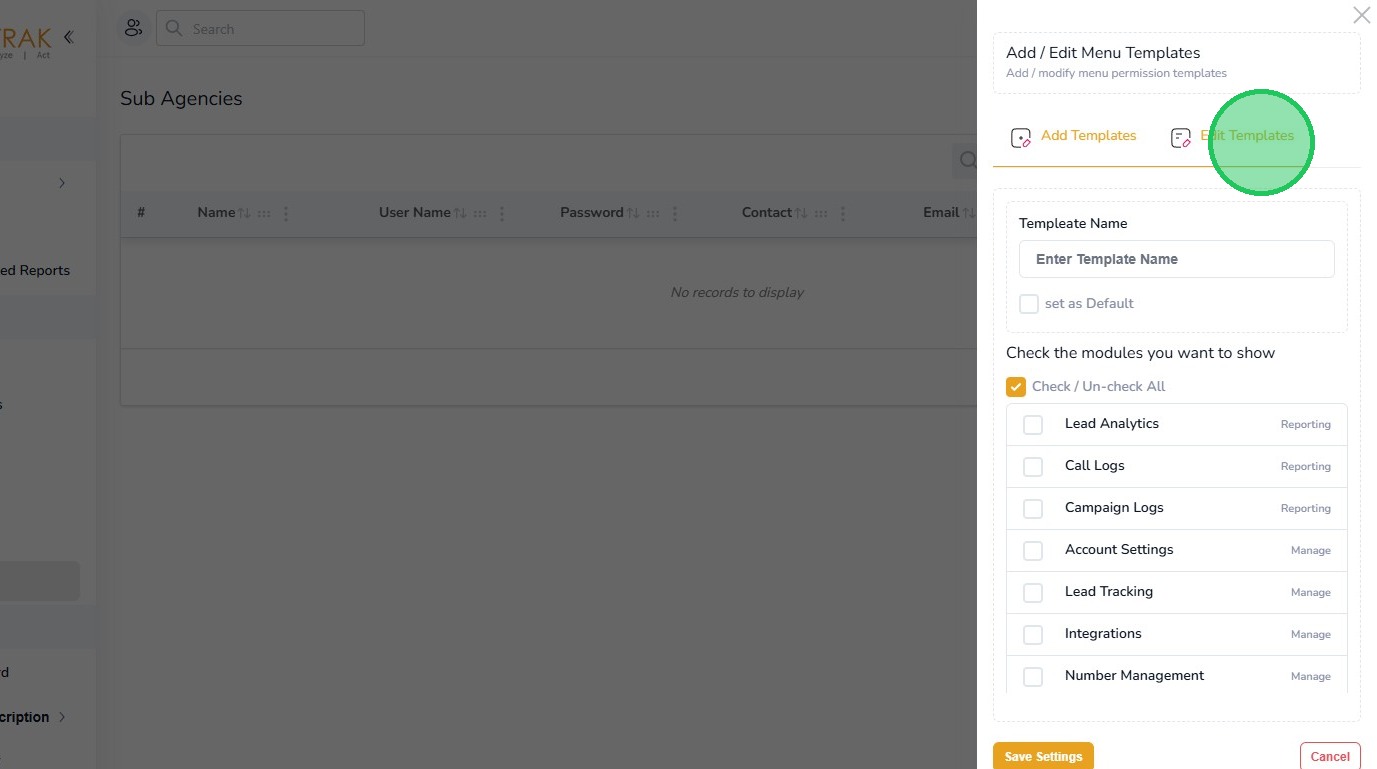
8. After you have saved a template, editing the template to modify its contents is easy. To edit an existing template click the “Edit Templates” link.
9. From the drop-down menu find the template that you wish to modify.
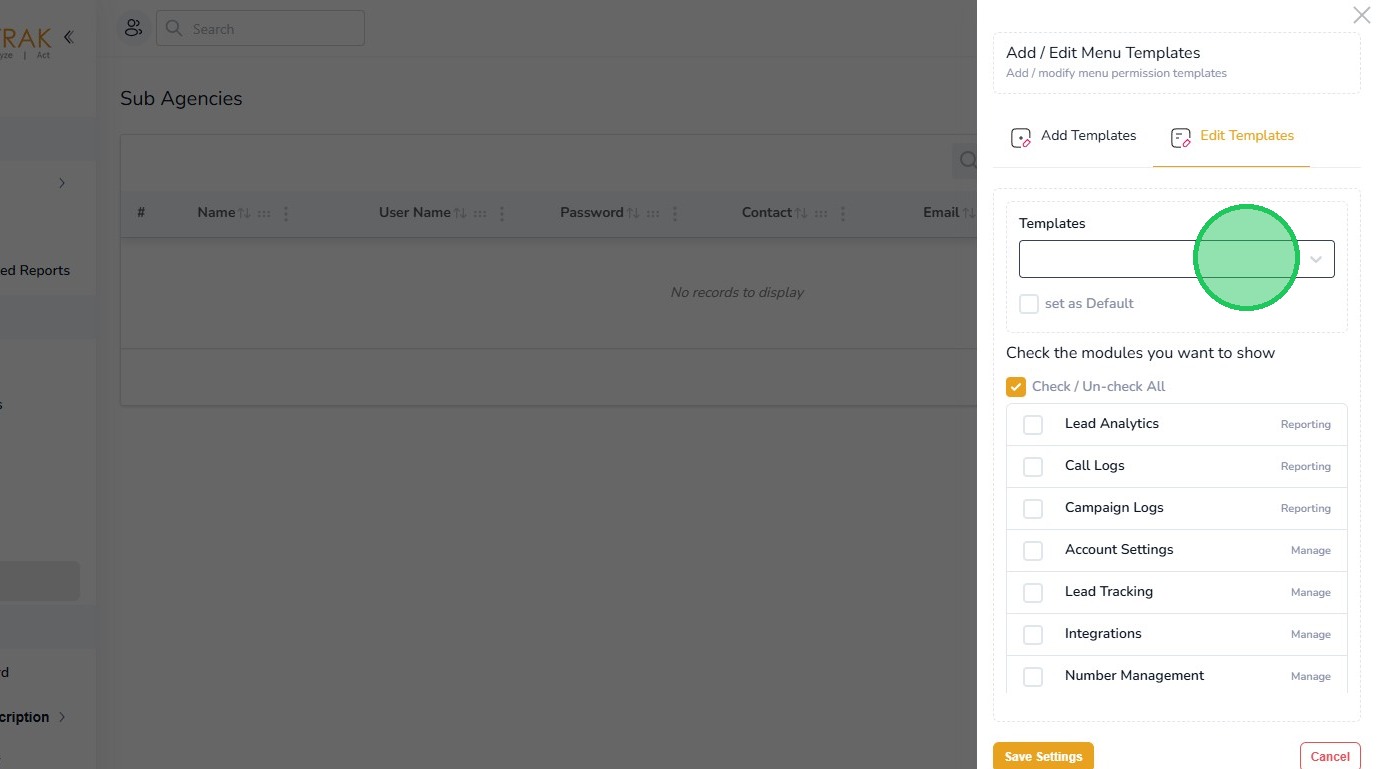
10. After finding the template select a template that you wish to change.
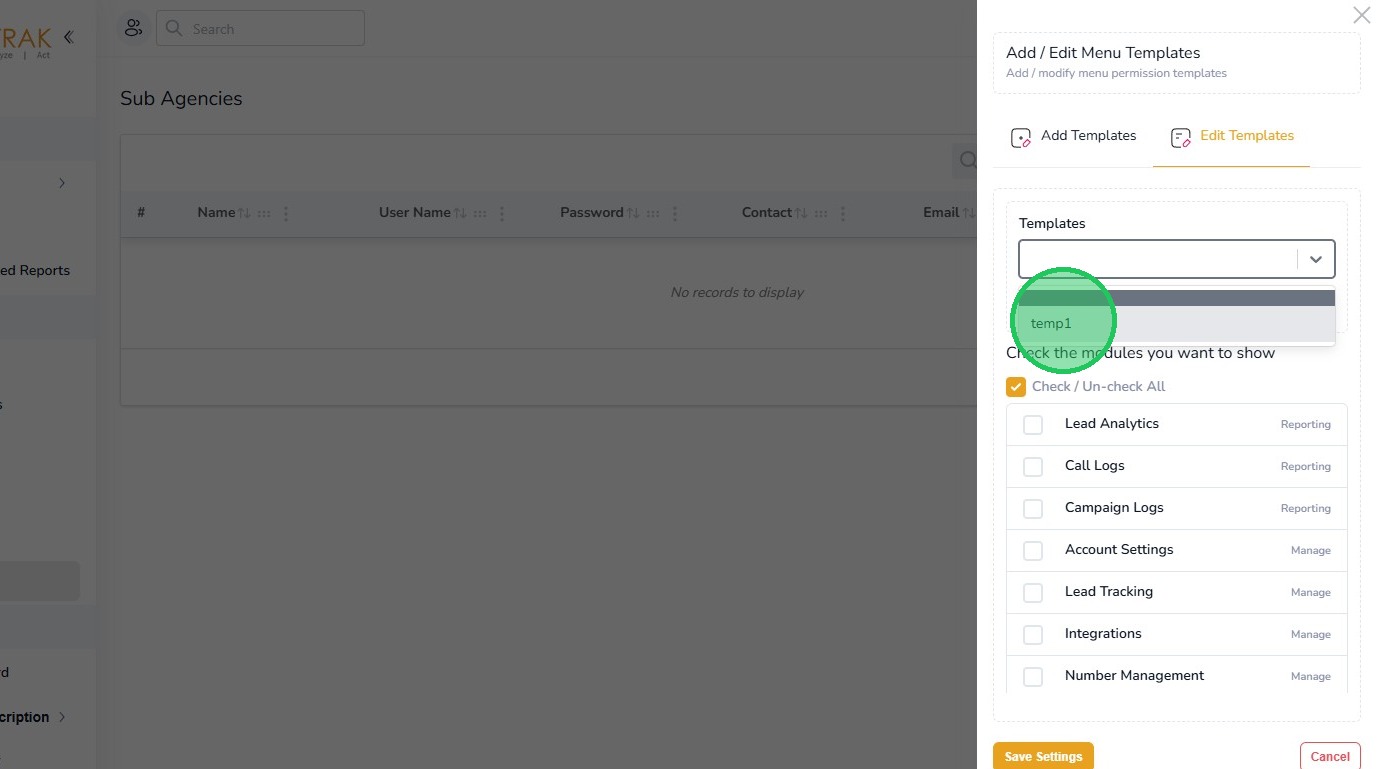
11. After the template is selected the screen will render the template’s current reports and tabs. Make the changes as needed.
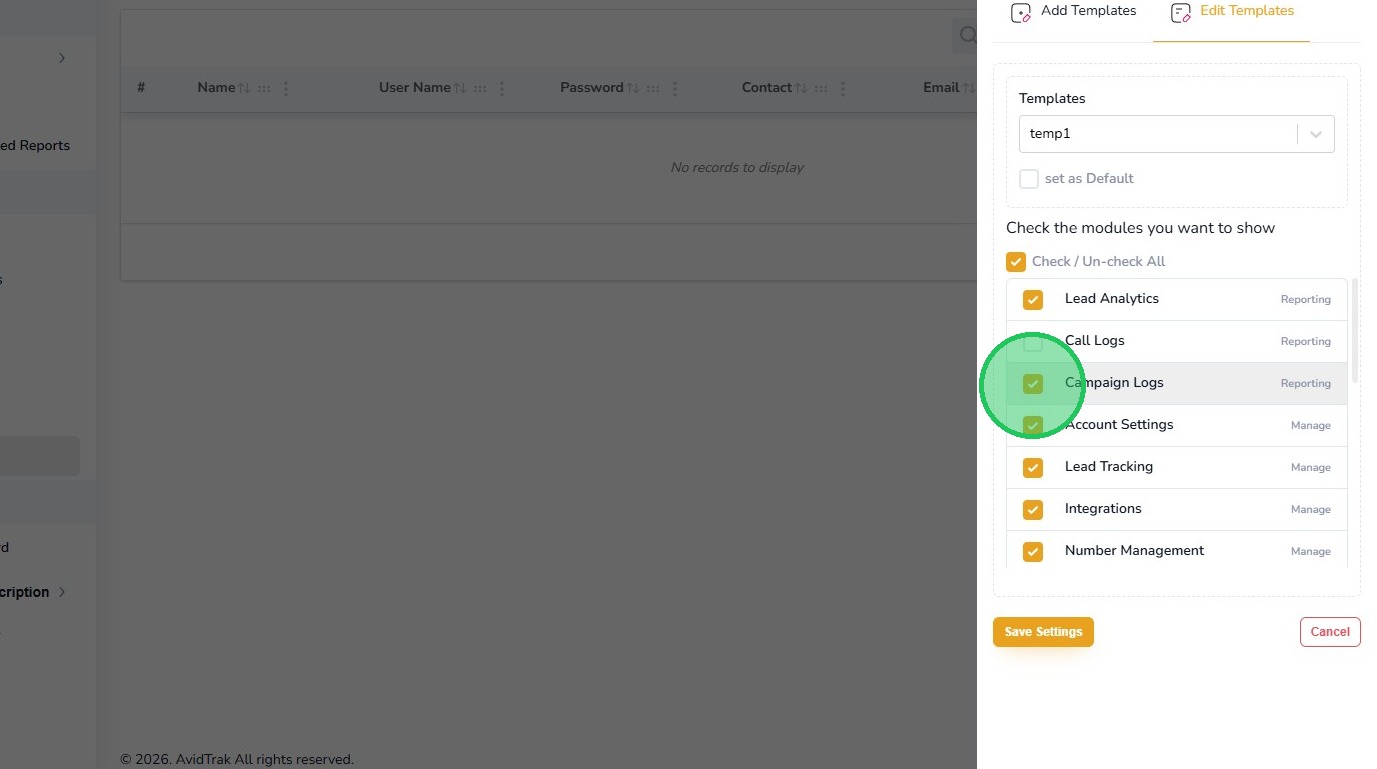
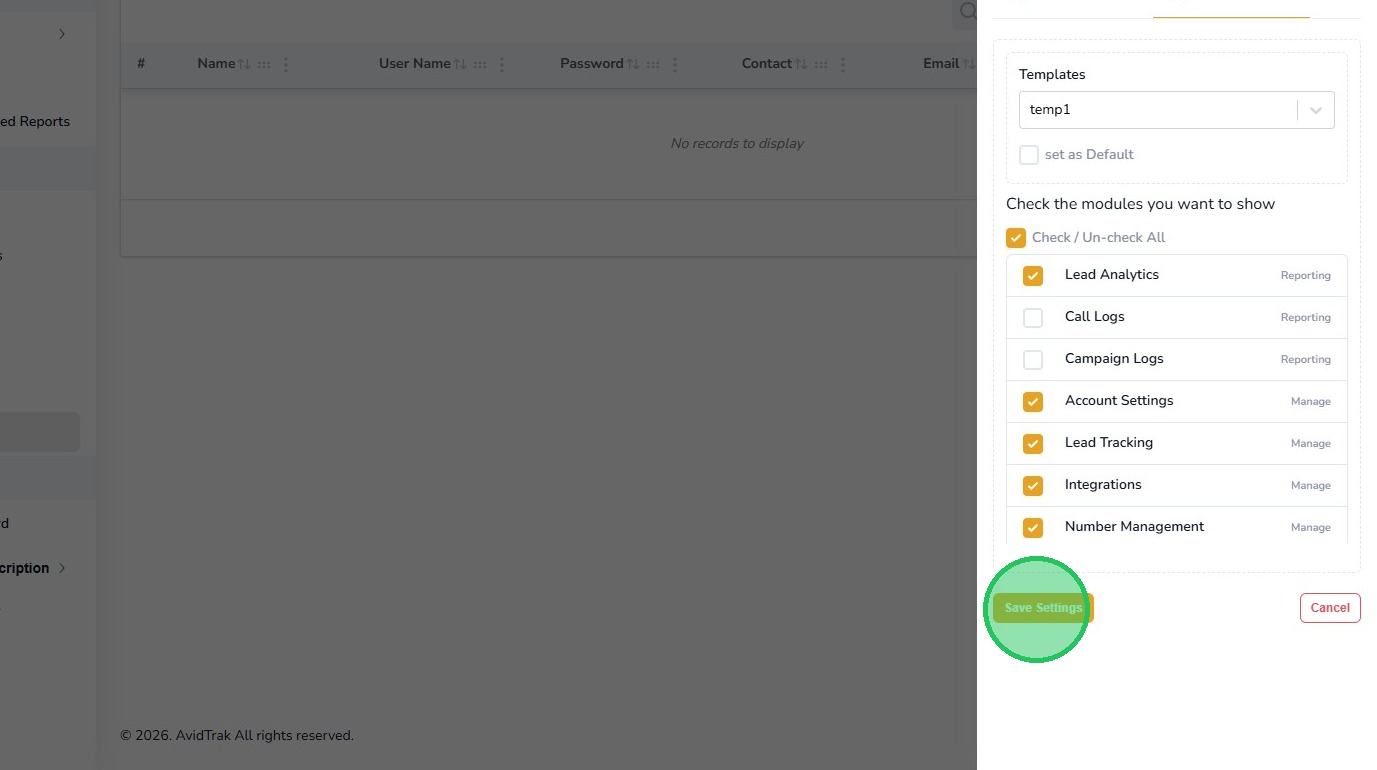
12. Click the “Save Settings” button to save your work.
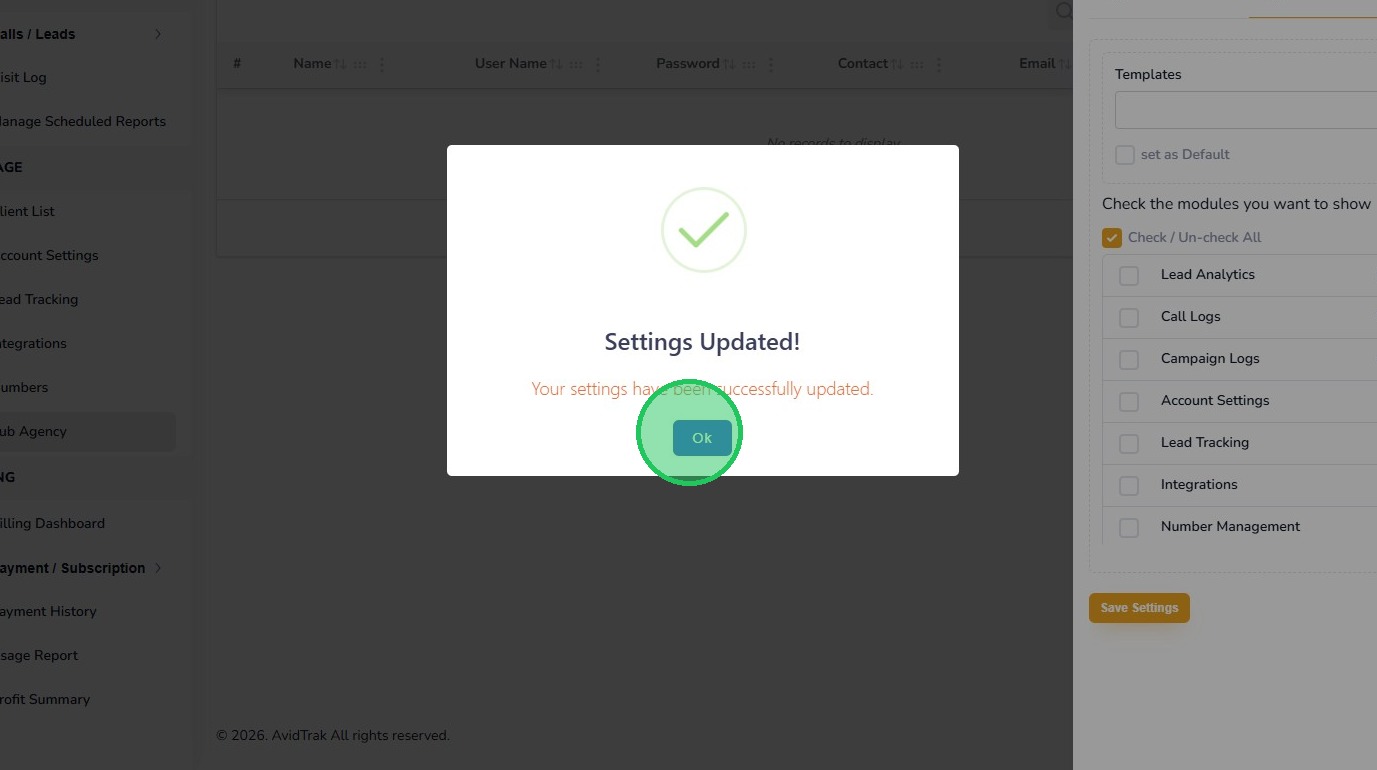
13. Click the “OK” button to save the settings
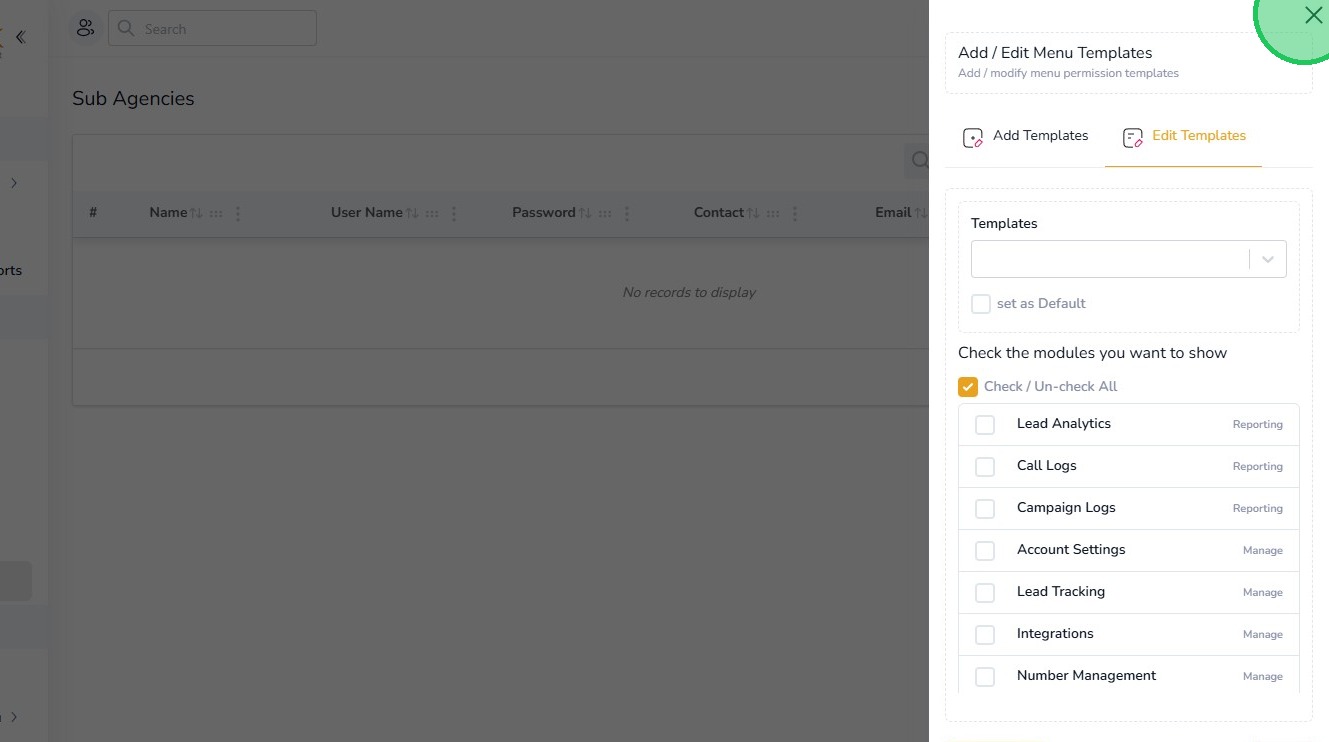
14. To navigate away from the pop-up screen, click the X icon on the upper right corner of the screen. Pro Tip: Be sure to test your work by logging into AvidTrak using your client’s User ID and password to see how the User Interface appears to your client. If you need to make any changes, logout and log back in as an Administrator and follow the Edit Menu template steps described earlier in this tutorial. Repeat the steps until you are fully satisfied with the outcome.
15. This completes the tutorial on how to Create and Edit Menu Templates for a Client. If you face any difficulty in implementing these instructions or have questions related to this feature, please do not hesitate to email support@avidtrak.com

