

2A – Configure Leena’s Greeting and Voice
This document provides a step-by-step guide to configuring Leena’s greeting and voice settings in the AvidTrak web app, including testing and saving changes.
1. Leena’s greeting and voice shape the caller’s first impression of your AI Voice Agent. In this tutorial, you will configure what Leena says when she answers, choose the voice that best represents your business, and use the built-in Test Call feature to hear the experience before publishing.
A well-chosen greeting should clearly identify the business and invite the caller to explain how Leena can help. Voice Selection lets you preview available voices and narrow the choices by characteristics such as gender, accent, and age.
2. Have the business name and preferred opening language ready. Consider the tone you want callers to hear – for example, warm and friendly, professional and clear, or confident and authoritative.
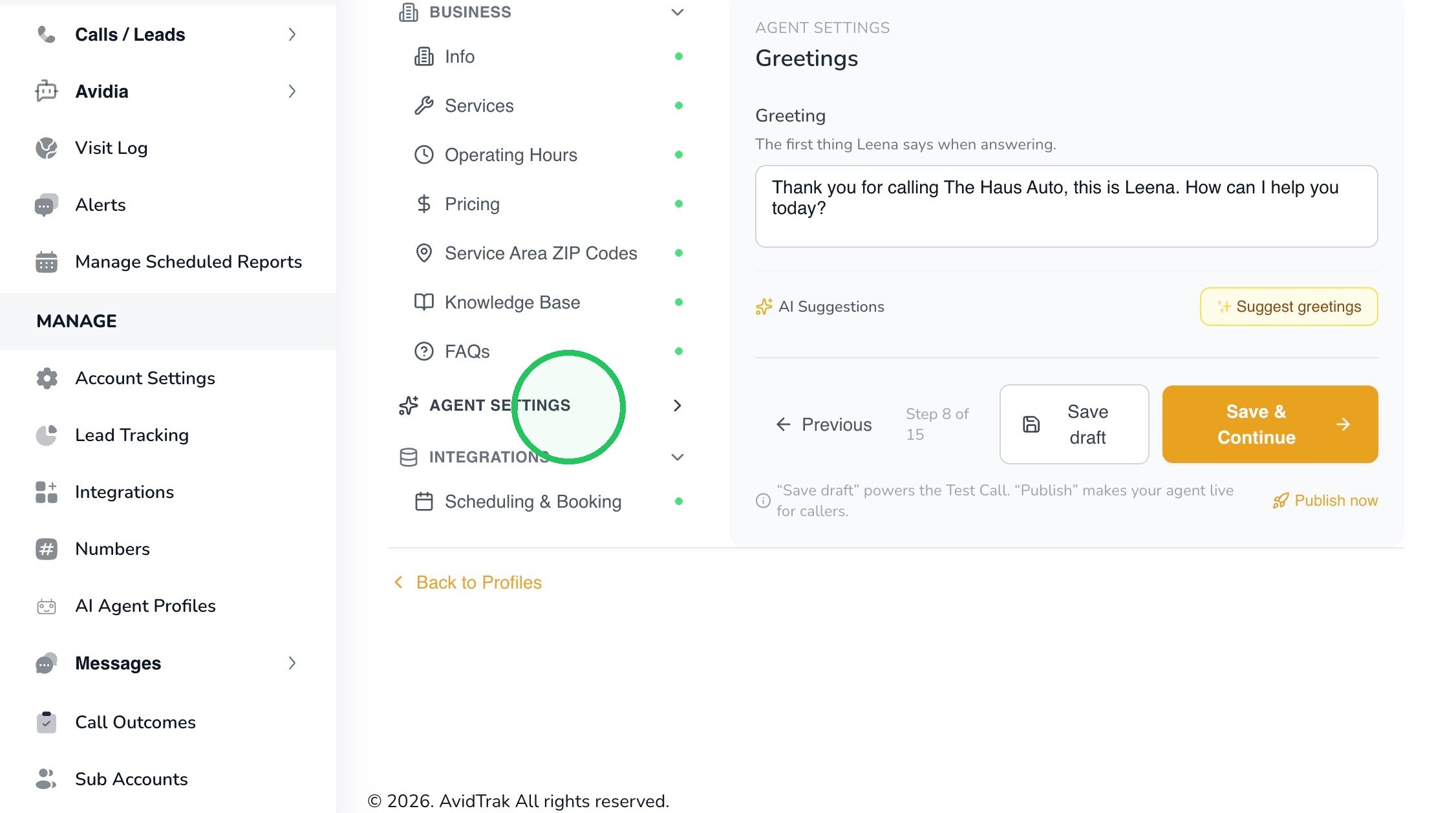
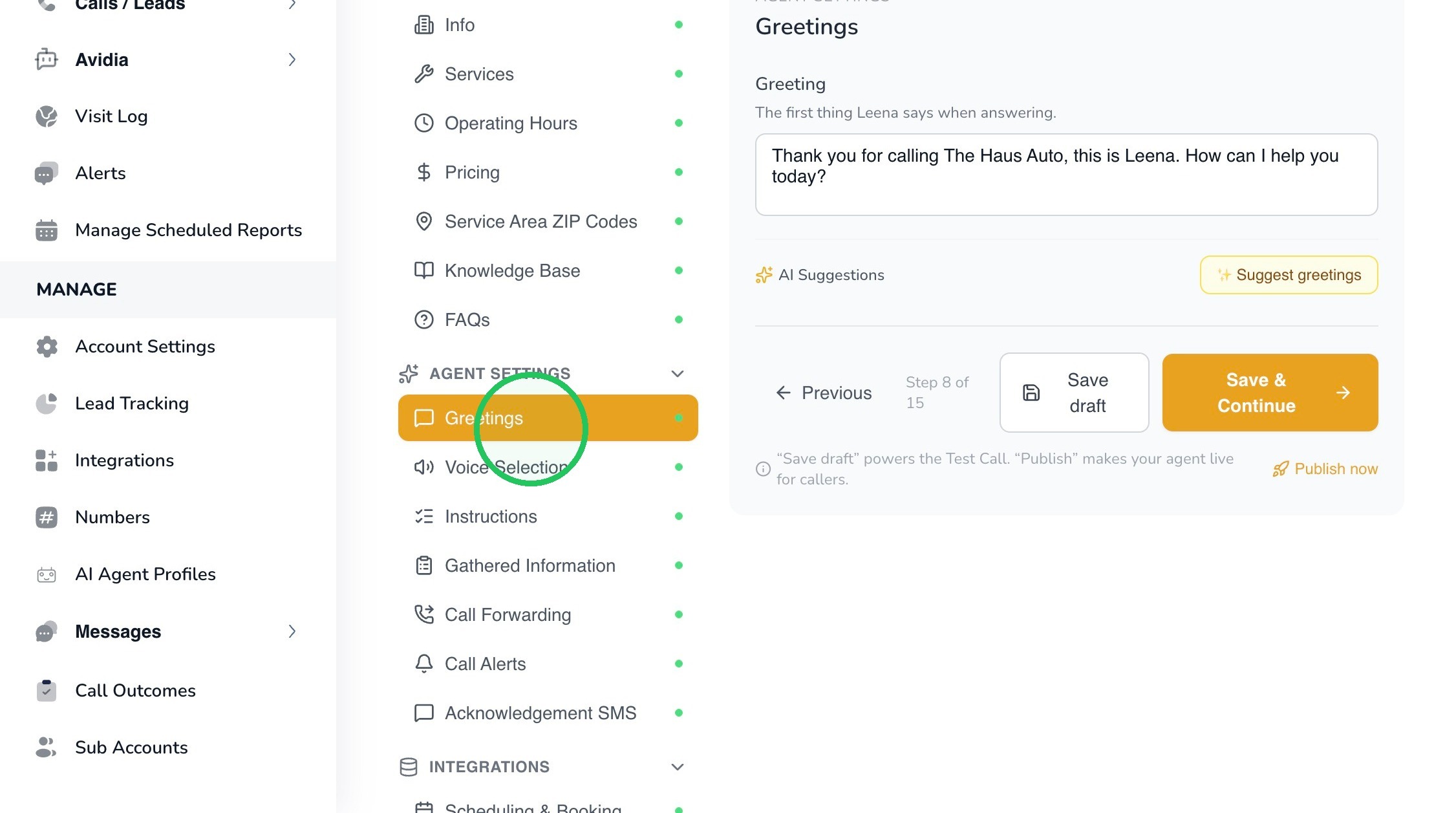
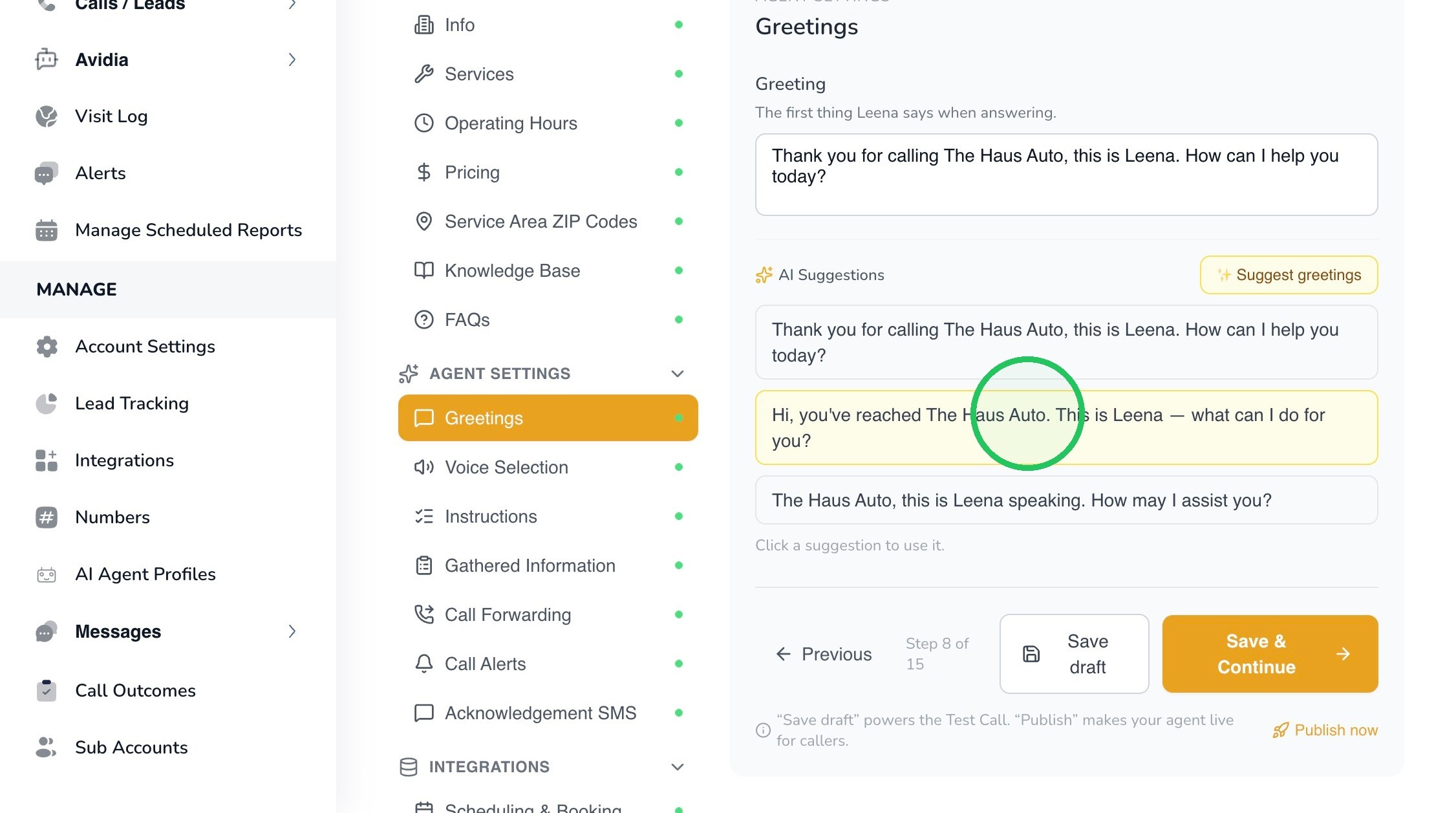
3. From the Leena profile, expand Agent Settings and select Greetings. The Greeting is the first thing Leena says when answering a call.
4.
5. You may enter your own greeting directly in the Greeting field, or select Suggest greetings to have AvidTrak generate alternative opening messages based on the business information in the profile.
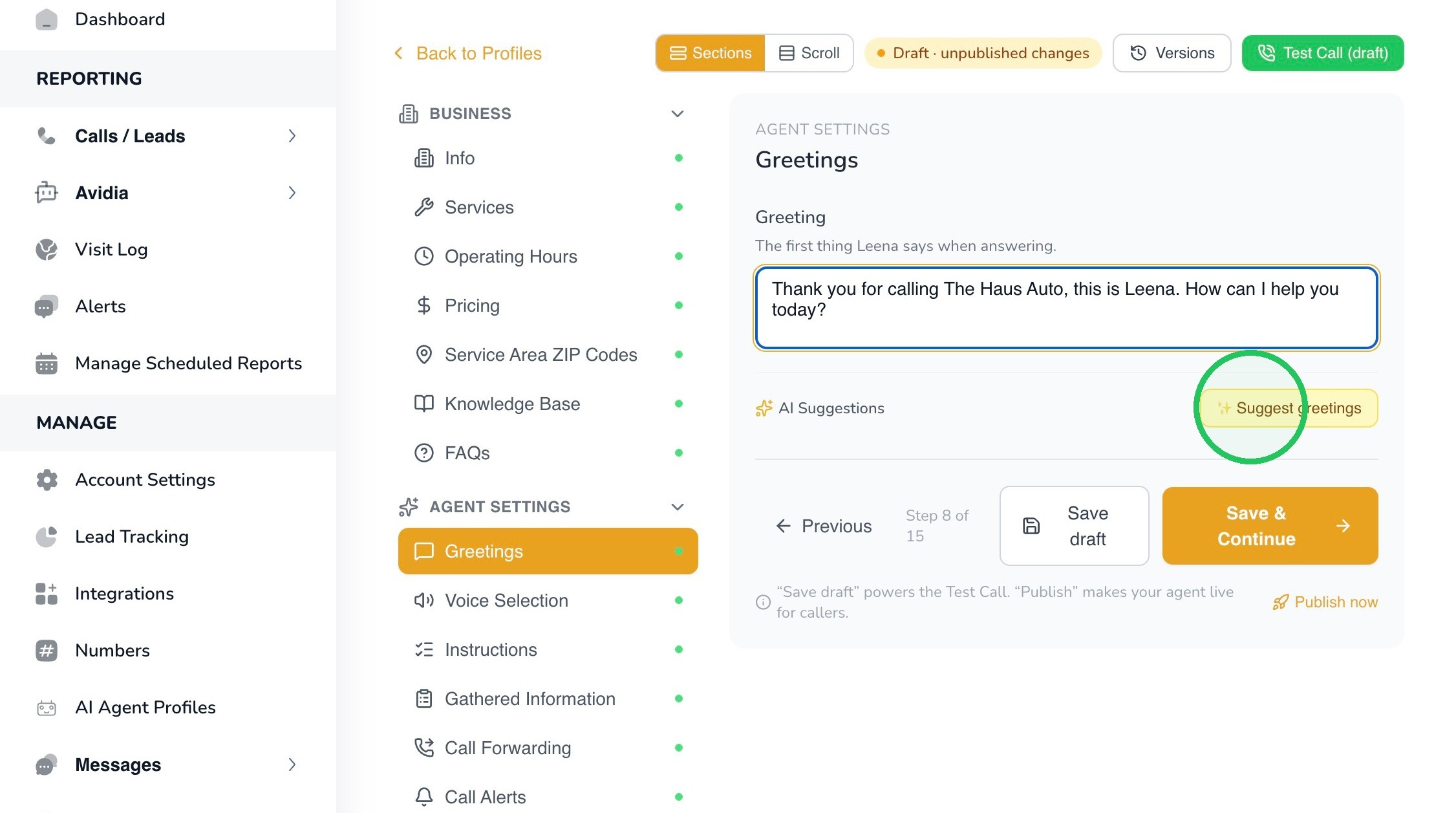
6. In this example, the suggested greeting is, Hi, you’ve reached The Haus Auto. This is Leena – what can I do for you?
Best Practice: Keep the greeting short, natural, and easy to understand. Identify the business, introduce Leena if desired, and invite the caller to explain the reason for the call. Avoid long promotional language before the caller has a chance to speak.
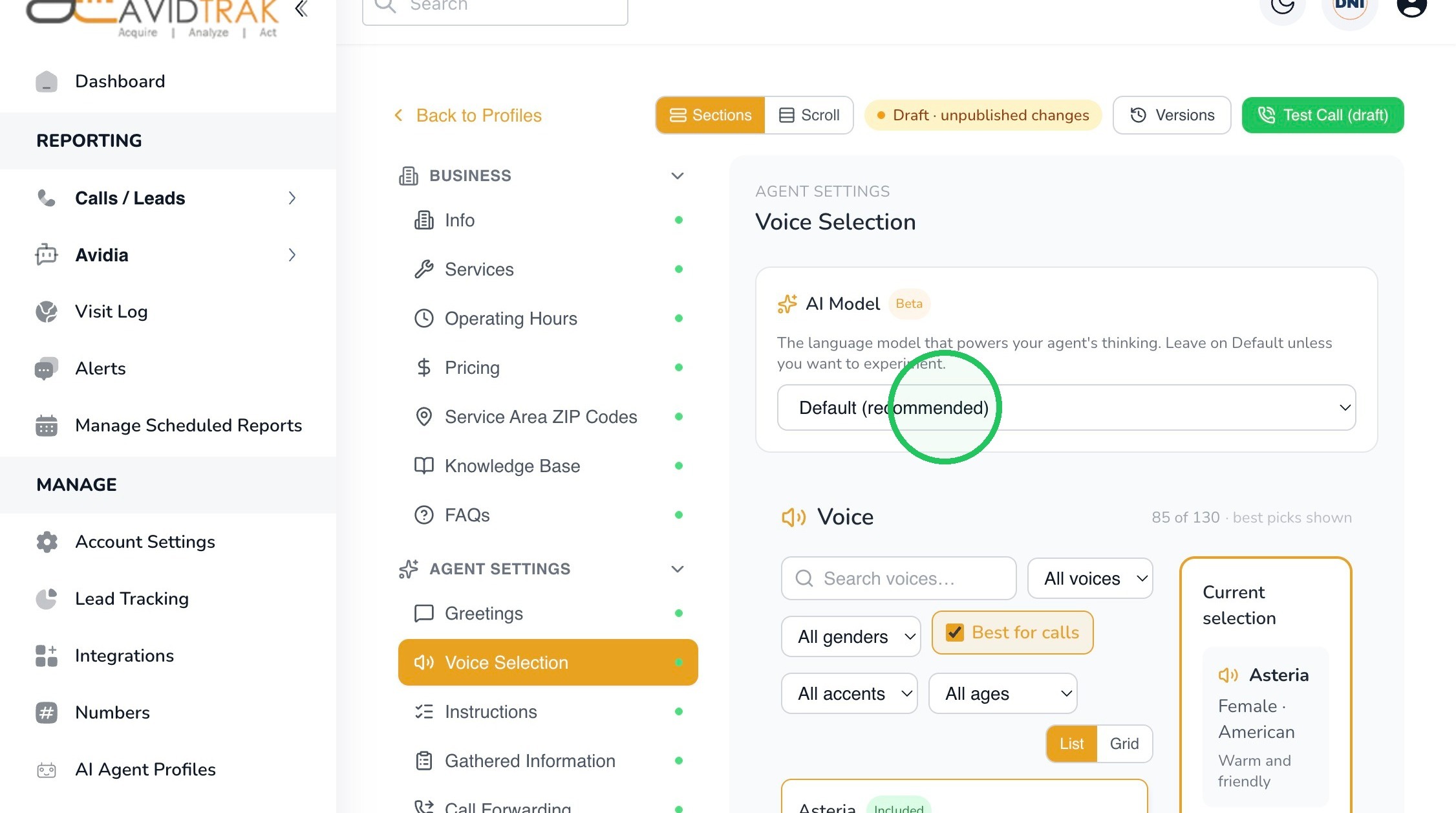
7. Select Voice Selection from Agent Settings. The voice you choose determines how Leena sounds throughout the conversation.
Leave the AI Model set to Default which is recommended unless AvidTrak Support has instructed you to use another option.
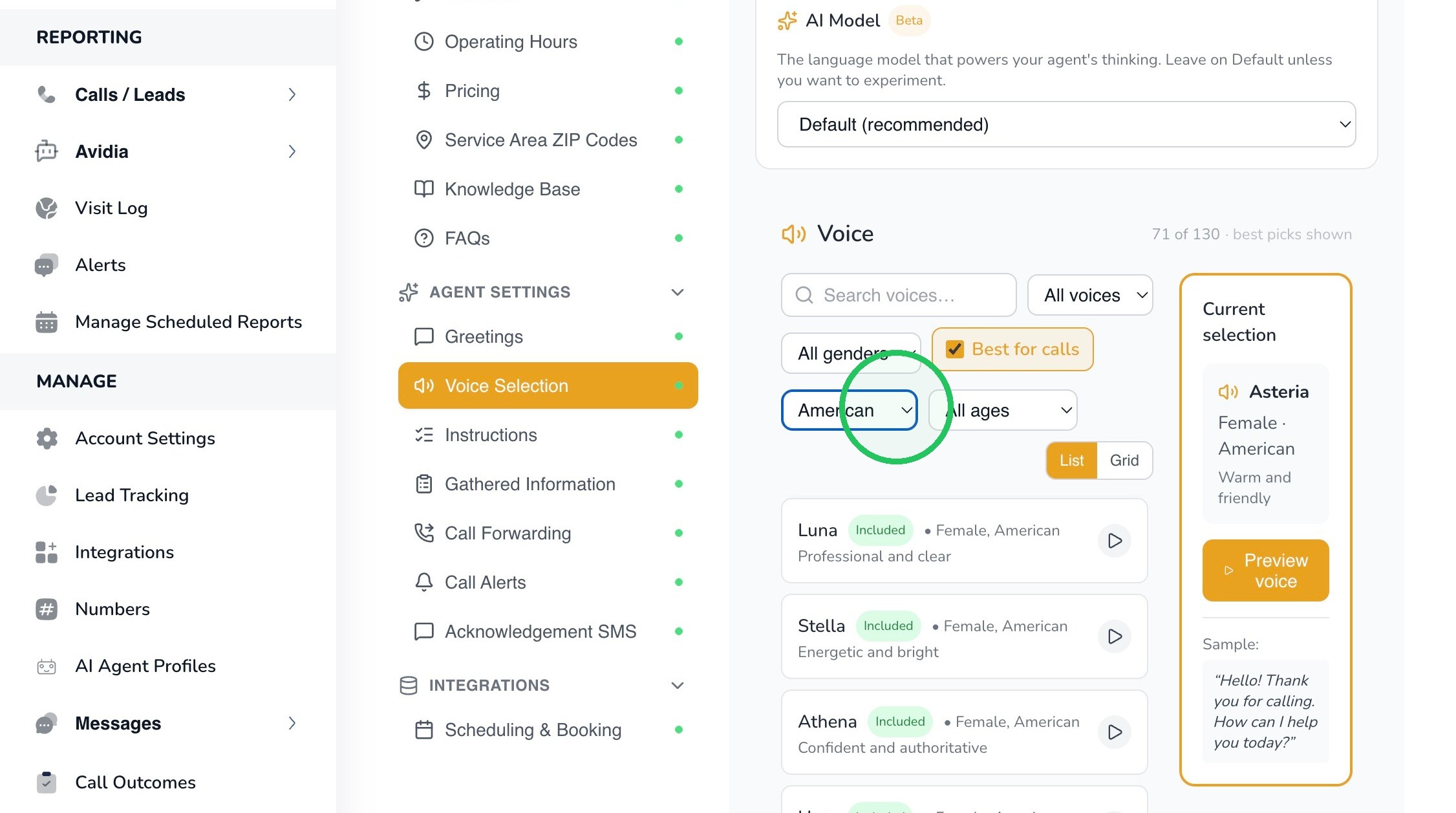
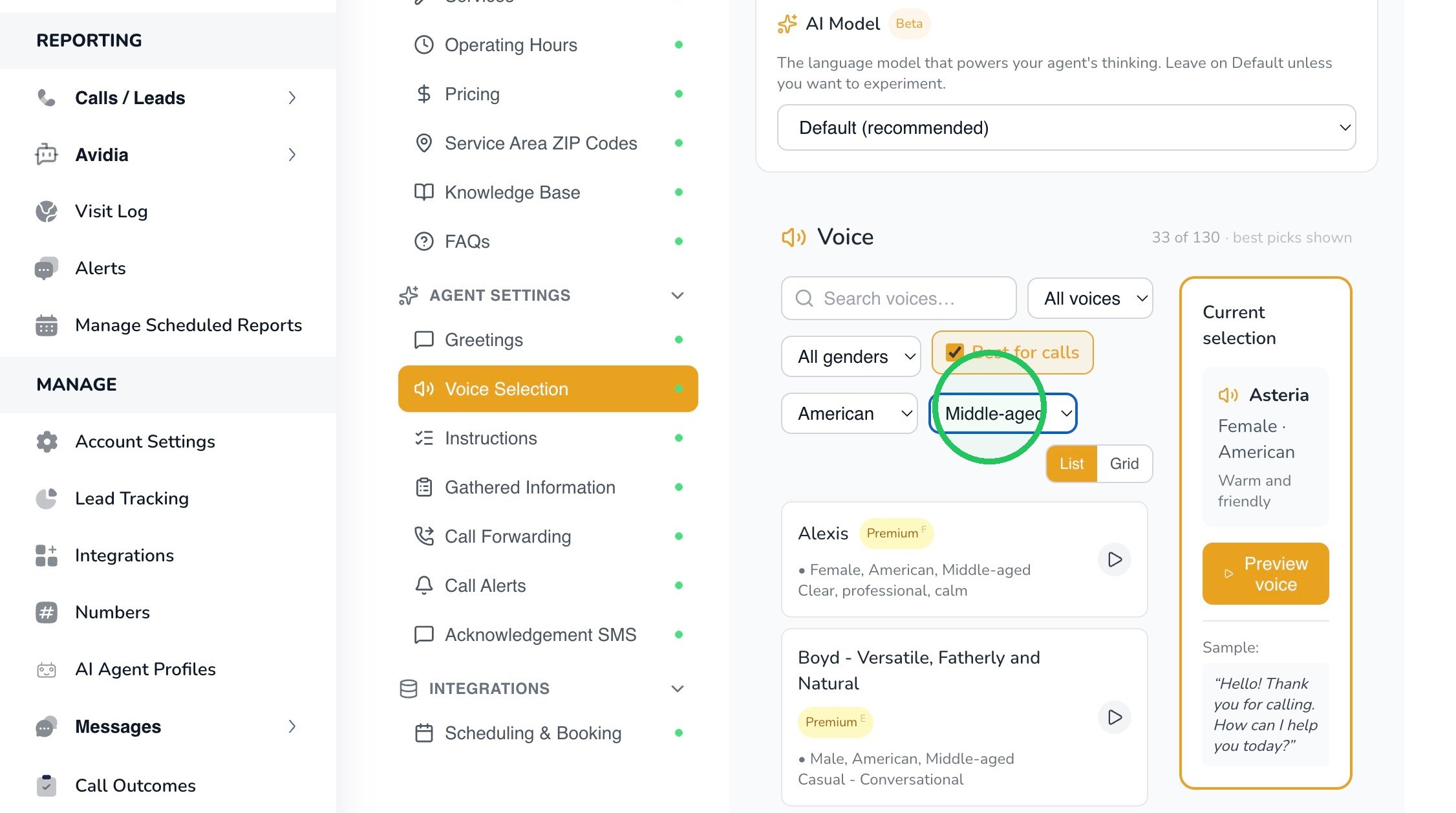
8. Use the available filters to narrow the voice library. Depending on the available voices, you can filter by gender, accent, age, or other displayed characteristics.
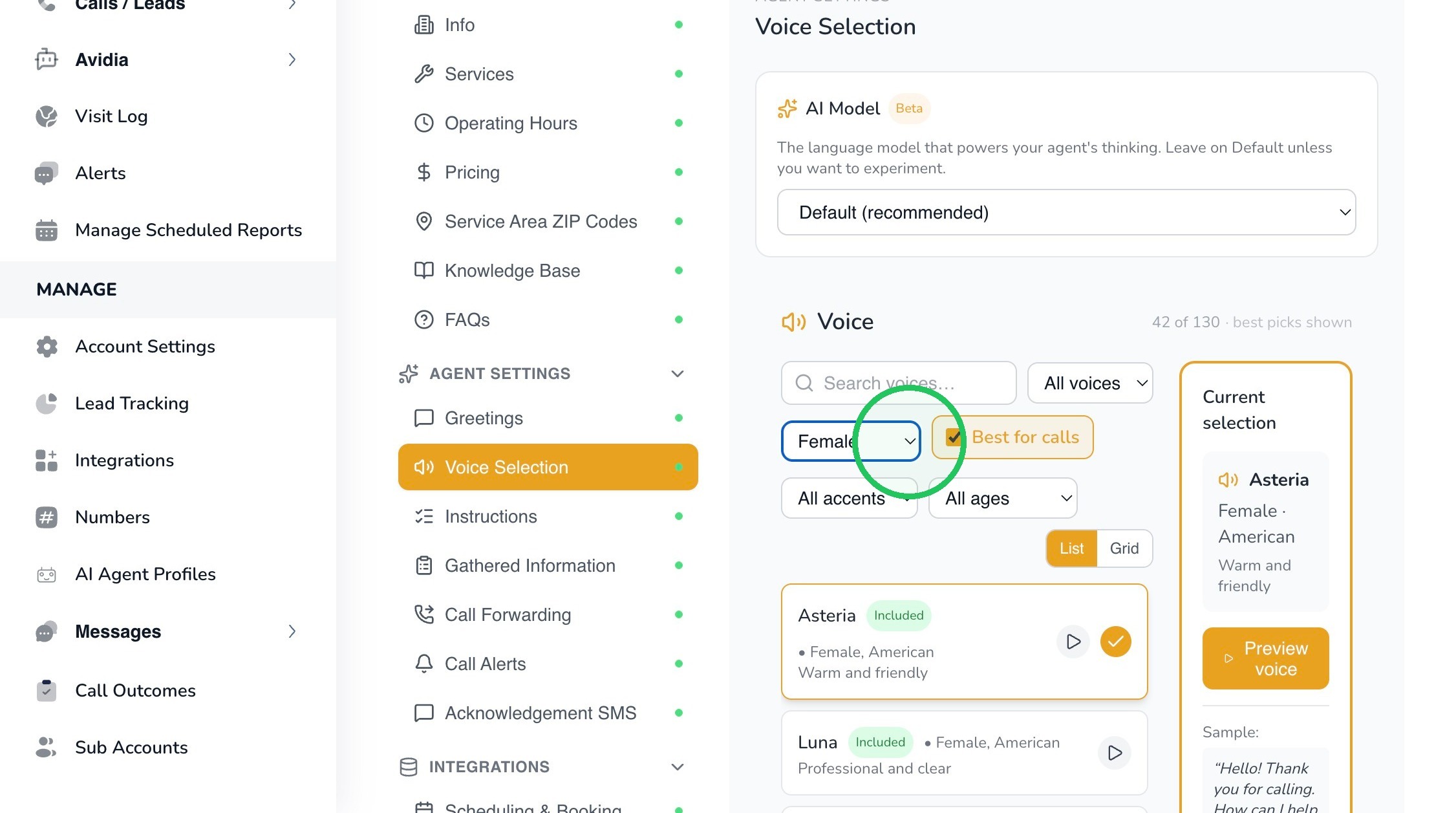
9. Tip: The filters are discovery tools, not requirements. Clear a filter or select All genders, All accents, or All ages whenever you want to broaden the available choices.
10.
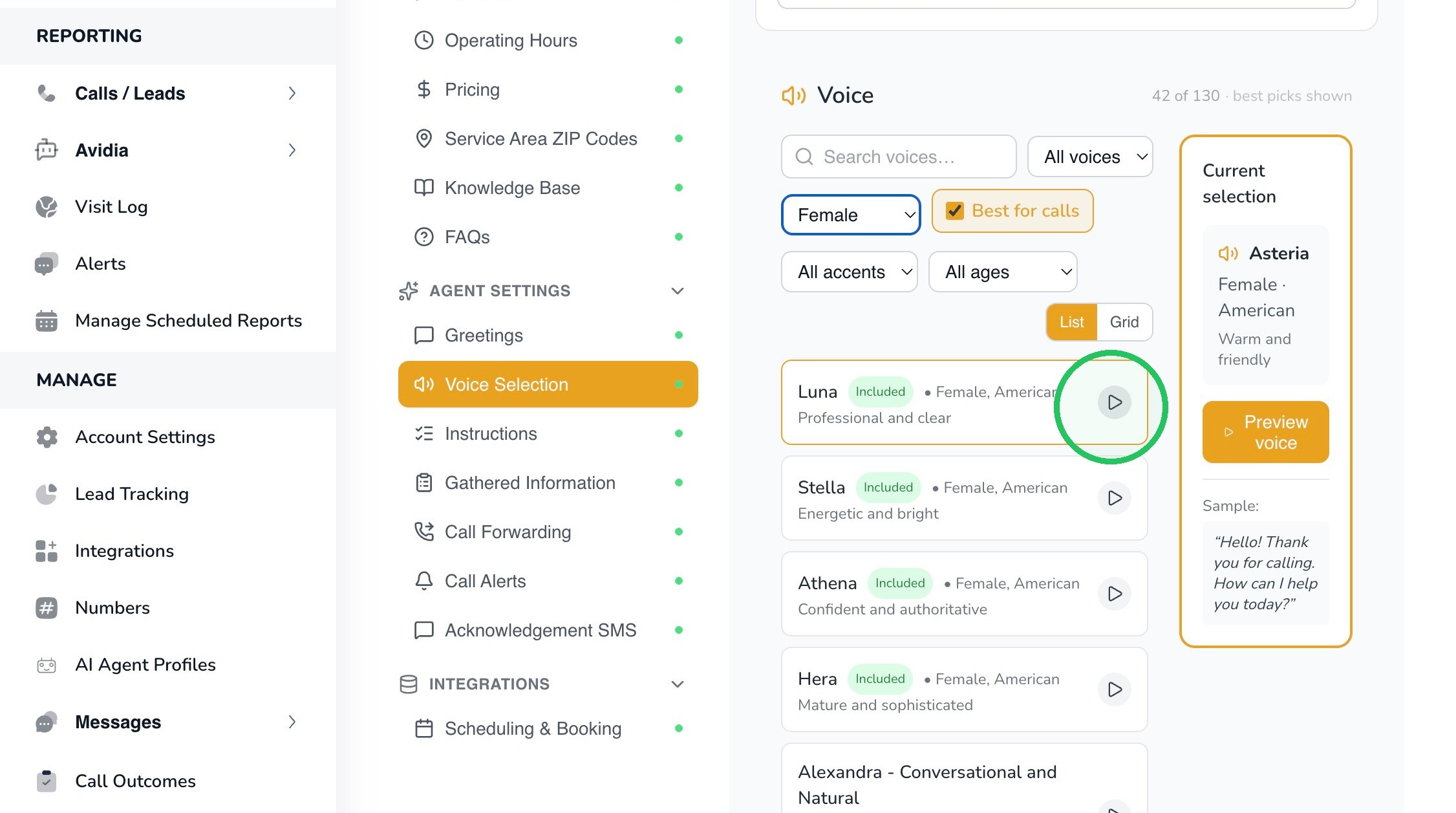
11. Use the play or Preview control next to a voice to listen before selecting it. The Current selection panel identifies the active voice and displays its characteristics.
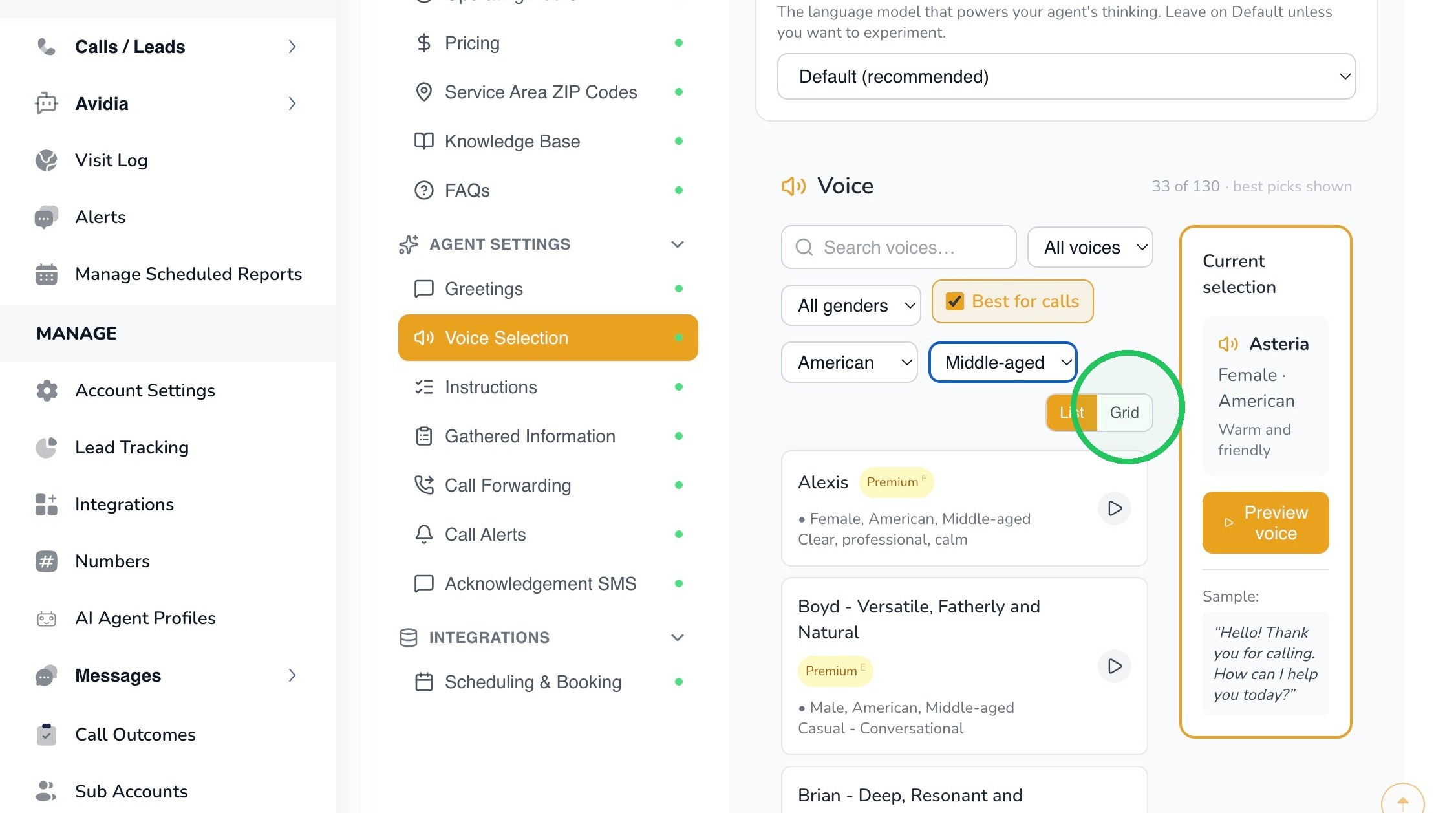
12. You may switch between List and Grid views if one layout makes it easier to compare voices.
13. Best Practice: Choose a voice that is easy to understand and consistent with the experience you want your callers to have. The most effective choice is usually the one that sounds natural for your customer base rather than simply the most distinctive voice.
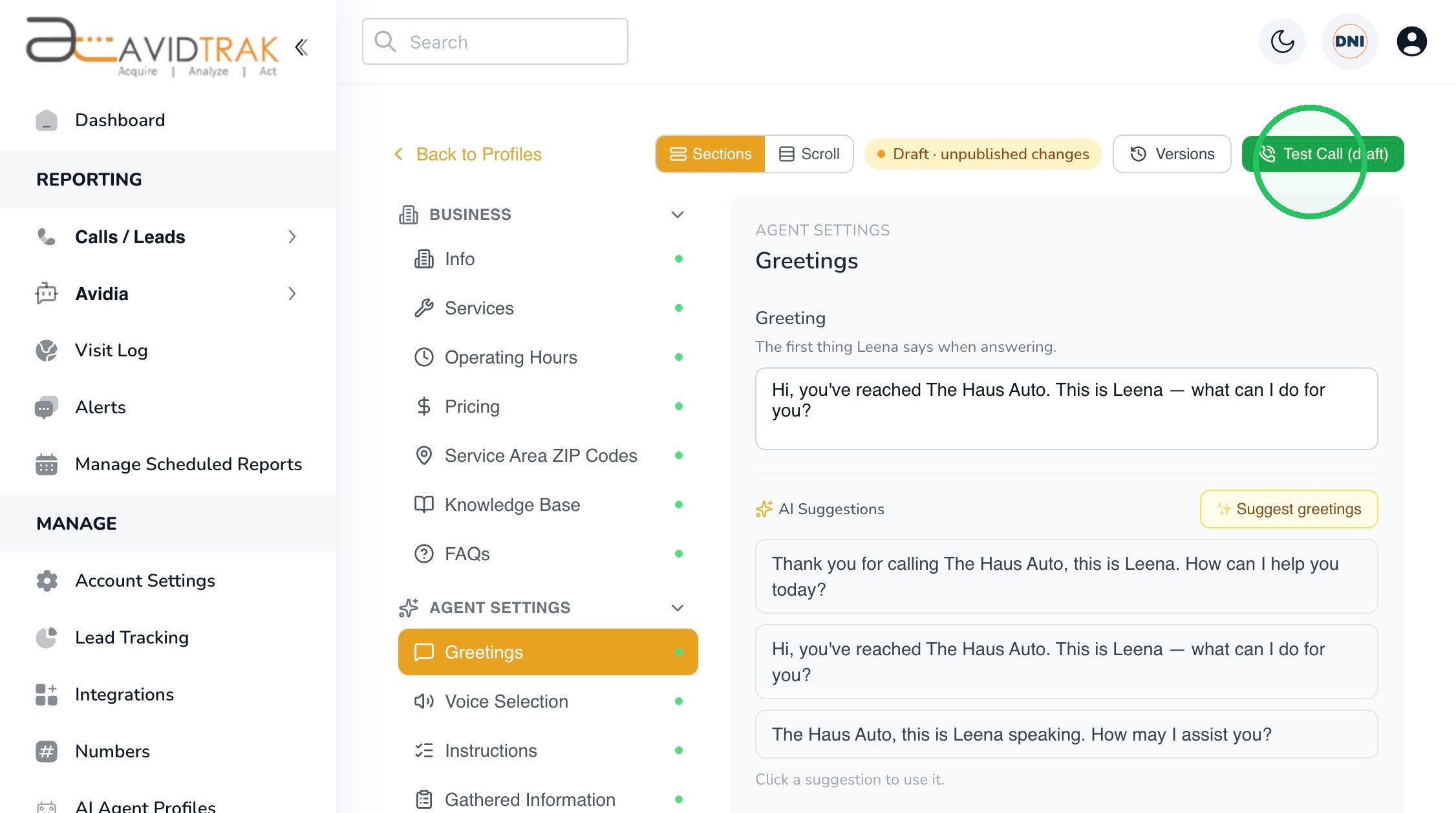
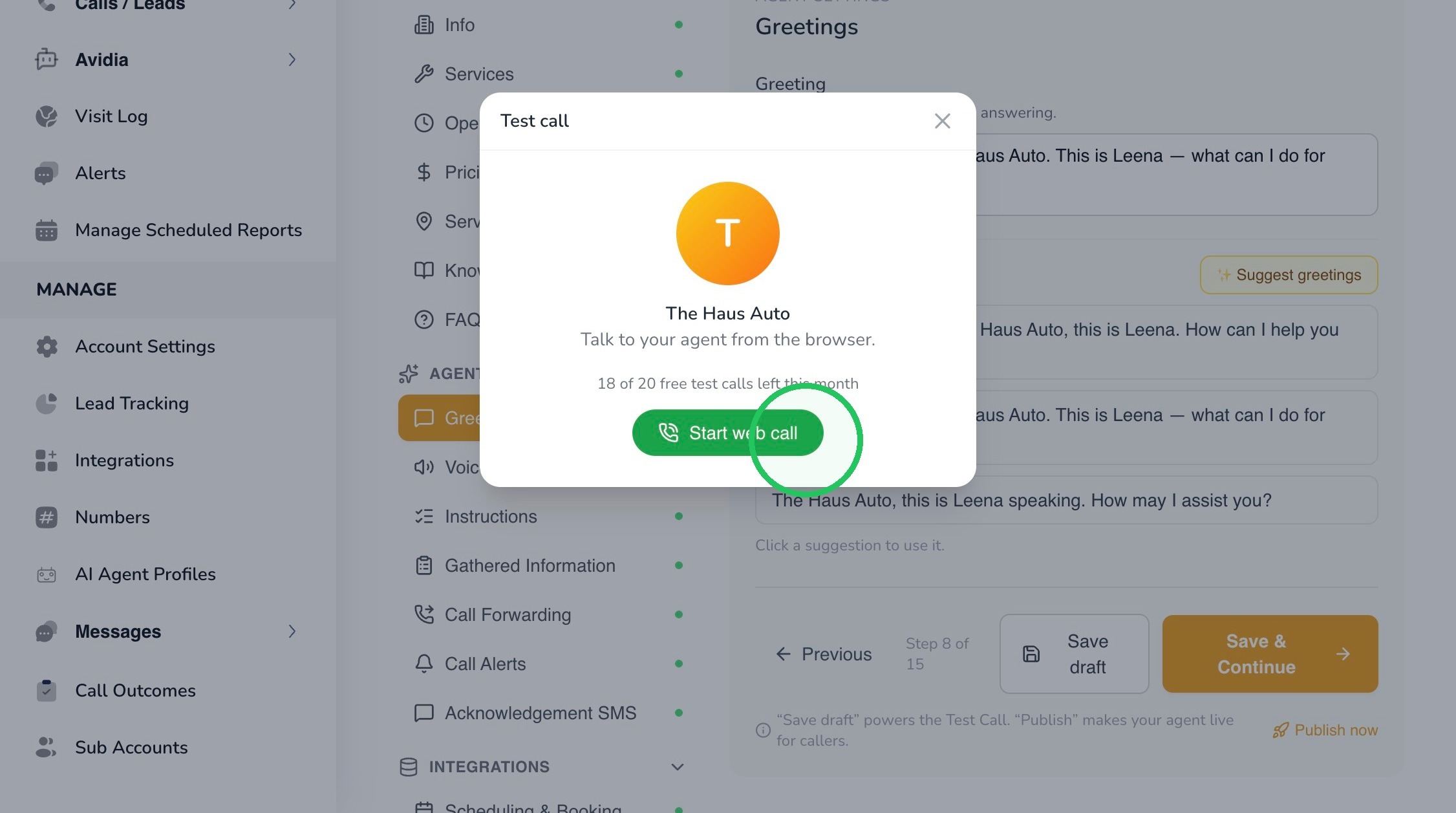
14. Use Test Call (draft) to hear how the saved draft behaves before publishing. Testing is especially useful after changing the greeting or voice.
15. Select Start web call to begin the browser-based test call. Speak to Leena as a real caller would and listen for clarity, pacing, pronunciation, and whether the greeting feels natural.
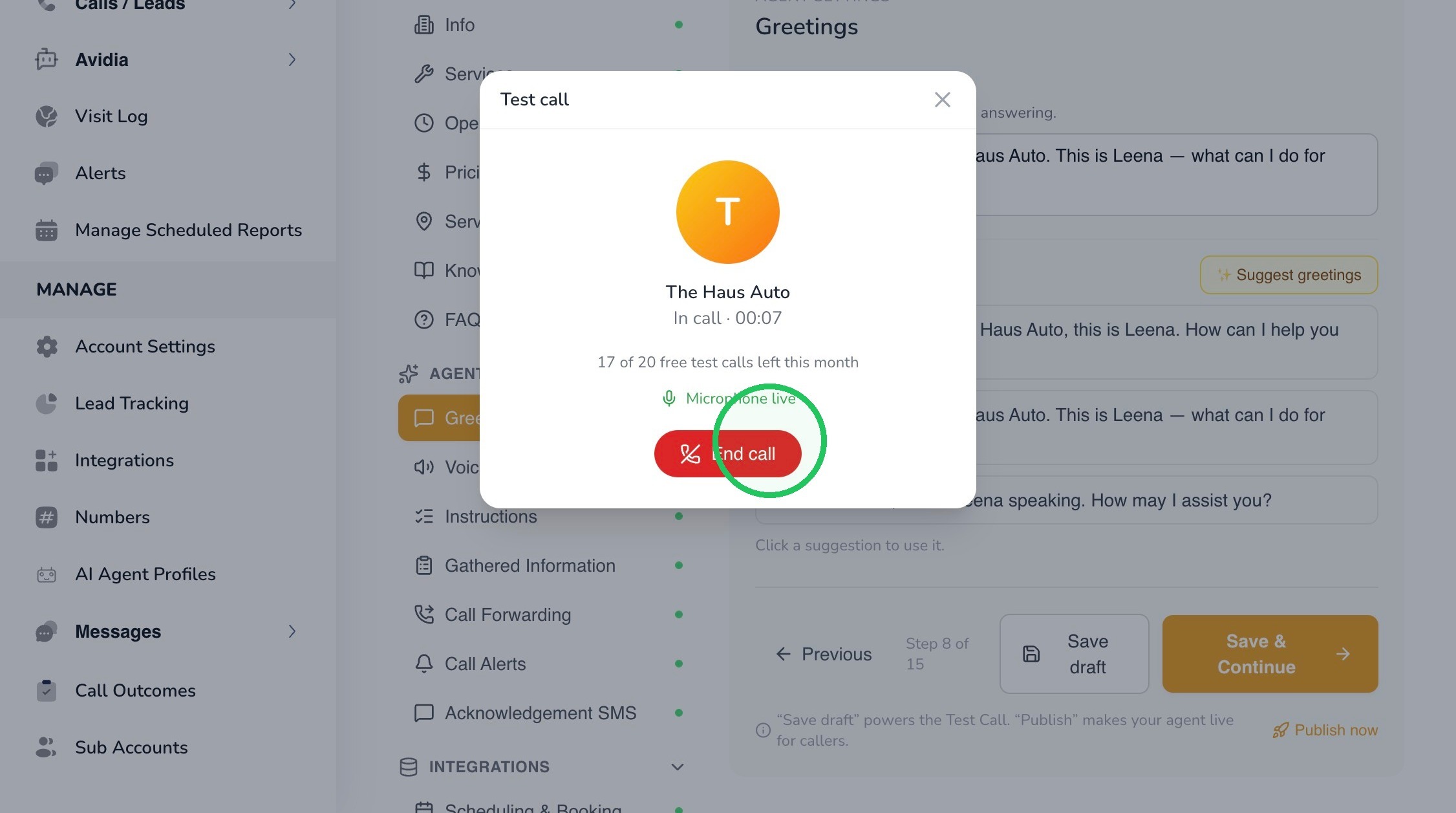
16. When you are finished, select End call. You can review the test experience, make adjustments, and test again as needed.
Recommended Test: Say the business name, ask a normal customer question, interrupt naturally, and listen for any names or terms that Leena pronounces unexpectedly. Adjust the greeting or other settings if necessary and test again.
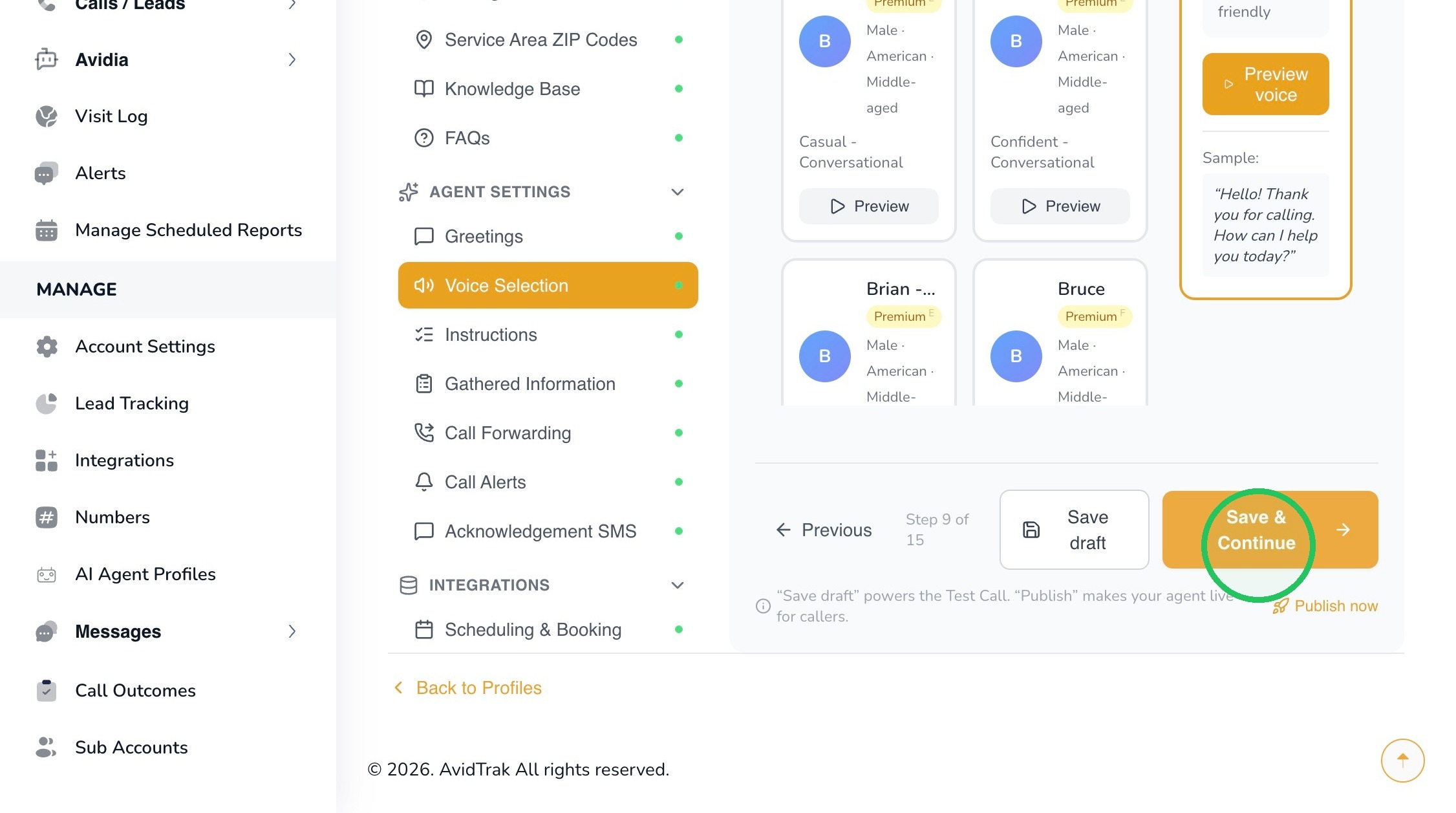
17. When you are satisfied with the greeting and voice, click Save & Continue. AvidTrak will confirm that your changes have been saved as a draft.
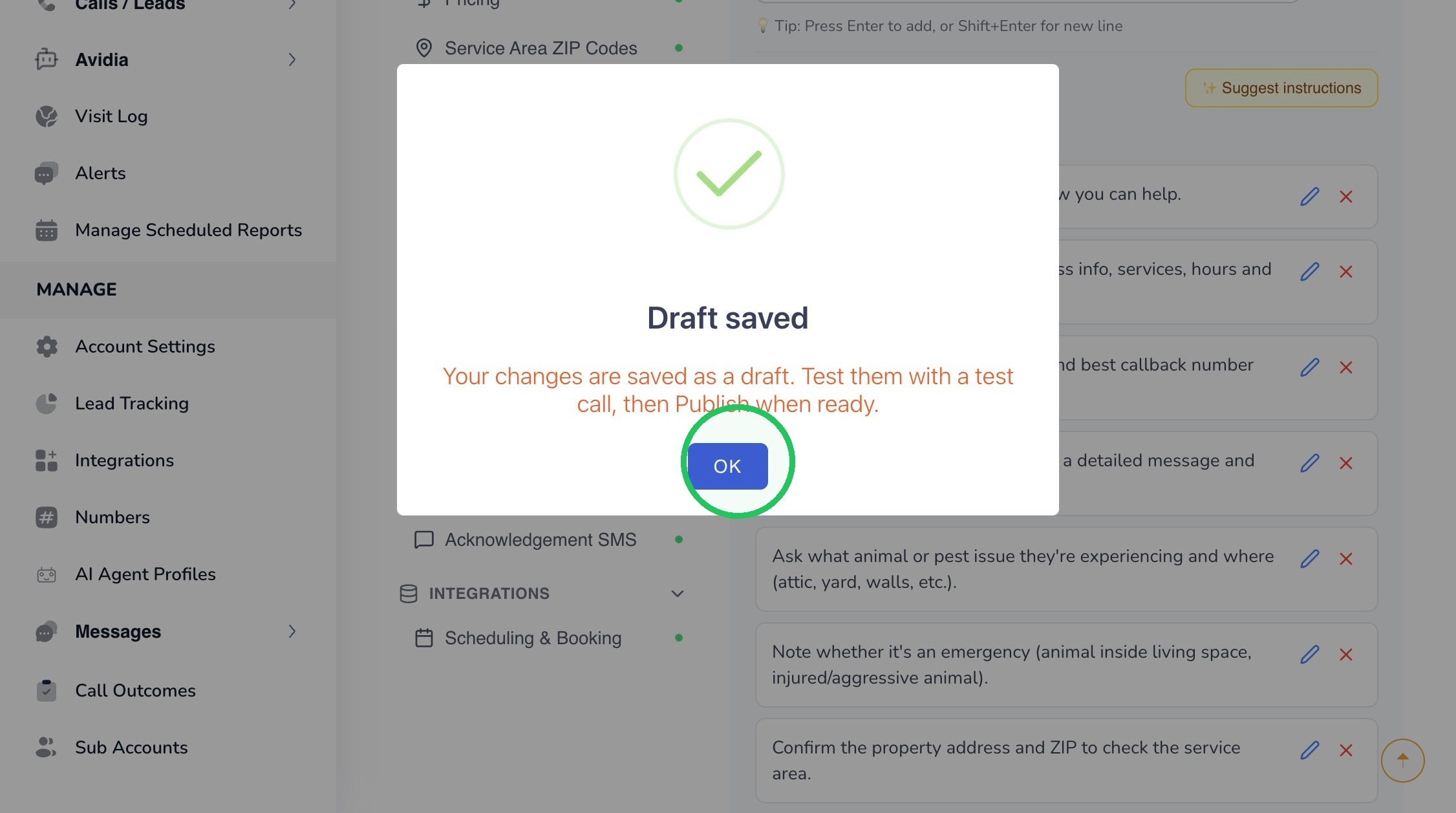
18. Click OK to close the confirmation message. Keep the profile in Draft status until you have completed the remaining configuration and tested the full call experience.
19. This completes the tutorial for configuring Leena’s Greeting and Voice.
If you have any difficulty implementing these instructions or have questions about your configuration, please do not hesitate to contact AvidTrak Support at support@avidtrak.com.

