

How to Set Up Basic After Hours Call Forwarding in AvidTrak
1. This guide provides step-by-step instructions on setting up basic after-hours call forwarding in AvidTrak, including creating and applying a routing template.
Confirm your account time zone. Routing follows the time zone configured in your AvidTrak account. If you have not selected one, AvidTrak defaults to Pacific Time. Confirm that it is correct before setting any routing times.

2. Review your business hours. If business hours are configured, they take priority over conflicting after-hours rules. If business hours are not configured, you can define after-hours rules for any day and time.
3. Enable routing for the number. After-hours and holiday forwarding are OFF by default. Defining business hours alone does not enable after-hours routing. For example, with business hours of Monday–Friday, 8:00 AM–5:00 PM, a Tuesday call at 7:00 PM still follows the normal business-hours destination until after-hours routing is enabled and configured.
4. Start with one receiving number. You do not need a Sequential, Simultaneous, IVR, or Leena configuration for this tutorial. To use those options later, first create the relevant template or Leena profile in its separate AvidTrak module, then select it as the routing destination in your after-hours or holiday template.
5. Have your after-hours receiving number and intended schedule ready. The names, phone numbers, and times in the screenshots are examples; use the values appropriate for your business. Holiday routing is configured separately.
6. Sign in to AvidTrak and select Numbers from the left menu, or go to https://passport.avidtrak.com/numbers. Locate the tracking number you want to configure.
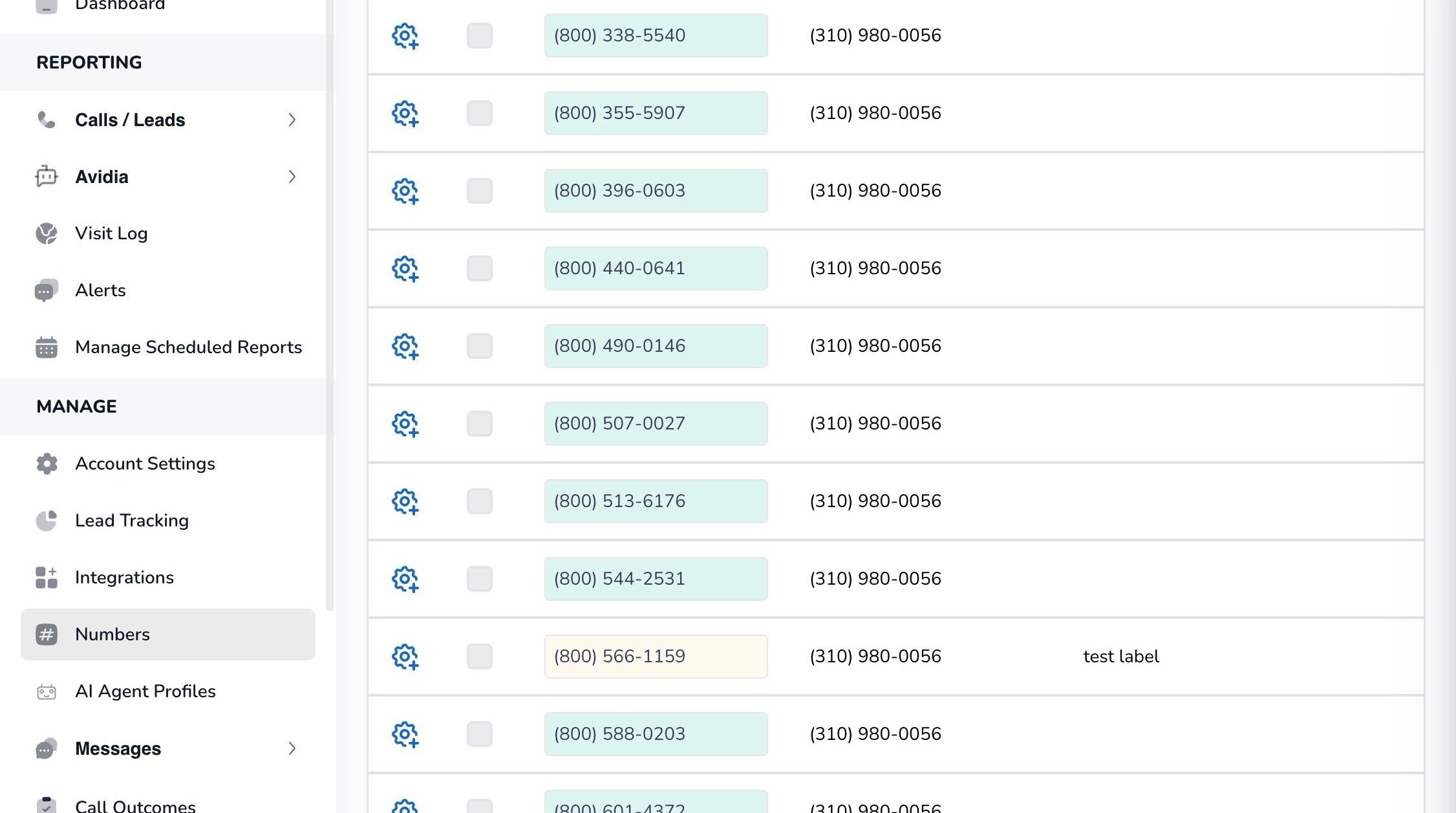
7. Click the gear icon beside your chosen tracking number to open its settings.
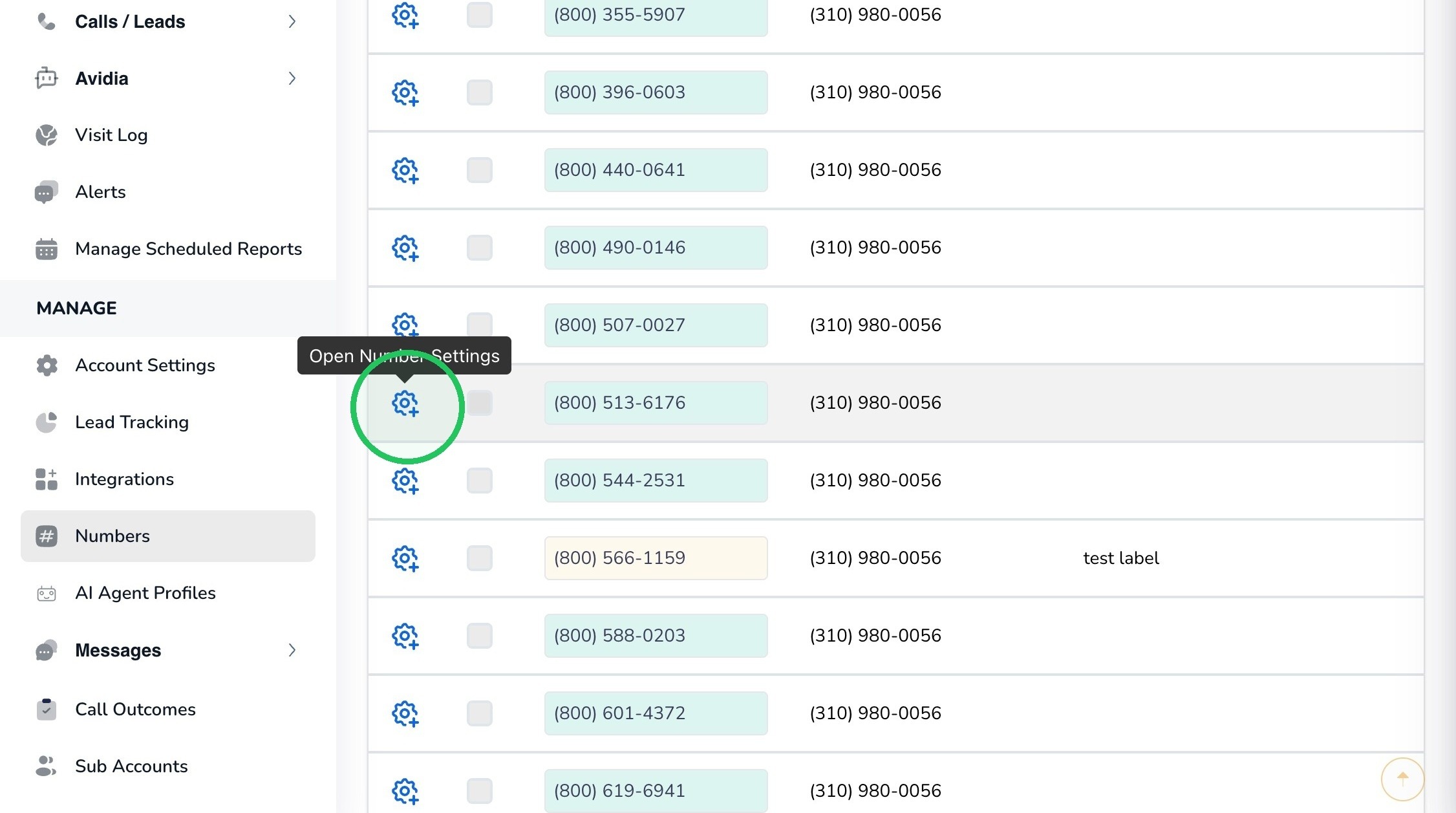
8. On the Call Routing tab, select Apply After Hours Routing. You will save this change after choosing a template.
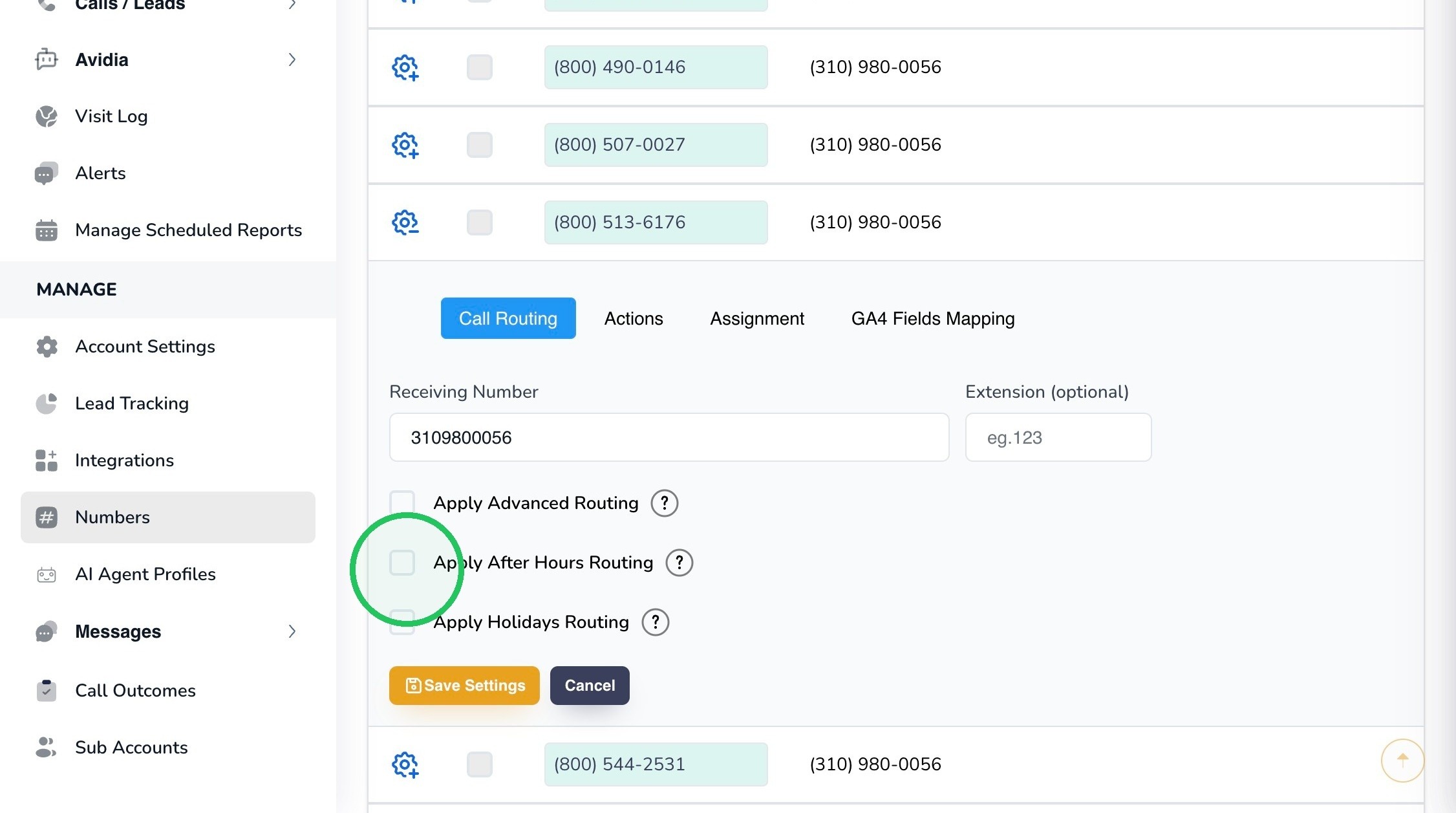
9. Open Select After Hours Template, then click Add/Modify to create a template. An empty list simply means no template is available to select yet.
10. Review Business hours / time zone in your account at the top of the After Hours Routing window. Confirm the time zone and business hours before continuing. Correct your account settings first if necessary.
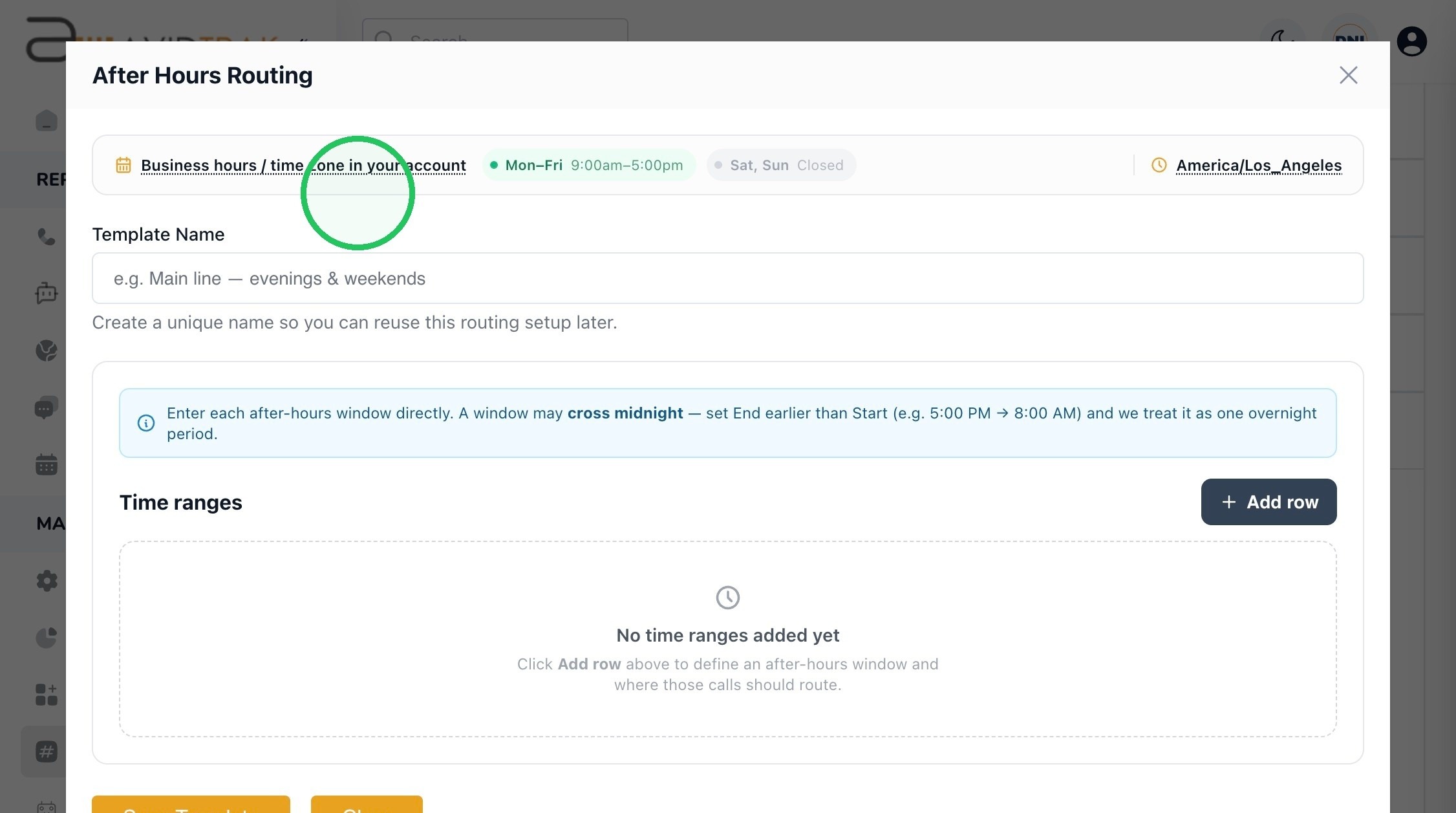
11. Enter a descriptive Template Name, such as My Basic Everyday After Hours Call Forwarding Template. Choose a name that helps you recognize the schedule and destination later.
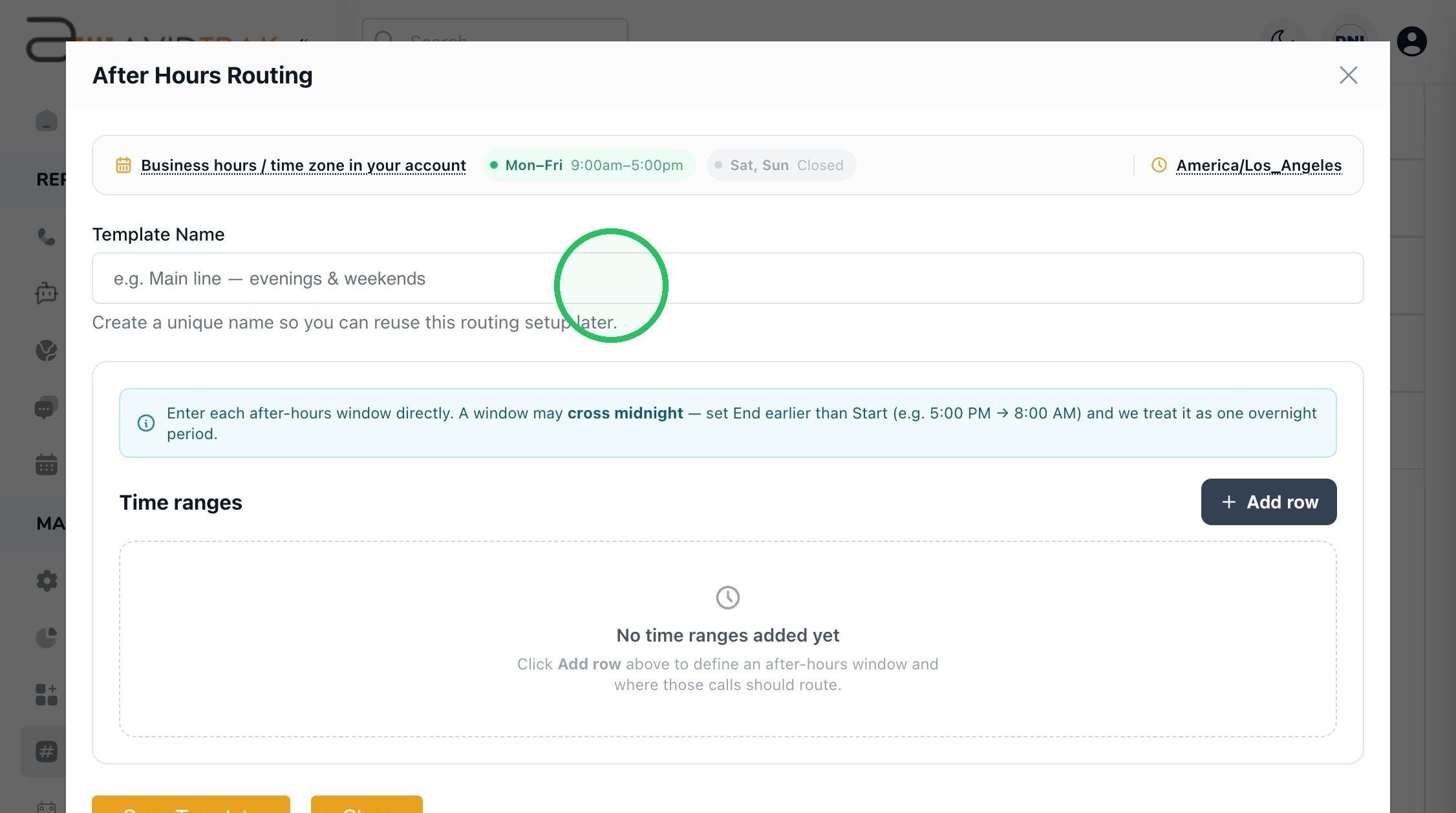
12. Click Add row to add a schedule and its routing destination. Each row defines when calls should use that destination.
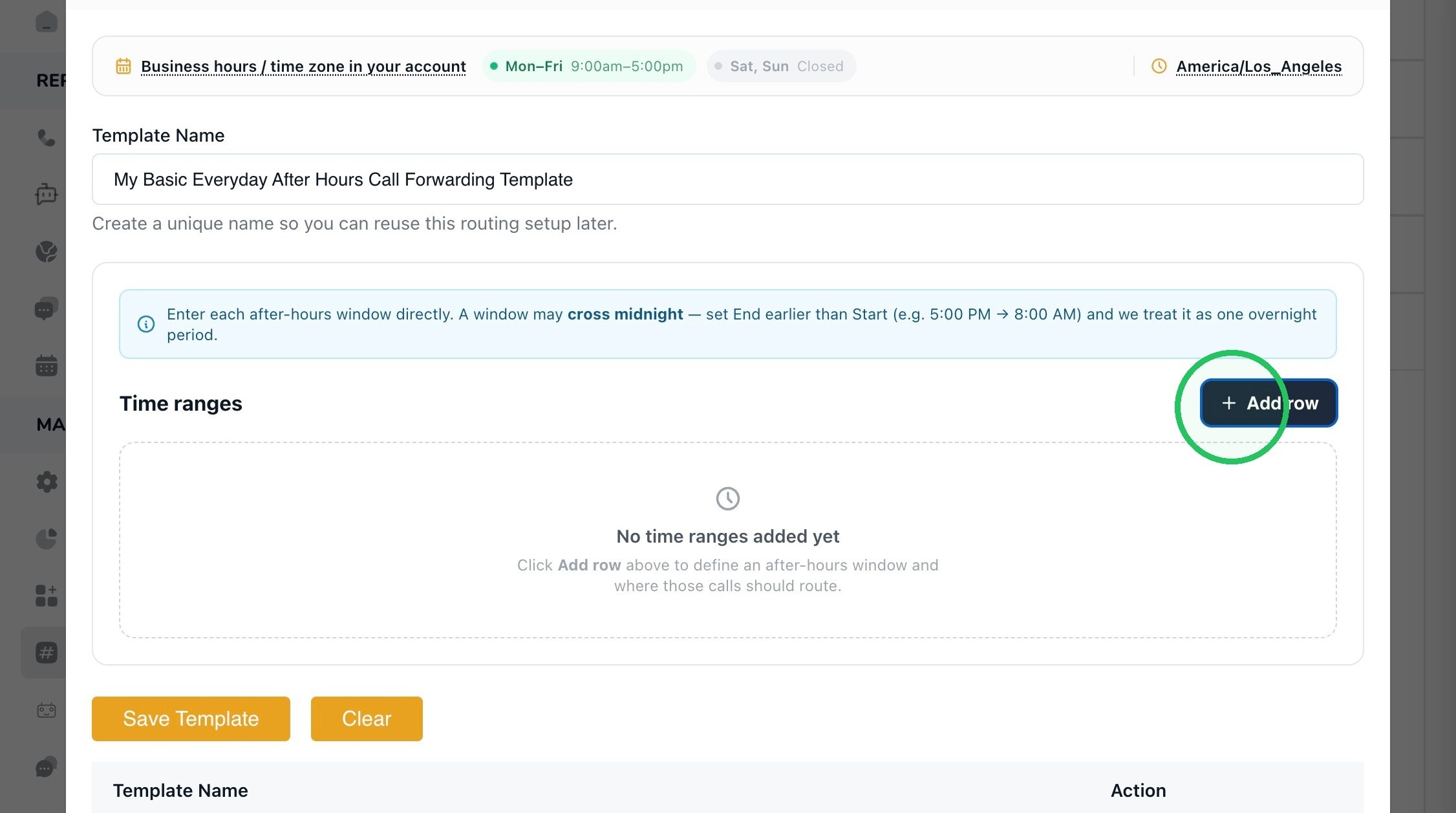
13. Choose Weekdays for Monday through Friday. Use Weekend, All days, or Custom when your intended schedule differs. The example here uses Weekdays; its template name does not make it an all-days schedule.
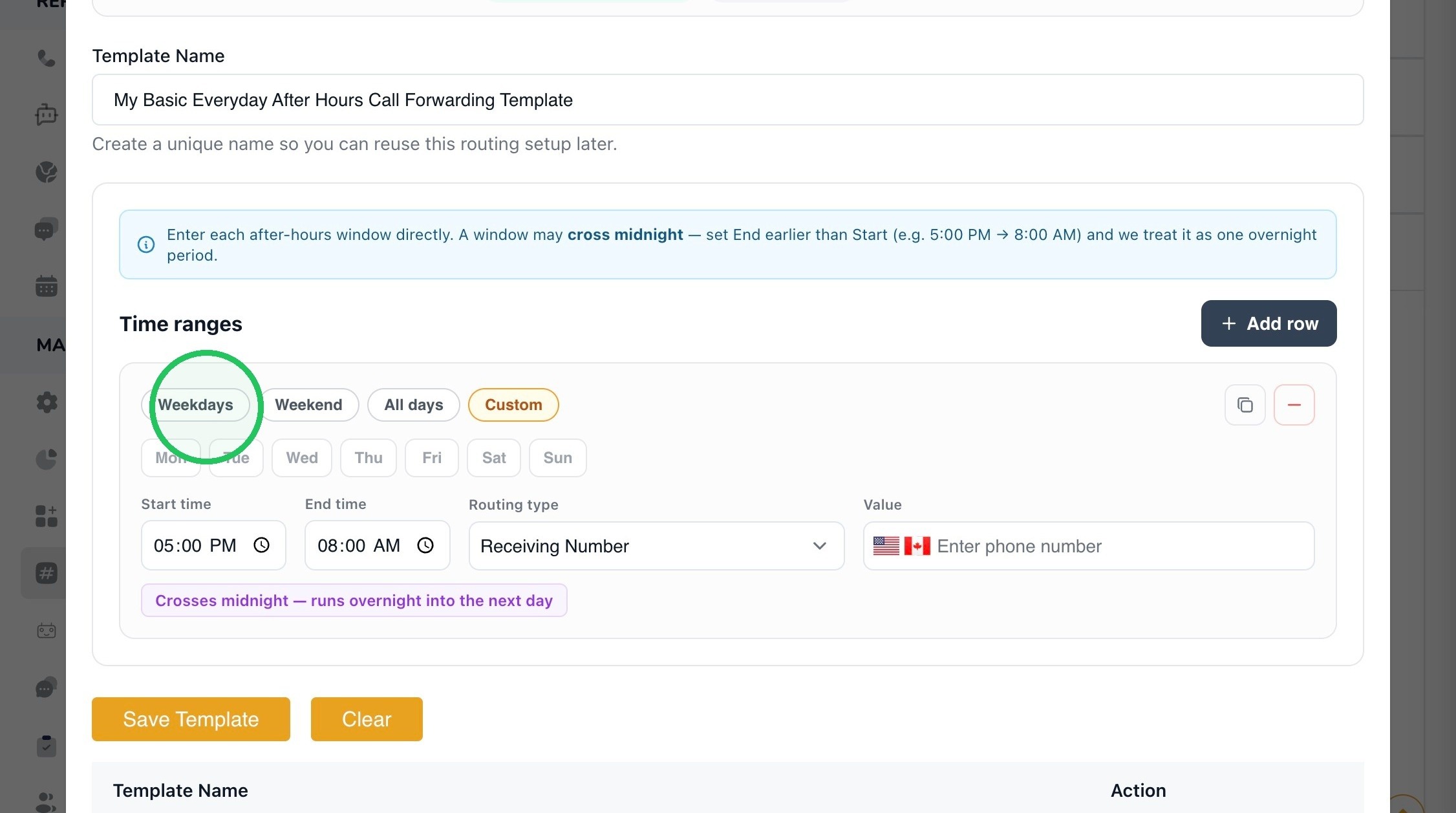
14. Set Start time and End time for the after-hours window. The screenshot shows 5:00 PM to 8:00 AM. When the end time is earlier than the start time, AvidTrak treats the range as an overnight window that continues into the next day.
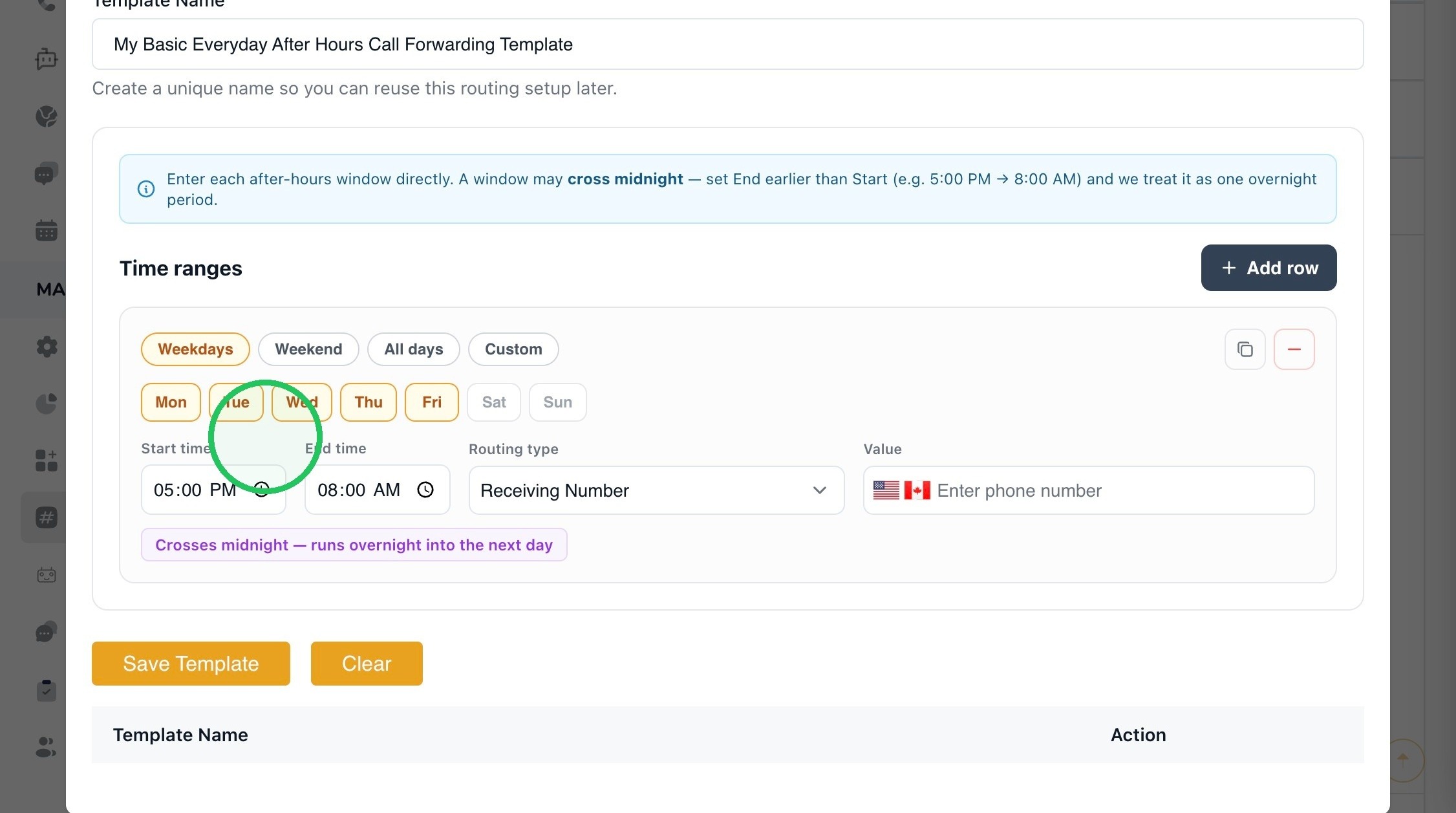
15. Schedule note: The account in the screenshots shows business hours starting at 9:00 AM. An end time of 8:00 AM leaves 8:00–9:00 AM outside this example rule. Choose an end time that covers your intended after-hours period, and add rows for other days or time ranges as needed. Business hours take priority wherever a rule overlaps them.
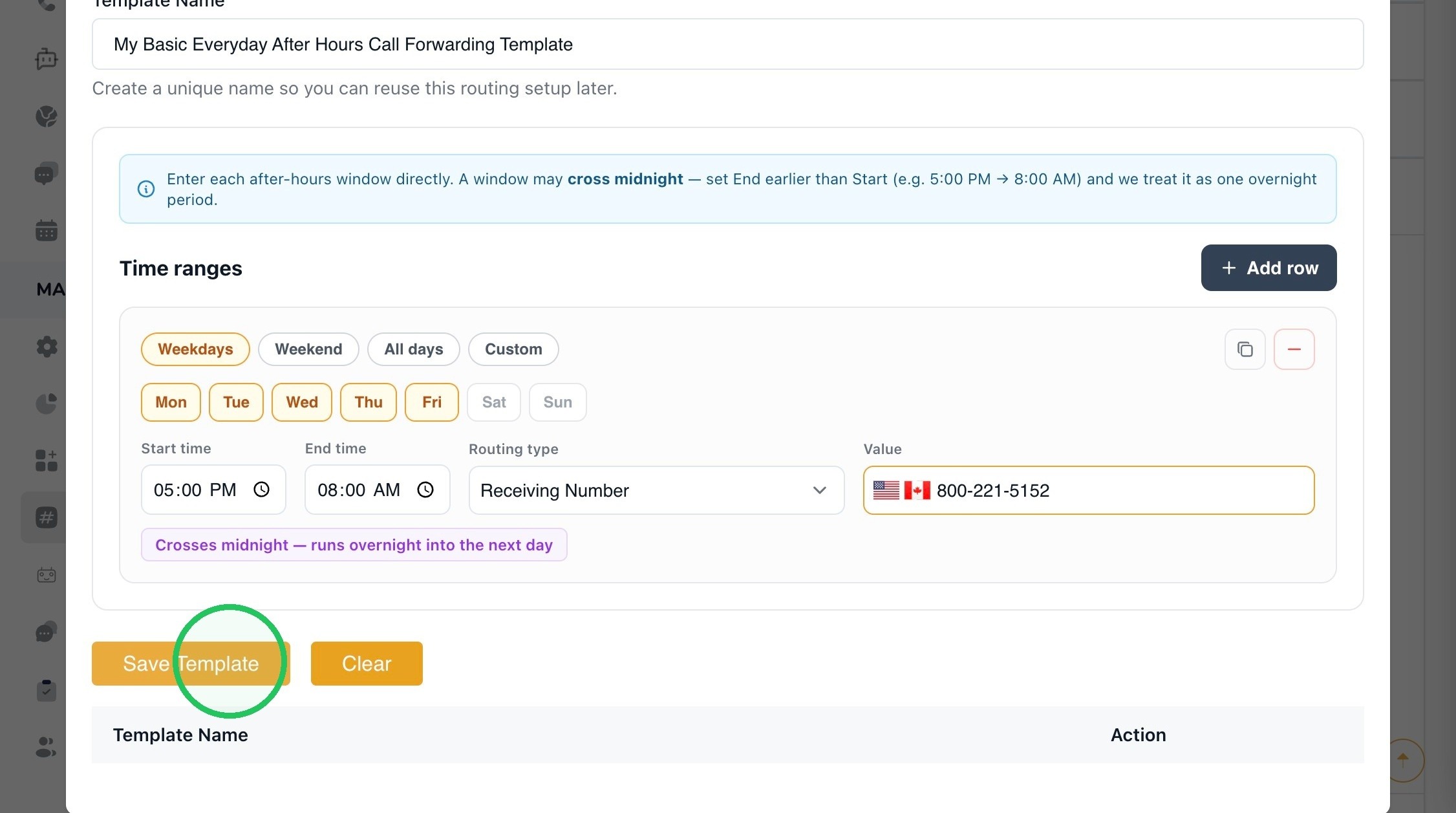
16. Set Routing type to Receiving Number and enter the telephone number that should receive after-hours calls in Value. The example uses 800-221-5152; replace it with your own destination.
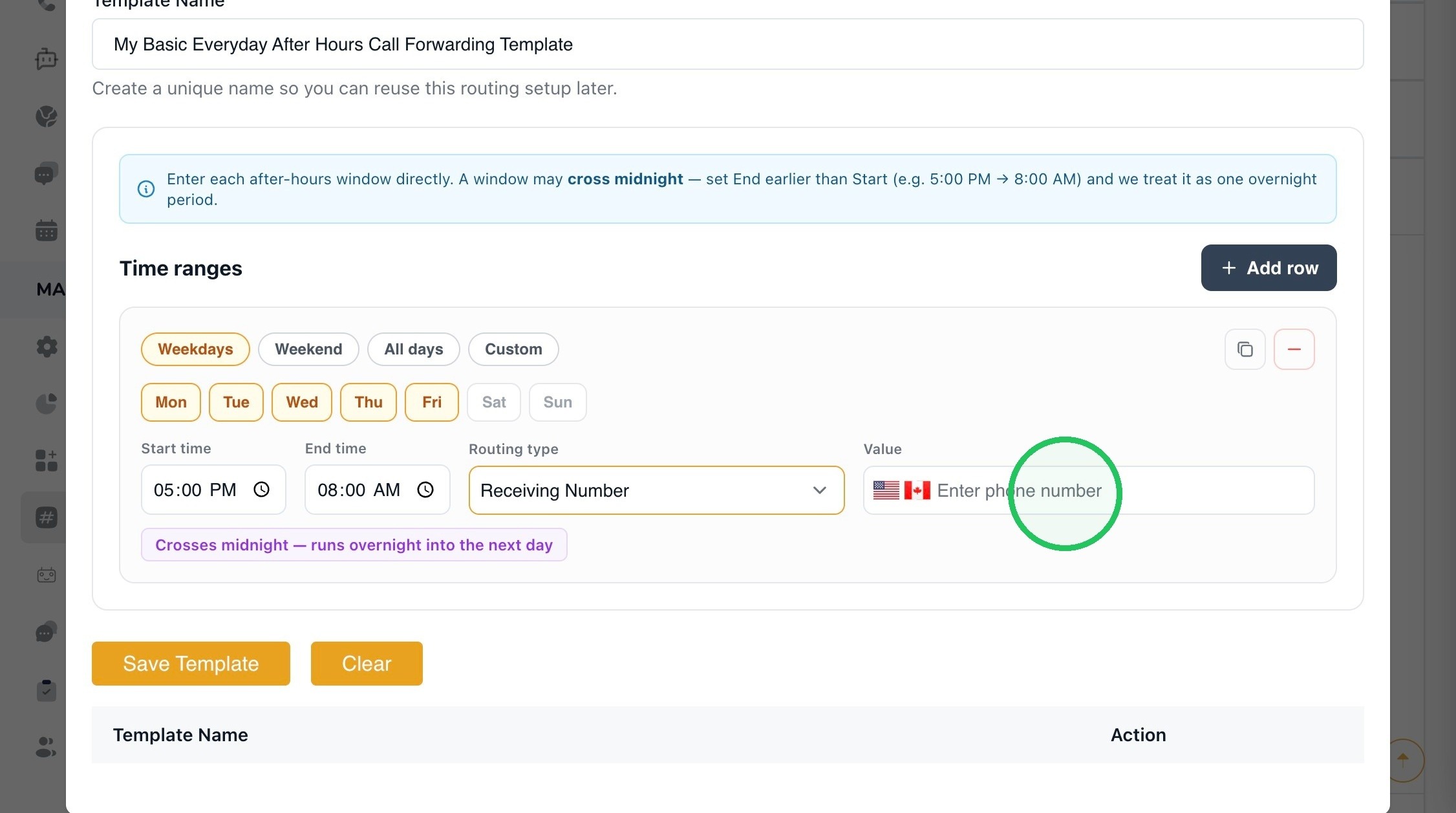
17. Review the days, times, routing type, and receiving number, then click Save Template. Saving the template makes it available for selection; you must still apply it to the tracking number.
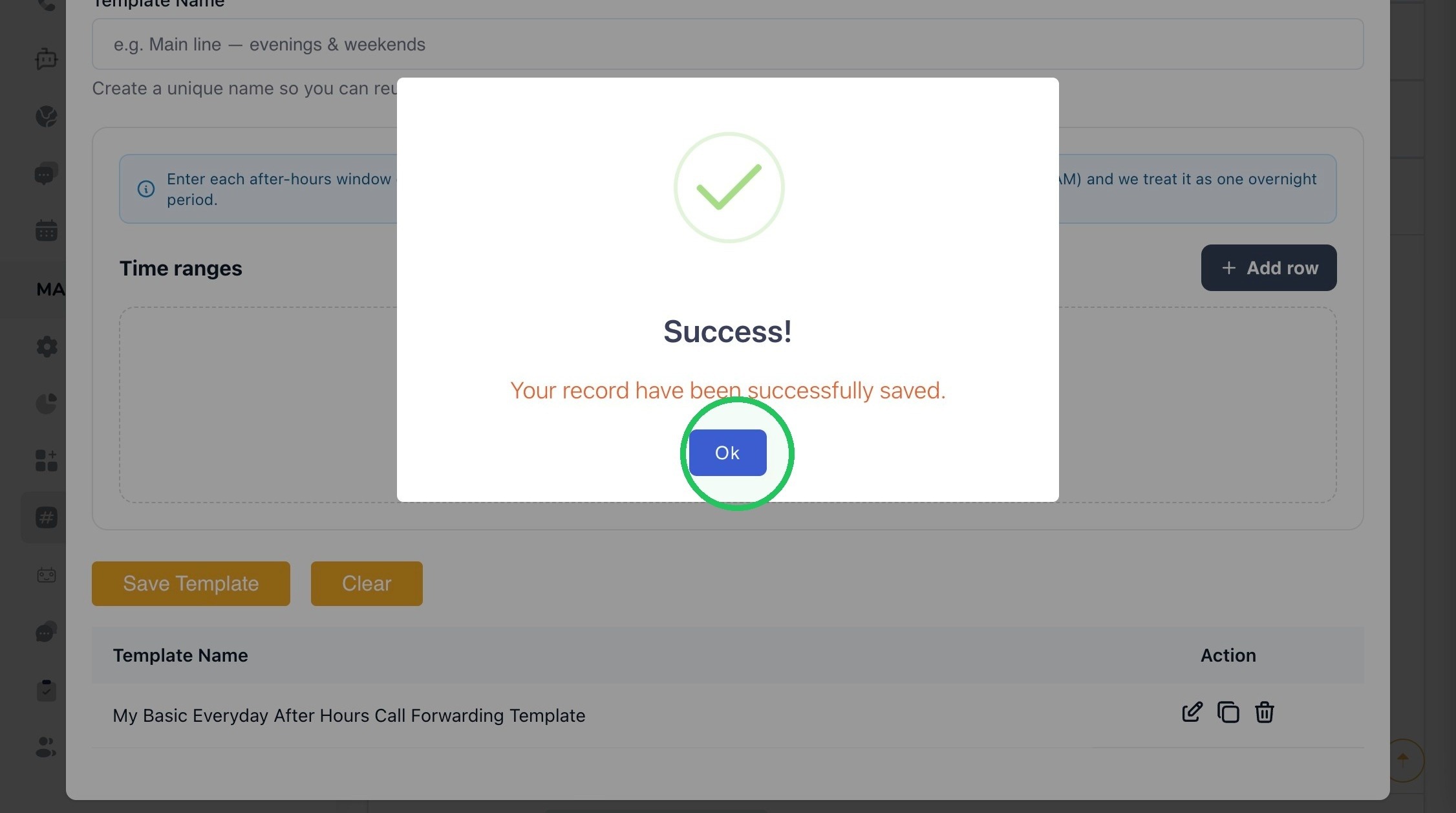
18. Click Ok on the Success message. The template now appears in the list at the bottom of the window.
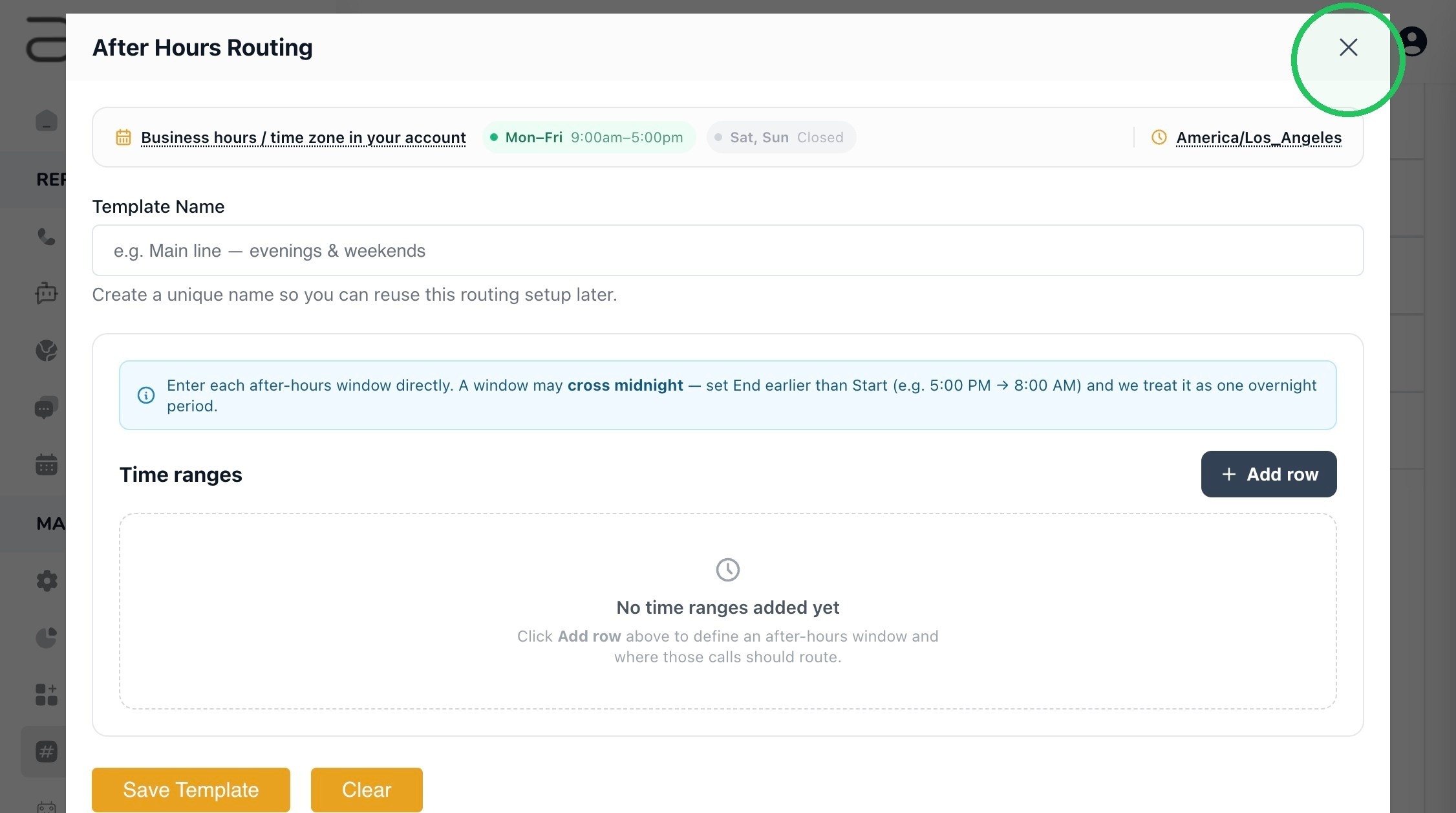
19. Click the X in the upper-right corner of the After Hours Routing window. If you need to revise a saved template, use its Edit icon and save the updated template before returning.
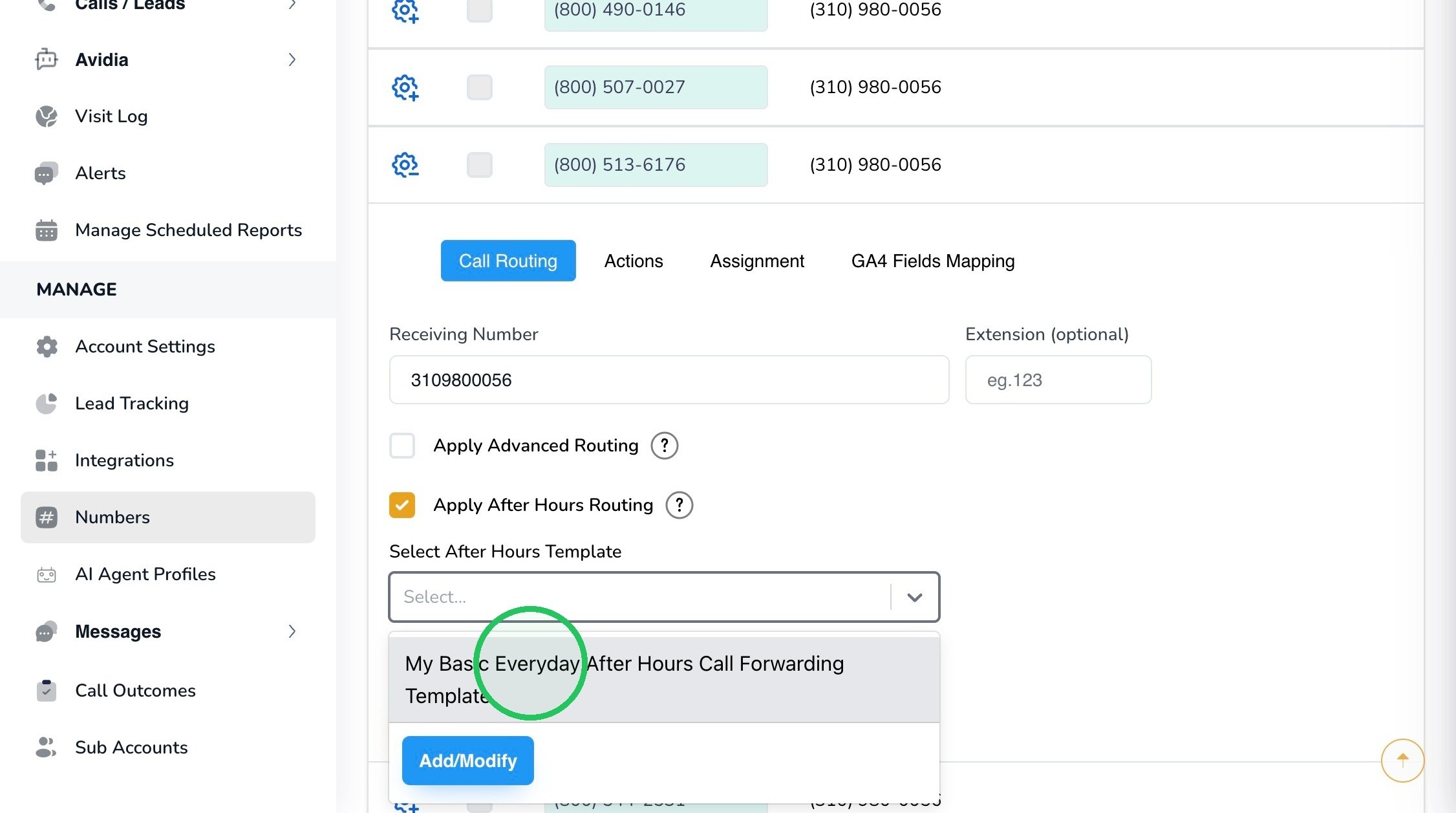
20. In Select After Hours Template, choose the template you just created. Confirm that Apply After Hours Routing remains checked.
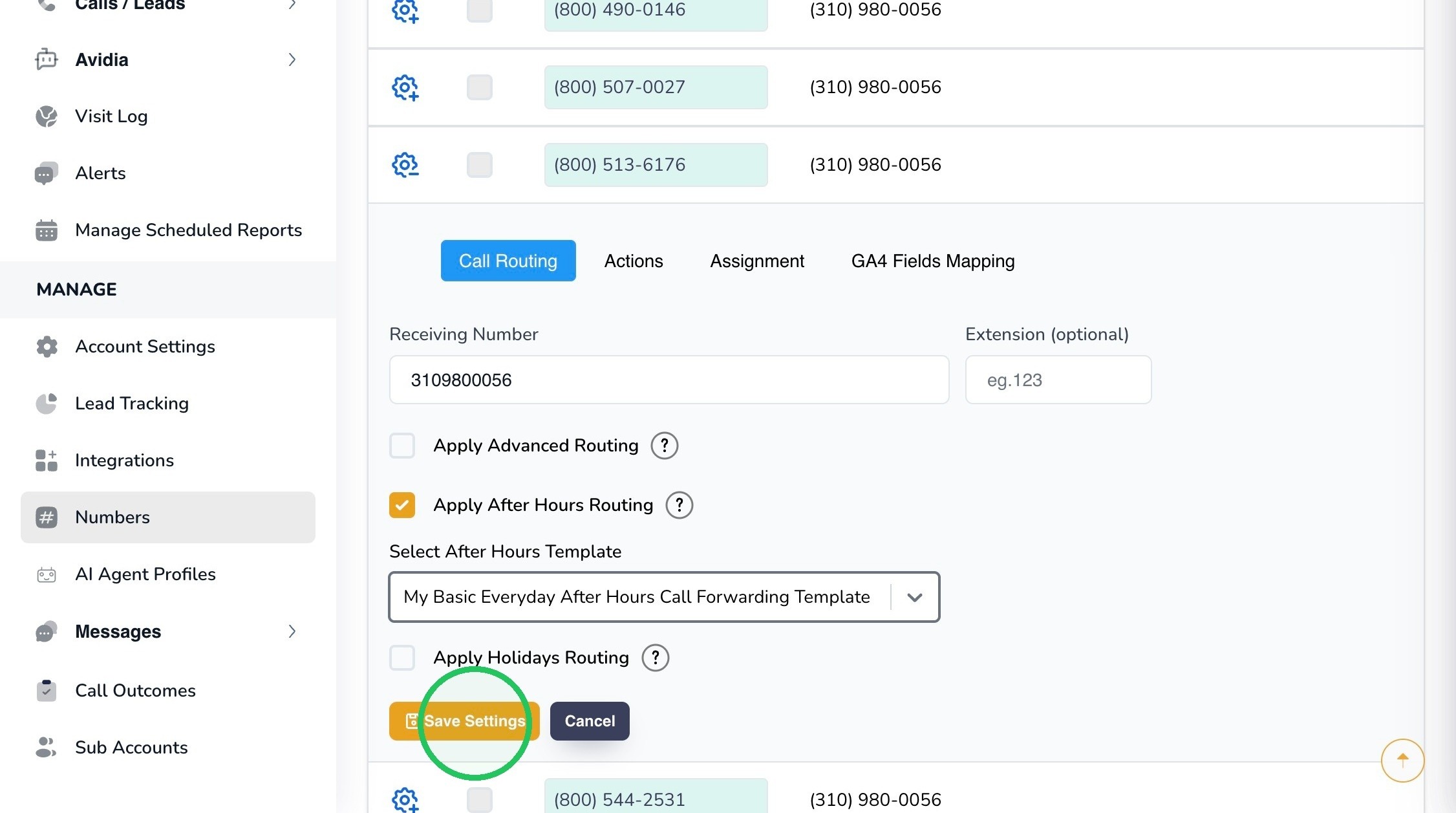
21. Click Save Settings to apply the selected template to this tracking number. Creating a template alone does not activate it for a number.
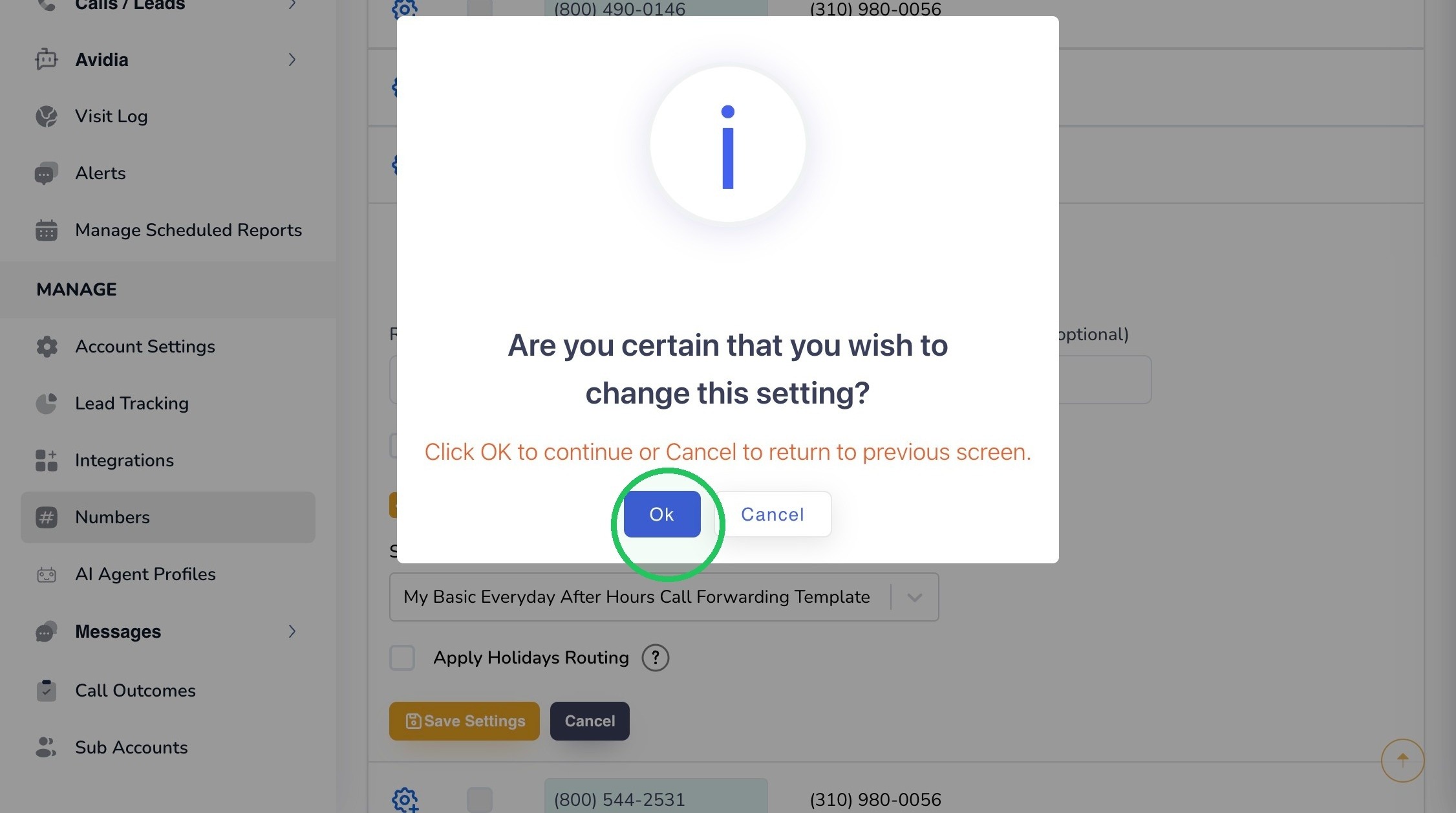
22. Review the confirmation prompt and click Ok to continue. Click Cancel if you need to return and make a correction.
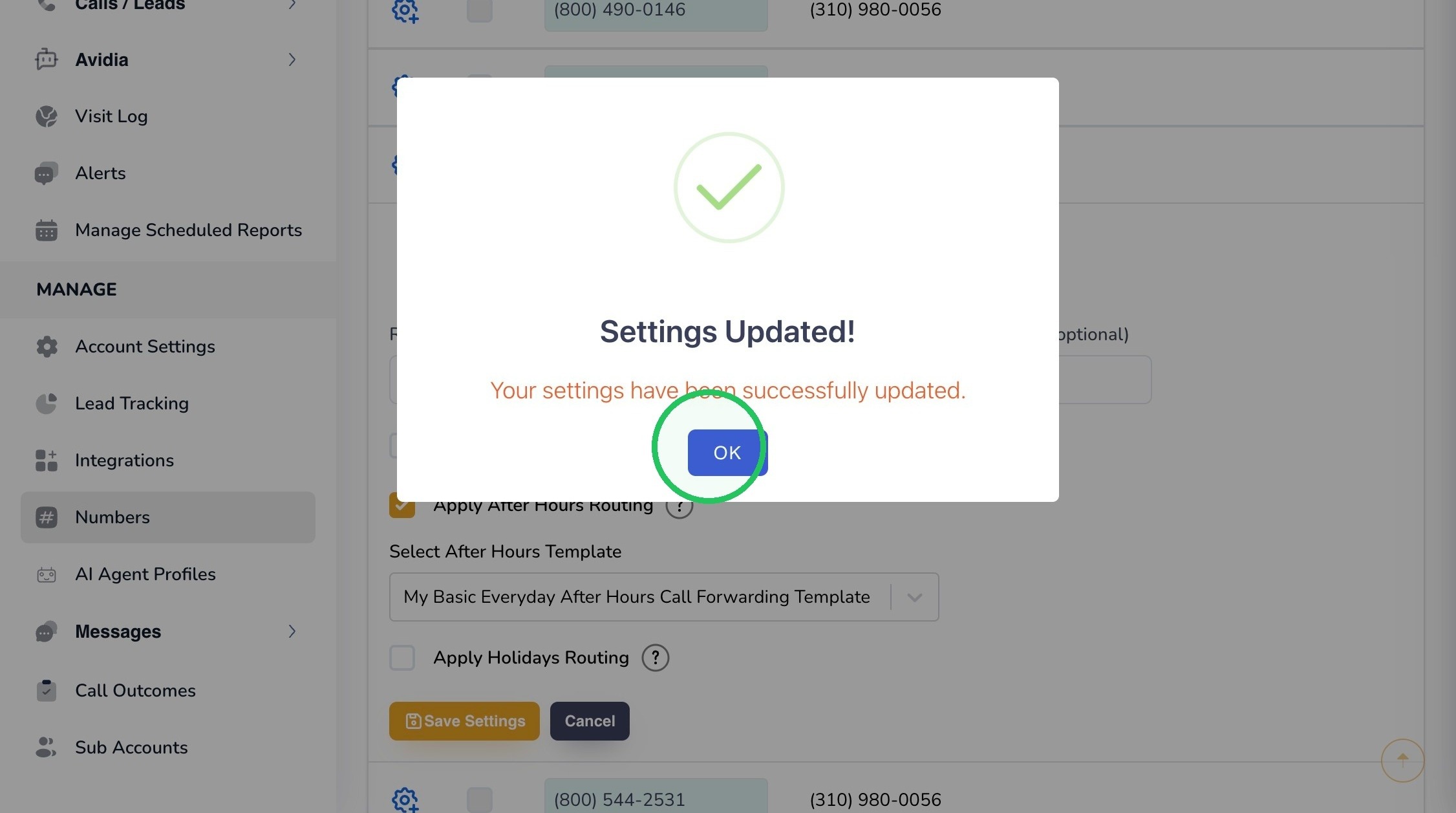
23. When Settings Updated appears, click OK. This confirms that the number’s settings have been saved.
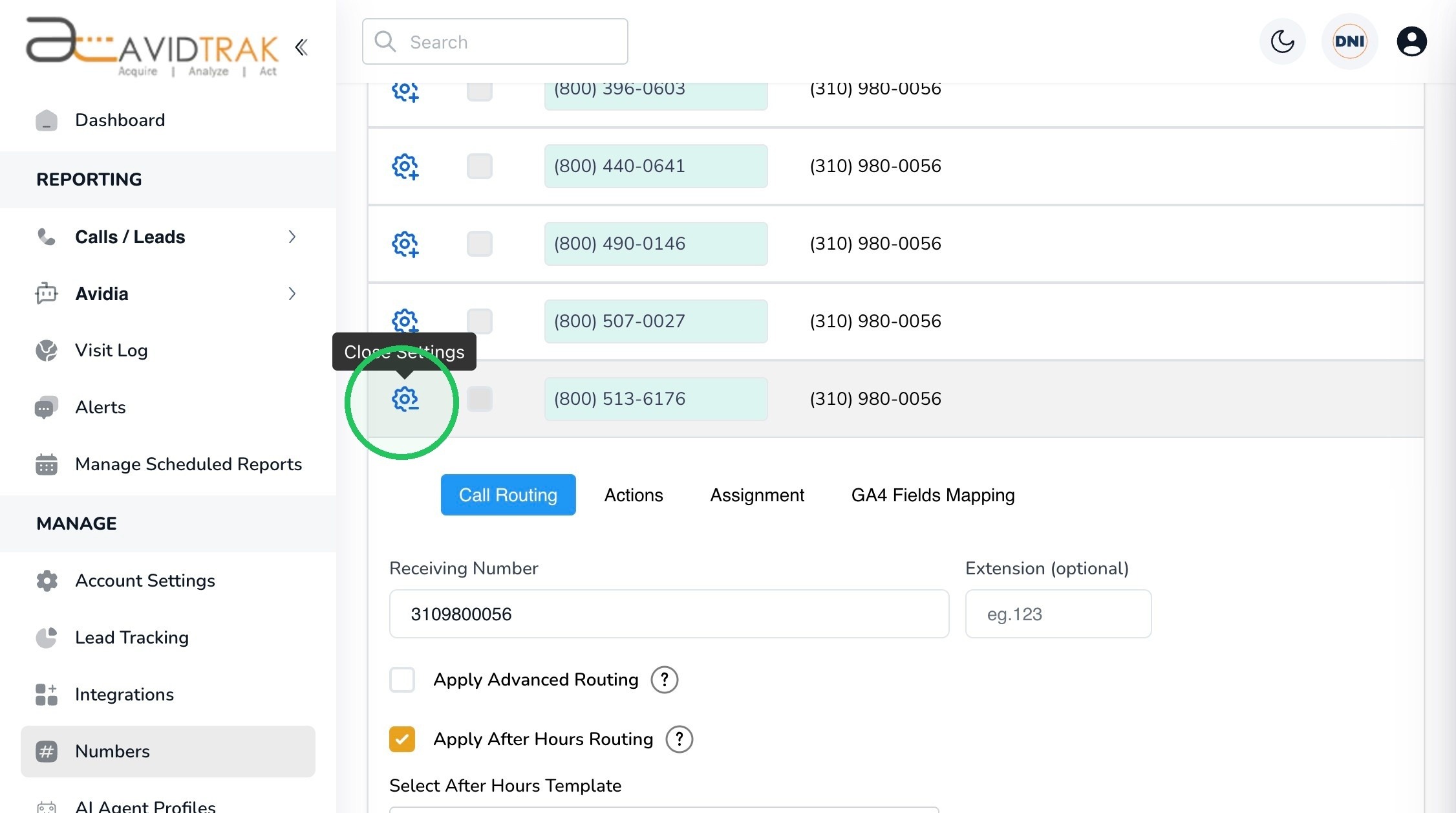
24. Click the gear icon again to close the settings panel. The setup for this tracking number is complete.
25. Your selected tracking number is now configured to use the saved template during its defined after-hours windows, subject to your account’s business-hours settings. To use the same template with another tracking number, open that number’s settings, enable Apply After Hours Routing, select the template, and save the settings.
26. Place a test call during a configured after-hours window to confirm that the intended receiving number rings. Also check that a call during business hours follows your normal routing. If the timing is unexpected, review the account time zone, business hours, selected days, start and end times, and whether the template has been applied and saved for the correct number.
27. Thank you for using AvidTrak. As a full-service company, we are here to help you get your call routing working as intended. If you have questions or need assistance implementing this guide, please contact support@avidtrak.com.

