

3B – Connect a Calendar to Your Leena AI Voice Agent
1. This document provides a step-by-step guide on how to connect a Google Calendar or use a Manual URL for appointment scheduling with your Leena AI Voice Agent profile.
Leena can help callers move from a conversation to the next step by connecting appointment scheduling to your AI Voice Agent profile. This tutorial explains how to connect a Google Calendar for live availability or use a Manual URL when you prefer to send callers a link to an external booking page.
A calendar connection can help reduce back-and-forth with callers, keep scheduling information current, and give Leena a clear path for handling appointment requests.
2. Decide which scheduling method you want to use and make sure you have the necessary access before starting.
For Google Calendar, have access to the Google account that owns or can access the calendar you want Leena to use.
For a custom or external booking page, have the public booking URL ready.
If you use a Manual URL and want Leena to text the booking link to callers, an eligible A2P 10DLC-enabled AvidTrak number must be available.
Important: Changes remain in the current Draft until you publish them. We recommend confirming the scheduling setup before making the new version live.
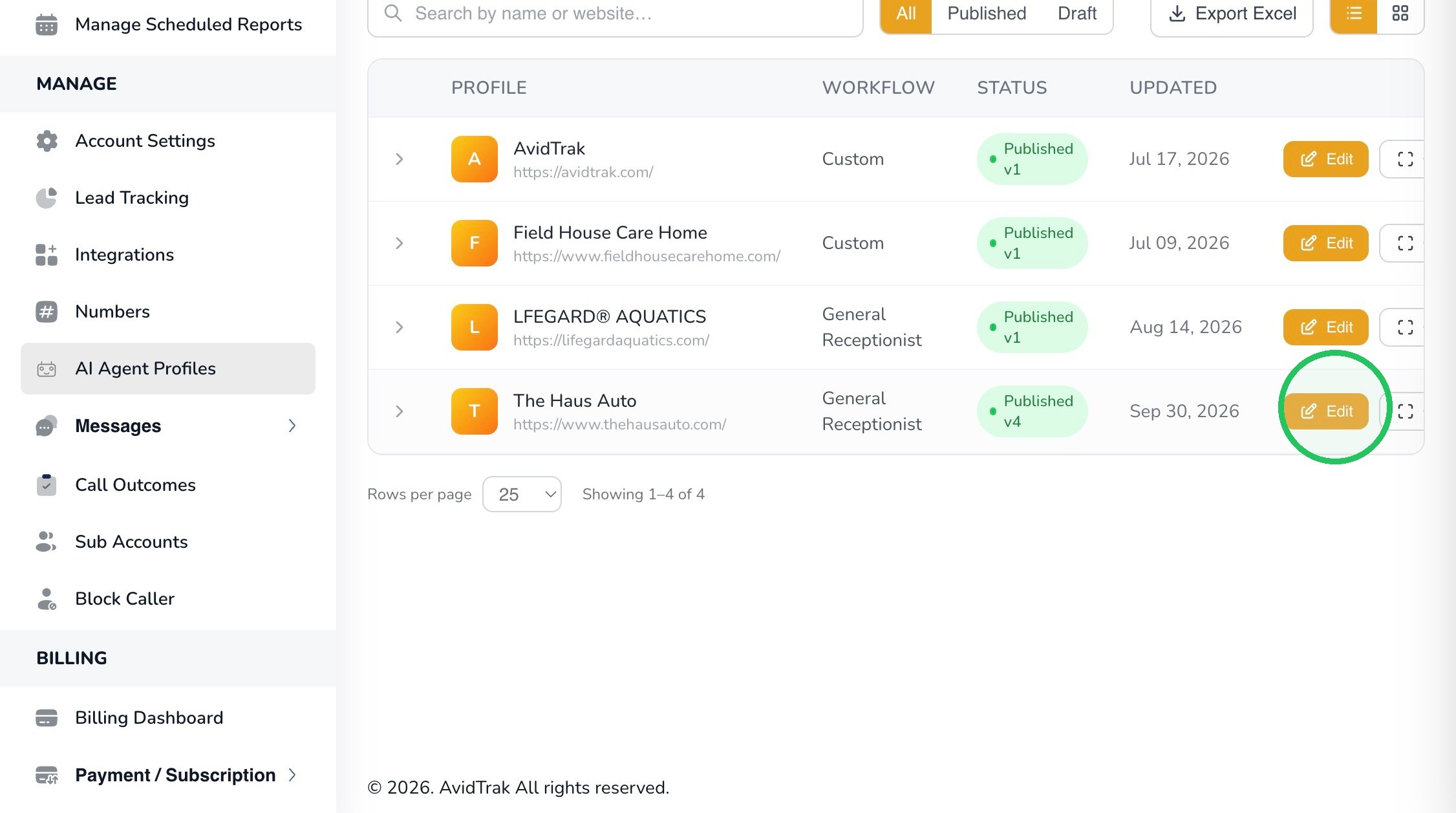
3. From your AvidTrak account, select AI Agent Profiles.
Locate the Leena profile you want to connect to a calendar and open it for editing. In this example, the profile is The Haus Auto.
4.
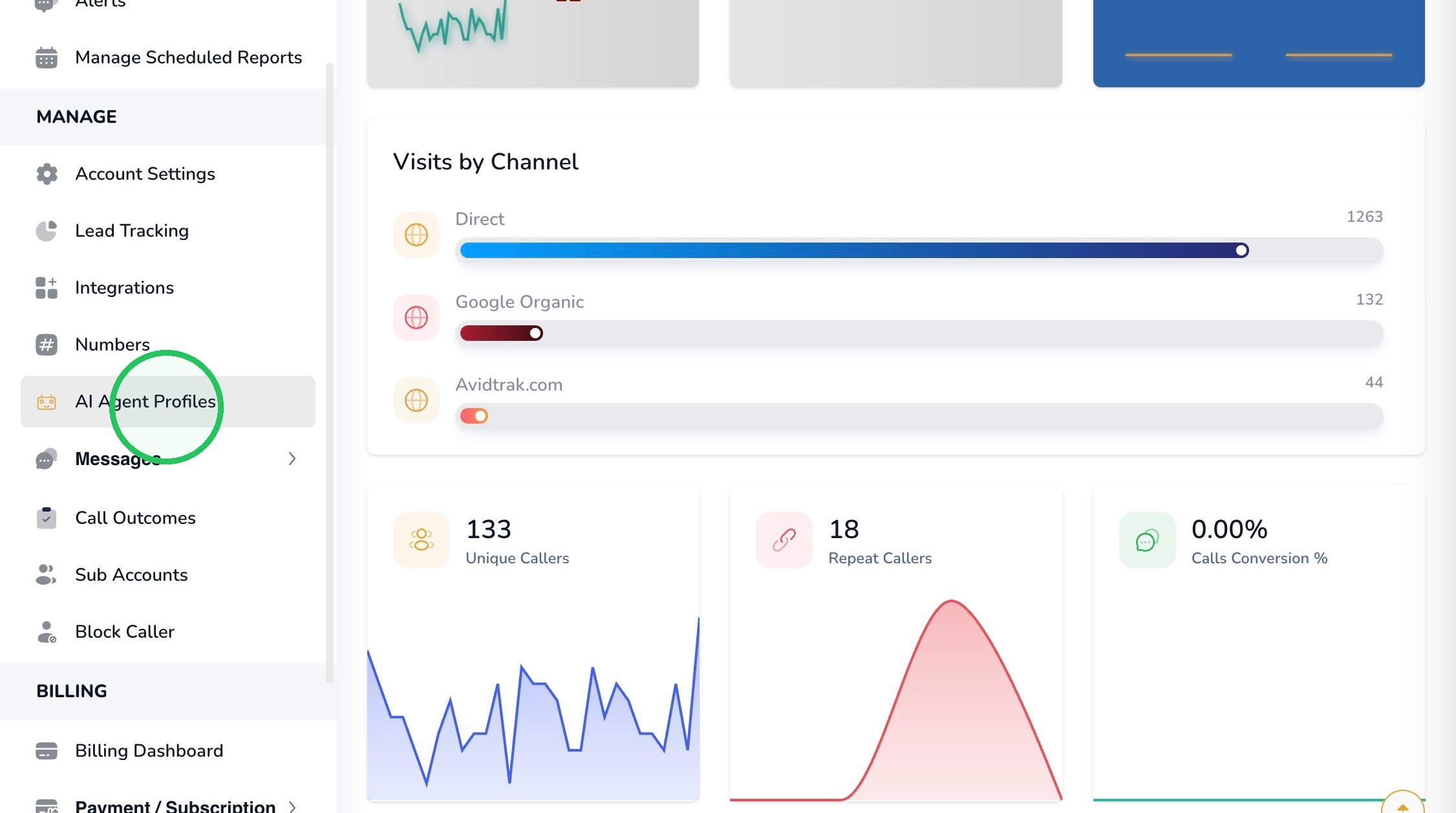
5. Within the Leena profile, scroll to Integrations and select Scheduling & Booking.
Enable appointment booking if it is not already enabled. The page presents the available scheduling methods.
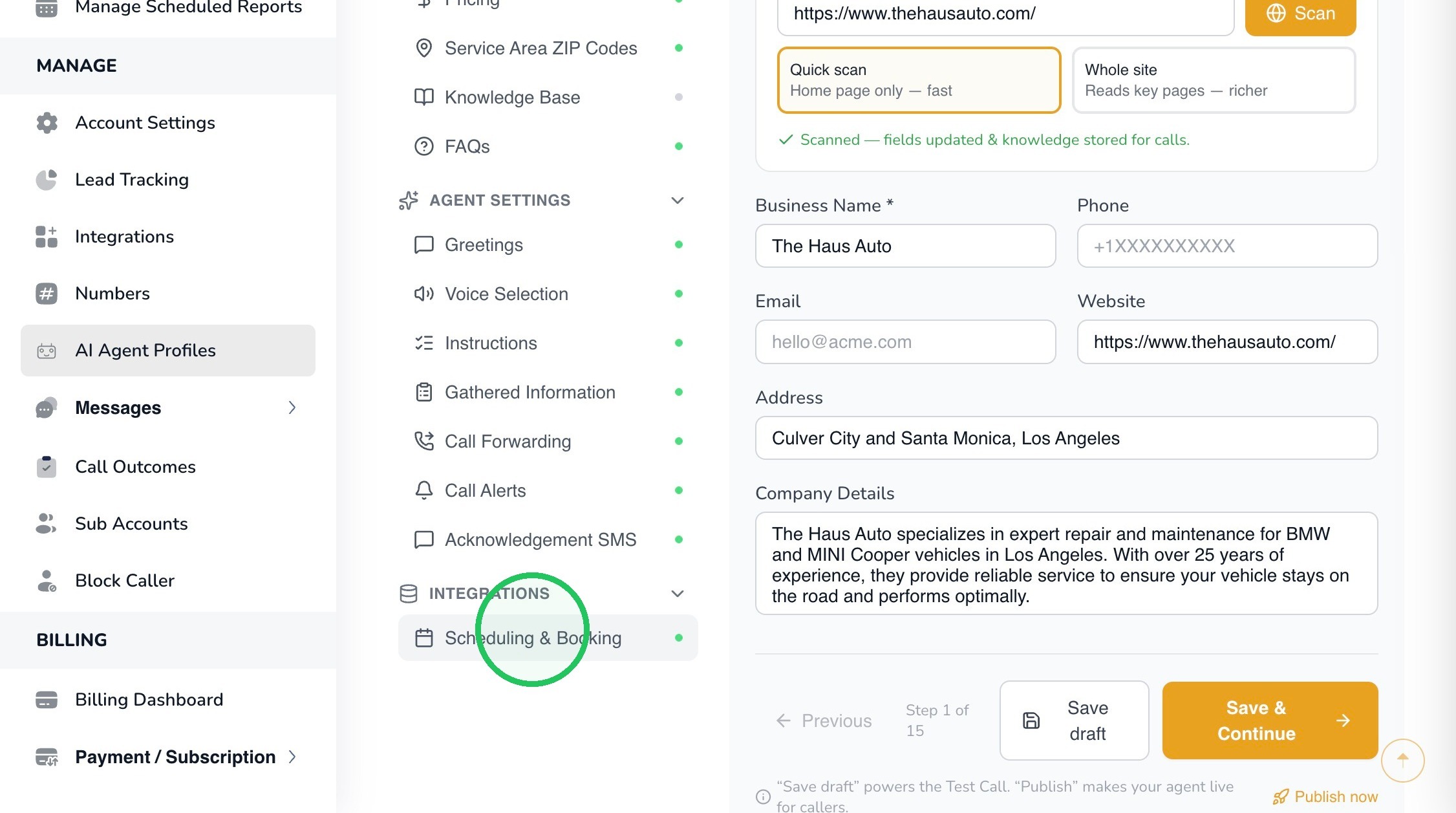
6. Google Calendar – connect a Google calendar so Leena can use the connected calendar’s availability.
Manual URL – provide an external booking link that Leena can text to the caller. No direct calendar connection is required.
Calendly – shown in the interface as Coming Soon at the time this tutorial was prepared.
Tip: Choose the method that best matches how your business already manages appointments. You can return to this section later if your scheduling process changes.
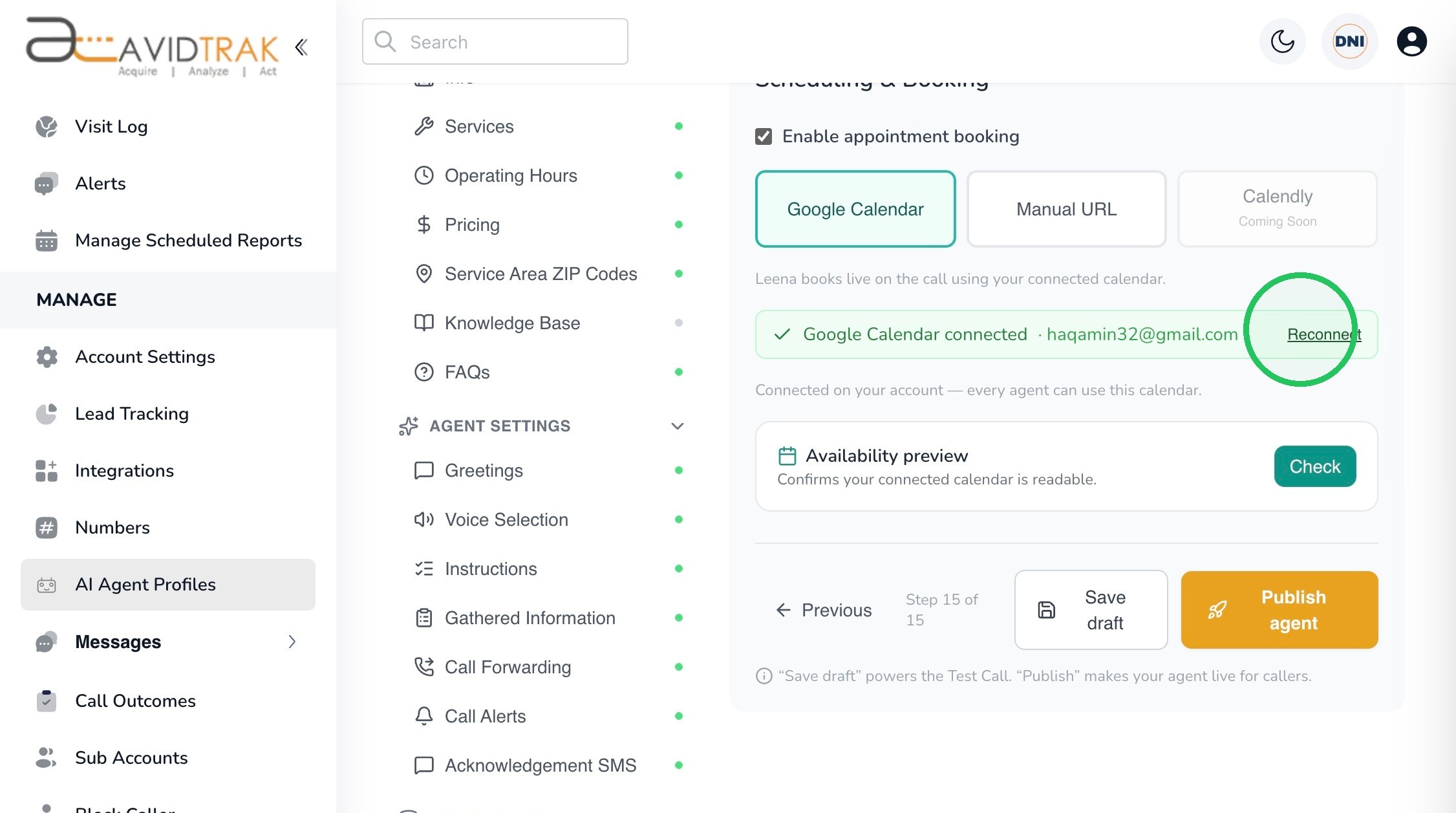
7. Select Google Calendar when you want Leena to use availability from a connected Google Calendar.
If a Google Calendar is already connected and you want to use a different Google account or calendar, select Reconnect.
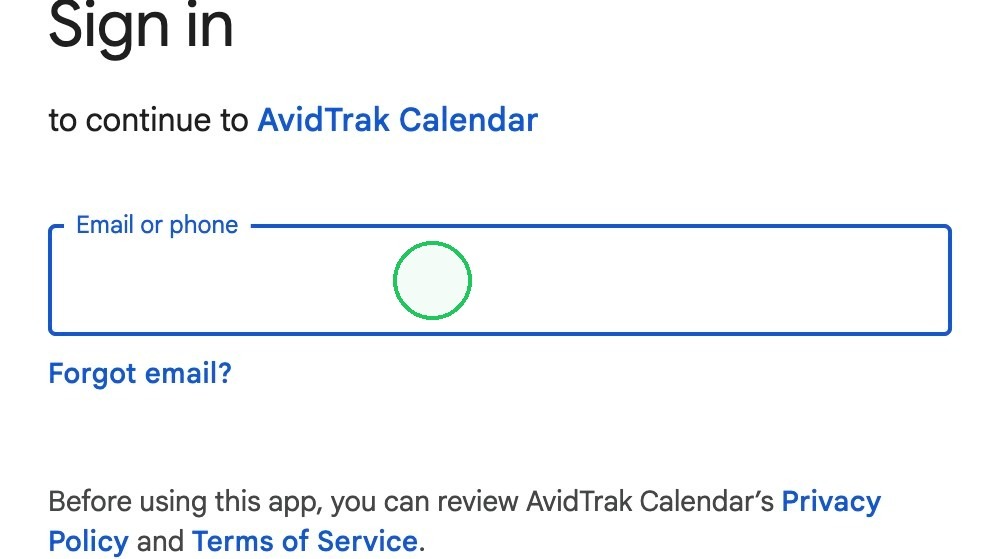
8. Google will open a sign-in page for AvidTrak Calendar. Enter the email address for the Google account whose calendar you want to connect.
In the example captured in this tutorial, signup@avidtrak.com is used. Your own Google account email address may be different.
Select Next to continue.
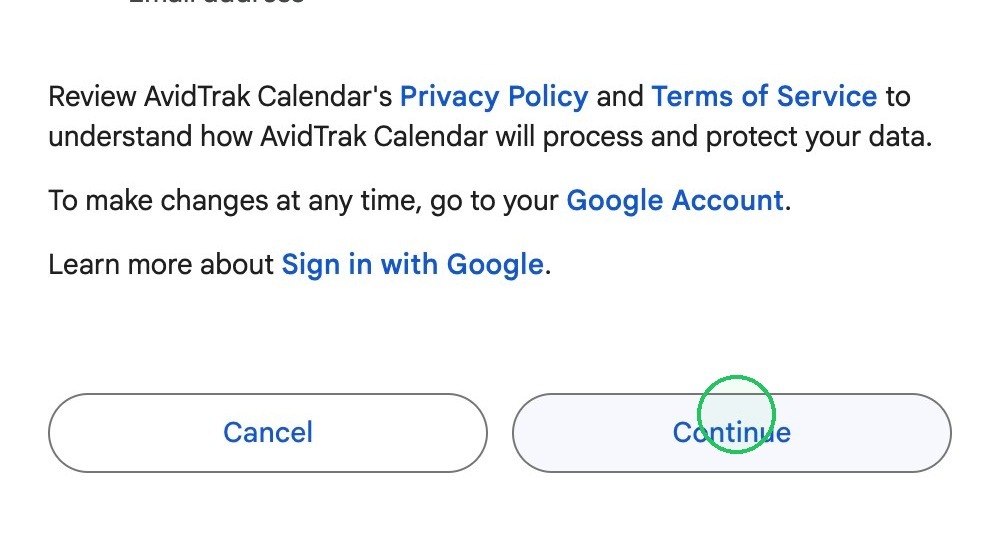
9. Review the Google authorization screen and select Continue to allow AvidTrak Calendar to connect to the Google account.
Google also provides links to AvidTrak Calendar’s Privacy Policy and Terms of Service on the authorization screen.
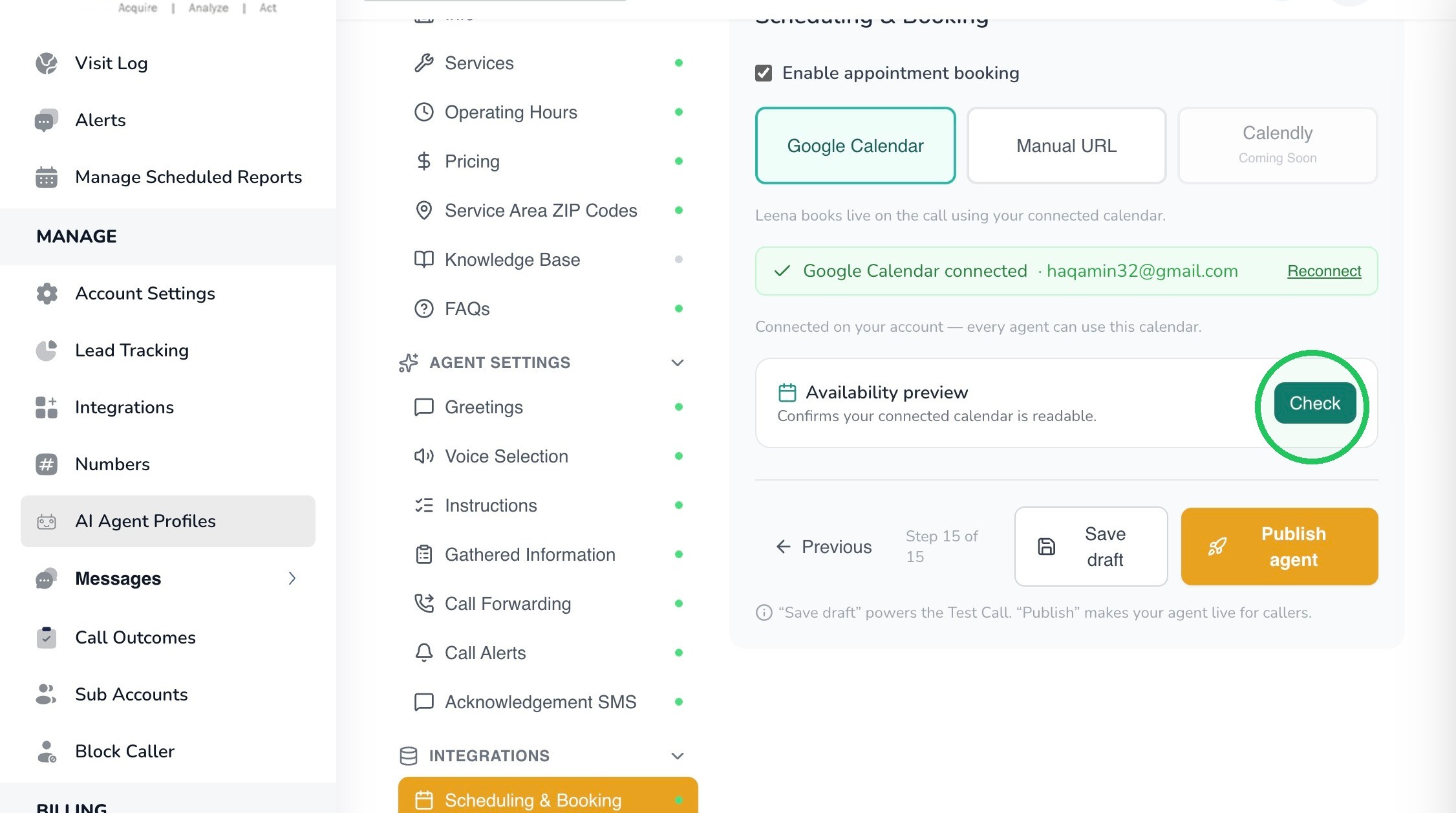
10. After the connection is completed, return to Scheduling & Booking. The connected Google account should be displayed.
Select Check under Availability preview. If the connection is working correctly, available appointment times from the connected calendar will be displayed.
Best Practice: Review the displayed availability before publishing. If the times do not match what you expect, confirm that the correct Google account and calendar are connected before making the change live.
11. If you use an external scheduling page rather than a direct Google Calendar connection, select Manual URL.
Paste the public booking link you want callers to use. The interface explains that Leena can text this link to the caller without requiring a direct calendar connection.
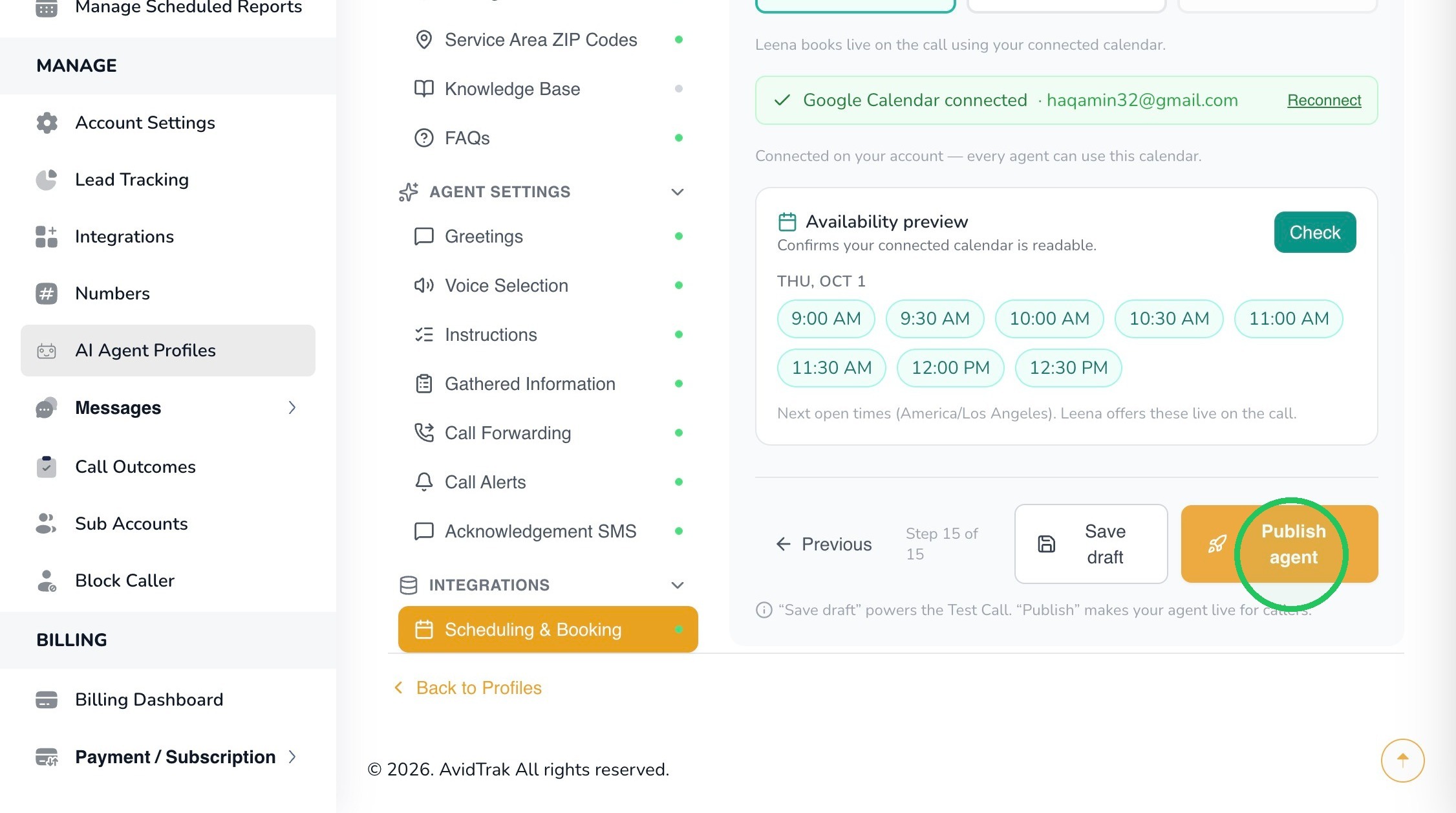
12. Choose the AvidTrak phone number that should send the booking link. The interface specifies that the sending number must be A2P 10DLC-enabled.
Important: Make sure the booking URL is publicly accessible and opens the correct scheduling page before publishing the change.
Note: The Manual URL option sends the caller to the external booking experience. The availability and booking rules on that external page are managed by the calendar or scheduling provider you use.
13. Once you have confirmed the Google Calendar connection or reviewed the Manual URL setup, publish the updated Leena profile so the scheduling configuration is available to live callers.
Select Publish agent.
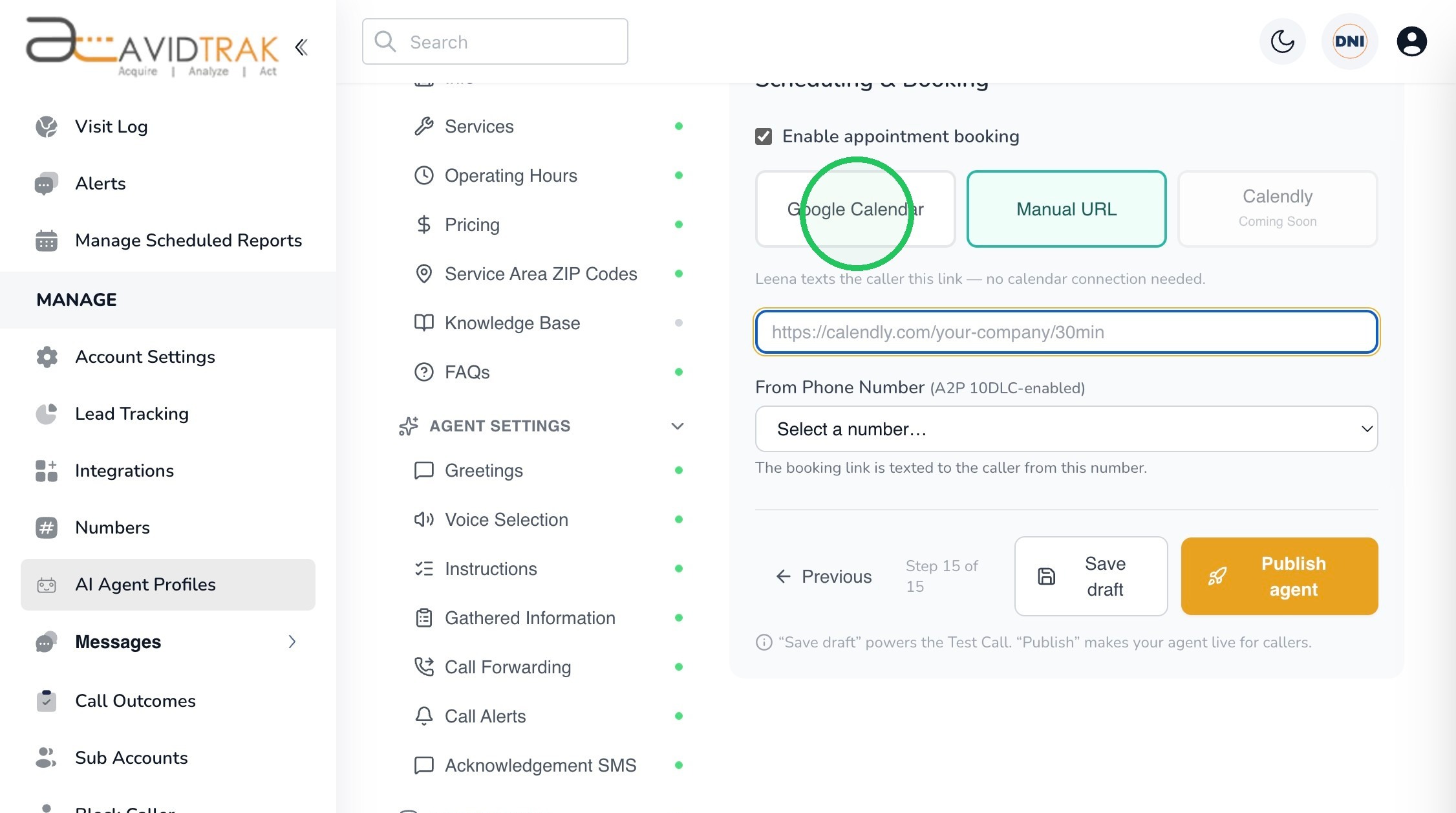
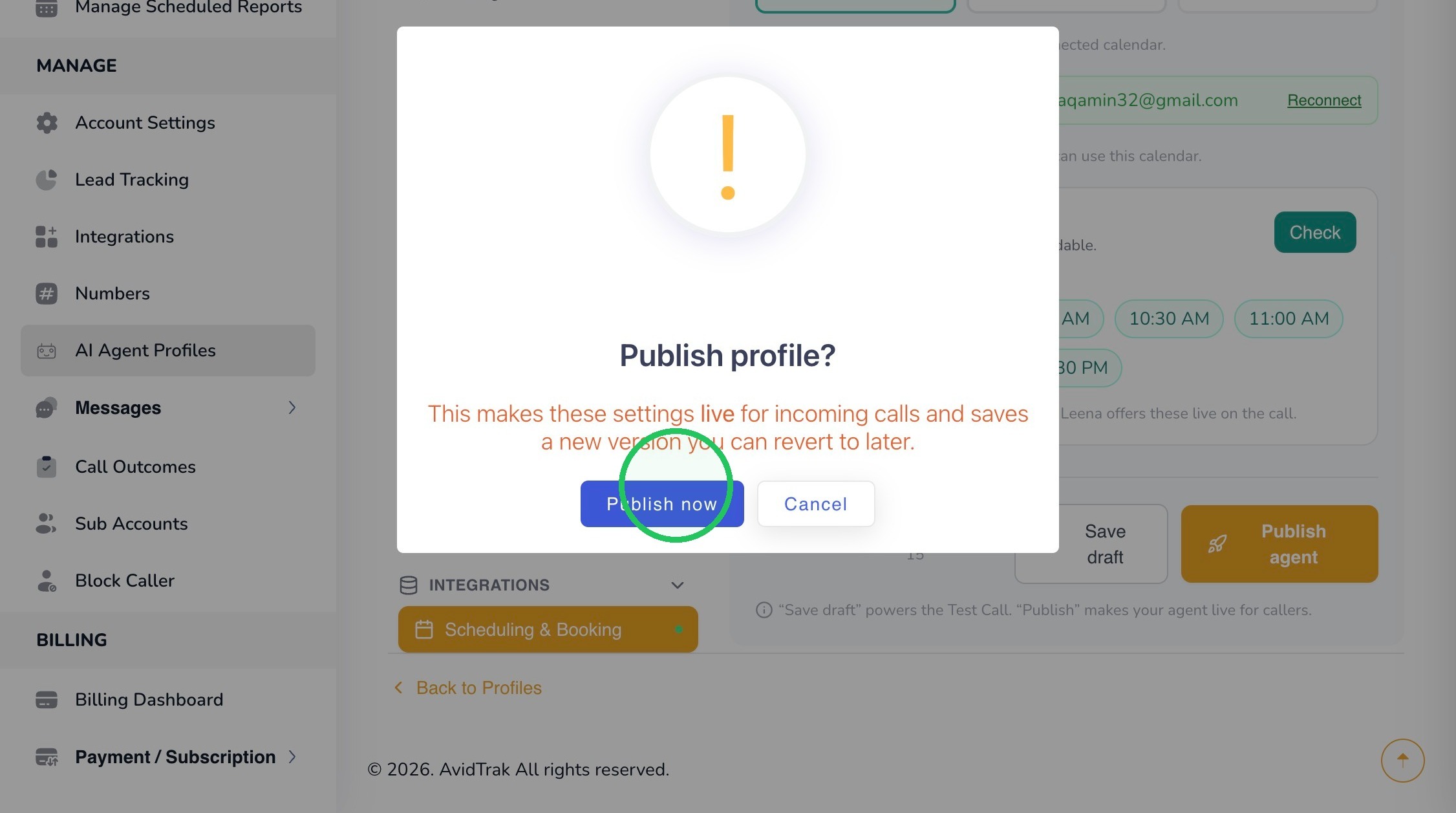
14. AvidTrak will display a confirmation asking whether you want to publish the profile. Select Publish now.
The confirmation explains that publishing makes the settings live for incoming calls and saves a new version that you can revert to later.
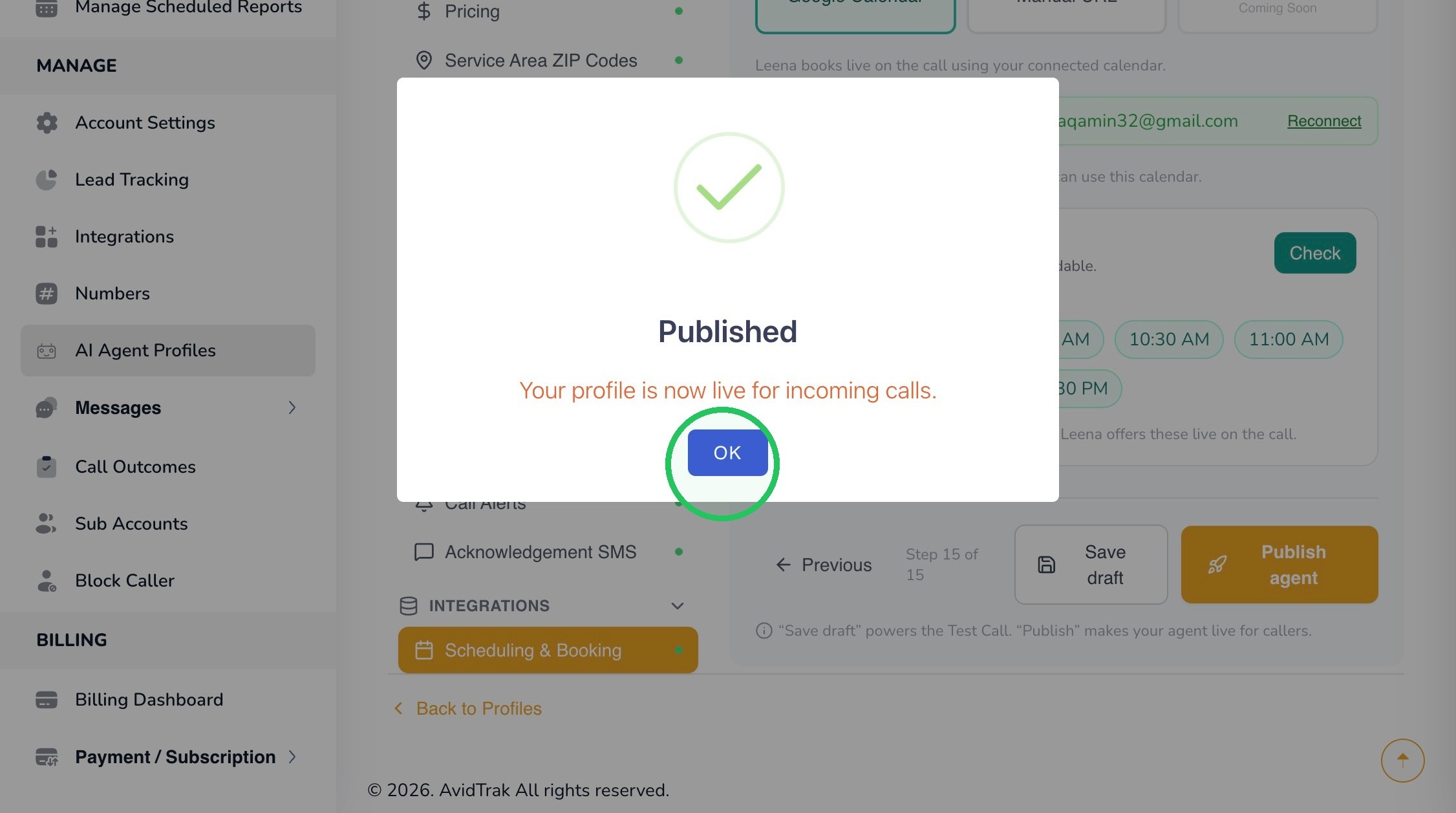
15. When AvidTrak confirms that the profile has been published, select OK.
16. This completes the tutorial for connecting a calendar to your Leena AI Voice Agent profile.
We recommend placing a test call after publishing and asking Leena about appointment availability or requesting a booking link so you can confirm that the caller experience works as intended.
If you have any difficulty implementing these instructions or have questions about your calendar configuration, please contact AvidTrak Support at support@avidtrak.com.

