

Leena Smart Setup – Quick Onboarding
1. Leena Smart Setup is AvidTrak’s guided onboarding path for new users who want to get an AI Voice Agent live quickly without working through every advanced configuration option at the outset.
The Smart Setup workflow takes you through three essential tasks: creating a Leena profile, assigning an AvidTrak phone number for Leena to answer, and confirming the routing before going live.
Smart Setup is intended as a quick-start experience. After Leena is live, you can return to the full Leena profile at any time to refine business information, greetings, voices, instructions, caller information, call handling, alerts, SMS follow-up, scheduling, and other advanced settings.
Before You Begin
- Make sure your Leena subscription is active.
- Have the website URL for the business you want Leena to represent.
- Have at least one AvidTrak phone number available to assign to the Leena profile.
- Decide whether calls should go directly to Leena or use the Human First routing option shown during setup.
- Please note that AvidTrak will automatically enable the Robocall filter for all calls handled by Leena. The Robocall filter prevents bad actors from using up your Leena calls. We do not recommend or allow Robocall filter to be disabled for Leena users.
Recommended for New Users: Use Smart Setup when your priority is to launch a working Leena profile quickly. Use the more detailed Leena configuration tutorials when you want greater control over the agent’s behavior, knowledge, routing, and caller experience.
2. Step 1 – Start Leena Smart Setup
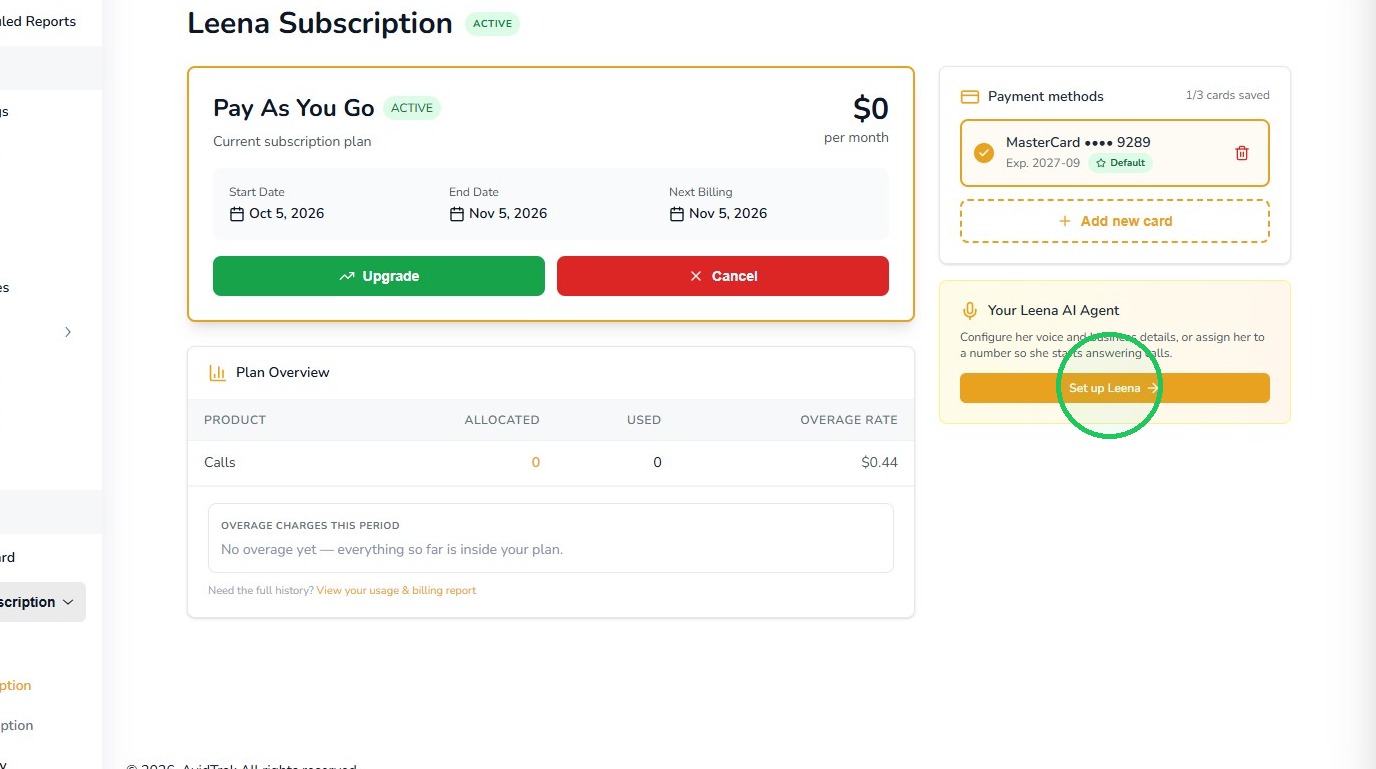
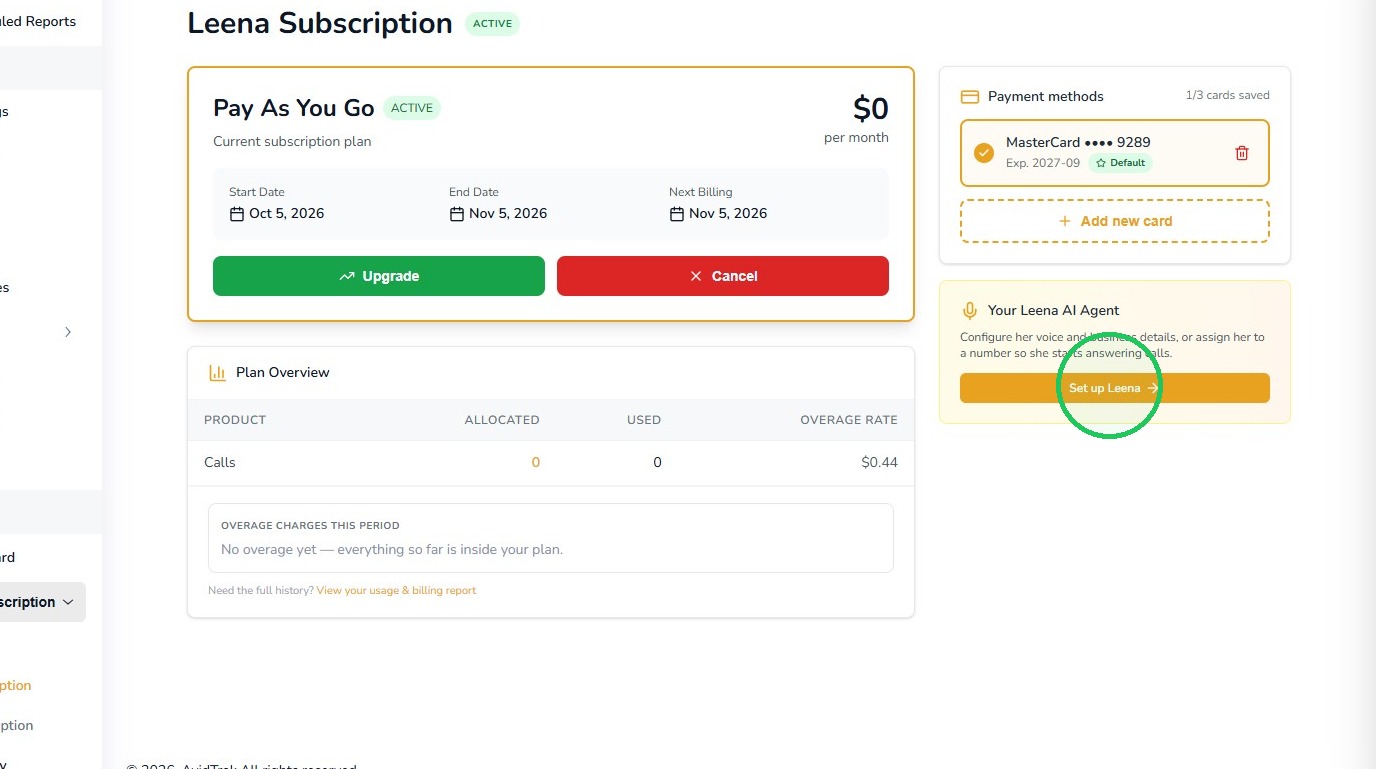
From the Leena Subscription page, select Set up Leena.
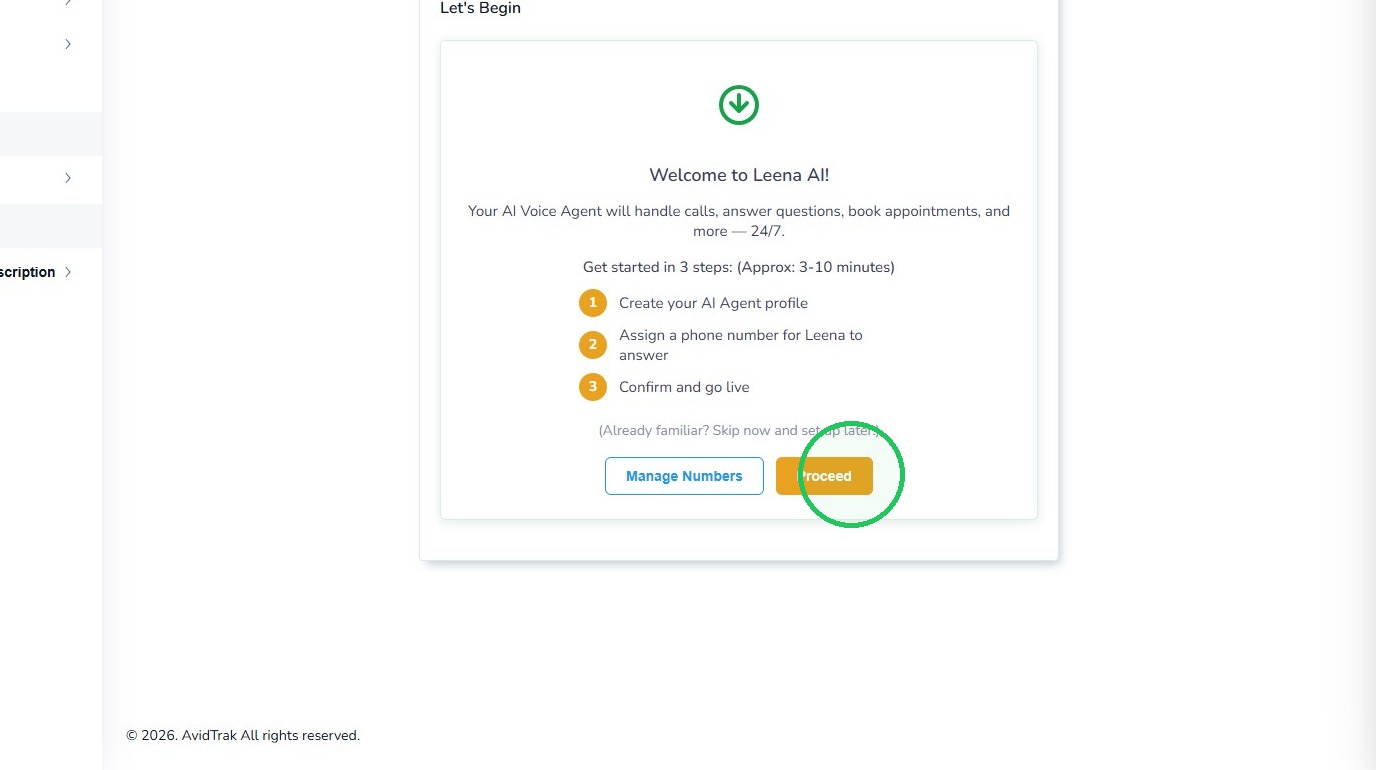
3. AvidTrak displays the Smart Setup welcome screen. The setup is organized into three guided steps:
- Create your AI Agent profile.
- Assign a phone number for Leena to answer.
- Confirm the settings and go live.
Select Proceed to begin.
4. Step 2 – Create Your Leena Profile
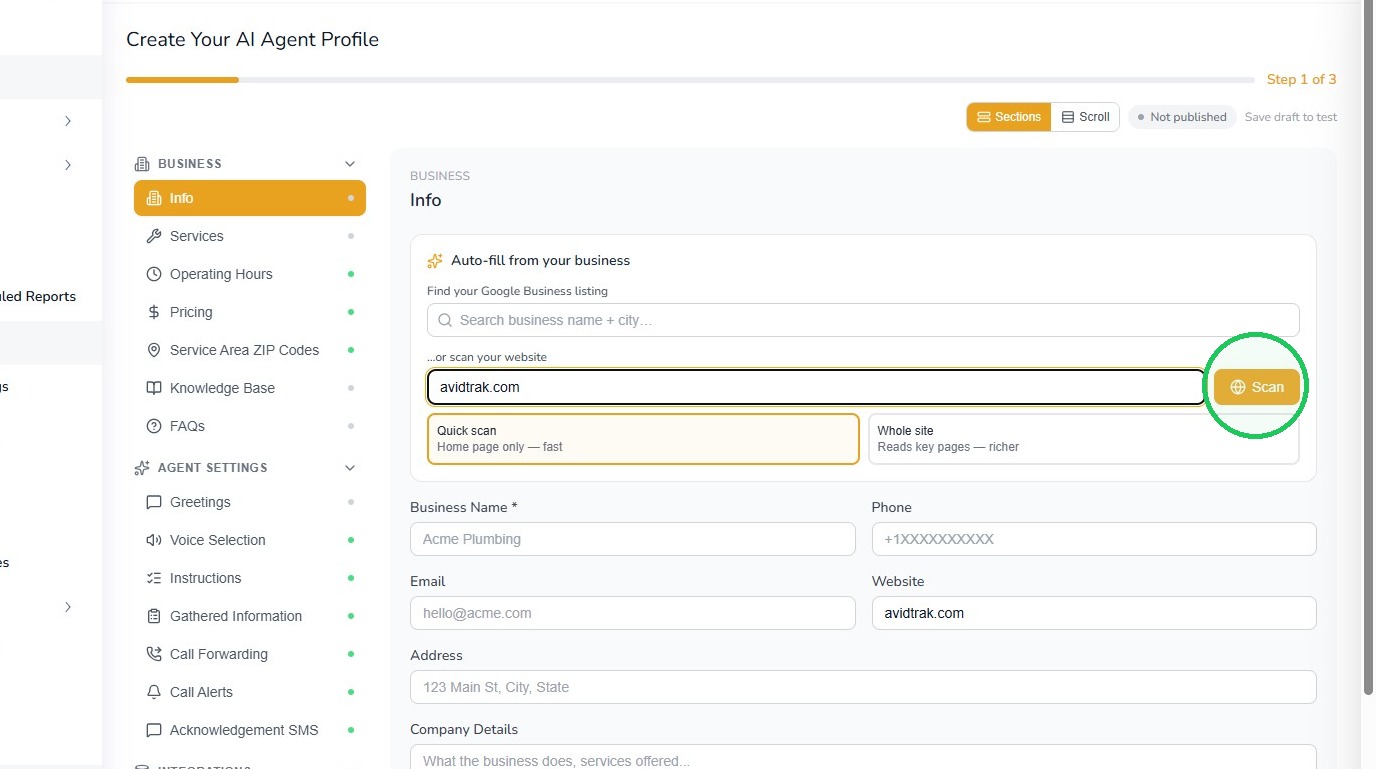
The first step creates the basic business profile Leena will use. Enter your business website in the URL field.
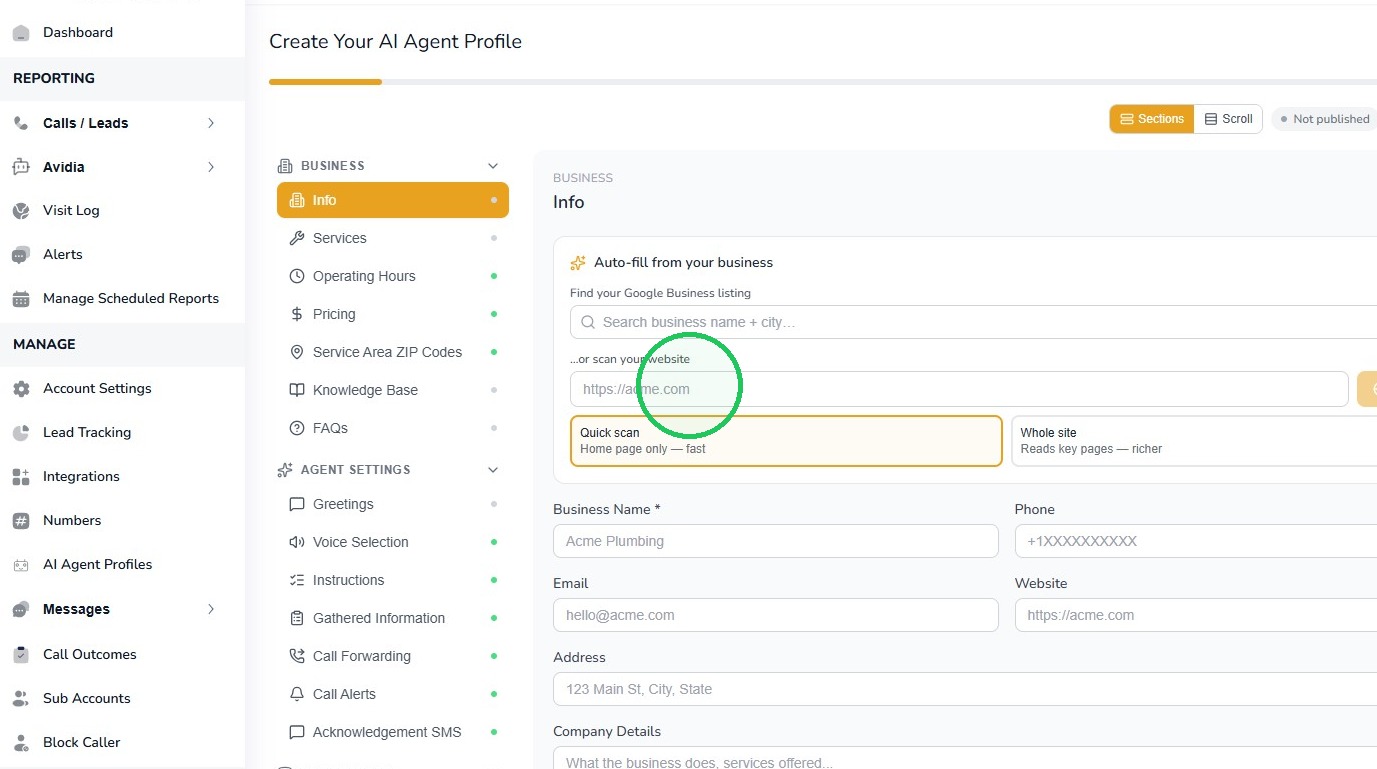
5. Select Scan. AvidTrak will use the website to help populate the business profile with available information. Use the Quick Scan for a brief overview of your website. The Whole Site scan runs a deep scan of your website, takes longer and captures vital and minute details related to your business that are rendered on your website pages.
6. Review the Imported Business Information
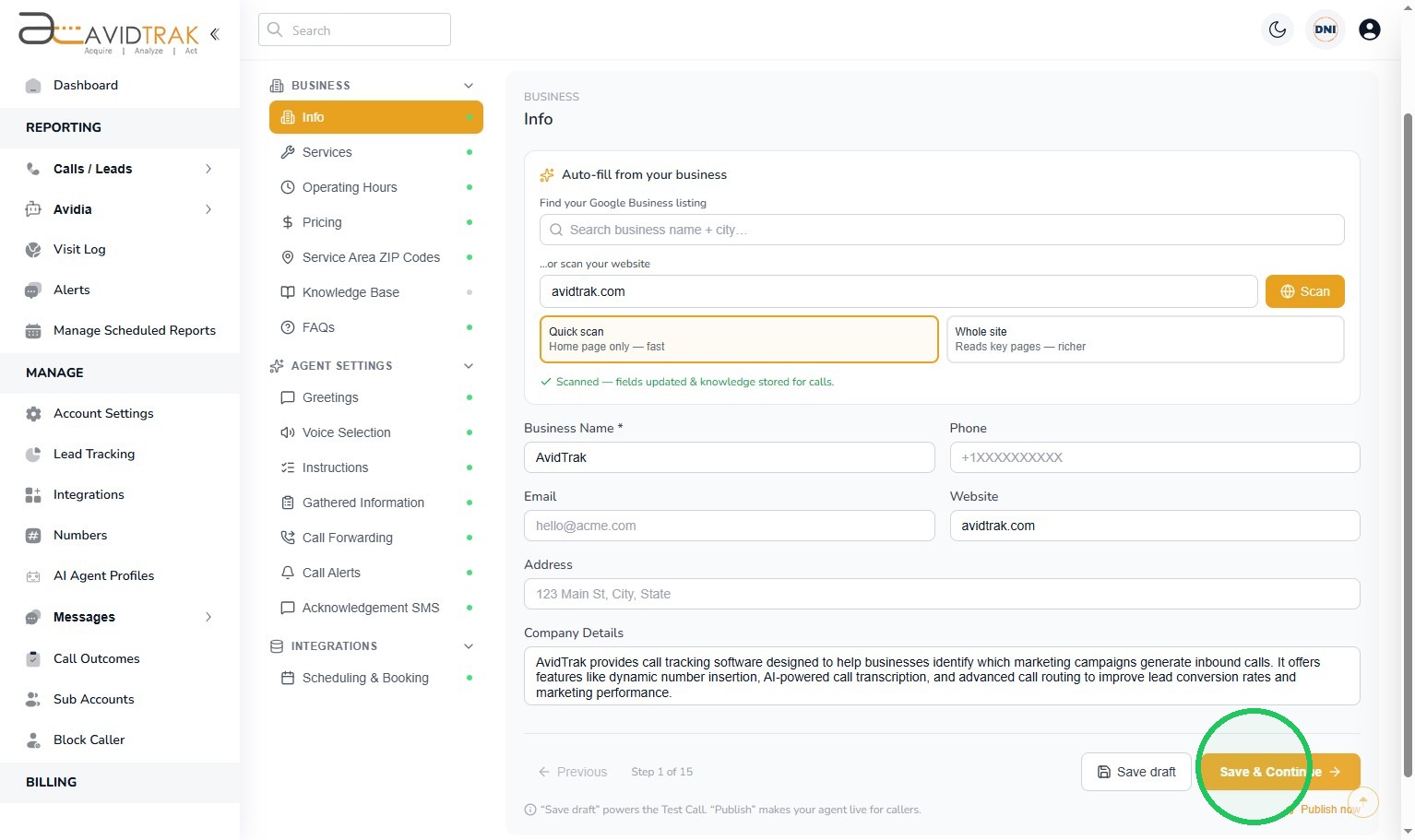
Before continuing, review the information that has been populated in the profile. Confirm that the business name, contact details, website, address, and company description accurately represent the business Leena will
answer for.
Important: Smart Setup is designed for speed, but Leena still depends on accurate business information. Correct any obvious errors or missing information before continuing.
When the basic profile information is satisfactory, select Save & Continue.
7. Step 3 – Publish the Initial Leena Profile
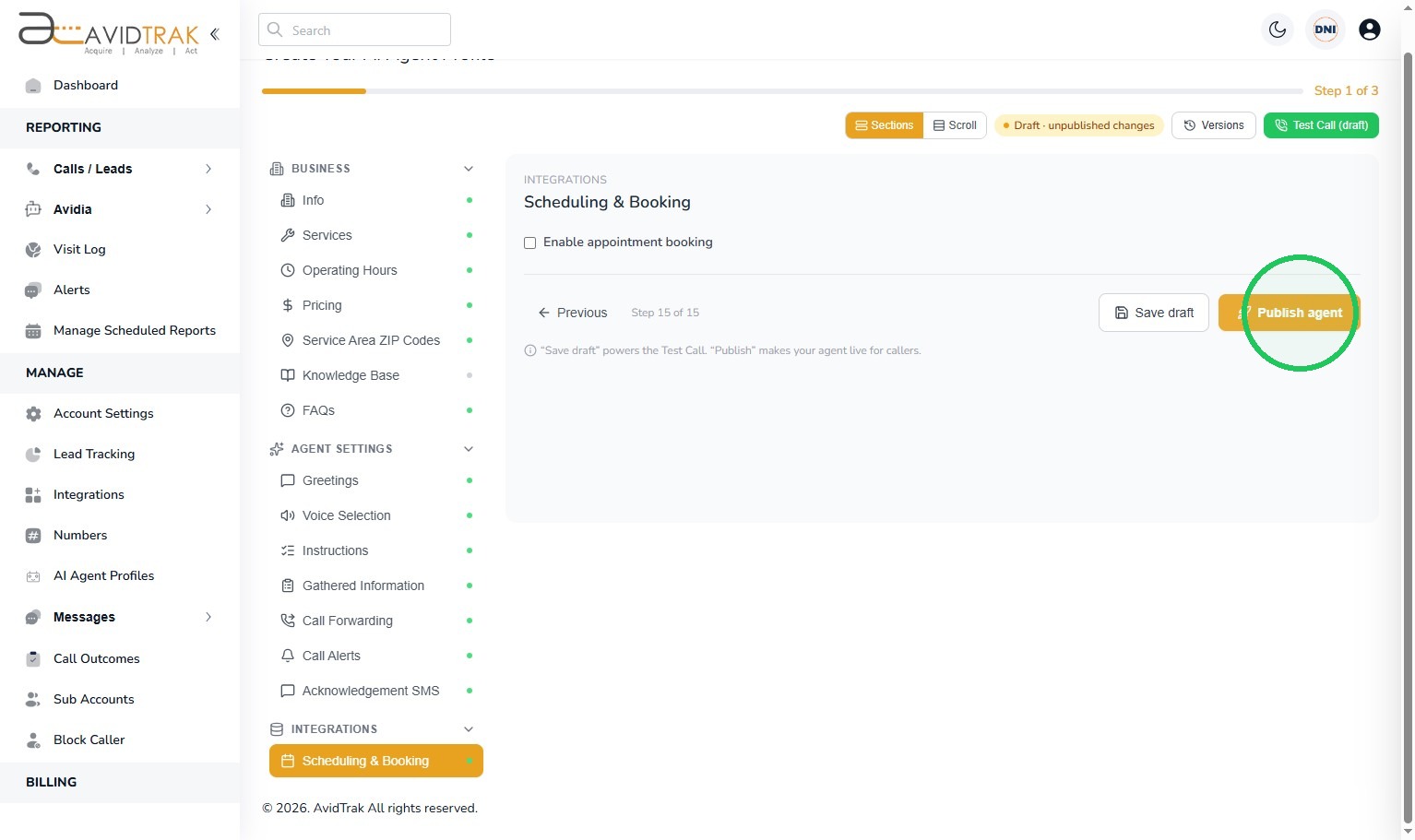
At the end of the profile setup, select Publish agent.
8. AvidTrak asks you to confirm that you want to publish the profile. Select Publish now.
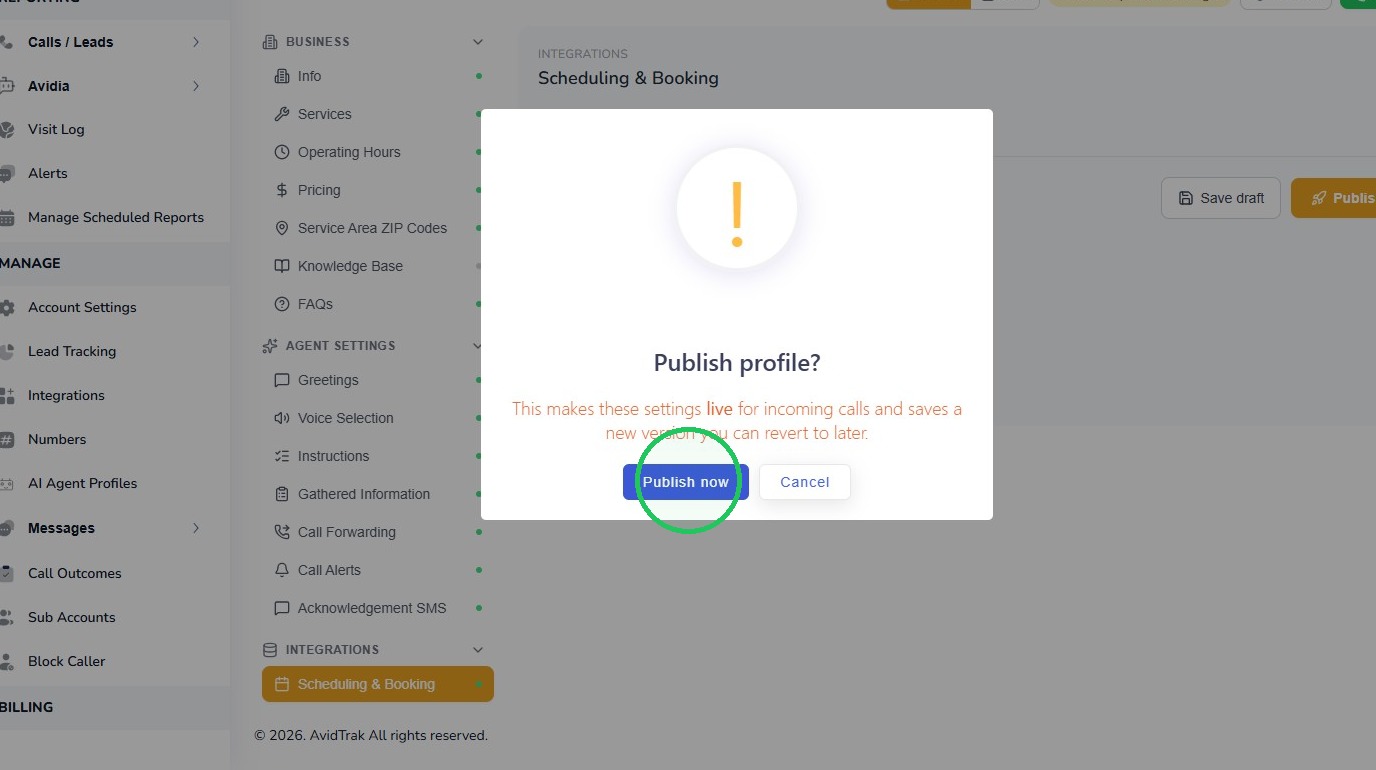
9. Publishing makes the profile available for the remaining onboarding steps and creates the version that will be used when calls are routed to Leena.
Tip:
You can continue refining the Leena profile later. Publishing during Smart Setup does not prevent you from returning to the detailed configuration screens and making additional changes.
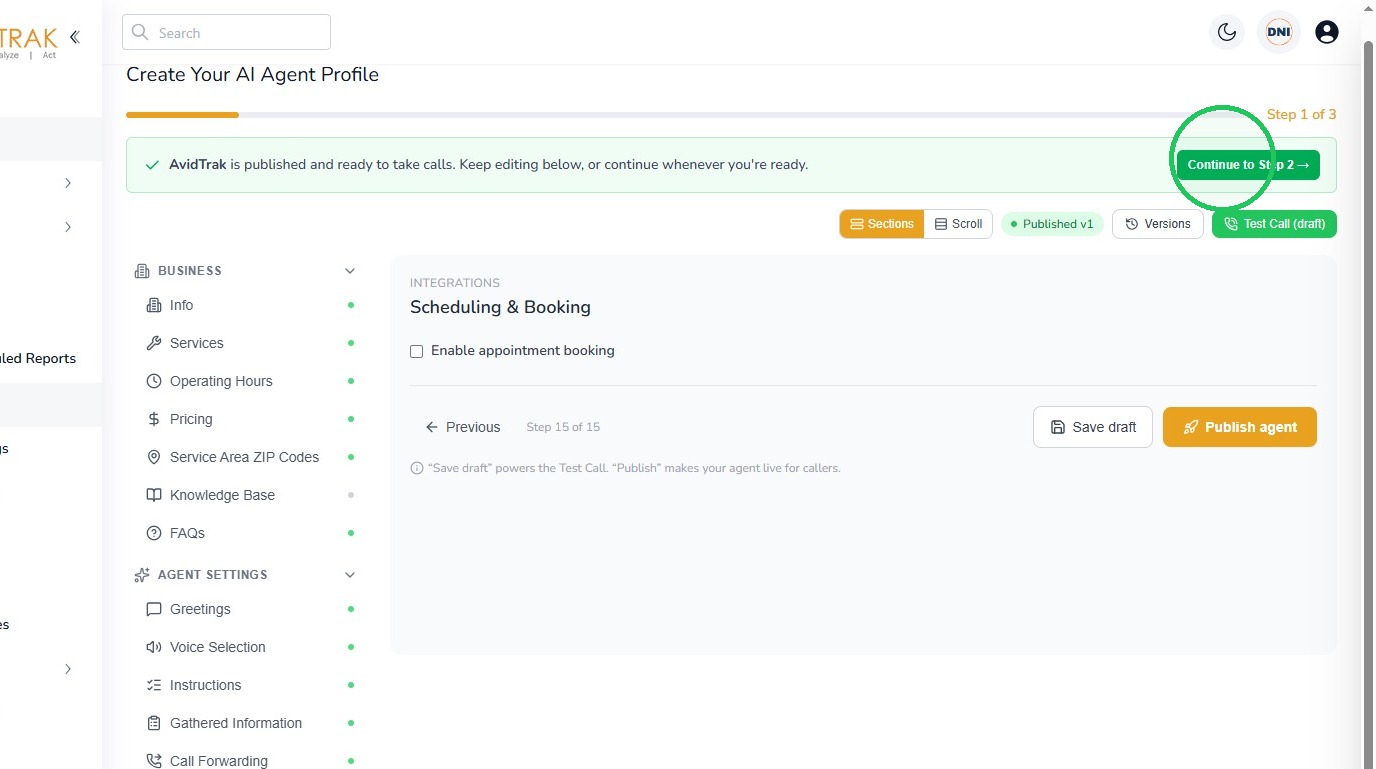
10. Step 4 – Continue to Phone Number Assignment
After the profile is published, AvidTrak confirms that the profile is ready for the next onboarding step. Select Continue to Step 2.
11. Step 5 – Select the AvidTrak Number Leena Will Answer
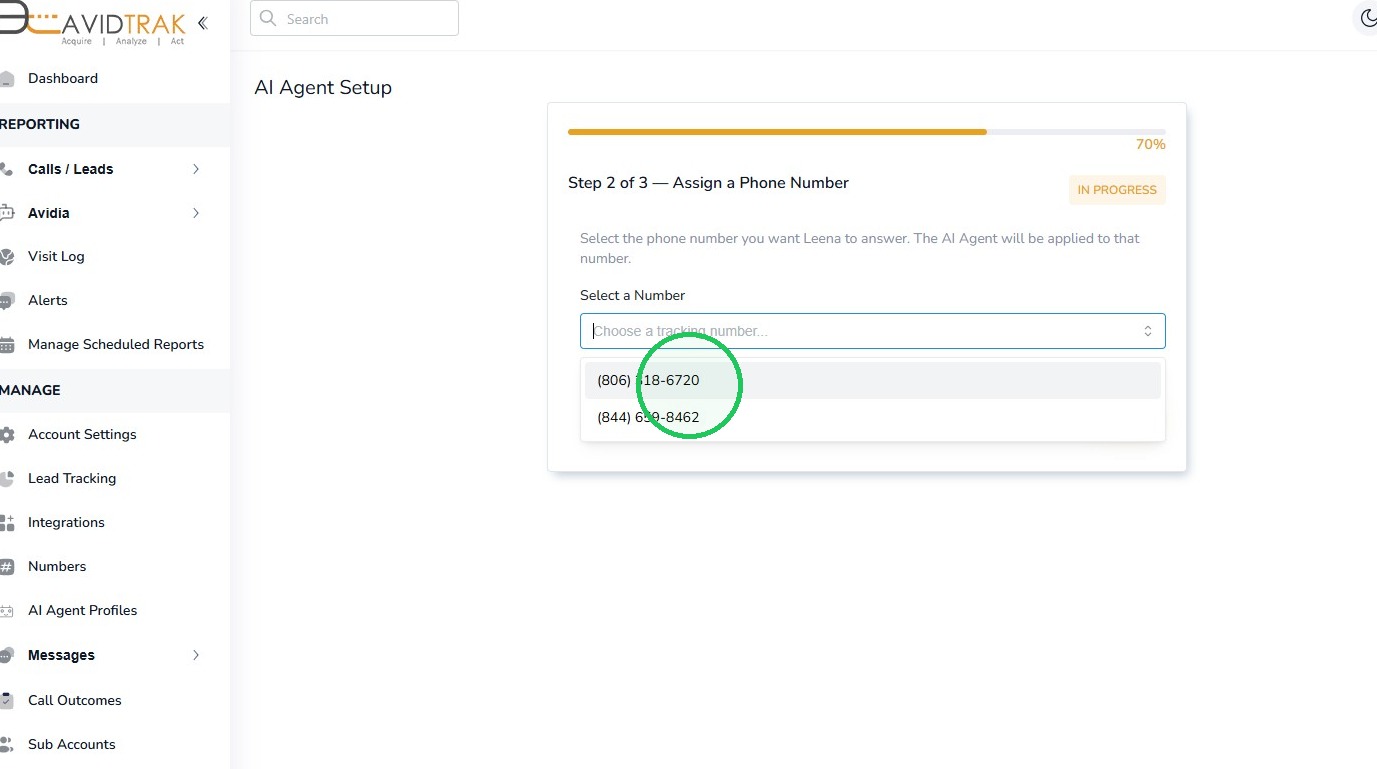
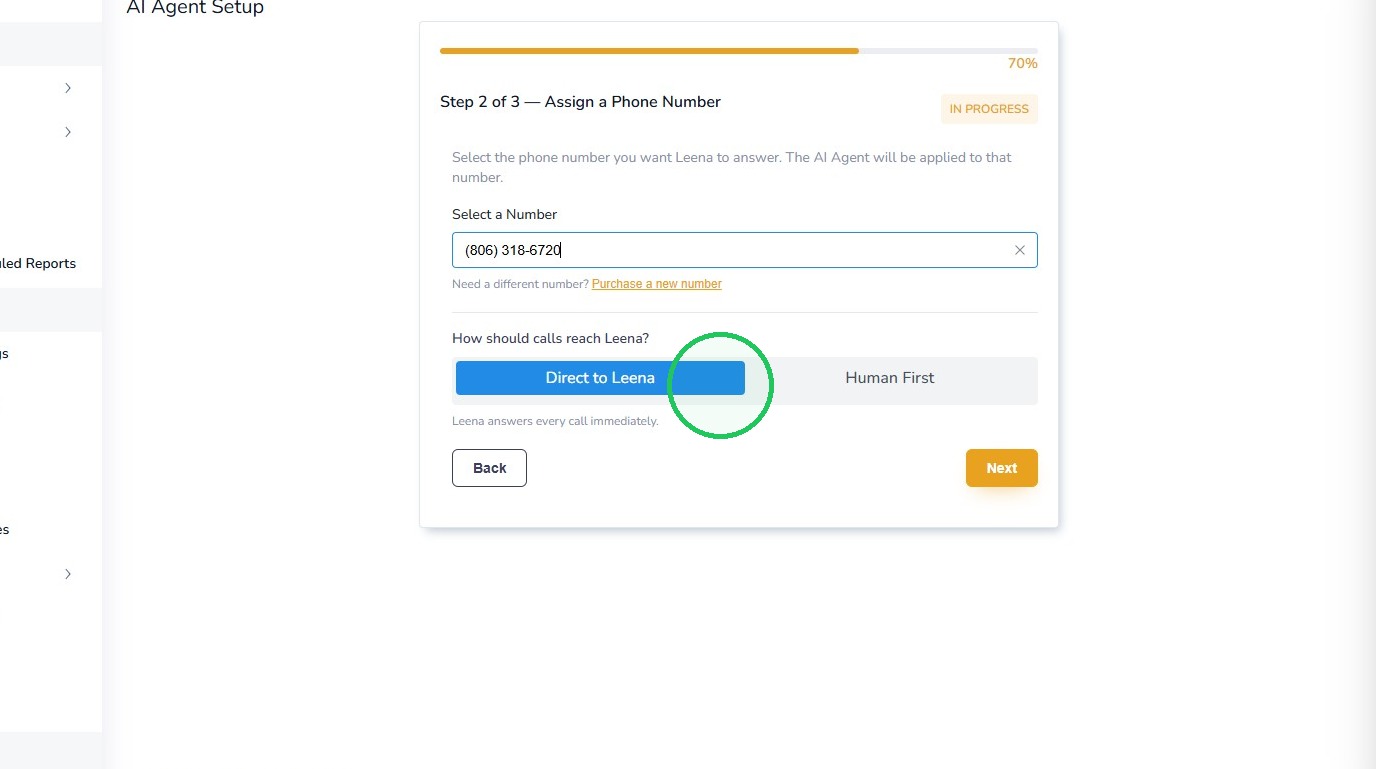
Open the Select a Number field and choose the AvidTrak phone number you want to assign to this Leena profile.
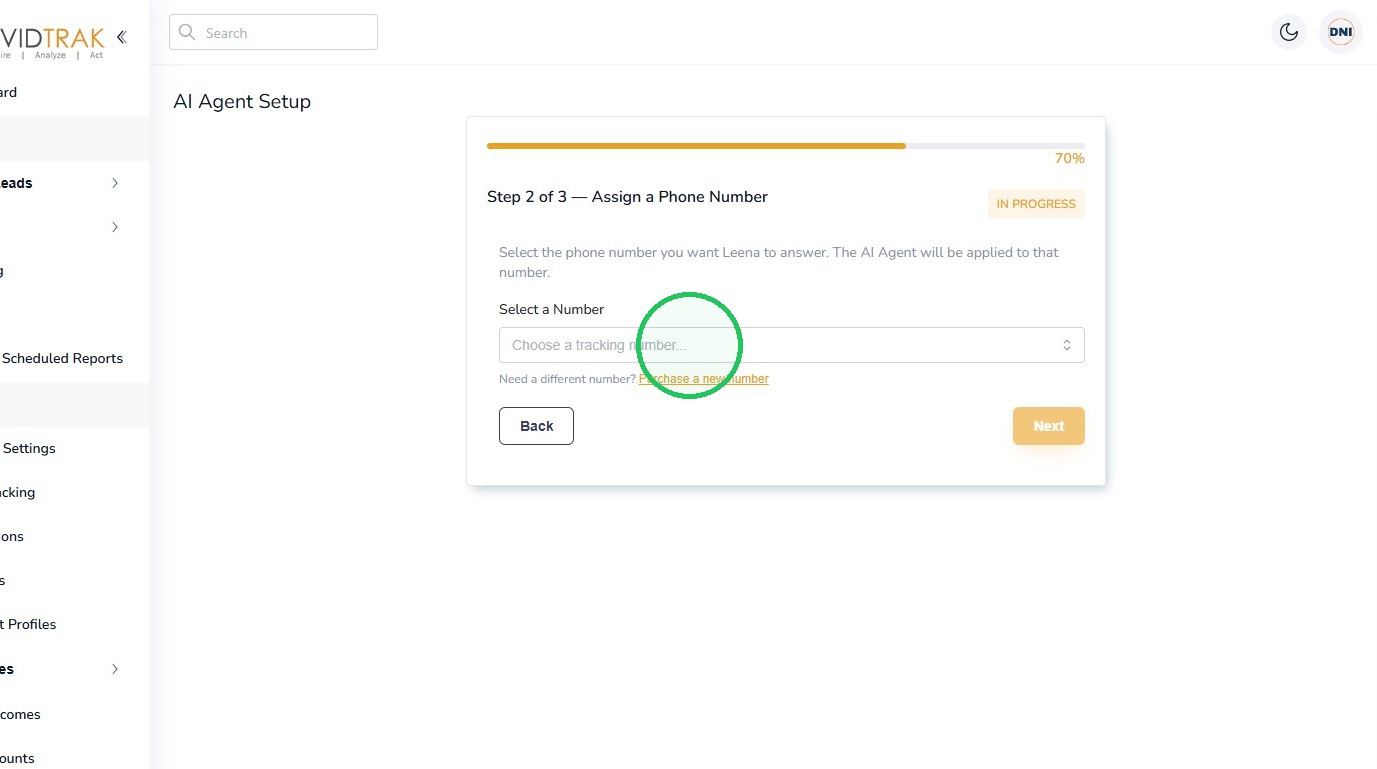
12. Important: The phone number you select is the number associated with this Smart Setup routing. Confirm that you have selected the intended AvidTrak number before continuing.
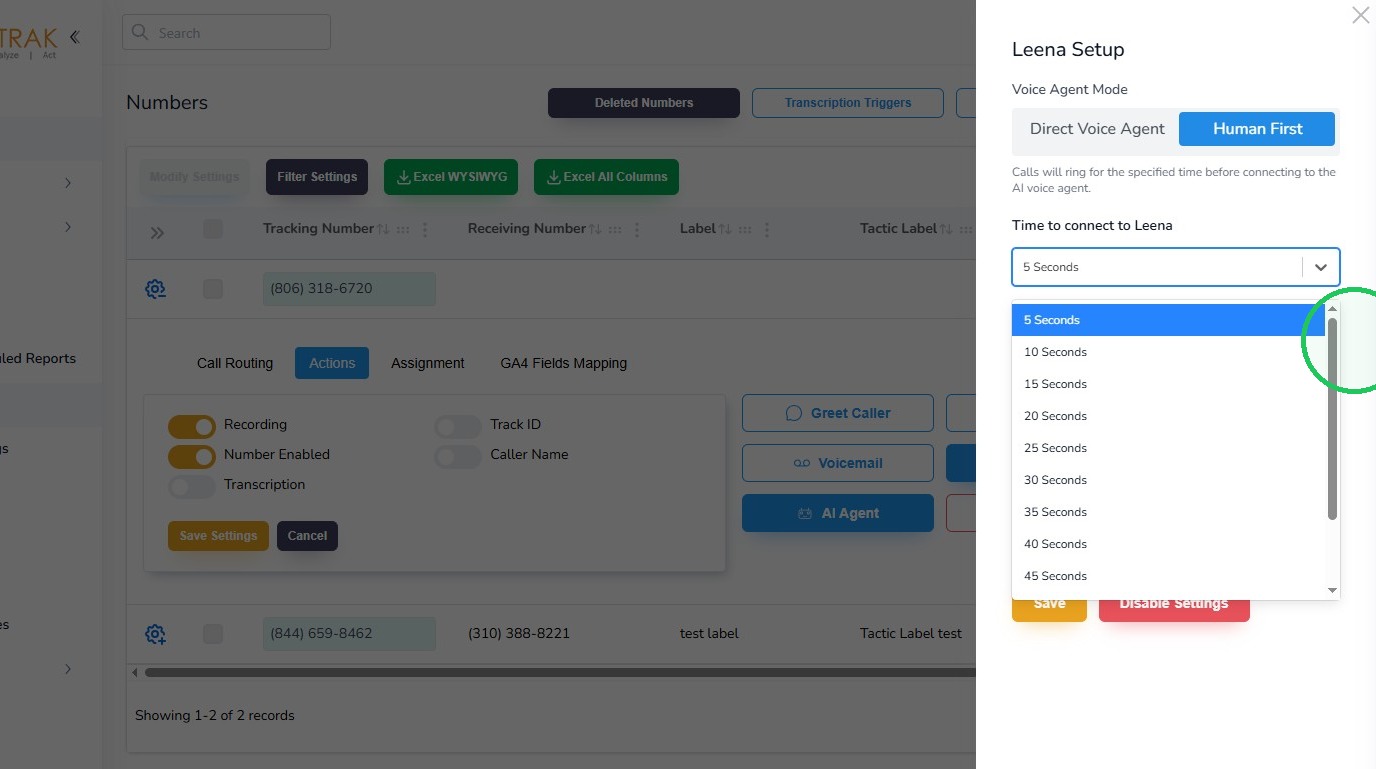
13. To have a human answer the call before Leena, select the Human First button.
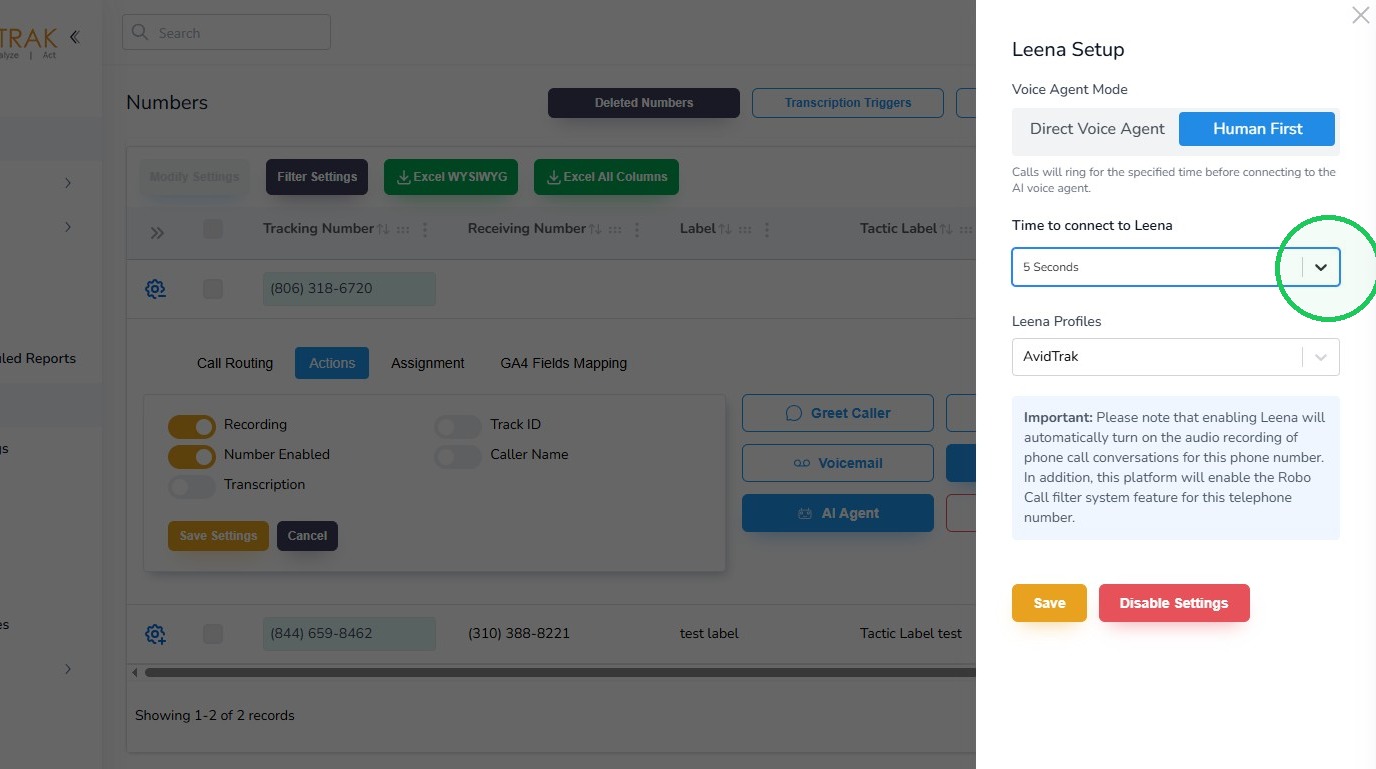
14. From the drop down menu select the number of seconds you wish the call to ring to your business phone number before Leena intercedes to answer the call.
15. Step 6 – Choose How Calls Should Reach Leena
After selecting the phone number, choose the call-routing option shown in the Smart Setup screen.
In this example, Direct to Leena is selected. This routes calls on the assigned number directly to the Leena AI Voice Agent.
New User Guidance: If your goal is for Leena to answer the assigned number as the primary call handler, select Direct to Leena. As indcated earlier, if your workflow requires a person to receive the call first, use the Human First option and review the routing behavior that applies to your account.
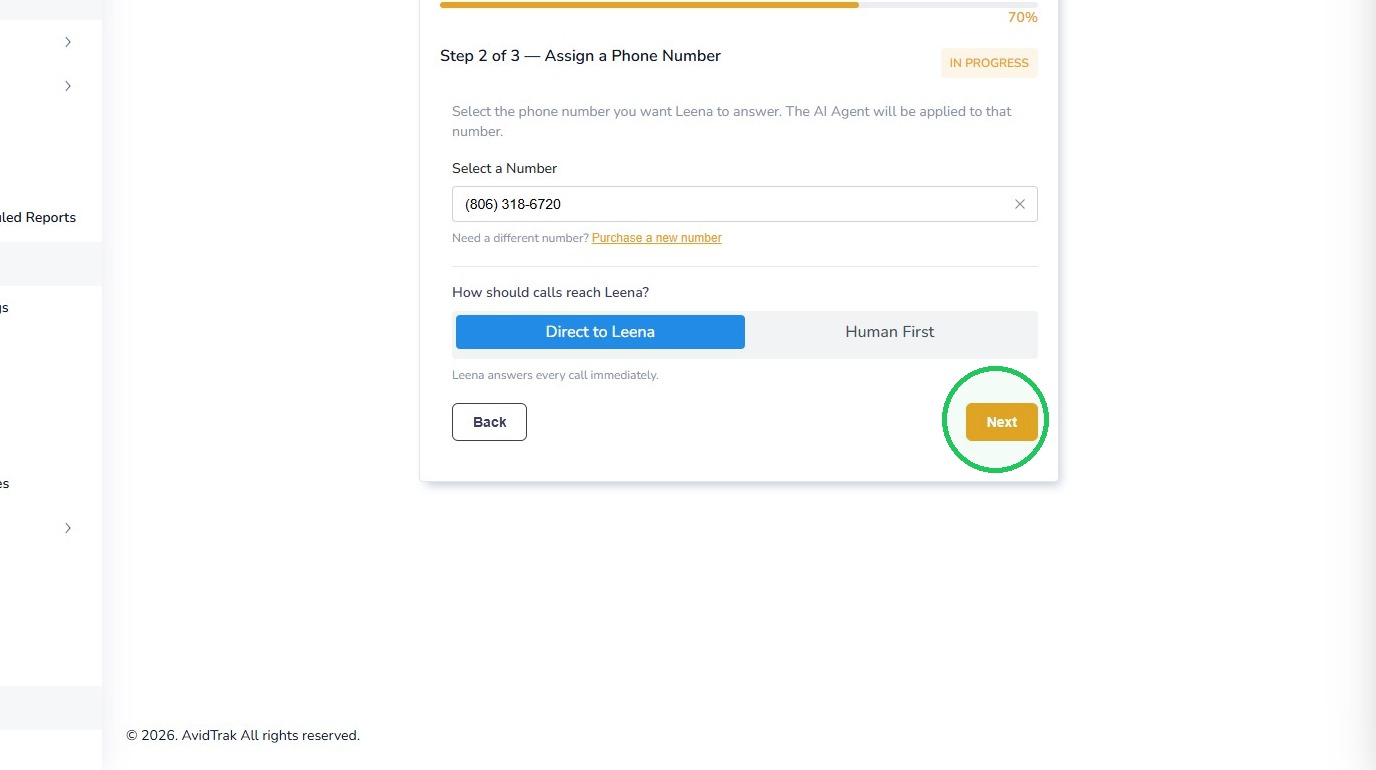
16. Select Next to continue.
17. Step 7 – Review and Confirm Go-Live Settings
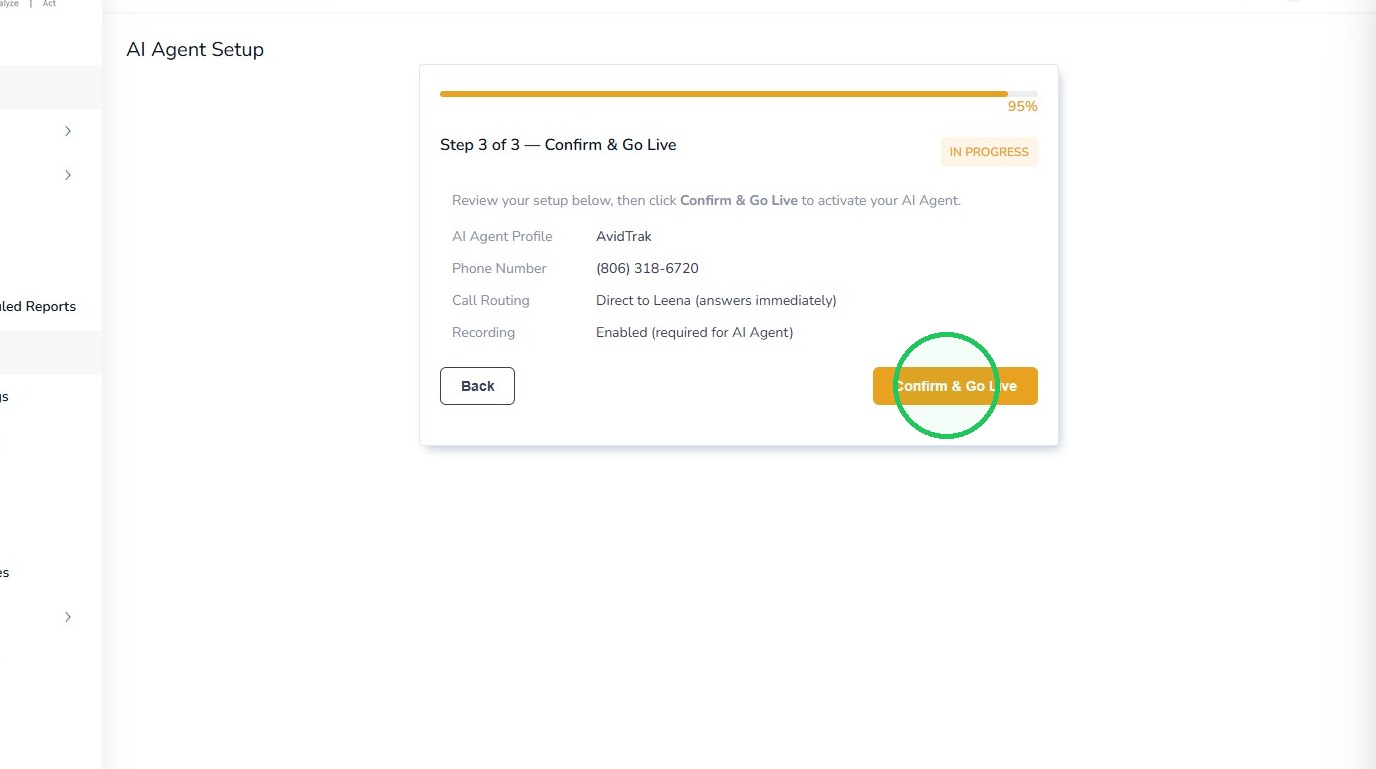
The final Smart Setup screen summarizes the Leena profile, assigned phone number, call routing, and recording setting.
Review the information carefully. If anything is incorrect, select Back and make the necessary change.
When the settings are correct, select Confirm & Go Live.
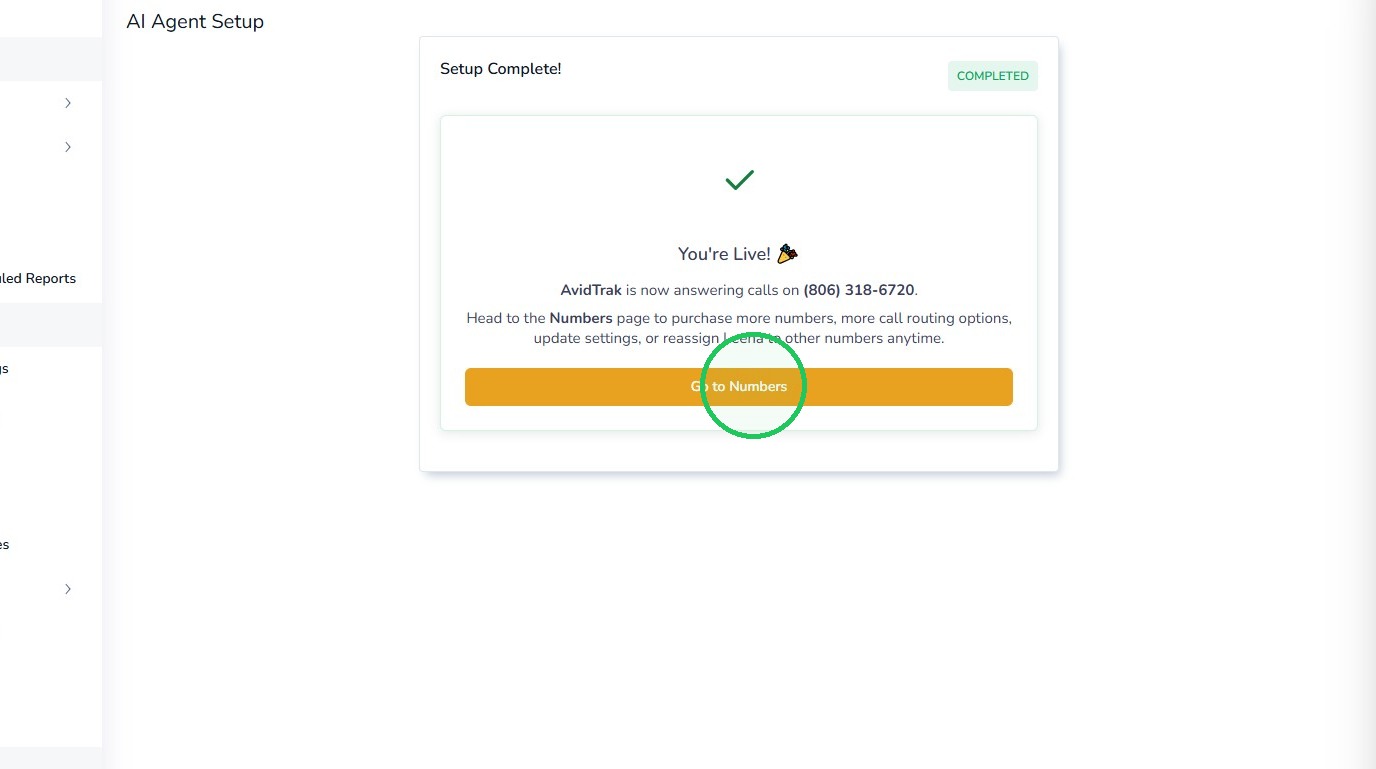
18. Step 8 – Confirm Setup Is Complete
AvidTrak will display the Setup Complete screen confirming that Leena is live on the assigned phone number.
You may now go to Numbers to review the assigned number or return to the Leena profile to continue refining the agent.
19. Test Leena Before You Rely on Live Calls
After Smart Setup is complete, we highly recommend placing several test calls to the assigned AvidTrak number before relying on Leena for normal caller traffic.
Use the test calls to experience Leena the way a real caller would. Try more than one type of conversation so you can confirm that the business information, greeting, responses, call handling, and routing behave as expected.
For example, ask a common business question, describe a typical reason for calling, request a person if human assistance is part of your workflow, and confirm that Leena responds appropriately when information is incomplete or unexpected.
Important: If your test calls reveal anything that does not work as expected, do not hesitate to contact the AvidTrak Support Team at support@avidtrak.com. We are happy to help you review the configuration and fine-tune the caller experience before you depend on Leena for live calls.
20. Tutorial Complete
This completes the Leena Smart Setup onboarding tutorial.
Smart Setup is intended to help a new Leena user get started quickly. Once Leena is live, we recommend reviewing the full Leena configuration options as your needs evolve so you can further customize business knowledge, greeting and voice, caller instructions, information collection, call routing, alerts, follow-up, and scheduling.
If you have any difficulty completing Smart Setup, testing Leena, or refining the configuration for your business, please contact the AvidTrak Support Team at support@avidtrak.com.

