

How to Add a Sub Account in an AvidTrak Starter or Professional Account
1. In this tutorial you will learn How to Add a Sub Account in an AvidTrak Starter or Professional Account. An AvidTrak account administrator may allow 3rd parties limited or near complete access to their account by utilizing the Sub-Account access feature. It is the responsibility of the individual account administrator to ensure that account access by 3rd parties is only provided to known and trusted parties. AvidTrak is not responsible for misuse of data by 3rd parties allowed access to an administrator’s account.

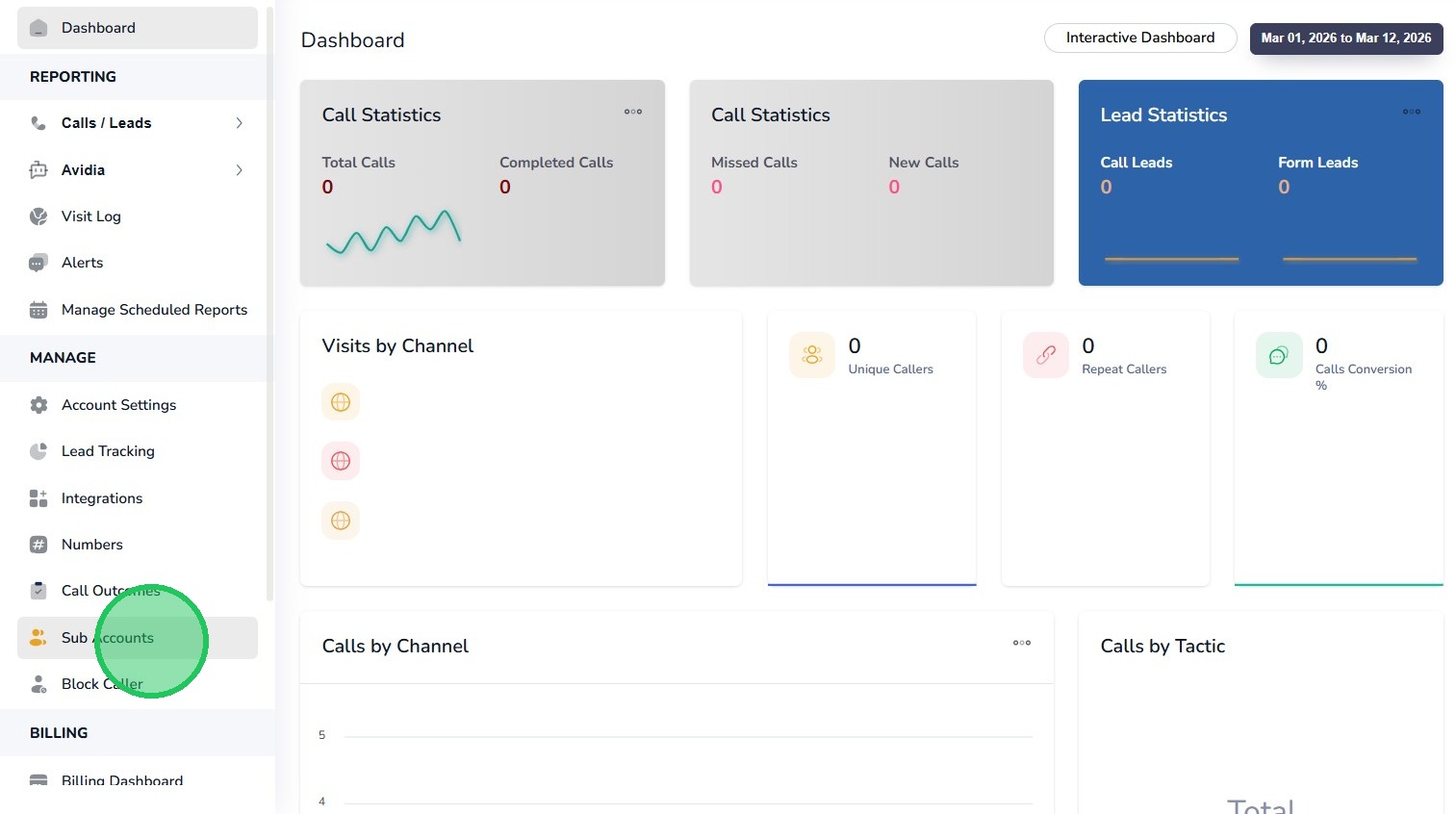
2. After you have successfully logged into your account as an Administrator, navigate to the left navigation area, and find and click the “Sub Accounts” link that appears under the Manage menu section.
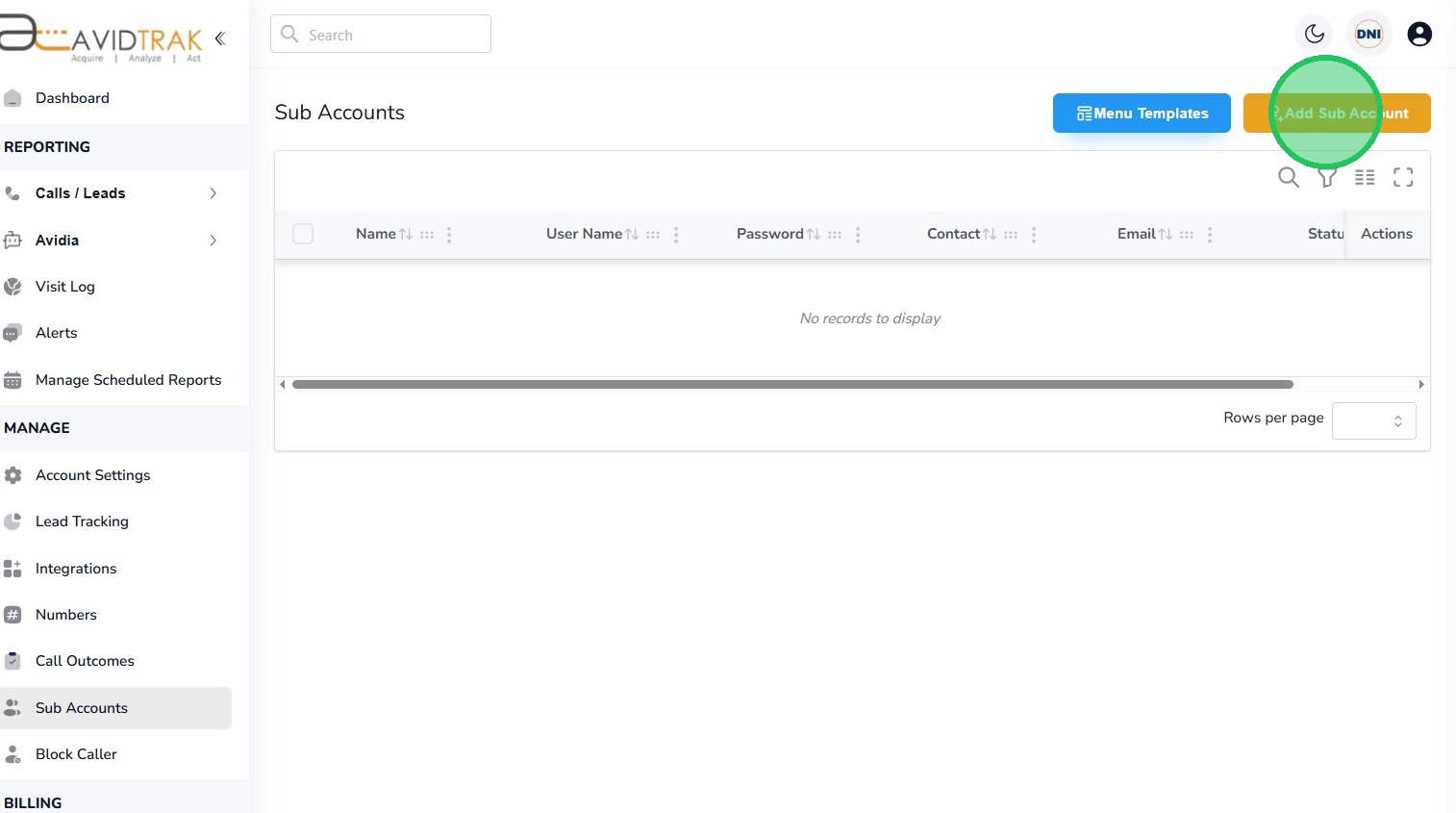
3. Next, Click the “Add Sub Account” Button.
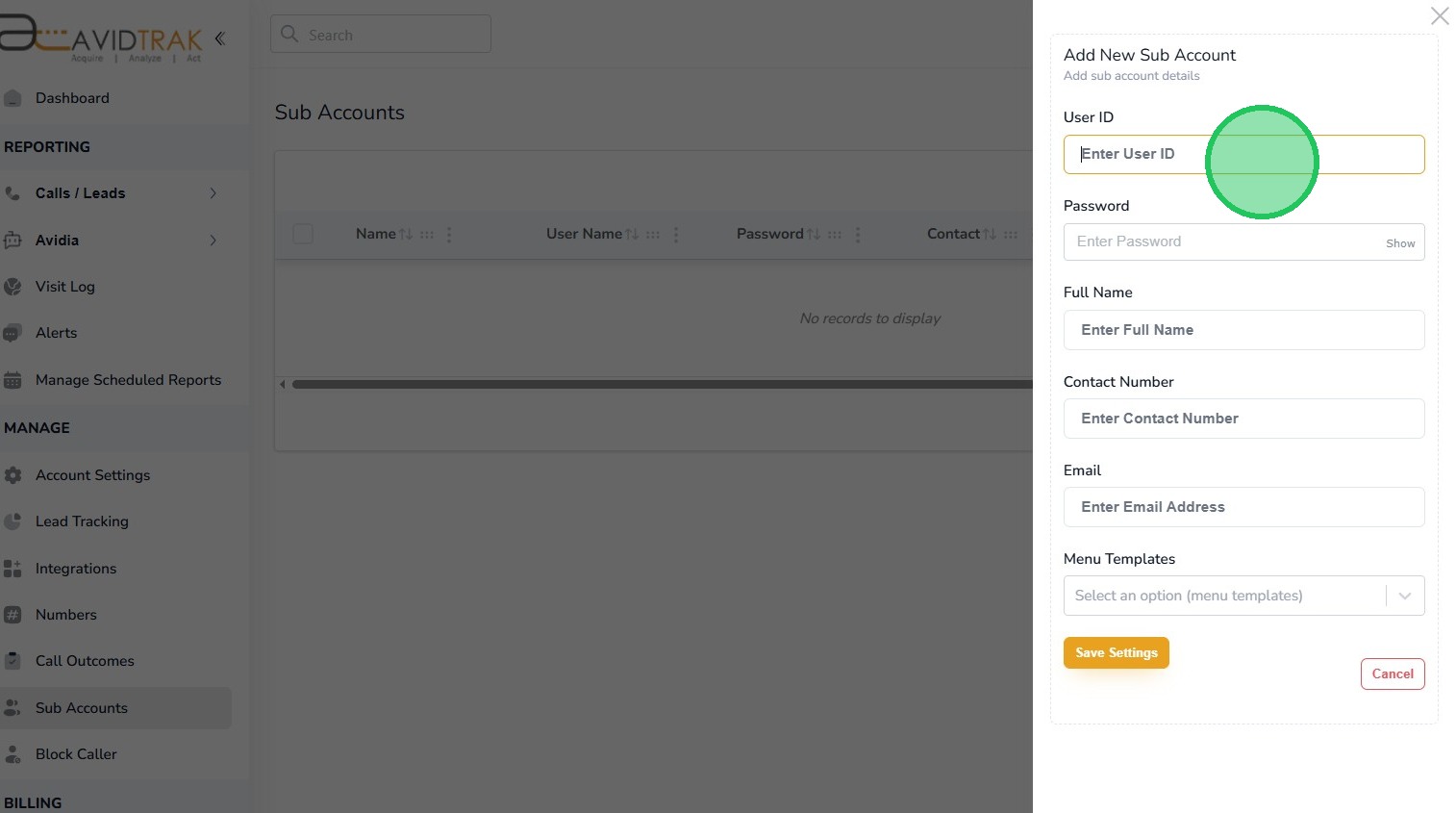
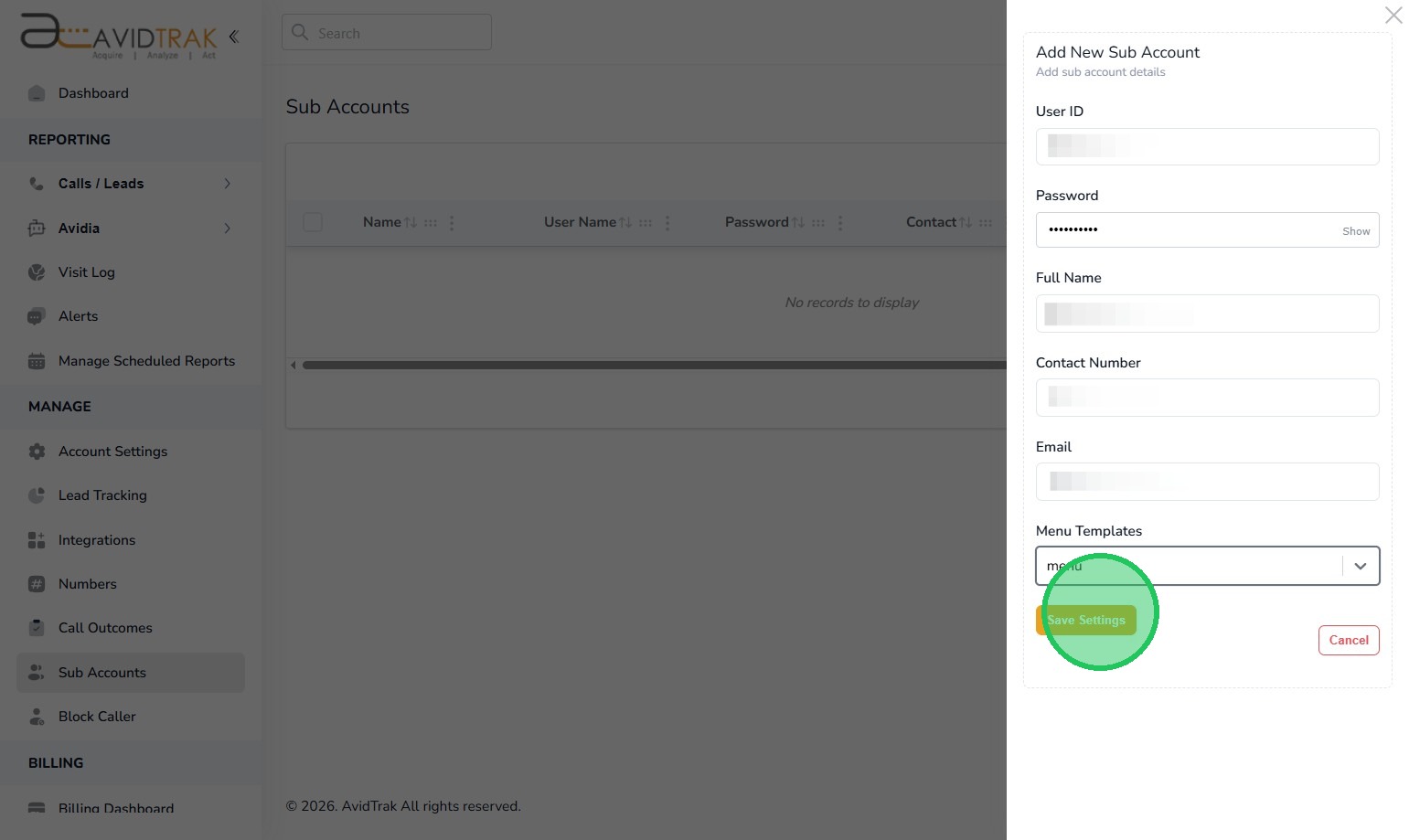
4. Next. Click the “Enter User ID” field. In the User ID field enter a User ID for the individual who would be accessing the account. The User ID must be one word and should not have any special characters contained in the User ID. Example: Individual’s name is Jennifer Jones. Her User ID would be JenniferJones. If there are two Jennifer Jones in your organization and you need to provide access to both Jennifers, then you may create User ID JenniferJones1 and JenniferJones2 as User ID.
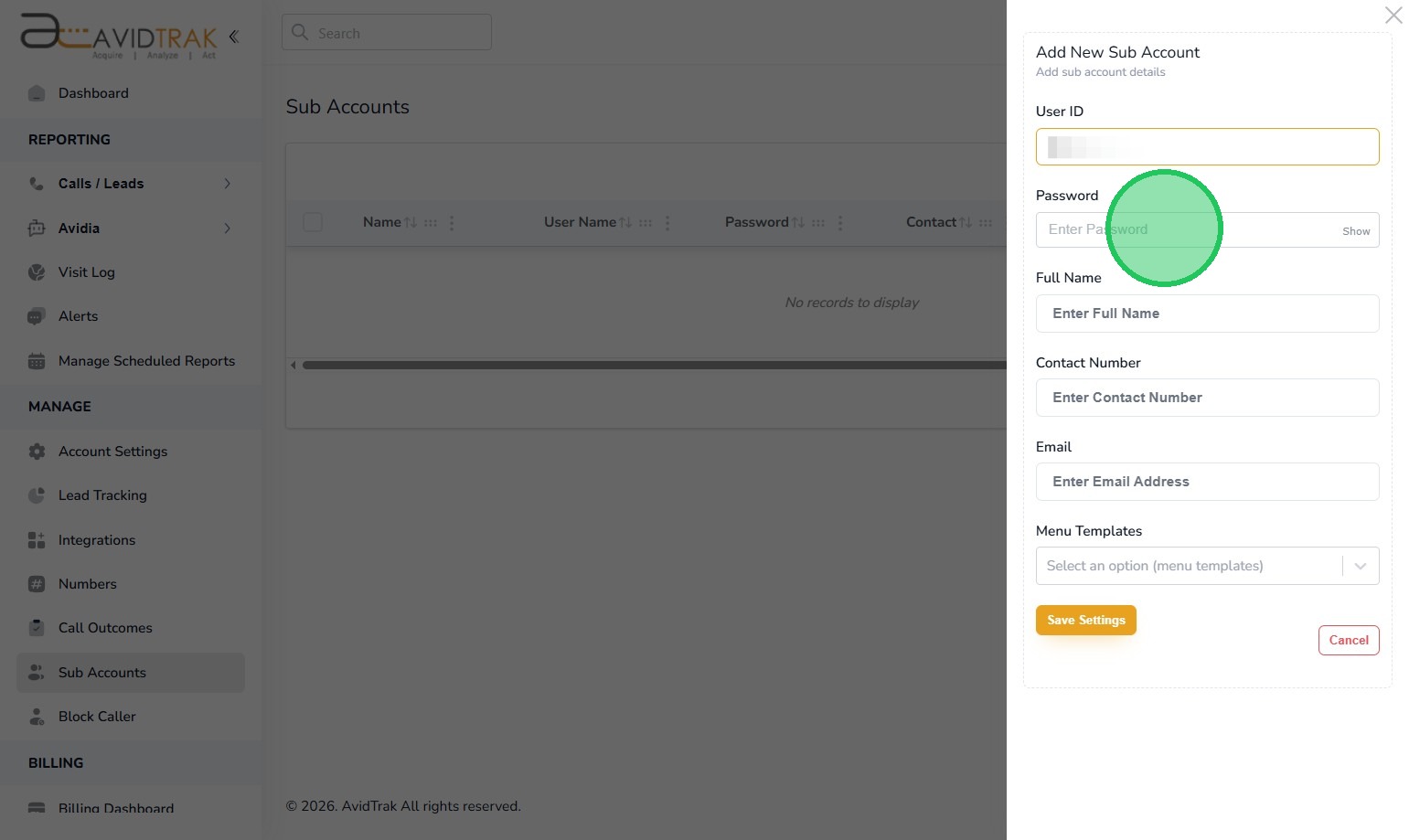
5. Next, Click the “Enter Password” field and create a password for the Username that you just created. Follow the password prompts below the password field to create a password that is acceptable to this system.
6. Next, Click the “Enter Full Name” field and enter the first and last name of the individual.
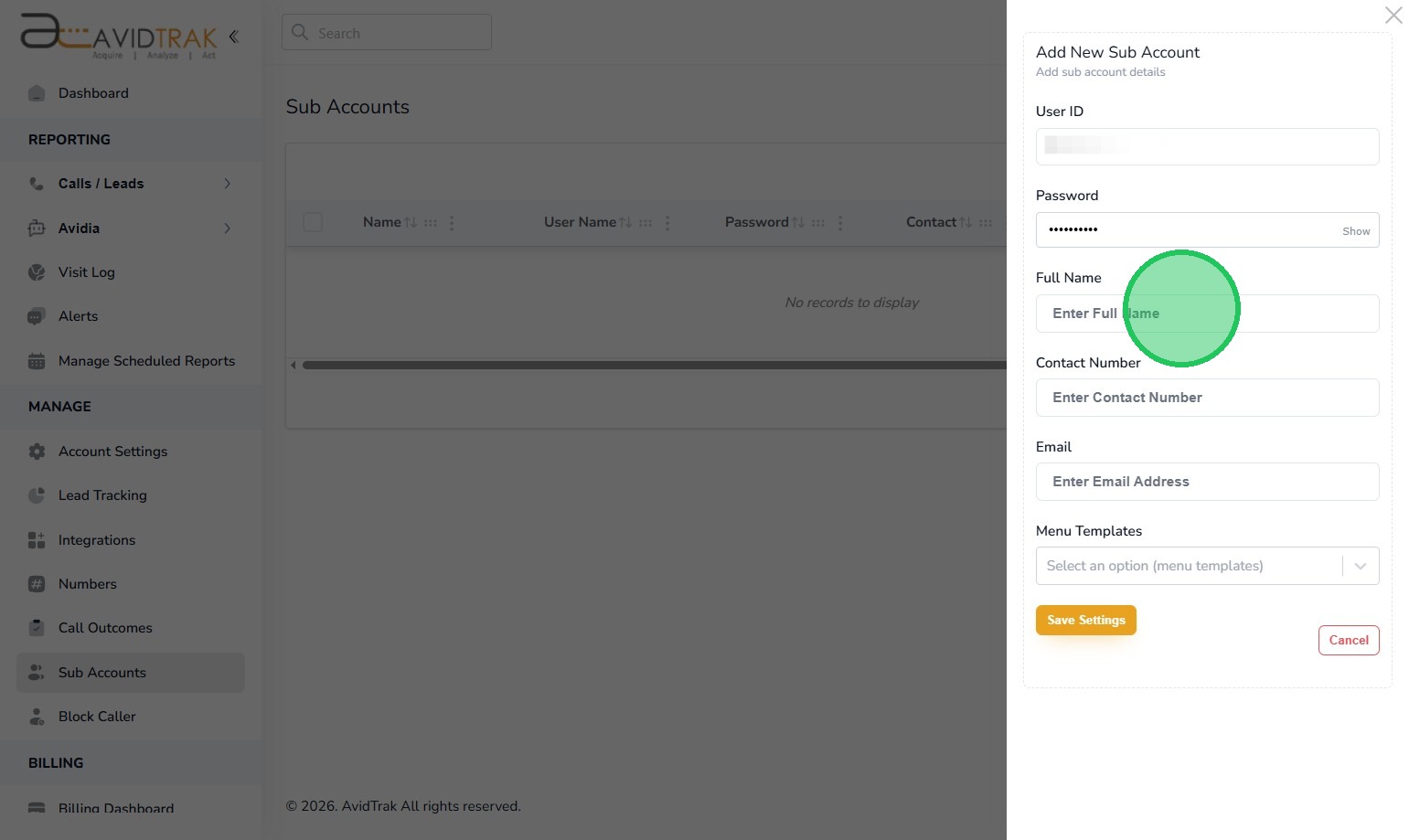
7. Next, Click the “Enter Contact Number” field and enter the ten digit phone number of the individual.
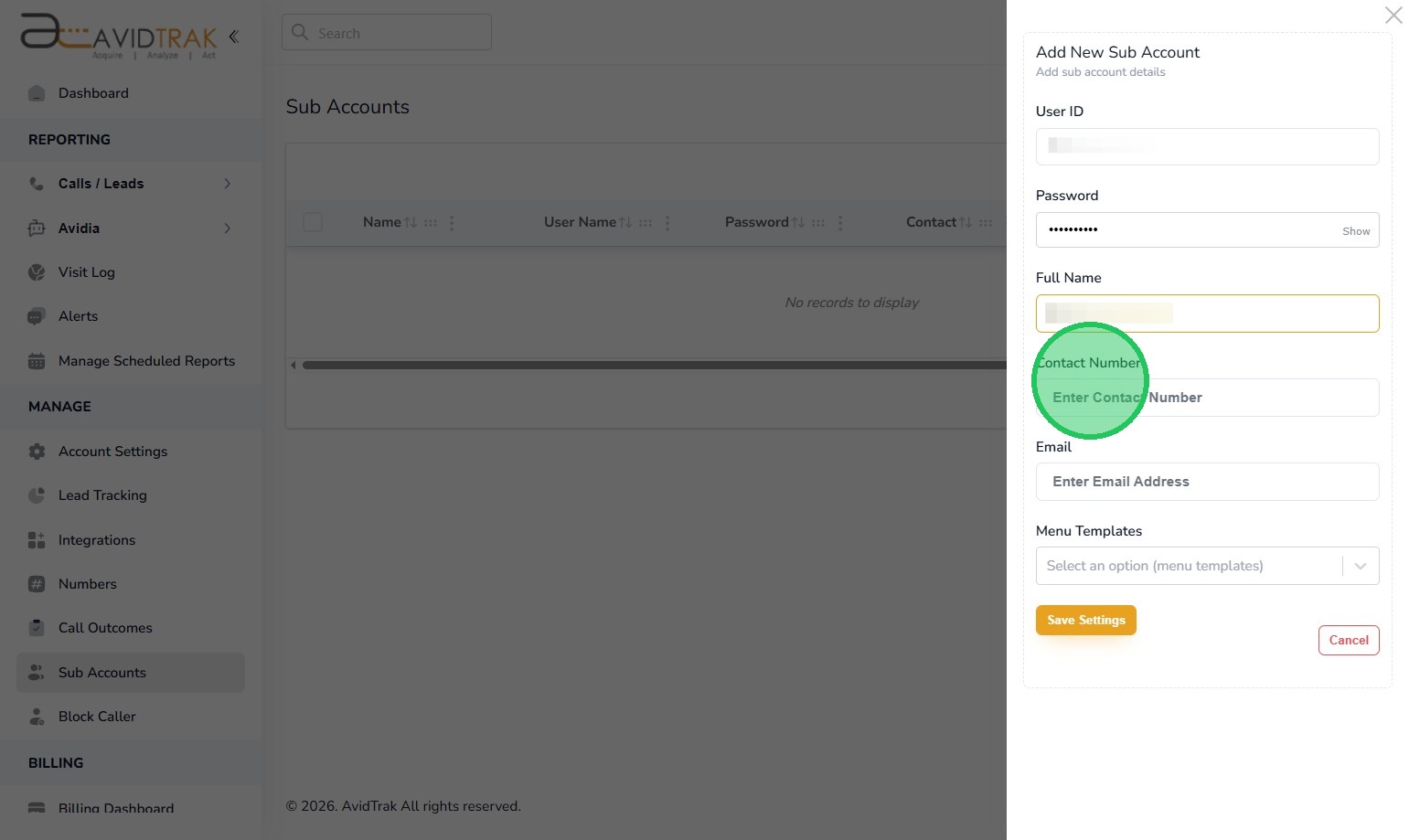
8. Next, Click the “Email” field and enter the email address of the individual.
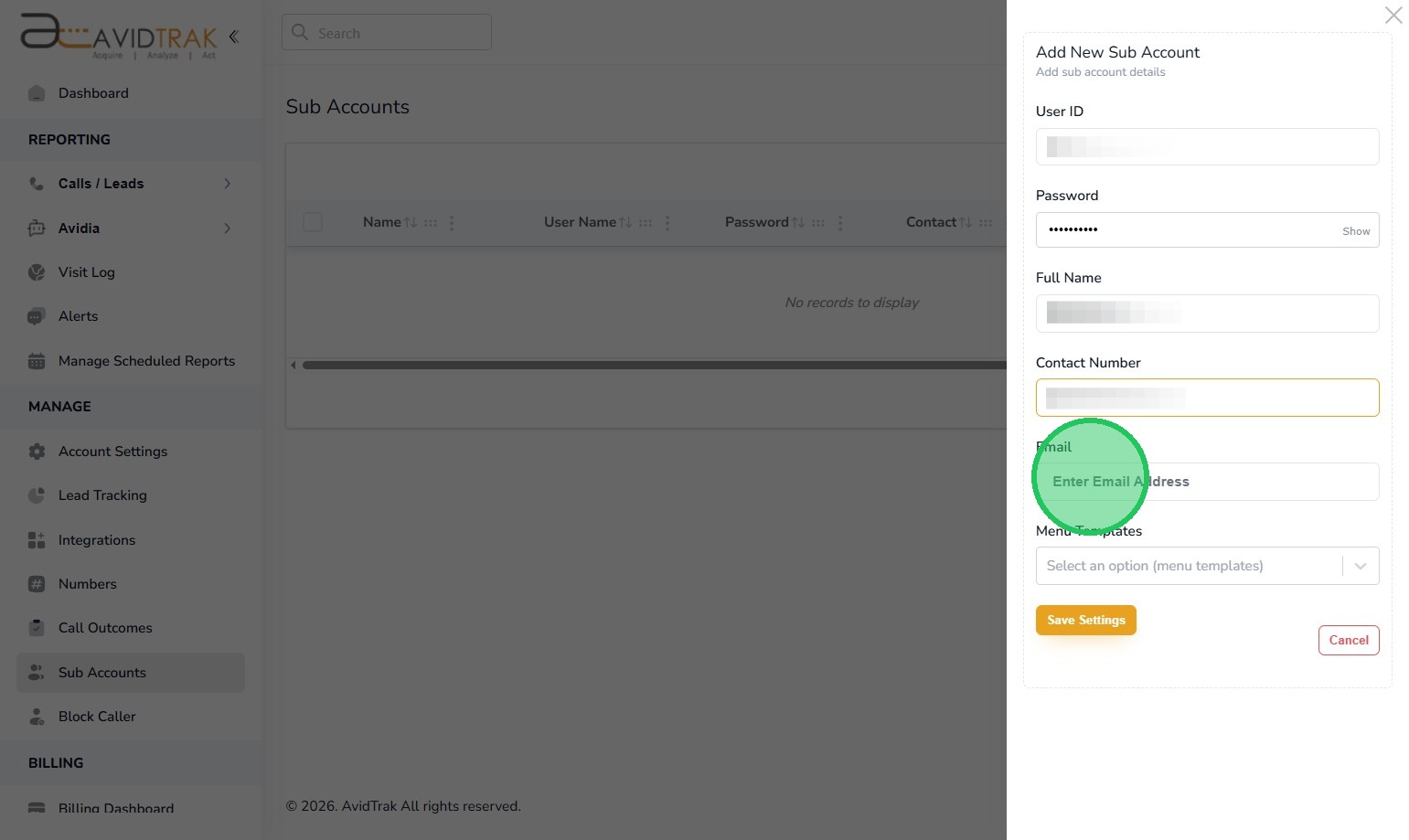
9. Next, click the Menu Templates select field and choose a template. If you do not have a template or do not need to use a template, then the system will assign a default template which will allow your client to view all fields available in AvidTrak.
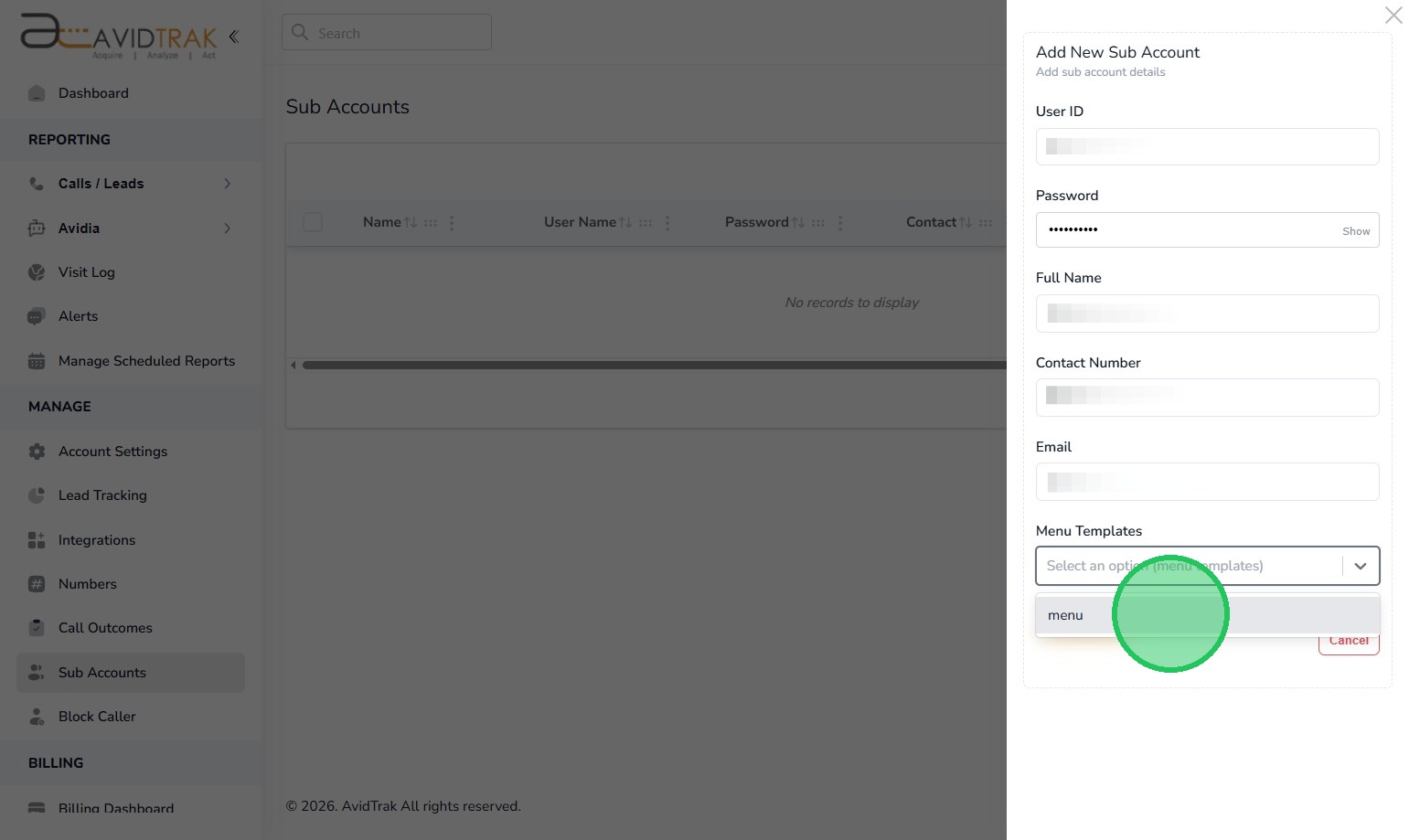
10. Click the “Save Settings” button to save your work.
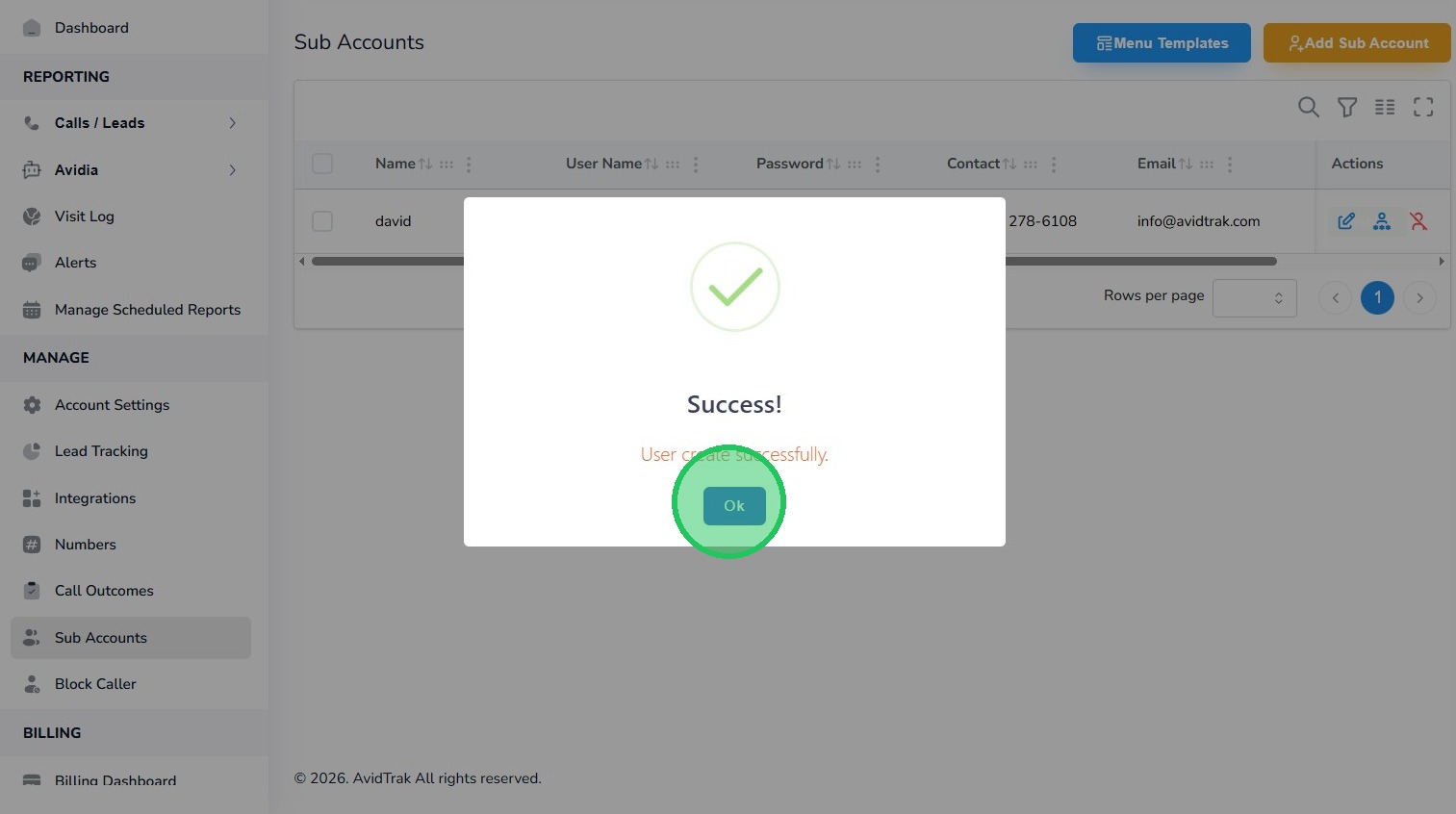
11. Click the “OK” button to save the settings
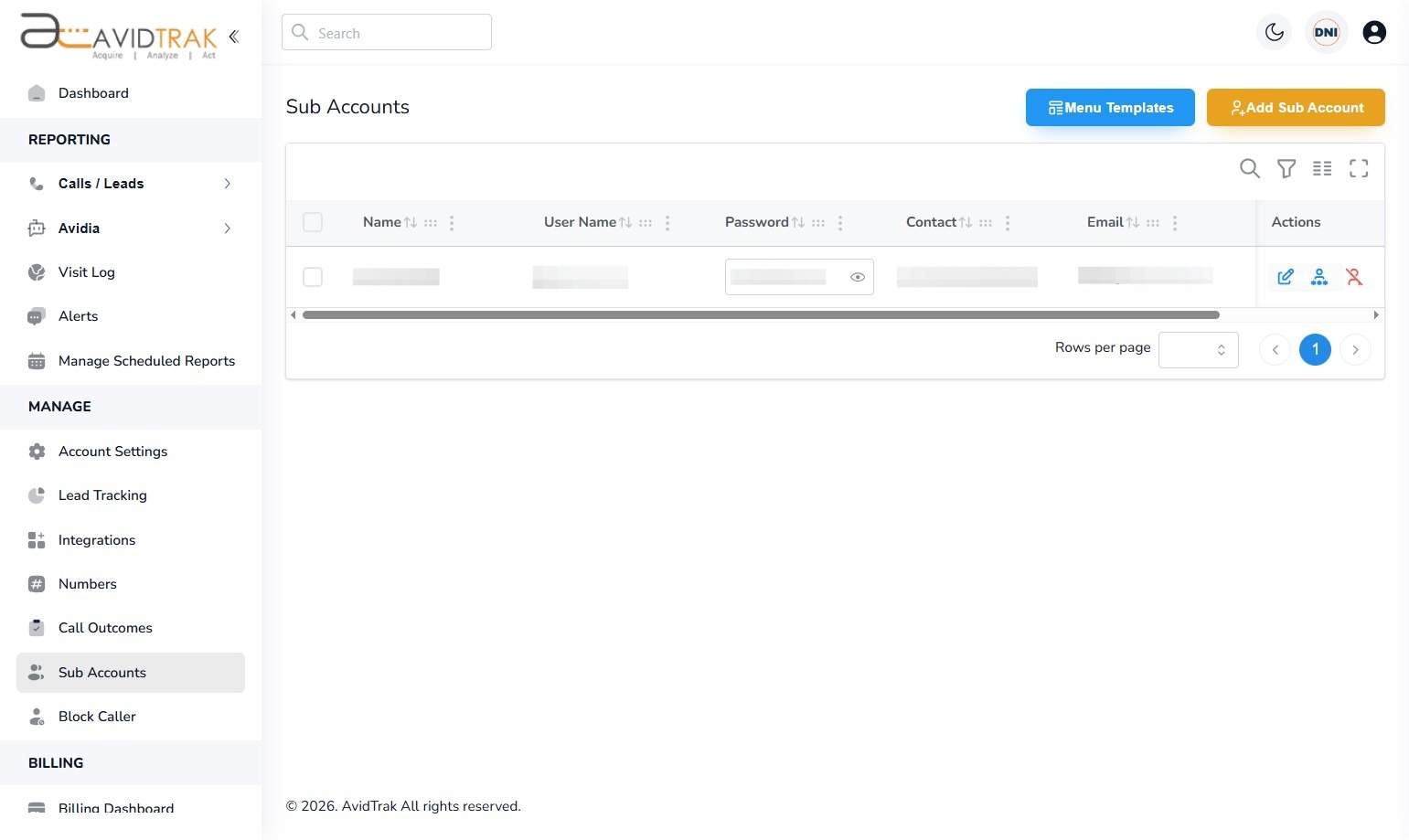
12. After you have successfully created sub account you will be able to view the manifest of all your sub-accounts. You may now share the username and password with your 3rd party user in a safe and secure manner.
13. This completes the tutorial on How to Add a Sub Account in AvidTrak. If you face any difficulty in implementing these instructions or have questions related to this feature, please do not hesitate to email support@avidtrak.com

