

AvidTrak HubSpot Integration Walkthrough
1. This document provides a step-by-step guide on how to connect AvidTrak to HubSpot, review call details, and manage the integration.
AvidTrak is a call tracking and analytics platform that helps businesses see which marketing efforts generate profitable inbound phone leads and what happens during those calls.
Connecting AvidTrak to HubSpot makes those leads available alongside the corresponding CRM contacts. Users can review call details and listen to recordings in HubSpot, giving sales and service teams more context when they follow up with the prospect.
AvidTrak can also transcribe a call, use AI to summarize the conversation, and identify its outcome from the transcript. The summary and outcome can be sent to HubSpot, helping teams understand what the caller needed and what happened during the conversation.
This walkthrough shows how to connect AvidTrak to HubSpot and where to find a reported call.
The AvidTrak HubSpot integration is available for all AvidTrak users who wish to measure the effectiveness of their marketing campaigns in creating profitable leads.
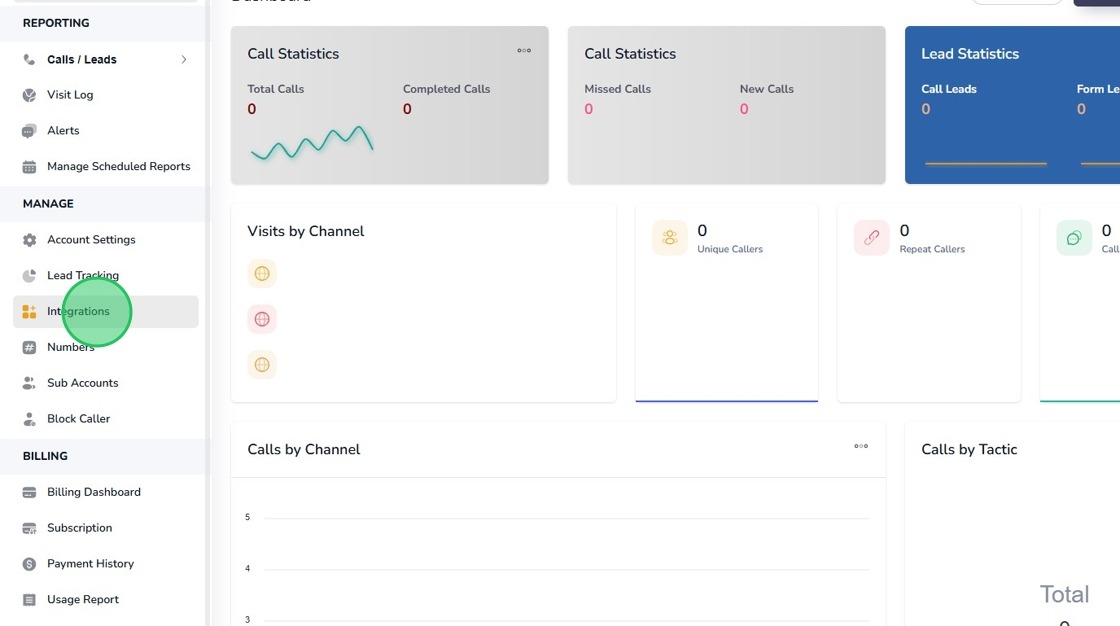
2. In AvidTrak, open Manage and select Integrations.
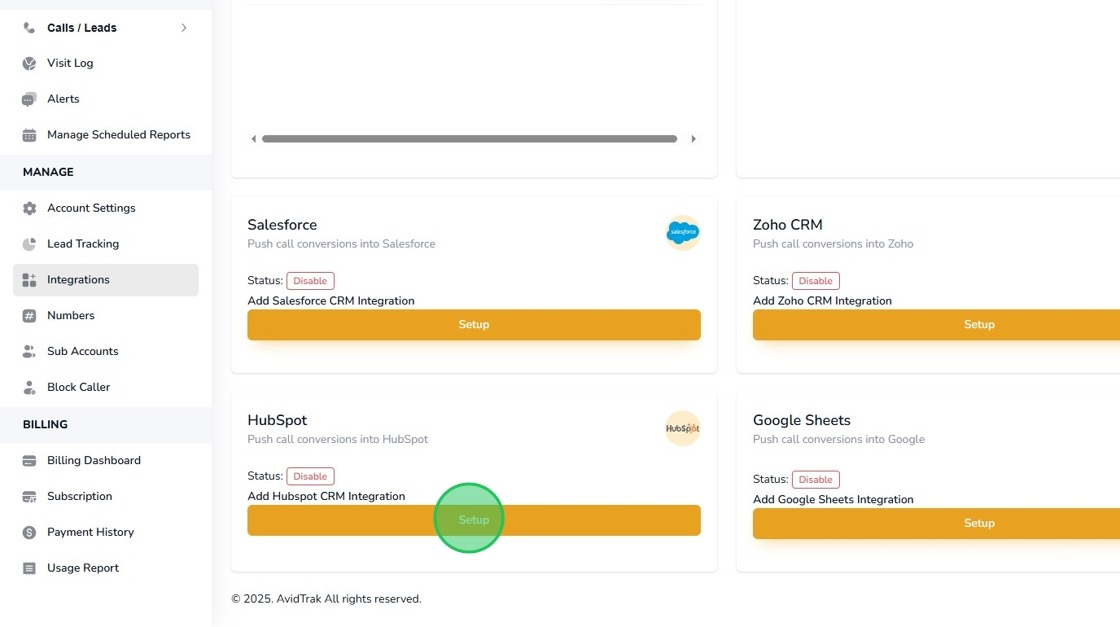
3. Find HubSpot and select Setup to begin connecting the CRM account.
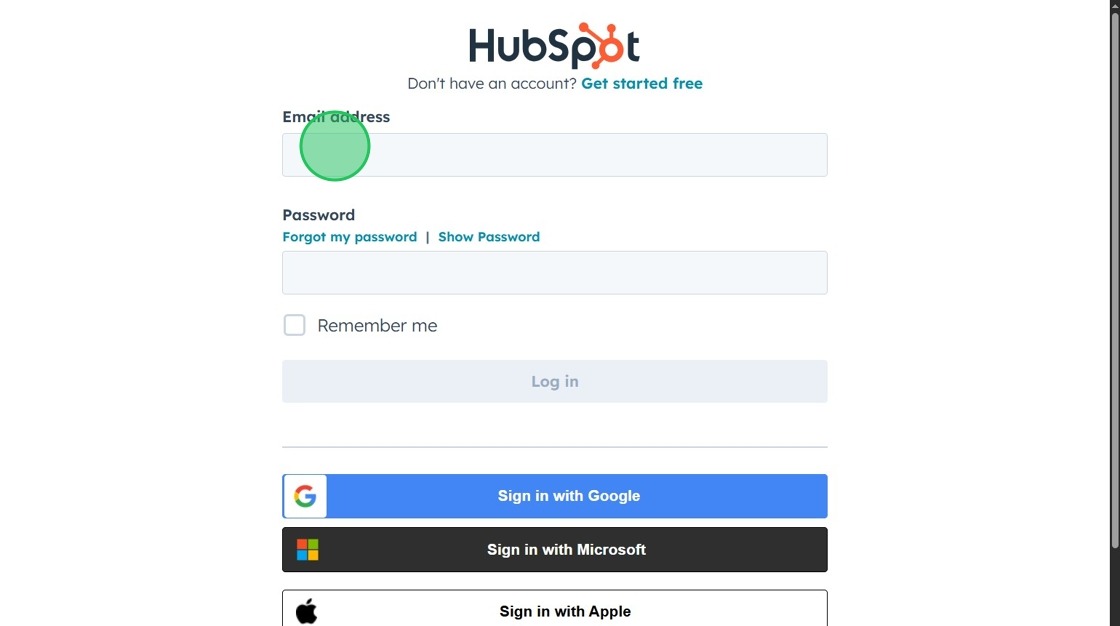
4. Sign in directly on HubSpot’s page to continue the connection.
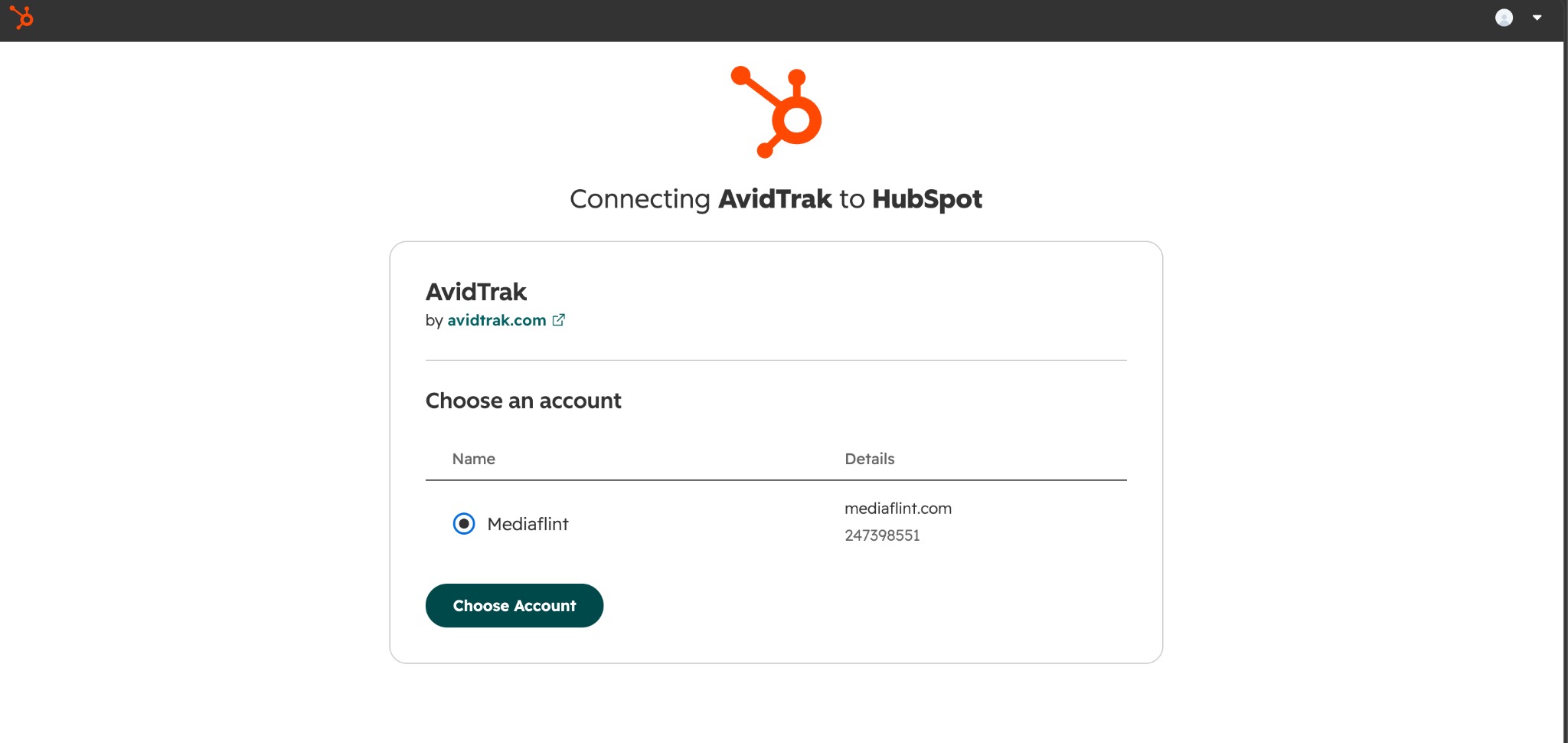
5. Choose the HubSpot account you want to connect to AvidTrak. In this example we are connecting the HubSpot account titled MediaFlint to AvidTrak.
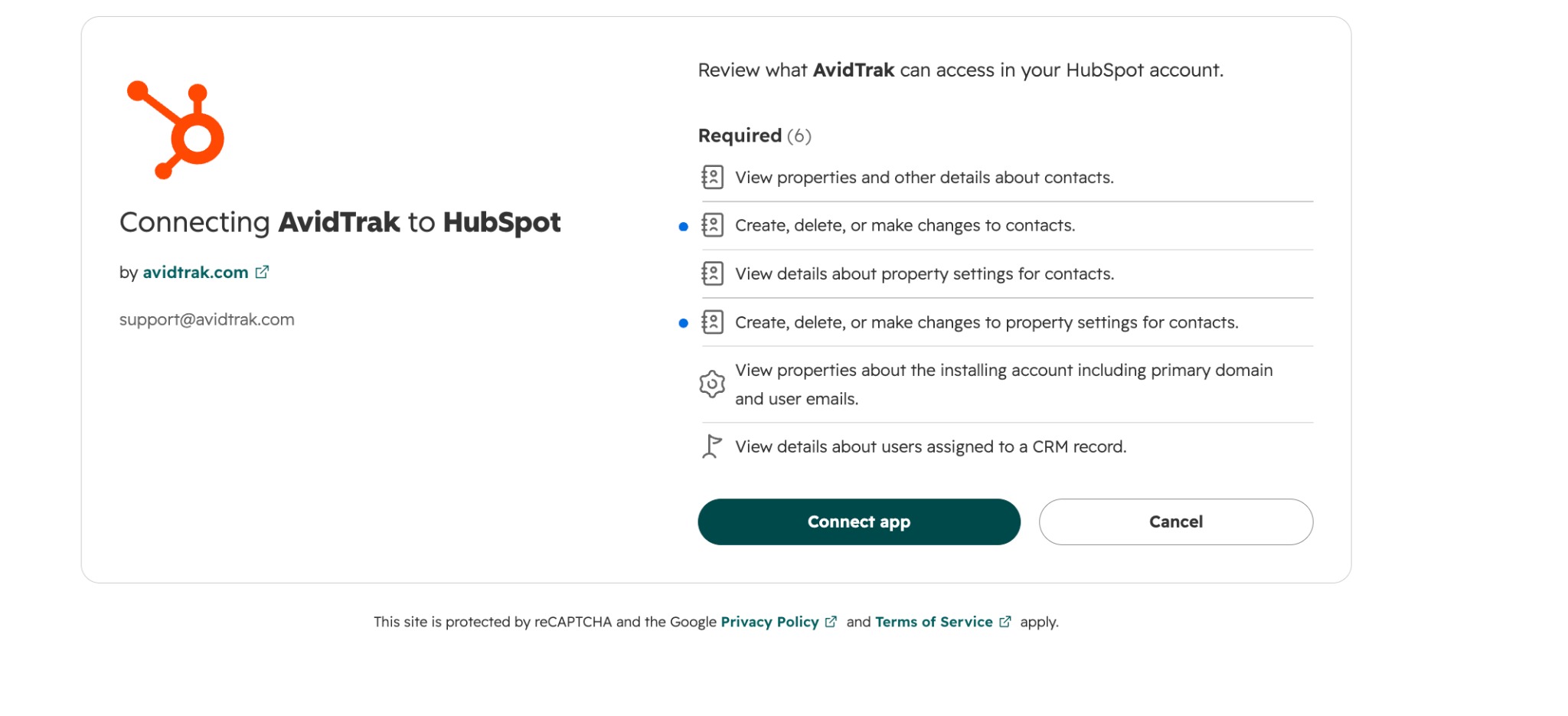
6. HubSpot displays the six permissions requested by AvidTrak. Review the access and select Connect app to authorize the integration.
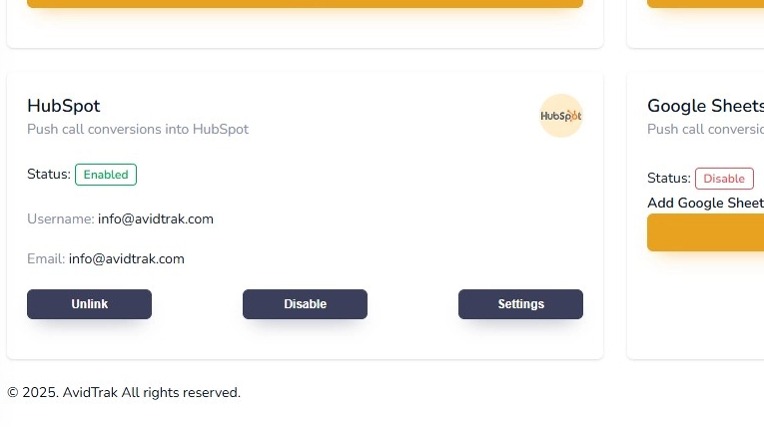
7. Back in AvidTrak, the HubSpot integration shows Enabled. You can temporarily disable reporting or unlink the account from this screen.
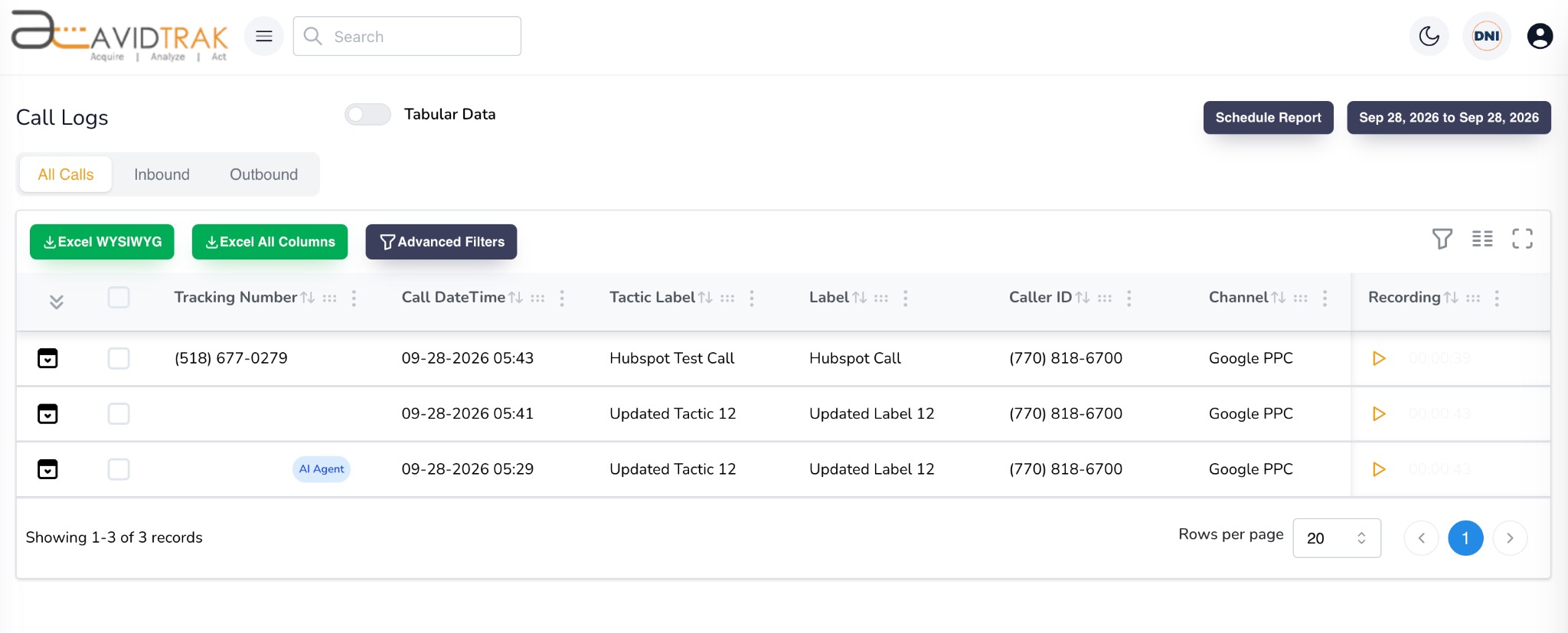
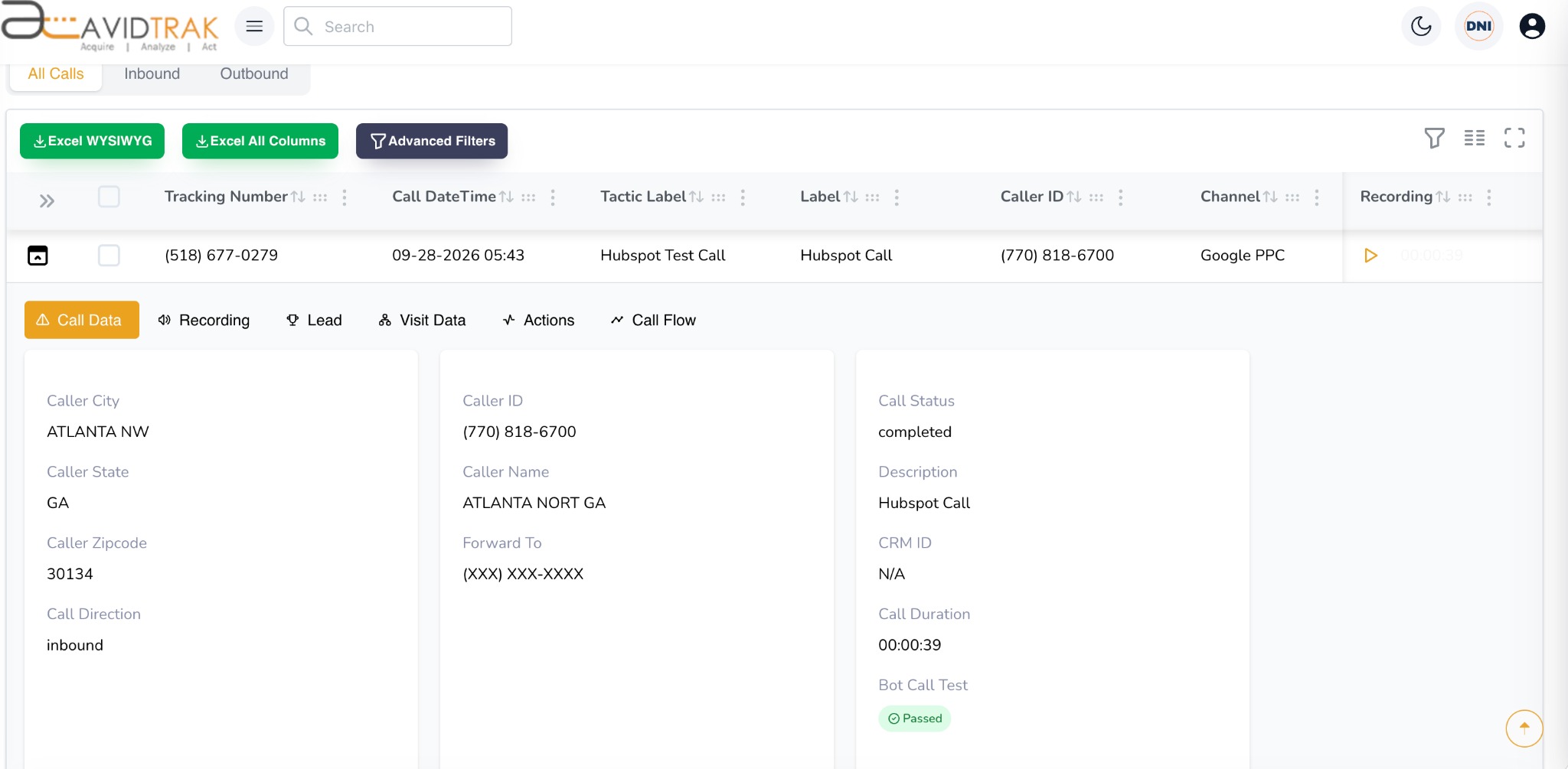
8. In the example shown here we are rendering the AvidTrak Call Logs, where we find the inbound test call which took place on September 28, 2026 to tracking number 518-677-0279. The log shown here shows its tracking number, caller ID, channel, label, and recording.
9. Expand the call to review the caller, inbound direction, completed status, and 39-second duration.
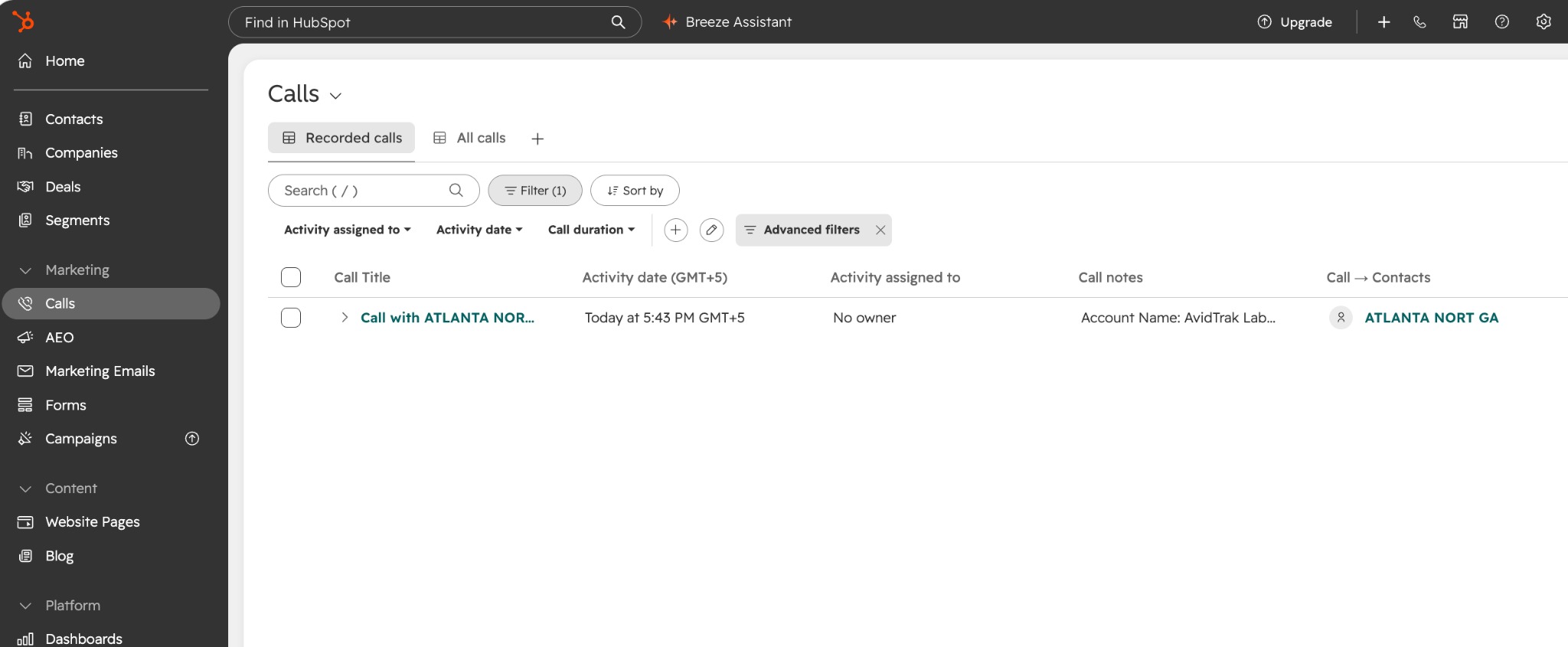
10. In HubSpot, open Calls. The corresponding call appears in the list and is associated with a contact.
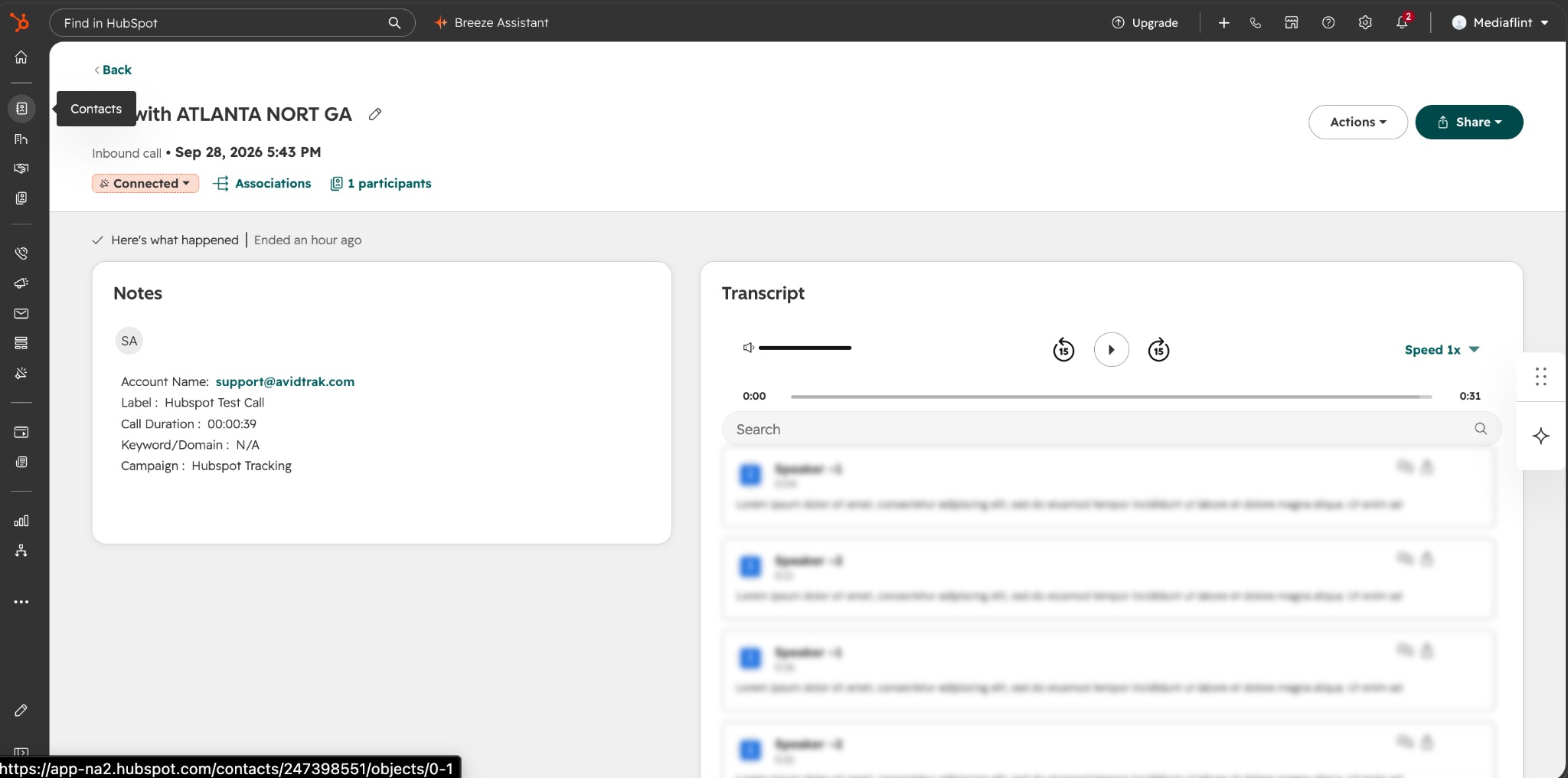
11. Open the inbound call. Its notes show the label, duration, and campaign information, and the recording is available in the call detail view.
12. Open Associations to see the HubSpot contact linked to the call. The call activity is available in the context of that contact.
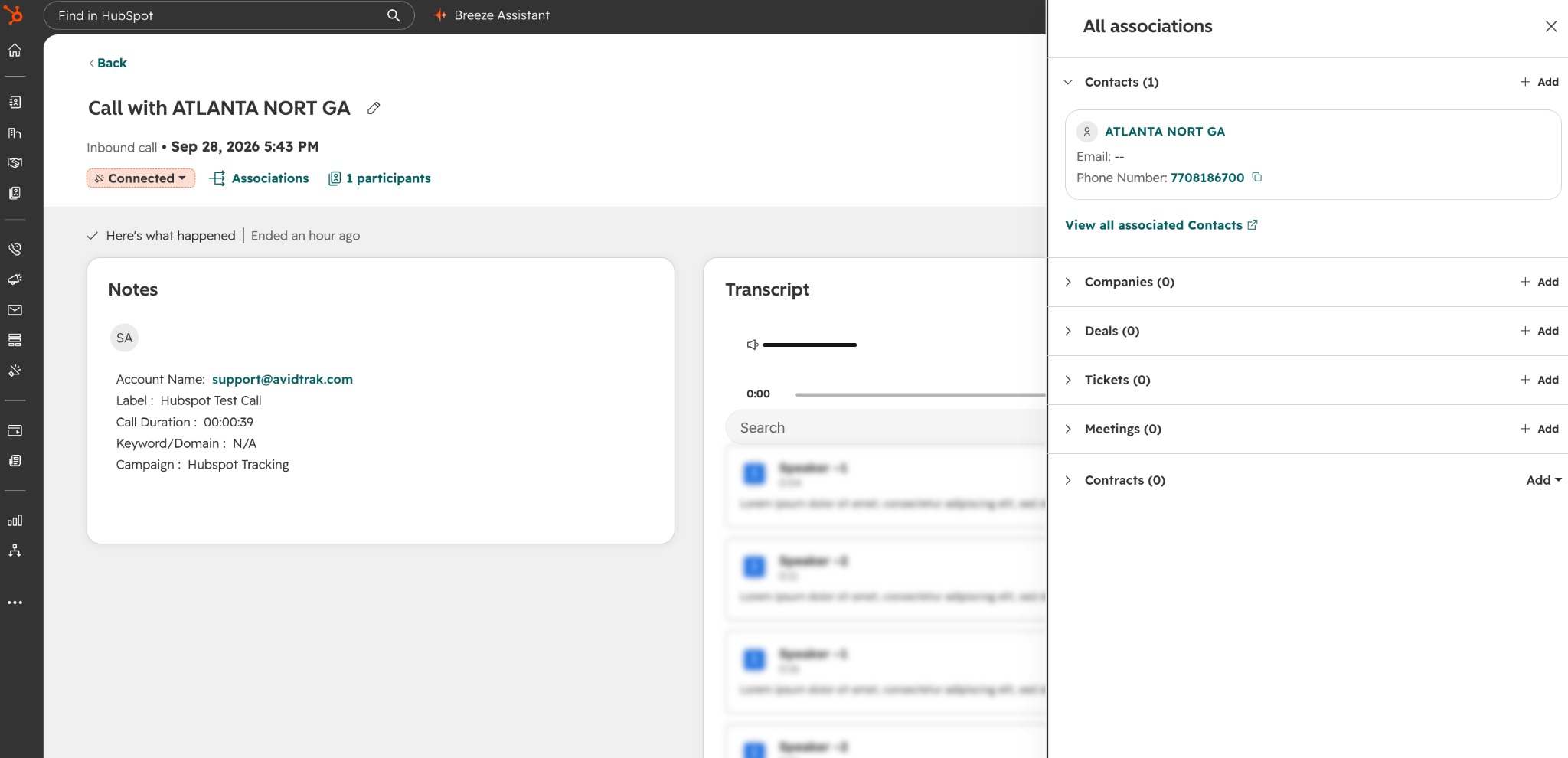
13. Your AvidTrak account is now connected to HubSpot. In this walkthrough, we followed an inbound call from the AvidTrak call log to its associated HubSpot contact, where the call details and recording are available for review.
You can manage the connection at any time from AvidTrak’s Integrations page. Select Disable to pause reporting or Unlink to disconnect the HubSpot account.
AvidTrak is a full-service company. If you need help setting up the integration or have any questions while following this guide, please contact our support team at support@avidtrak.com.

