

1B – Configure Business Services and Information
1. This document provides a step-by-step guide to configuring Leena AI Voice Agent’s business services and information, including services offered, operating hours, pricing, service areas, knowledge base, and FAQs.
After creating your Leena AI Voice Agent profile, the next step is to teach Leena how your business operates and what information she should use when speaking with callers.
In this tutorial, you will configure the services your business offers, operating hours, optional pricing information, service areas, broader business knowledge, and frequently asked questions.
The information entered in these sections becomes part of the business context Leena can draw upon during calls. The more accurate and current this information is, the better equipped Leena will be to answer routine questions consistently and recognize when a caller’s needs match your business.

2. Have a current list of your services, normal operating hours, any pricing you are comfortable having Leena communicate, the ZIP codes or areas you serve, and the business policies or frequently asked questions callers commonly ask.
Not every section is required. If pricing or service-area validation does not apply to your business, leave that feature disabled and continue to the next section.
Saving Your Progress: Use Save & Continue to save the current section to your Draft and move to the next configuration step. Your changes remain unpublished until you choose to publish the Draft.
3. Select Services from the Business section of your Leena profile.
The Services section tells Leena what products or services your business provides. This helps her recognize caller needs, answer service-related questions, and determine whether the caller is asking about something your business offers.
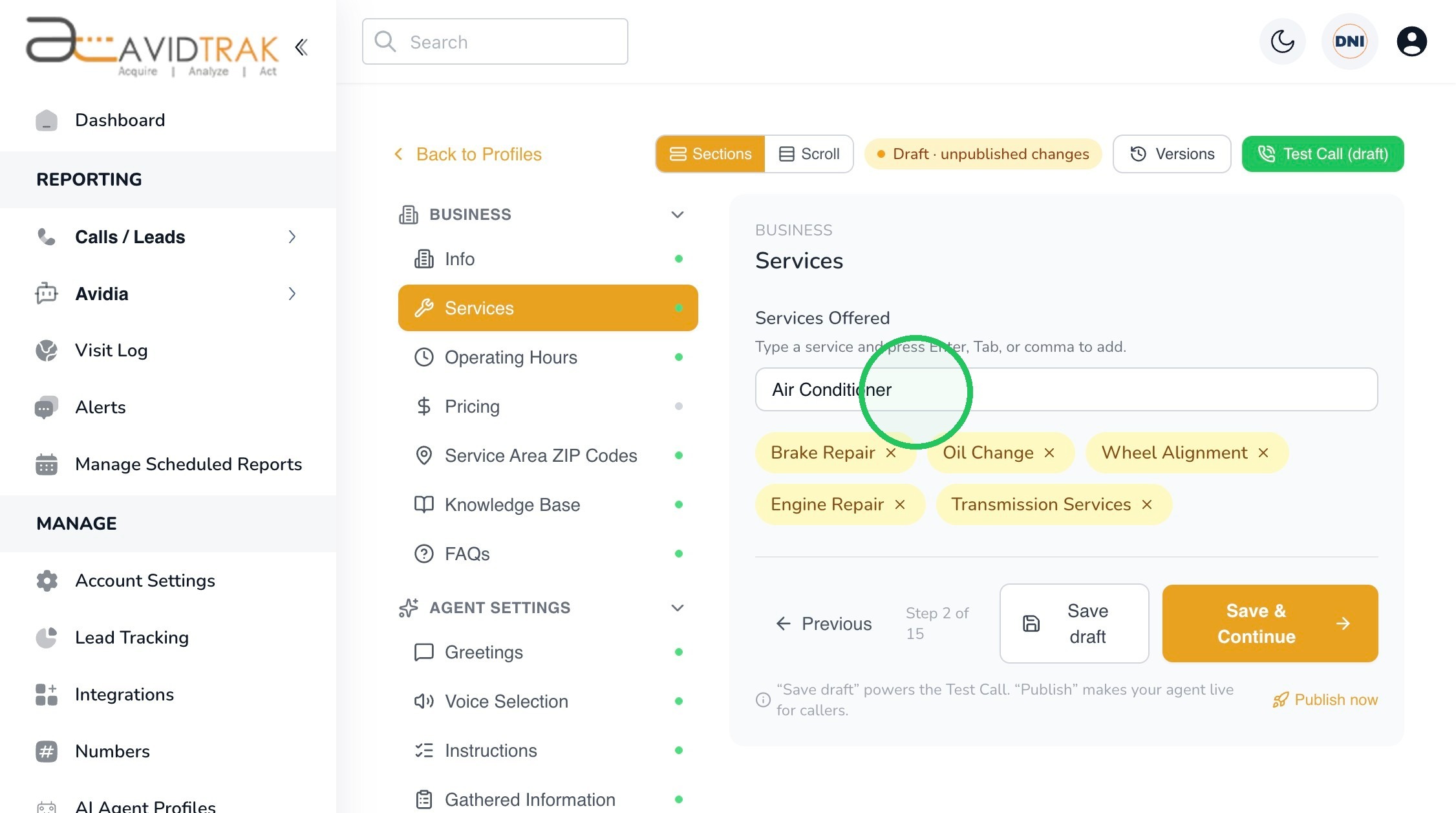
4. Enter each service or product your business offers in the Services Offered field. In this example, we are adding:
Air Conditioner
Once entered, add the service to your existing list.
Tip: Use clear, customer-friendly service names that reflect the terminology callers are likely to use.
For example, instead of using a broad category such as Repairs, consider more descriptive entries such as Brake Repair, Engine Repair, or Air Conditioning Service.
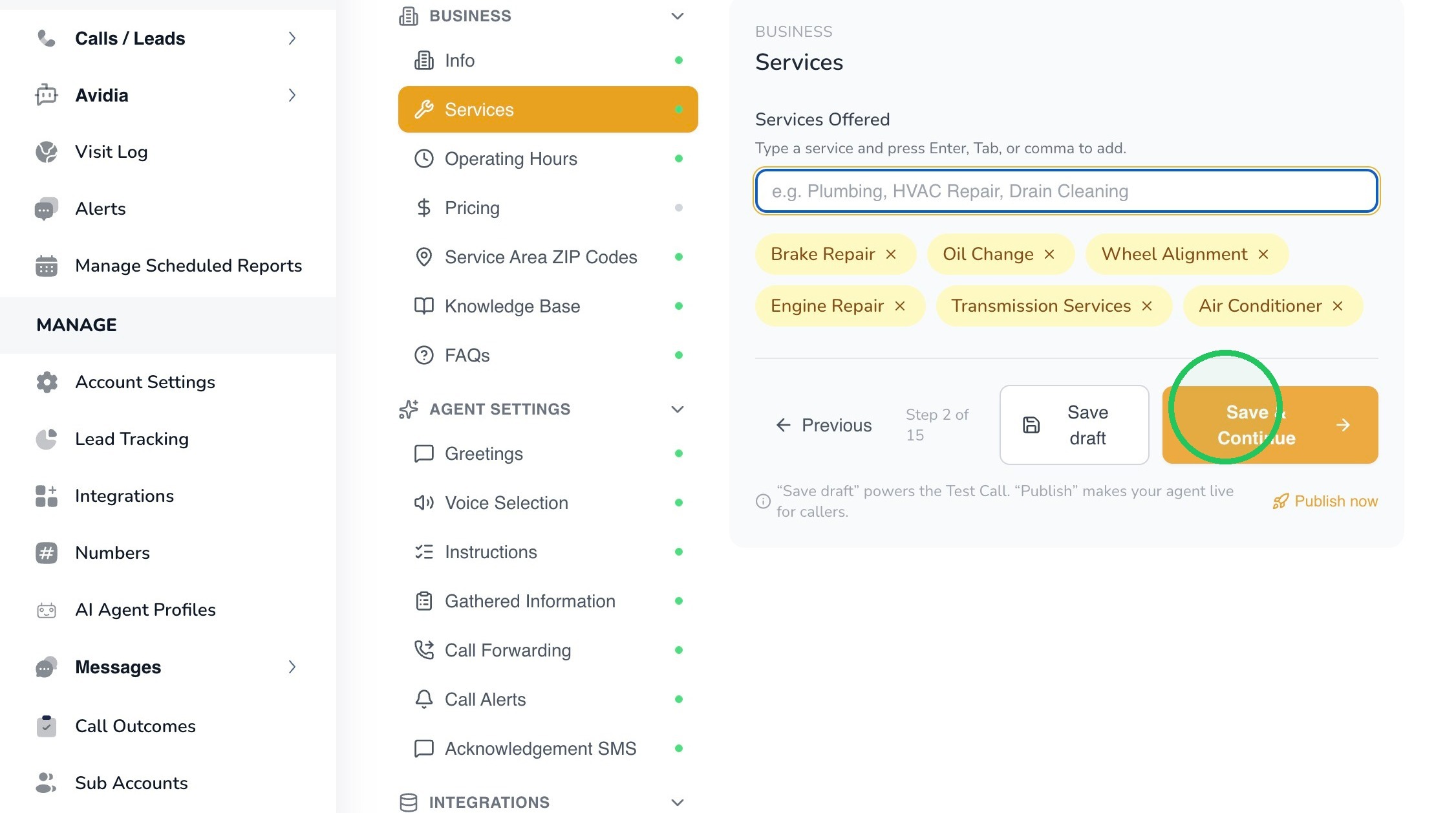
5. When you have finished adding services, click Save & Continue.
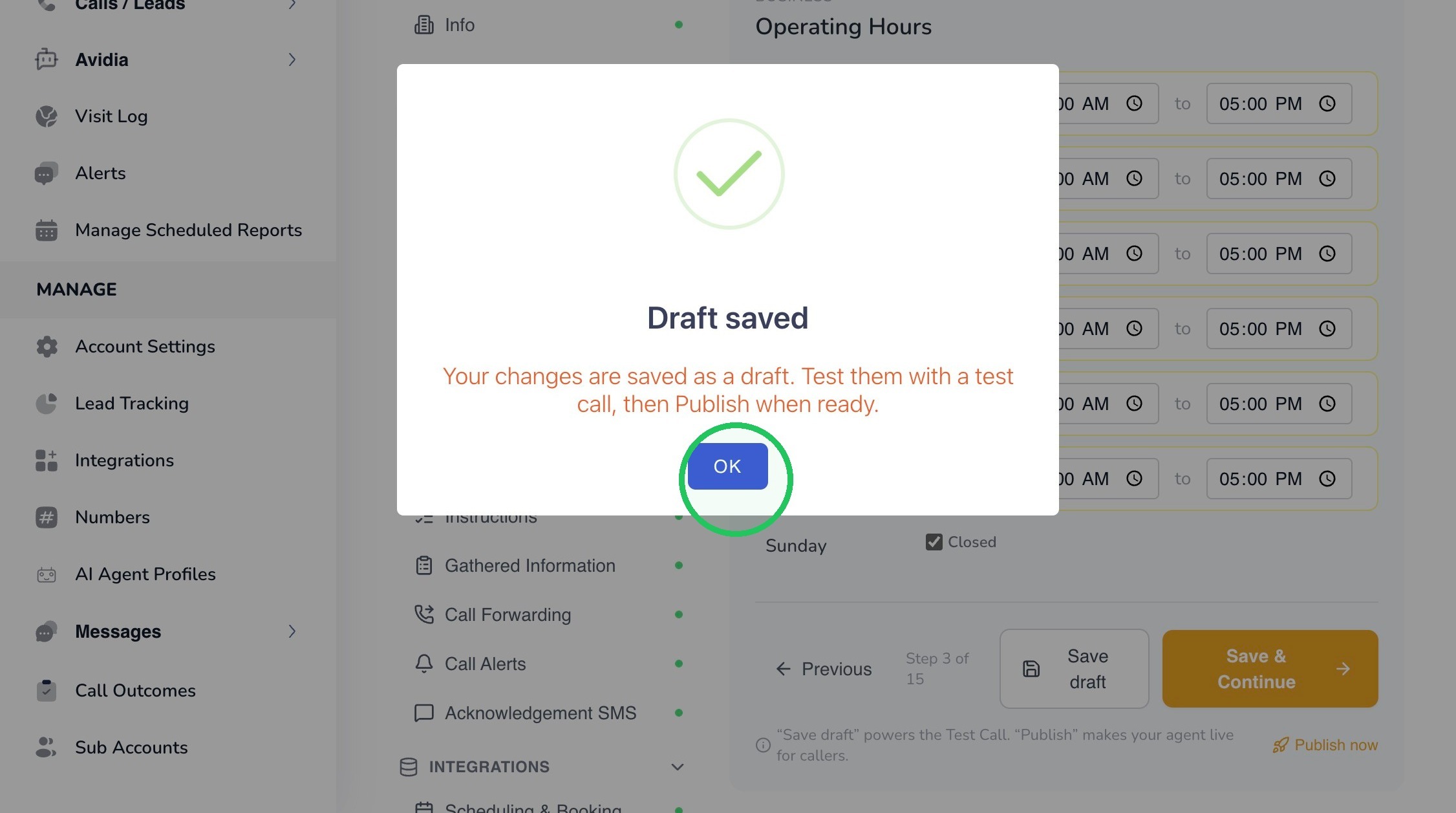
6. AvidTrak will confirm that the changes in this section have been saved to the current Draft. Click OK to close the confirmation message and continue. The Draft remains unpublished and is not yet live for callers.
7. In the Operating Hours section, enter the normal opening and closing times for each day your business operates. Leena can use this information when callers ask whether your business is open or when they can reach your team. For any day your business is not open, select Closed.
Important: Enter the hours you want Leena to communicate to callers and keep them current whenever your normal schedule changes.
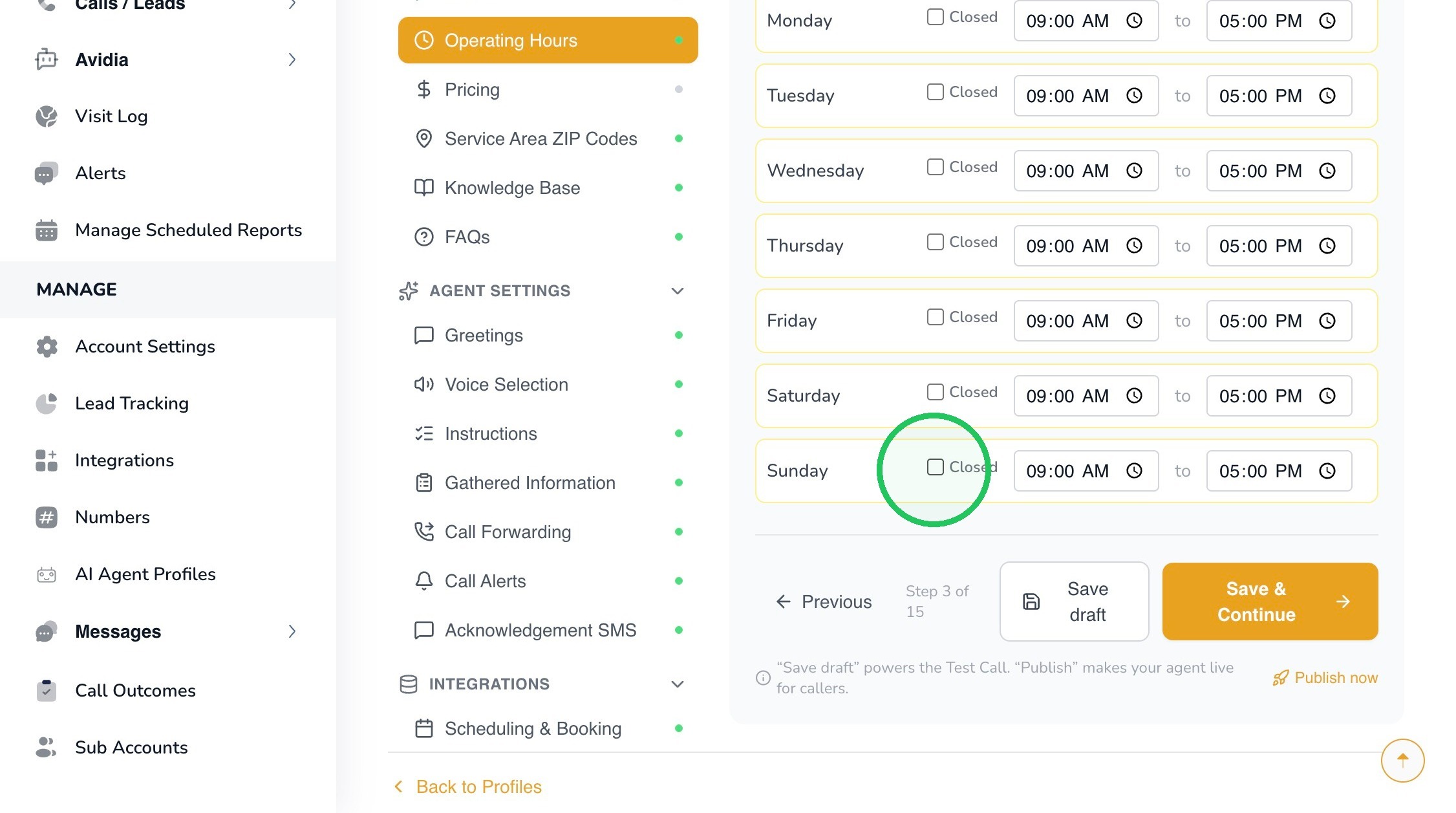
8. When the hours are correct, click Save & Continue.
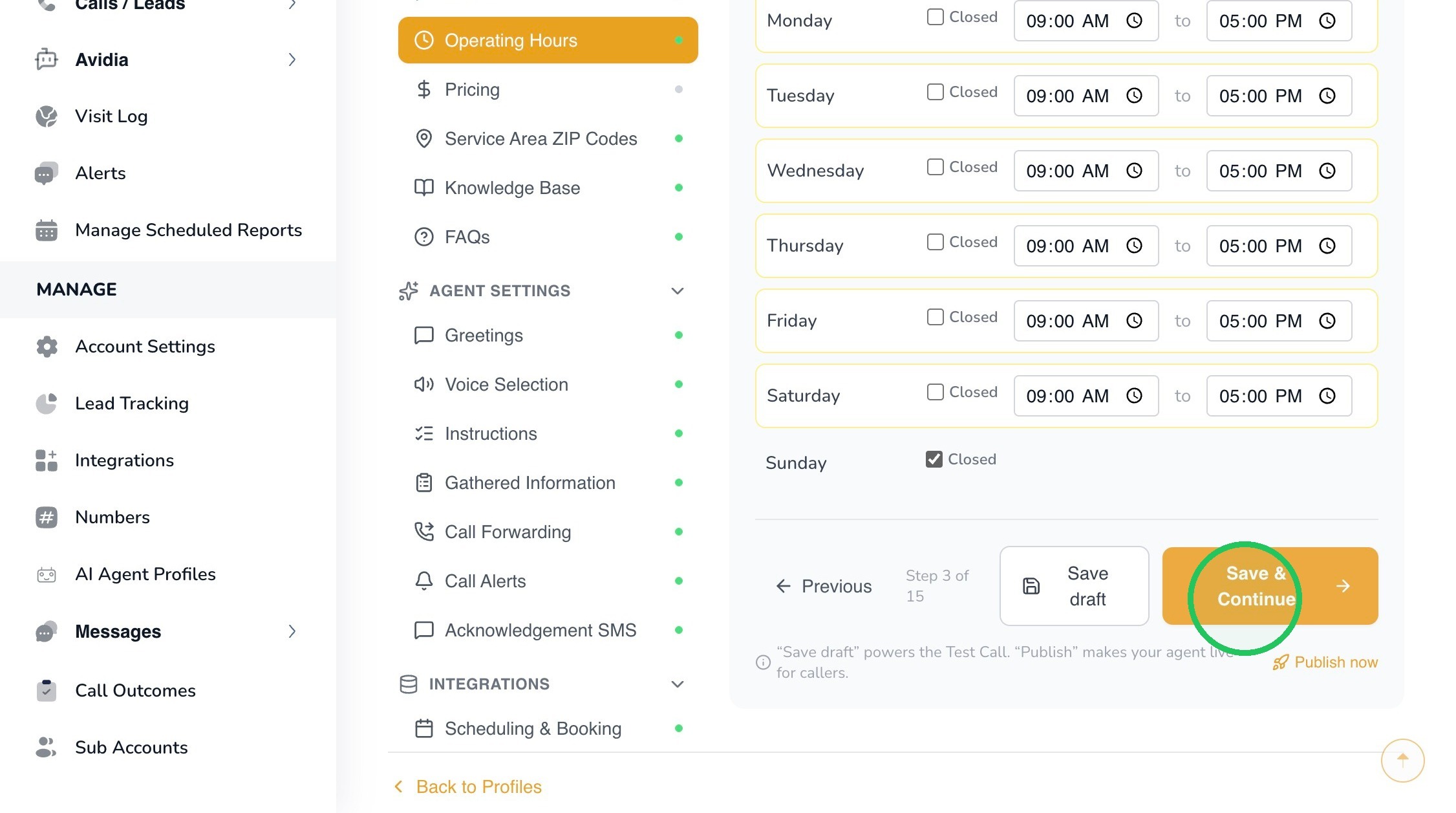
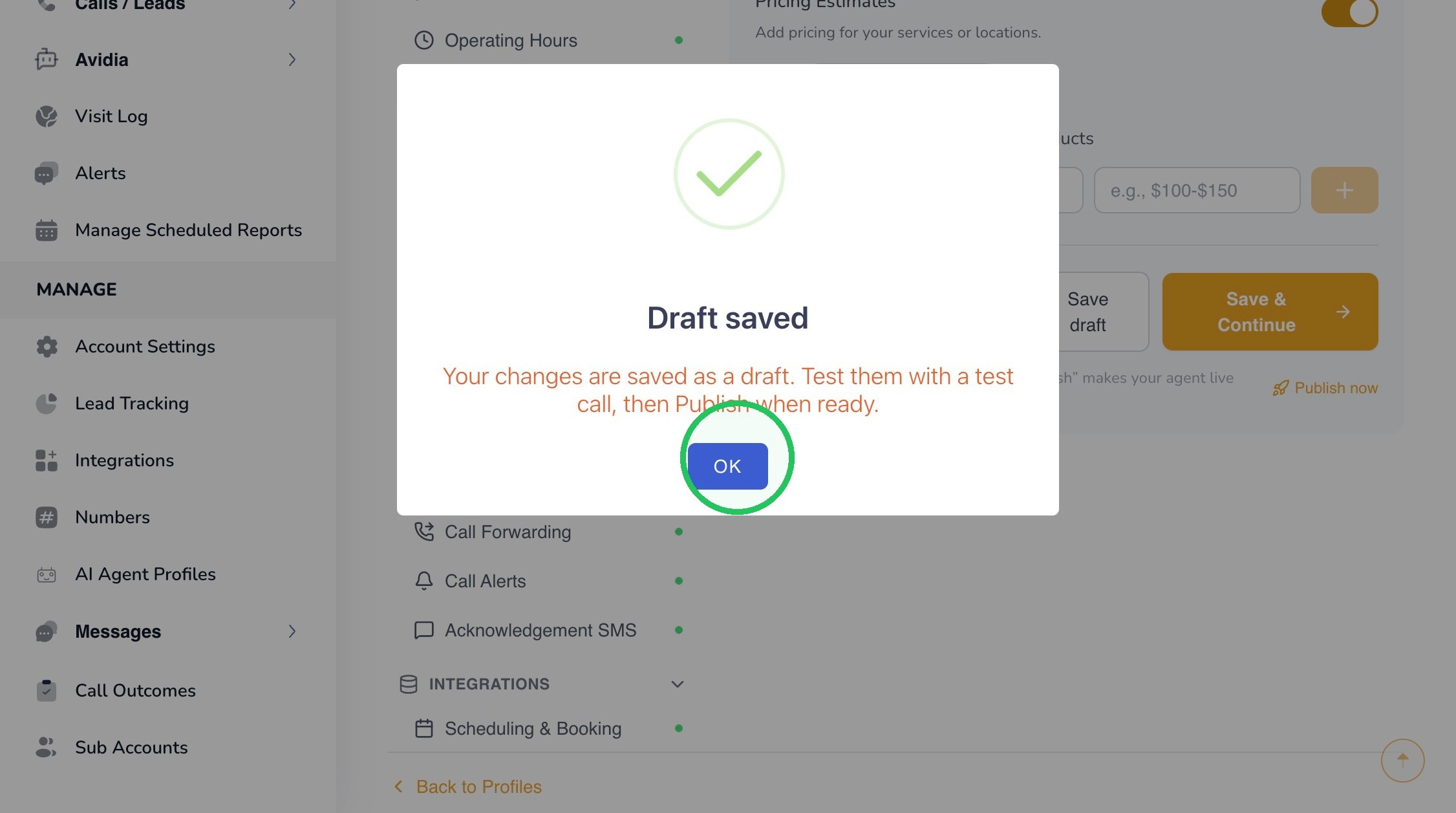
9. AvidTrak will confirm that the changes in this section have been saved to the current Draft.
Click OK to continue.
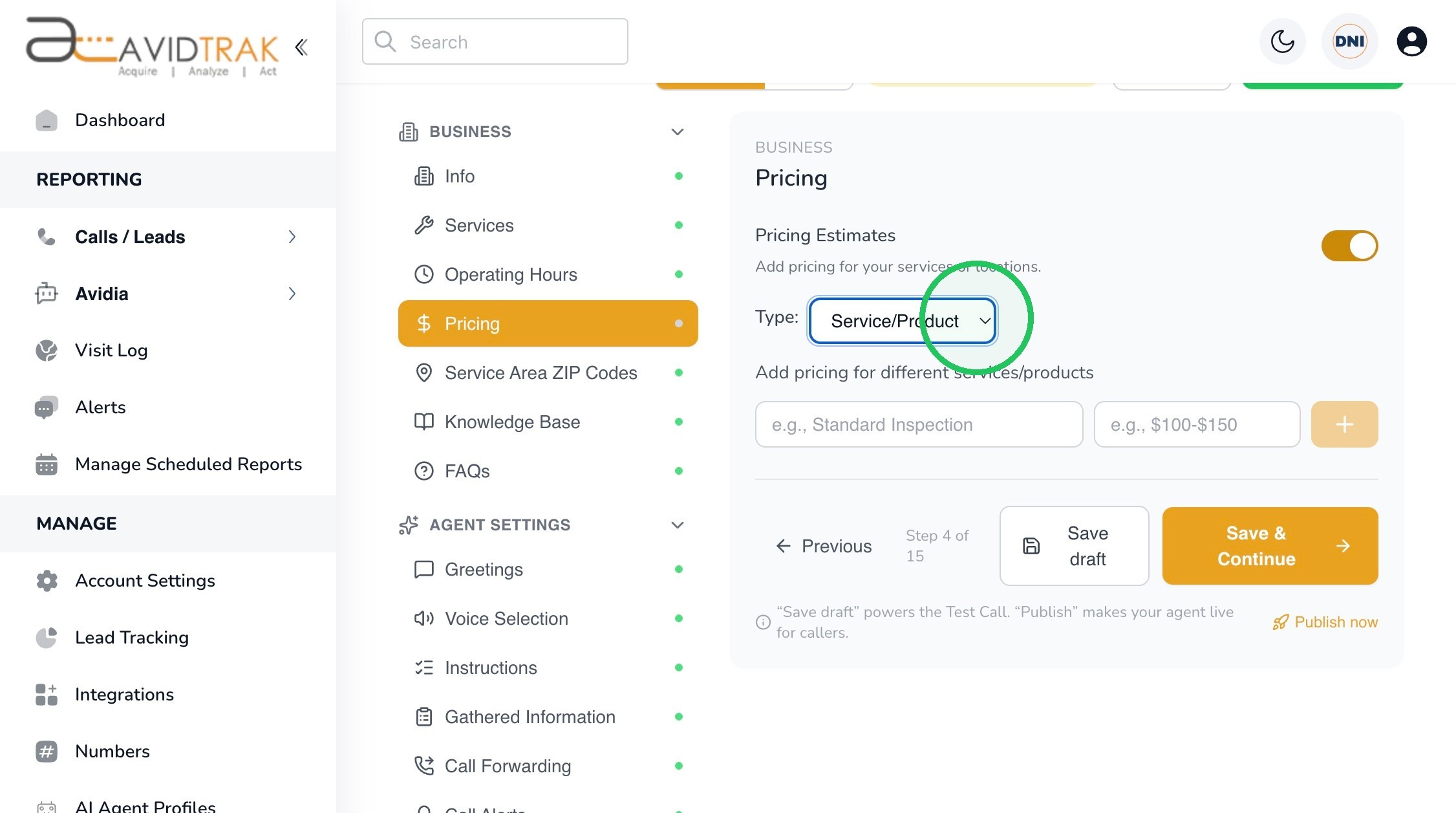
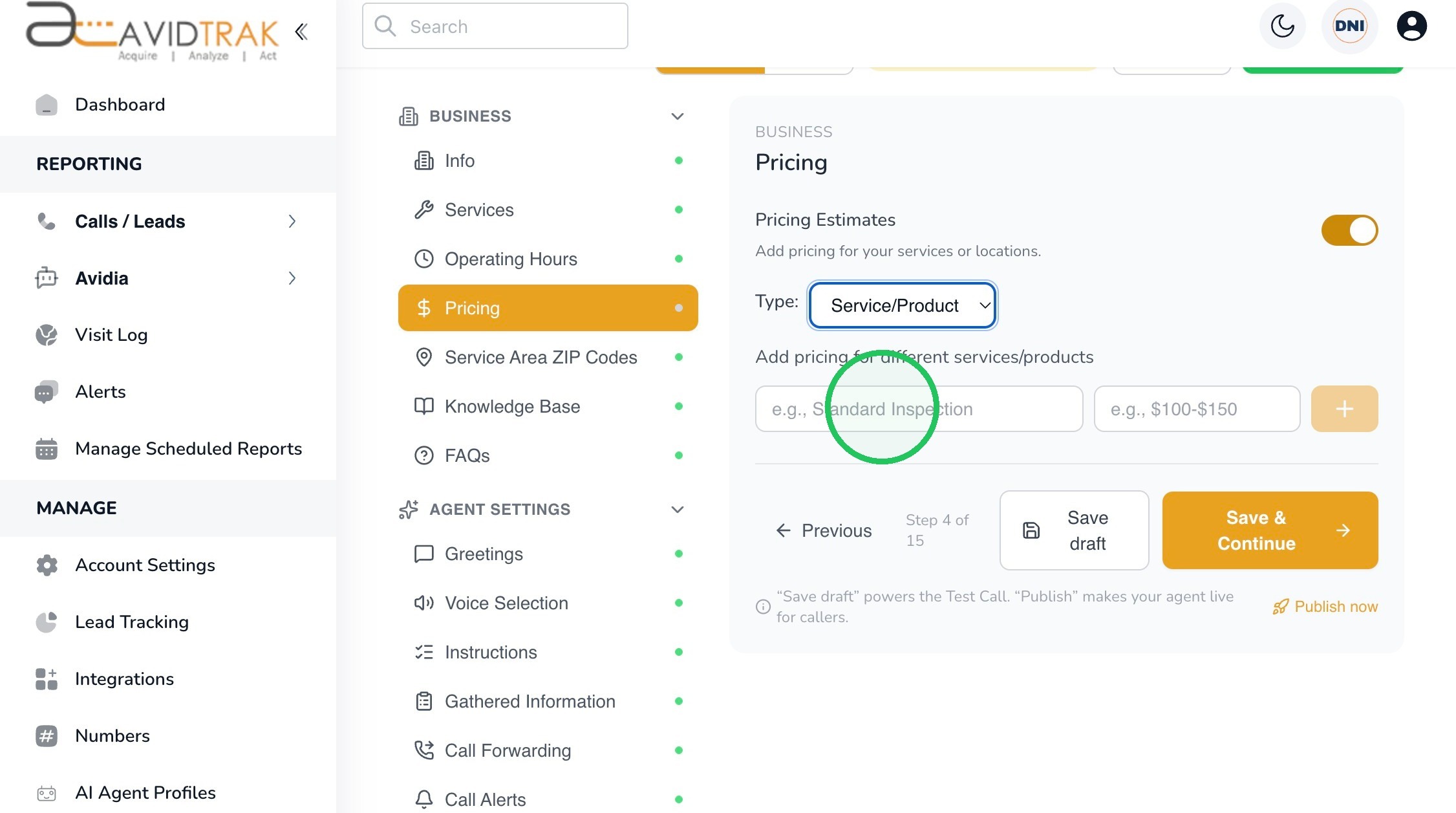
10. Select Pricing from the Business section.
Pricing is optional. Enable Pricing Estimates only when you want Leena to have access to approved pricing information or price ranges that may be communicated to callers.
Enable Pricing Estimates if you would like Leena to have access to this information.
You can organize pricing by:
Service/Product — use this option when pricing varies according to the service or product being requested.
Location — use this option when pricing varies according to the caller’s location or service area.
In this example, select Service/Product.
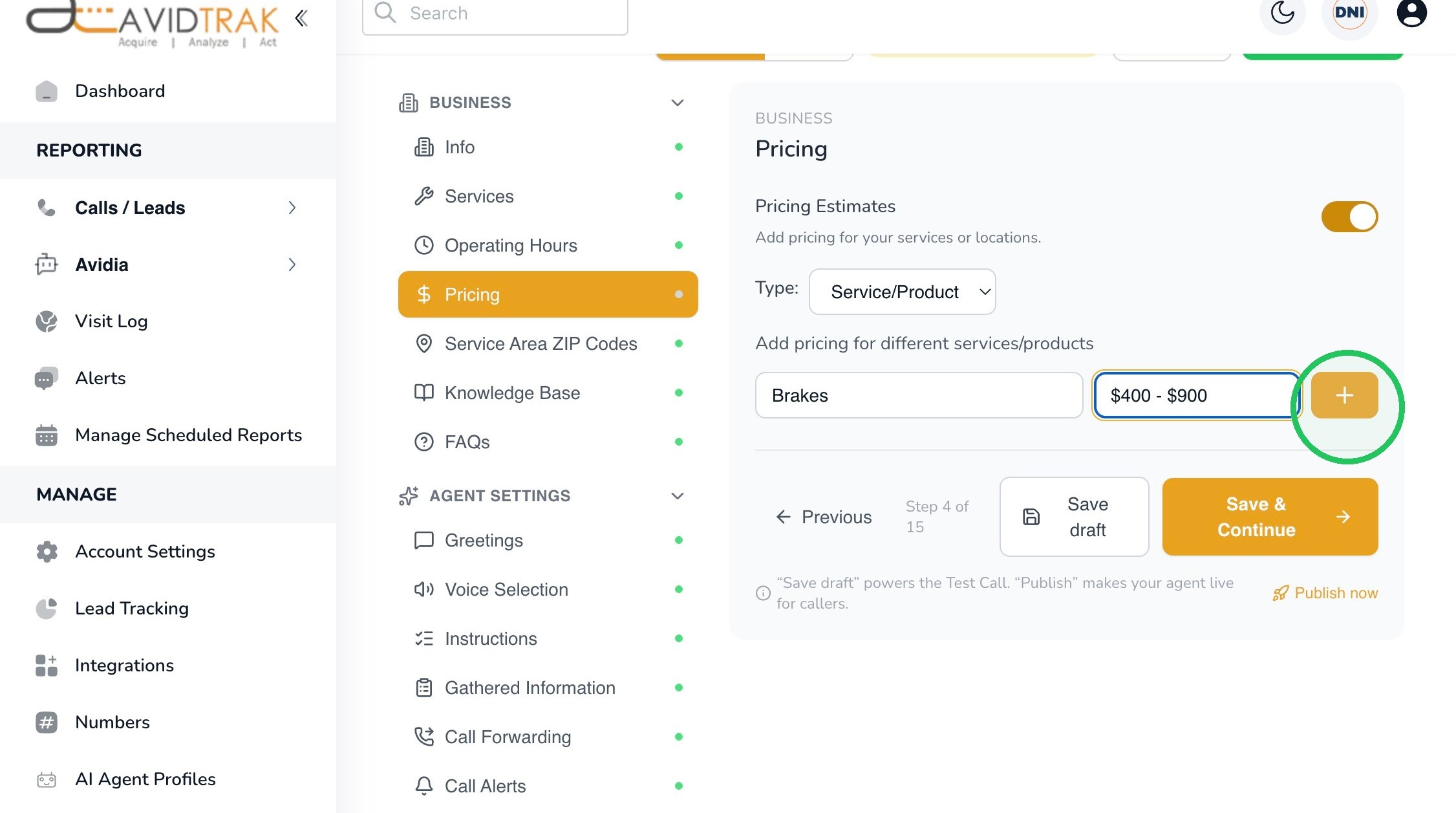
11. Enter the service or product name and the corresponding price or price range. In this example:
Service: Brakes
Estimated Price: $400–$900
Click the Add (+) button to add the pricing information.
Important: Only enter pricing you are comfortable having Leena communicate to callers. If the final price depends on inspection, diagnosis, scope, or other conditions, use a range or estimate rather than presenting the amount as a guaranteed final charge.
Where pricing varies significantly, make that limitation clear in the information you provide so Leena does not overstate the certainty of an estimate.
After reviewing the pricing information, click Save & Continue.
12.
13.
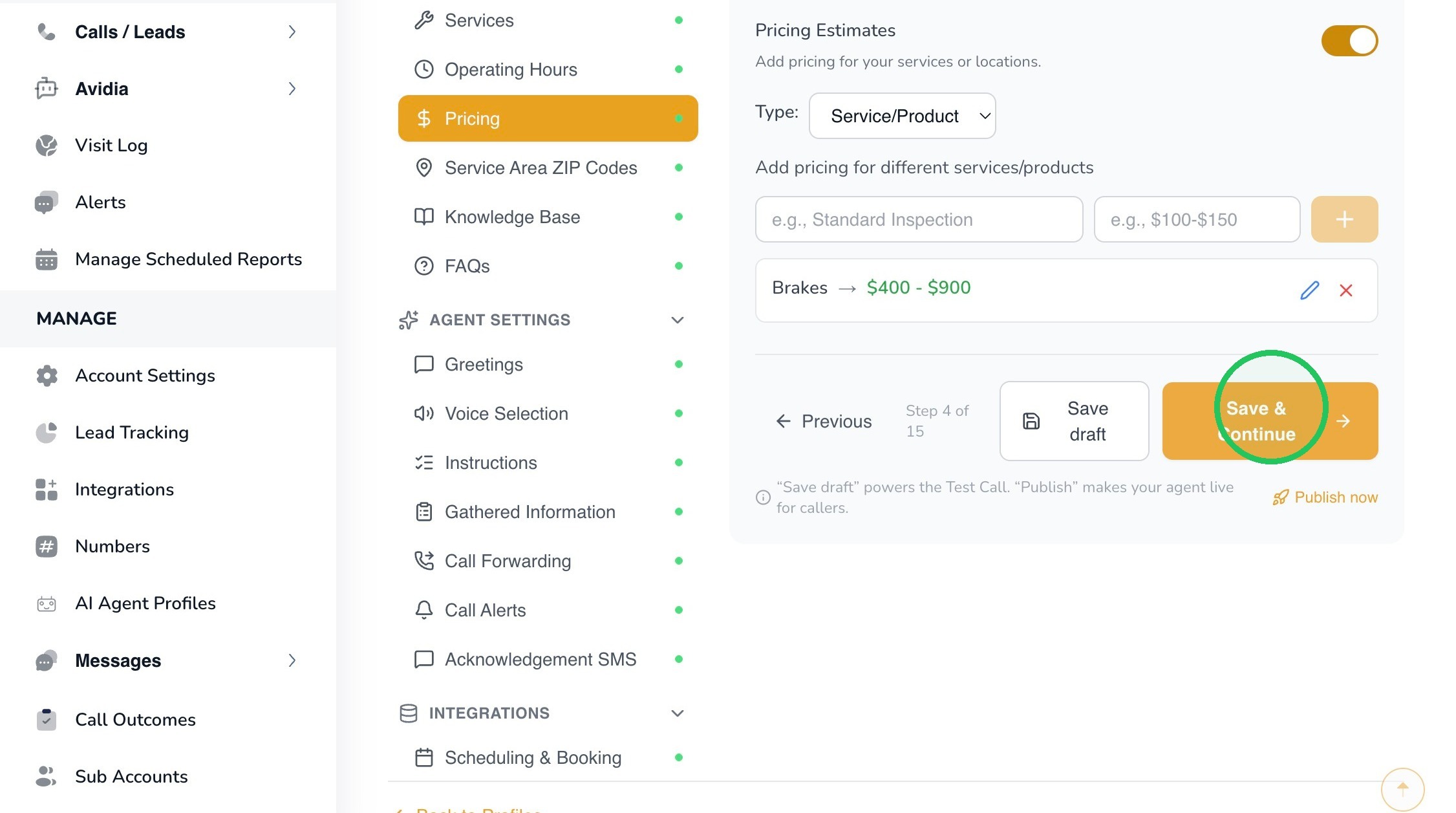
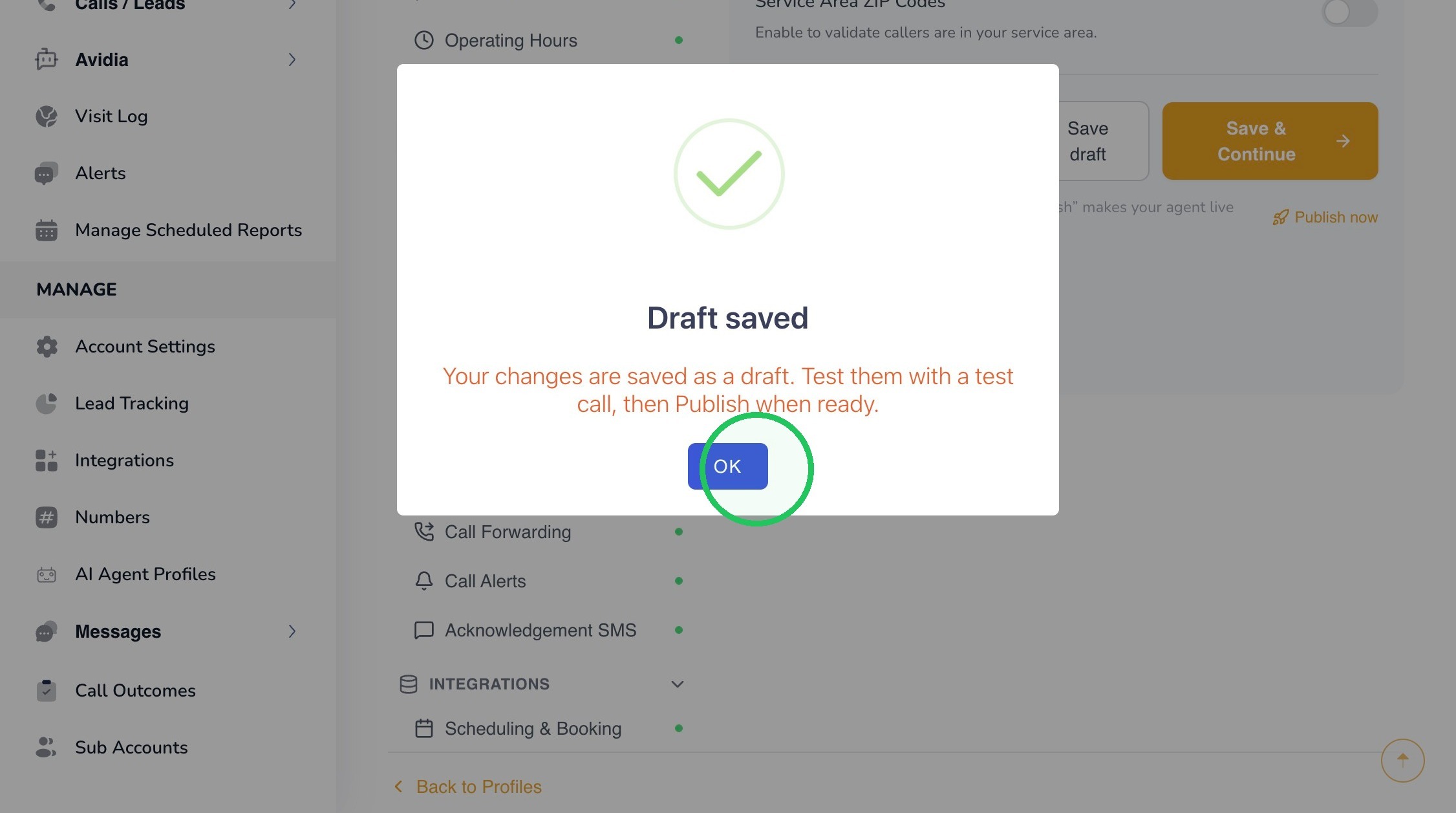
14. AvidTrak will confirm that your pricing information has been saved to the current Draft.
Click OK to continue.
15. Select Service Area ZIP Codes.
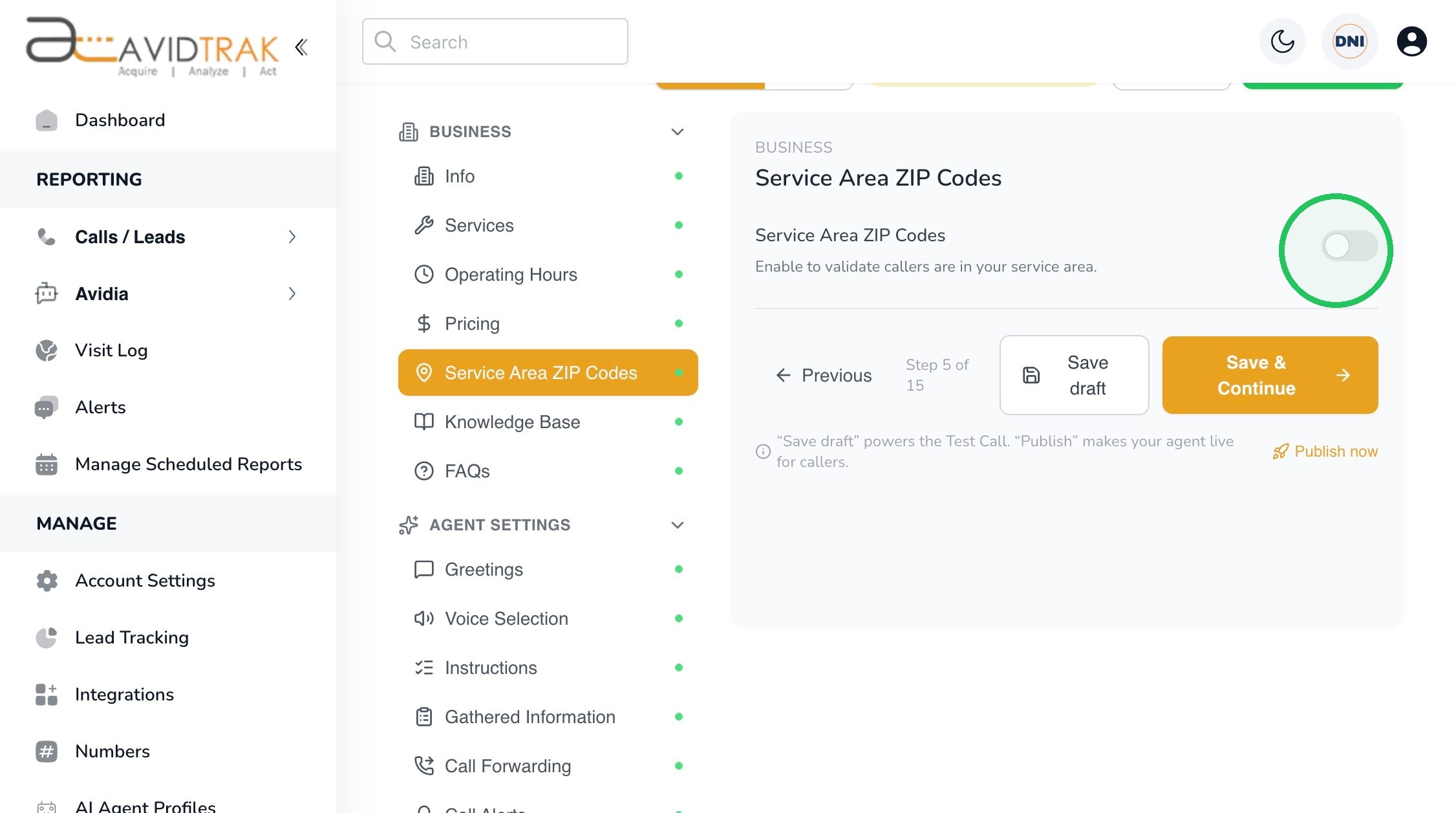
Use this feature if your business serves specific geographic areas and you want Leena to recognize whether a caller is located within your configured service area. If geographic validation is not relevant to your business, leave the feature disabled.
Turn on the Service Area ZIP Codes toggle to enable this feature.
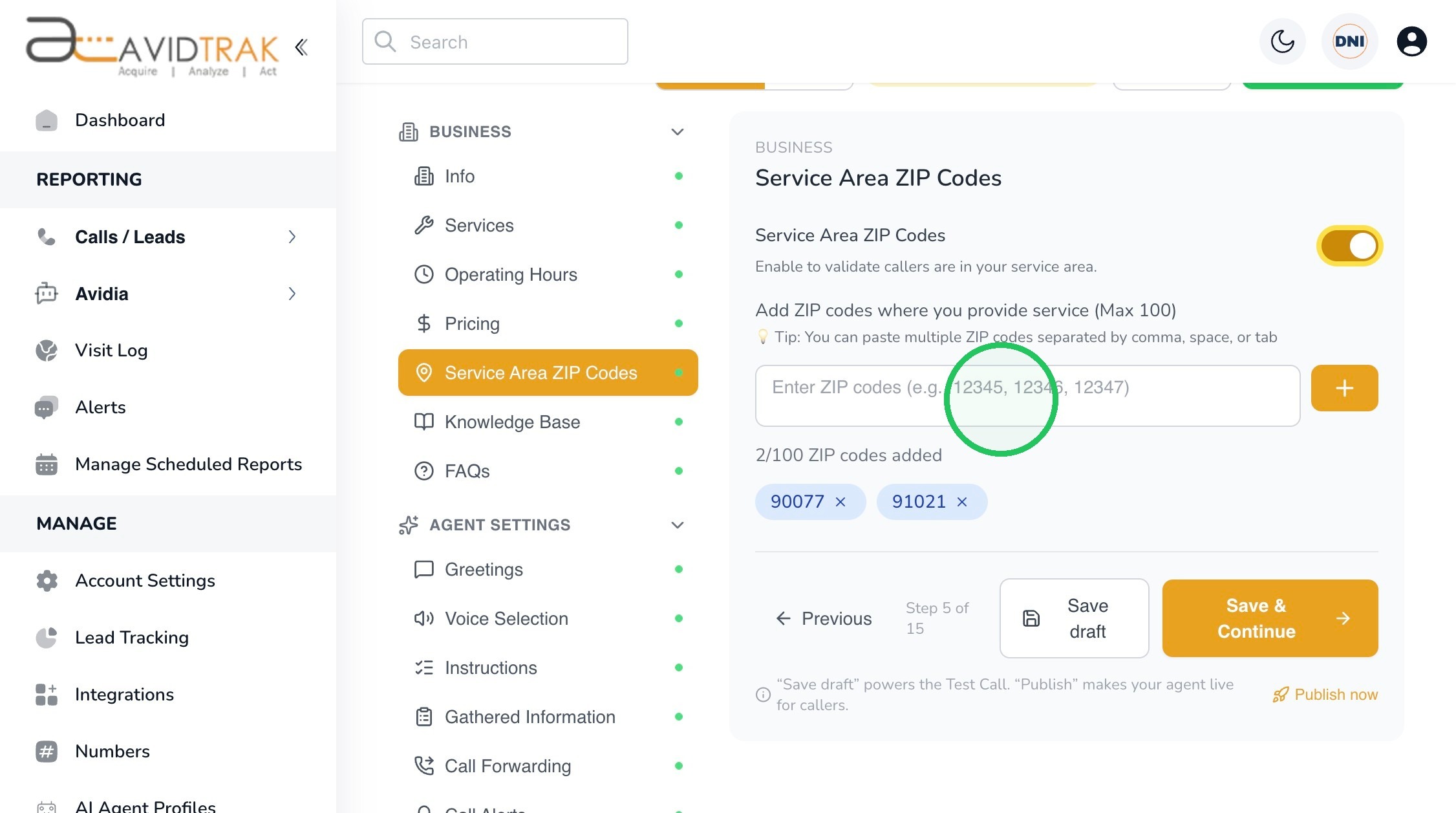
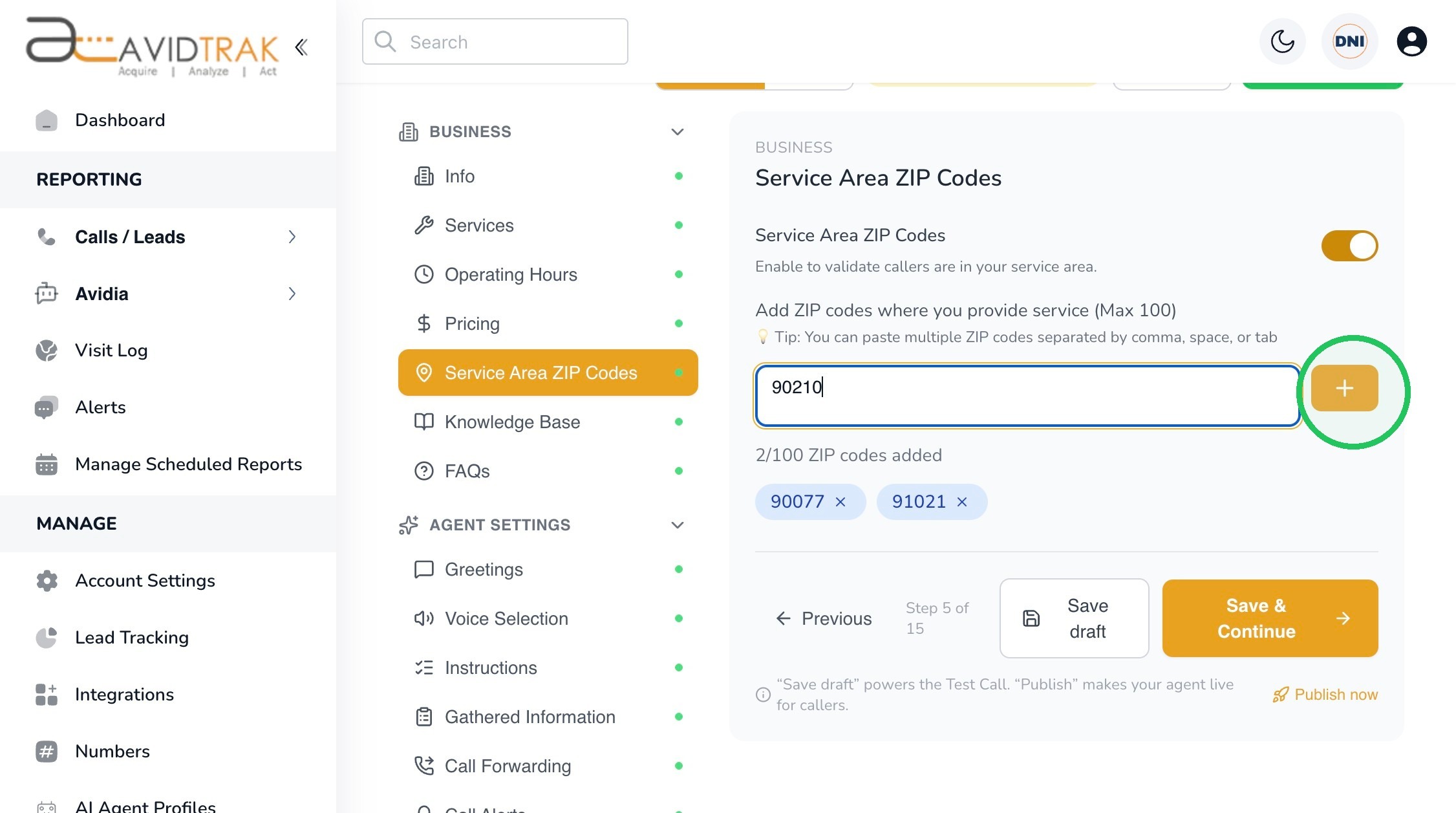
16. Enter the ZIP codes where your business provides service. In this example, the profile already contains ZIP codes 90077 and 91021, and we are adding: 90210
Click the Add (+) button to add the ZIP code to your service area.
You may add multiple ZIP codes, up to the limit displayed in your profile.
Tip: Keep your service area current. Add new ZIP codes when your coverage expands and remove ZIP codes you no longer serve so Leena is working from accurate information.
17.
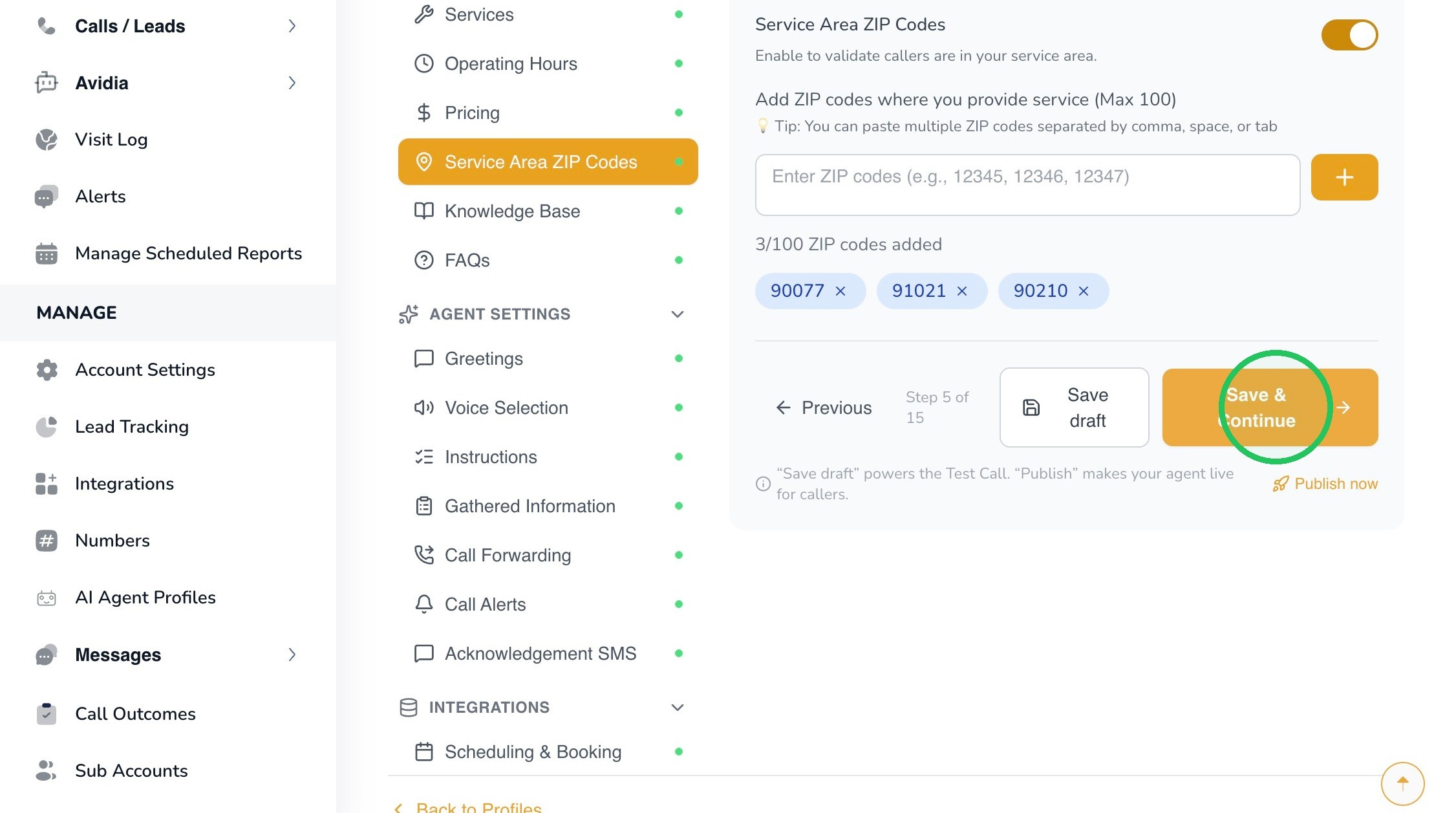
18. When your service area is complete, click Save & Continue.
19. AvidTrak will confirm that the changes have been saved to the current Draft.
Click OK to continue.
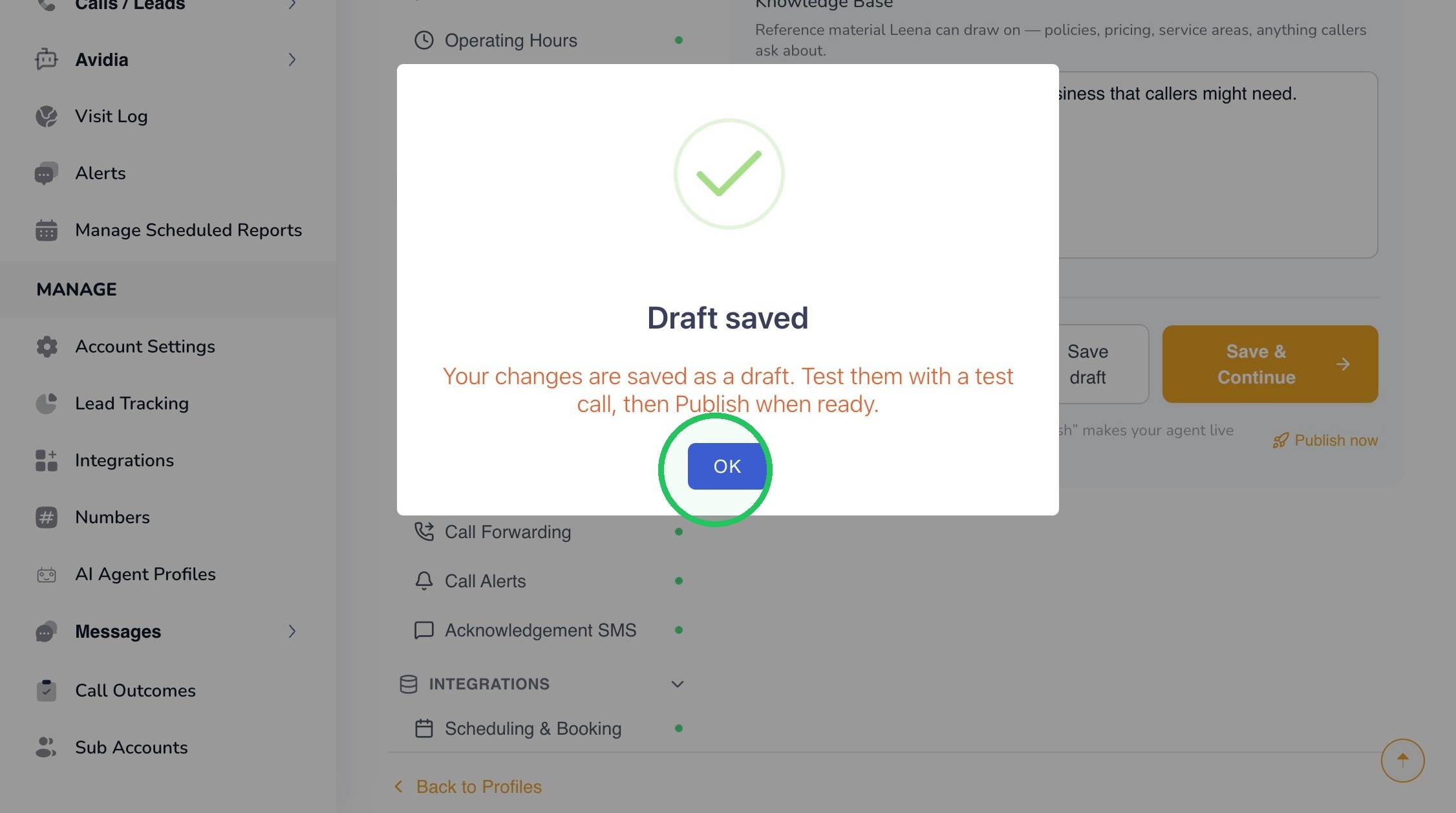
20. Select Knowledge Base from the Business section. The Knowledge Base is where you can provide broader reference information Leena may need to draw upon during a conversation when the information does not fit naturally into Services, Hours, Pricing, Service Area, or FAQs.
Use this section for information such as:
- Business policies
- Warranty terms
- Payment information
- Service procedures
- Special instructions
- Product or service details
- Emergency-service information
- Other information callers may reasonably ask about
Click in the Knowledge Base field and enter the information you want Leena to know.
For example:
Warranty Policy: Qualifying repair work includes a 120-day warranty on parts and labor. Warranty coverage applies to work performed by our technicians and does not cover unrelated mechanical failures.
Best Practice: Write Knowledge Base information clearly, factually, and in a way that will remain understandable out of context. Avoid vague, contradictory, outdated,
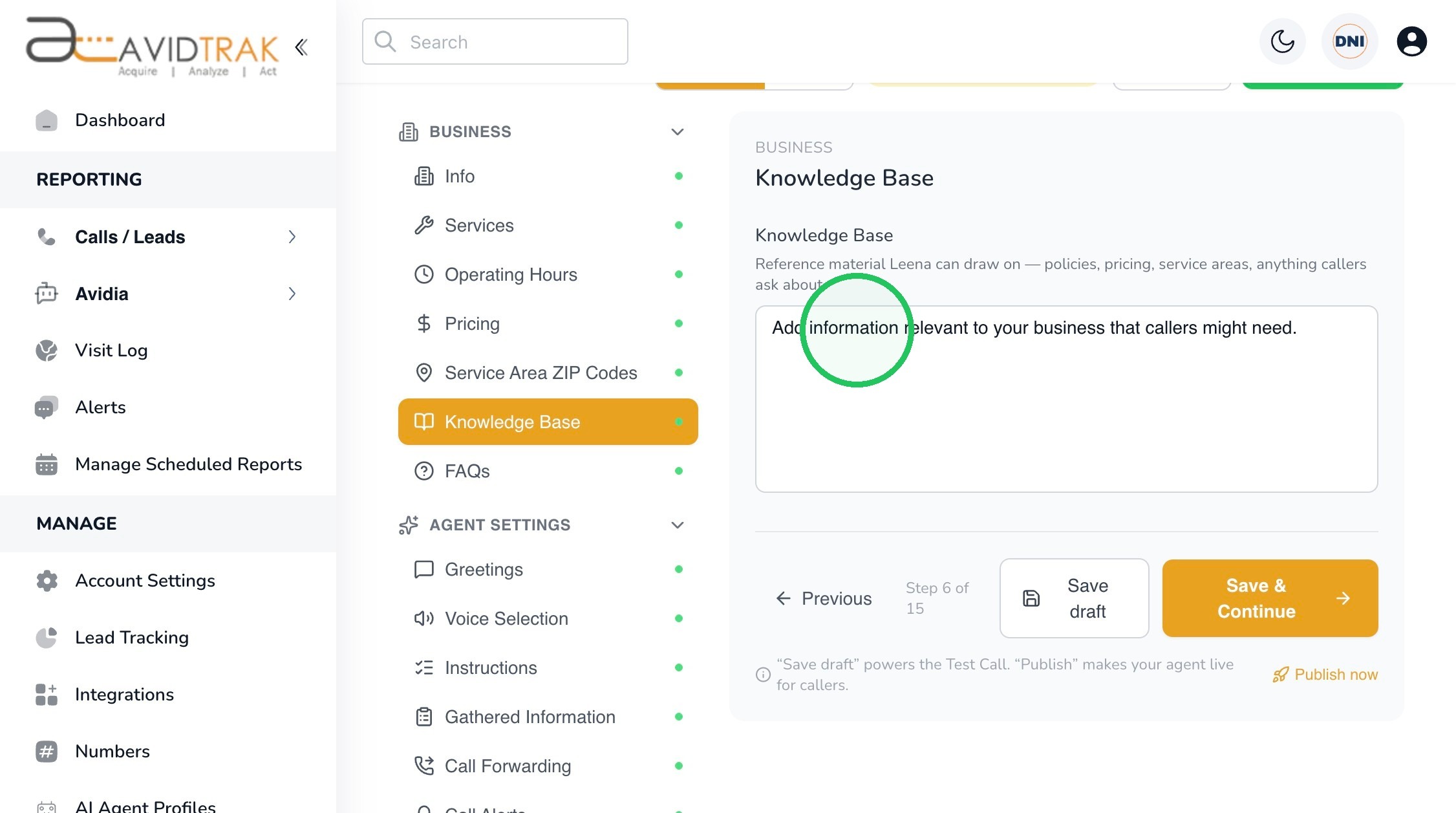
21. When you have finished adding the information, click Save & Continue.
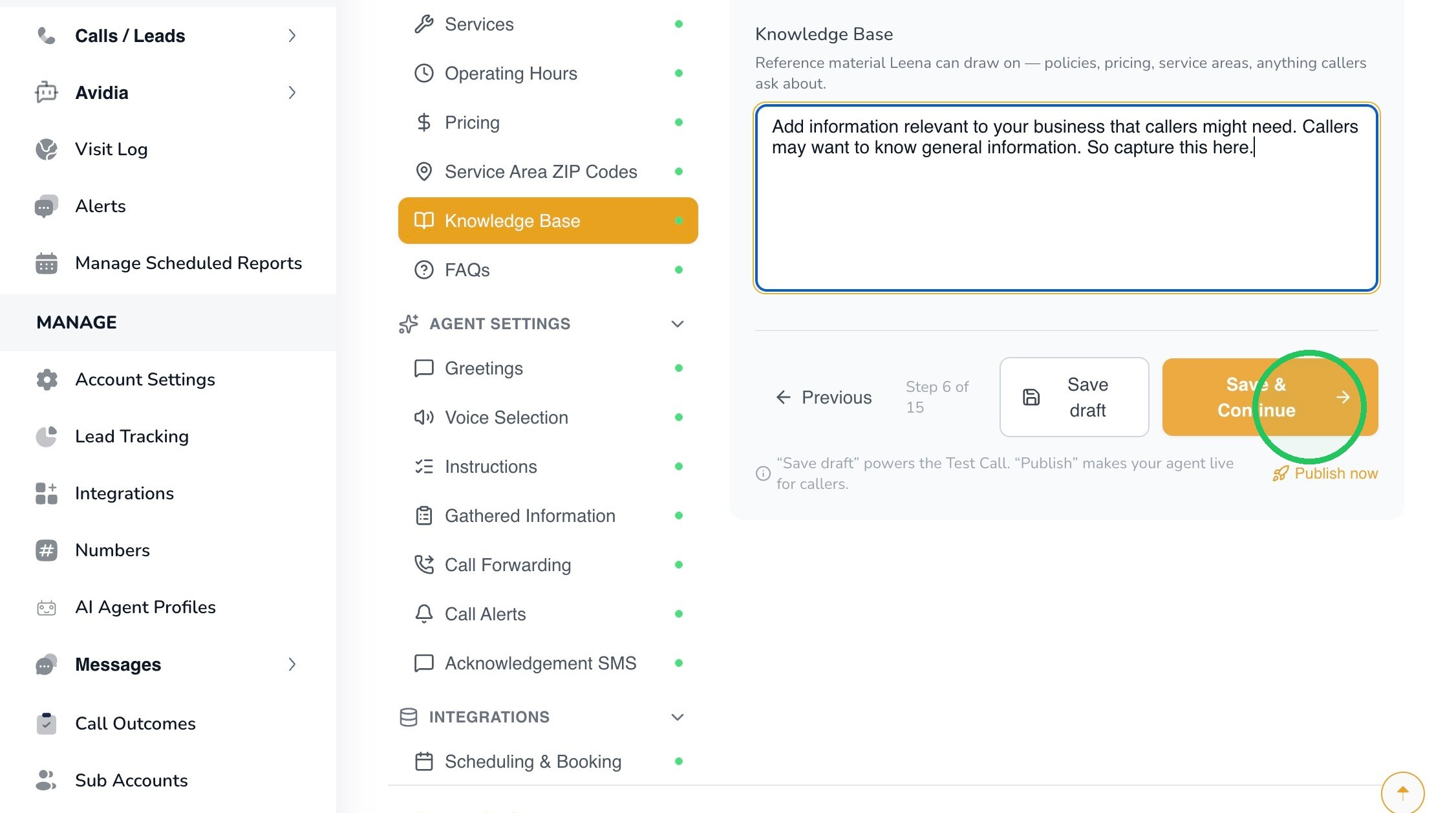
22. The Knowledge Base and FAQs both help Leena answer caller questions, but they serve different purposes. Use the Knowledge Base for broader reference material such as policies, procedures, warranty terms, service details, and other information Leena may need to interpret during a conversation.
Use FAQs when you want Leena to have a clear, approved response to a specific question callers frequently ask.
For example:
Knowledge Base:
Vehicles may be stored at our location for up to 24 hours at no charge. Additional storage is $75 per day.
FAQ:
Question: Do you store vehicles?
Answer: Yes, we can store vehicles for up to 24 hours without a charge. Each extra day of storage is $75.
Used together, the Knowledge Base gives Leena broader context while FAQs provide concise, approved answers to common questions.
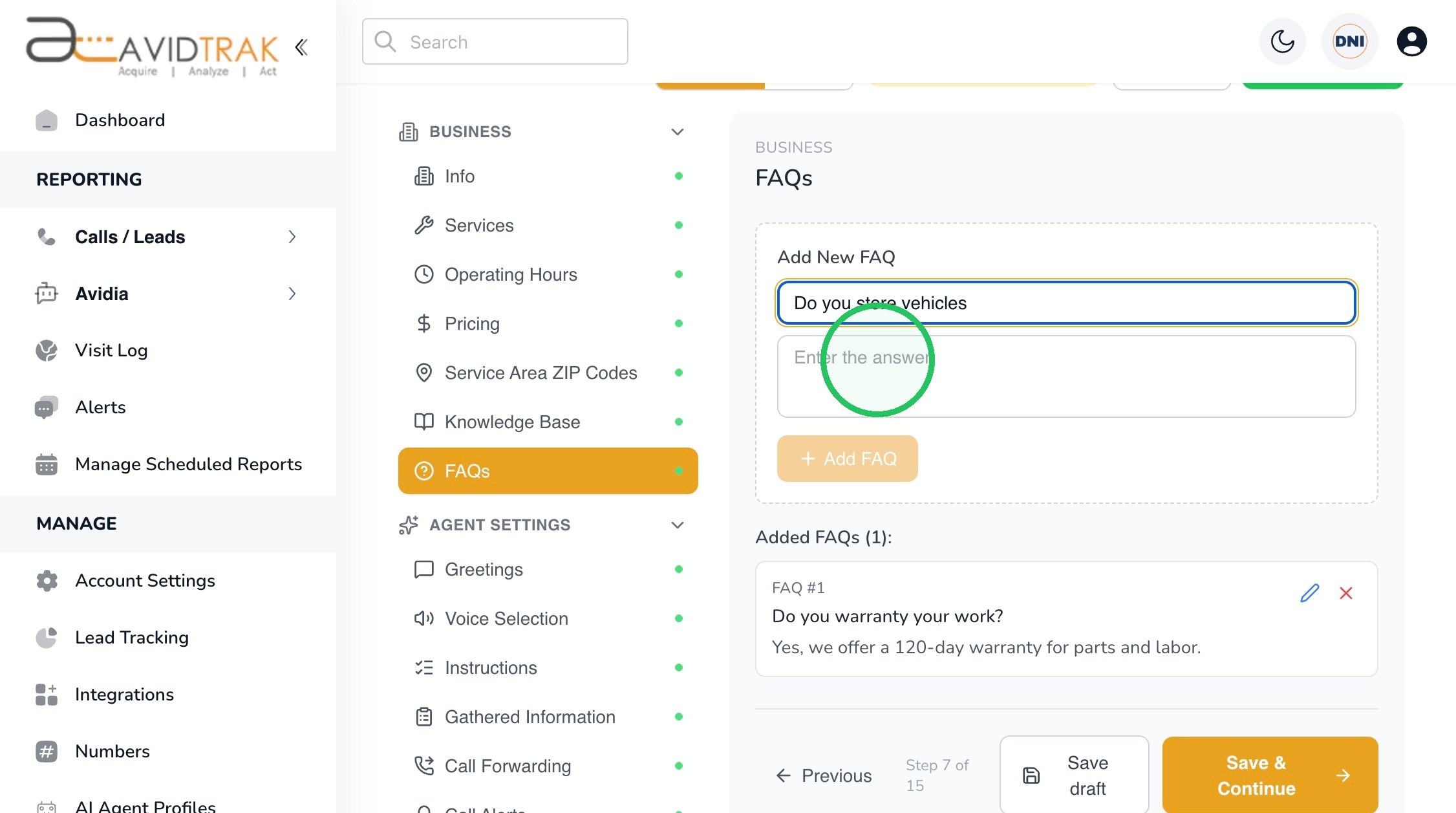
23. Select FAQs from the Business section. FAQs allow you to provide Leena with approved answers to questions callers frequently ask.
Enter the caller’s question in the Question field.
In this example:
Do you store vehicles?
Write the question in a natural way that reflects how a caller is likely to ask it. Focus on common questions where a consistent answer is useful.
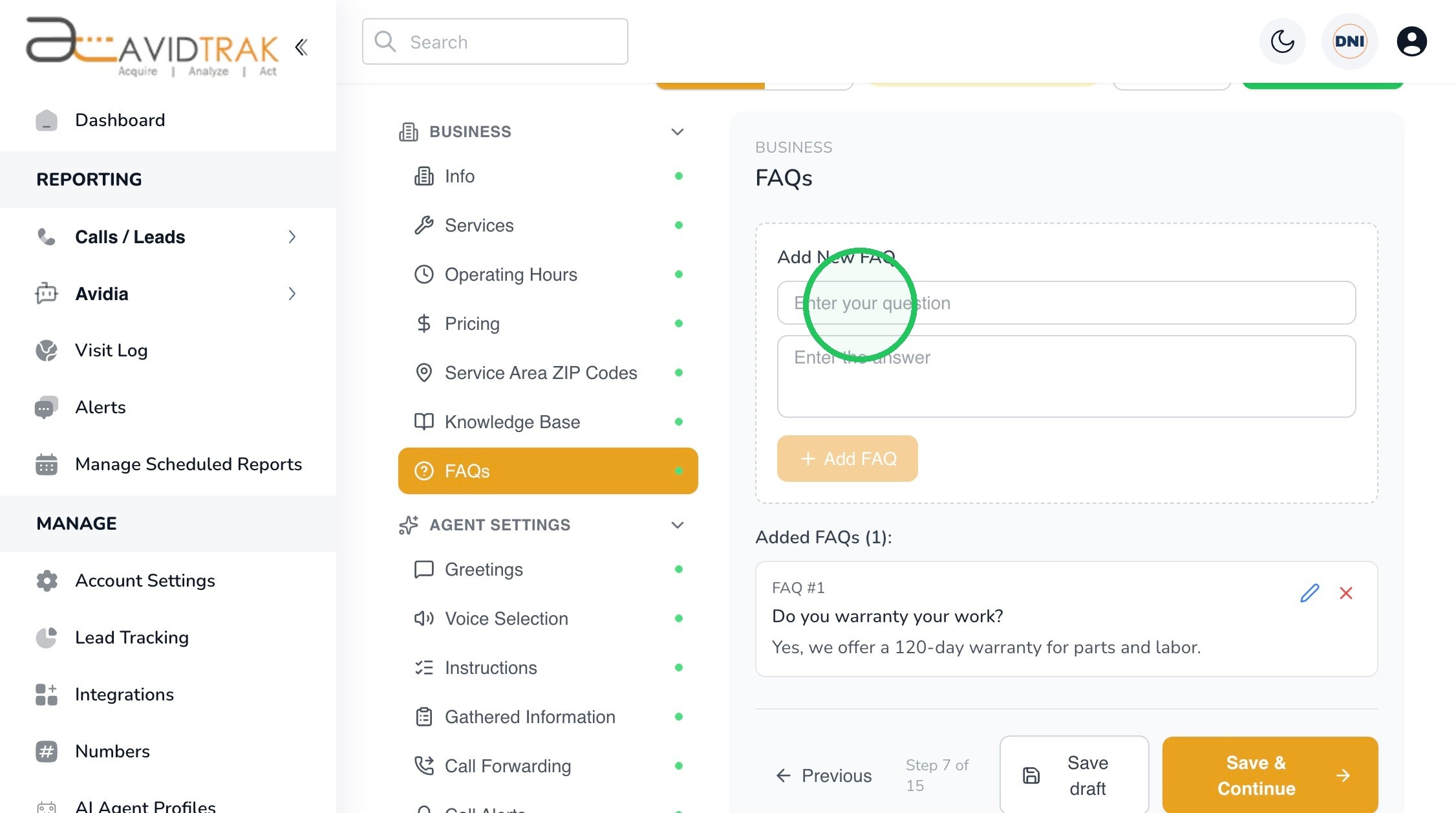
24.
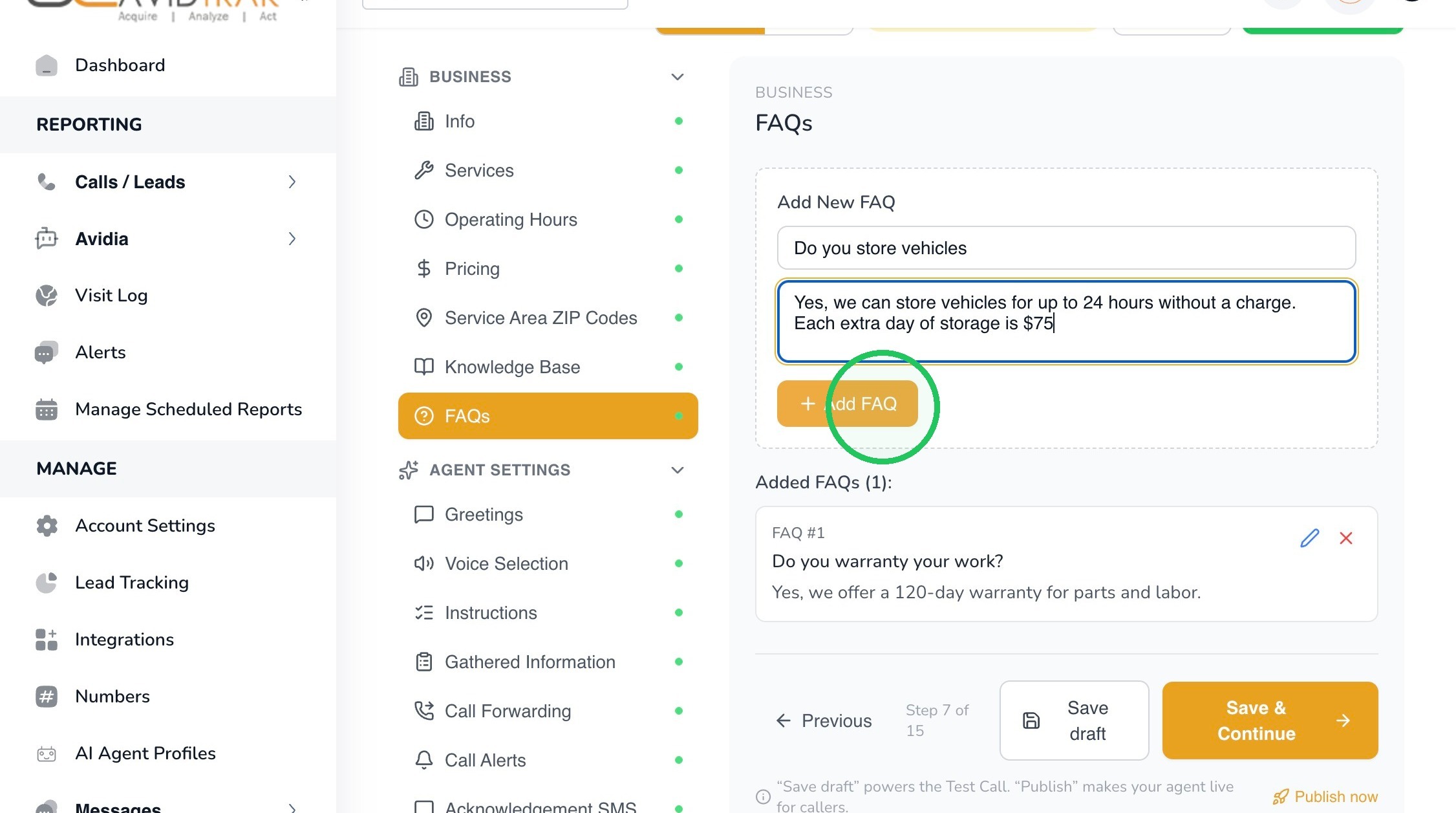
25. Enter the response you would like Leena to provide.
In this example:
Yes, we can store vehicles for up to 24 hours without a charge. Each extra day of storage is $75.
Keep the answer concise, accurate, and conversational so it sounds natural when spoken aloud. Avoid adding details that are not part of your approved business policy.
Click Add FAQ to save the question and answer.
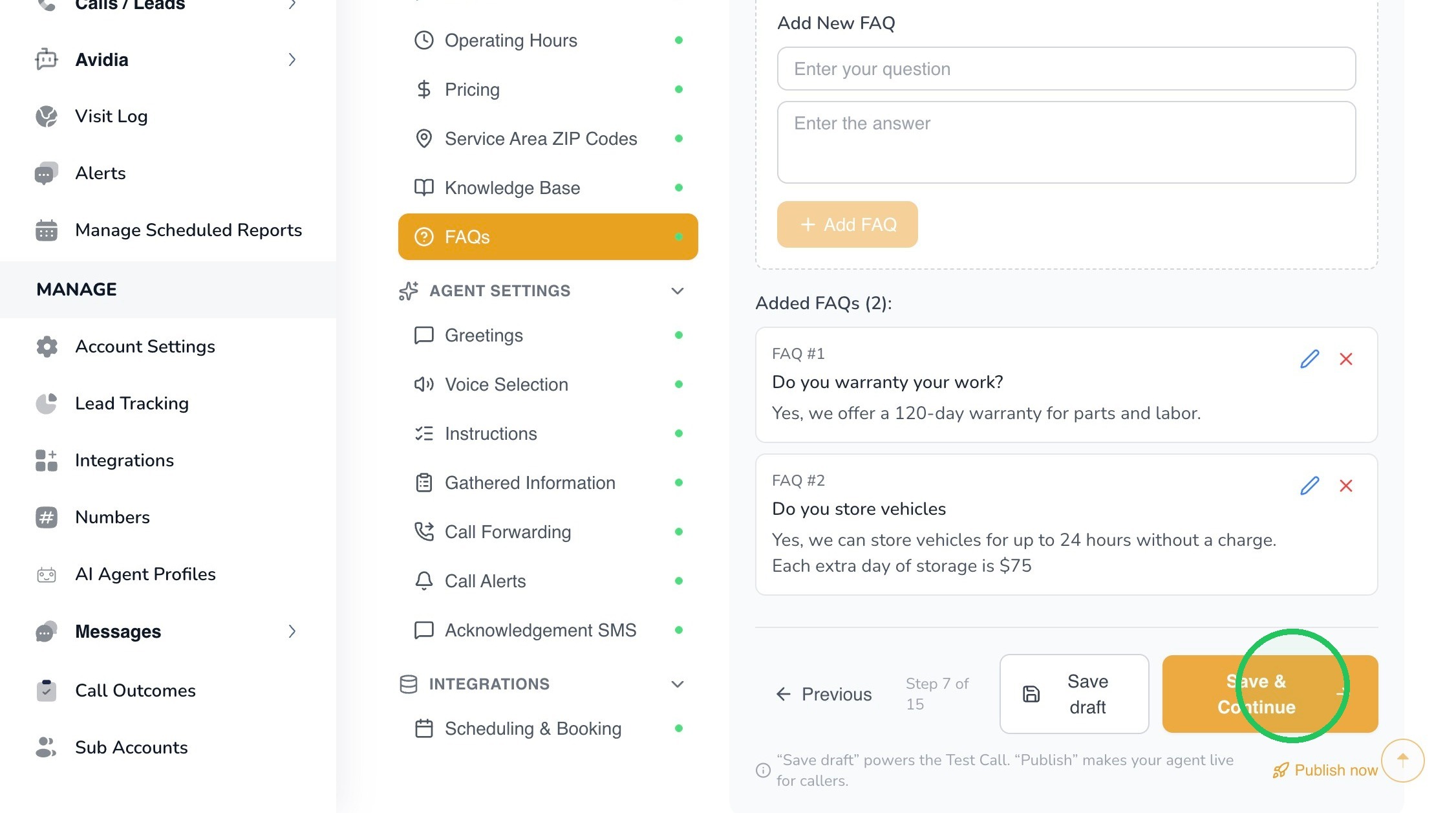
26. Once added, the new FAQ will appear together with any existing FAQs in the profile.
Review the question and answer to make sure they accurately reflect your current business policy.
You can add additional FAQs for other common caller questions.
Examples may include:
- Do you warranty your work?
- Do you offer same-day service?
- Do you provide estimates?
- What forms of payment do you accept?
- Do you offer after-hours service?
- Do I need an appointment?
When you have finished adding FAQs, click Save & Continue.
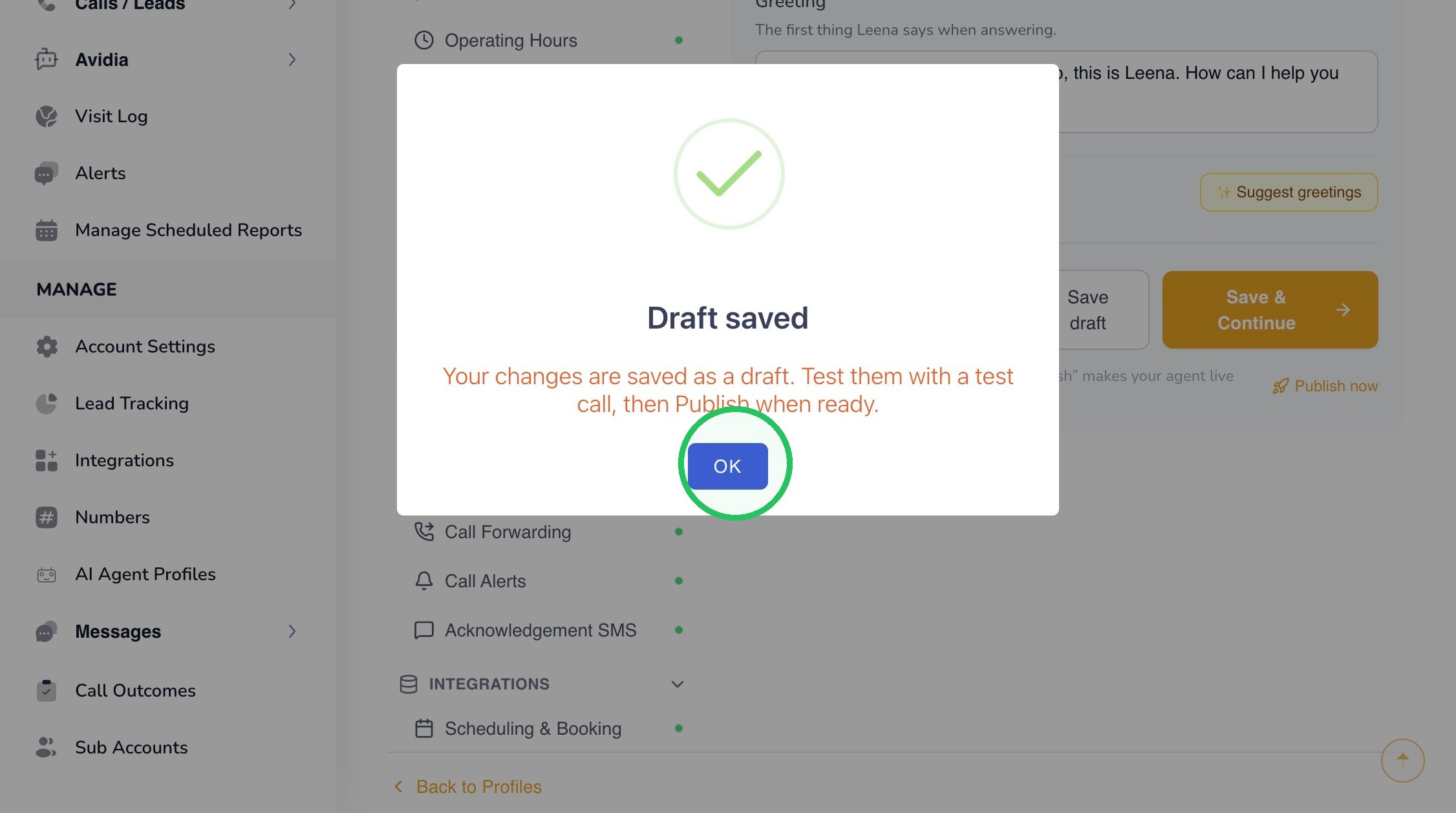
27. AvidTrak will confirm that the FAQ changes have been saved to the current Draft. Click OK to continue.
28. The Business section provides much of the factual context Leena uses when interacting with callers. Keeping this information accurate is an important part of maintaining a reliable caller experience.
Whenever your services, hours, pricing, service area, policies, or frequently asked questions change, update the corresponding section of your Leena profile and test the change before publishing when appropriate.
During initial setup, keep the profile in Draft status while you complete the remaining configuration and test Leena before publishing the version for live callers.
29. This completes the tutorial for configuring Leena’s Business Services and Information.
If you have any difficulty implementing these instructions or have questions about how to configure these settings for your business, please contact AvidTrak Support at support@avidtrak.com.

