
3A – Configure Leena’s Call Handling and Follow-Up
1. This document provides a step-by-step guide on configuring Leena’s call handling and follow-up features, including call forwarding, call alerts, and acknowledgement SMS.
Once Leena knows how to handle the conversation, the next step is to define what should happen when a caller needs a person and how your team or the caller should be notified after the call.
This tutorial covers human call transfer, call alerts, and acknowledgement SMS. These features help Leena connect callers to your team when appropriate and support timely follow-up after the conversation.
2. Have the phone number that should receive transferred calls, the email addresses that should receive call alerts, and an A2P 10DLC-enabled AvidTrak number available if you plan to send acknowledgement SMS messages.
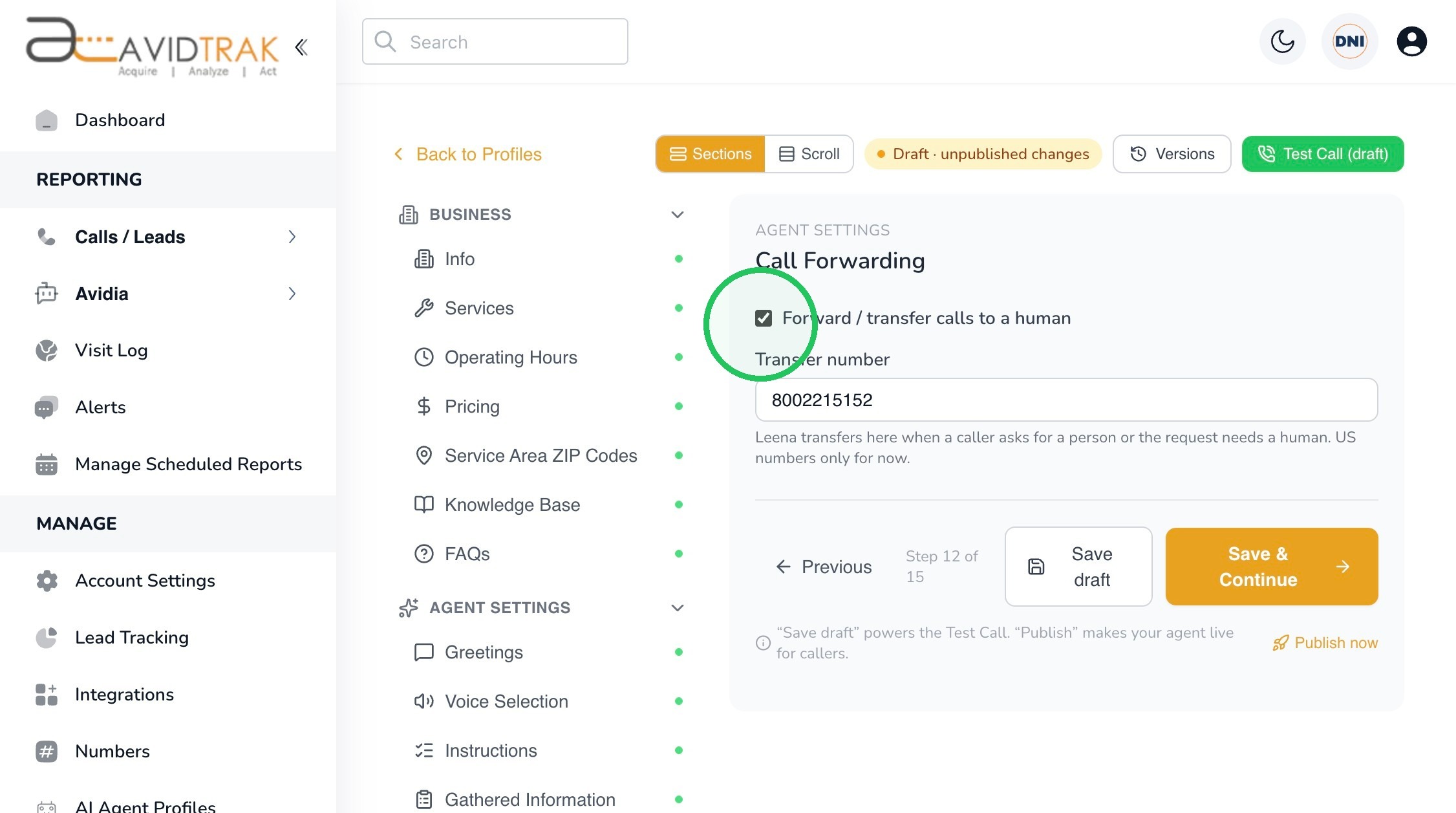
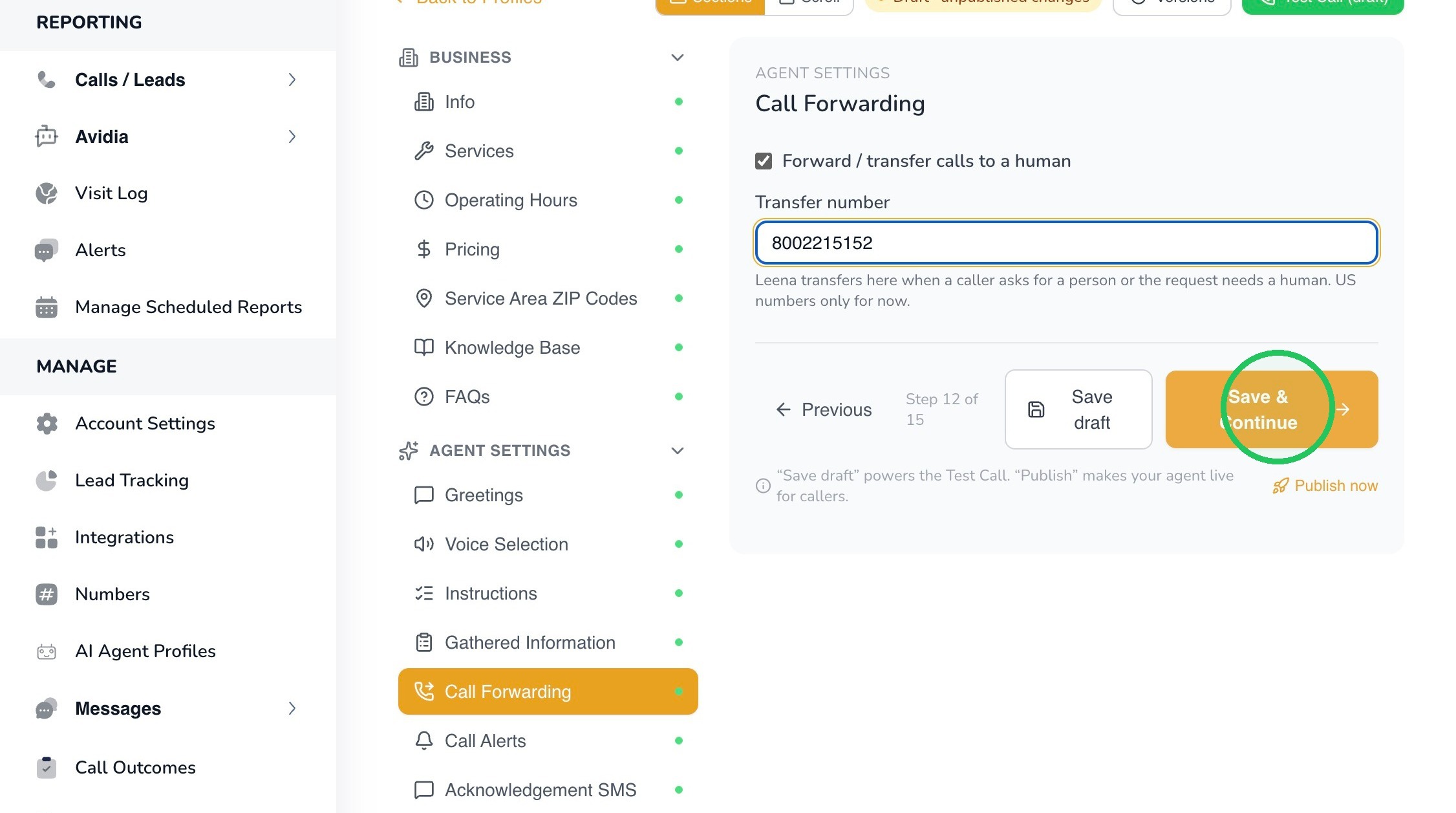
3. Select Call Forwarding from Agent Settings. Enable Forward / transfer calls to a human when you want Leena to transfer a caller who asks for a person or whose request requires human assistance.
4. Enter the Transfer number that should receive the call. The interface currently indicates that U.S. numbers are supported for this feature.
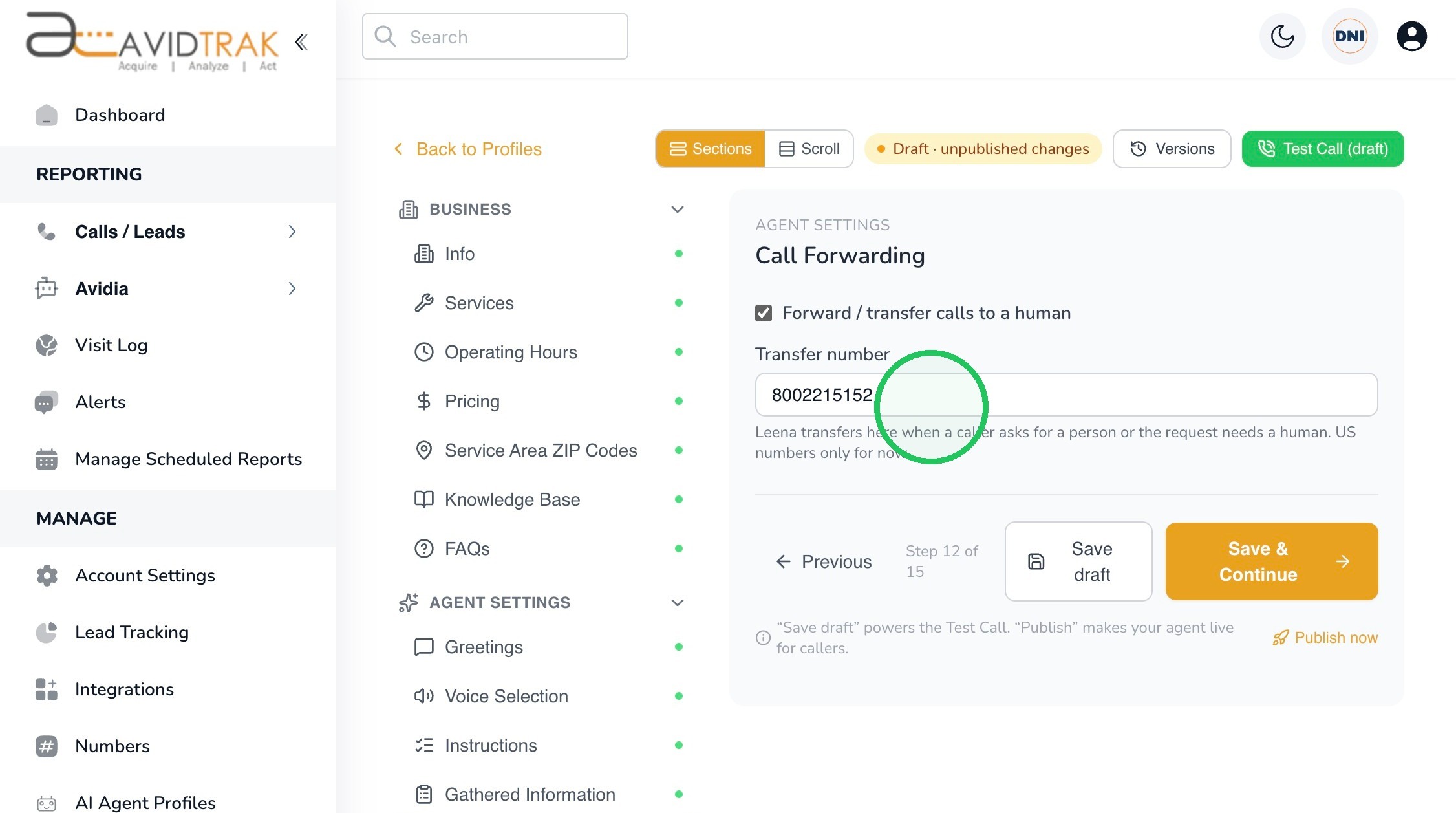
5. Best Practice: Use a phone number that is actively monitored during the hours when transfers are expected. Make sure the person or team receiving transfers understands that the caller has already interacted with Leena.
Click Save & Continue when the transfer number is correct.
6. Select Call Alerts when you want AvidTrak to notify one or more email addresses about calls handled by Leena. Each alert type can be configured independently.
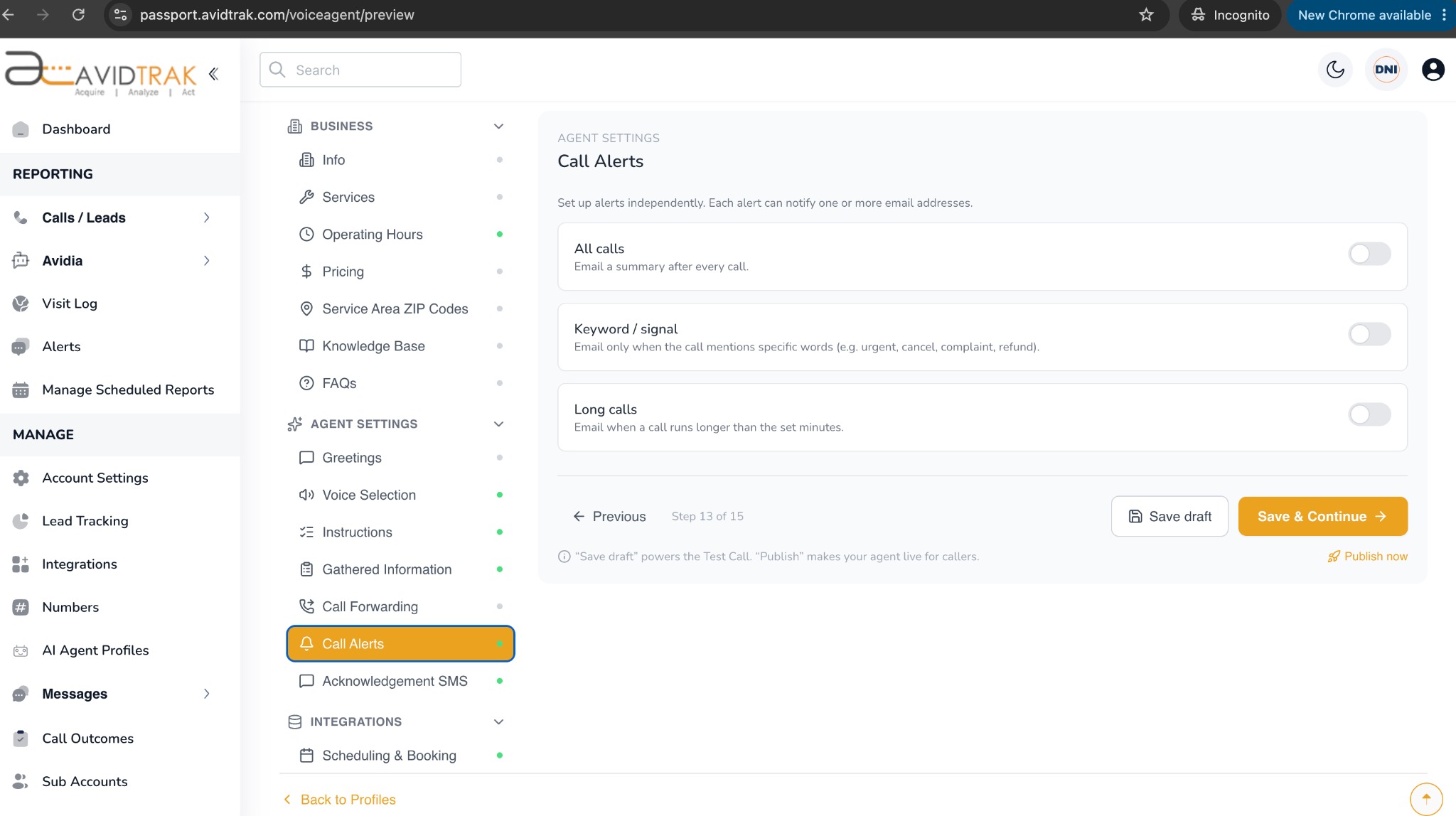
7. The Call Alerts screen provides the following alert types:
- All calls – send an email summary after every call.
- Keyword / signal – send an email only when the call mentions configured words or signals, such as urgent, cancel, complaint, or refund.
- Long calls – send an email when a call runs longer than the configured number of minutes.
Tip: Use alerts selectively so important calls stand out. Sending every possible alert to every recipient can make it harder for your team to notice the calls that truly require attention.
Enable the alert types that are useful for your workflow and provide the appropriate recipient email addresses when prompted by the interface.
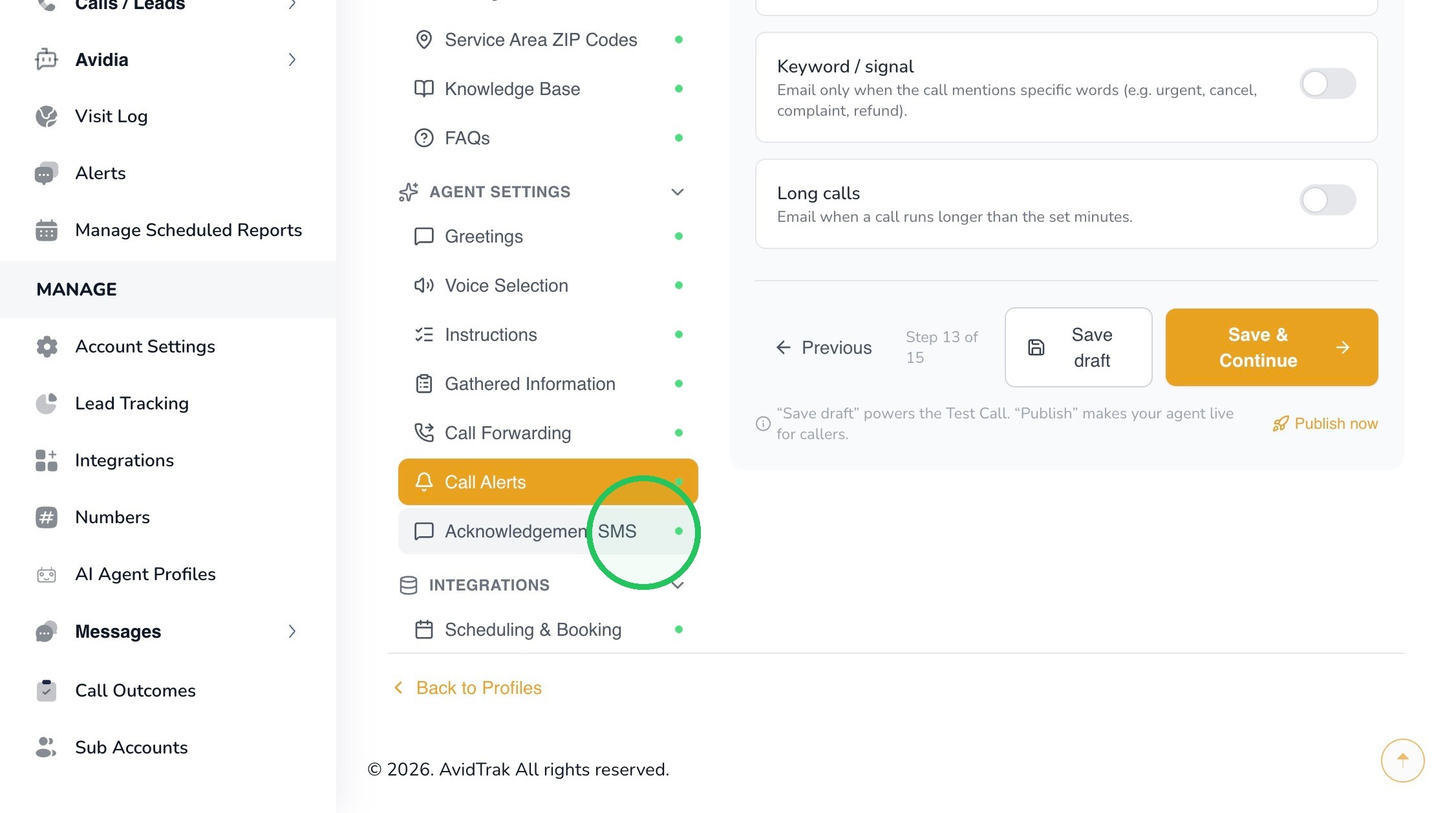
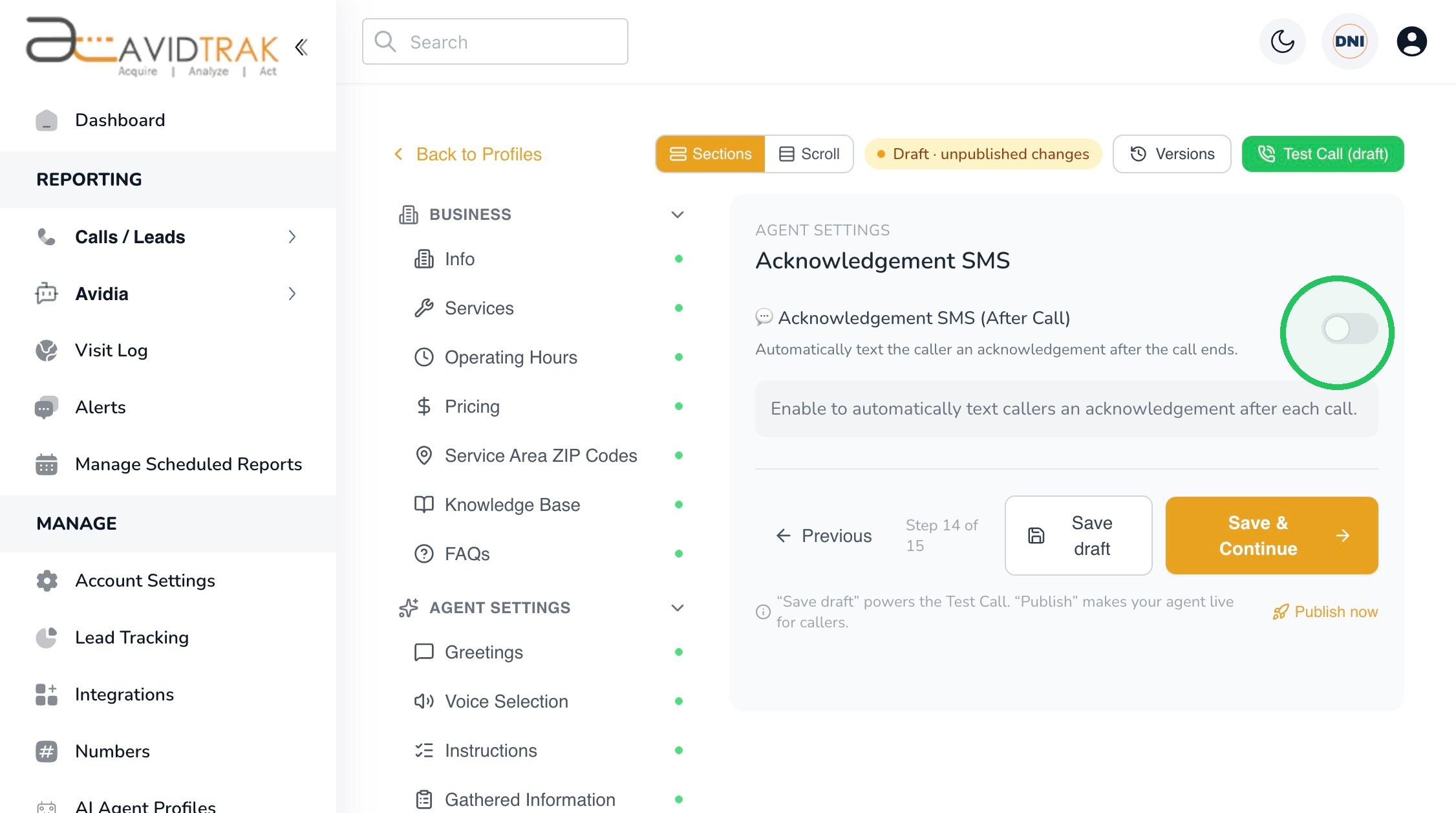
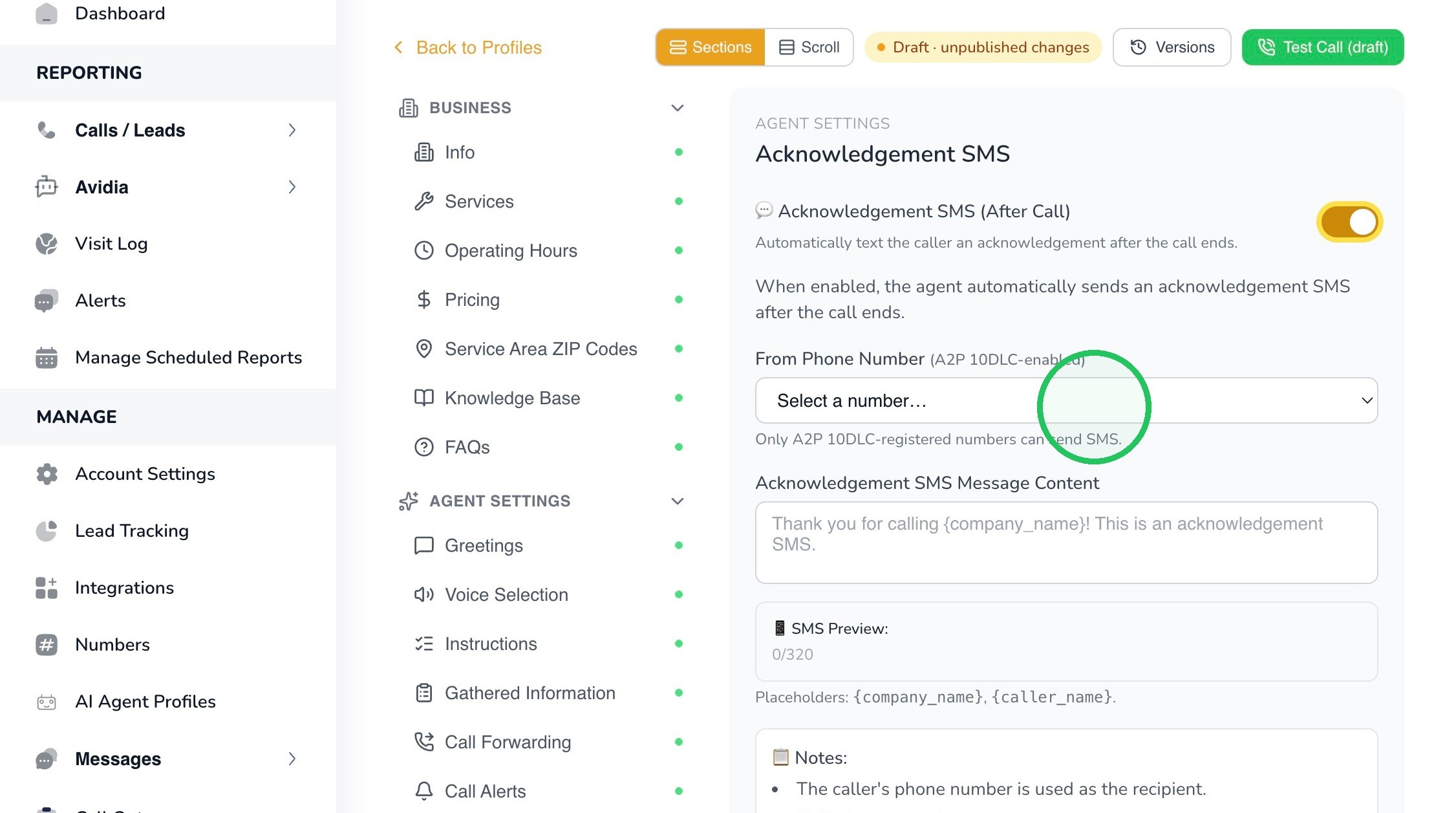
8. Select Acknowledgement SMS. Enable this feature when you want Leena to automatically send a text message to the caller after the call ends.
9.
10. Open the From Phone Number dropdown and select the AvidTrak number that should send the message.
The interface specifies that only A2P 10DLC-registered numbers can send SMS. If no eligible number is available, contact AvidTrak Support before enabling this feature.
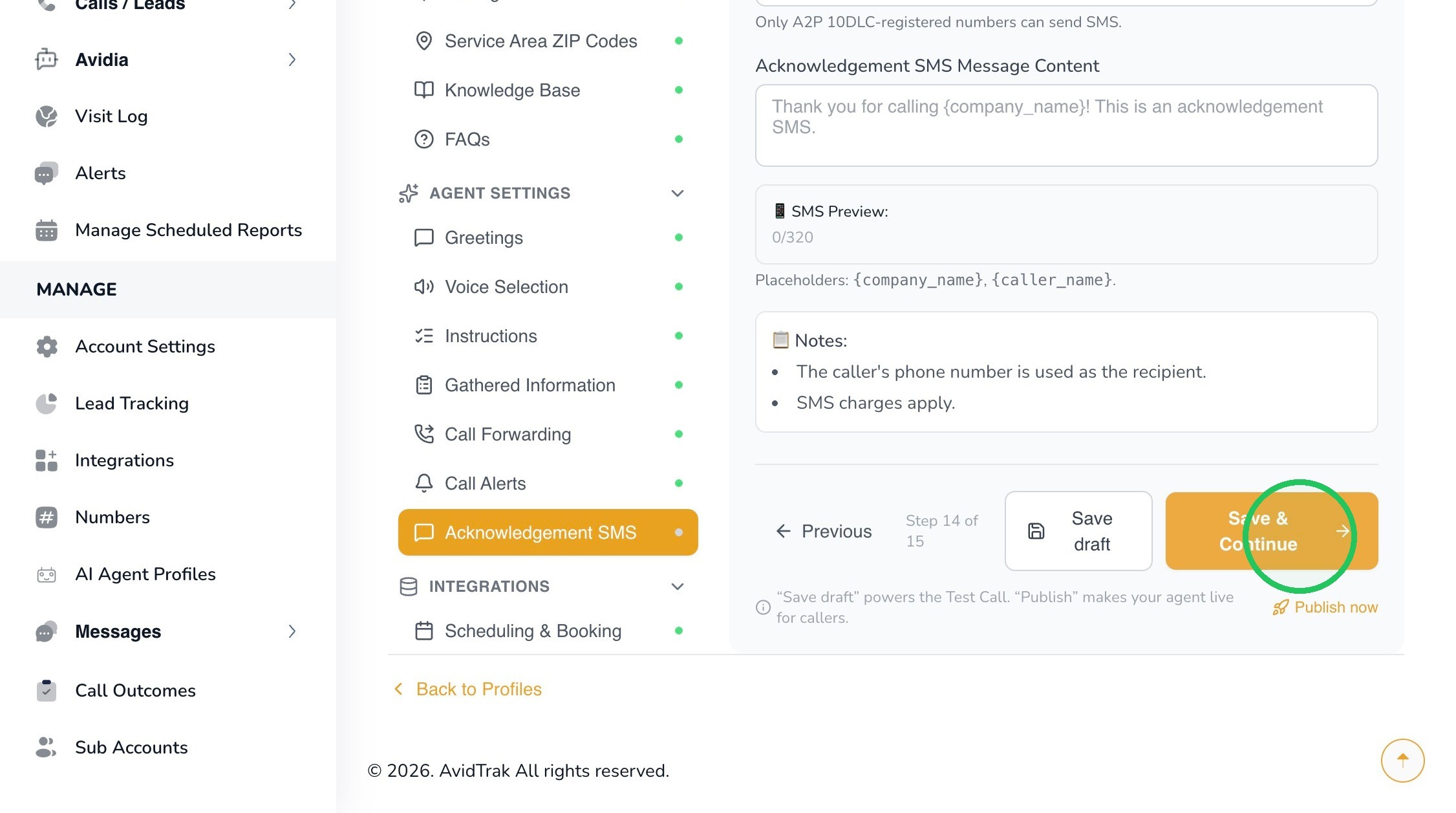
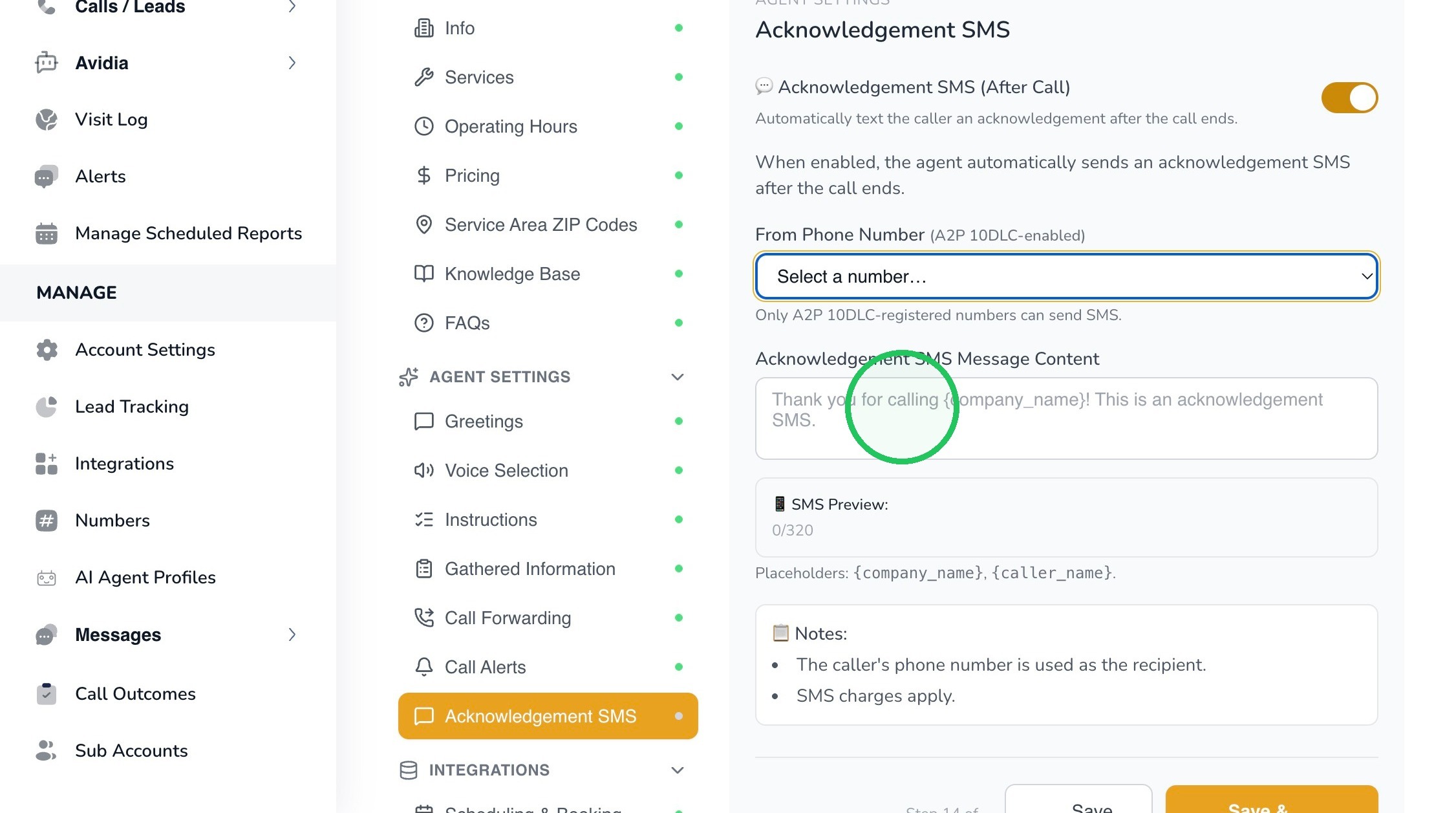
11. Review or edit the Acknowledgement SMS Message Content. The default example shown in the interface is:
Thank you for calling {company name}! This is an acknowledgement SMS.
The interface supports the displayed placeholders {company_name} and {caller_name}. Use the SMS Preview to confirm how the message will appear.
Best Practice: Keep the acknowledgement short and useful. Avoid including information that has not been confirmed during the call, and make sure the message accurately represents the next step you want the caller to expect.
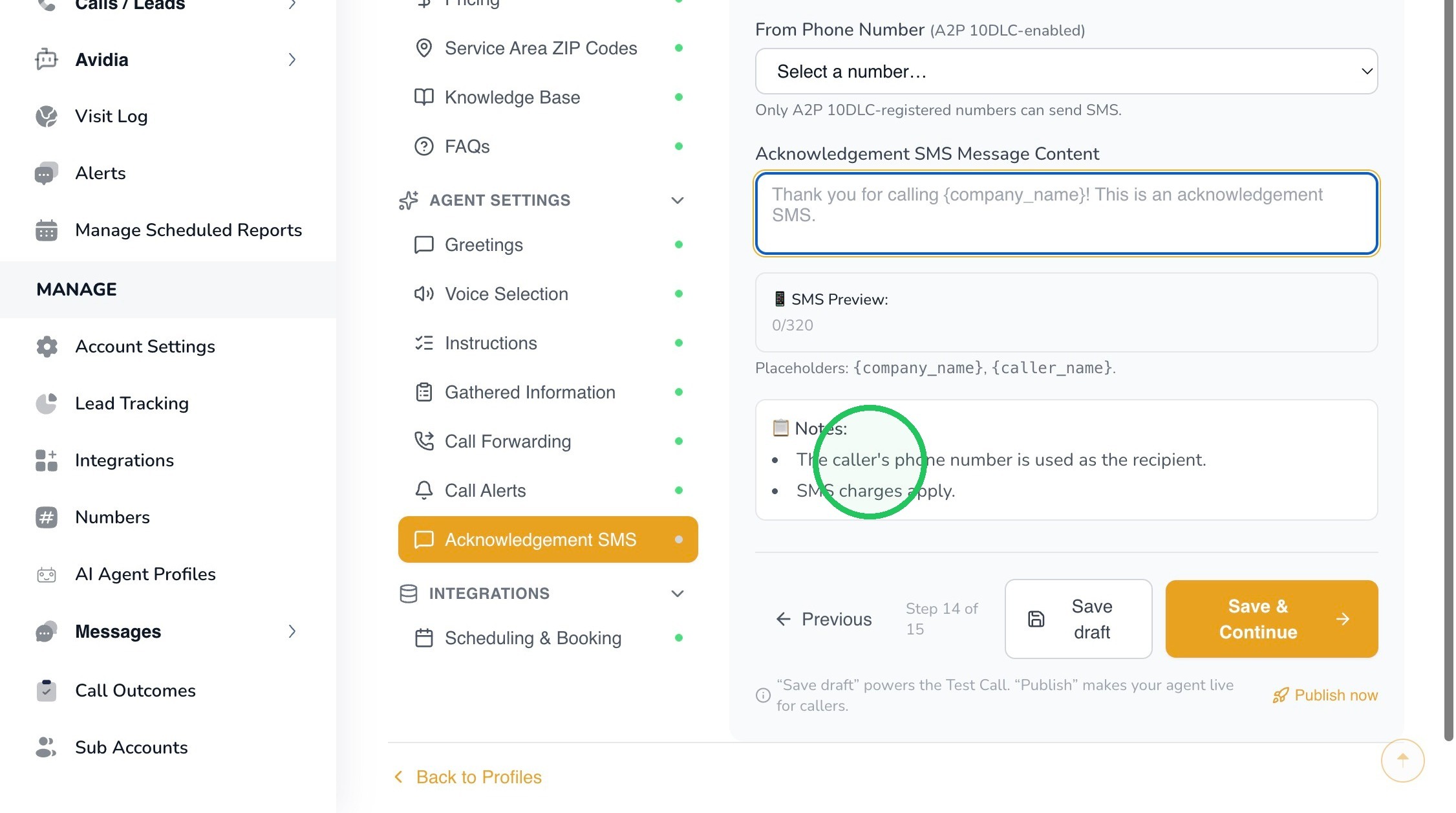
12. Before saving, review the notes shown in the interface. The caller’s phone number is used as the recipient, and SMS charges apply. You may also want to add instructions on how recipients may Unsubscribe and Stop additional SMS.
Click Save & Continue to save the acknowledgement SMS configuration as part of the draft profile.
After you have saved your work, perform a test call and engage with Leena to ensure that the AI agent completes call forwarding, email alerts and SMS alerts.
13. This completes the tutorial for configuring Leena’s Call Handling and Follow-Up.
If you have any difficulty implementing these instructions or have questions about your configuration, please do not hesitate to contact AvidTrak Support at support@avidtrak.com.