

1A – Create Your Leena AI Voice Agent Profile
1. This document provides a step-by-step guide to setting up a new Leena AI Voice Agent profile by adding business information and using AvidTrak to populate the profile from existing online business data.
Create Your Leena AI Voice Agent Profile.
Set up a new Leena AI Voice Agent profile by adding your business information and allowing AvidTrak to help populate the profile from your existing online business information.
This first step gives Leena the basic business context she will use when interacting with callers. Review all imported information carefully before continuing.
2. Step 1 — Open AI Agent Profiles
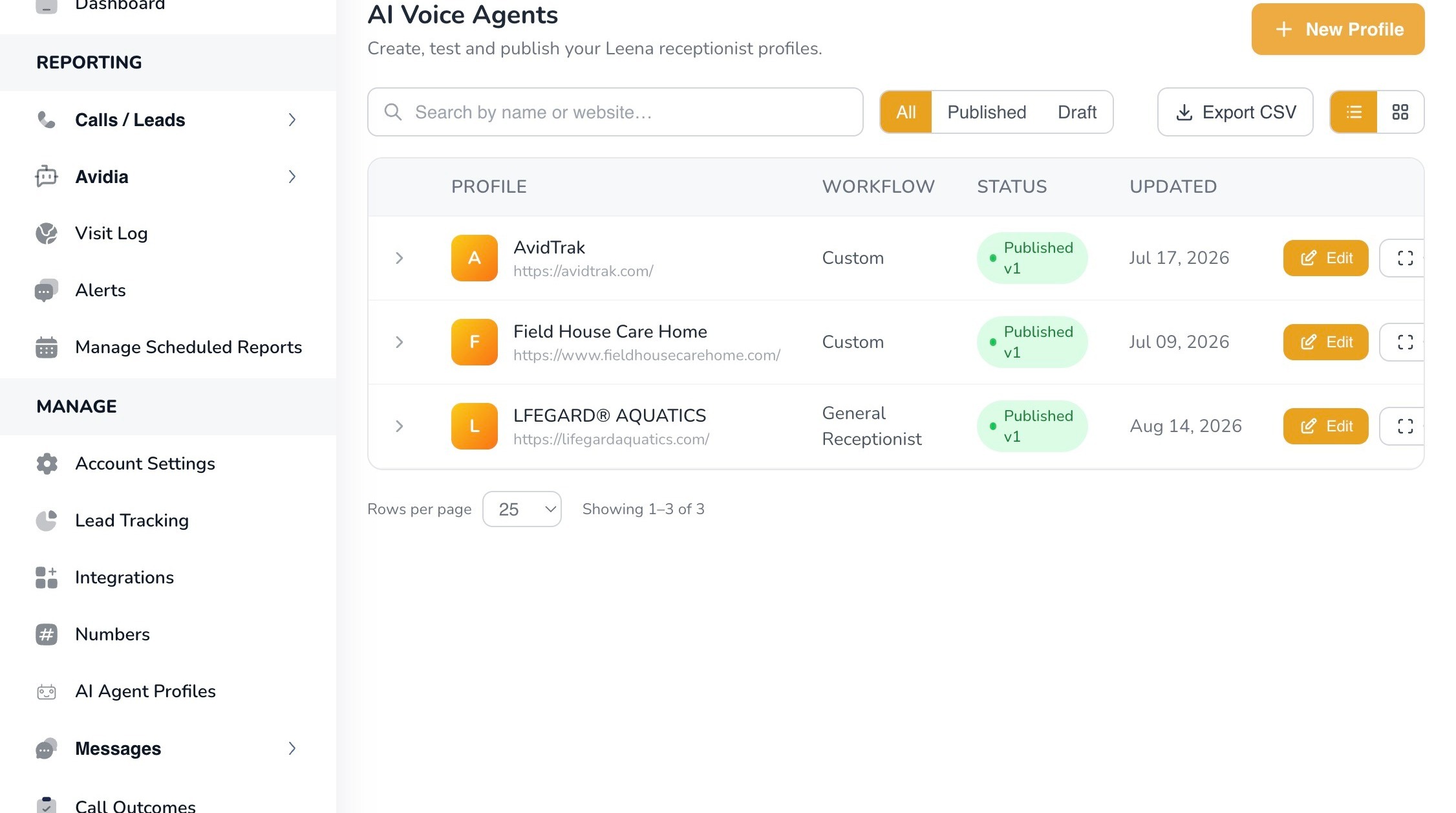
From your AvidTrak account, navigate to AI Agent Profiles.
This page displays your existing Leena AI Voice Agent profiles and allows you to create, edit, and manage agents for your business.
3. Step 2 — Create a New Profile
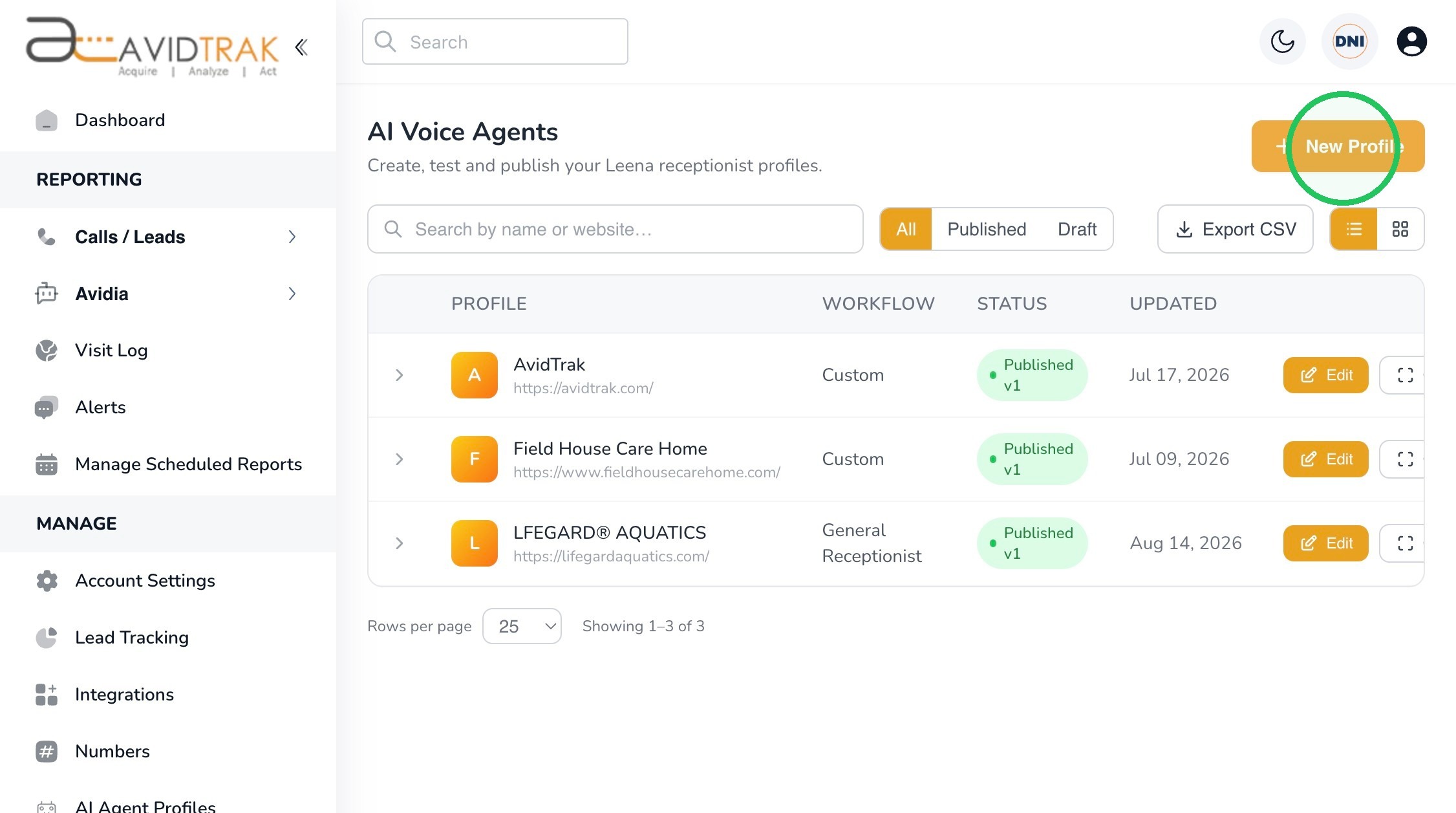
Click New Profile to begin setting up a new Leena AI Voice Agent.
A new profile opens with the Business Info section selected.
4. Step 3 — Find Your Business
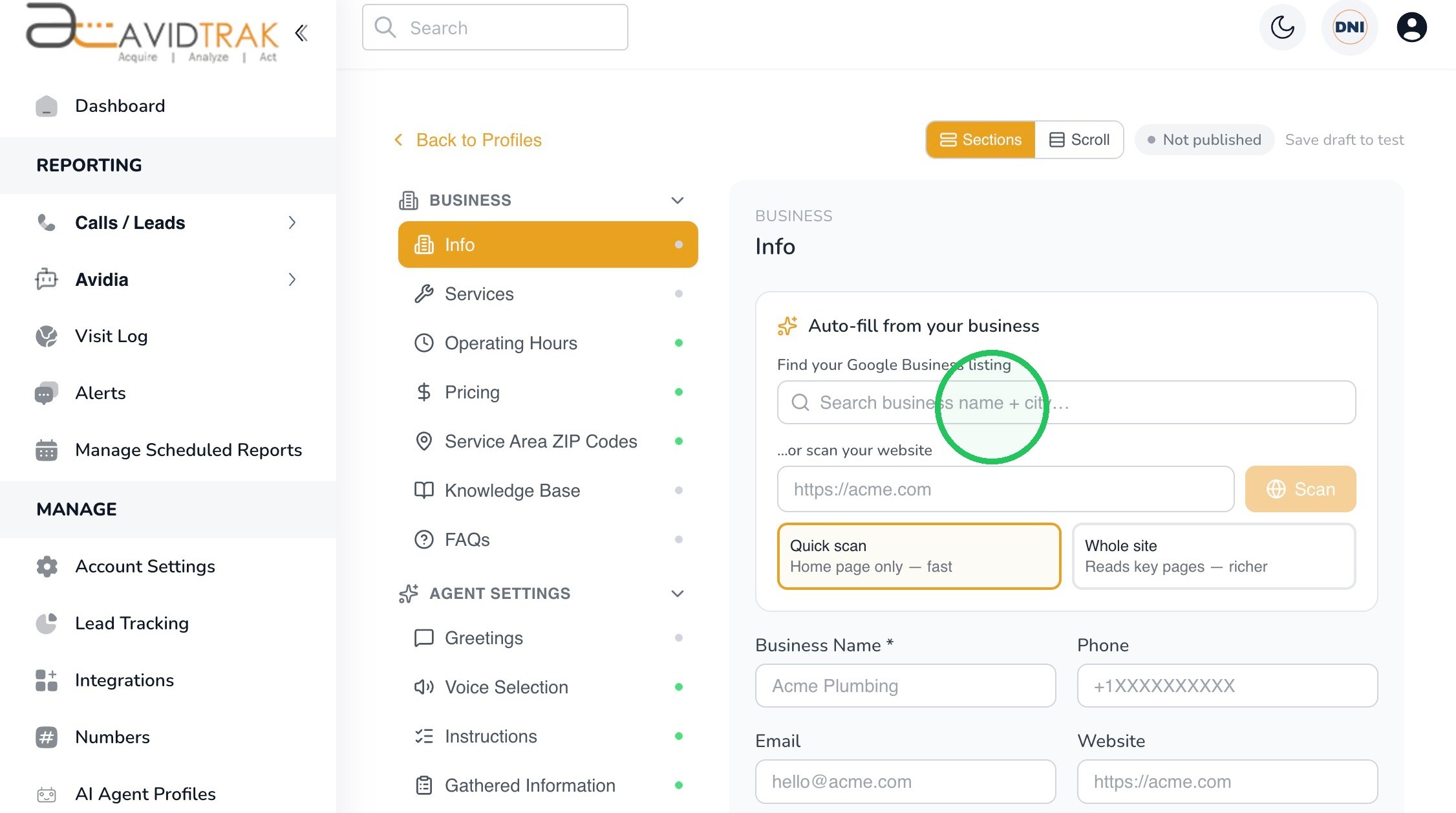
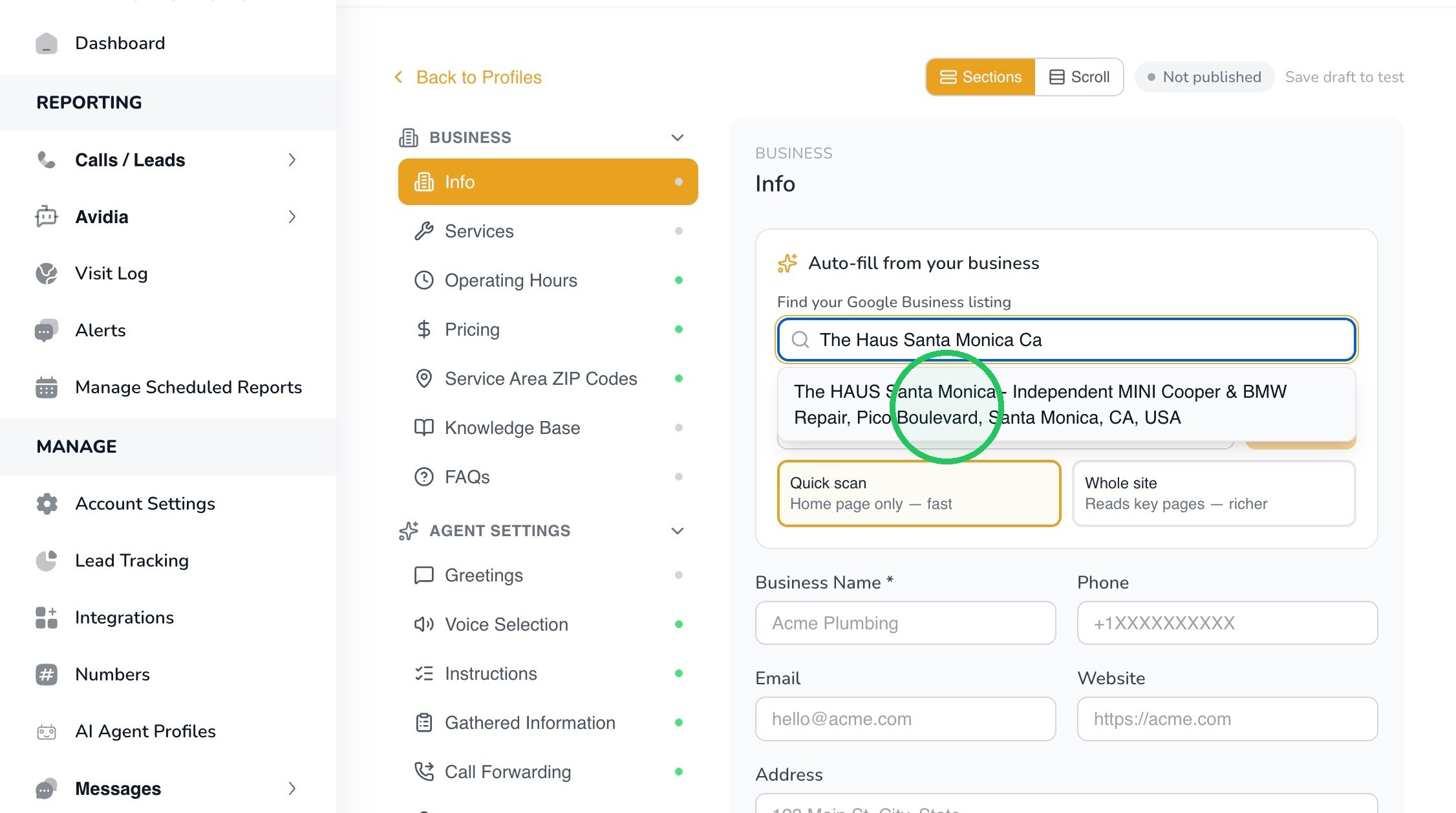
Under Auto-fill from your business, enter your business name and location in the Google Business search field. If you do not have a Google Business Profile, you may enter your website URL in the “scan your website” field.
For this example, we have entered The Haus Santa Monica in the Google Business Profile field and we are searching for:
The Haus Santa Monica CA
As you type, AvidTrak will display matching business listings.
5. Step 4 — Select the Correct Business Listing
Select the Google Business listing that corresponds to your business.
In this example, select:
The HAUS Santa Monica – Independent MINI Cooper & BMW Repair, Pico Boulevard, Santa Monica, CA, USA
Tip: Confirm that you have selected the correct business and location before continuing. The information associated with this listing may be used to help populate your Leena profile.
6. Step 5 — Choose How Much of Your Website to Scan
AvidTrak can also scan your business website to help gather information for the profile.
Choose between:
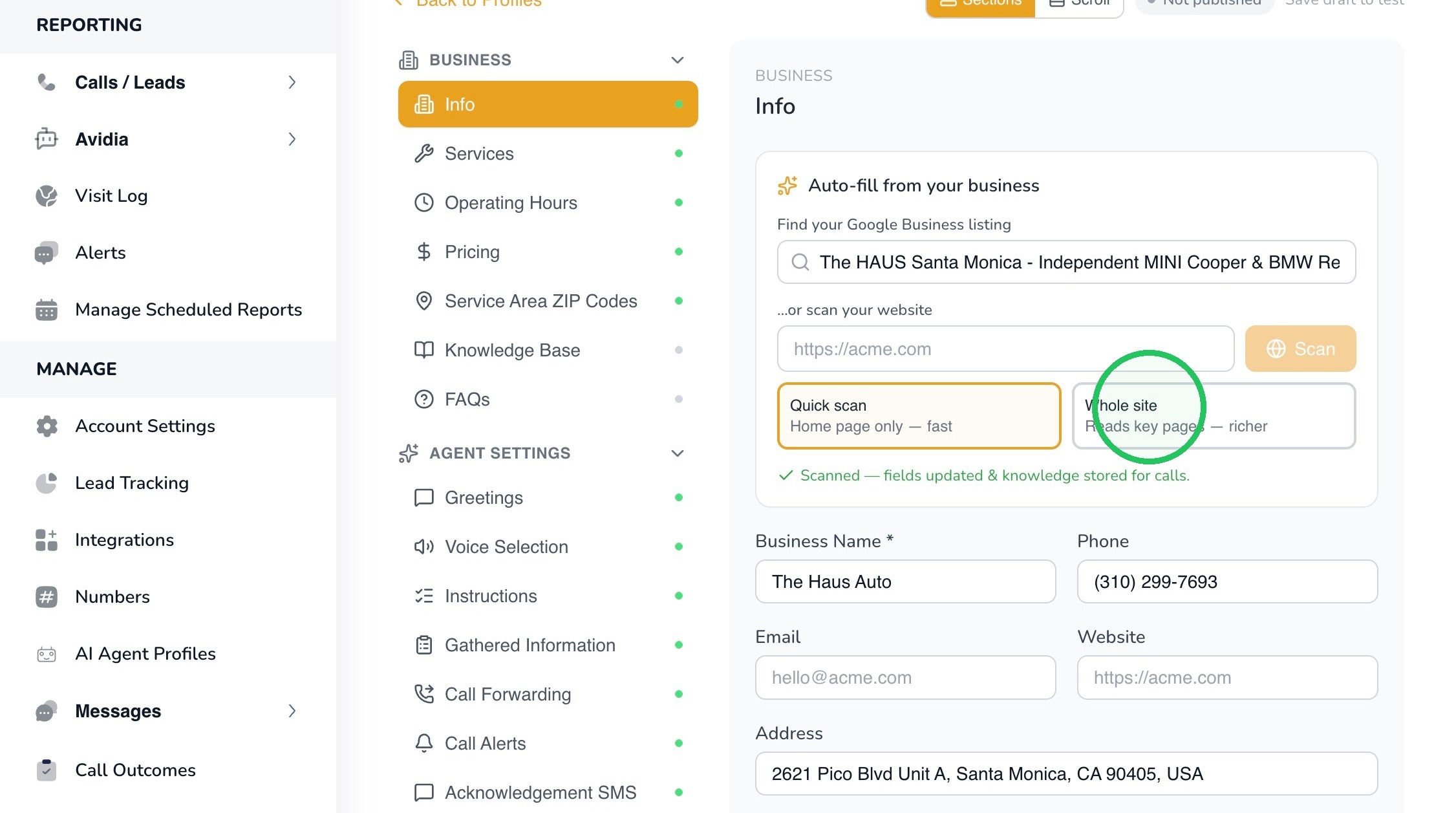
Quick Scan — scans the home page only.
Whole Site — reads key pages across the website to gather richer business information.
For this example, select Whole Site.
Whole Site is useful when important information about your services or business is located across several pages of your website.
7. Step 6 — Review Your Business Information
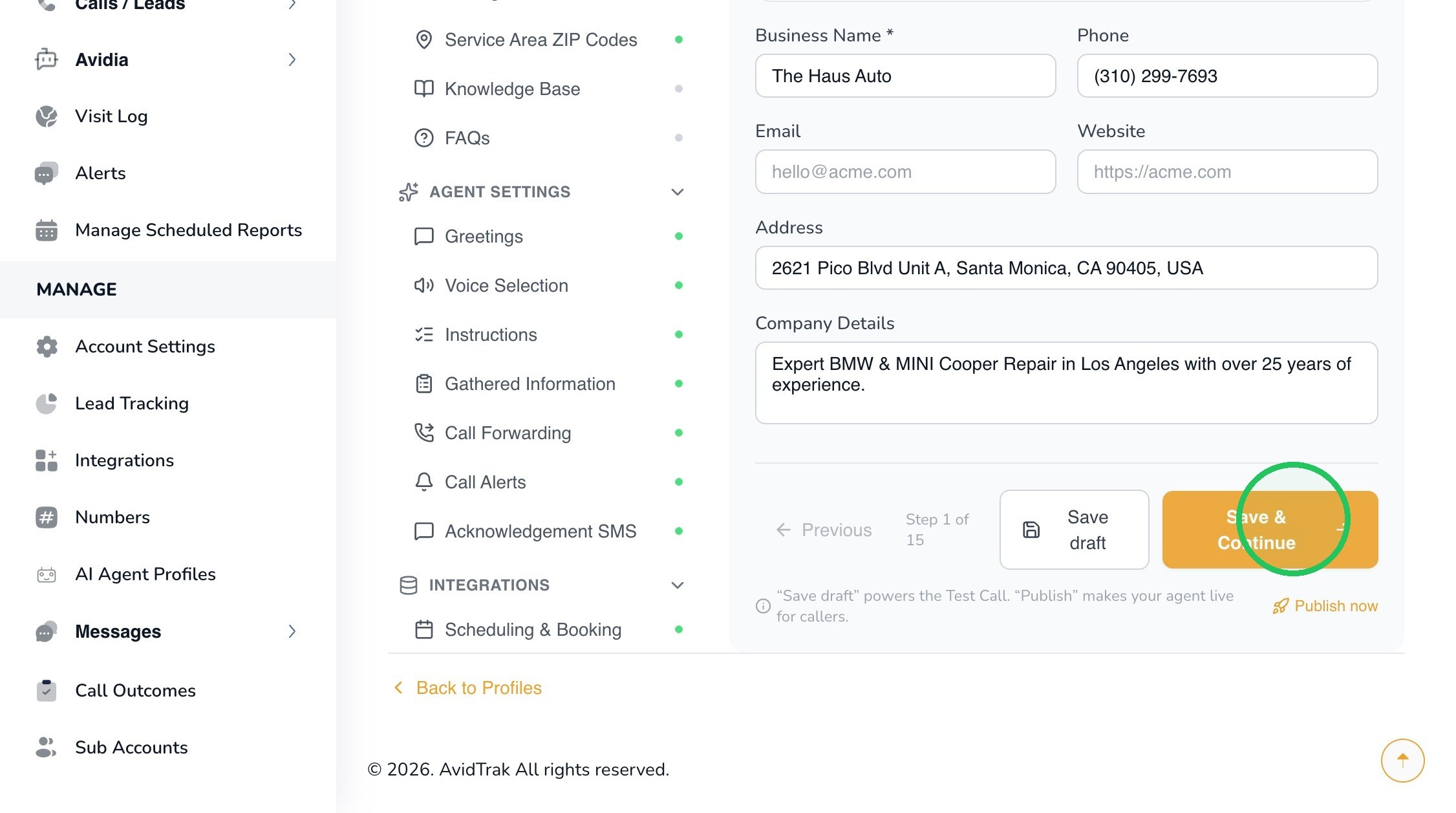
After the business information has been retrieved, review the populated fields before continuing.
Confirm that the following information is accurate:
- Business Name
- Phone
- Website
- Address
- Company Details
Correct or complete any information that is inaccurate or missing.
Important: Leena may rely on the information saved in the profile when responding to callers, so the information should accurately reflect your business.
8. Step 7 — Save and Continue
Once you have reviewed your business information, click Save & Continue.
This saves the Business Info section and advances you to the next part of Leena’s setup.
9. Step 8 — Save Your Agent as a Draft
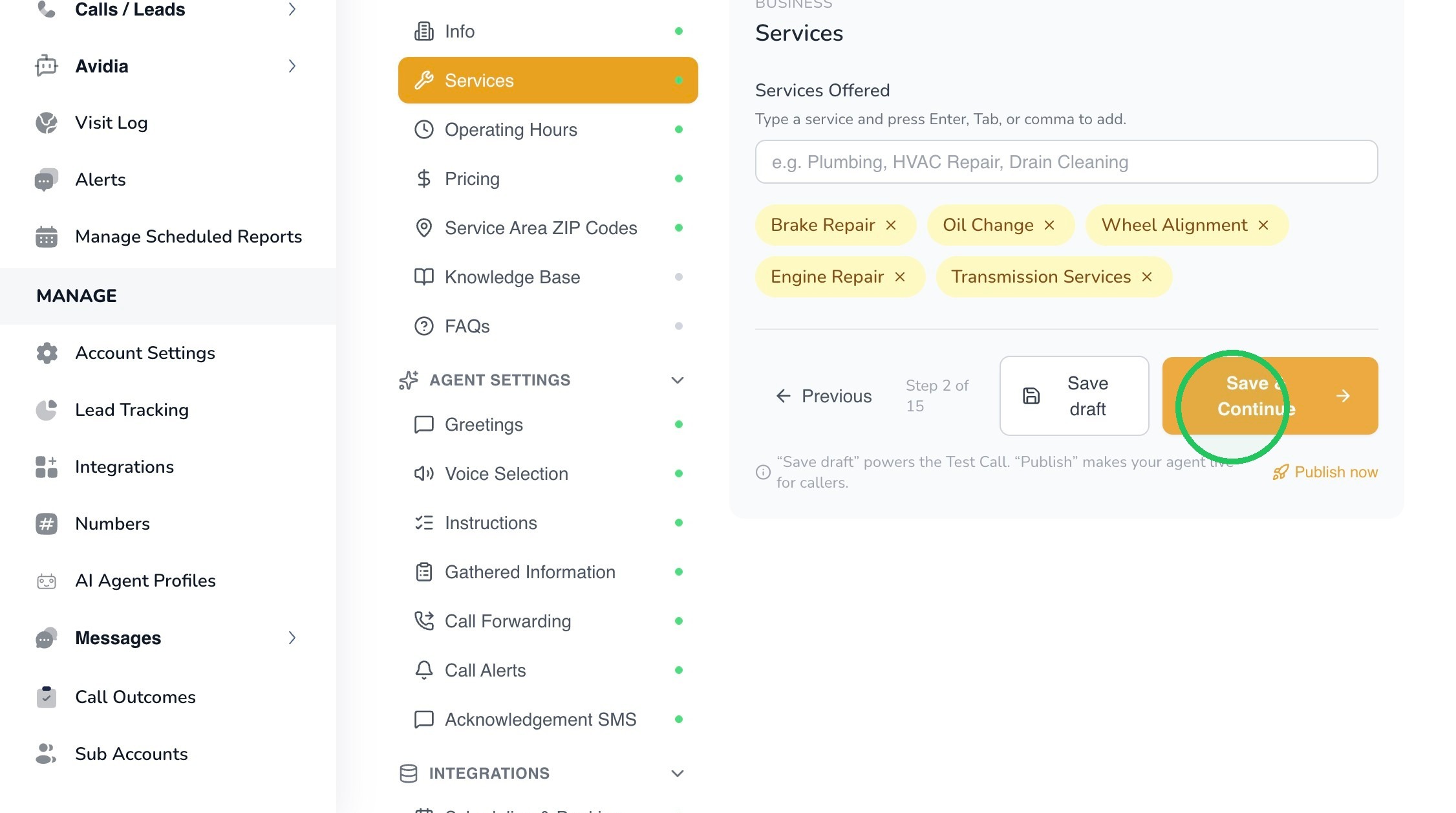
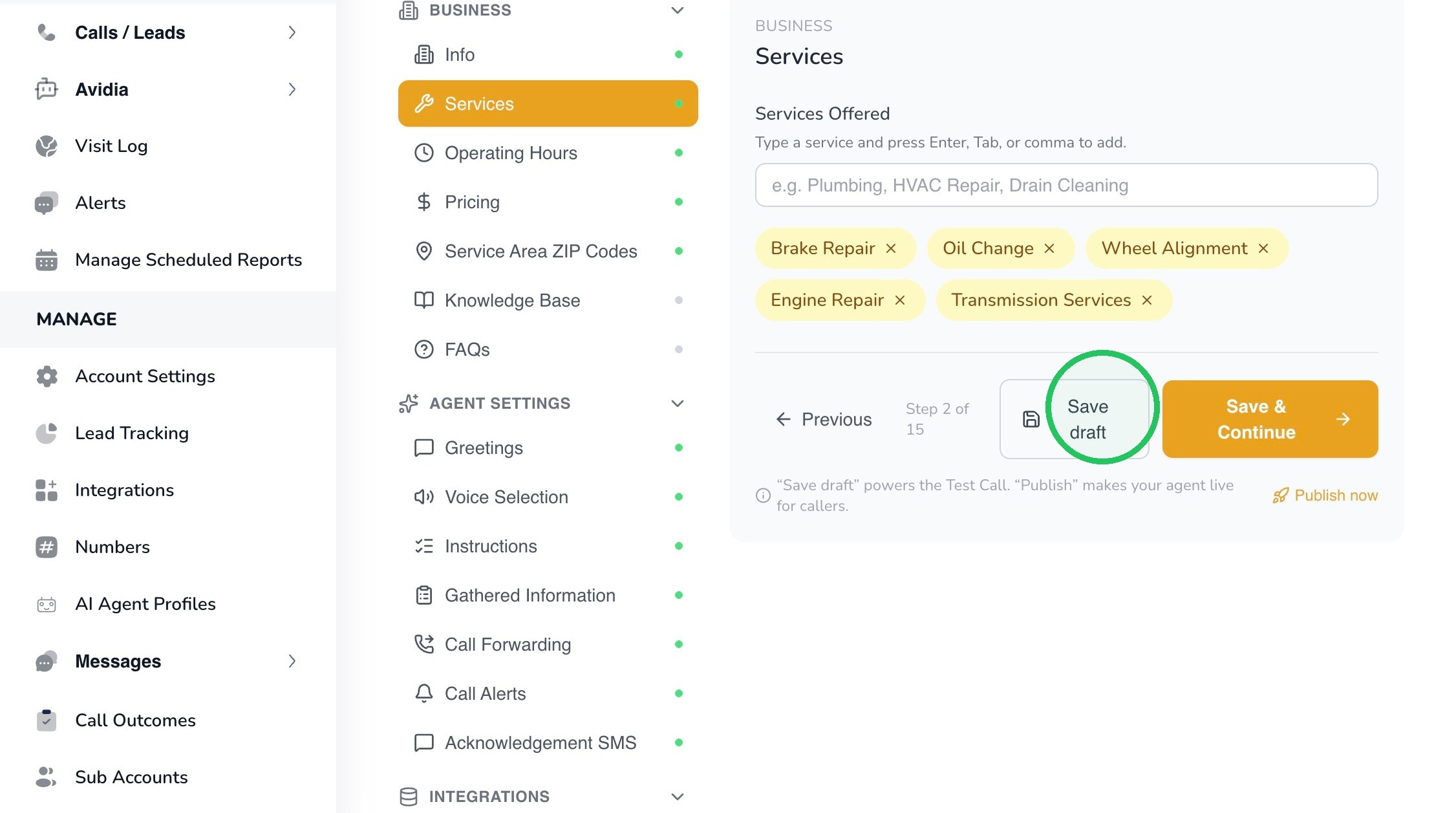
Click Save draft to save changes in the current section while remaining on this page, or Save & Continue to save the section and proceed to the next setup step. Your changes remain unpublished until you choose to publish the Draft.
As you work through the setup process, you can select Save draft to preserve your current configuration without publishing the agent for live callers.
Saving the profile as a draft allows you to continue configuring and testing Leena before making the agent live.
10. Step 9 — Confirm the Draft Was Saved
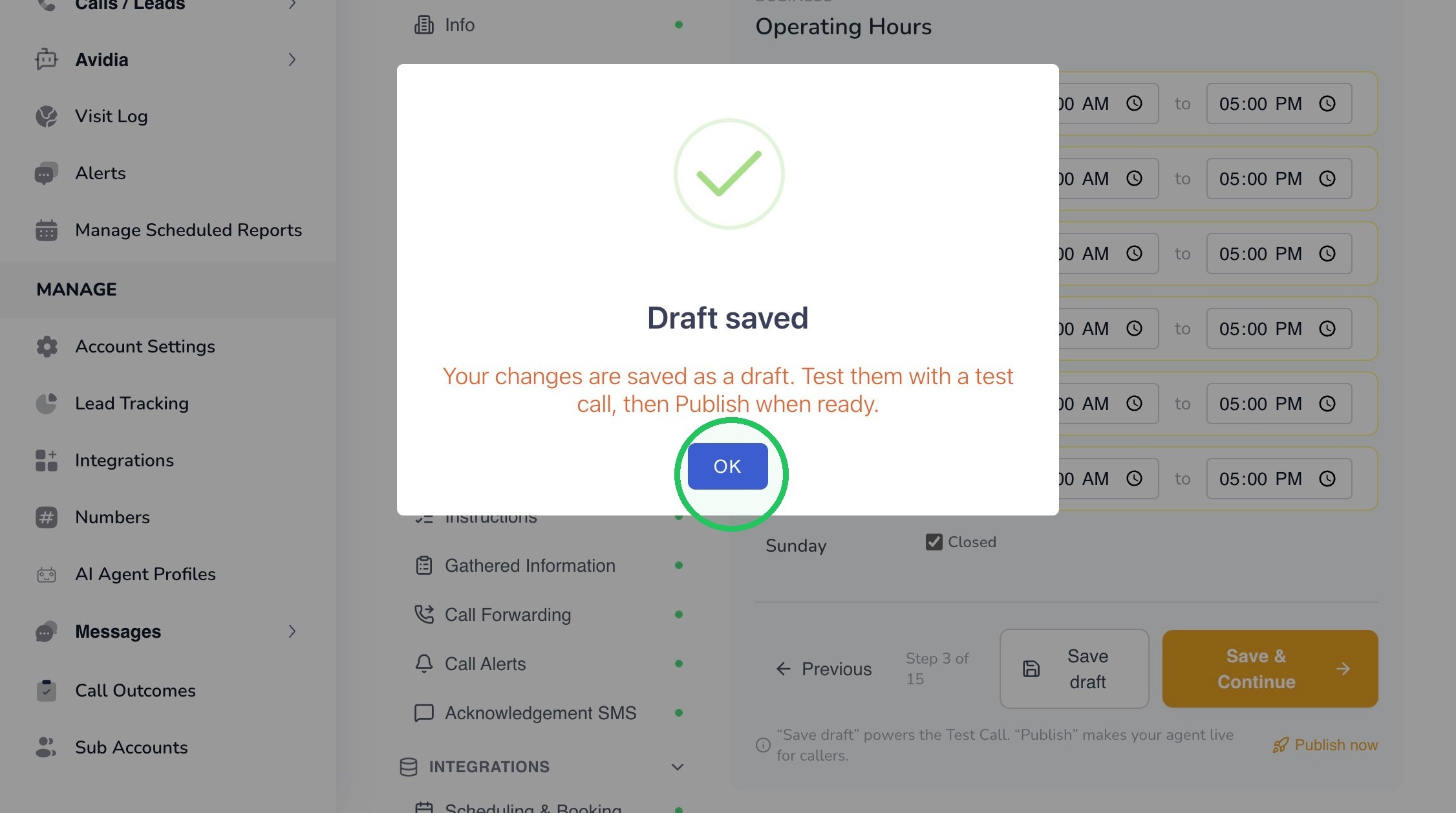
After saving, AvidTrak will display a confirmation that your changes have been saved as a draft.
Click OK to close the confirmation message and continue configuring your Leena AI Voice Agent.
11. Save Draft vs. Publish
During initial setup, keep your Leena profile in Draft status while you complete the remaining configuration and test the agent.
Use Publish only when you are satisfied with the agent’s configuration and are ready for Leena to handle live callers.
This completes the tutorial on how to setup your business profile in Leena. If you have questions or need any kind of support, please email support@avidtrak.com

