

How to Configure AI-Based Call Outcomes in AvidTrak
This tutorial explains how to configure AI-based Call Outcomes in AvidTrak to classify transcribed calls according to business results or intents. It covers creating Simple outcomes, configuring Extended Primary and Secondary outcomes, providing additional AI instructions, and rerunning outcome rules for previously transcribed calls.
1. This tutorial explains how to configure AI-based Call Outcomes in AvidTrak so transcribed calls can be classified according to the business result or intent of each conversation. You will learn how to create Simple outcomes, configure Extended Primary and Secondary outcomes, provide additional instructions to guide the AI, and rerun outcome rules against previously transcribed calls.
2. AI Call Outcomes help turn large volumes of call conversations into structured, easy-to-understand classifications. Instead of manually listening to calls or reviewing transcripts one at a time, AvidTrak can automatically identify the primary purpose or result of each conversation and organize calls into meaningful outcome categories. This makes it easier to sort, filter, report on, and analyze conversations at scale – whether you want to identify sales opportunities, service requests, pricing inquiries, appointments, IVR interactions, or other business-specific outcomes.
With Extended Outcomes, you can go a step further by assigning a Primary Outcome that represents the main result of the call while using Secondary Outcomes to capture additional details or attributes from the same conversation.
Sign in to AvidTrak Passport and open the main dashboard.
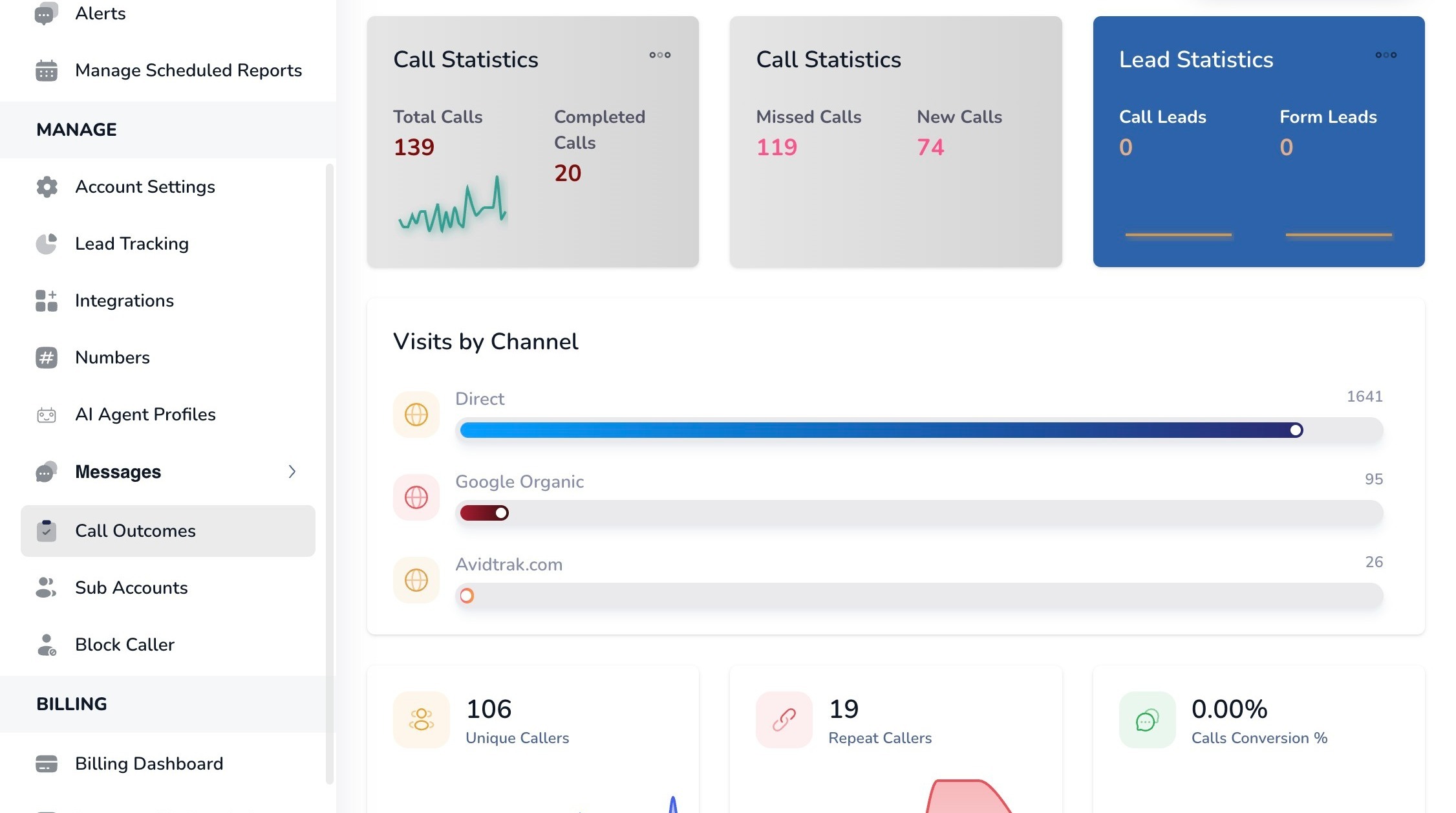
3. From the left navigation menu, select “Call Outcomes” to open the AI outcome configuration page.
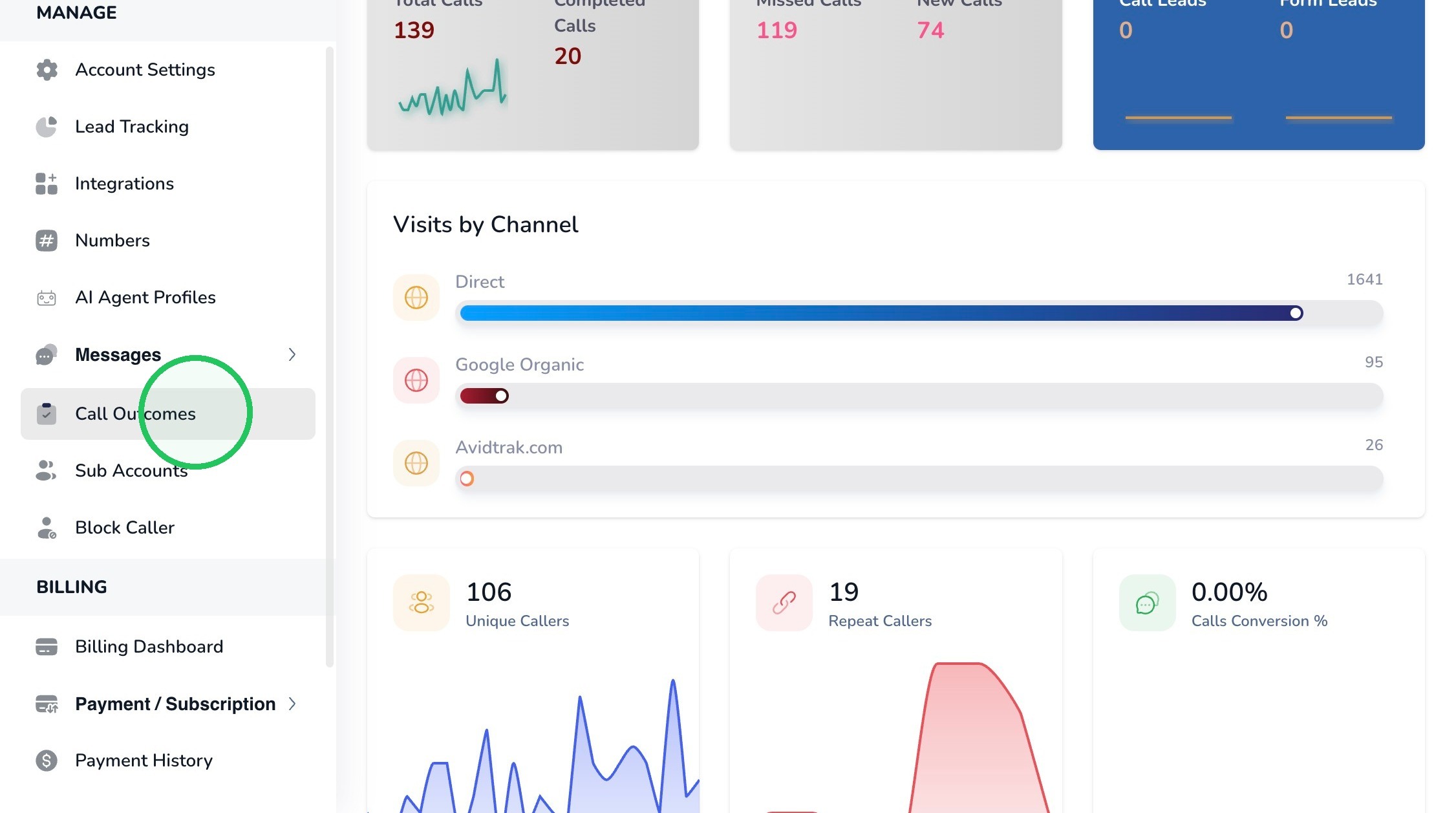
4. Review the “Enter Your Desired Outcomes for AI” panel. AvidTrak supports Simple and Extended outcome configurations. Use Simple outcomes when each call only needs one classification; use Extended outcomes when you want one Primary outcome plus one or more Secondary outcomes for additional detail.
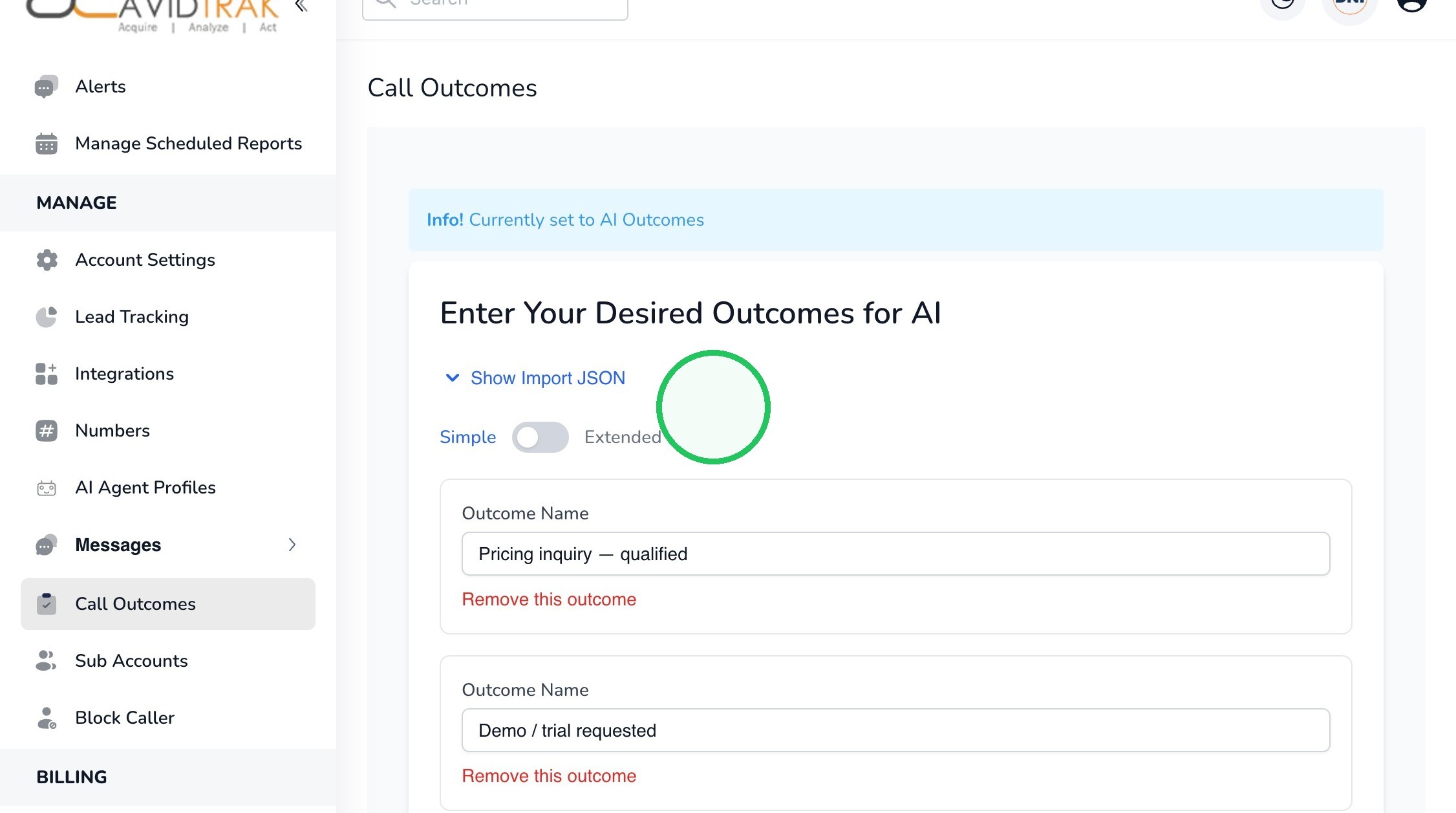
5. Simple outcomes are useful when you want the AI to assign one overall result to each call. Each outcome should be mutually understandable and named in language that will make sense in reporting.
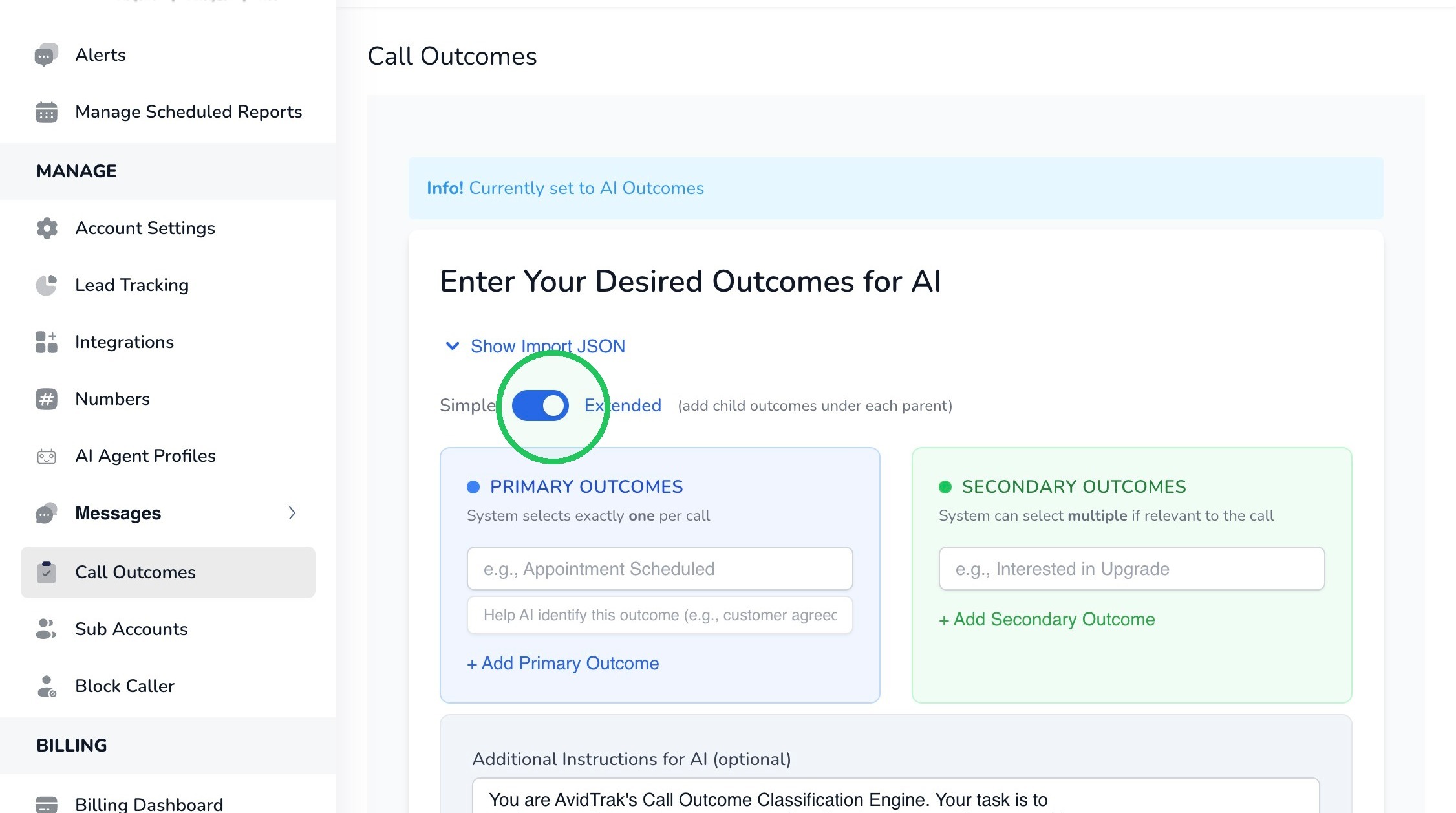
Use the toggle rocker switch to select “Simple” to configure a single outcome classification for each call. Toggling the switch to Extended renders the Extended Outcomes fields.
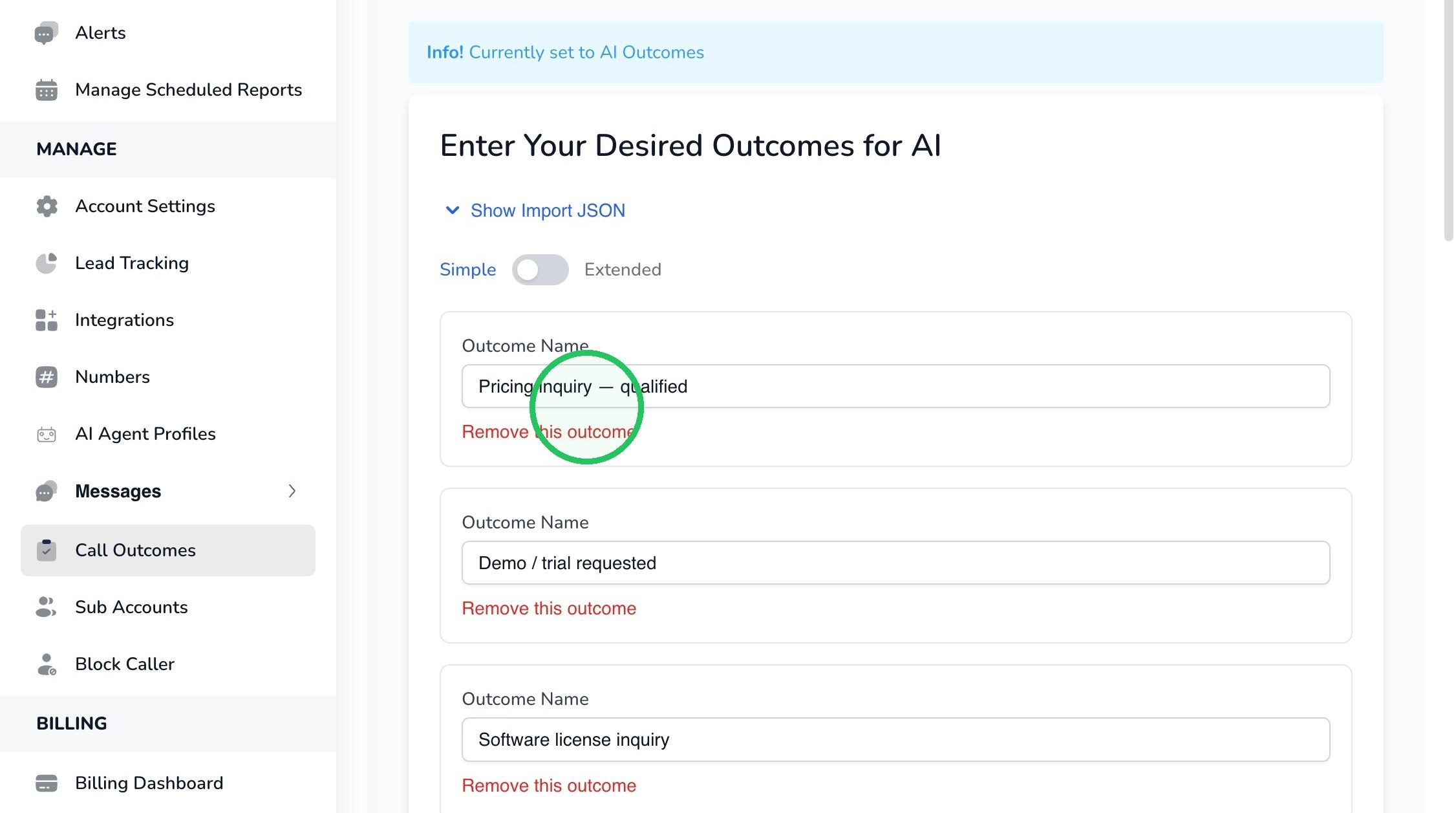
6. Click an “Outcome Name” field to edit an existing outcome, or use a blank field to define a new outcome that the AI can assign to calls.
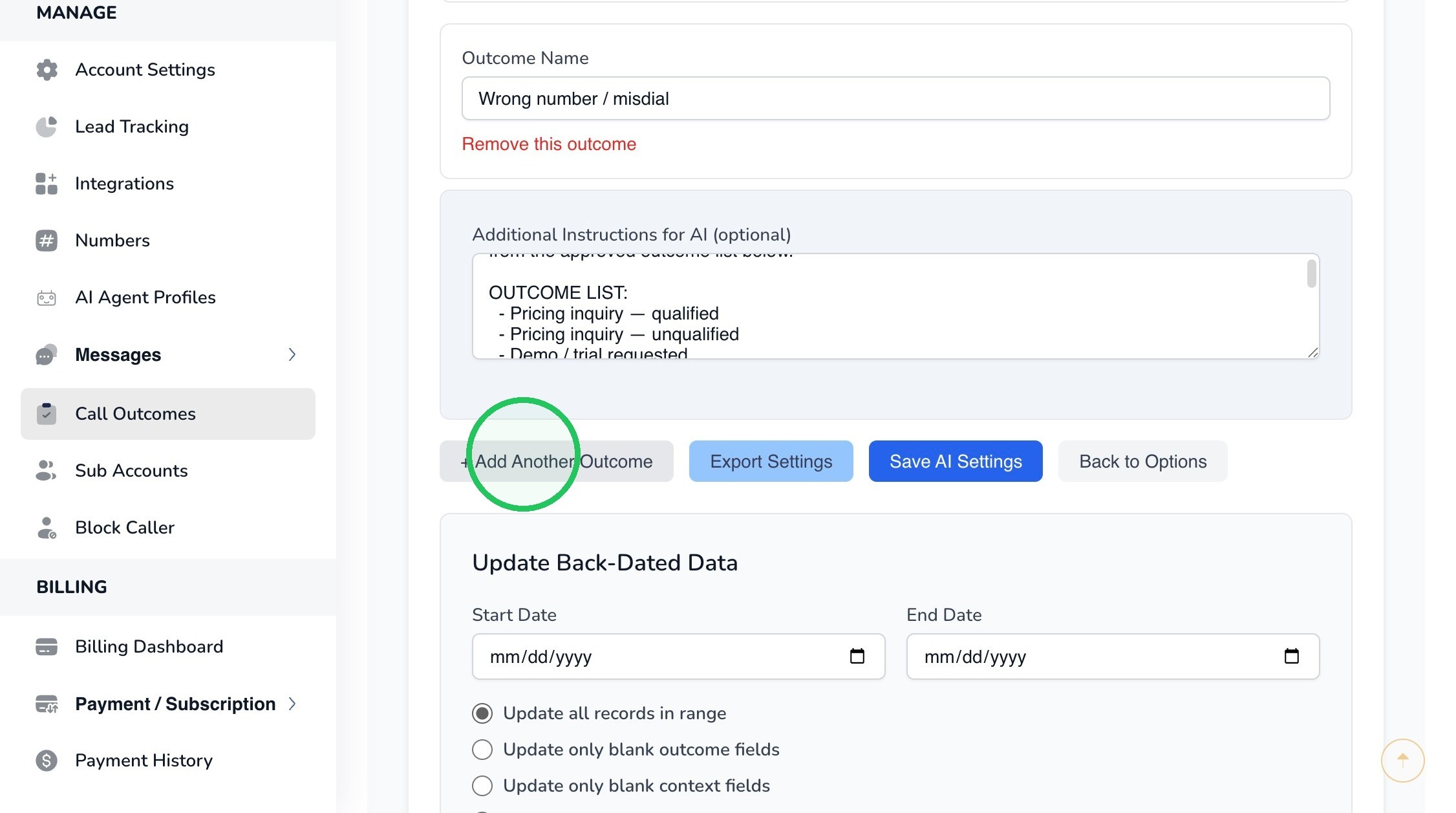
7. Click “+ Add Another Outcome” when you need to add another possible call classification.
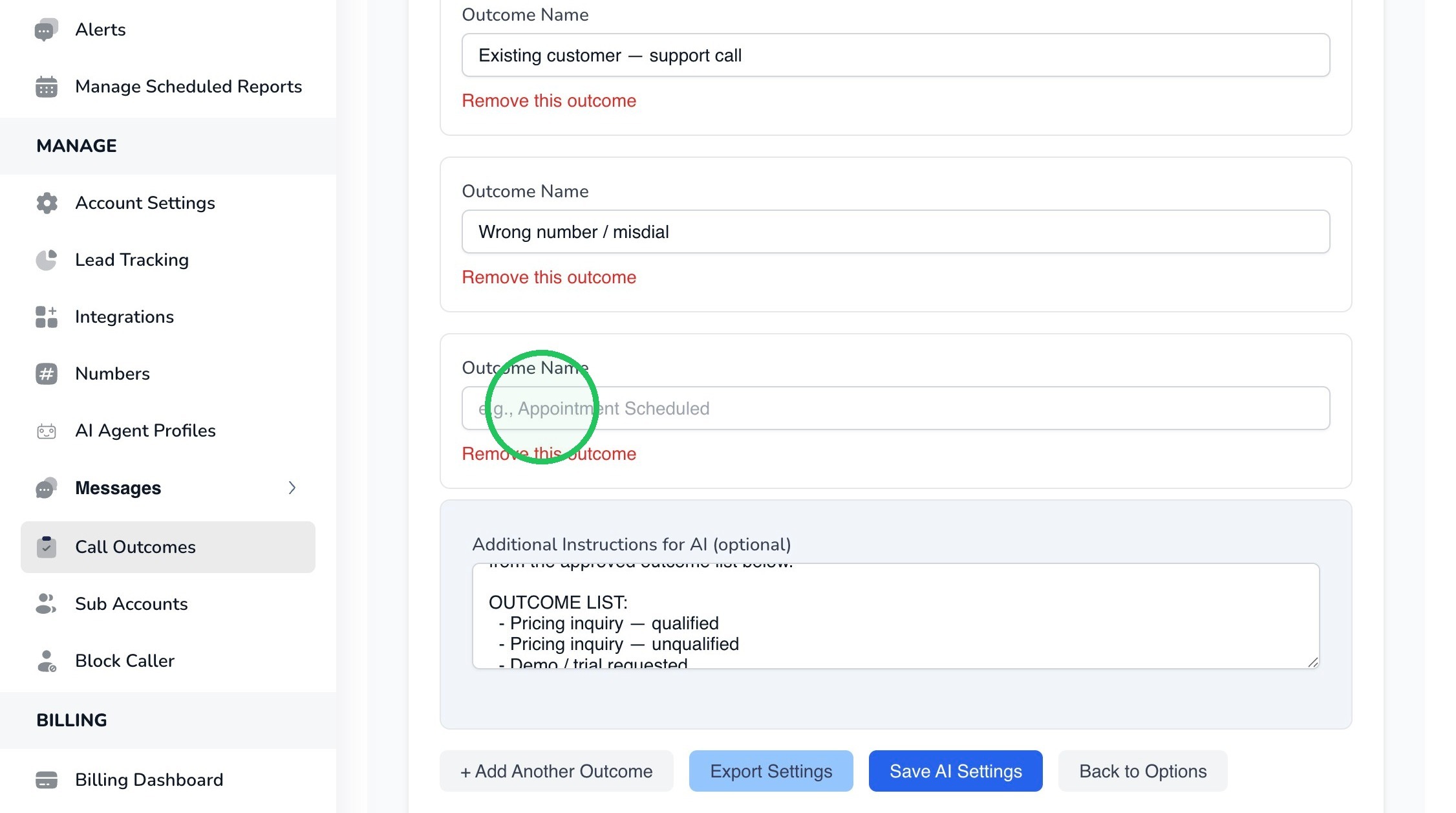
8. In this example we have entered “IVR (Interactive Voice Response)” as an outcome. Use clear, distinct outcome names that describe the result or nature of the call.
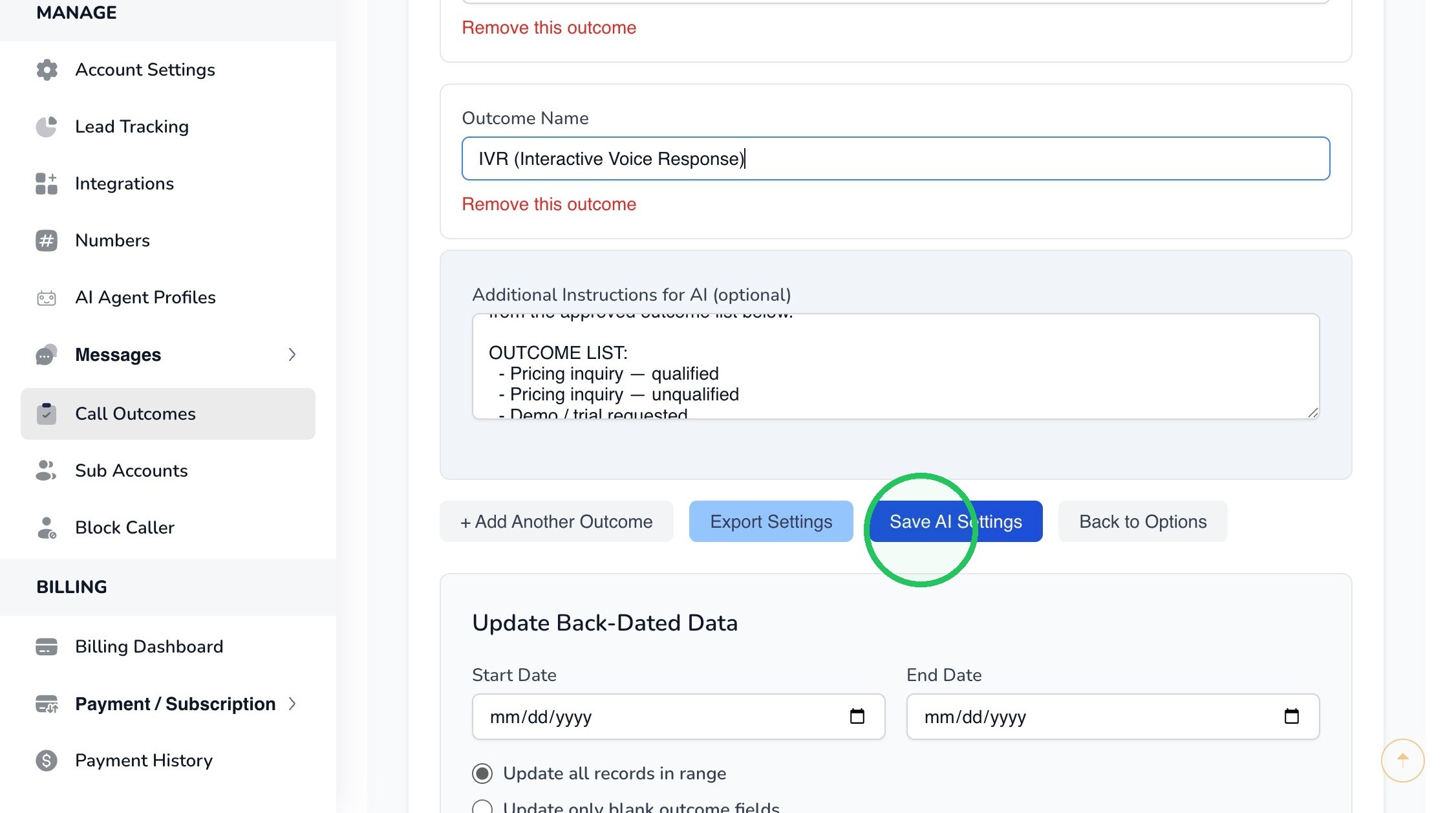
9. Click “Save AI Settings” after you have finished adding or editing the Simple outcomes.
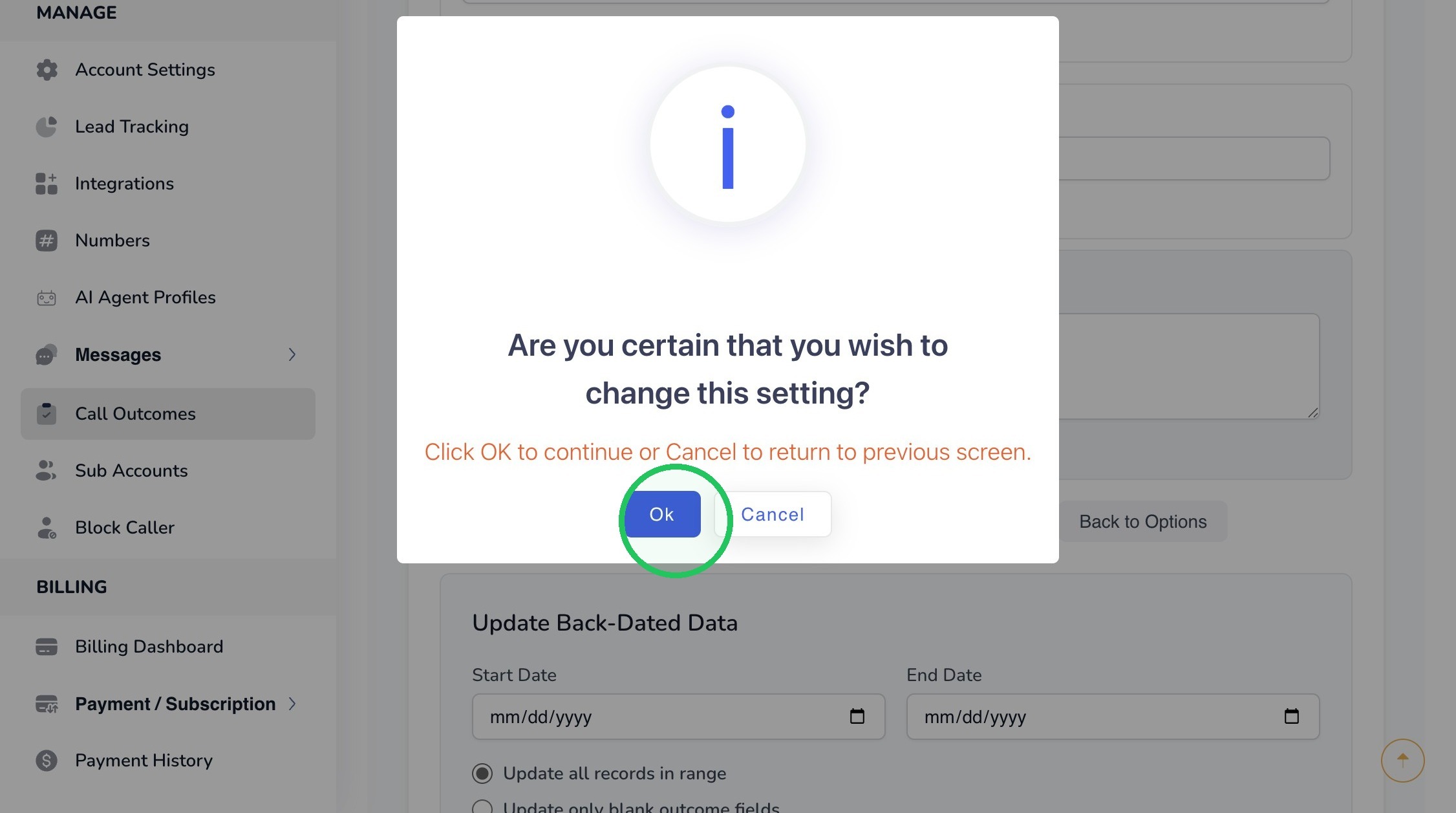
10. Click “Ok” to confirm that you want to save the updated outcome configuration.
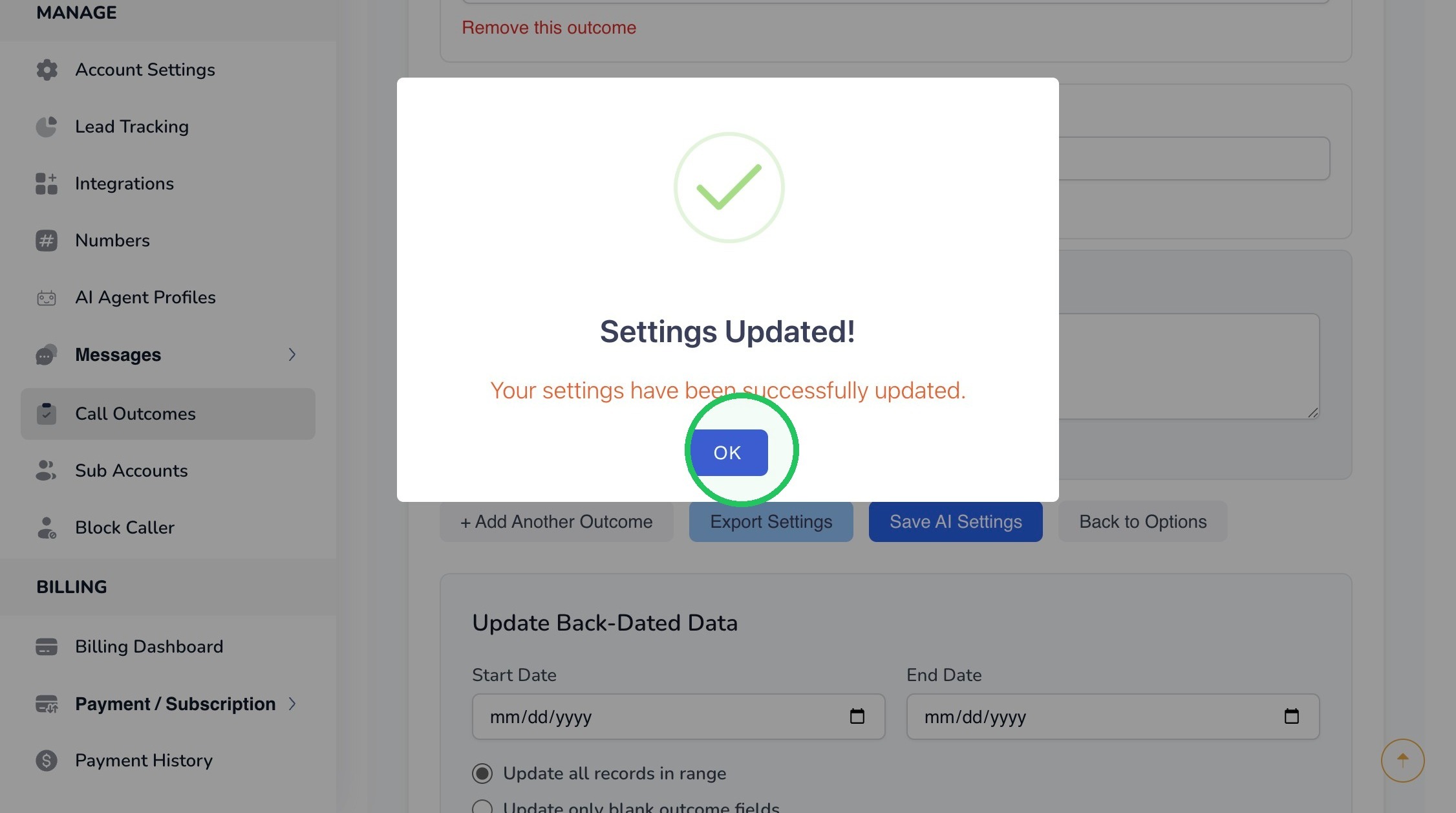
11. Click “OK” on the success message to return to the Call Outcomes page.
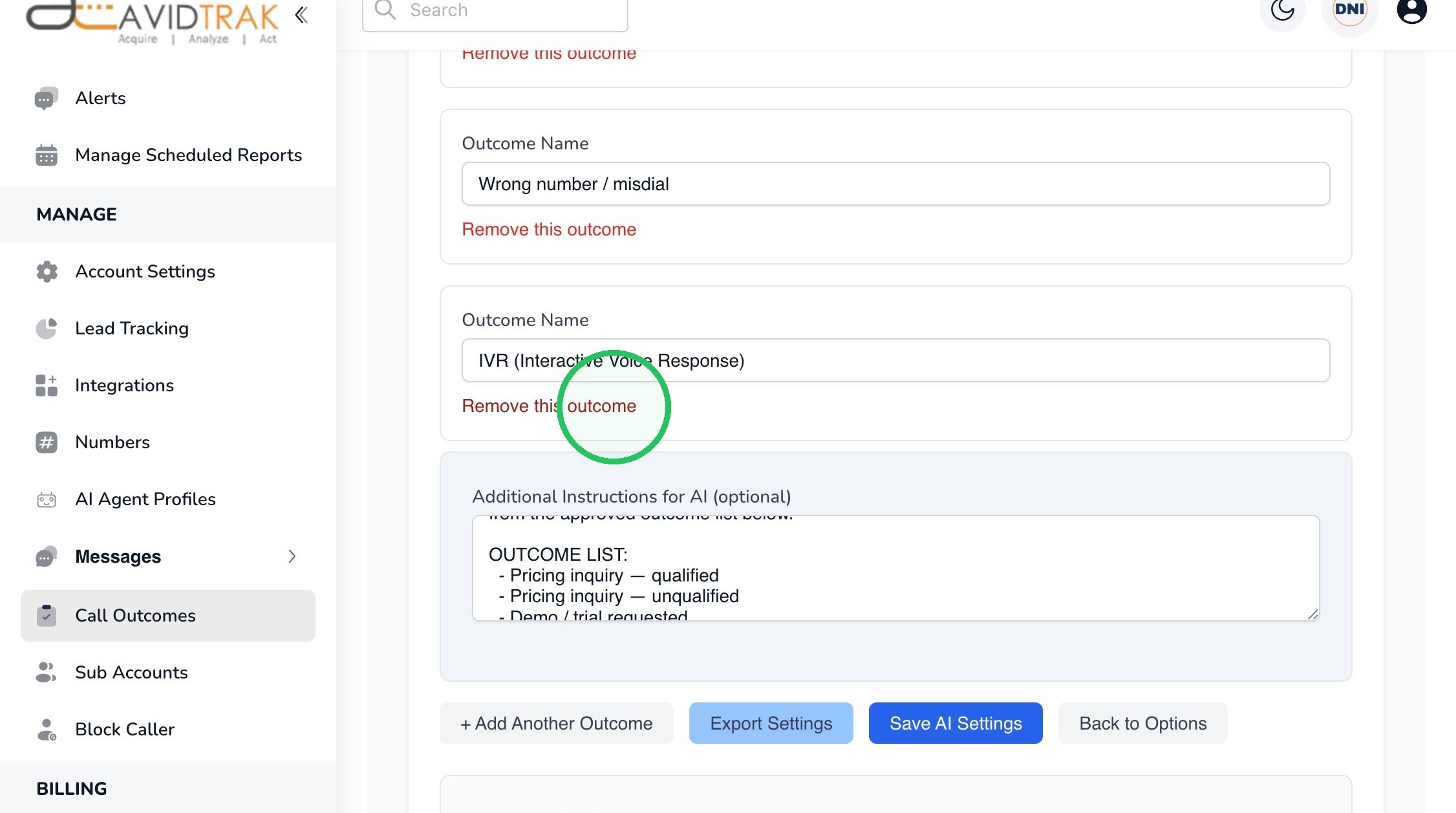
12. To remove an outcome that is no longer needed, click “Remove this outcome” beneath that outcome. Removing an outcome changes the choices available to the AI for future classifications.
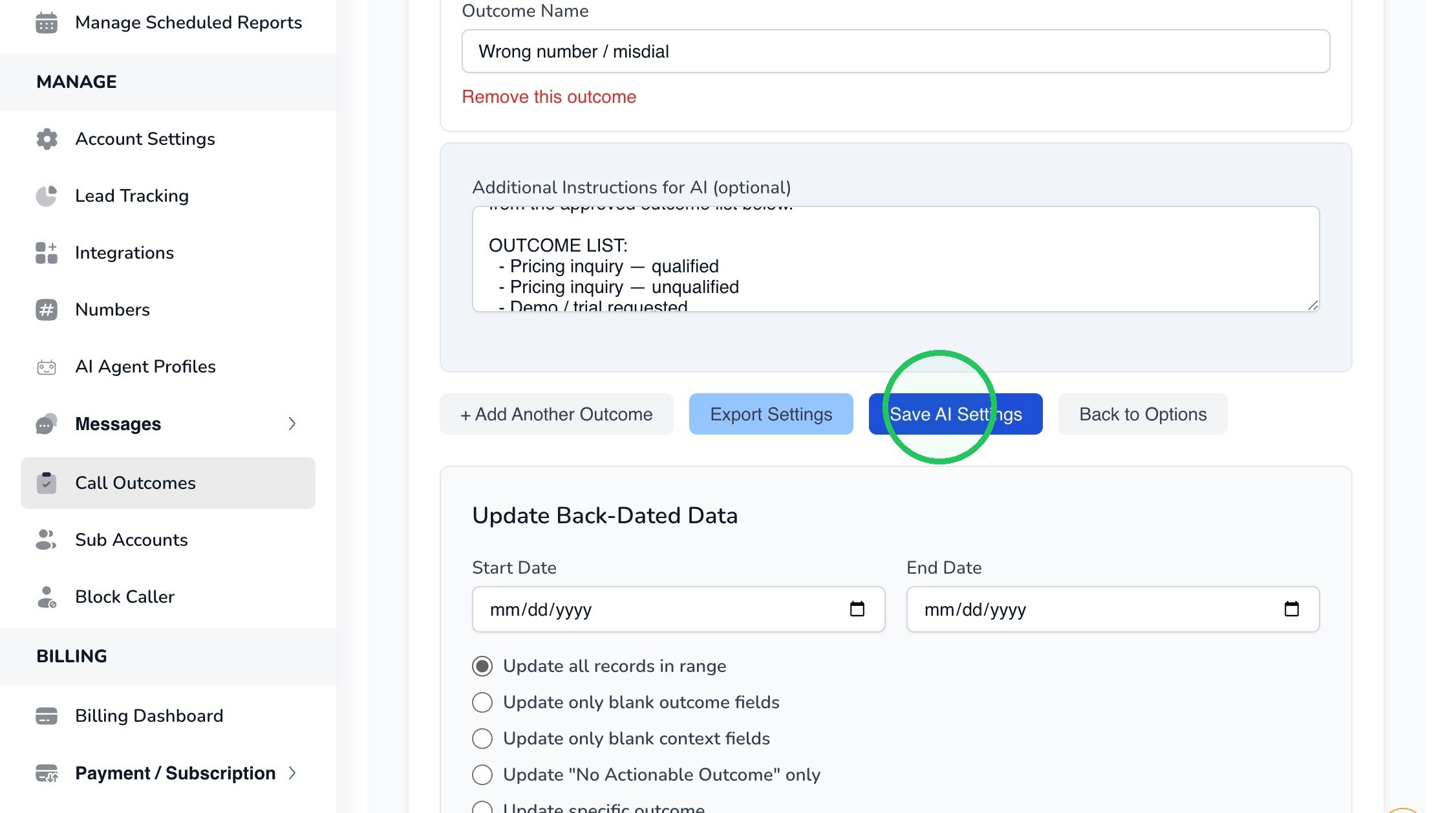
13. Click “Save AI Settings” to save the removal.
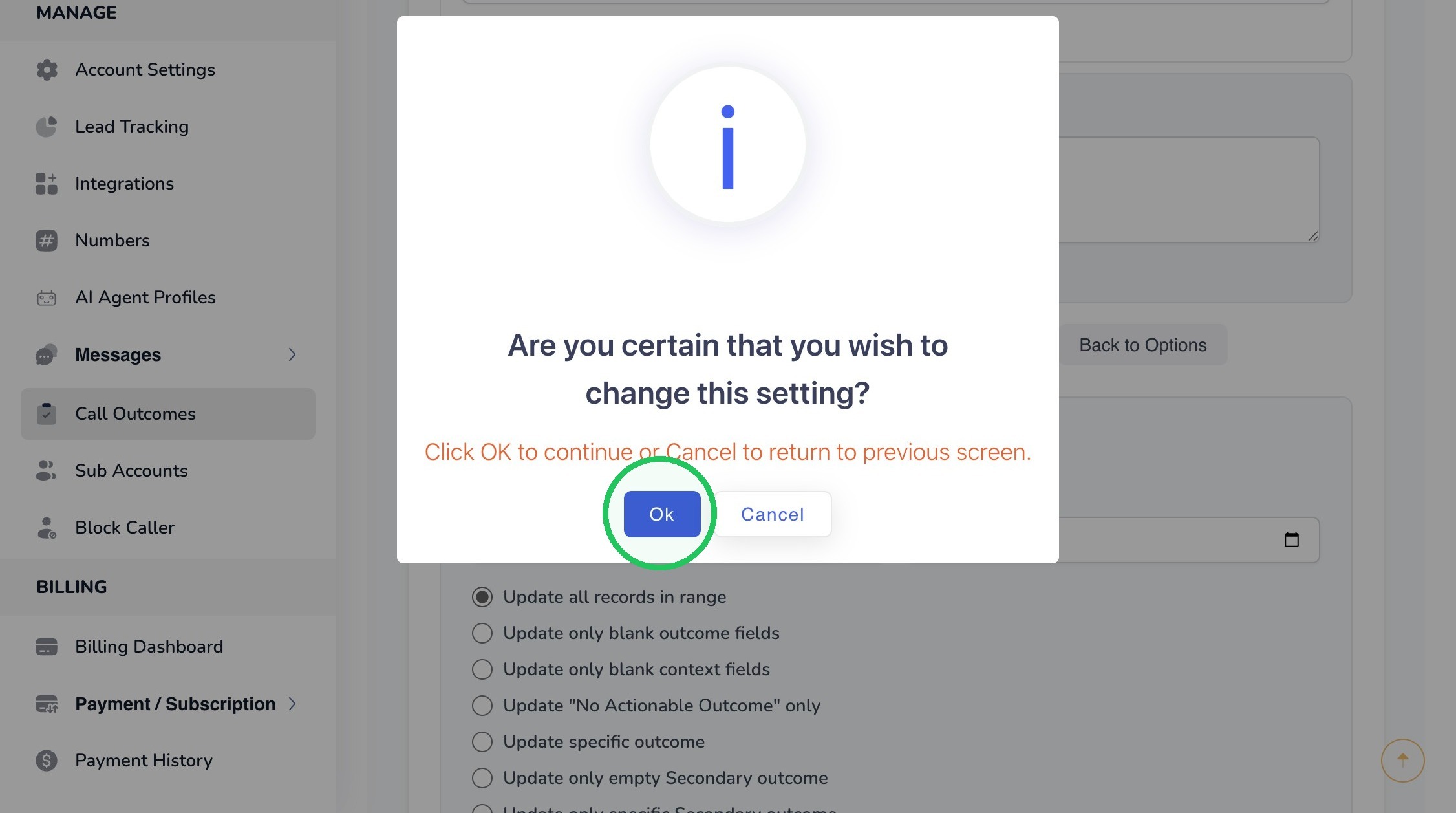
14. Click “Ok” to confirm the change.
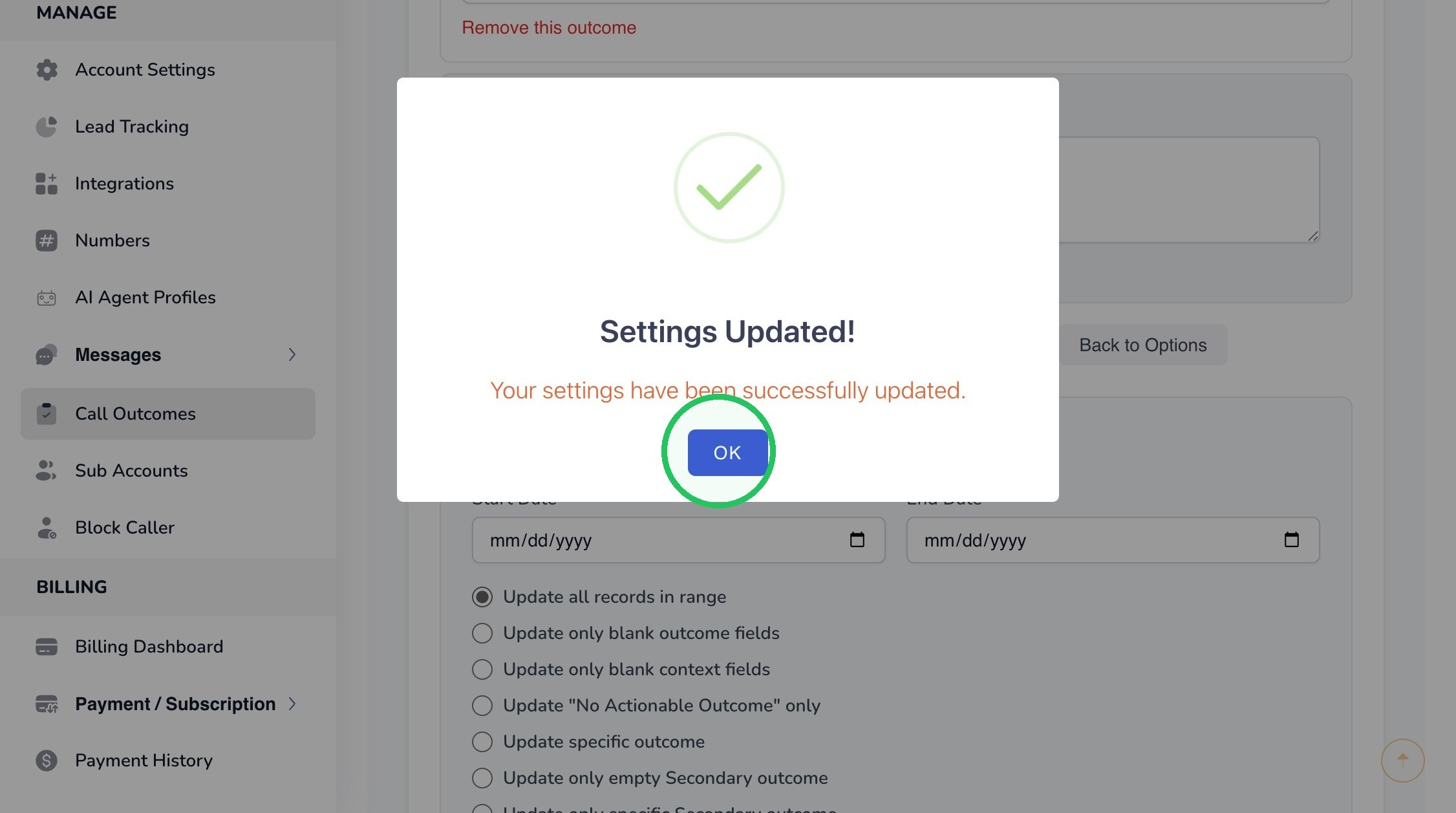
15. Click “OK” on the success message to finish the update.
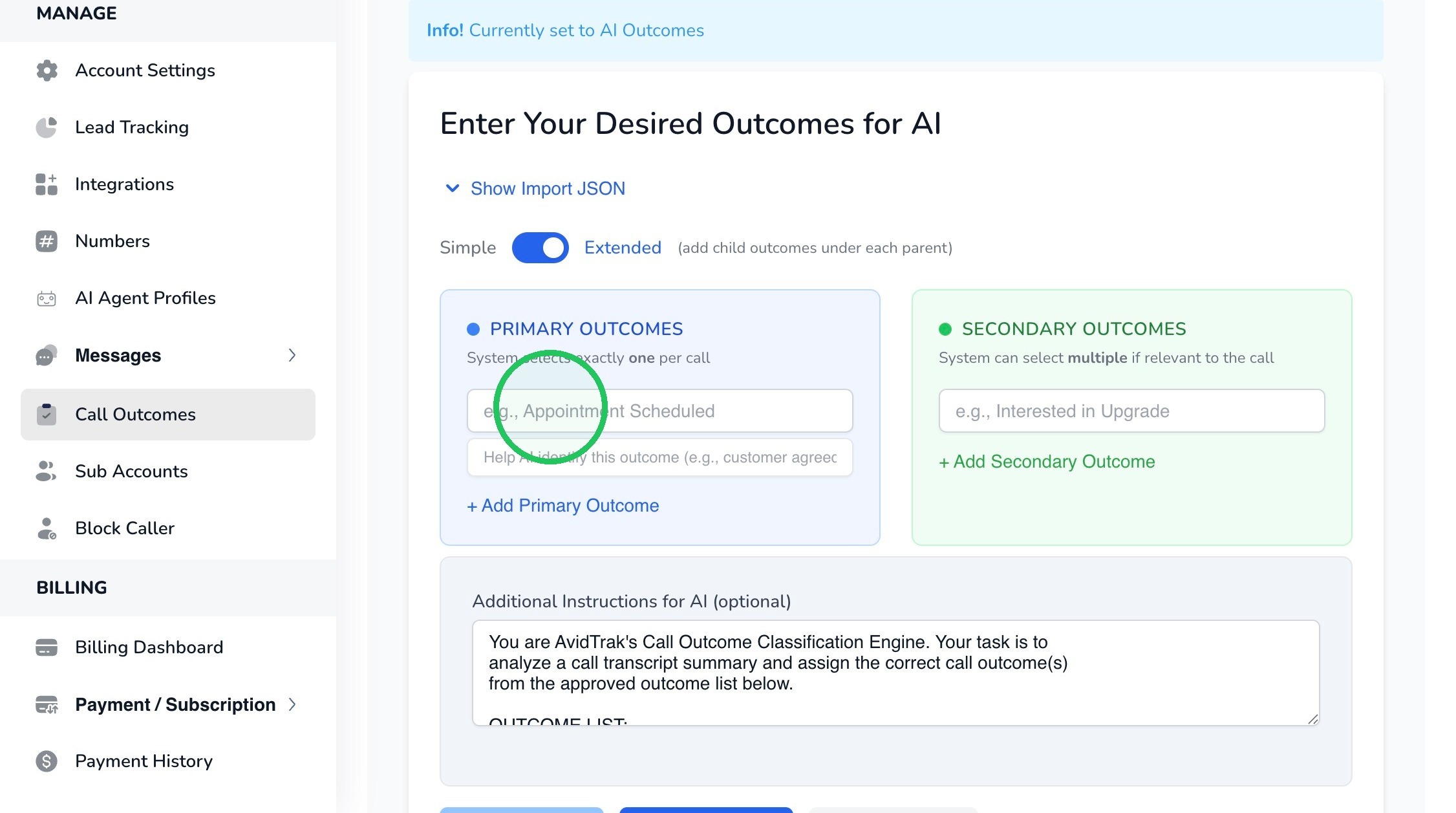
16. Switch to Extended outcomes when a single classification does not provide enough detail. Extended mode separates the call into one Primary outcome and optional Secondary outcomes.
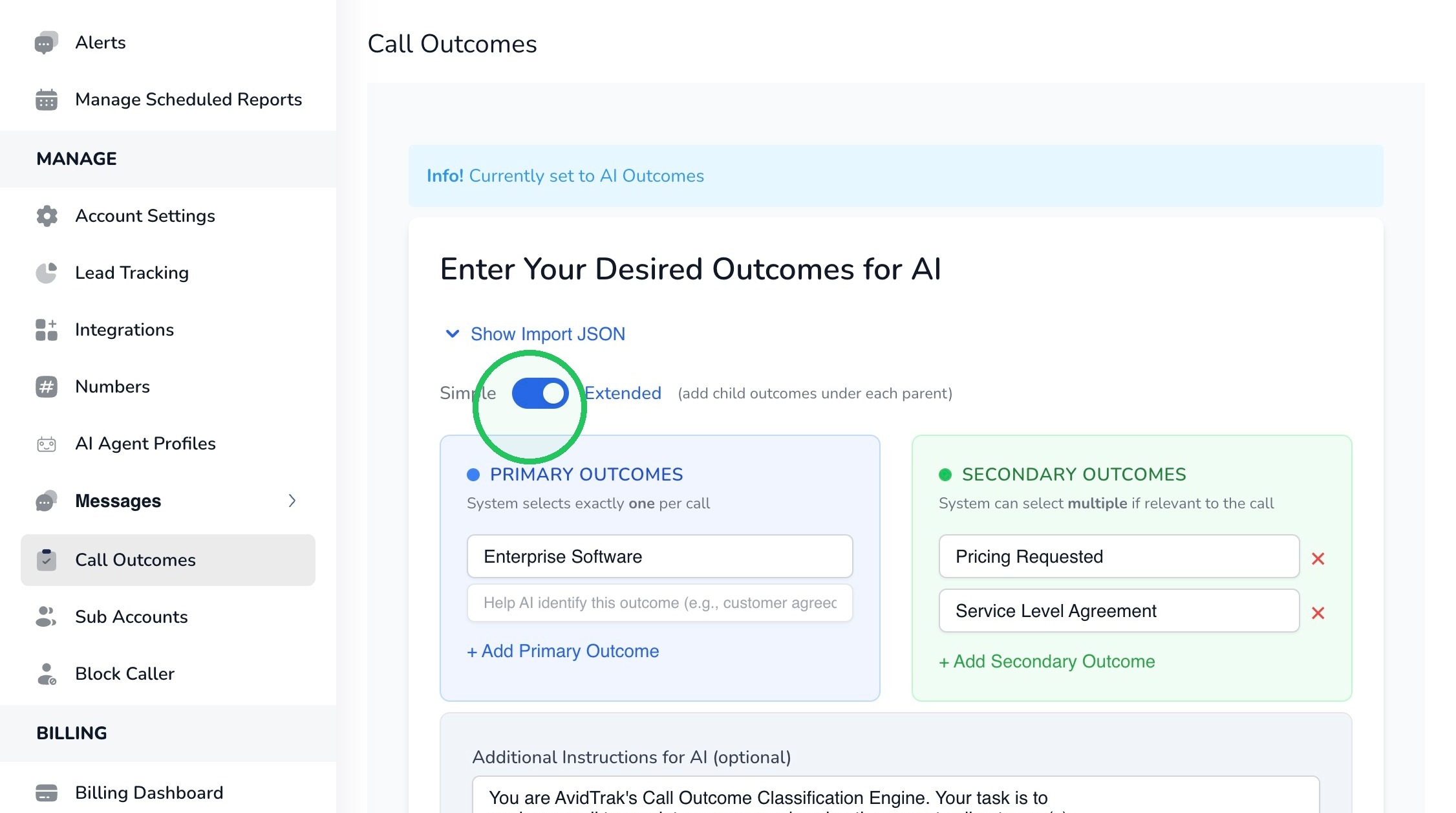
In this example we have entered “Enterprise Software” as the Primary outcome. In the Extended mode, AvidTrak assigns exactly one Primary outcome to each call, so Primary outcomes should represent the main result or overall classification of the conversation. Be thoughtful on how you want to categorize your Primary Outcomes as these serve as powerful signals in categorizing conversations.
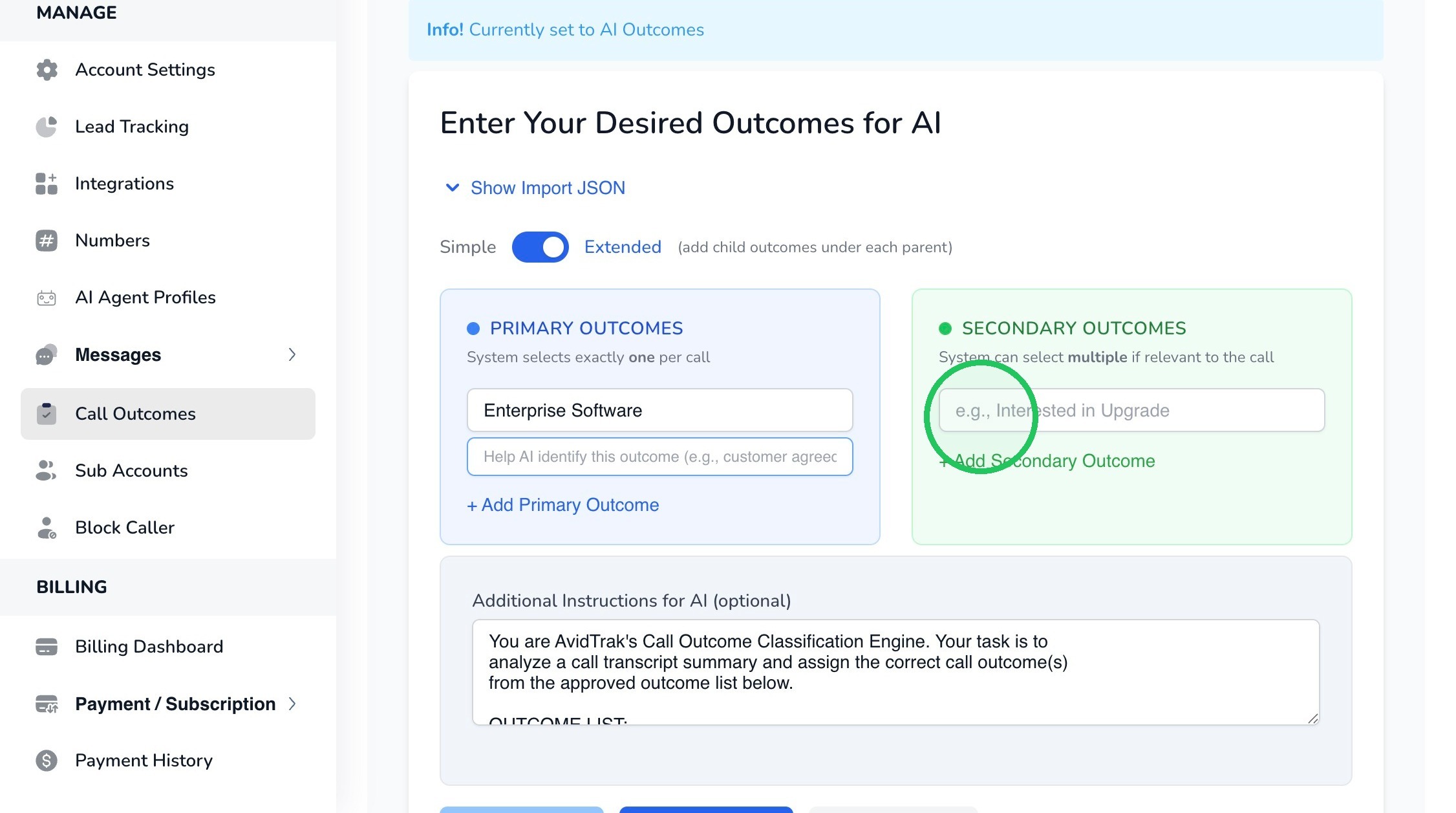
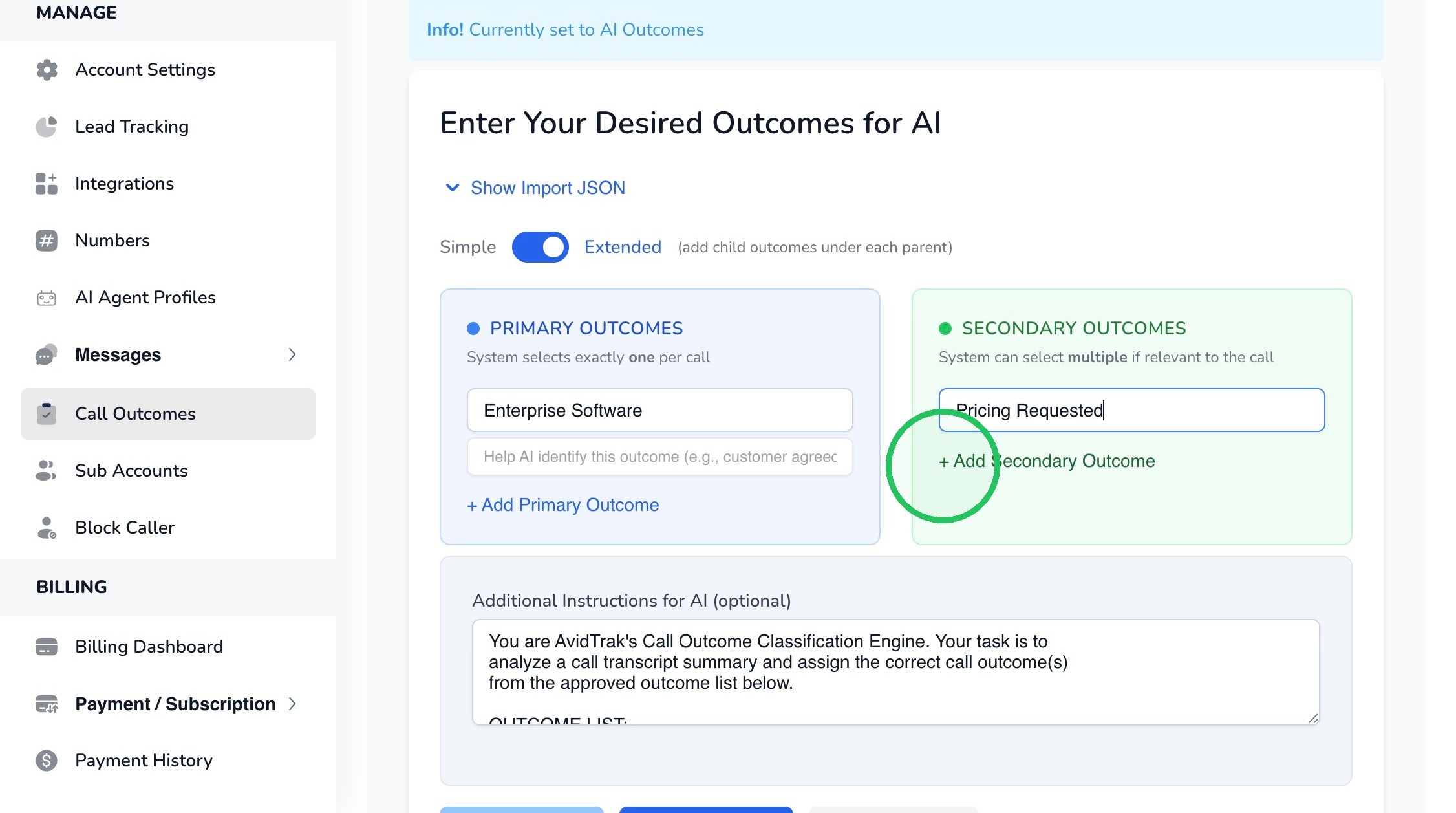
17. Secondary outcomes capture additional attributes or events that occurred during the same call. Unlike the Primary outcome, more than one Secondary outcome may apply.
In the Secondary Outcomes section, as an example we have entered “Pricing Requested.” Thus, the Primary Outcome was “Enterprise Software,” and the Secondary Outcome was “Pricing Requested,” signaling that the conversation was likely materially relevant.
Secondary outcomes add detail to the Primary outcome, and AvidTrak can apply more than one Secondary outcome when multiple conditions are relevant to the call.
18. Click “+ Add Secondary Outcome” to create another Secondary outcome option.
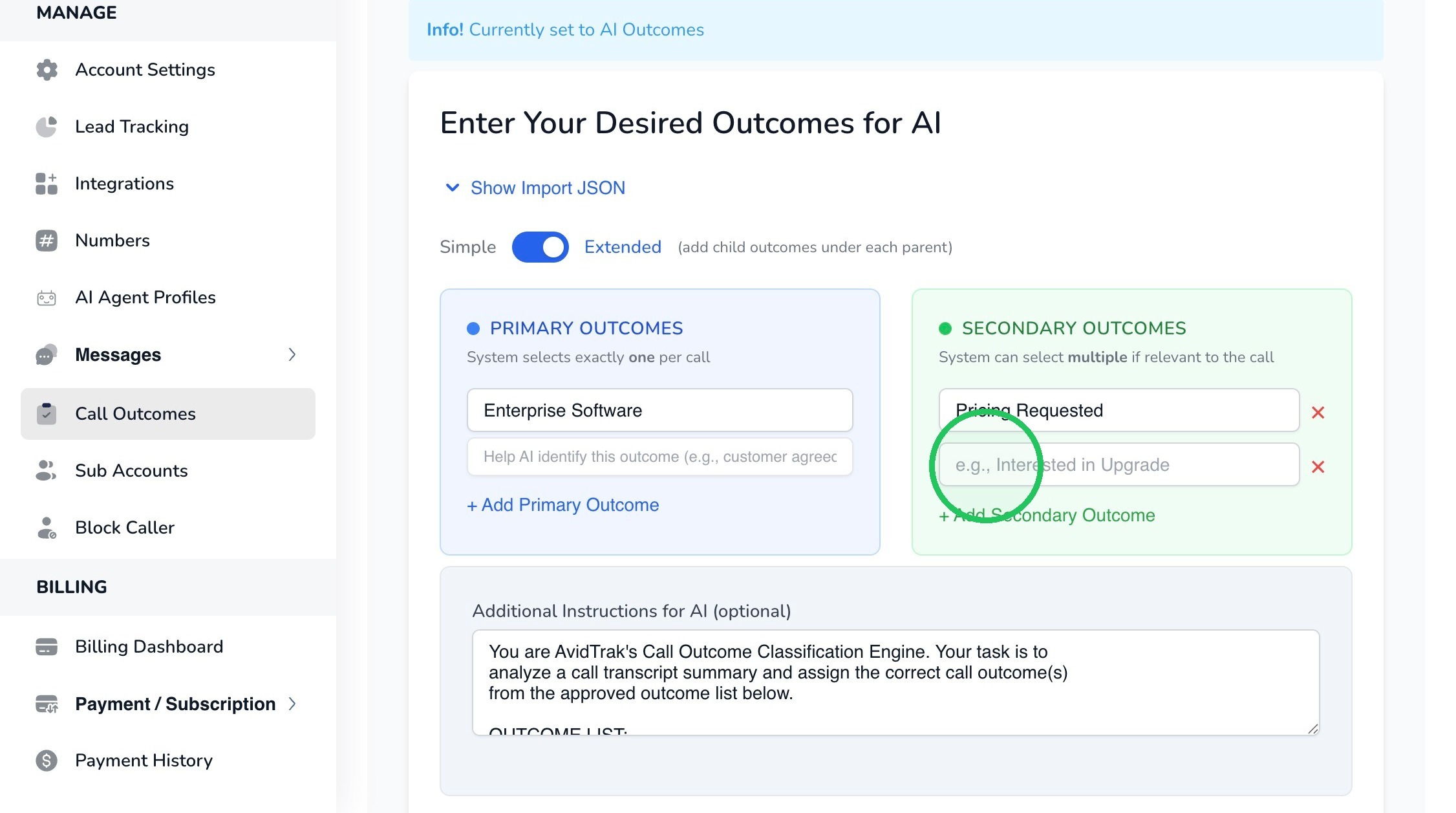
19. Enter “Service Level Agreement” as another Secondary outcome as an example. You may add as many secondary outcomes as needed. You may also repeat the secondary outcomes across multiple primary outcomes.
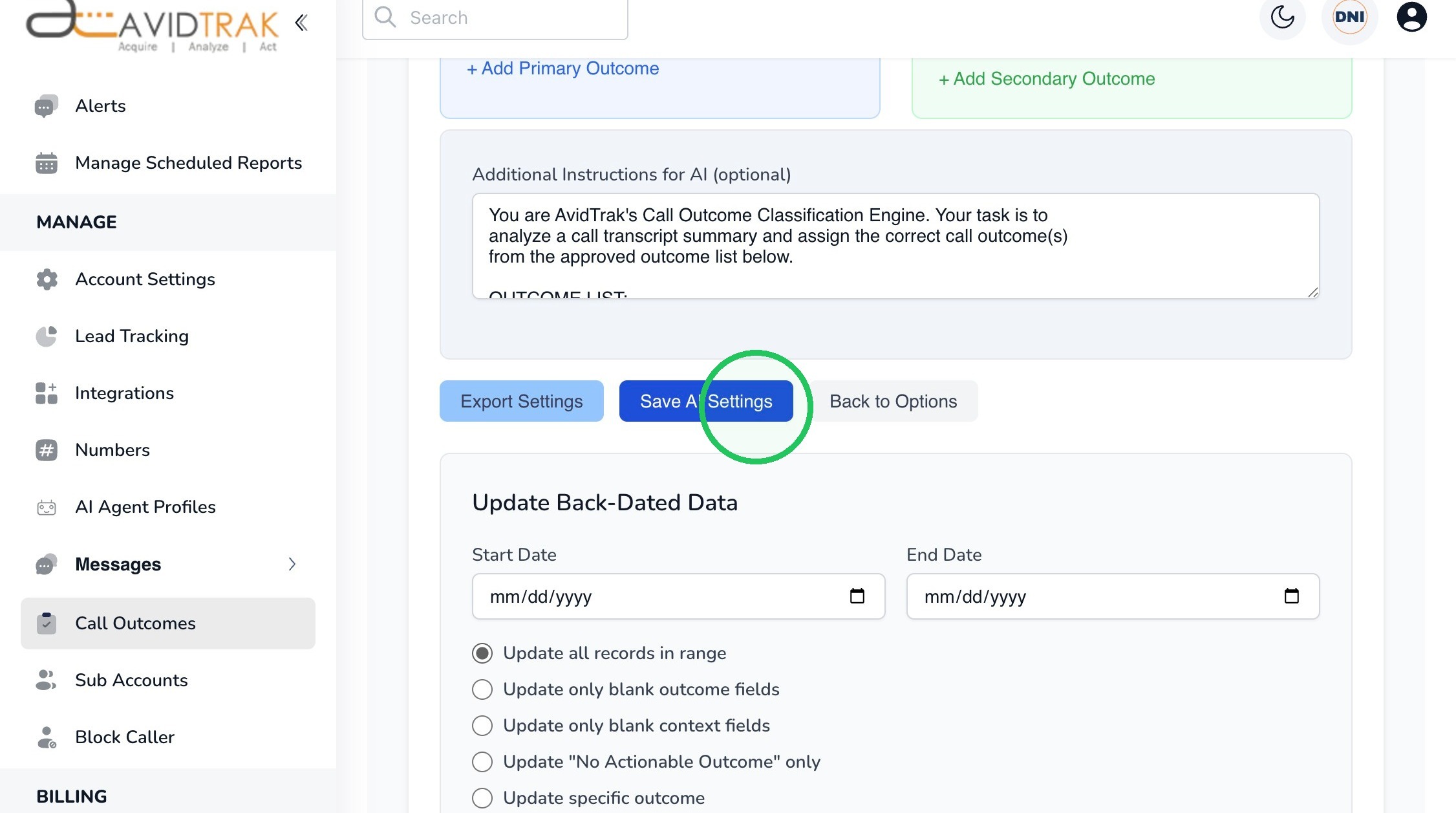
20. Click “Save AI Settings” after reviewing the Primary and Secondary outcome configuration.
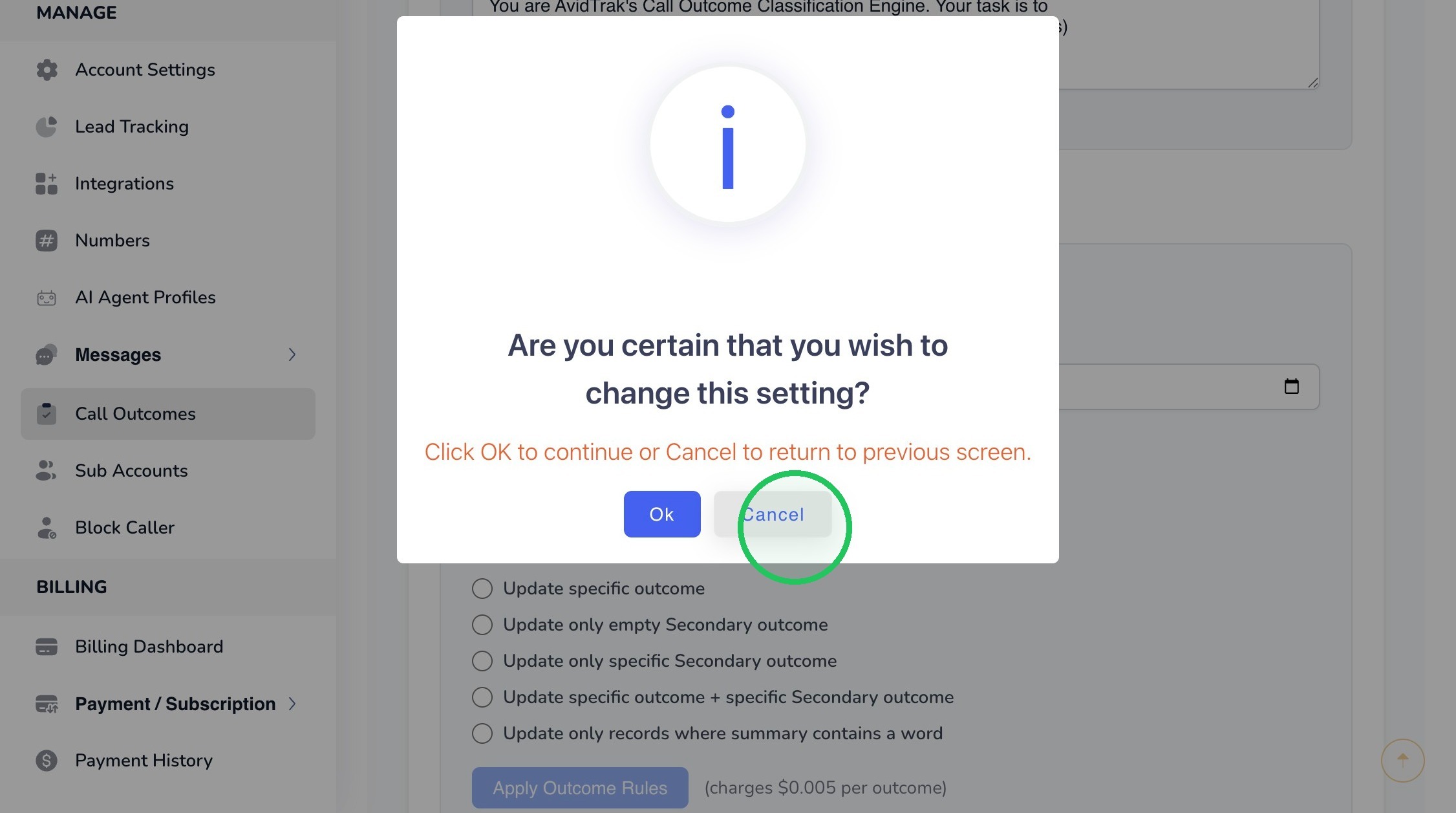
21. If the confirmation dialog appears and you are not ready to apply the changes, click “Cancel” to return to the configuration screen. Otherwise, click “Ok” to save the changes.
22. Make sure the Simple/Extended toggle is set to “Extended” when configuring Primary and Secondary outcomes.
23. Outcome names tell the AI what classifications are available. The optional Additional Instructions field lets you provide more detailed business logic so the AI understands how those classifications should be applied.
In the “Additional Instructions for AI” field, enter any business-specific guidance that will help the AI classify calls consistently. Use this area to define decision rules, clarify ambiguous situations, identify exceptions, or explain how particular call scenarios should be handled. Pro Tip: Use AI tools such as Chat GPT, Gemini and Claude to create additional instructions for the AvidTrak Outcome AI tool.
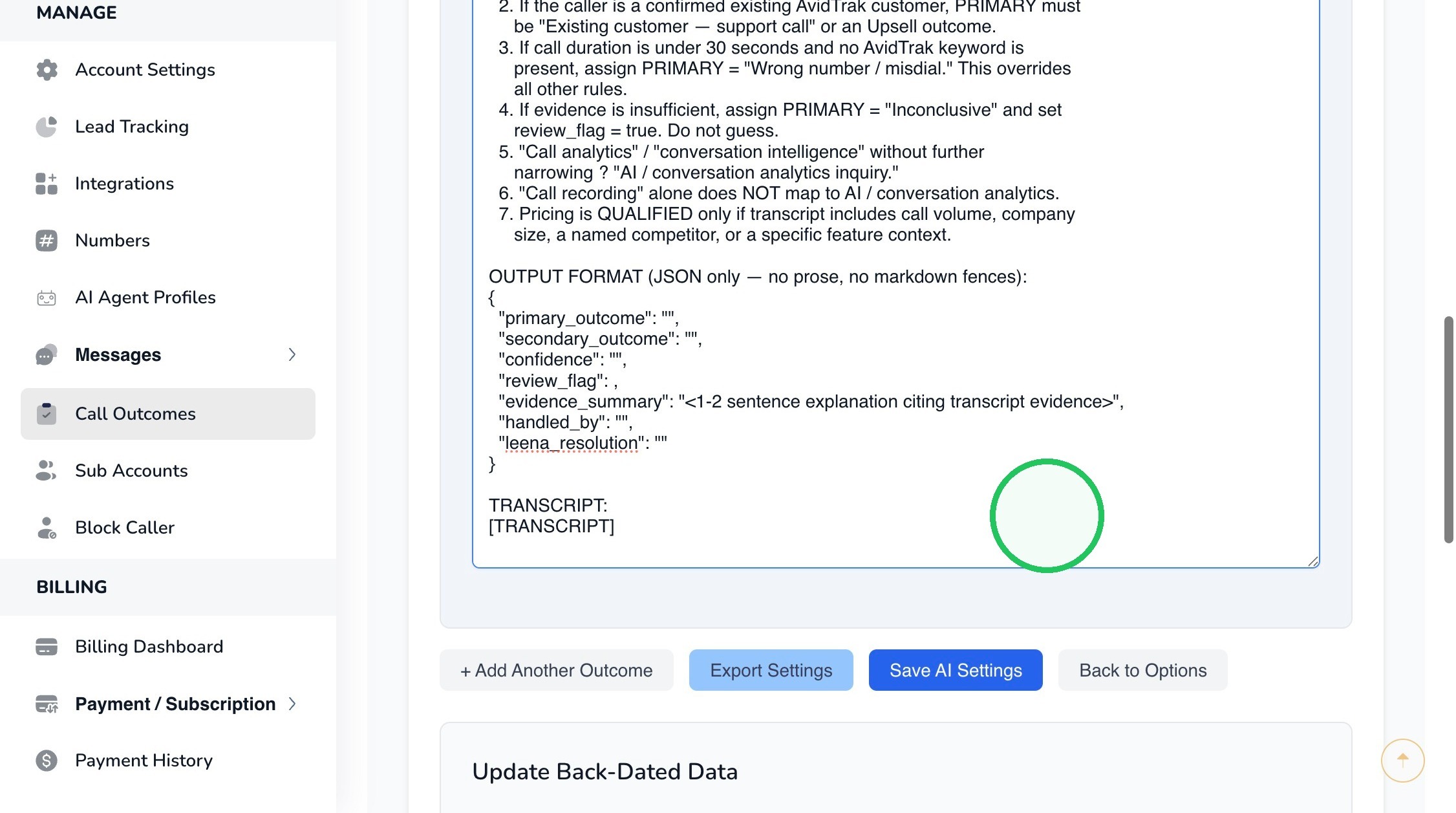
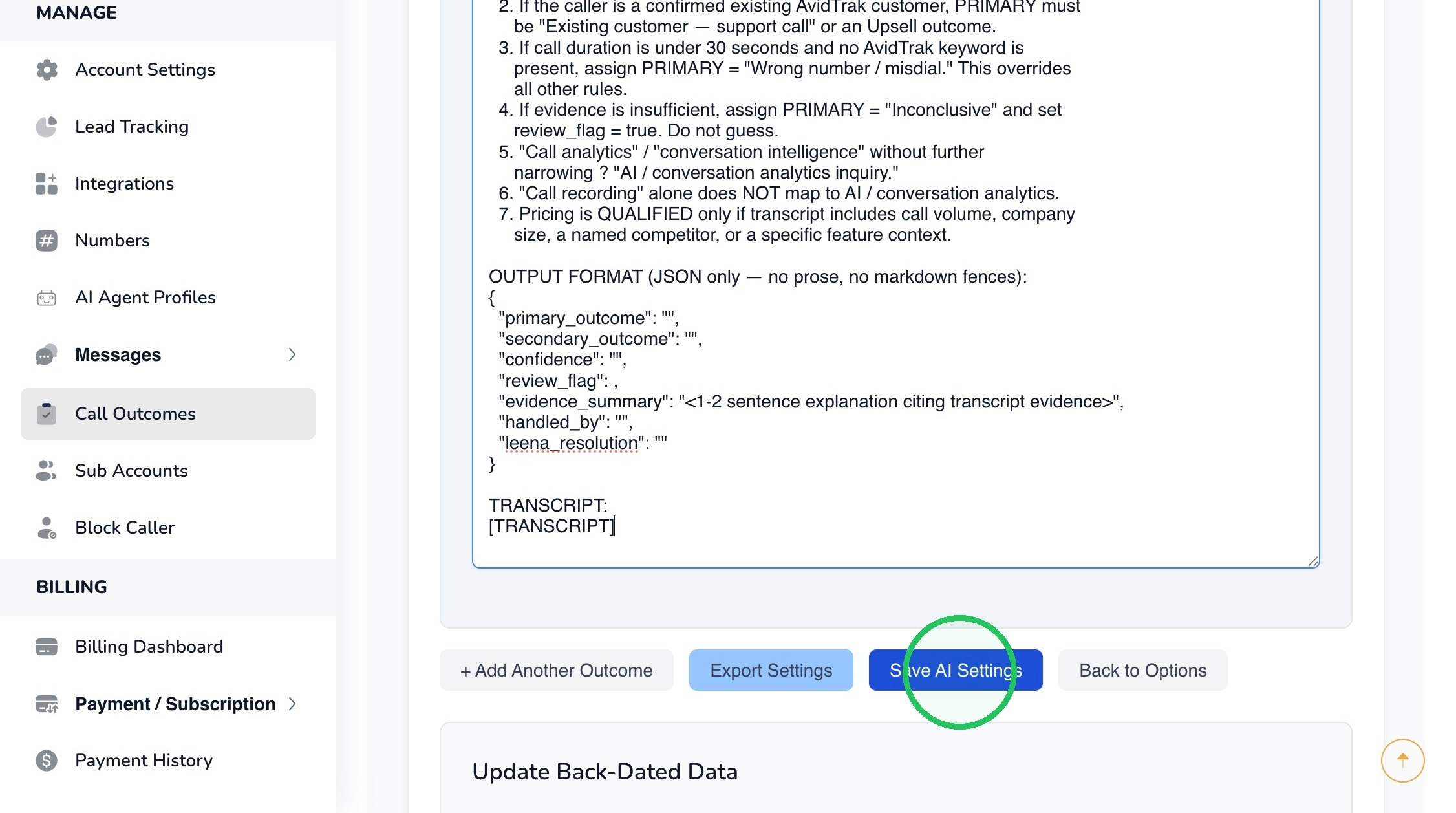
24. Click “Save AI Settings” after the additional AI instructions have been entered or updated.
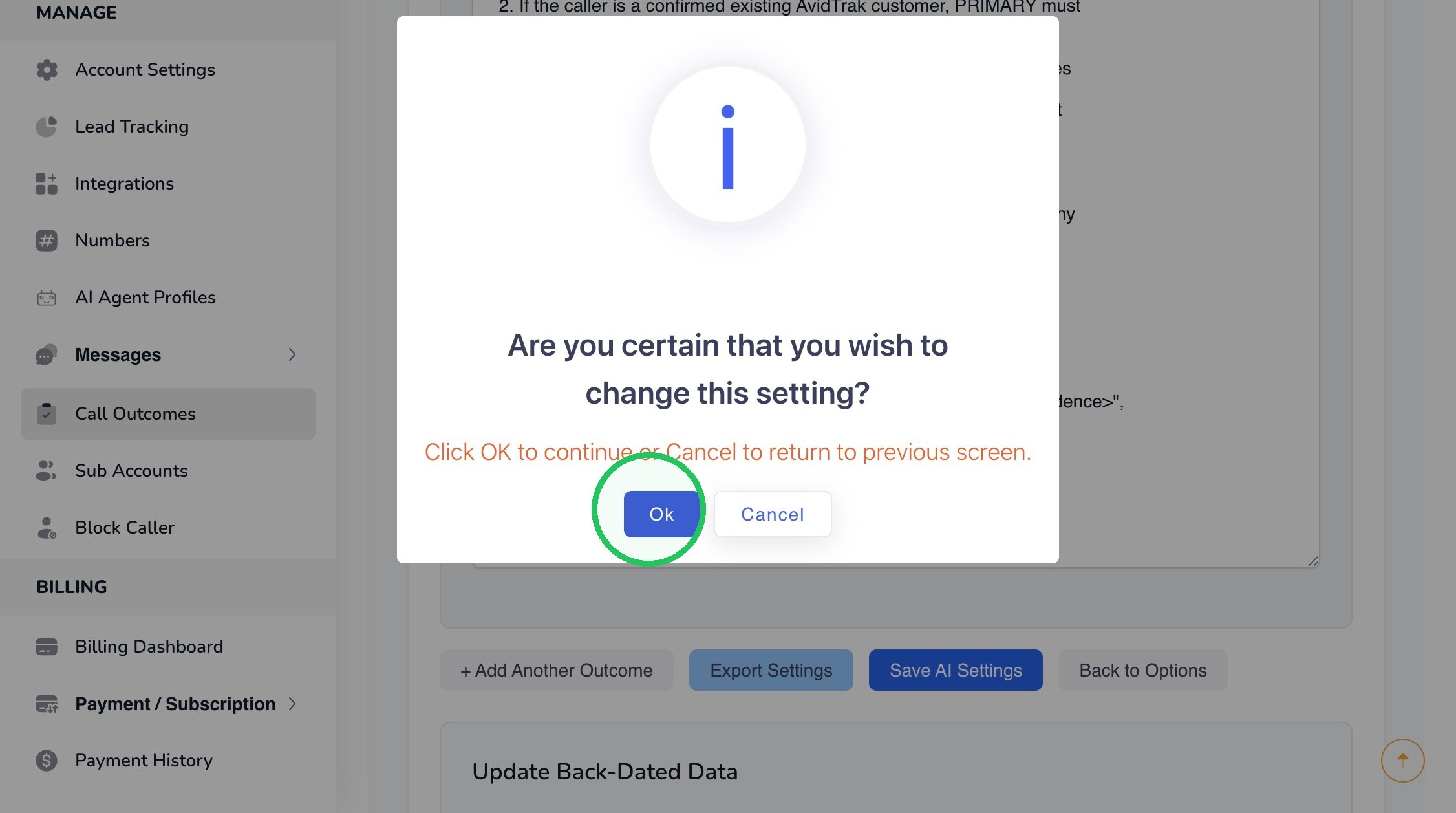
25. Click “Ok” to confirm the change.
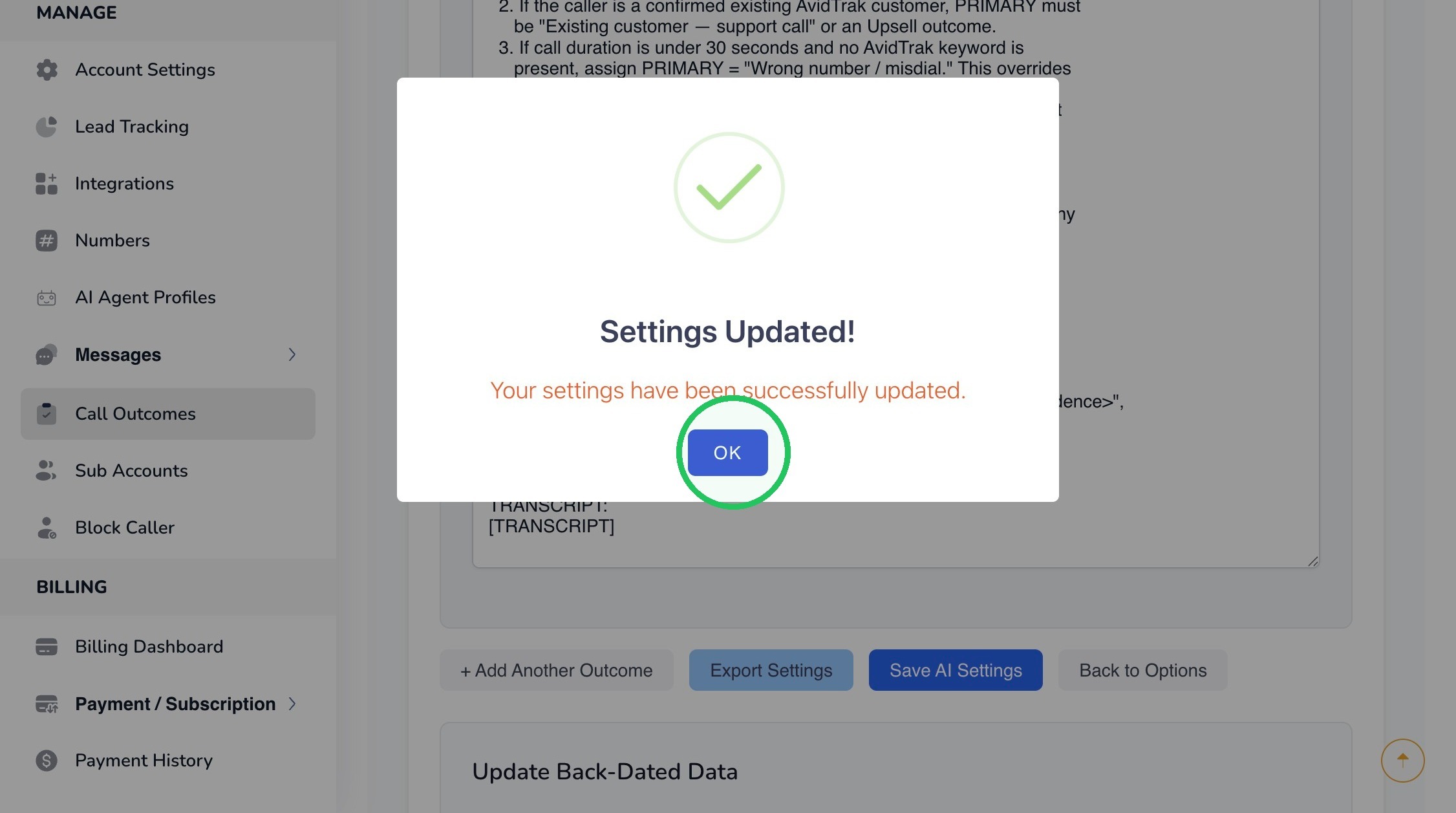
26. Click “OK” on the success message to finish saving the AI instructions.
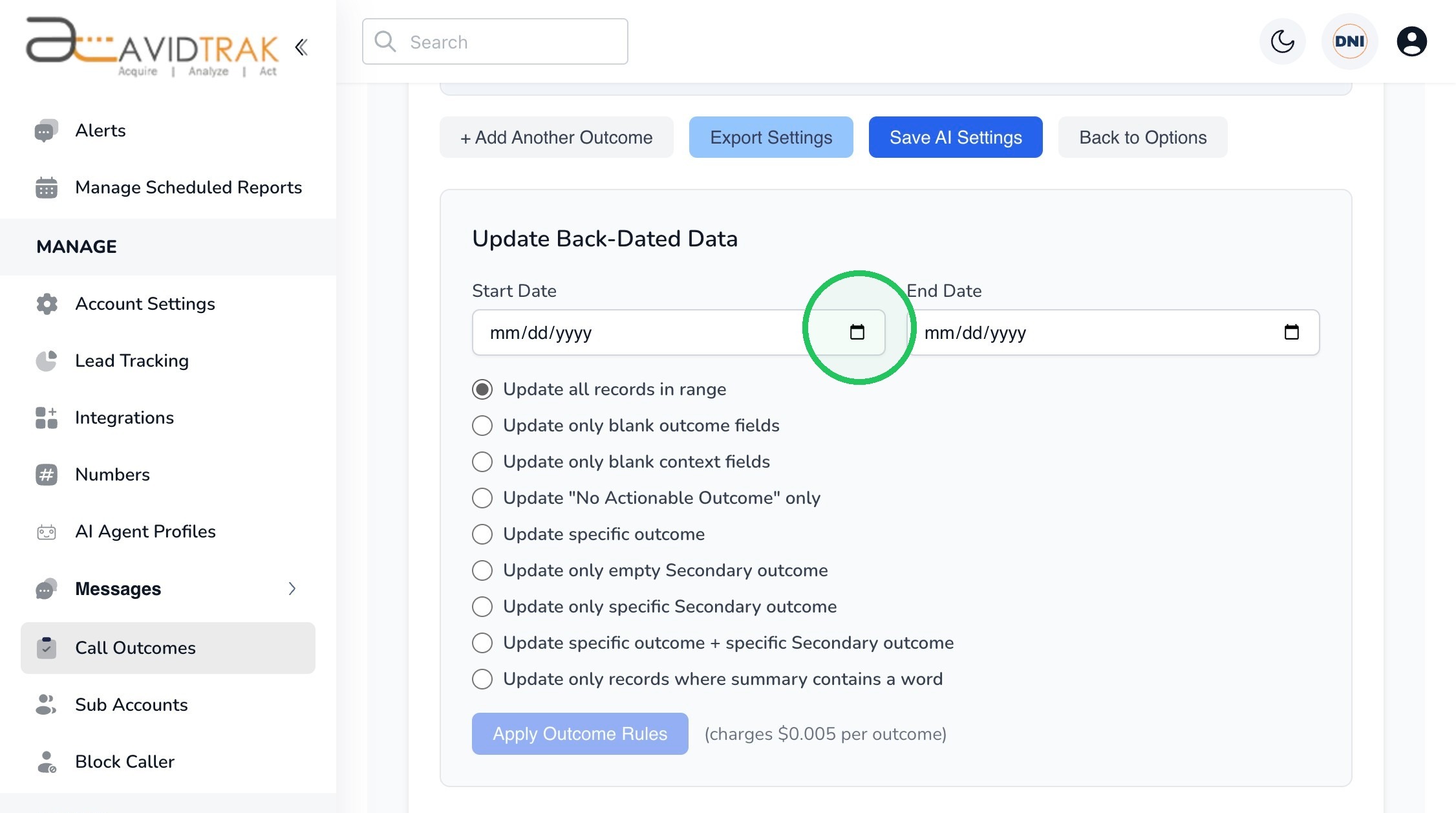
27. Use the back-dated update tools when you want newly created or revised outcome rules to be applied to calls that were transcribed before the current configuration was saved. Choose the date range carefully and select the update rule that best protects any existing outcome data you want to retain.
In the “Update Back-Dated Data” section, select the Start Date for the previously transcribed calls you want AvidTrak to reprocess.
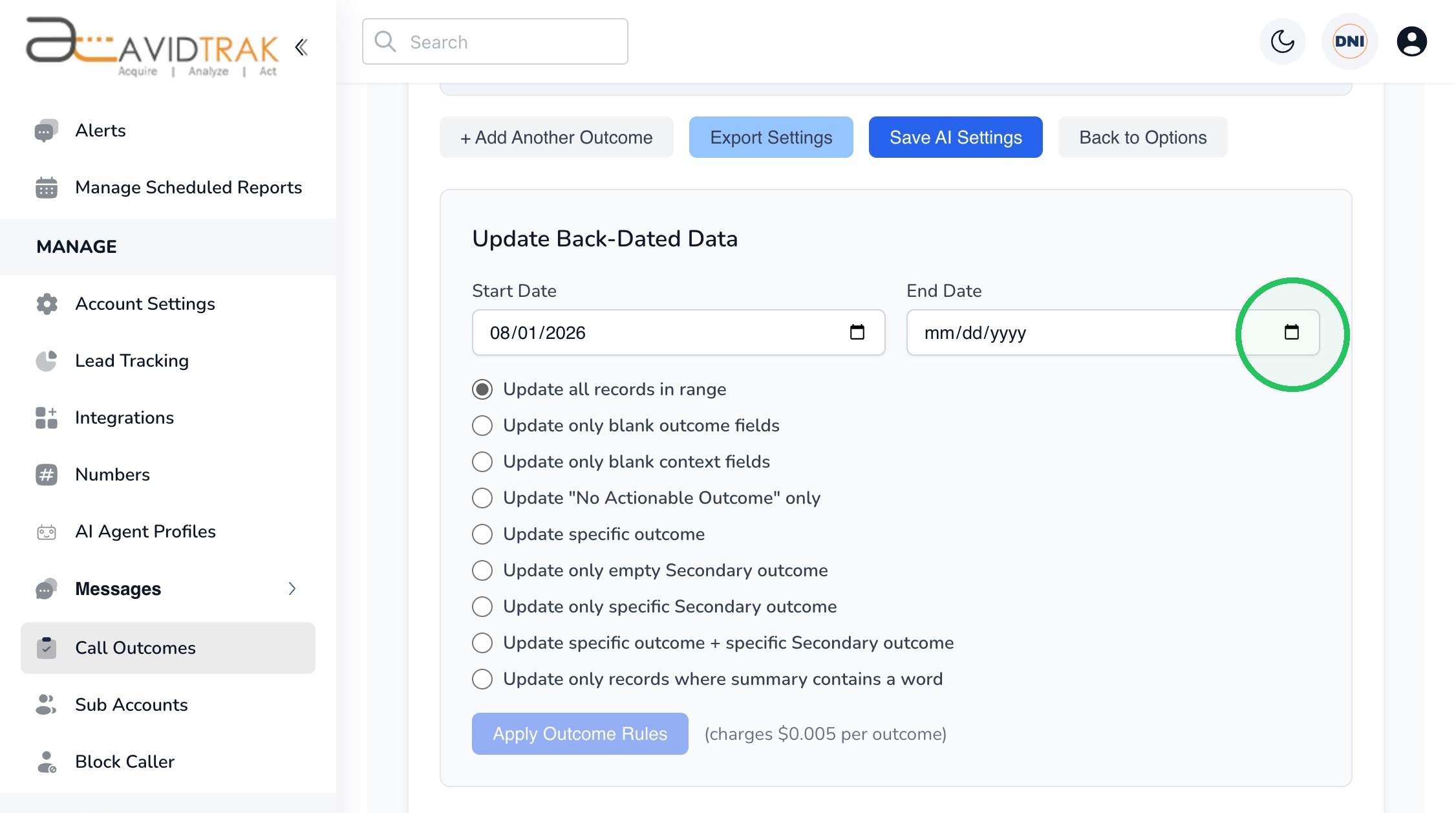
28. Select the End Date to define the complete date range that should be evaluated.
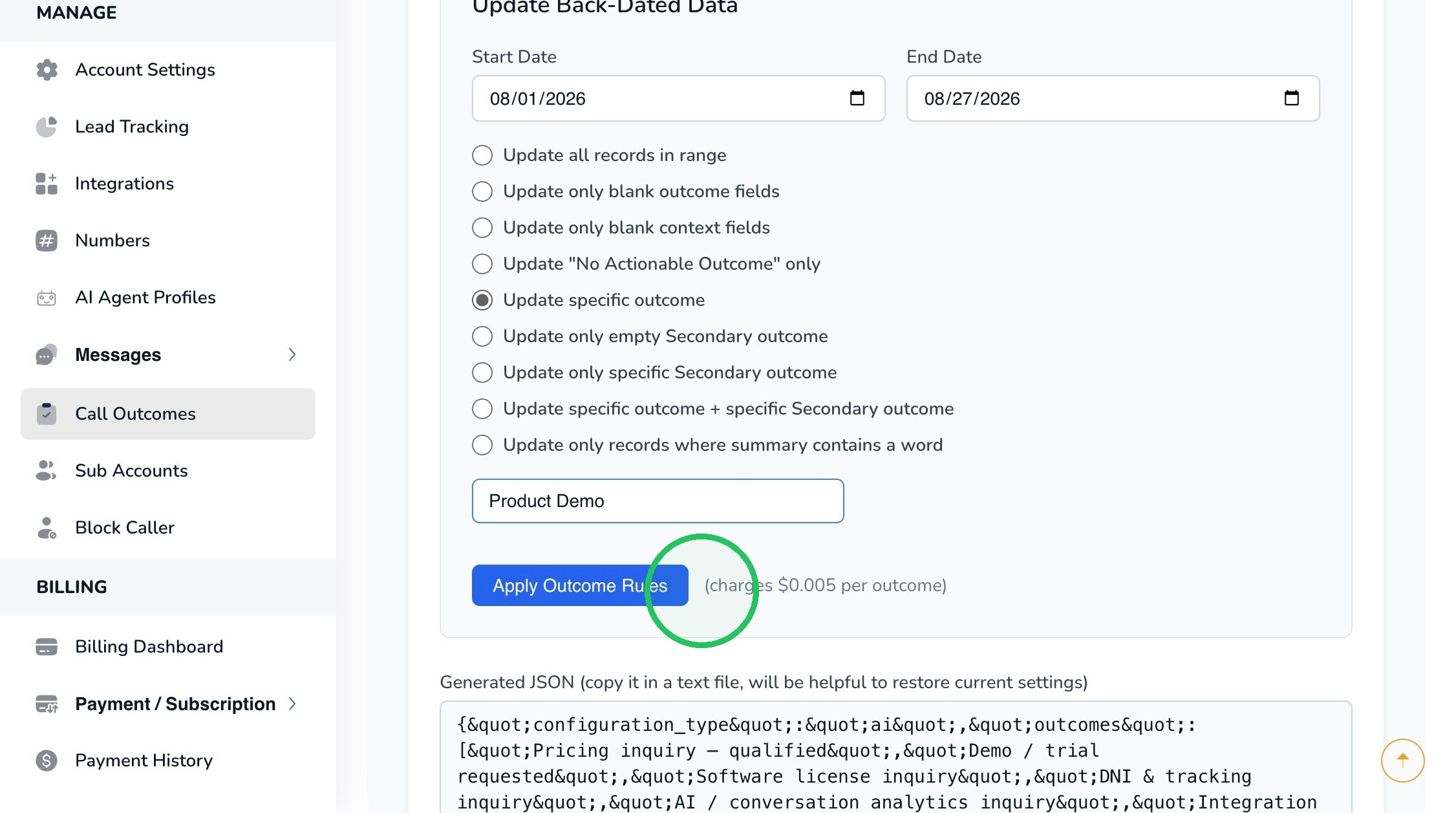
29. Choose the update rule that matches what you want to change. If you select “Update specific outcome,” enter the outcome you want to target; in this example, “Product Demo” is used.
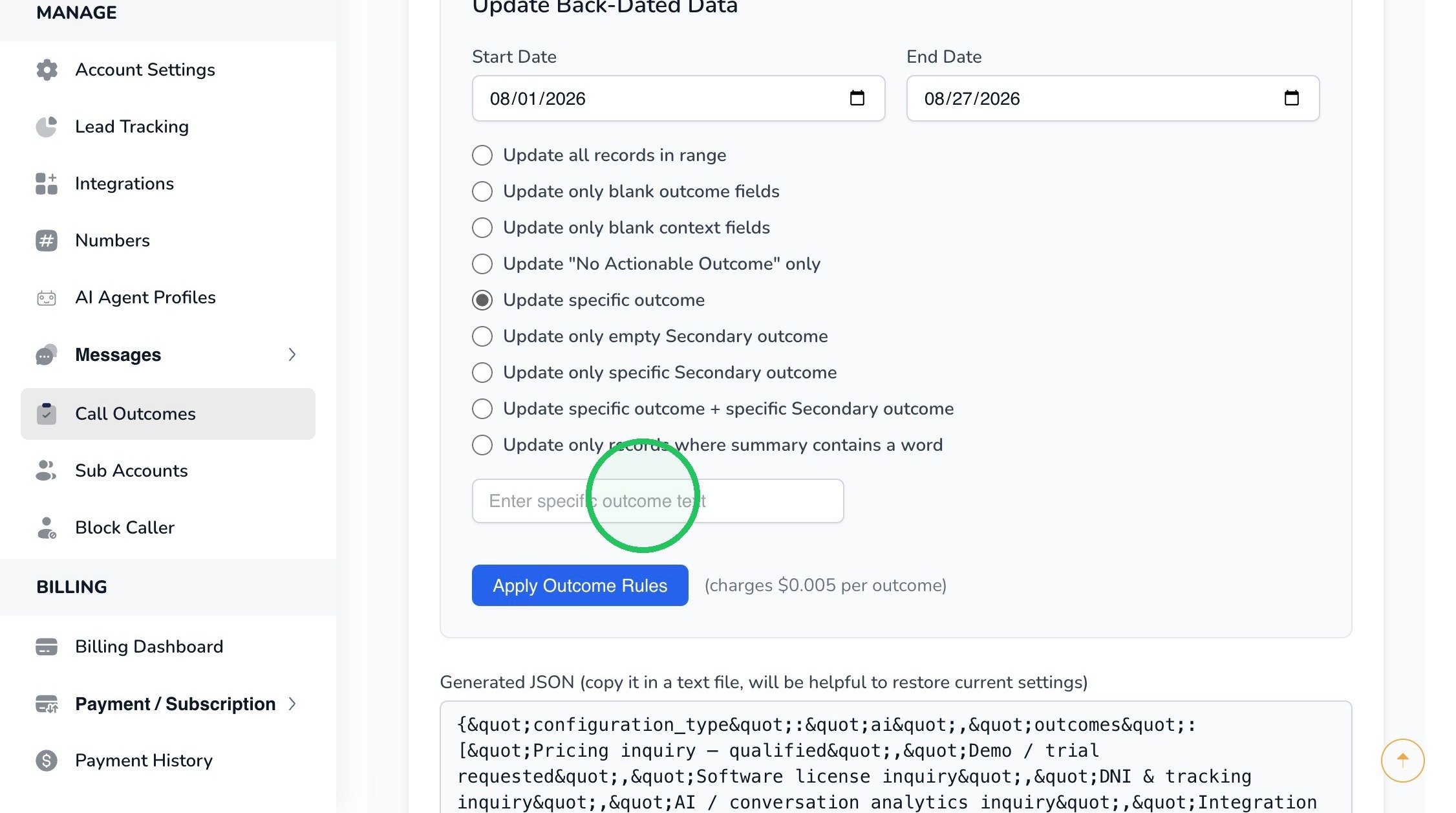
30. After selecting the date range and update rule, click “Apply Outcome Rules.” AvidTrak displays the applicable charge of $0.005 per outcome before the rerun is applied.
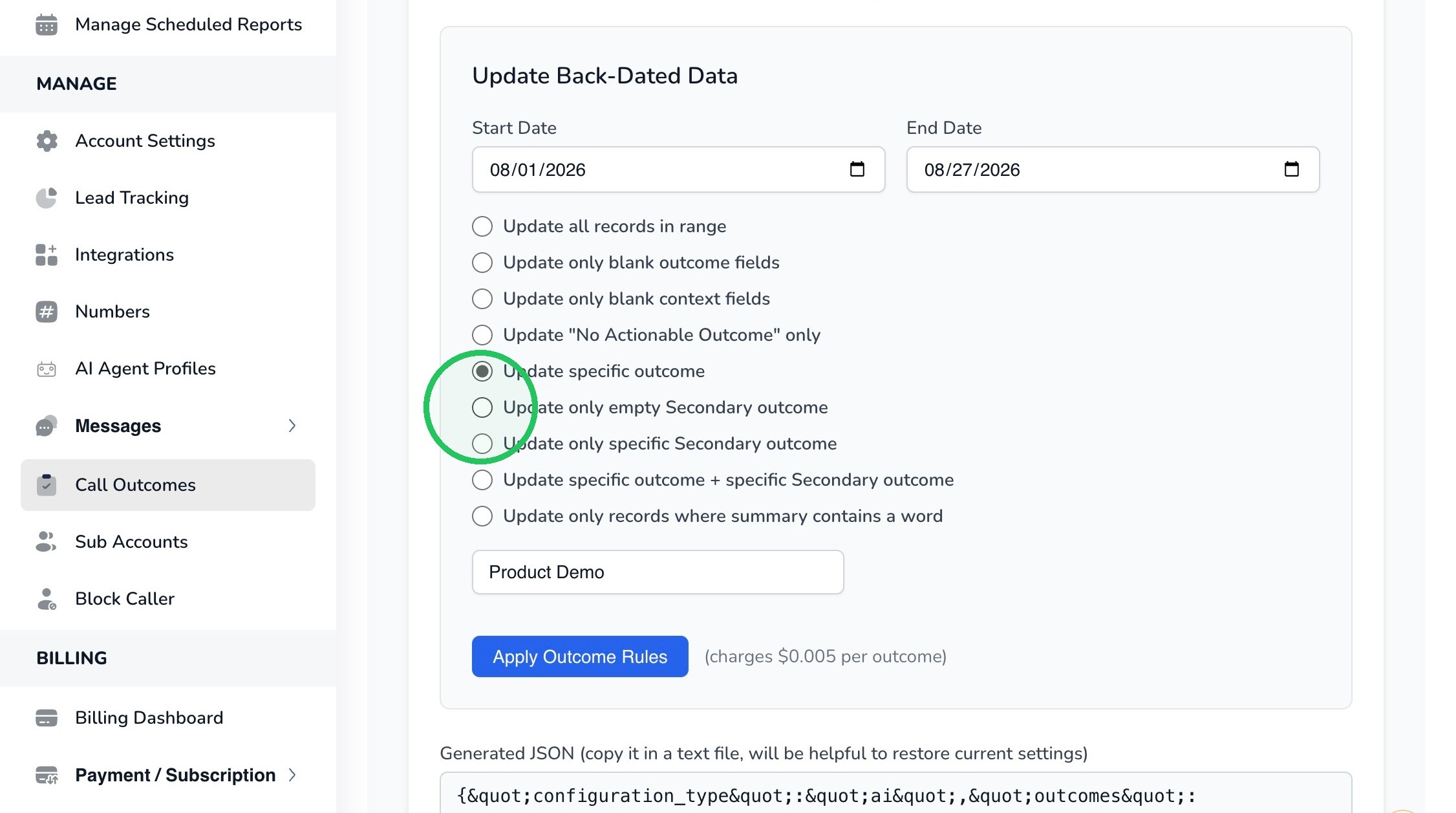
31. Use “Update only empty Secondary outcome” when you want AvidTrak to populate missing Secondary outcomes without replacing Secondary outcomes that have already been assigned.
32. This completes the tutorial on utilizing the AvidTrak AI Conversation Outcome tool. If you have any difficulty following the instructions in this tutorial, please contact AvidTrak Support at support@avidtrak.com and request assistance.
Alternatively, you may book a 20-minute assistance session with the AvidTrak team at https://avidtrak.com/book-a-demo.

