

How to Convert Recorded Calls into AI Transcriptions and Set Up Keyword Flags in AvidTrak
This tutorial explains how to enable AI-powered transcription for recorded calls in AvidTrak, set up keyword flags that automatically identify important words or phrases in call transcripts, and define the minimum call duration required for transcription.
1. How to Convert Recorded Calls into AI Transcriptions and Set Up Keyword Flags in AvidTrak
This tutorial explains how to enable AI-powered transcription for recorded calls in AvidTrak, set up keyword flags that automatically identify important words or phrases in call transcripts, and define the minimum call duration required for transcription. These settings help you turn recorded conversations into searchable, actionable call data.
Why transcription and keyword flagging matter
Most of the value in a phone call is locked inside the conversation itself. Marketers can see that a call happened, how long it lasted, and which campaign produced it, but not what was said. That gap makes it hard to tell a high-intent sales conversation from a wrong number, or to know which ads and keywords are generating real opportunities.
AI transcription closes that gap by turning every recorded call into searchable text, so your team can review conversations quickly instead of listening to full recordings.
2. Keyword flagging then acts on that text automatically: when a caller says a phrase that signals intent — for example, “Product Demo” or “Book a Demo” — AvidTrak can tag the call the moment it is detected. The result is call data you can filter, report on, and route without manual review, and a minimum-duration setting keeps short or accidental calls from consuming transcription credits.
The steps below walk through enabling transcription on a tracking number, creating keyword triggers, and setting the minimum call duration required for transcription.
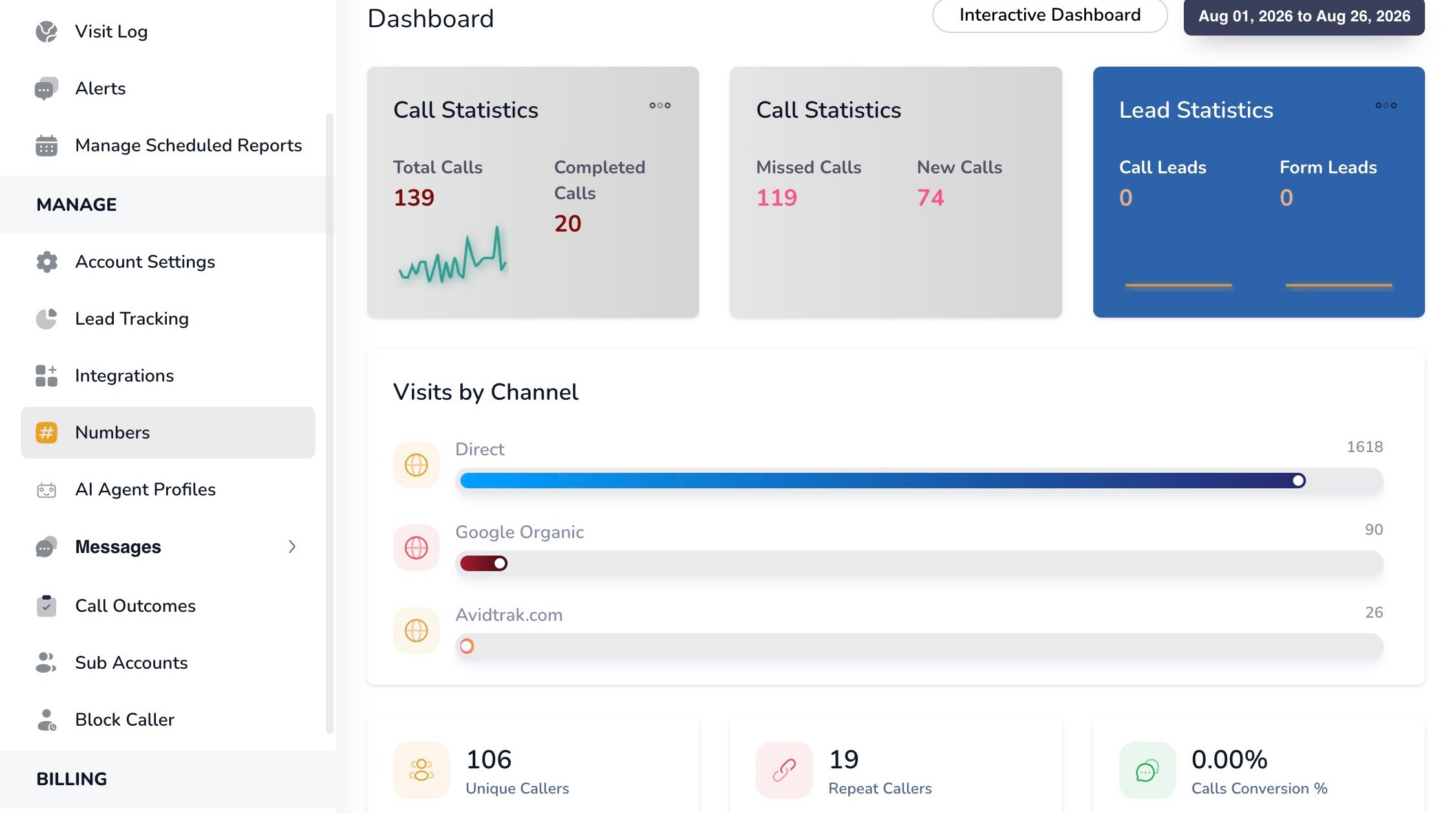
3. Sign in to AvidTrak Passport and open the main dashboard
4. Number Settings
Begin by enabling transcription on the tracking number or numbers you want AvidTrak to analyze. You may choose a single AvidTrak number or multiple numbers on which the transcription is to be applied. The following steps are performed from the Numbers section of the platform.
5. From the left navigation menu, select “Numbers” to view and manage the tracking numbers in your account.
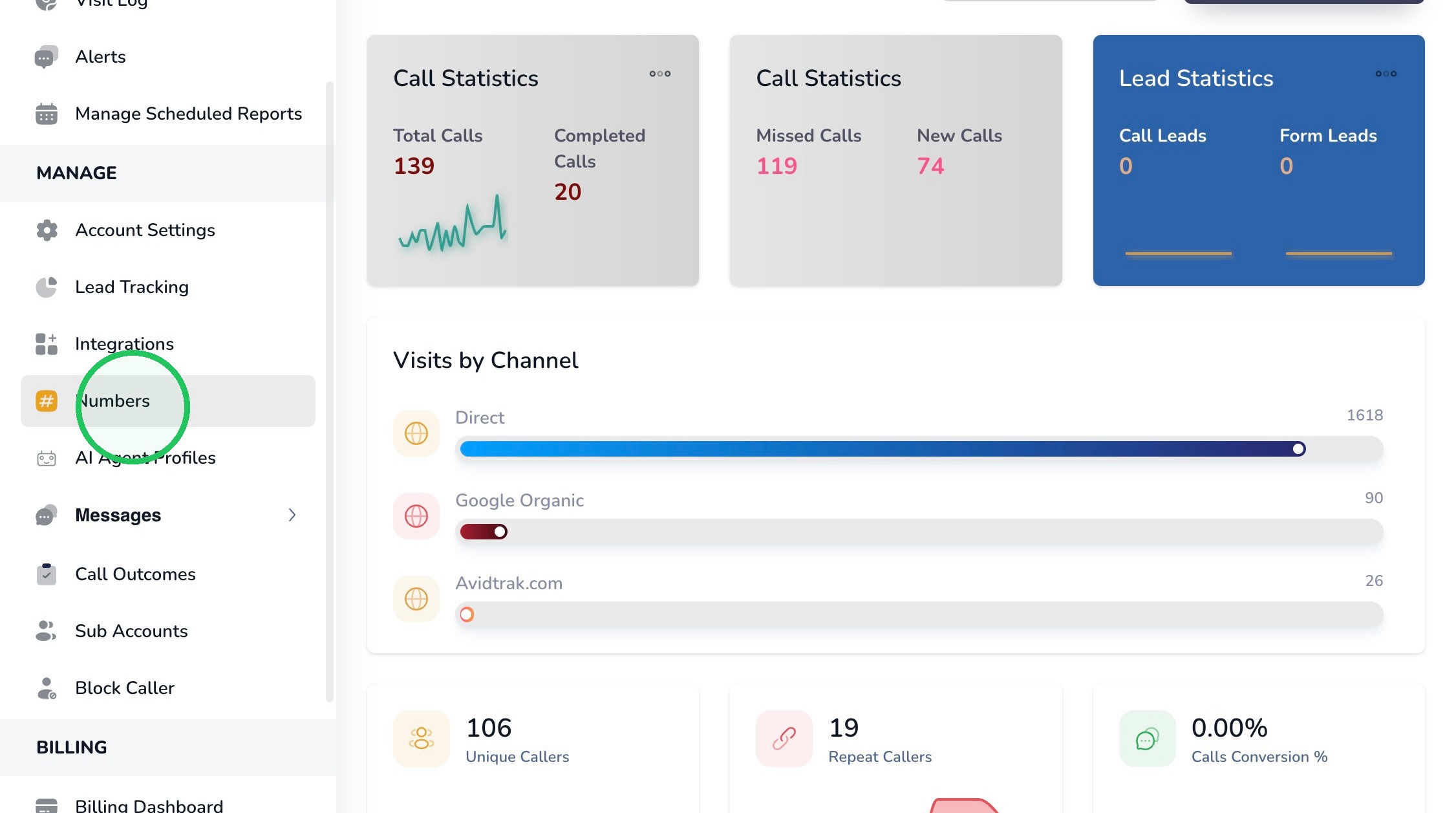
6. Locate the tracking number you want to configure and click its blue gear icon to open the number settings.
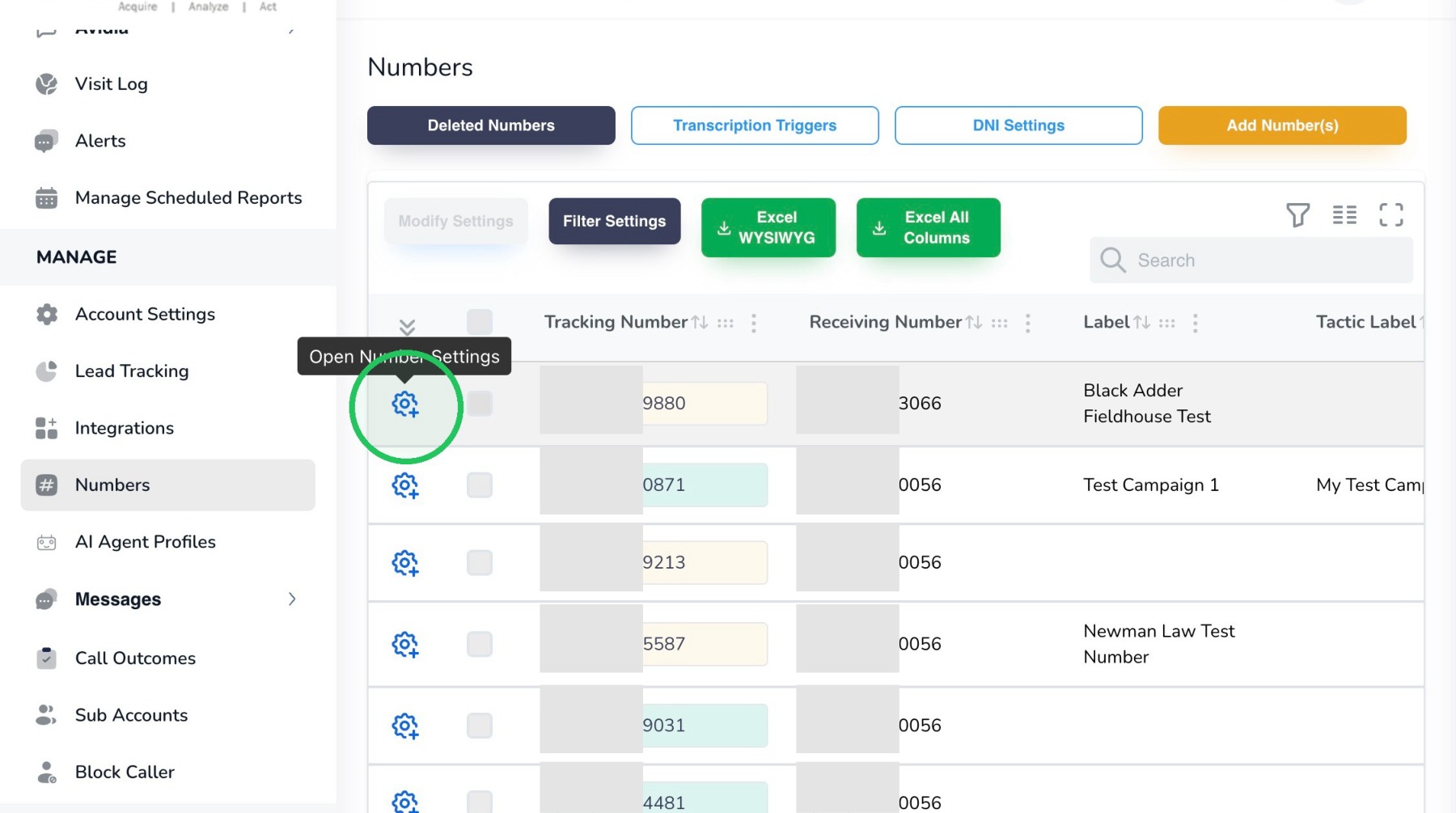
7. In the expanded number settings, select the “Actions” tab.
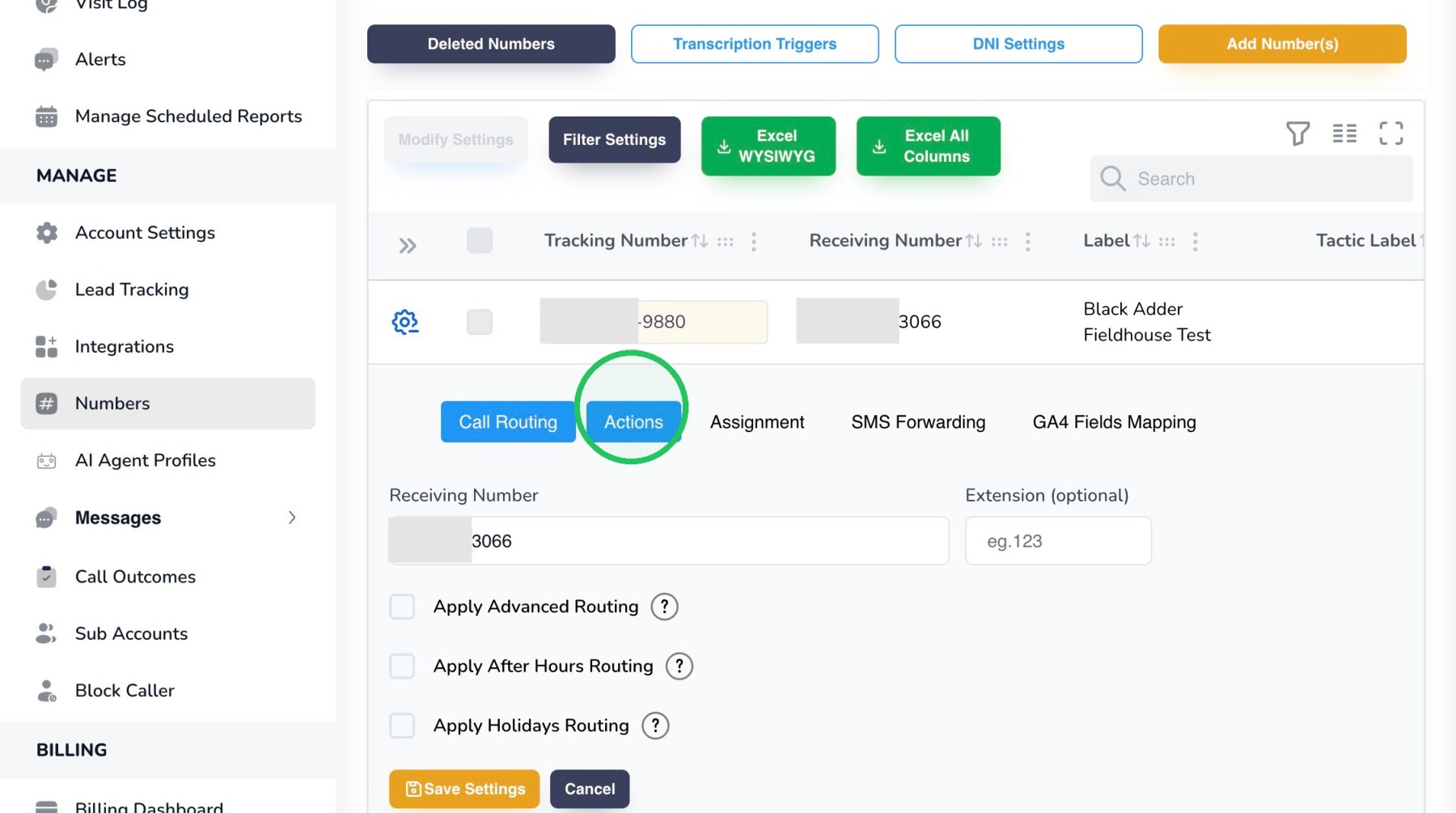
8. Be sure that your number is in a “Number Enabled” state so the tracking number is active and can use the selected call-handling features. Also ensure that the call recording switch is in an enabled state, as having a call recording is essential in executing a call transcription.
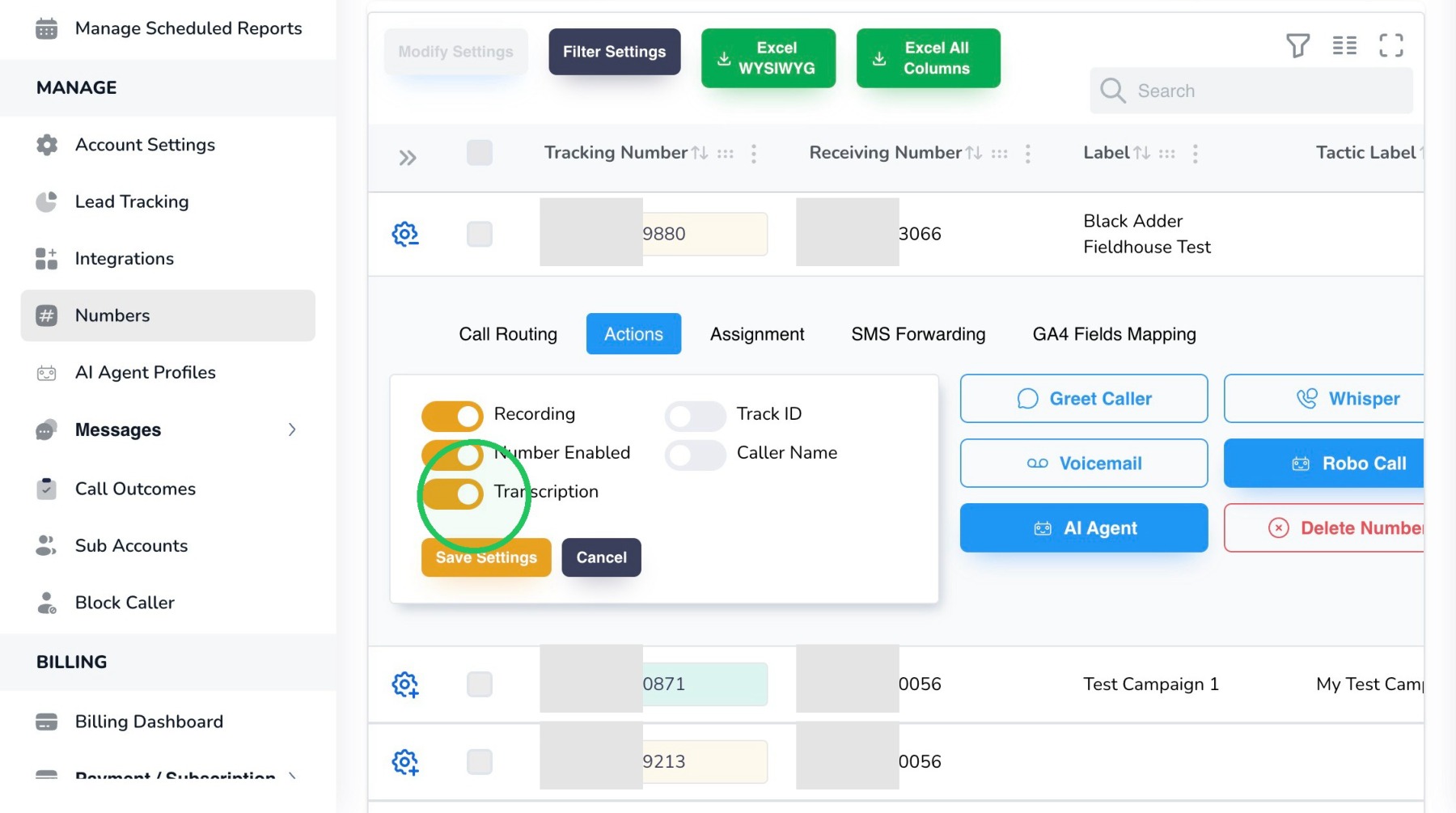
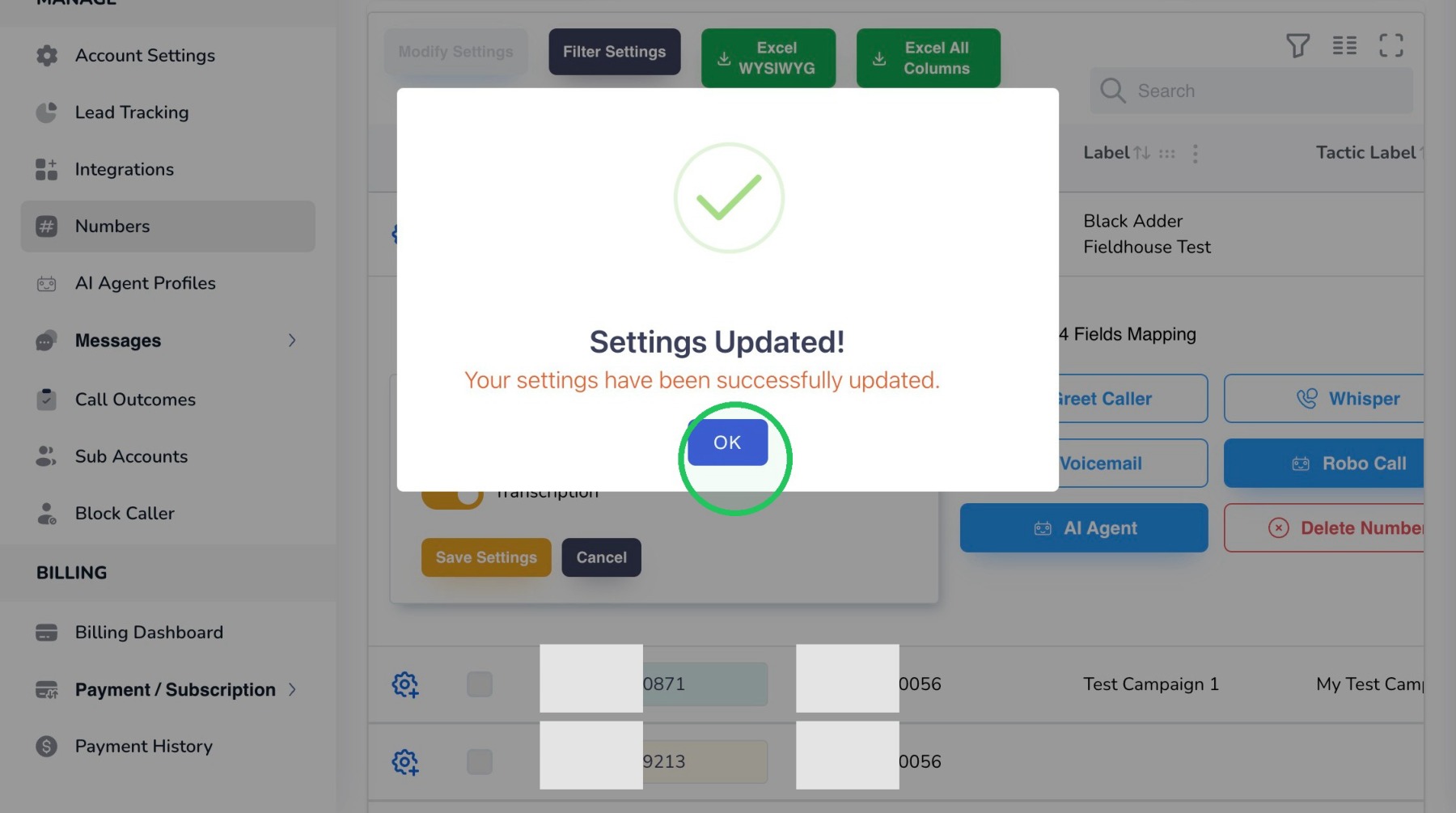
9. Turn on “Transcription” for the selected tracking number sliding the rocker switch to the right. This enables transcription processing for calls associated with that number.
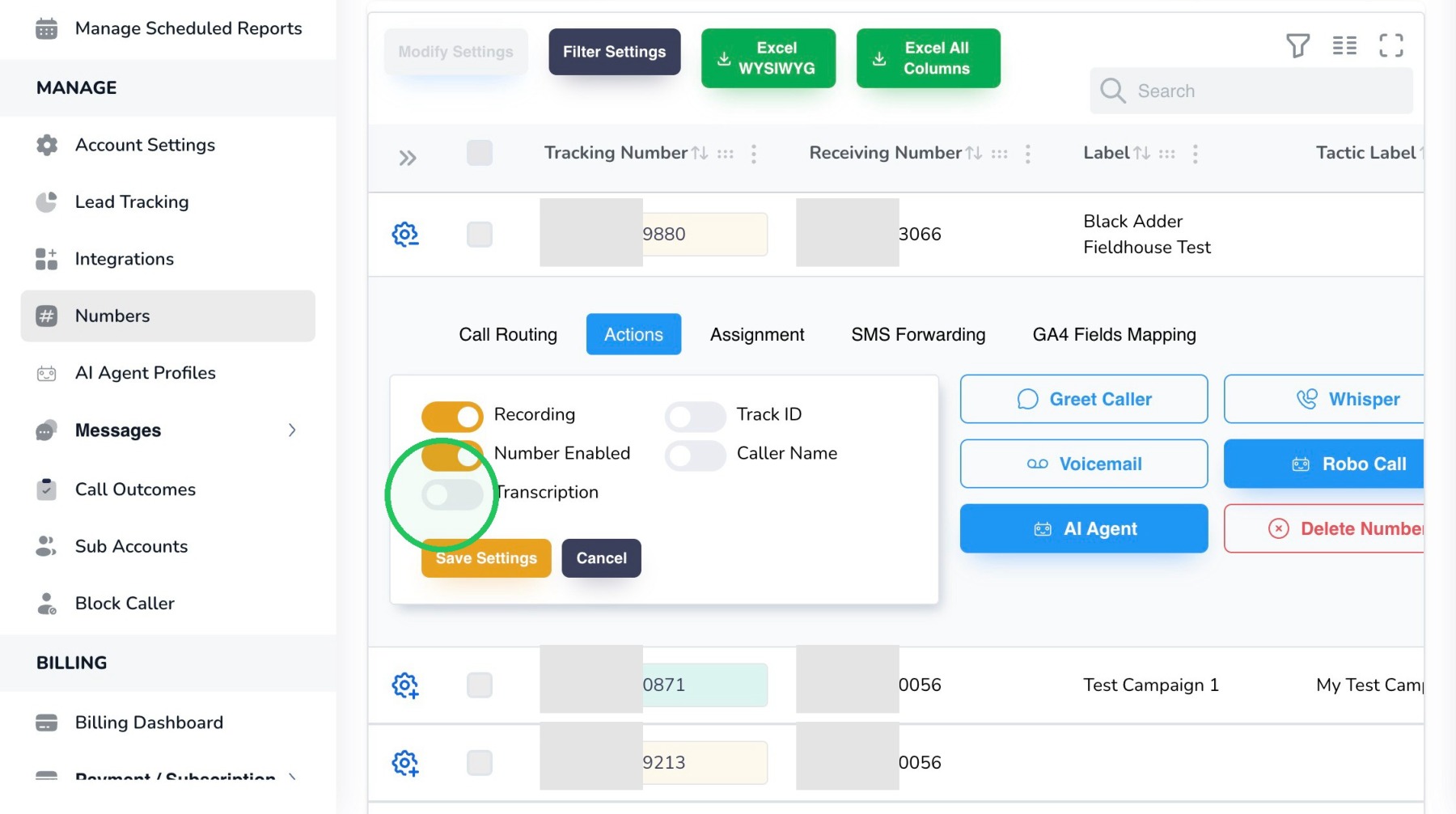
10. Click “Save Settings” to save the Number Enabled and Transcription selections.
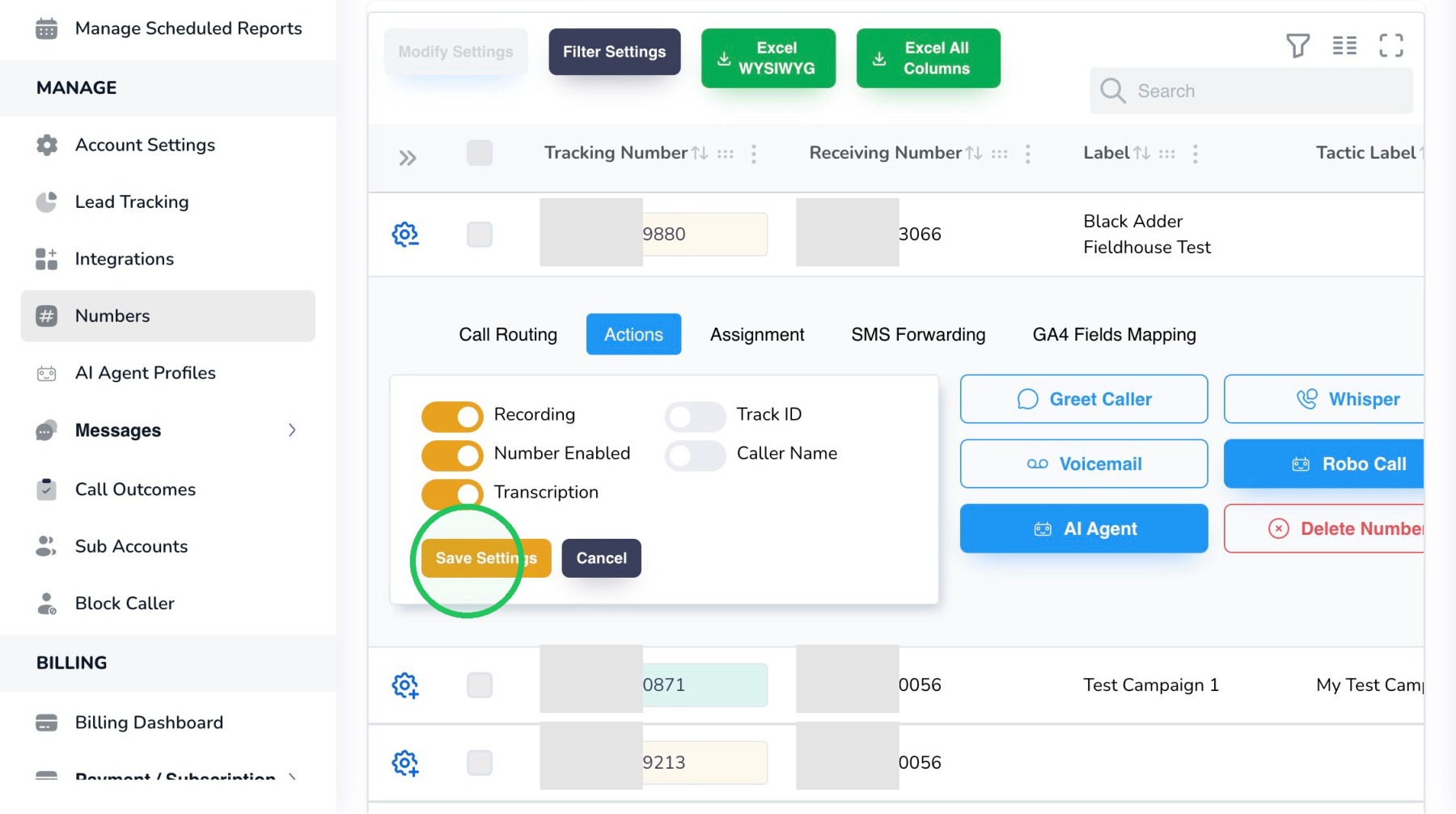
11. When AvidTrak asks you to confirm the change, click “Ok”.
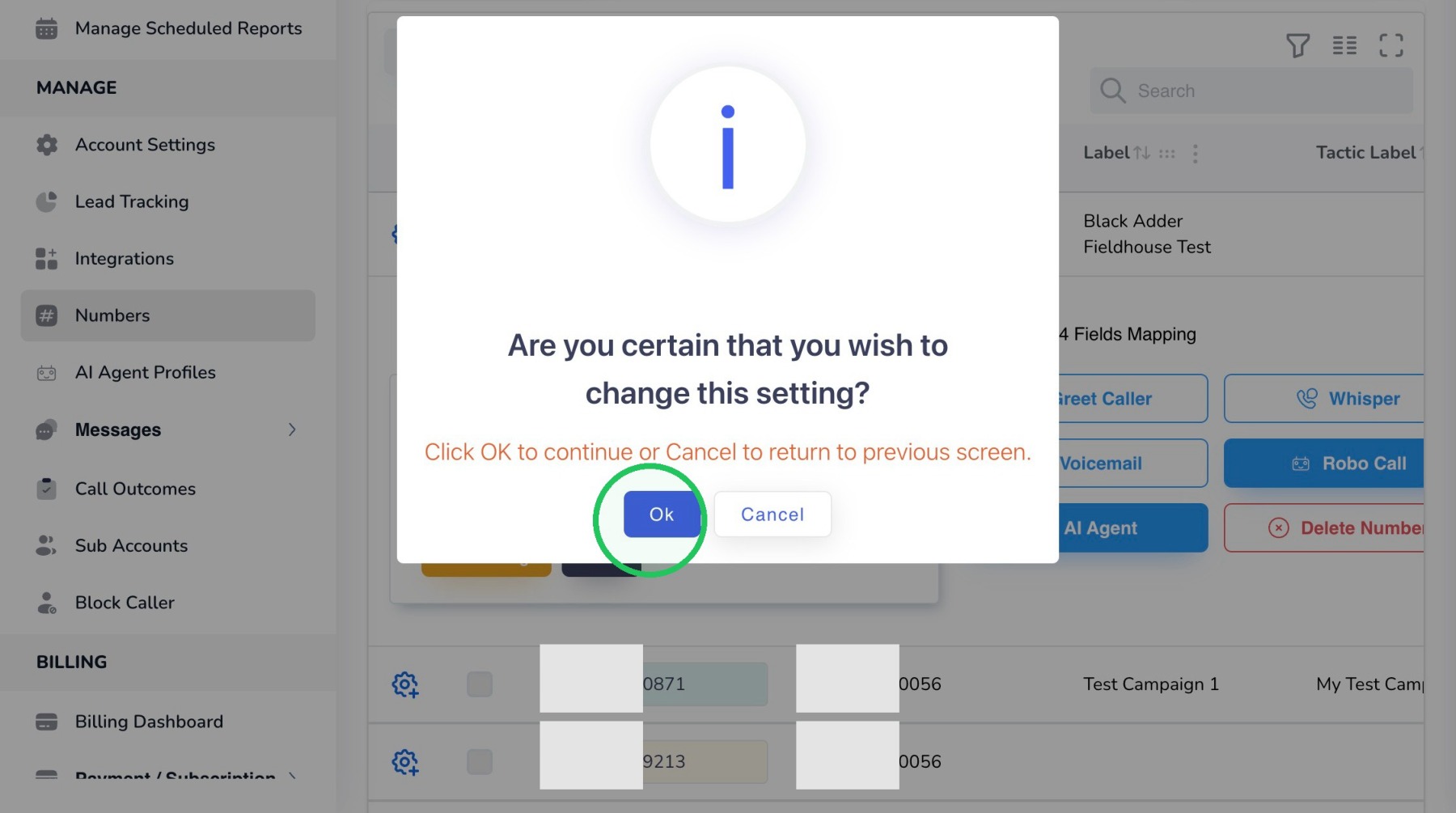
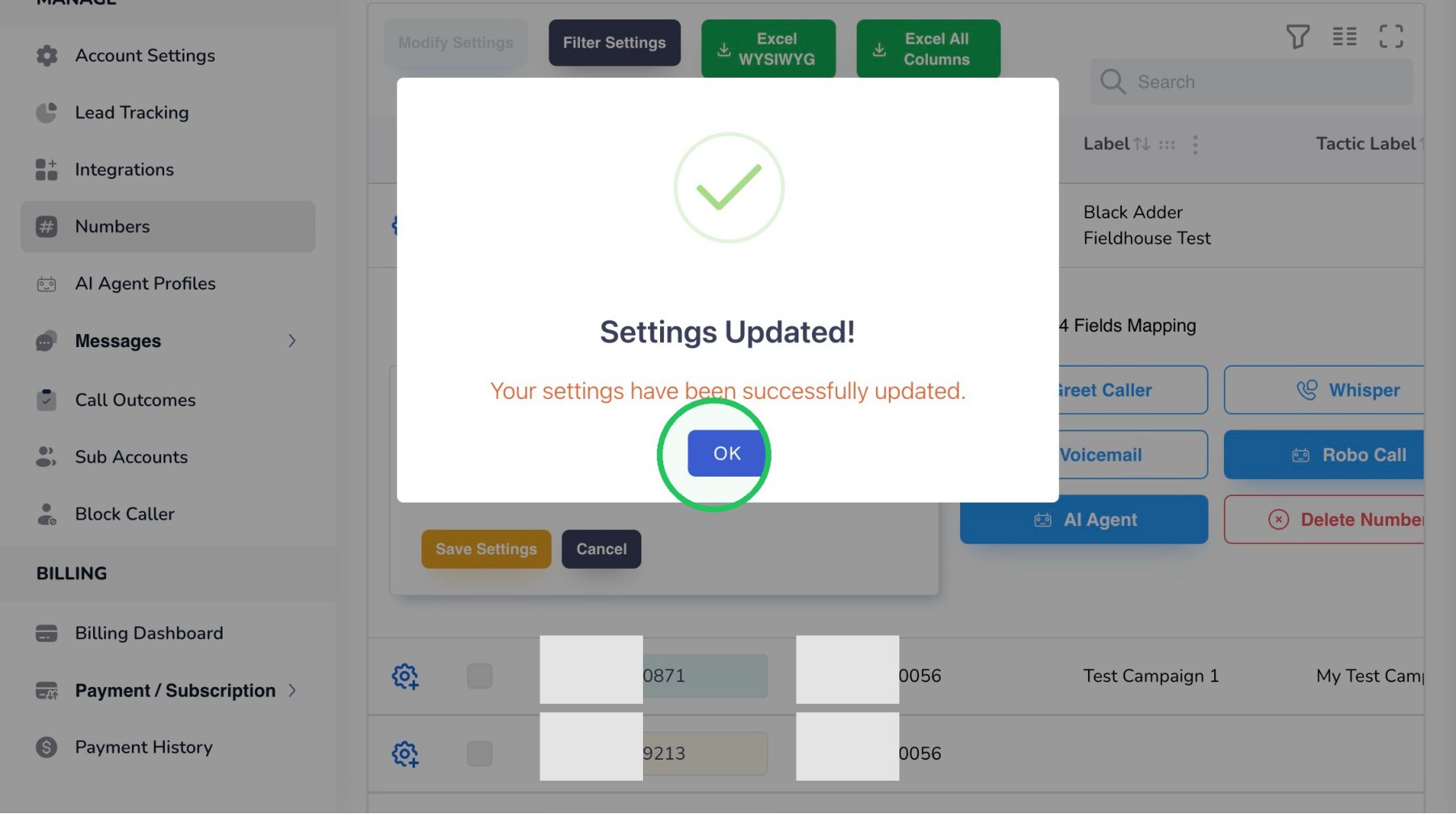
12. Click “OK” on the success message to finish enabling transcription for the number.
13. Transcription Triggers
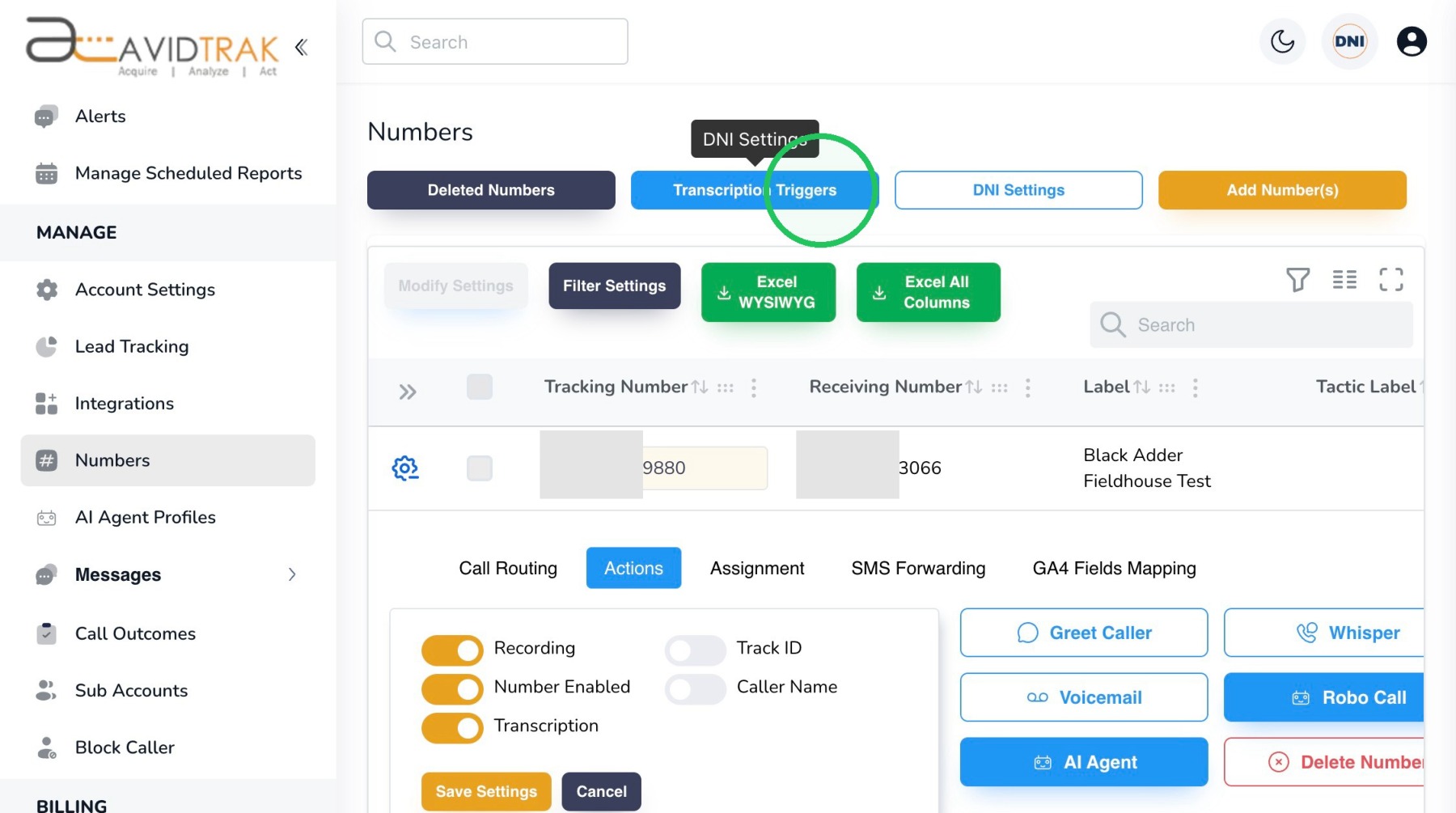
Transcription Triggers let you watch for specific words or phrases in a transcript and automatically take an action when they are detected. The examples below demonstrate how to create call tags based on phrases that may indicate sales intent.
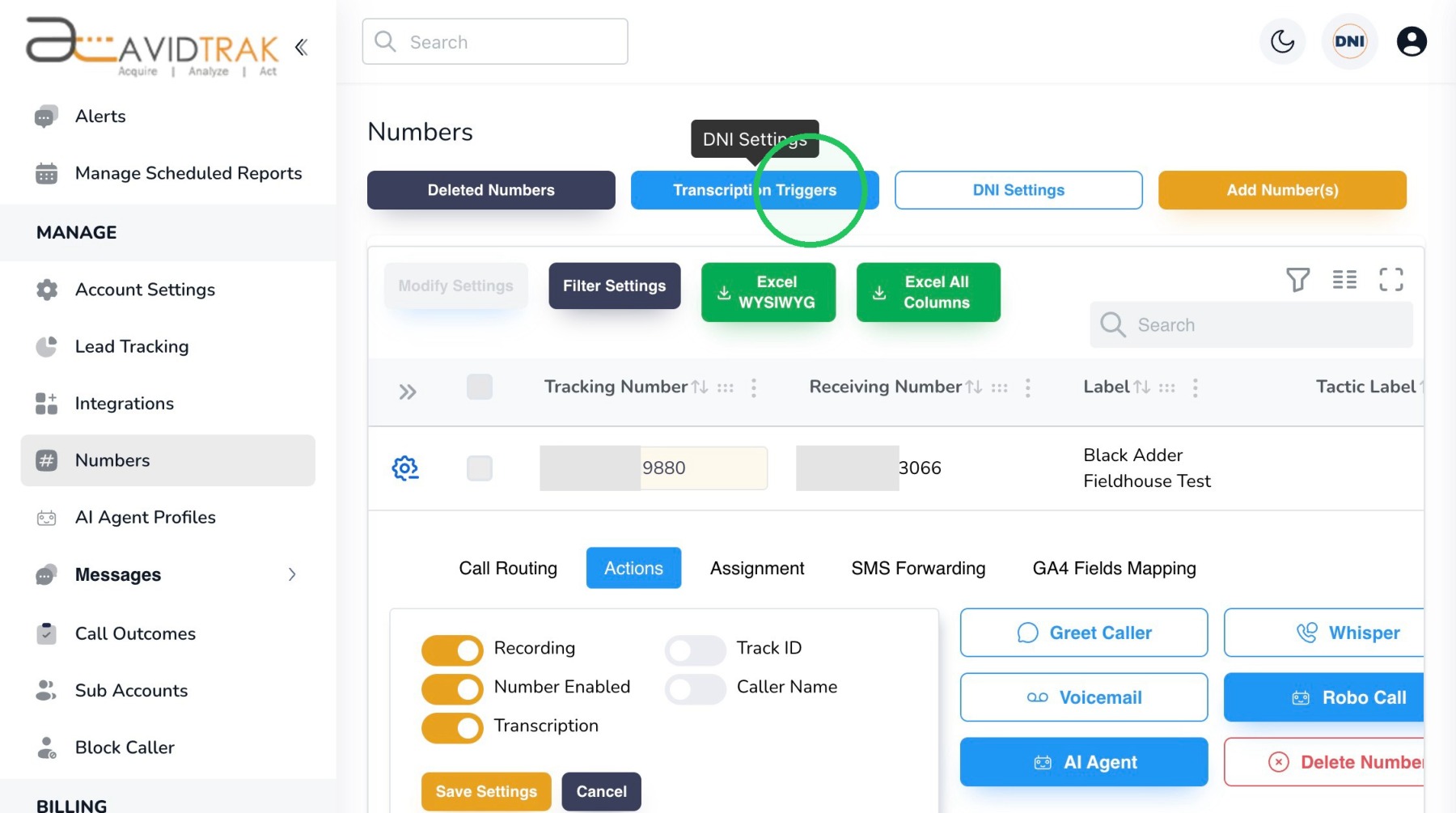
14. At the top of the Numbers page, select “Transcription Triggers” to configure keyword-based actions for transcribed calls.
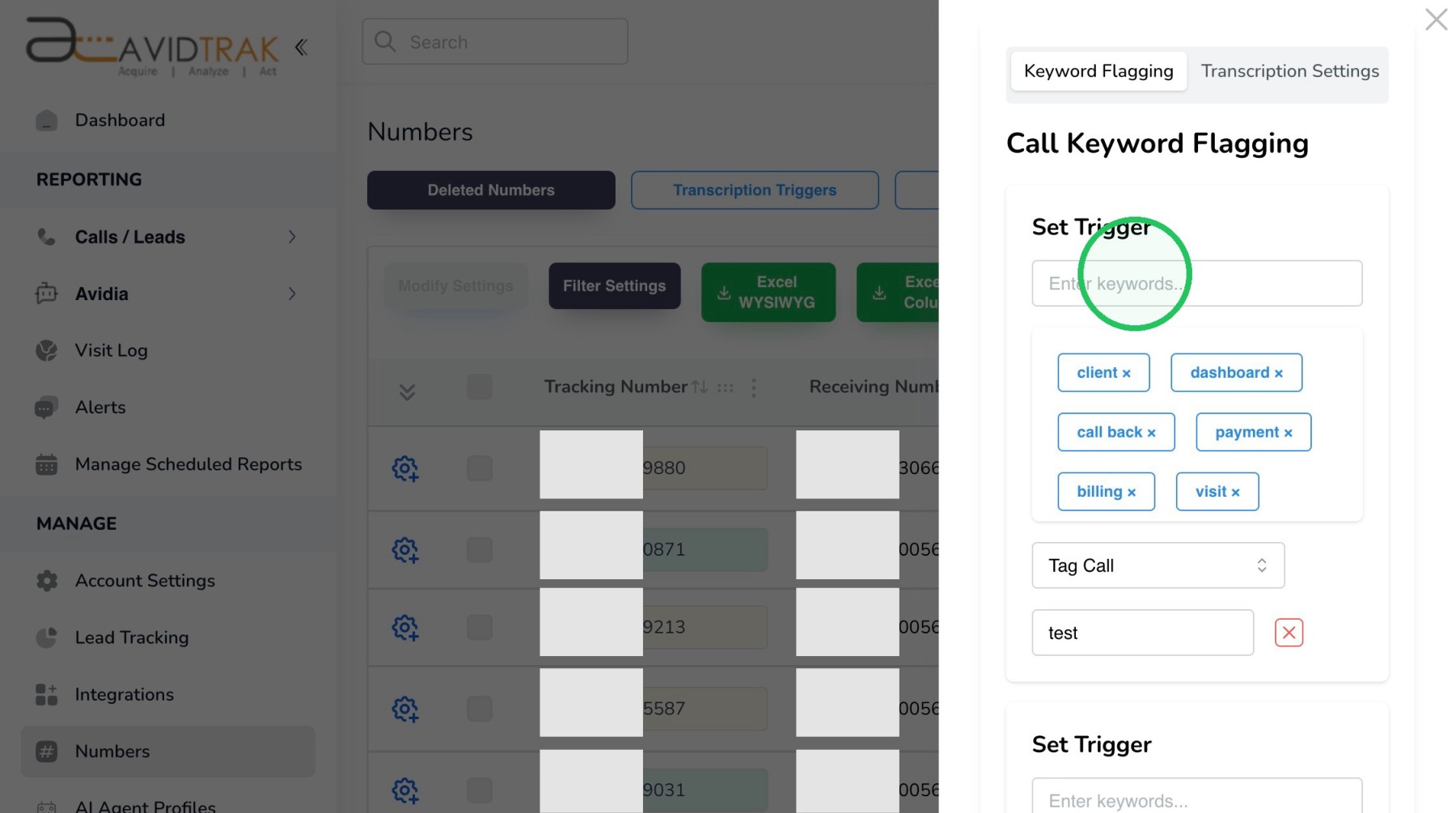
15. In the Keyword Flagging panel, click the “Enter keywords…” field and enter a word or phrase that you want AvidTrak to look for in the transcription. If you have already setup keywords in AvidTrak those will appear below the set trigger field.
16. For this example, enter “Product Demo” as the keyword or phrase to be detected in the call transcription.
17. Open the trigger drop-down to choose what AvidTrak should do when the specified keyword or phrase is detected.
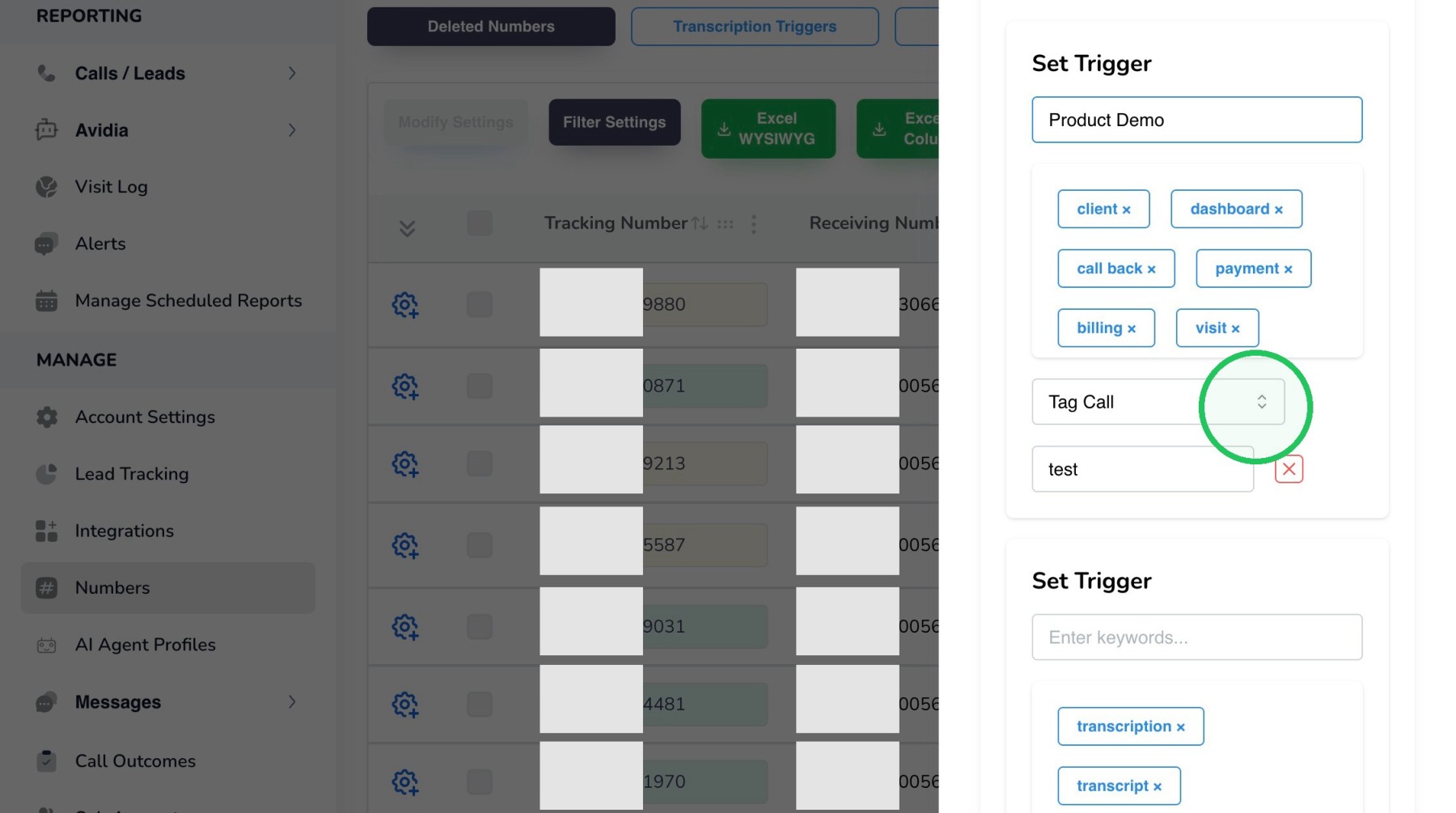
18. Select “Tag Call” to automatically apply a tag to calls in which the keywords or phrases are found.
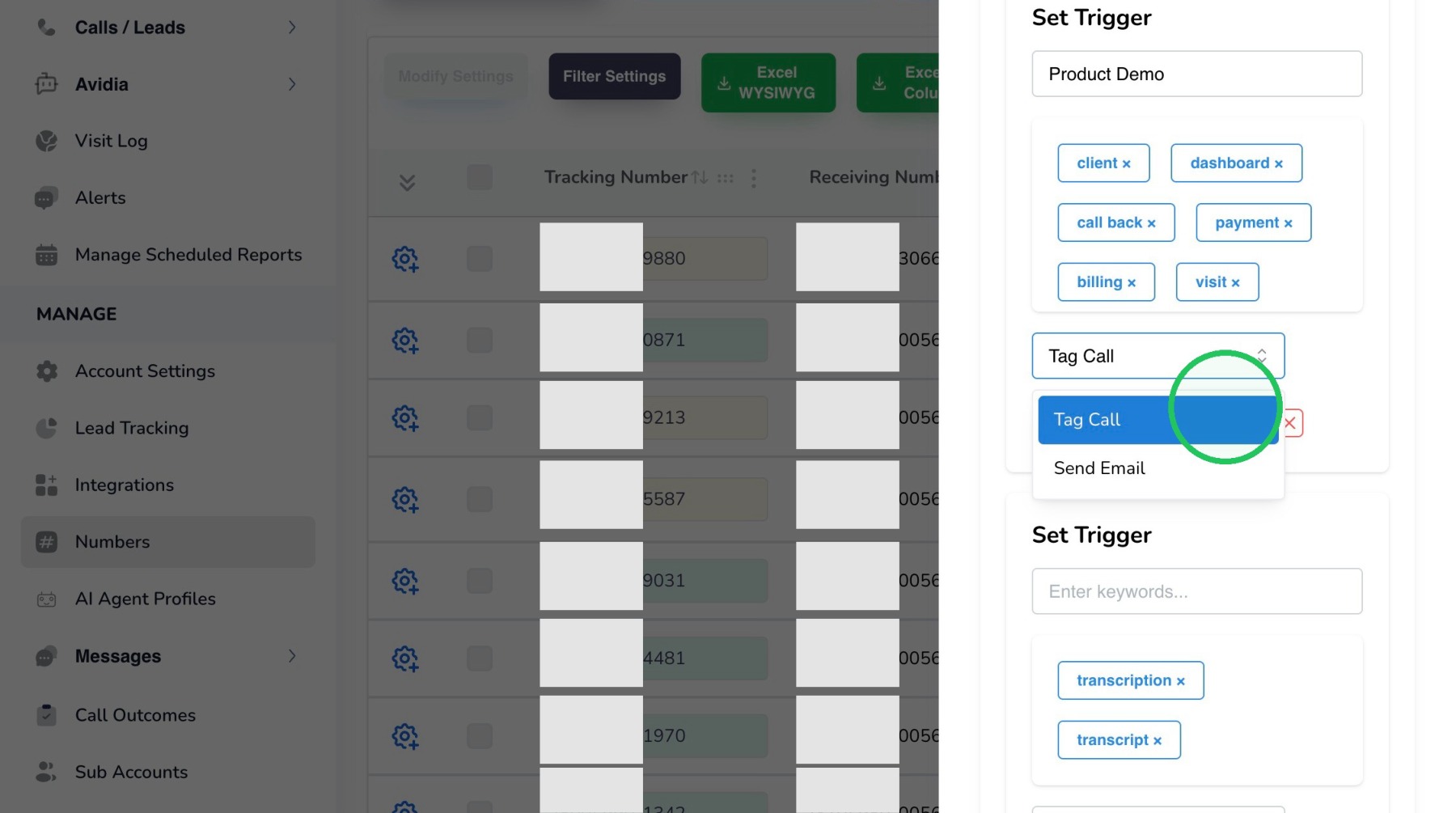
19. In the value field, enter the tag that should be applied when the trigger condition is met. In this example “test” was entered, however, you could have selected and used “Demo Interest” as the tag for that conversation.
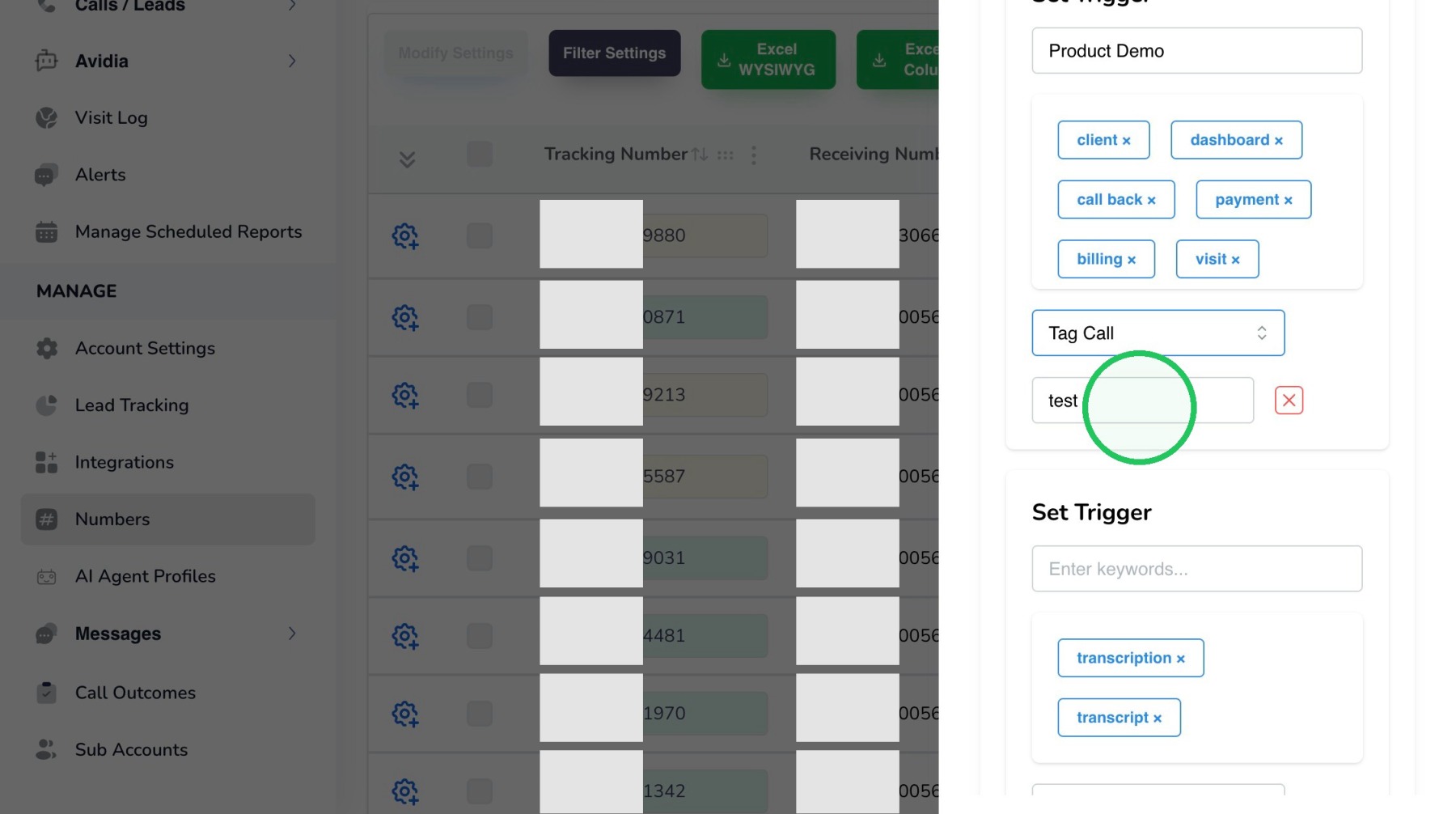
20. Click “Ok” to confirm that you want to update the transcription trigger settings.
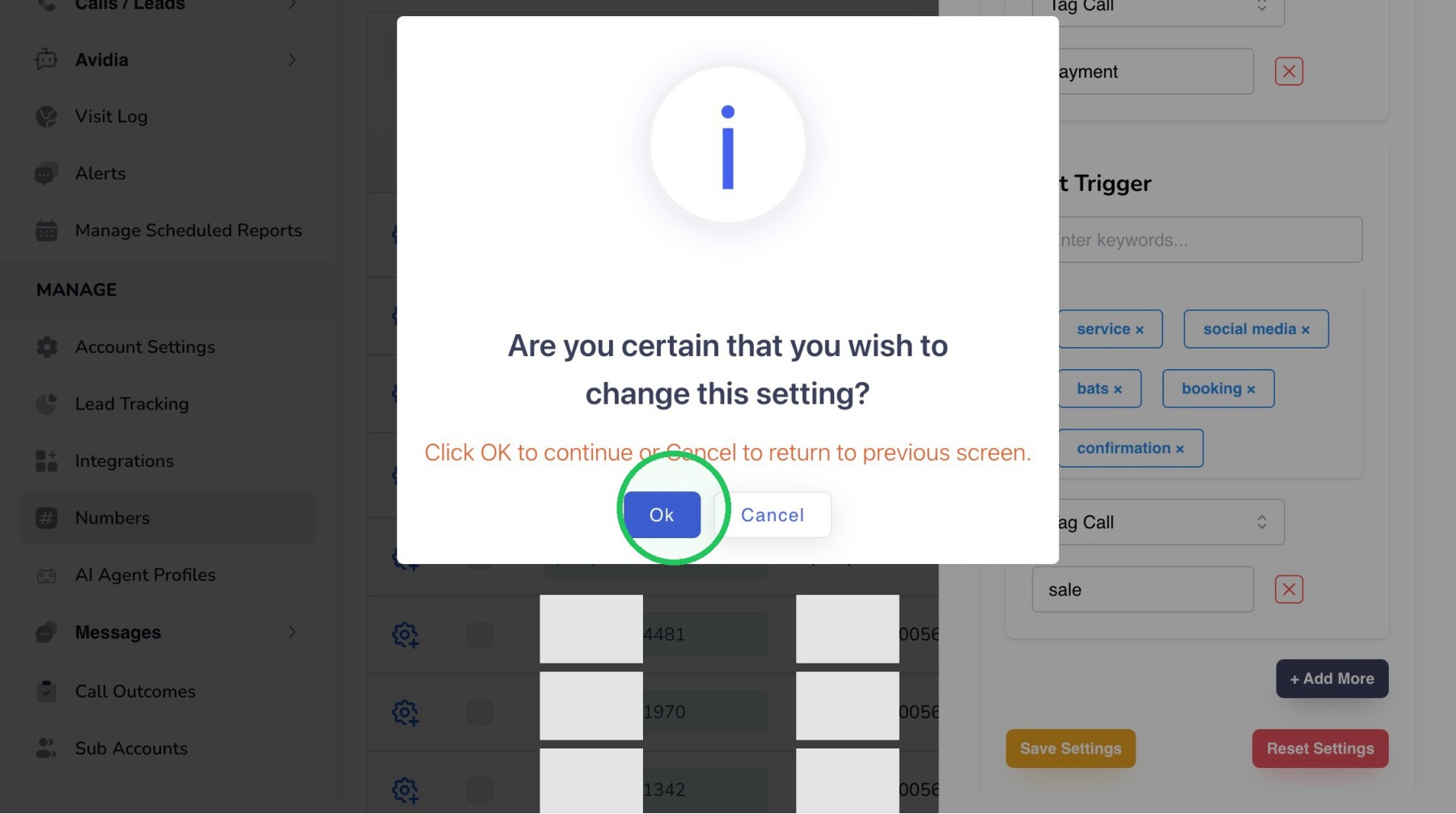
21. Click “OK” to close the success message.
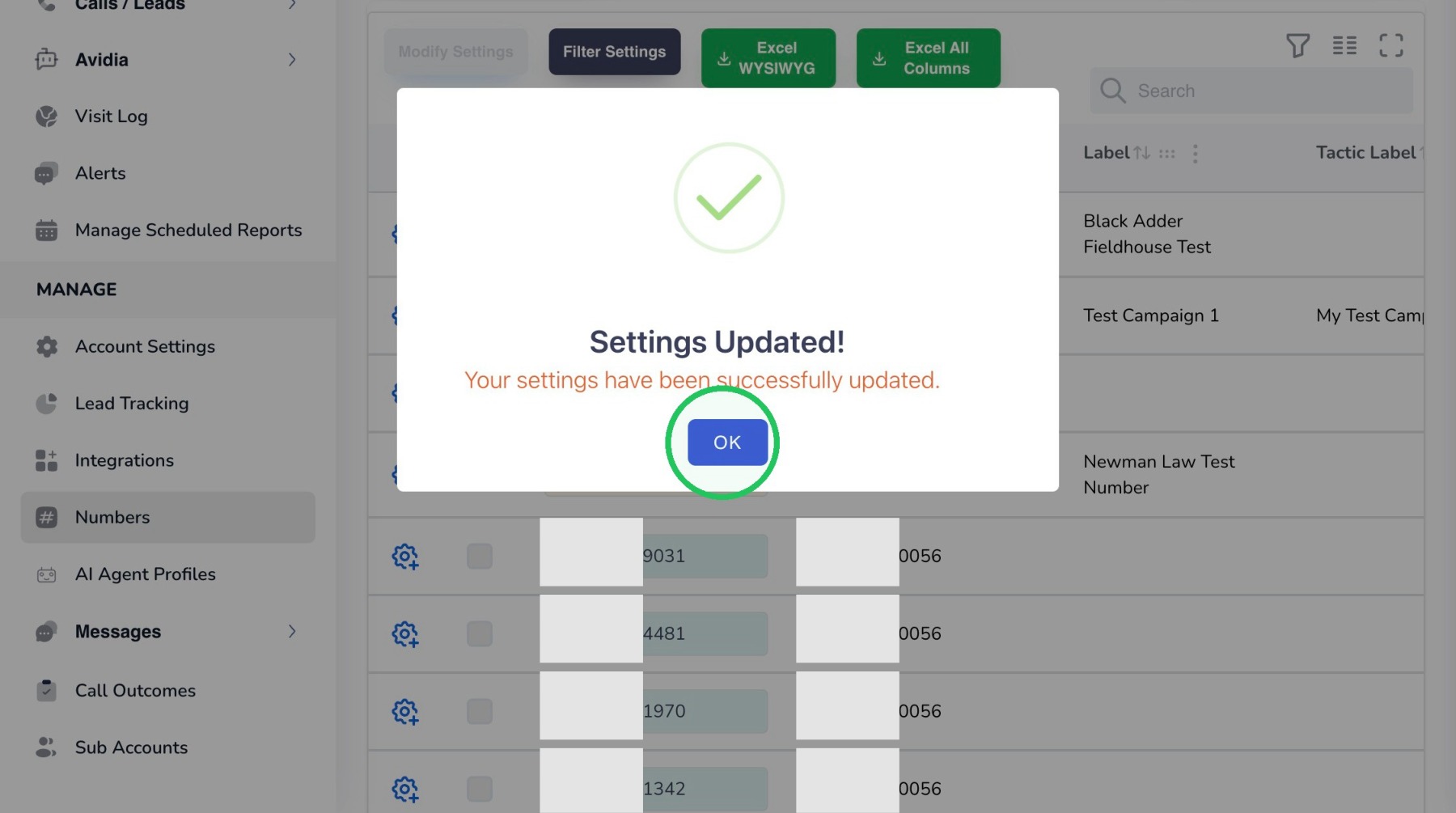
22. Click “+ Add More” if you want to create another keyword trigger without removing the existing one.
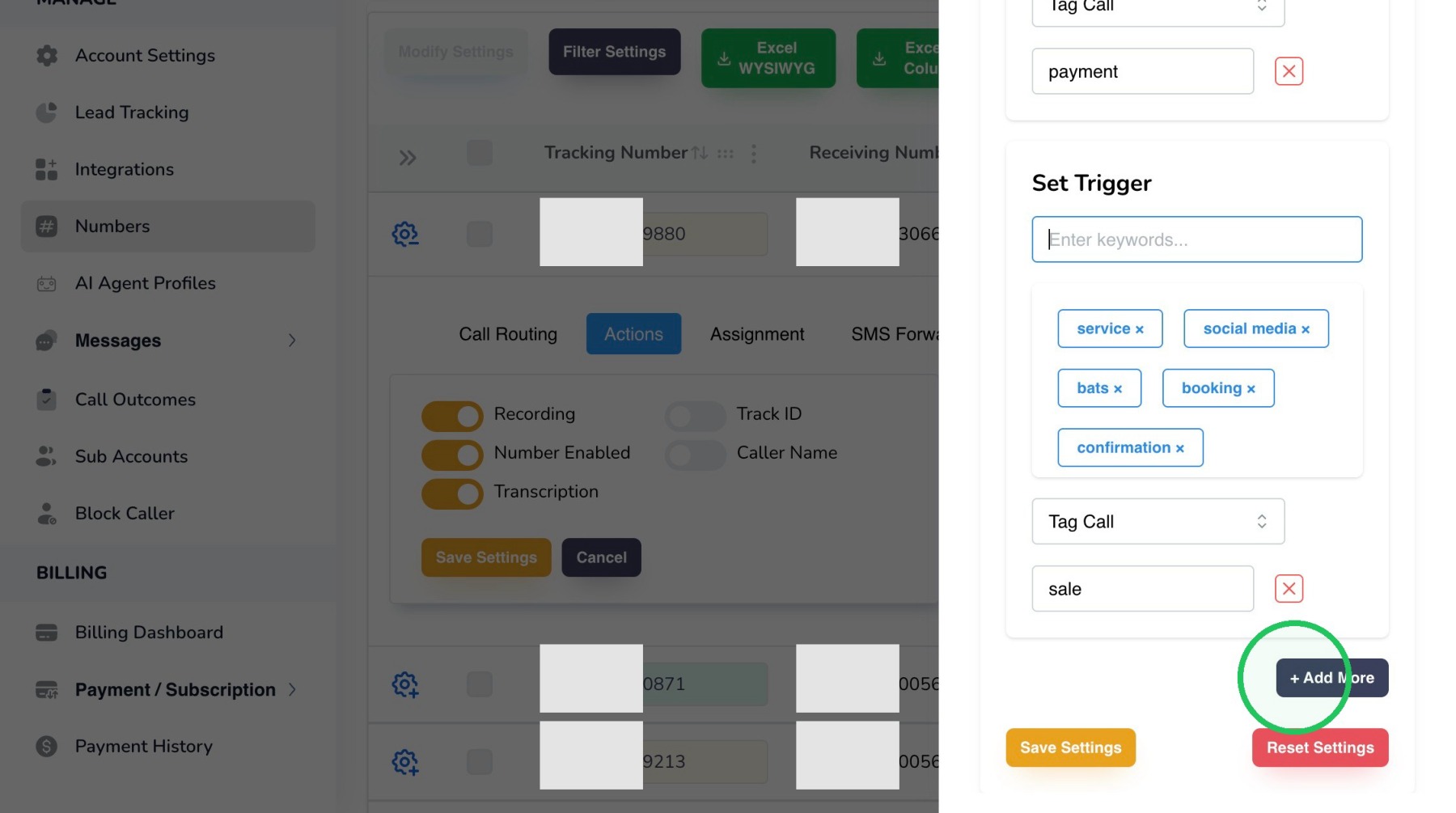
23. Click “Save Settings” after the additional trigger has been configured.
24. Add “Book a Demo” as another keyword phrase so calls containing that phrase can be identified and acted on automatically. Click Save Settings and Click Okay
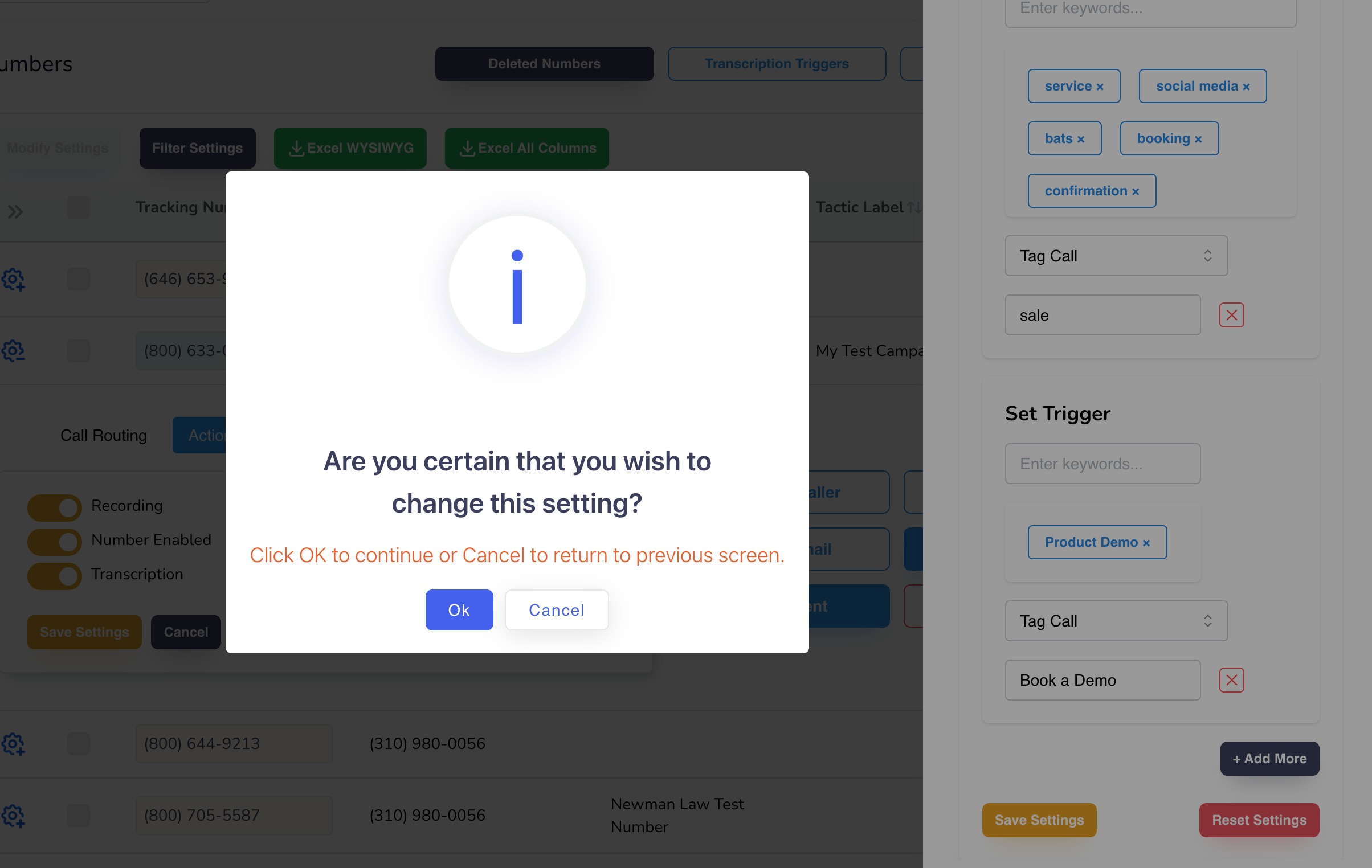
25. When all keyword triggers have been reviewed, click “Save Settings” again to store the complete trigger configuration.
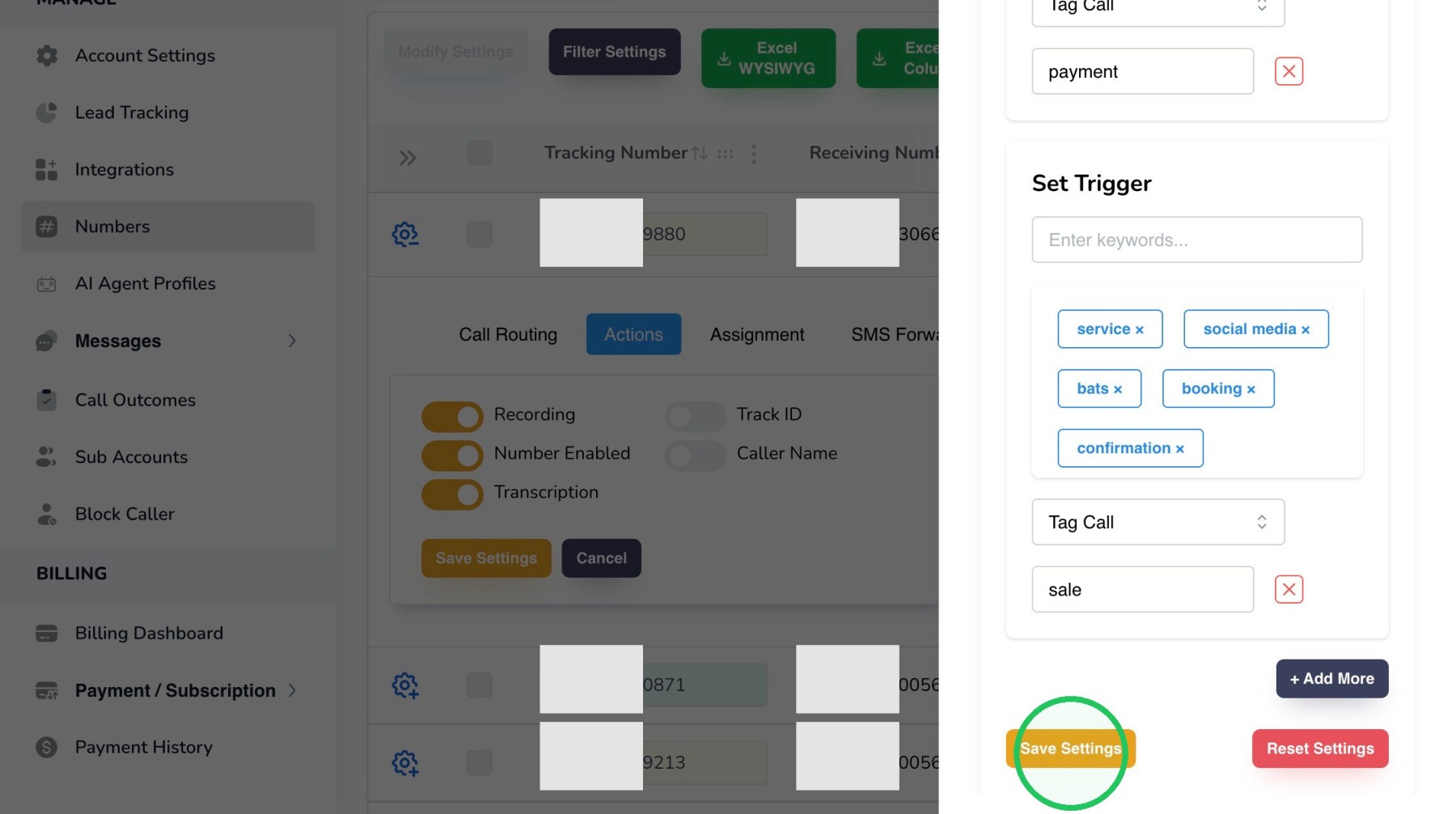
26. Click “Ok” to confirm the changes.
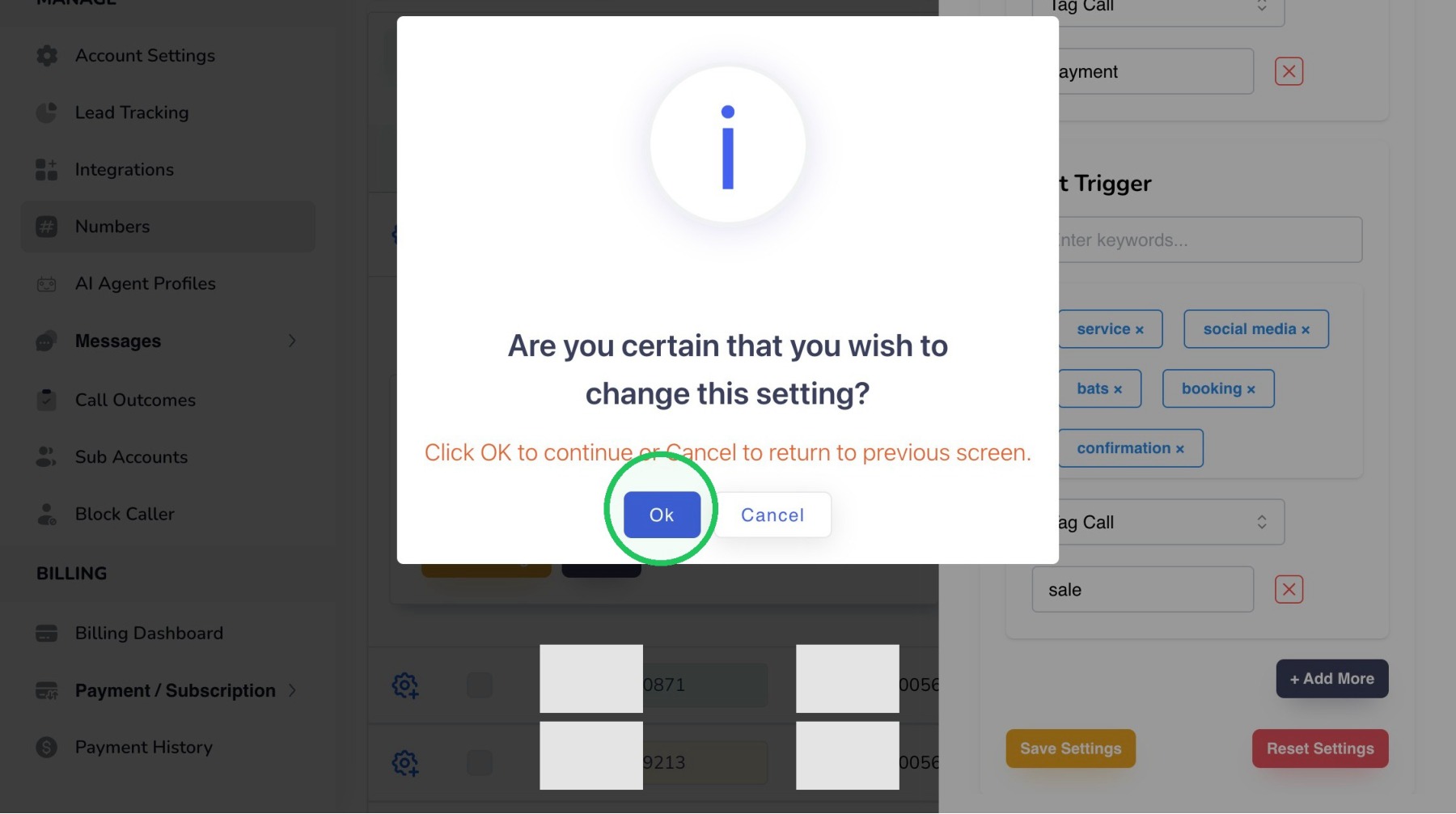
27. Click “OK” to close the success message and return to the Numbers page.
28. At the top of the Numbers page, select “Transcription Triggers” to configure keyword-based actions for transcribed calls.
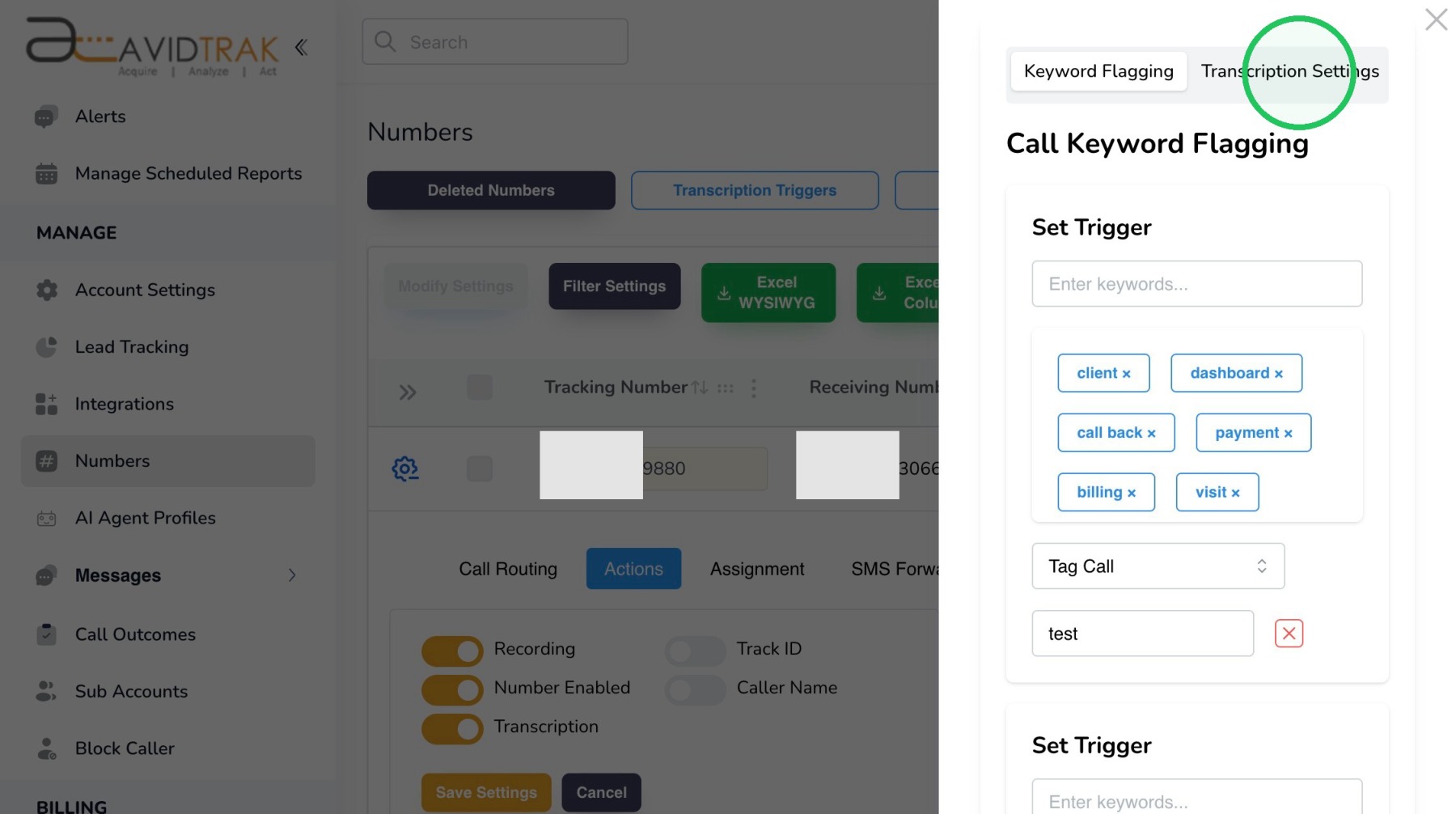
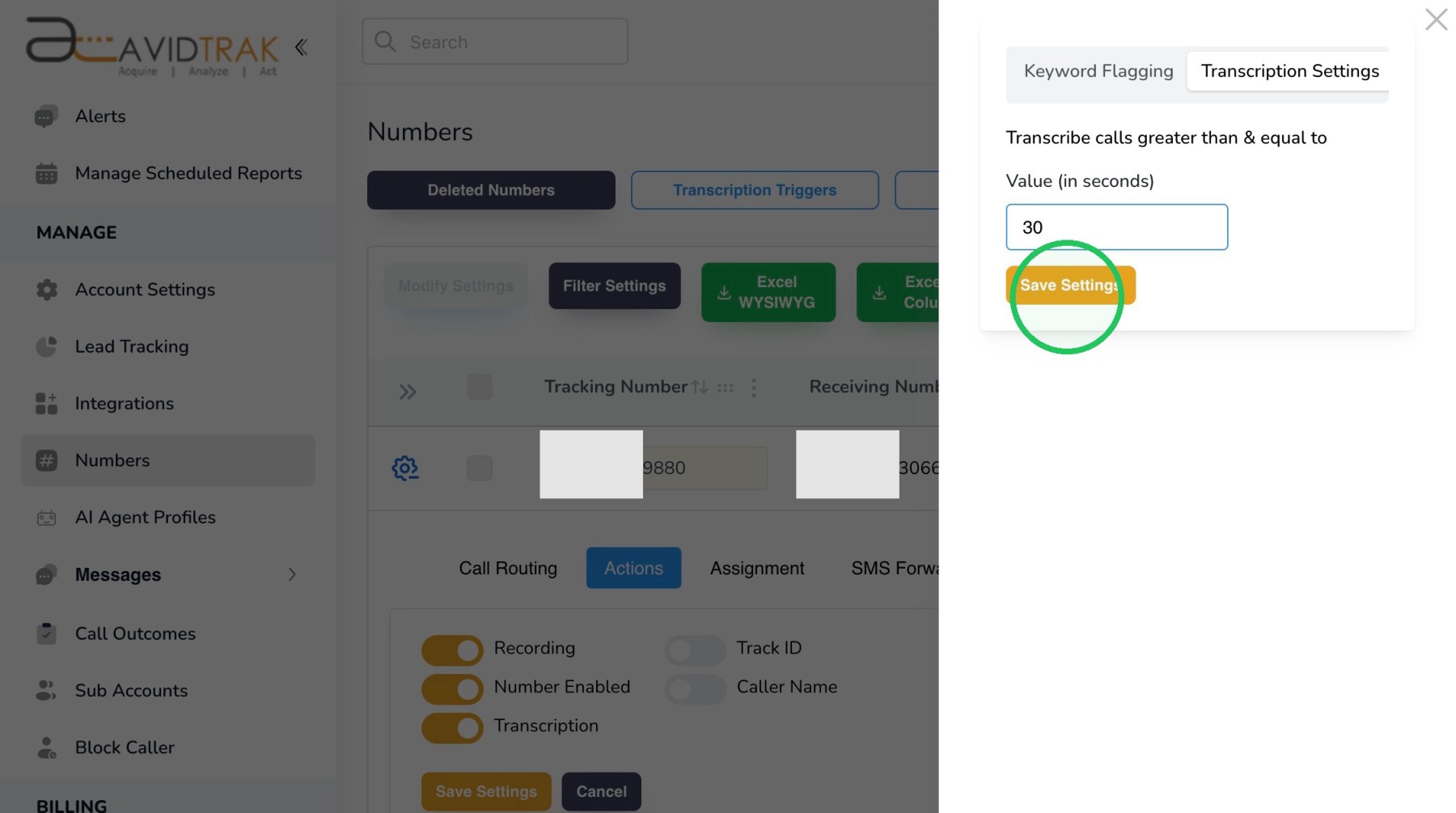
29. Within the Transcription Triggers panel, select the “Transcription Settings” tab to define which calls are eligible for transcription.
30. Enter the minimum call duration, in seconds, that a call must reach before AvidTrak transcribes it. In this example, the threshold is set to 30 seconds.
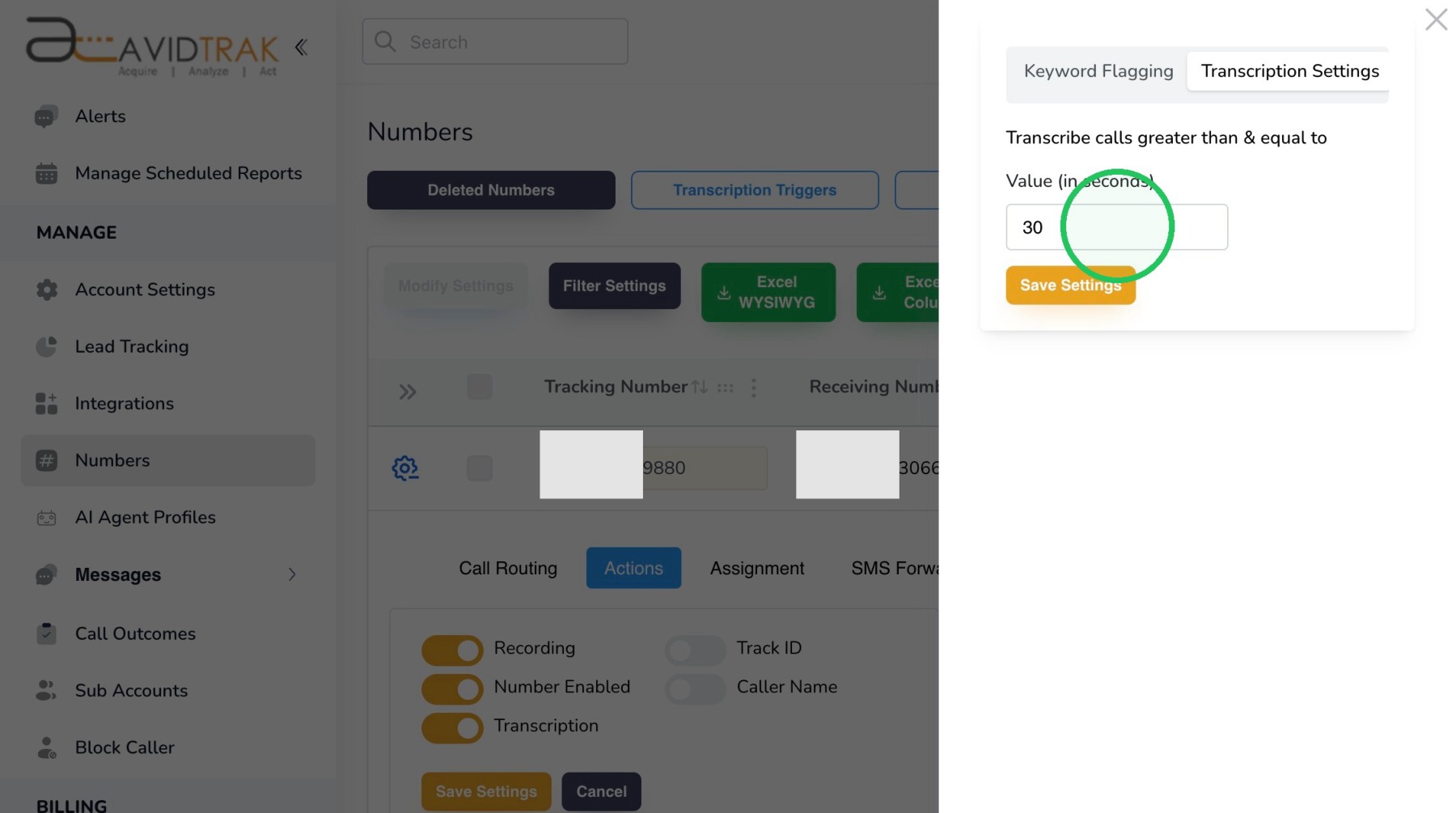
31. Click “Save Settings” to save the minimum transcription-duration threshold.
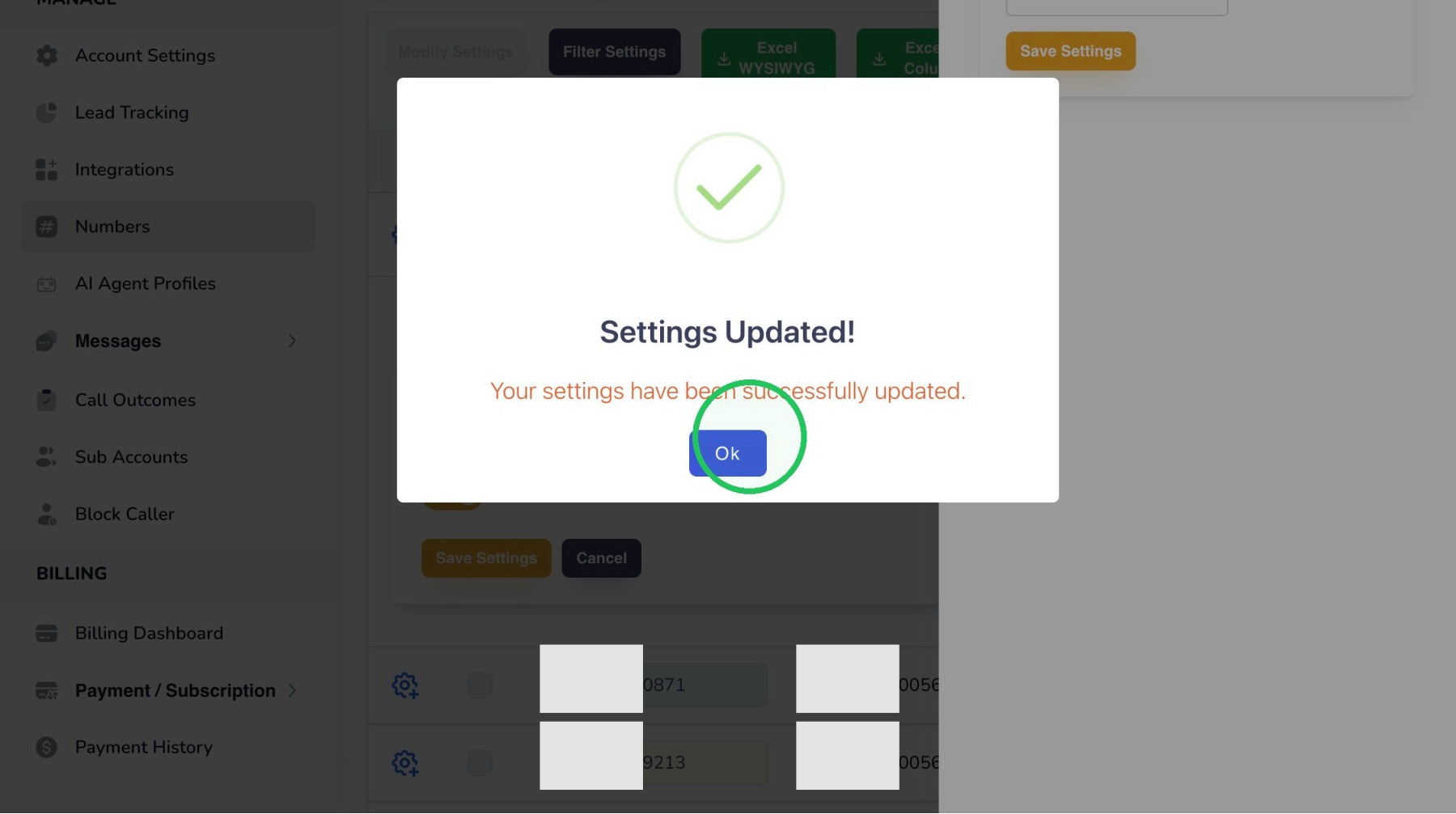
32. Click “Ok” to confirm the transcription setting update.
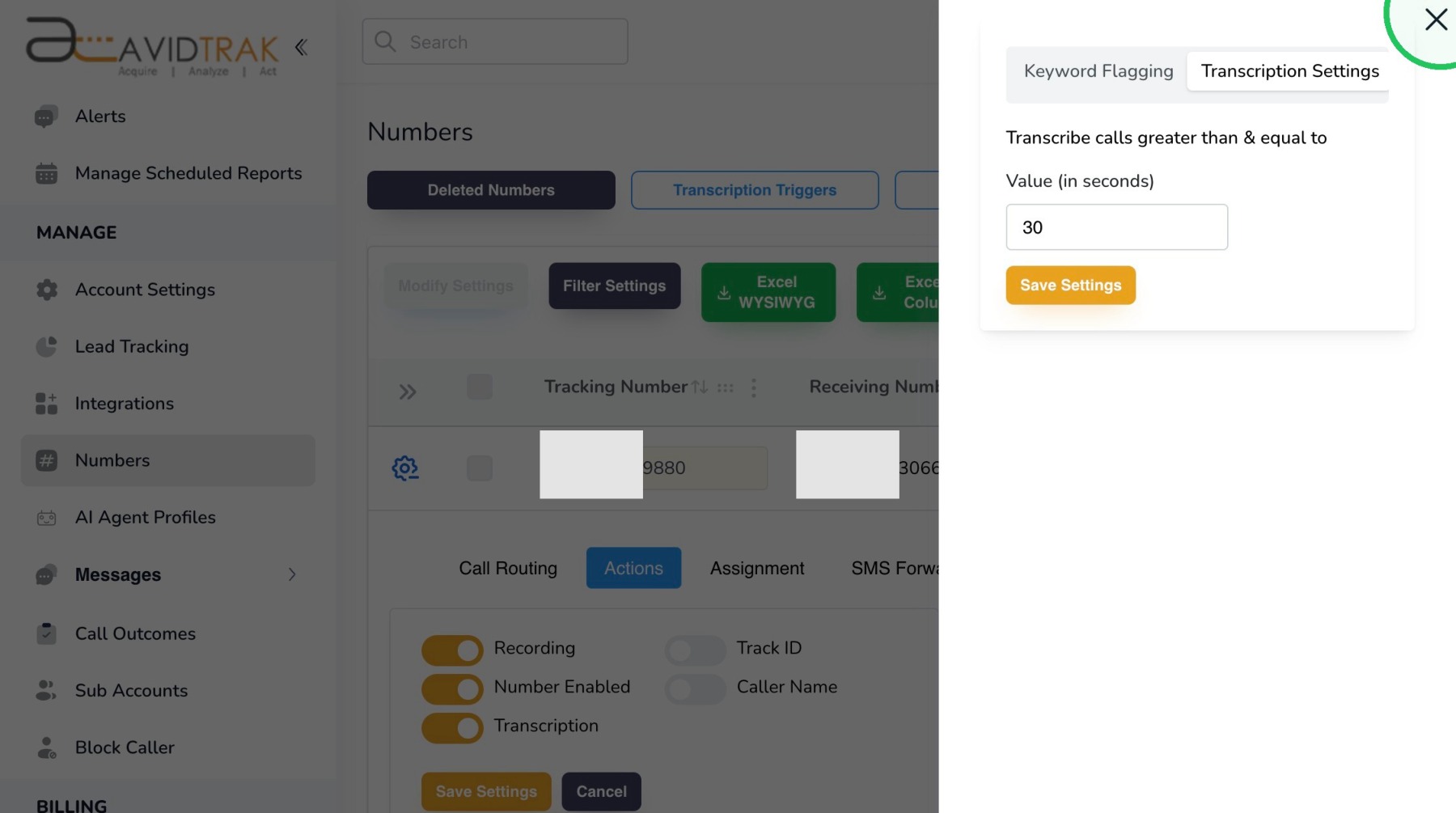
33. Close the Transcription Triggers panel after the settings have been saved.
34. This completes the tutorial on how to setup transcriptions, keyword flagging and transcriptions’ triggers in AvidTrak. If you have any difficulty in following these instructions, please contact support@avidtrak.com.

