

Setup Leena AI Voice Agent to handle your phone calls
1. In this tutorial you will learn how to set up Leena for your business phone number. Leena is an AI virtual agent that can handle phone calls for your business. Leena can work 24-7, 7-days a week for you handling calls and acting as your virtual receptionist. Leena is built using state of the art artificial intelligence models that learn about your business and Leena gets better at doing her job as she learns more about your business and your customers. To get started with Leena you will need to have an AvidTrak account which could be either a Starter, Professional or Agency account.

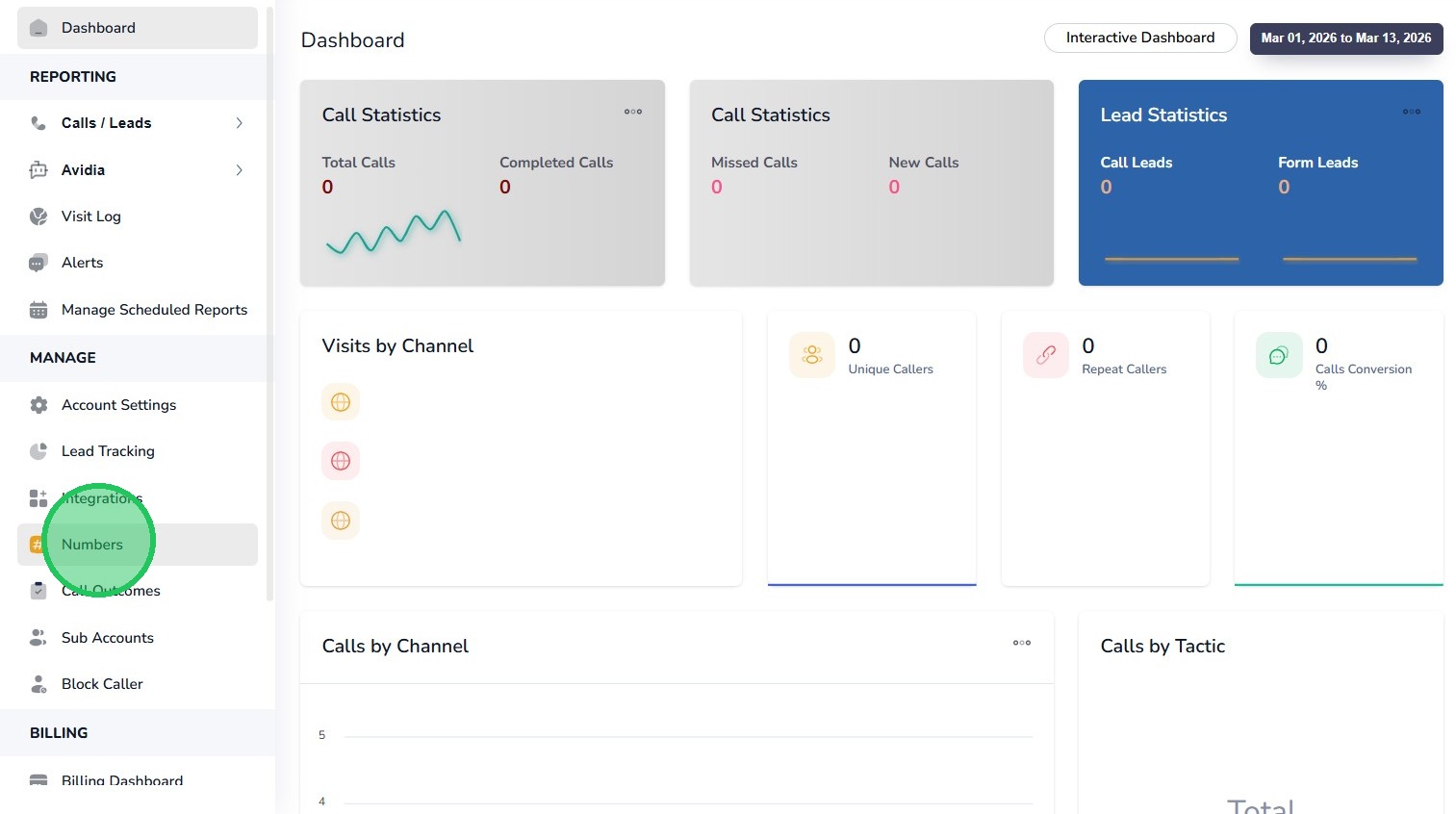
2. After logging into your account as an administrator, navigate to the left menu bar and Click the “Numbers” link.
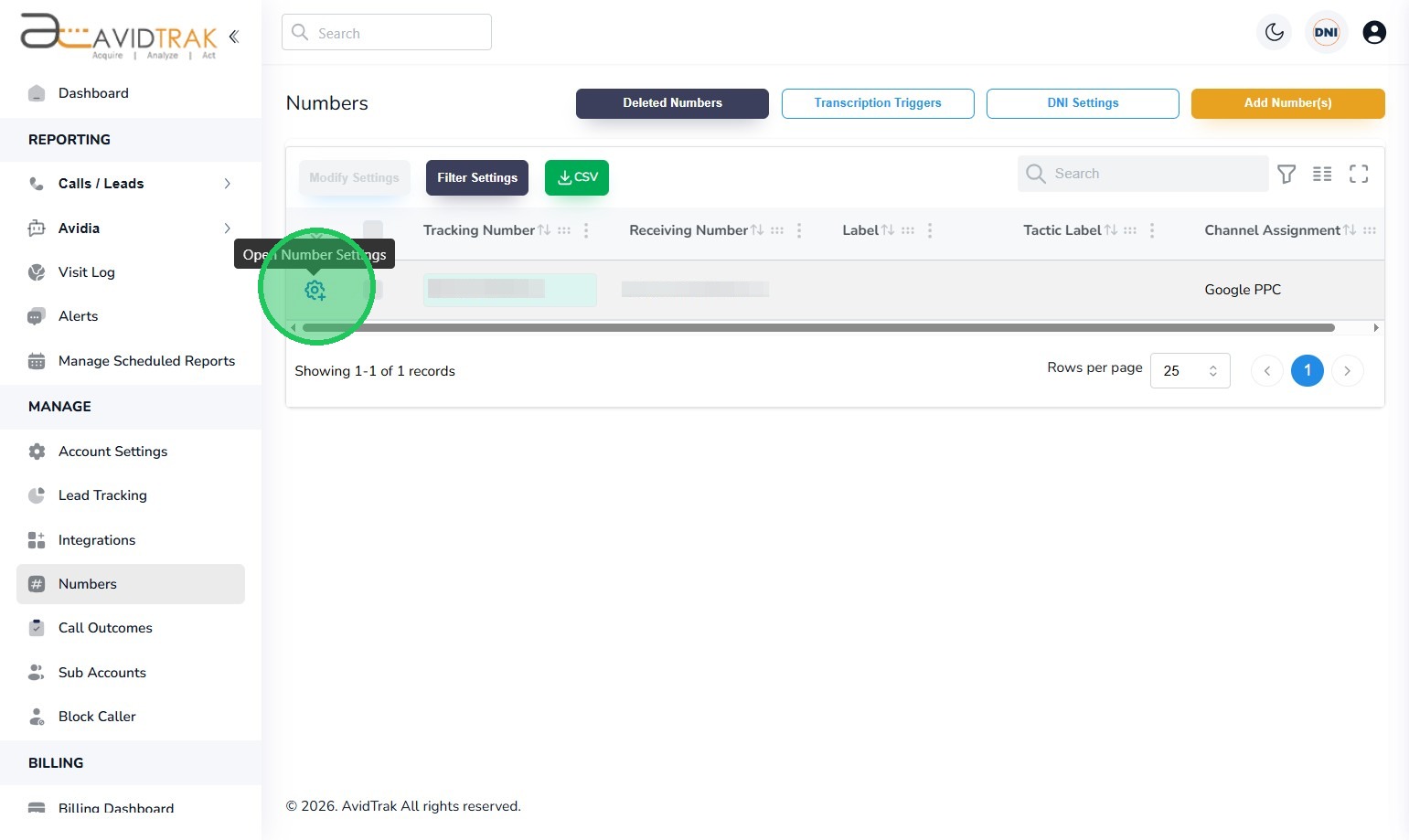
3. Find the telephone number that is to be set up with Leena and then click on the blue gear icon that is adjacent to the telephone number to open that number’s settings.
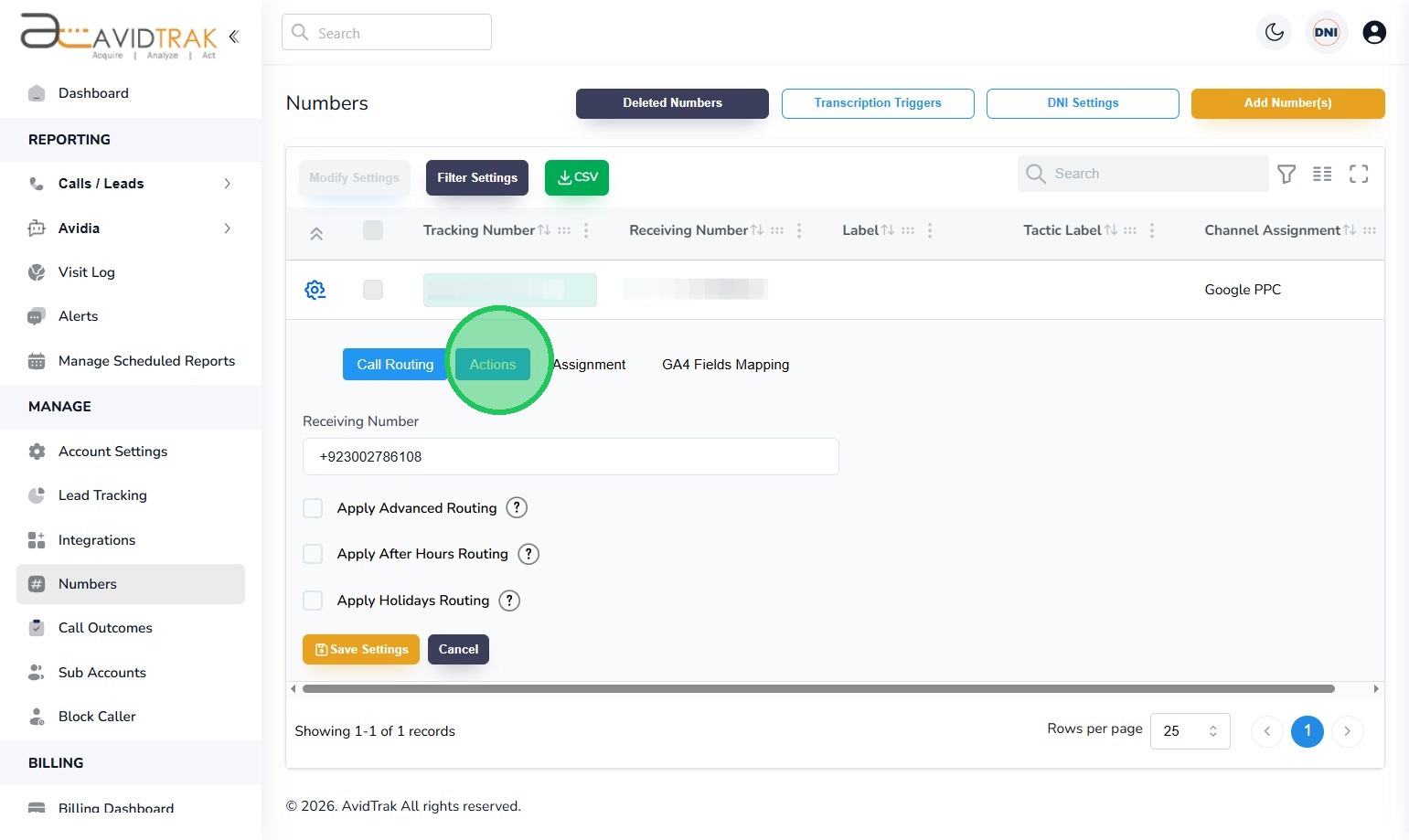
4. When the number settings menu is displayed, click the “Actions” tab.
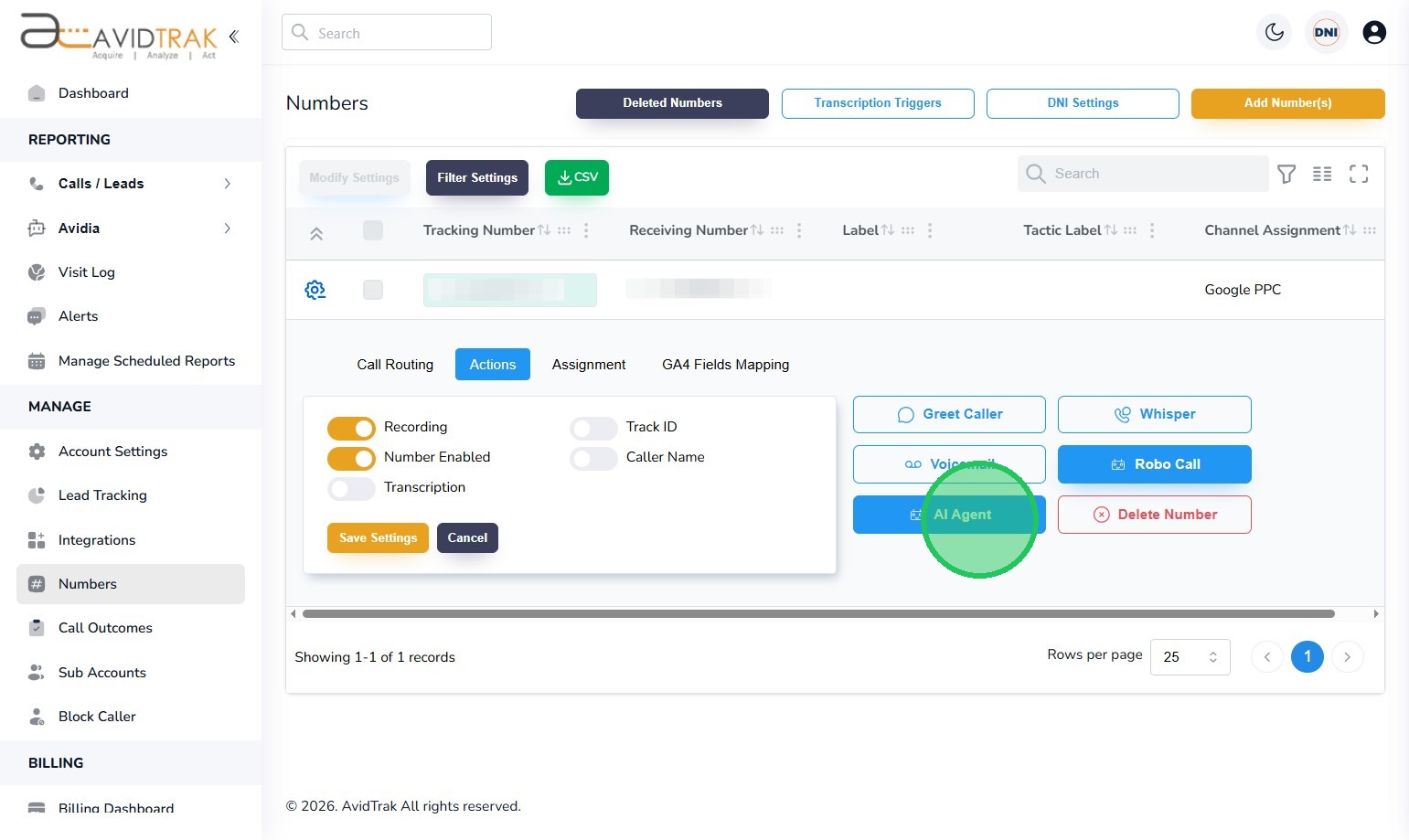
5. With the Actions tab open, find and click the “AI Agent” button.
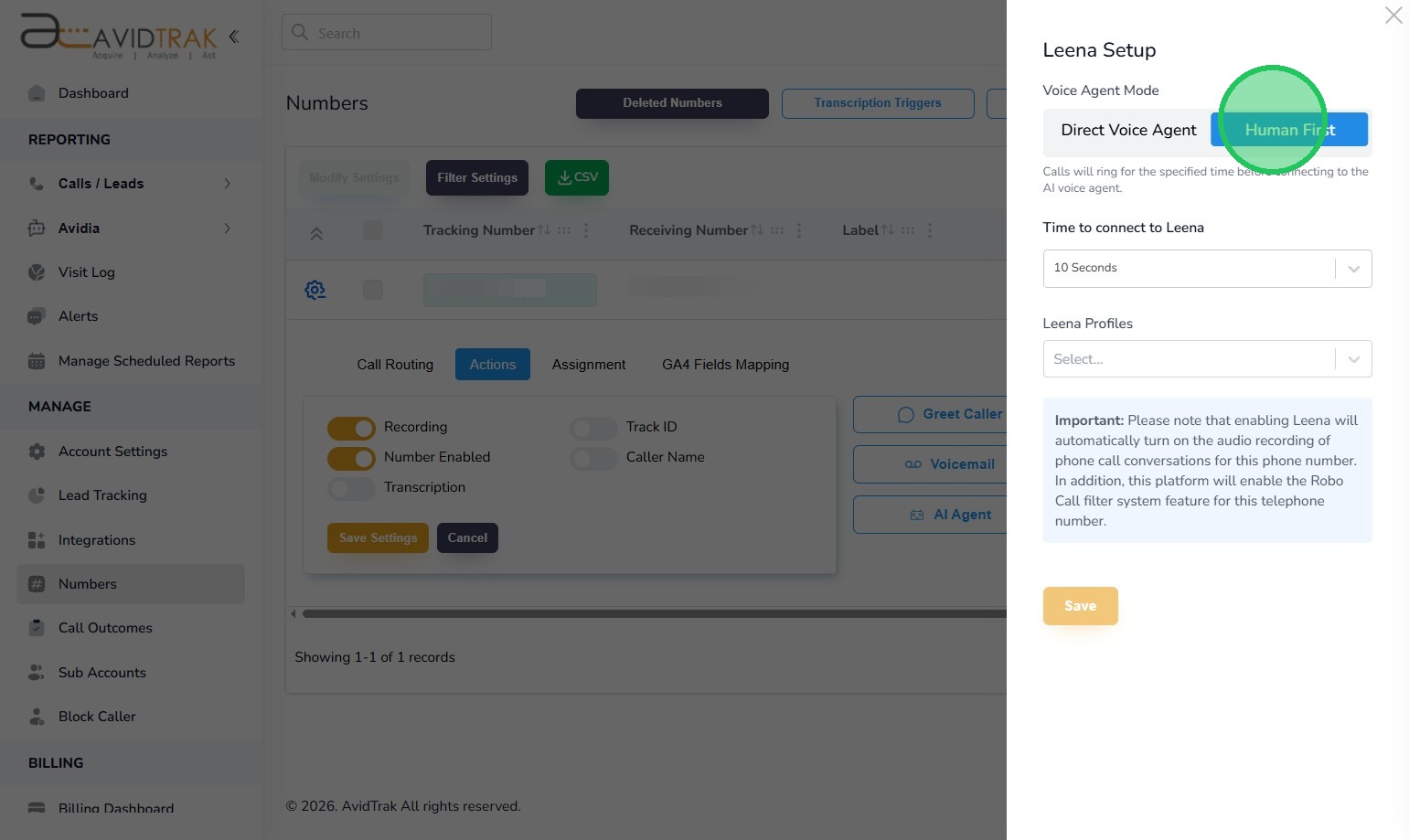
6. Leena provides two Voice Agent modes:
Human First. In the human first mode, the call is first handled by a human and if the human is unable to take the call, the call is picked up by Leena.
Direct Voice Agent. In the Direct Voice Agent, the call is handled directly by Leena, the voice agent.
In this example we will select “Human First,” by clicking The “Human First” button.
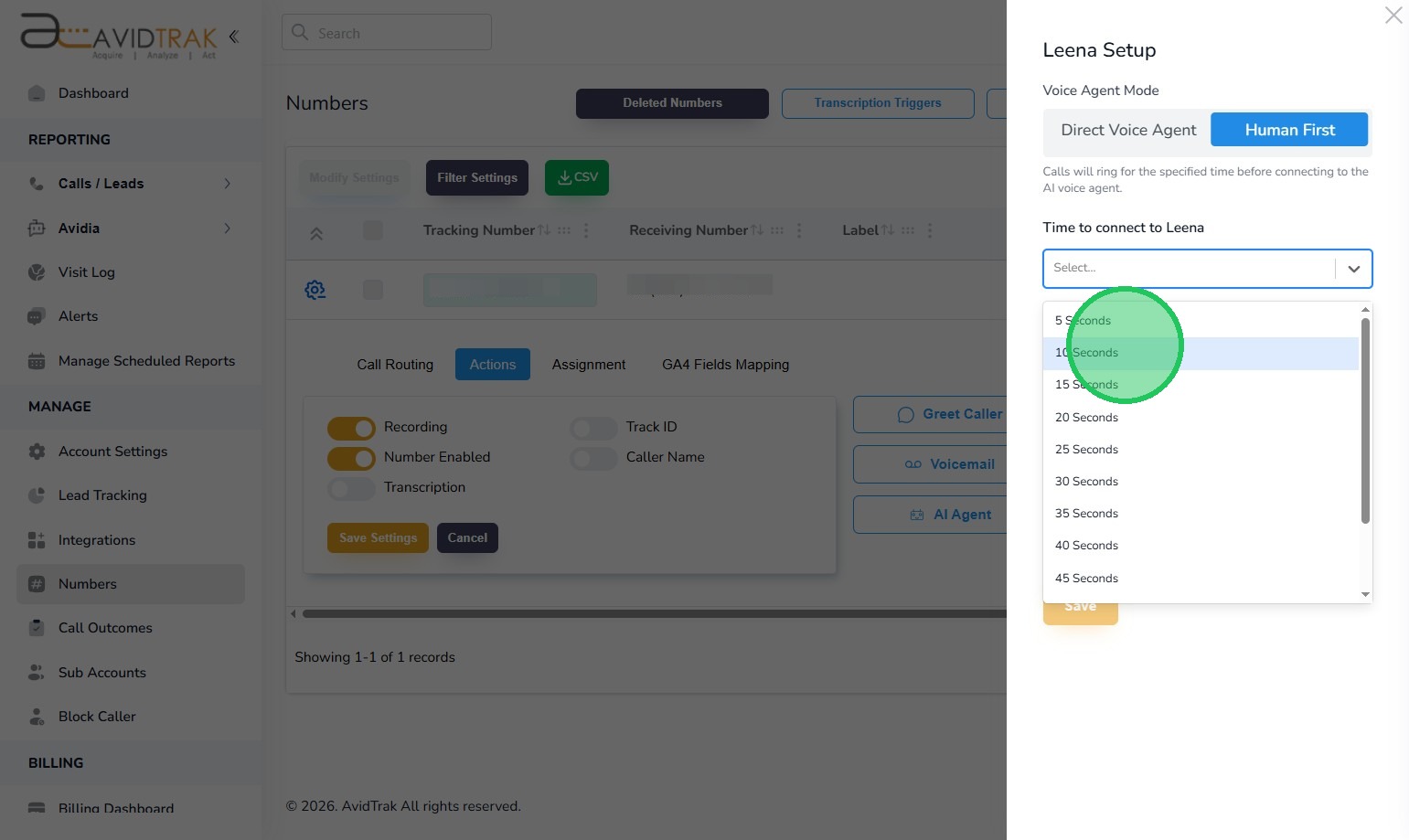
7. Next, Click the Time field to render the drop-down options and select a time interval. In the example here we have selected a 10 Second interval which means that Leena will wait 10 seconds before intervening to take the call.
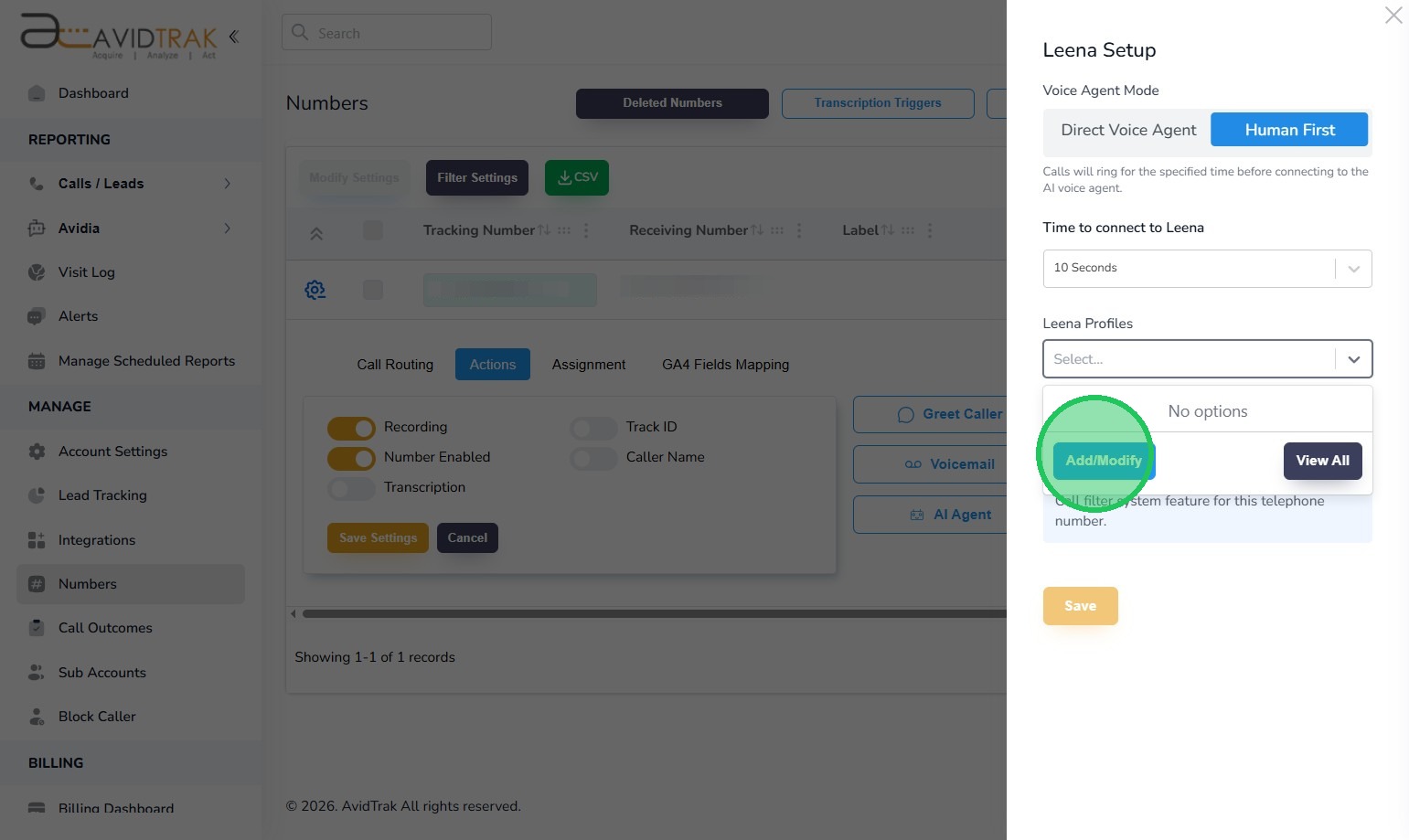
8. Next, Click the Leena Profiles field to display the drop-down options. Then click the blue ‘Add/Modify’ button to proceed to the next step which is to either select a Leena profile that is already created or to create a new Leena profile.
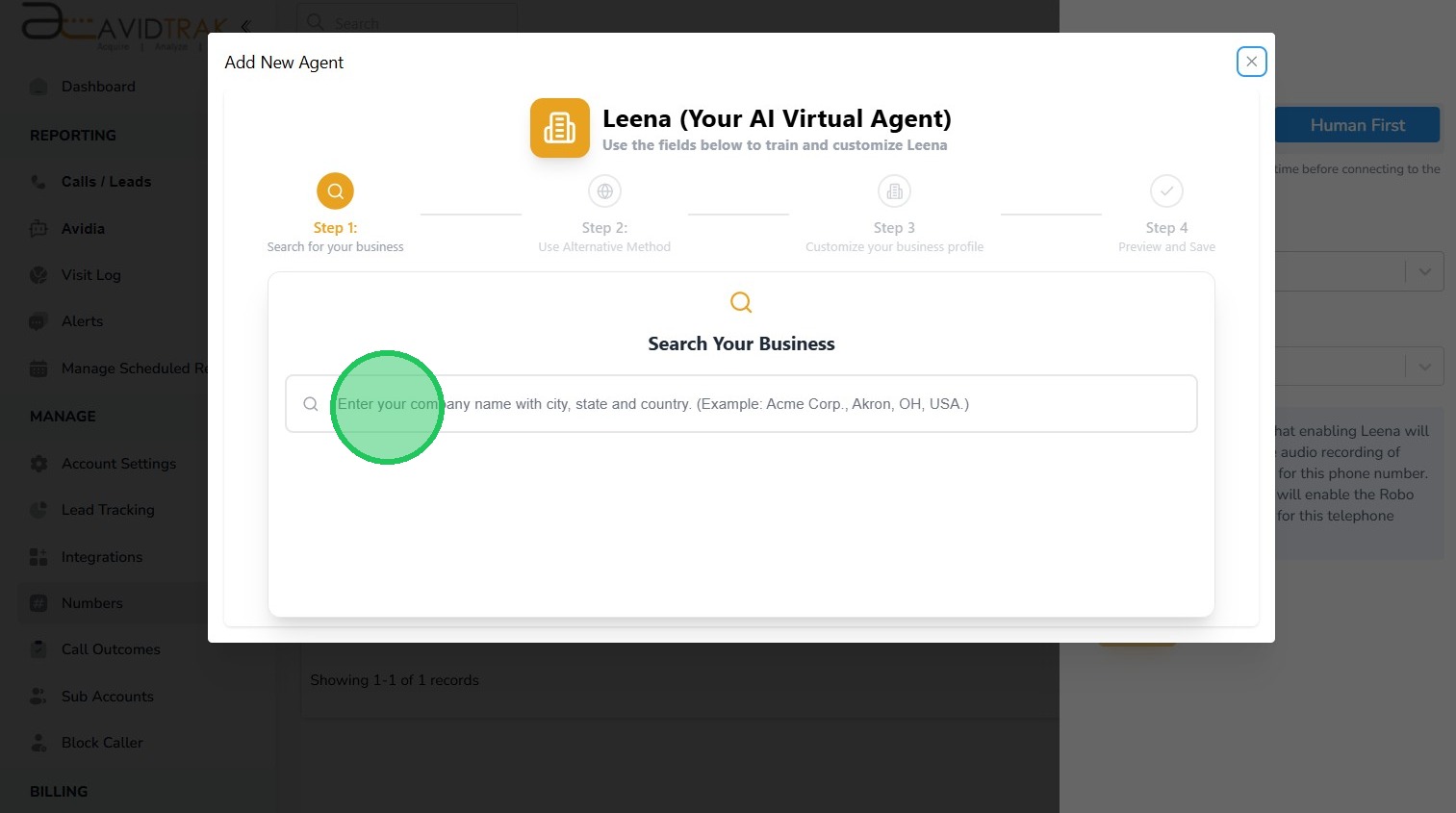
9. If you do not have a Leena profile already setup you can easily setup one by clicking the ‘Enter your company name with city, state and country’ field.
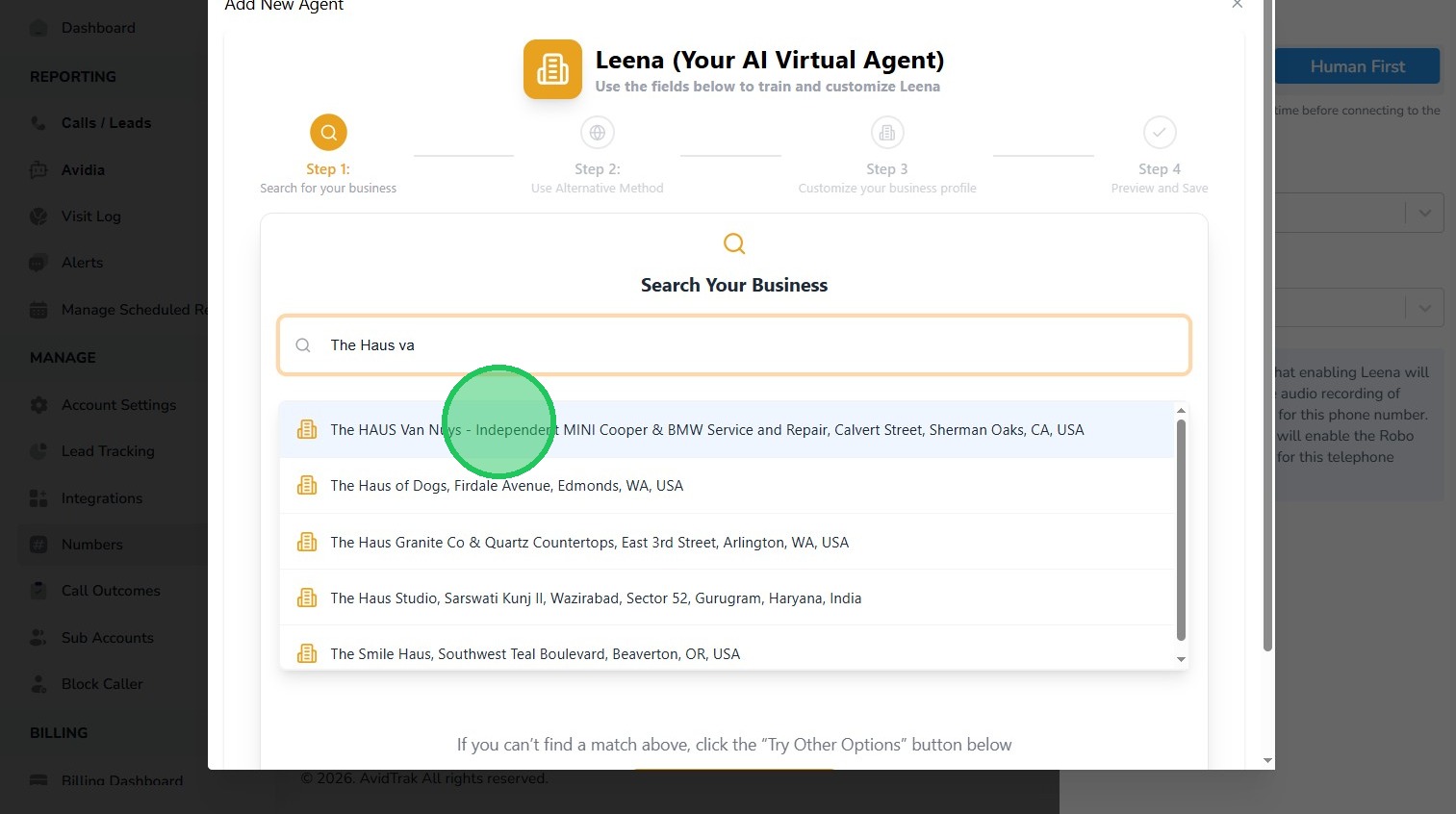
10. In this example, we have entered in the field our business name, which is The HAUS Van Nuys, CA. As soon as we enter our business name, Leena’s search engine looks for a business name that matches our search criteria and renders the results below the search field. After we find our business in the search results, we will select it.
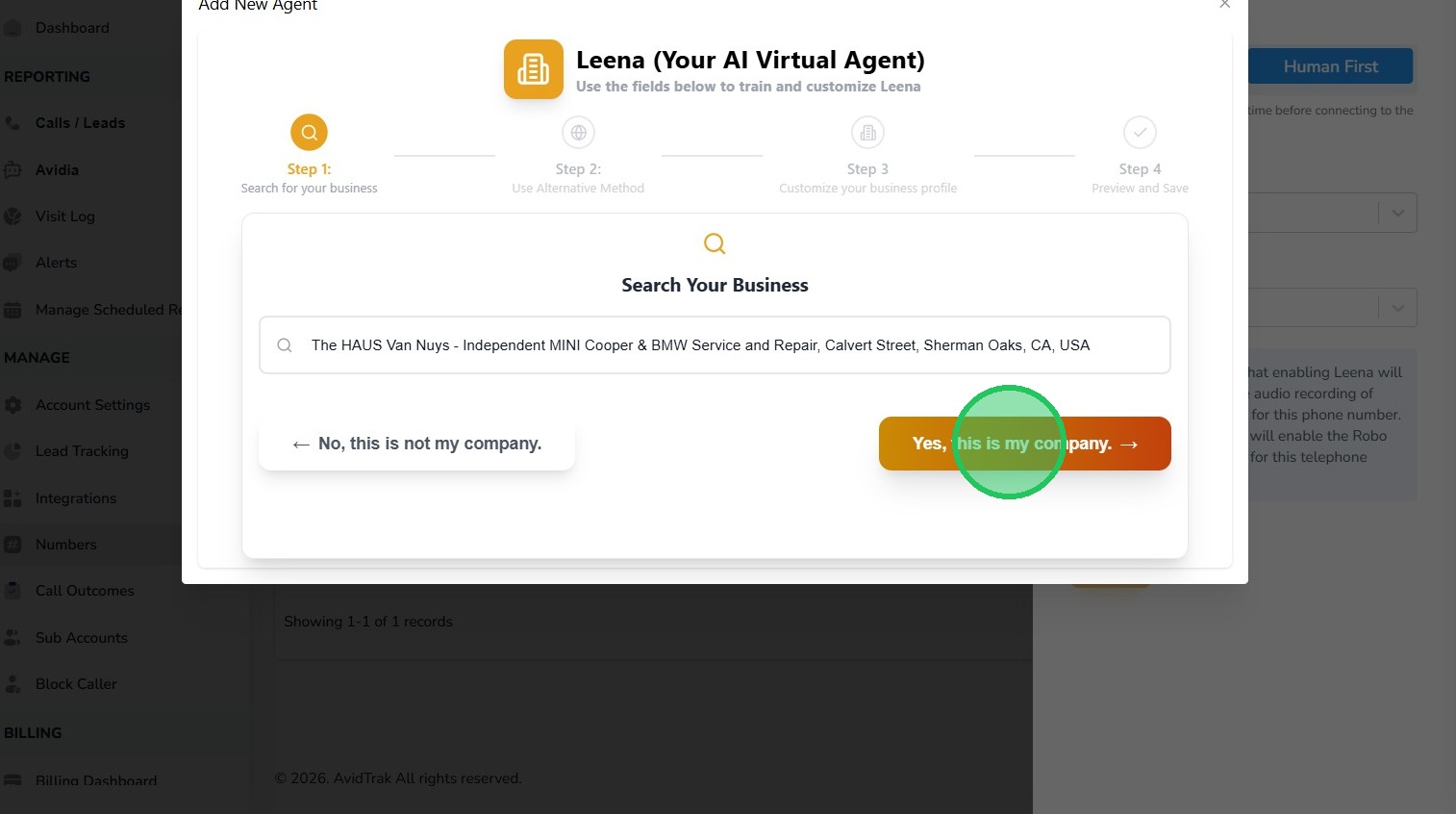
11. Click “Yes, this is my company” button to confirm that the search results are correct.
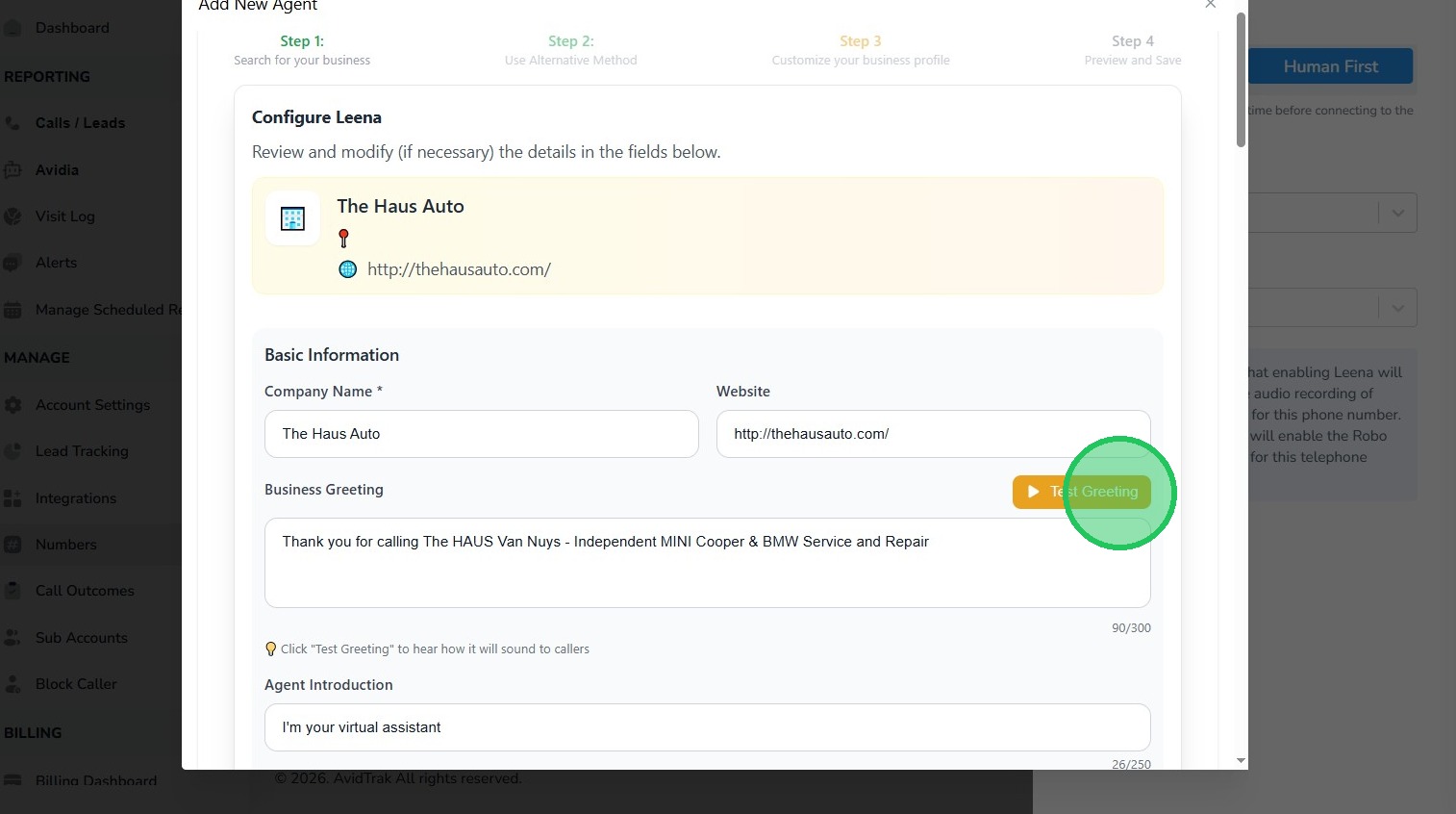
12. Next in the Business Greeting field, enter a short message that Leena will announce to all callers. To listen to how Leena’s greeting will sound to the caller, click the “Test Greeting” button.
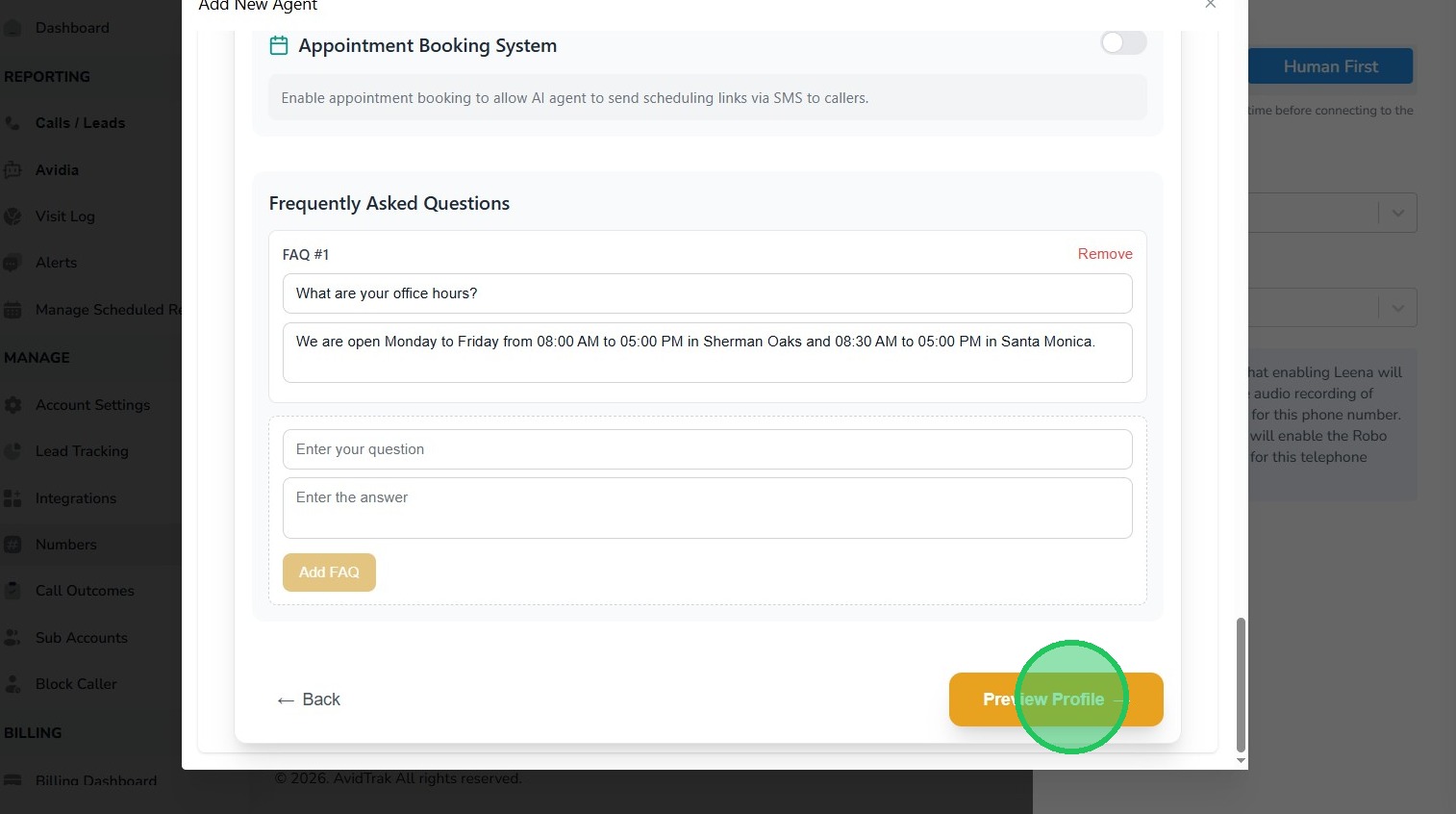
13. After you have entered the necessary information in the fields related to your business, click the “Preview Profile” button to preview the content in the fields.
14. Click the “Save” button if you find the information correct.
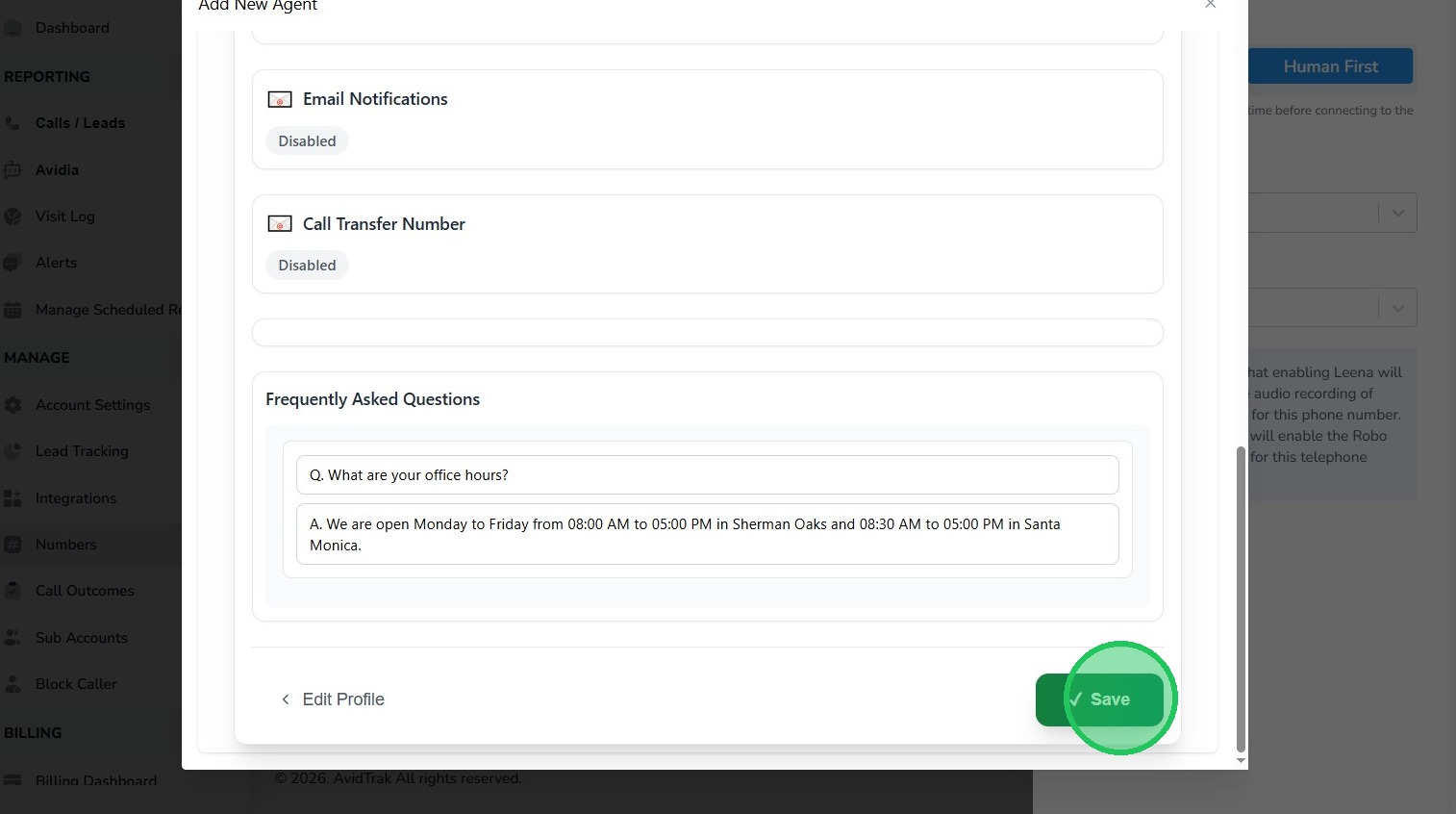
15. Click “Ok” to reconfirm your selection.
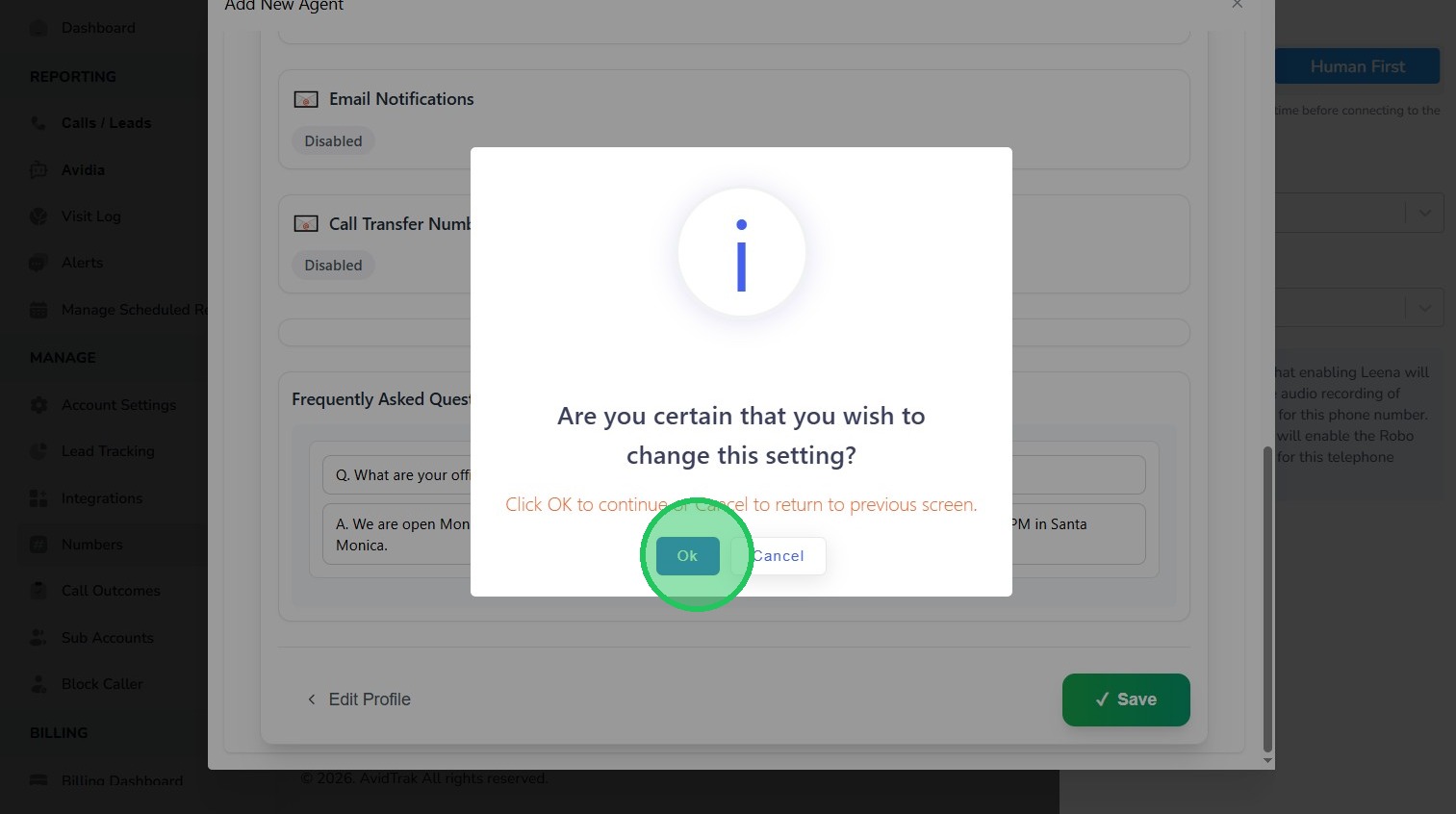
16. Click “OK” again to advance to the next step.
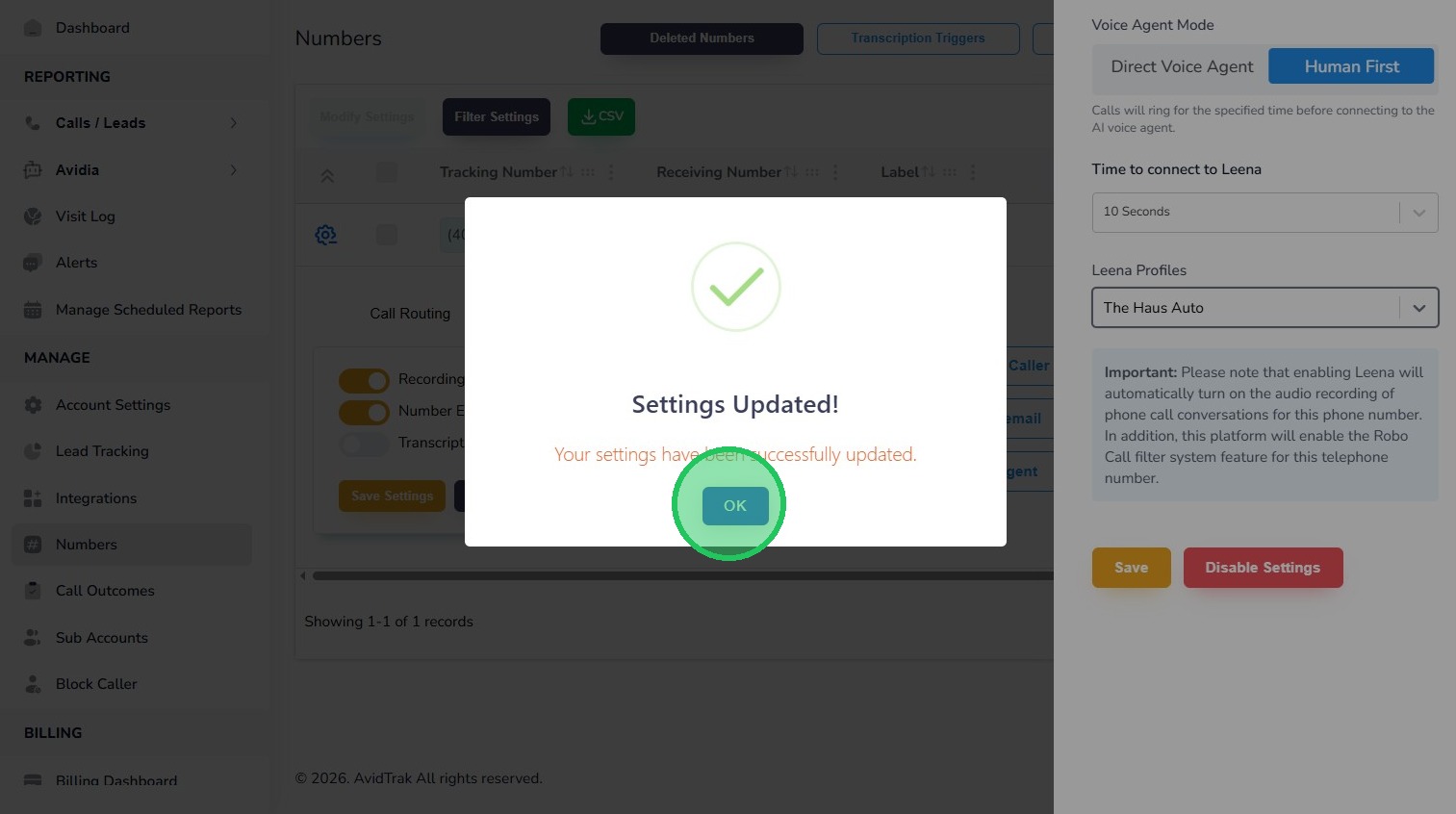
17. Click the “Save” button to save the Leena profile
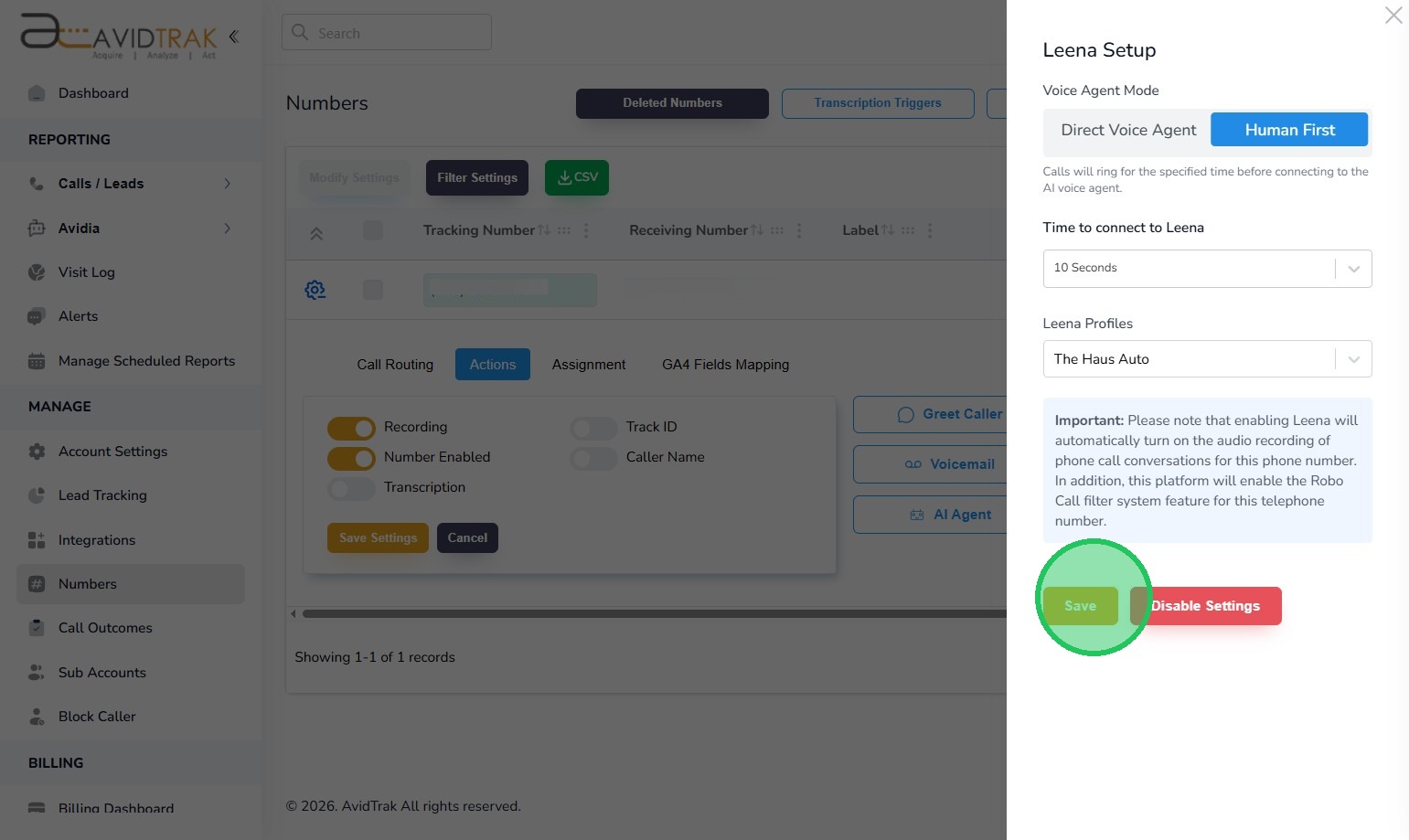
18. Click “Ok” to reconfirm your selection.
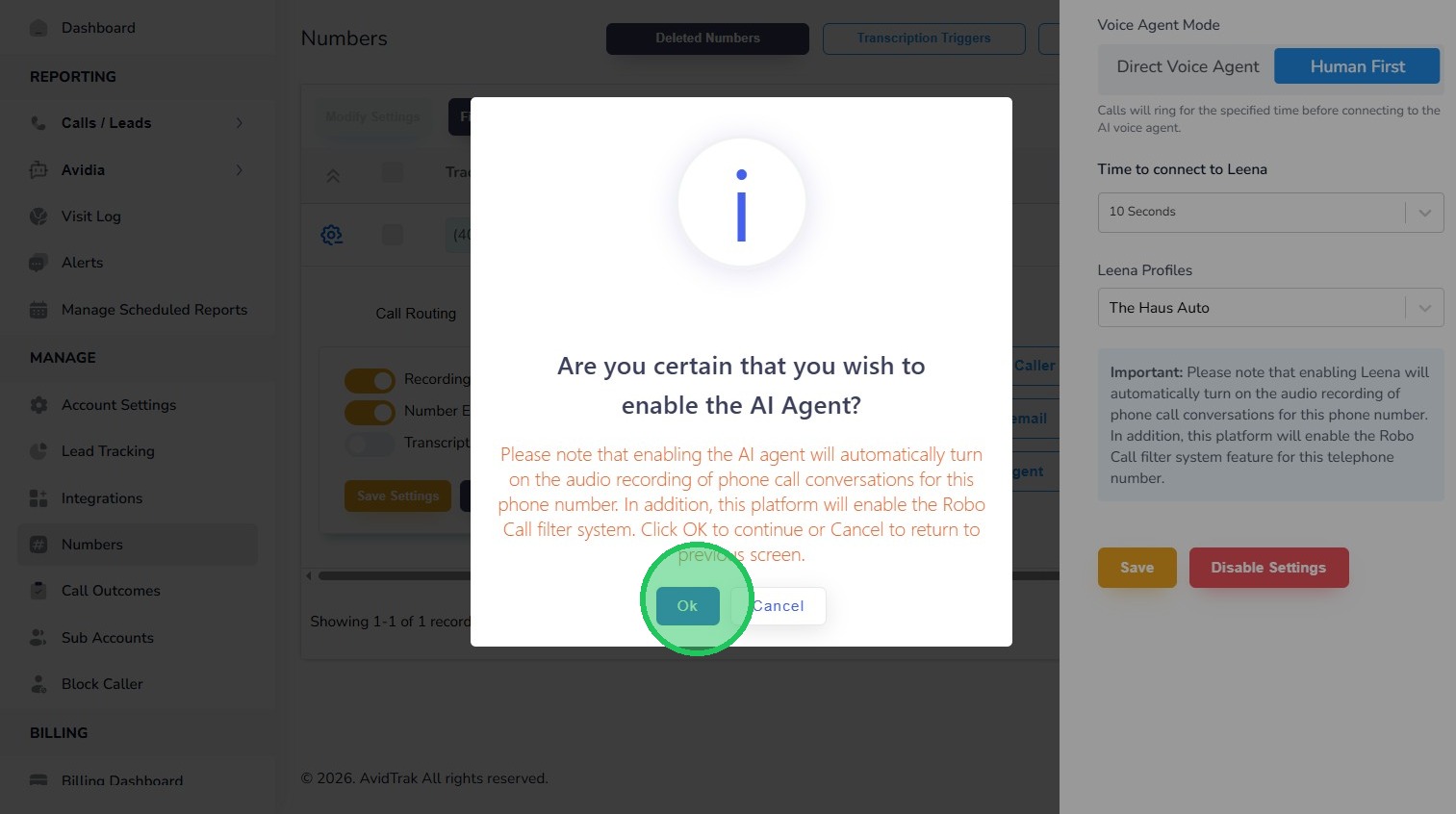
19. Click “OK” again to advance to the next step.
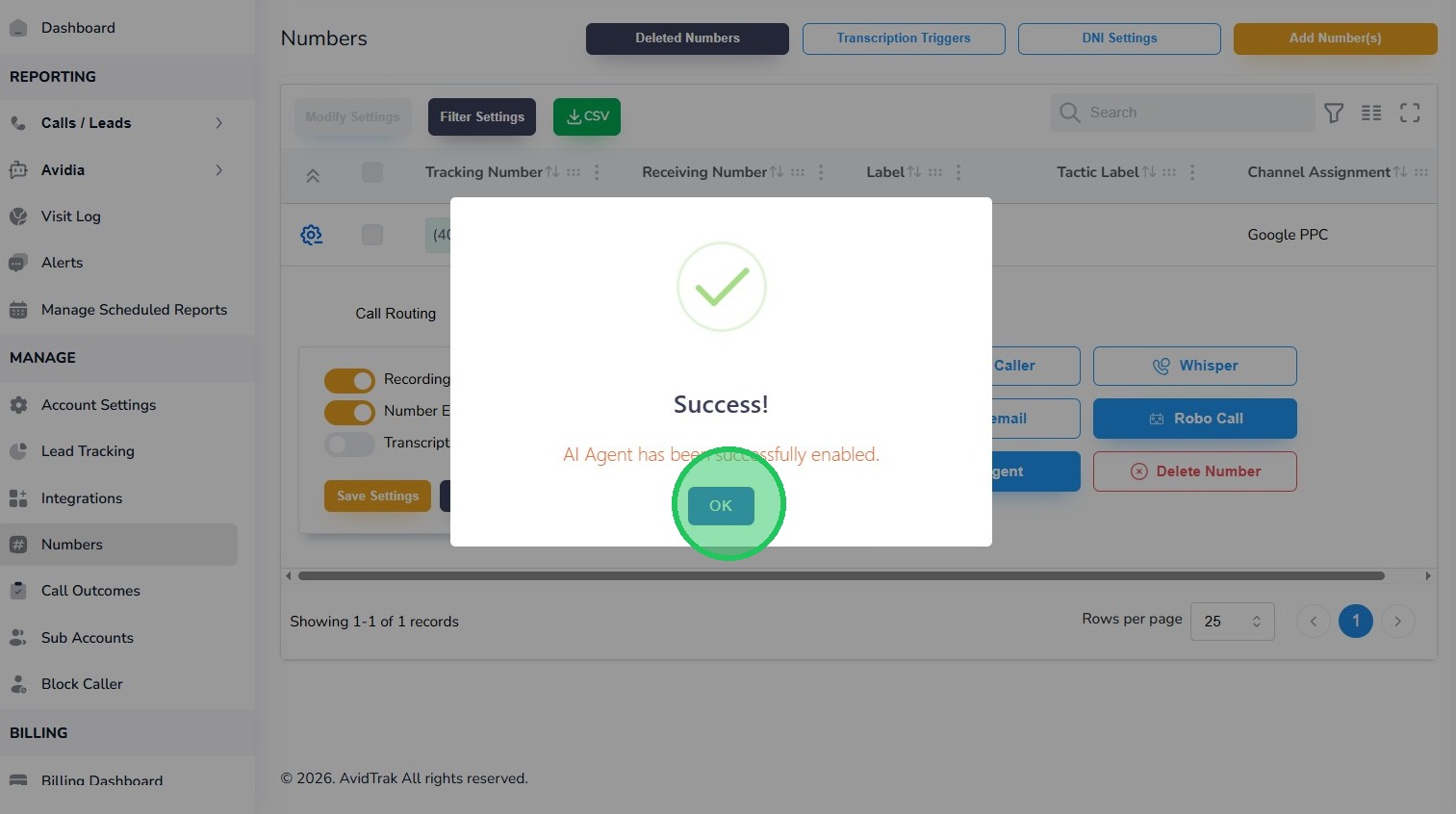
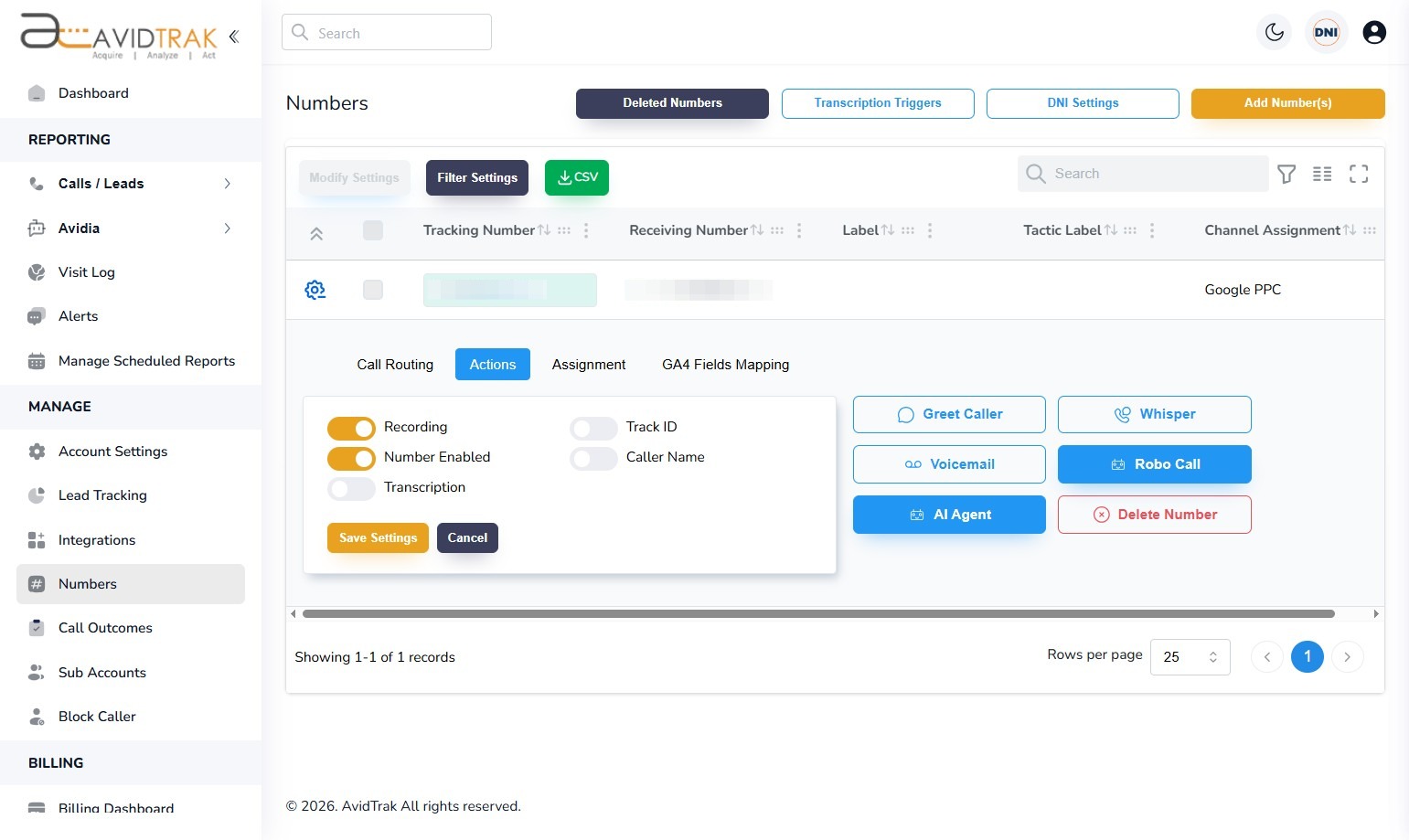
20. Once you have successfully setup the Leena on this platform, you will observe that the AI Agent button’s background will be blue instead of white. A blue background indicates that the AI Agent is activated and functioning.
Place test calls to your tracking number to validate Leena’s performance. If you find issues, go back and correct the issues by editing Leena’s instructions.
21. This completes the tutorial for how to set up Leena, the AI voice agent. If you face any difficulty in implementing these instructions or have questions related to this feature, please do not hesitate in emailing support@avidtrak.com

