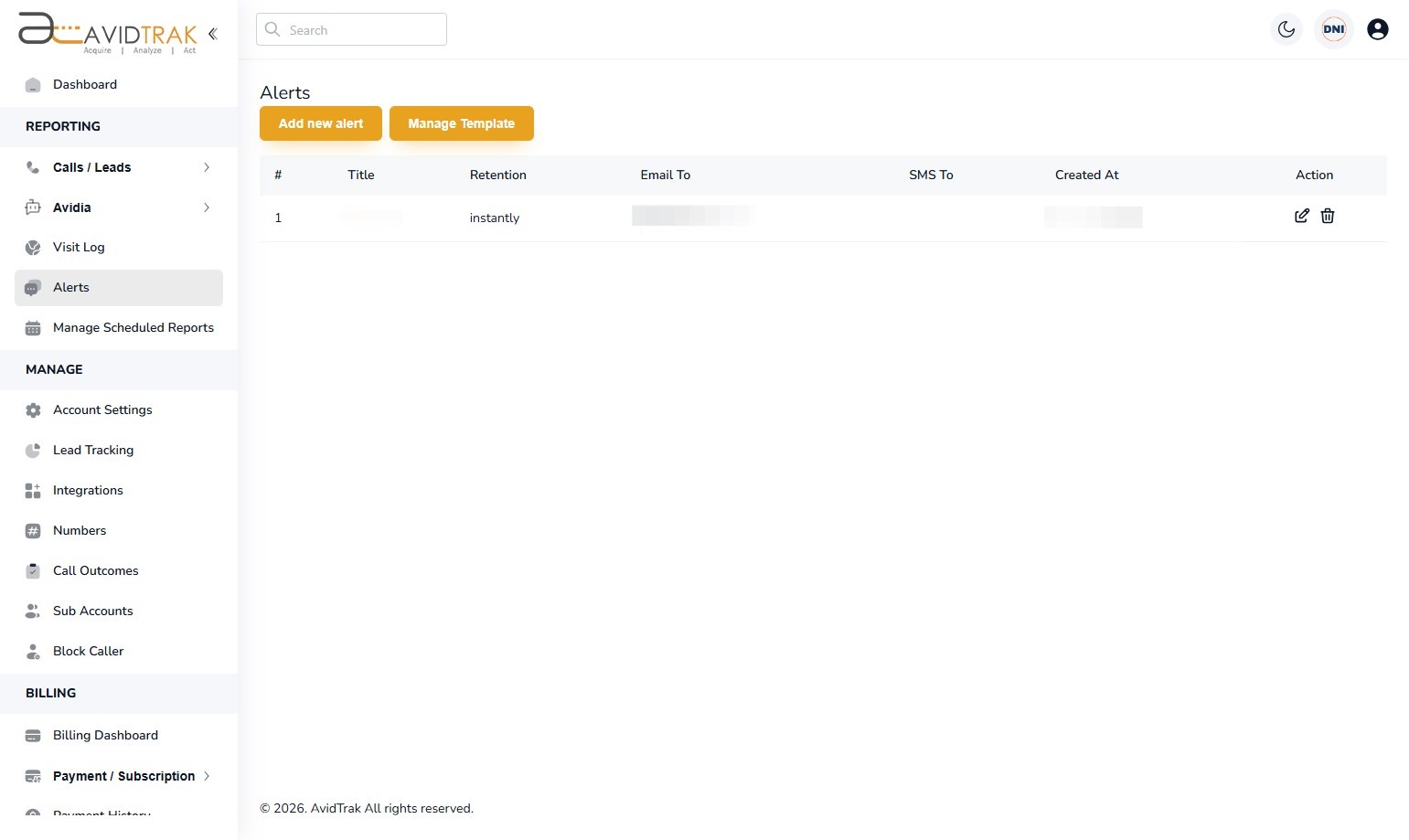

How to Add a New Email Alert in AvidTrak
1. In this tutorial you will learn How to Add a New Email Alert in AvidTrak. If you need to customize the email alert that you transmit, then please exit this tutorial session and instead complete the tutorial “How to add a new email alert template.” If you have already added a customized template, or do not need a customized email alert template, then you may proceed ahead with this tutorial.

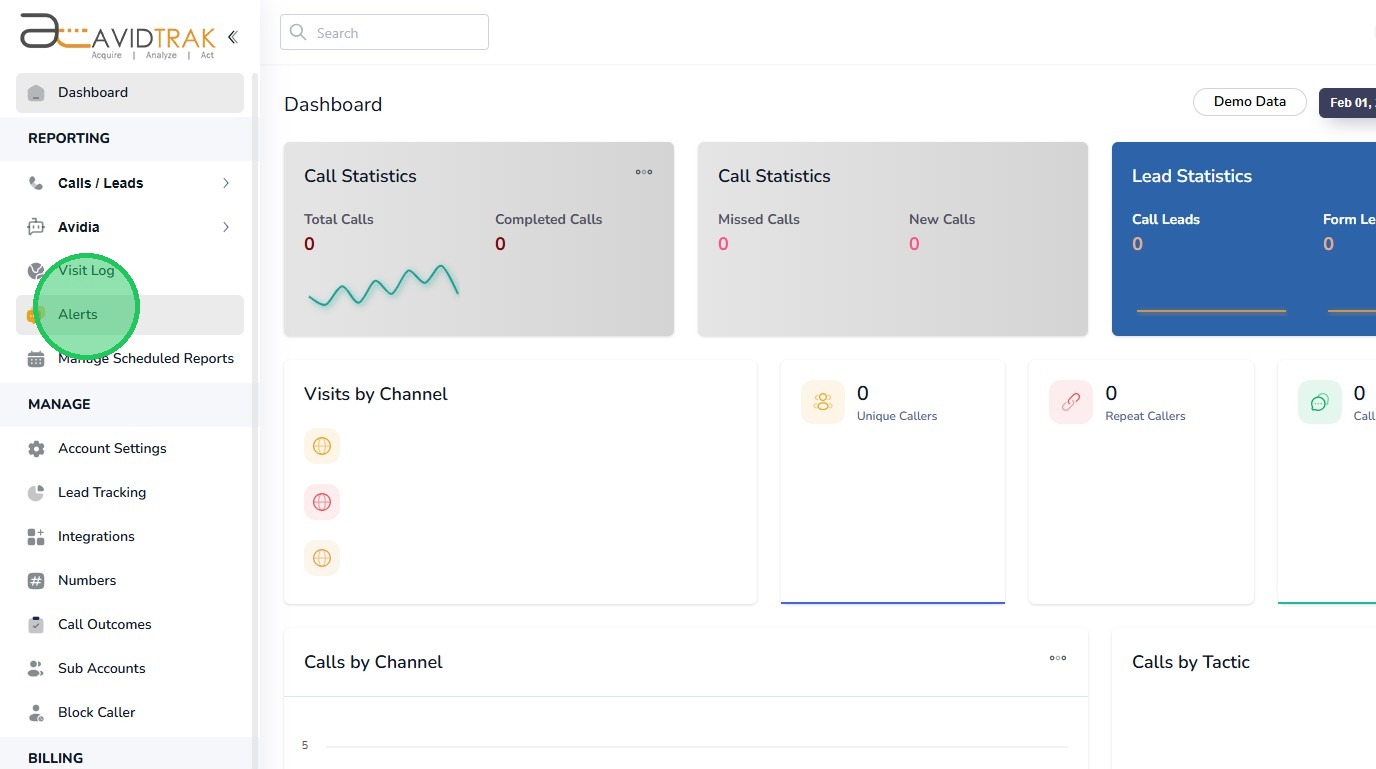
2. After logging into your account, navigate to the left menu bar and Click the Alerts link.
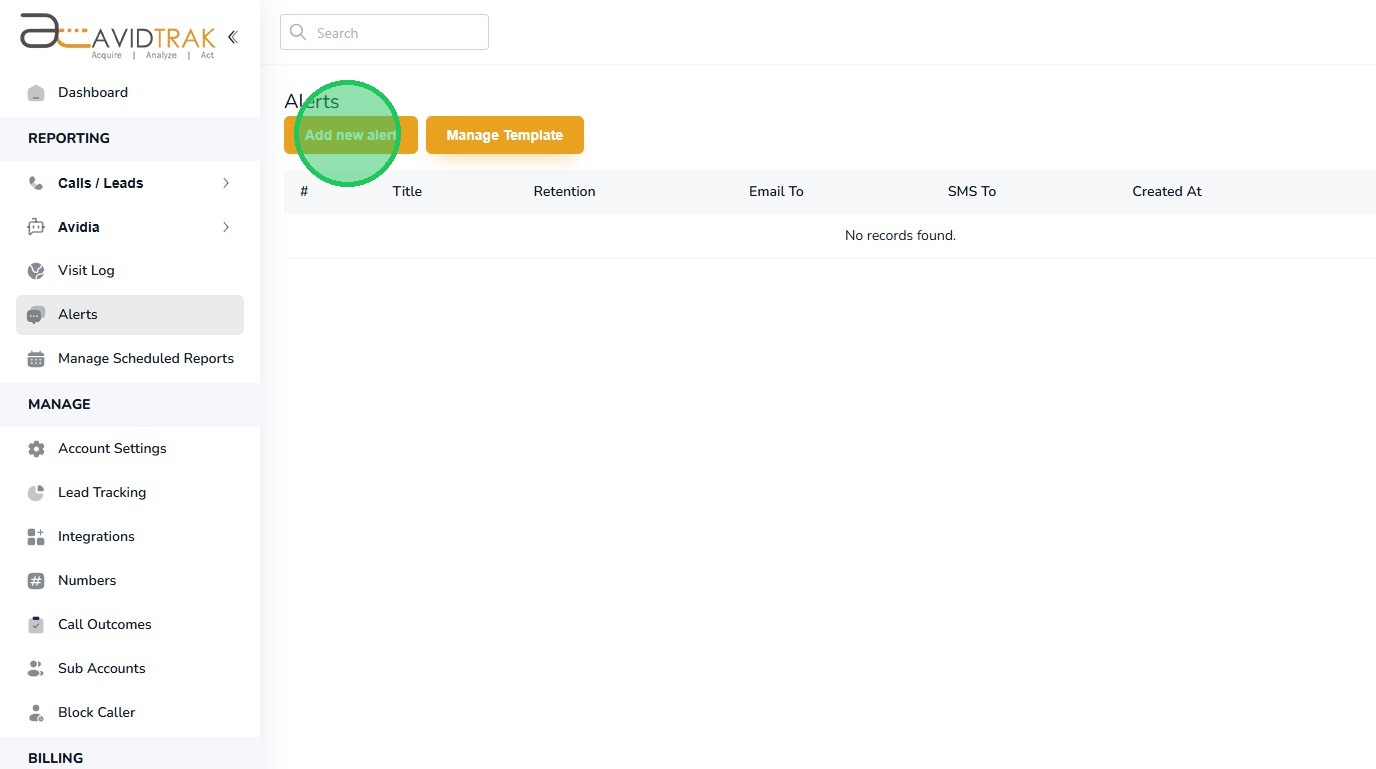
3. Click the “Add new alert” button.
4. In the “Alert Title” field enter a suitable name for the alert. For example, you may name your report ‘Weekly Completed Phone Calls Report for ABC Plumbing’
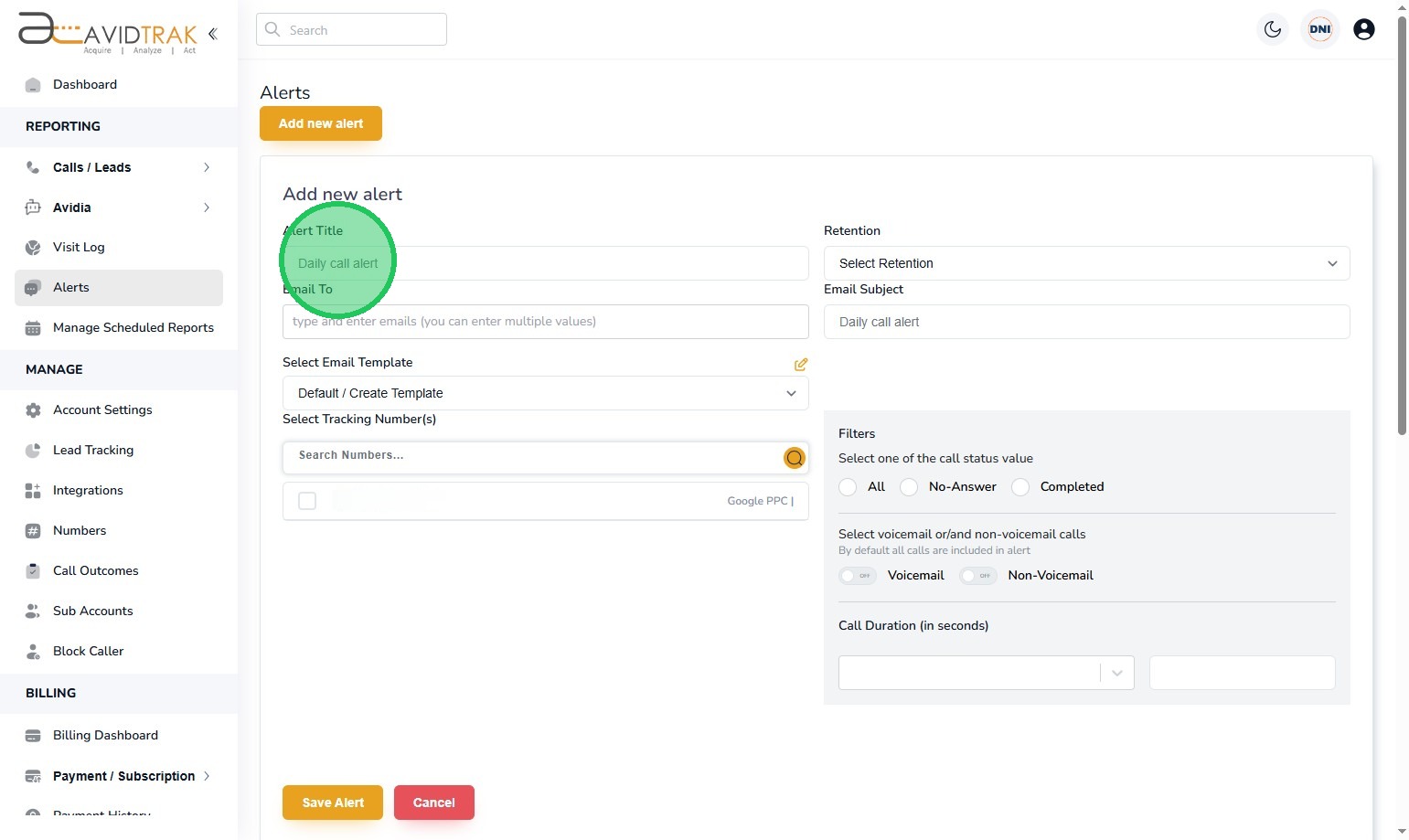
5. In the “email” field enter the email addresses for the recipients who will receive the report. To send out emails to multiple recipients, use a comma separator between each email address. You may add up to ten recipients including your own email address.

6. Select the “Email Template” option. In this example we are selecting a prebuilt template named ‘yellow.’ However, if you do not wish to use a customized email alert template then then select the Default/Create Template option.
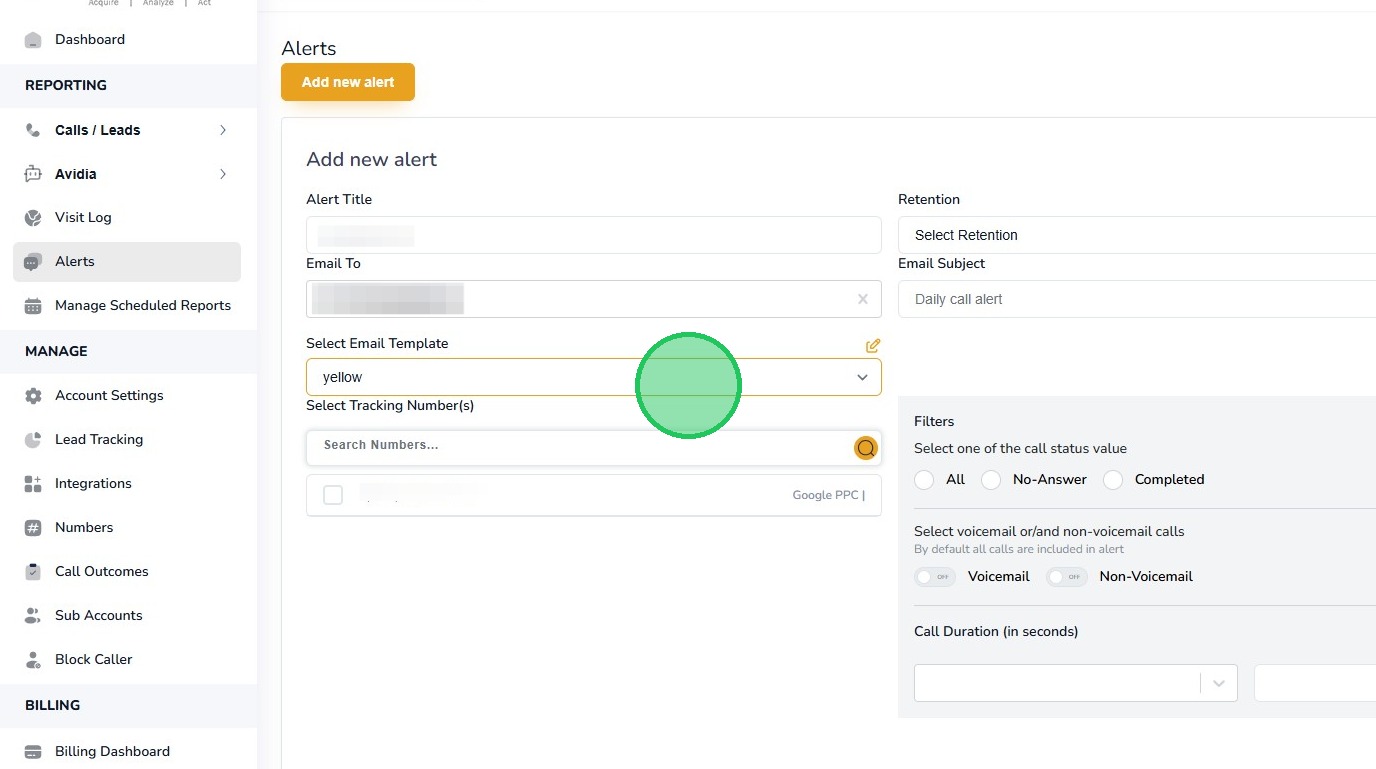
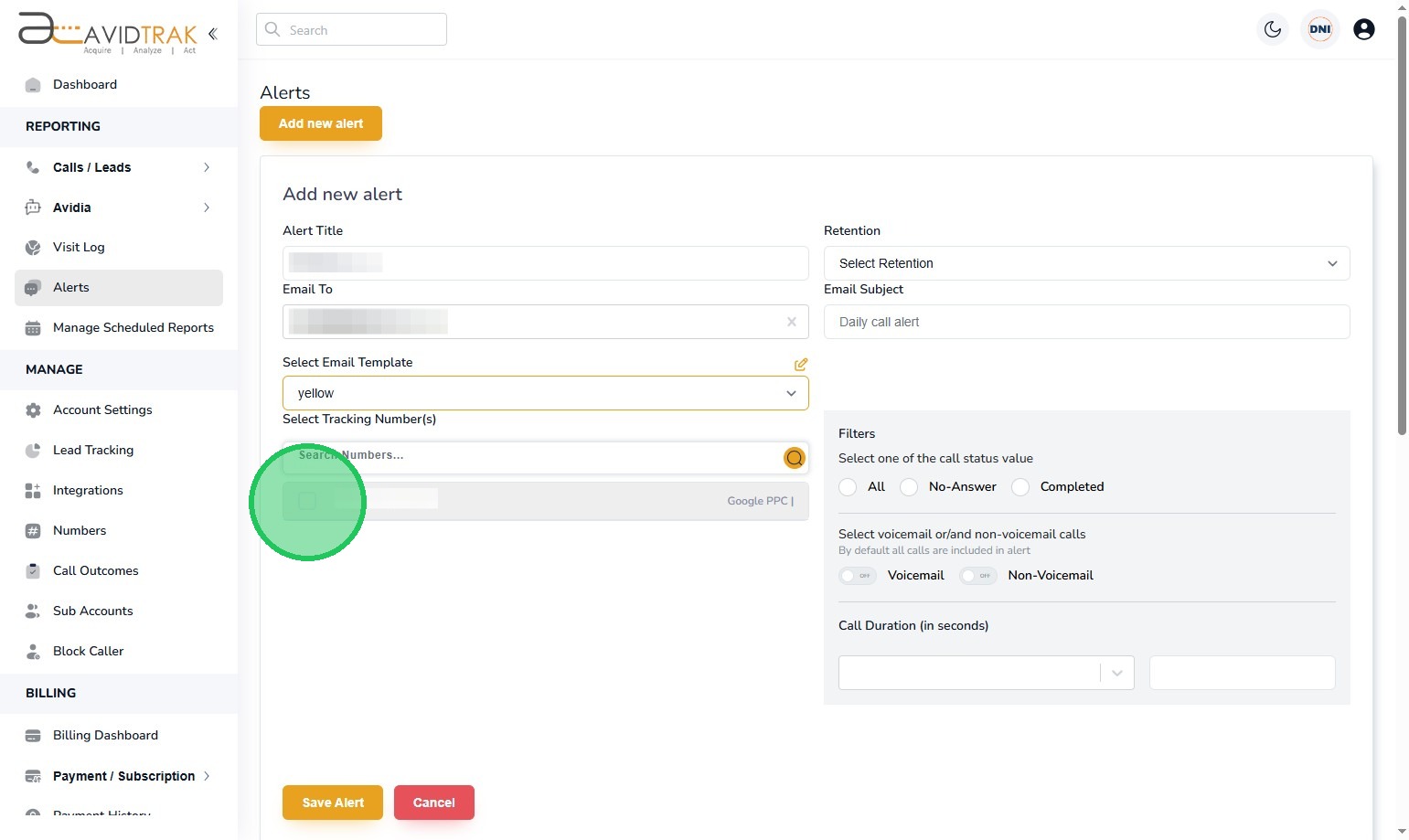
7. Next, navigate to the “Select Tracking Number(s)” field and select the tracking numbers that you wish to include in your report. You can select a single number, multiple numbers or all the numbers in your account.
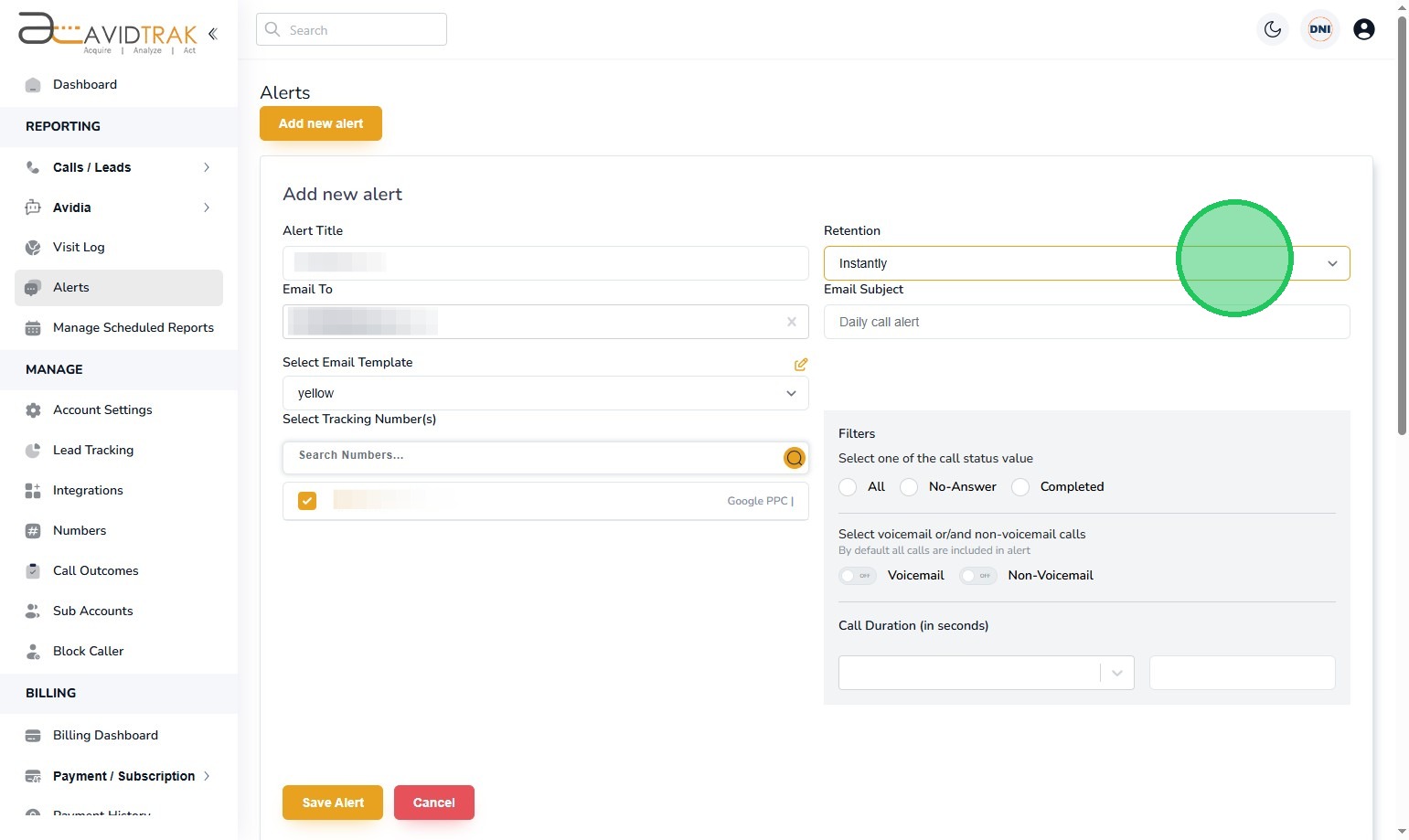
8. In the field titled ‘Retention’ select the delivery cadence of the report that is to be emailed. Your cadence options are instantly, daily, weekly and monthly. Instantly will send a report within 10 minutes of a call completion. Daily will send a report at the end of the day everyday. Weekly will send a report every Monday for the period covering the previous Monday to Sunday. Monthly will send a report on the first of every month for the previous month.
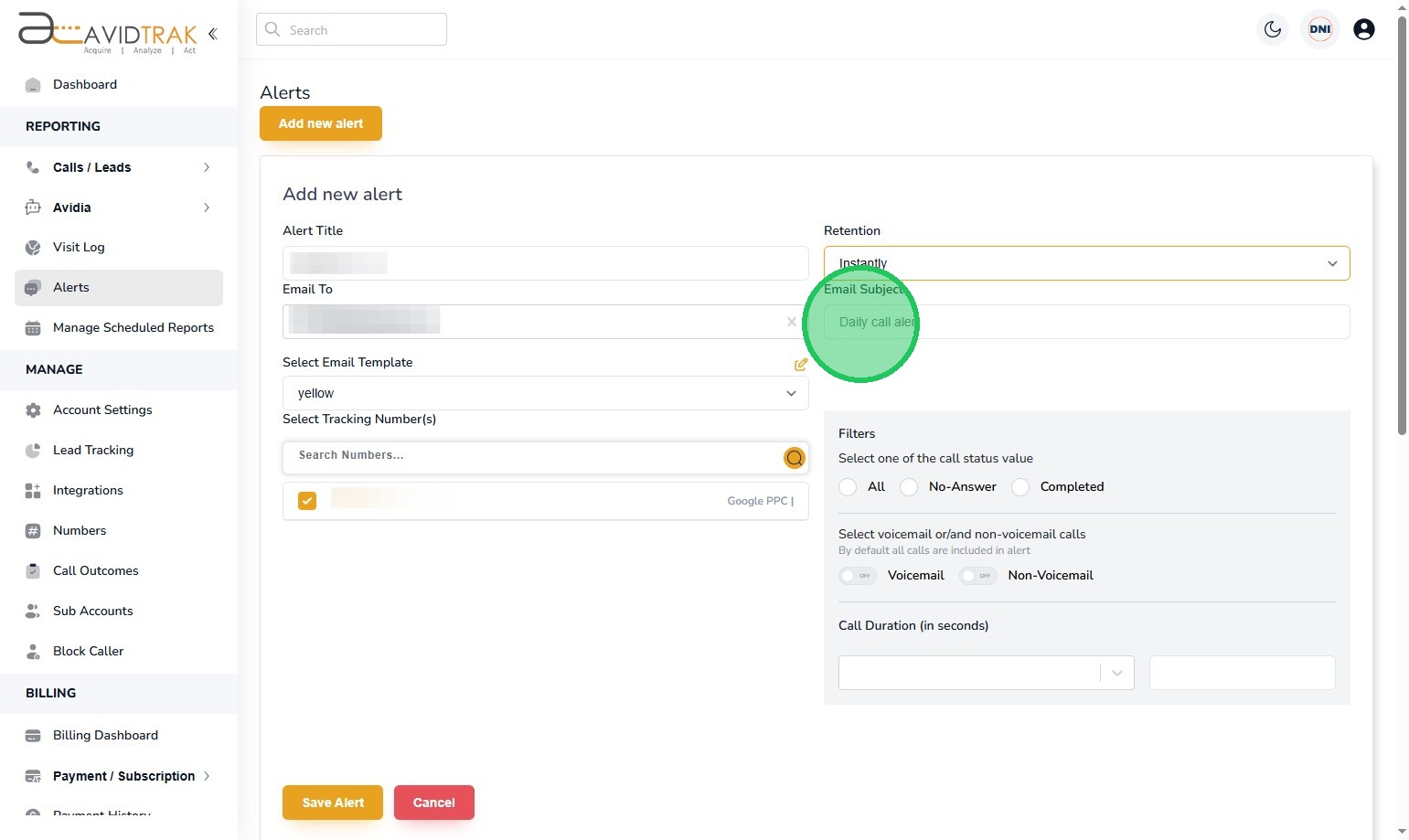
9. Next in the “Email Subject” field enter a suitable name for your email subject. Pro Tip: The email subject should be succinct and contain subject matter that is relevant for the email recipient. An example would be, ‘Weekly Manifest of Completed Phone Calls for ABC Plumbing and Heating.’
10. In the call status filters field, select the appropriate filter that you wish to apply for the report. For example, if you select ‘No-Answer’ then you will be creating a report that captures all the calls that were not answered. Whereas, if you select the All filter, you will be reporting on all calls regardless of the call connection status.
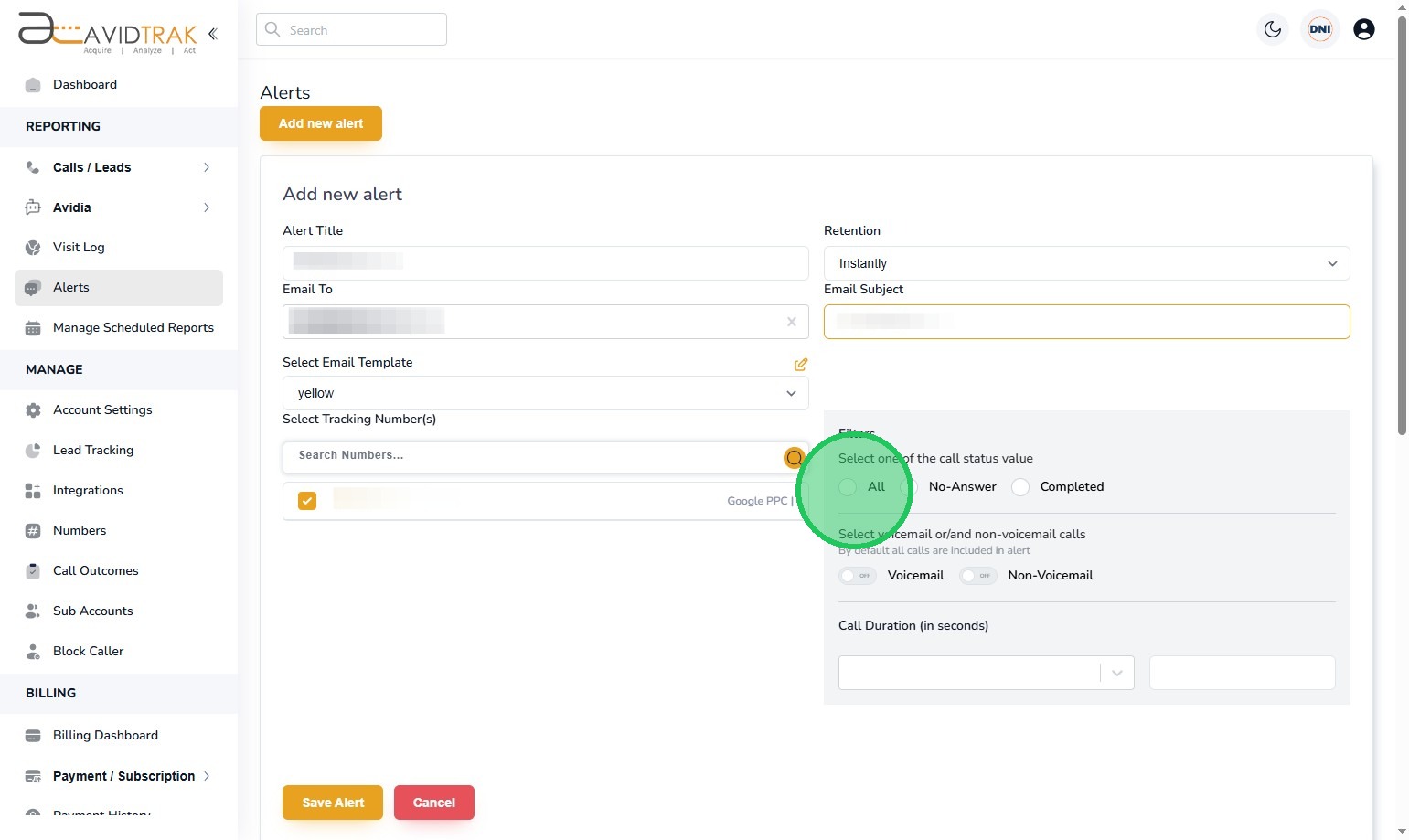
11. If you have enabled the voicemail module associated with the tracking numbers, and you wish to report on only calls that were sent to tracking numbers’ voicemail, then enable the on button for voicemail. Inversely, if you wish to report on only calls that were not sent to voicemail then enable the Non-Voicemail button.
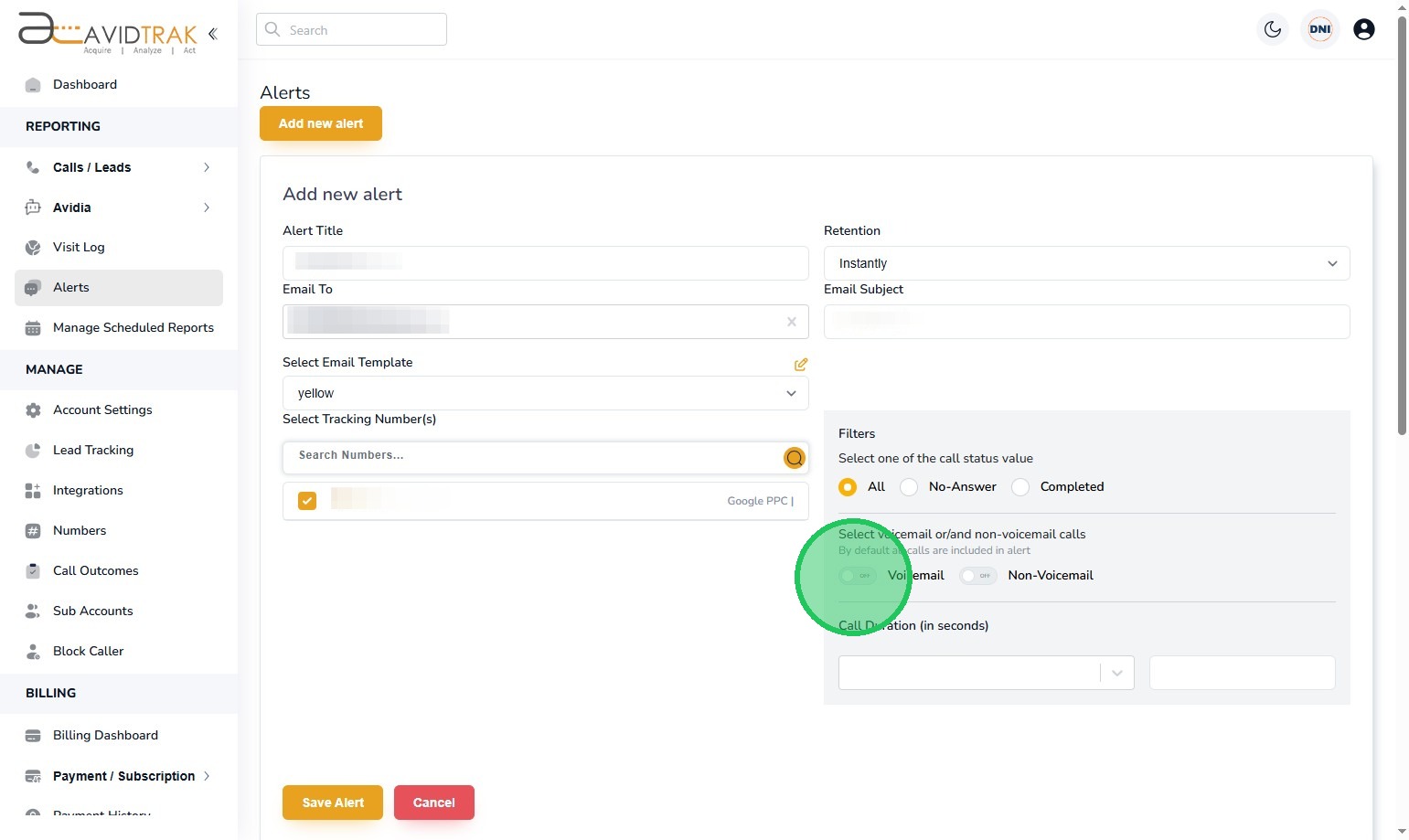
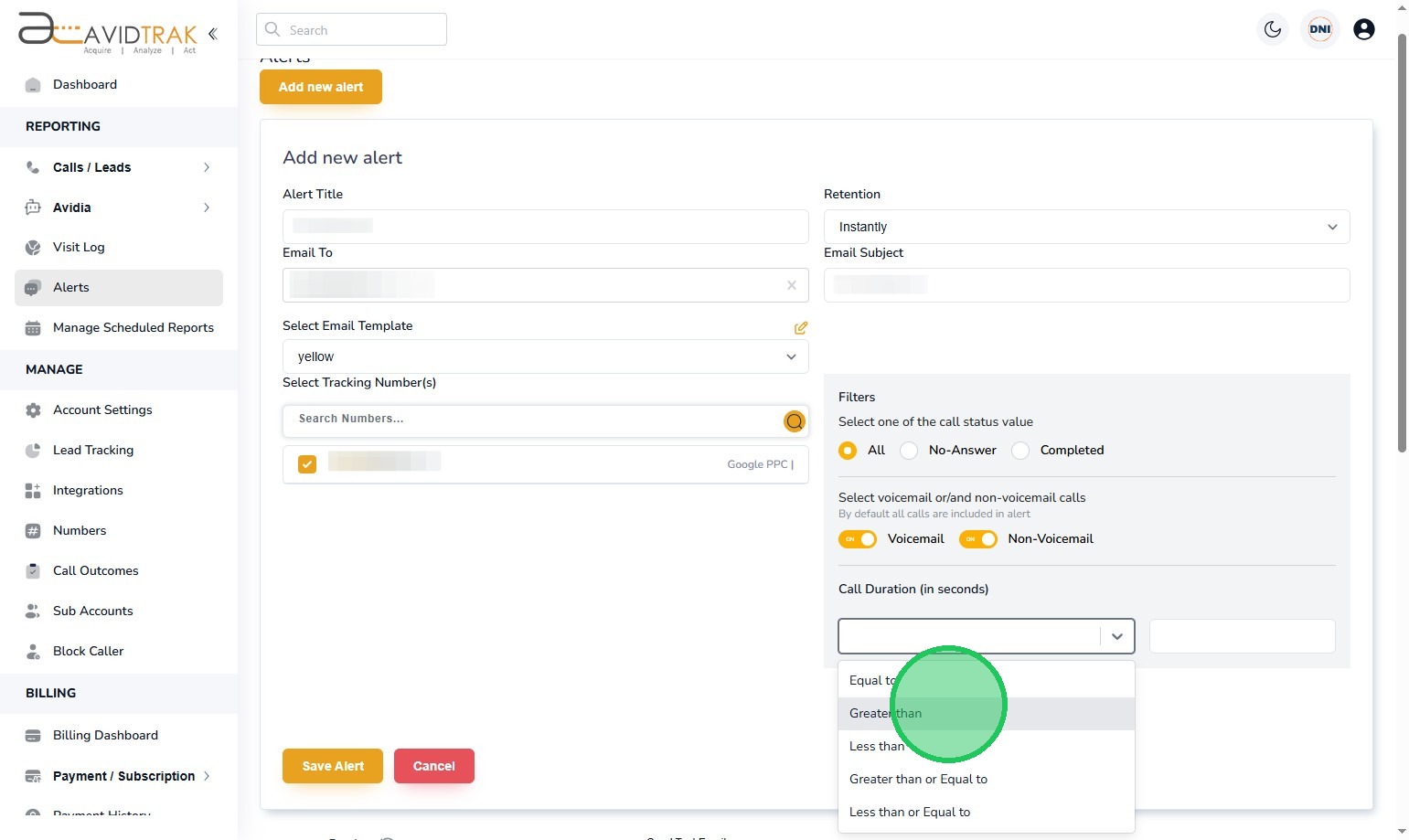
12. Next, in the call duration filter select the call duration filter parameter you wish to apply. For example, if you wish to report on only those calls that last greater than 30 seconds, apply the Greater than parameter.
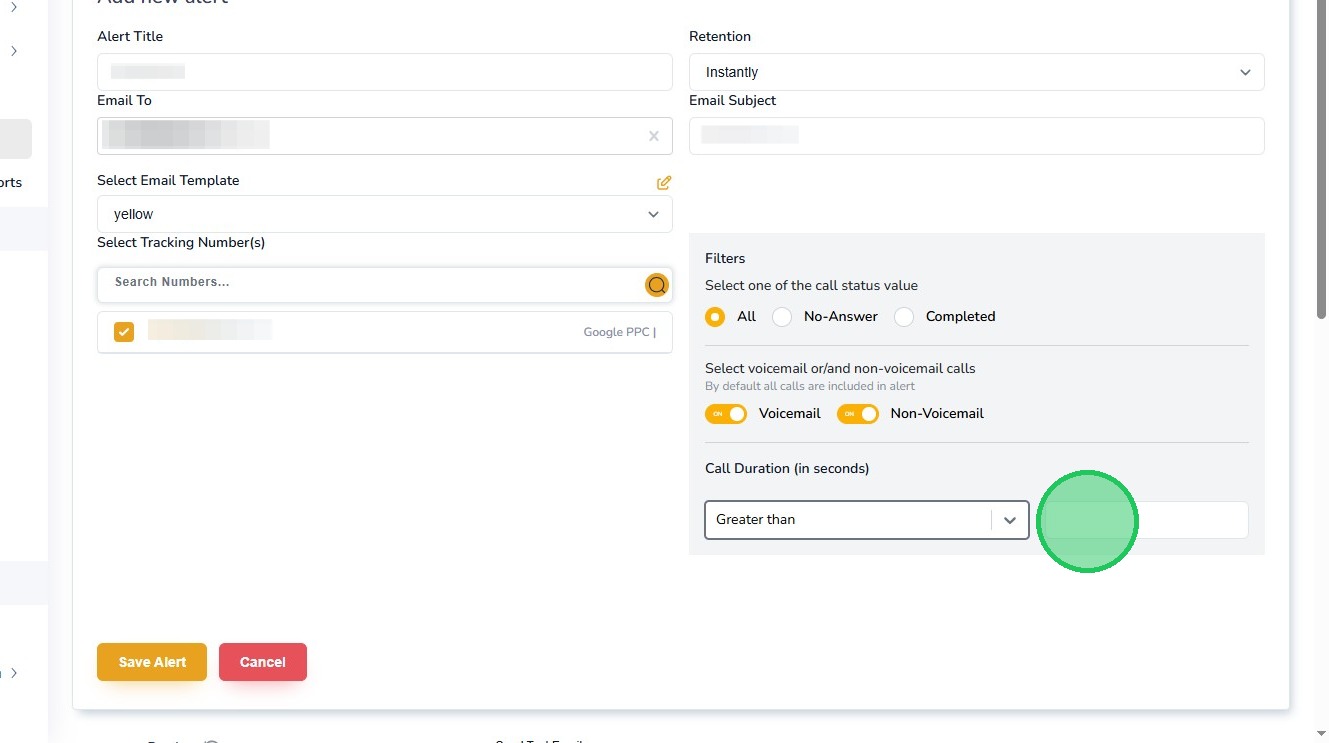
13. After you have applied the filter parameter, enter a whole number in the duration field. Note that the value you enter must be a digit greater than zero and must not have a fraction or decimal point. For example, if you wish to report on calls greater than one half of a minute you will need to enter the digits 30 in the digit value field.
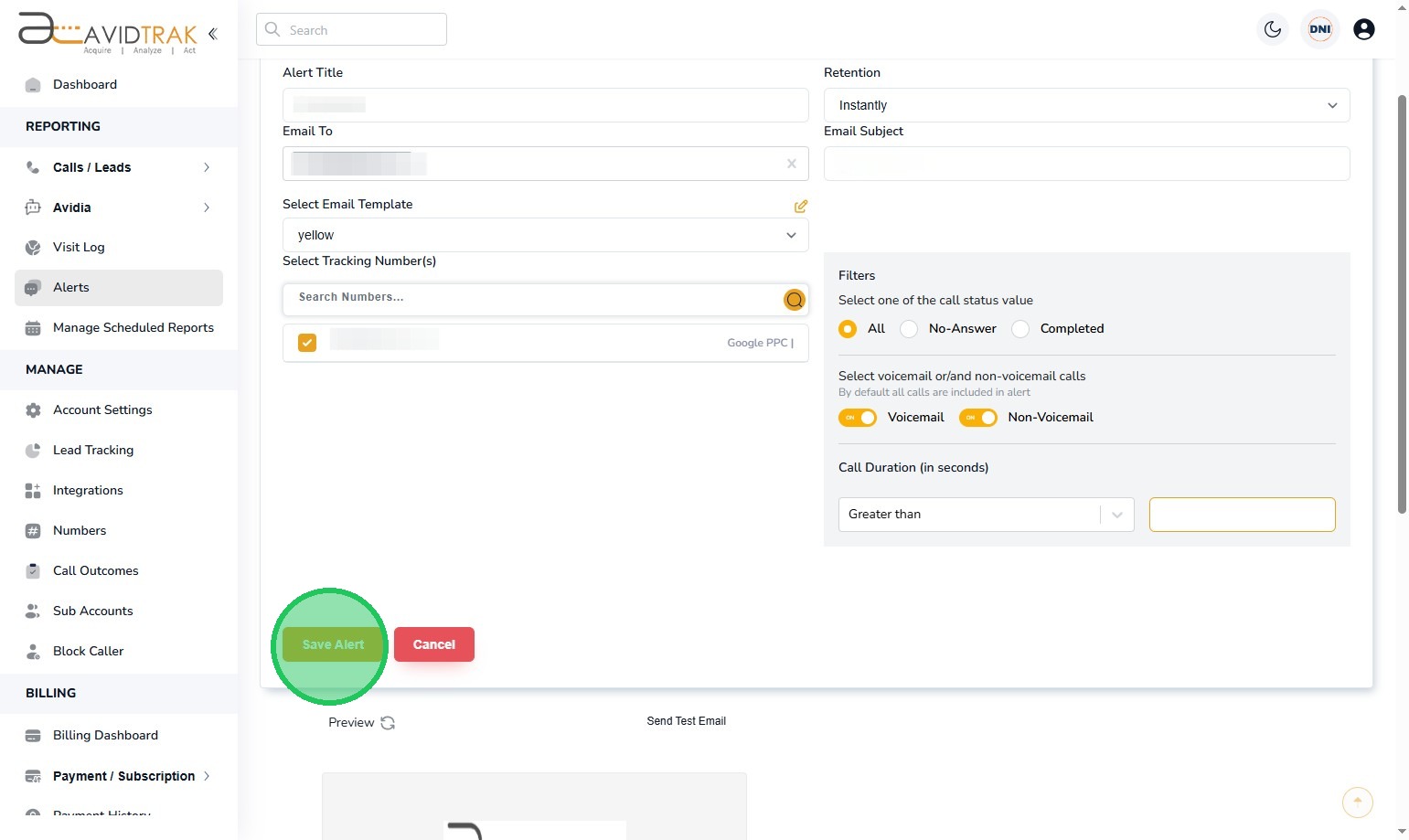
14. Click the “Save Alert” button to save your settings.
15. Click the “OK” button to reconfirm your save setting.

16. This completes the tutorial for How to Add a New Email Alert in AvidTrak. If you have questions or need any kind of additional assistance please do not hesitate to contact our support team by emailing support@avidtrak.com