


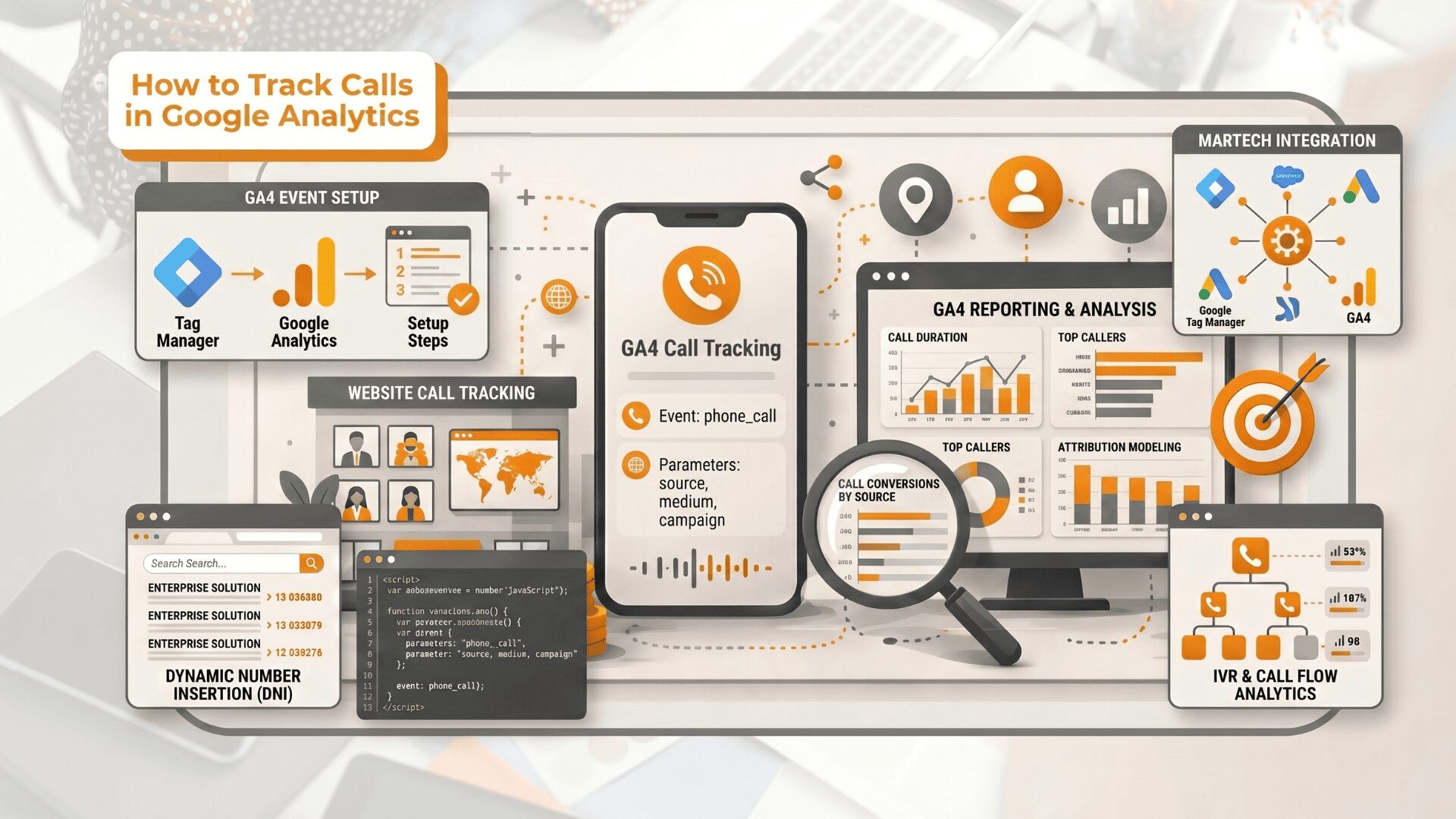
Not every lead on your website fills out a form. Many high-intent prospects call, and when those calls are not tracked properly, your reporting misses an important part of the customer journey.
Google Analytics call tracking helps businesses measure phone-click activity on their website and connect calls more clearly to their marketing channels.
This guide explains how Google Analytics call tracking works, how to separate phone clicks from actual phone calls, and where tools such as Google Ads call tracking and AvidTrak fit into a cleaner setup.
What Is Google Analytics Call Tracking?
Google Analytics call tracking is the process of measuring call-related actions connected to your website traffic. In most cases, it means tracking phone number clicks, call intent, or call conversions so you can understand which pages, channels, or campaigns are driving phone leads.
How to Track Calls in Google Analytics
Google Analytics call tracking starts with one basic decision: what exactly are you trying to measure?
Before you set up tags, events, or imports, you need to separate website call intent from actual phone conversations. That distinction shapes the rest of the setup and keeps your reporting cleaner.
Step 1: Decide What Should Count as a Call Conversion
Start by deciding what should count as a tracked call. In most setups, that means choosing one of these three options:
- A visitor clicks a phone number on your website.
- A real phone call happens after someone clicks a Google ad or sees a Google forwarding number on your site.
- Both, if you want one layer for on-site call intent and another for actual call activity.
This step matters because a phone click and an actual connected call are not the same thing. A click tells you someone tried to call. A call conversion in Google Ads can tell you that a real call happened and even let you set a minimum call length.
Step 2: Confirm Your GA4 Setup Is Working First
Before you track calls, make sure Google Analytics is already collecting website activity correctly. If the property, tag, or container is not firing properly, your call-related events will not report cleanly later.
Check this before moving forward:
- Confirm that your Google Analytics property is active.
- Confirm that your Google Tag or Google Tag Manager container is installed on the site.
- Open the site and check Realtime in Google Analytics to make sure page activity is being recorded.
- Test a few important pages, such as your landing page, contact page, and service pages.
This step is basic, but it matters. A weak setup at this stage usually creates reporting problems later and makes call tracking harder to validate.
If you want deeper call attribution after the Analytics setup is confirmed, AvidTrak can add campaign, page, and channel-level call tracking on top of your website data through its call tracking platform and integrations.
Step 3: Track Phone Number Clicks on Your Website
For GA4, the standard approach is to track clicks on links that start with tel:.
This is the cleanest way to measure call intent from the site itself. In practice, this is usually done in Google Tag Manager by creating a click trigger that matches clicks with a URL containing tel:, then sending that interaction to GA4 as an event.
This method is useful because it works across mobile click-to-call links and any clickable phone number on the site, as long as the number is implemented as a tel: link.
Step 4: Use a Clear GA4 Event Name
Once the tel: click is being sent into Google Analytics, give that event a clear name.
Use a name such as:
- phone_click
- call_click
- generate_lead
Keep the name short and consistent across the setup. That makes the event easier to find in reports, compare over time, and import into Google Ads later if needed.
This also helps when you want cleaner reporting across other systems.
Step 5: Mark the Call Event as a Key Event in GA4
After the event starts appearing in GA4, go to Admin > Events and turn on Mark as key event for that call-related event.
This matters because Google Analytics treats key events as the actions that matter most to the business. Without this step, the event may still appear in reporting, but it will not be set up as a primary conversion action.
Keep one thing clear here: if the event is based on a tel: click, you are still measuring call intent, not a confirmed phone conversation. If you need deeper call measurement, campaign-level attribution, or call reporting tied back to channels and pages, AvidTrak’s reporting and analytics, and AI-powered transcription and conversation analytics add much more detail.
Step 6: Test the Event Before You Move Forward
After setup, test the phone number yourself and confirm the event appears in GA4. The easiest places to check are:
- Realtime
- Events
- Key events
If the event does not appear there, the problem is usually in the trigger, the event condition, or the way the phone link is coded on the page.
This check should be done before moving to Google Ads import or any broader reporting setup.
Step 7: Link Google Analytics to Google Ads
If you run Google Ads and want to use the same event in ad reporting, link your Google Analytics property to your Google Ads account.
This connection allows you to:
- share key events with Google Ads
- use the same event across both platforms
- keep call-related reporting more consistent
This step is useful when you want your website phone-click event available inside Google Ads. It becomes more valuable when you are comparing website engagement with paid search performance.
For businesses running paid campaigns that generate phone leads, AvidTrak’s pay-per-click marketing keyword call tracking gives more detail around which campaigns and keywords are driving calls.
Step 8: Import the GA4 key event into Google Ads
After the event is marked as a key event in GA4 and the accounts are linked, import that event into Google Ads as a conversion. Google’s documentation makes clear that the GA4 event must first be marked as a key event before it can be imported into Google Ads.
This step is useful for optimization, but keep in mind what is being imported. If the source event is a tel: click, then Google Ads will be optimizing around a phone click, not necessarily a completed phone conversation.
Step 9: Use Google Ads call conversion tracking for actual phone calls
If your goal is to measure actual phone calls rather than phone number clicks, use Google Ads call conversion tracking.
This setup can track:
- calls from ads
- calls to a phone number on your website
- mobile phone number clicks
- imported phone call conversions
For calls from your website, Google can use a forwarding number to connect calls back to the campaign, ad group, ad, and keyword that generated them. You can also set a minimum call length so short calls do not count as conversions.
This is the better setup when your Google Analytics call tracking needs go beyond call intent and focus on real ad-driven phone calls.
Step 10: Understand the Difference Between the Two Setups
A clean Google Analytics call tracking setup works better when you keep phone clicks and actual phone calls separate.
| Tracking Setup | What It Measures | Best Use Case |
| Google Analytics tel: click event | A click on a phone number on your website | Measuring call intent from website visitors |
| Google Ads call conversion tracking | A real phone call from ad traffic | Measuring actual ad-driven calls and optimizing paid campaigns |
This distinction keeps reporting easier to read. Google Analytics helps you measure on-site call intent. Google Ads call conversion tracking helps you measure confirmed calls from paid traffic.
Google Analytics Call Tracking Checklist Before You Launch
A Google Analytics call tracking checklist helps you confirm that phone-click events, Google Ads call tracking, and validation steps are set up correctly. It keeps reporting cleaner by separating website call intent from actual ad-driven phone calls.
GA4 Checklist
- Confirm that Google Analytics is installed and receiving traffic in Realtime.
- Decide whether you want to track phone clicks, actual calls from ads, or both.
- Make sure every clickable phone number uses the tel: format.
- Create a trigger for clicks where the URL contains tel:.
- Send that interaction into Google Analytics as an event such as phone_click or call_click.
- Check that the event appears in Realtime and in the Events report.
- Mark the event as a key event.
- Test the event on important pages such as landing pages, contact pages, and service pages.
- Keep the event name consistent across the setup.
Google Ads Call Tracking Checklist
- Link Google Analytics to Google Ads if you want to use the event in ad reporting.
- Import the event only after it has been marked as a key event.
- Use Google Ads call conversion tracking if you want to measure real ad-driven phone calls.
- Use a Google forwarding number if you want campaign, ad group, and keyword-level call reporting.
- Set a minimum call length so short calls do not count as conversions.
Final Validation Checklist
Before you treat the setup as complete, run one final review across the full tracking flow. This last check helps catch reporting gaps, event issues, or call monitoring mistakes before they affect your data. It also makes future troubleshooting much easier if you update pages, phone numbers, or campaign settings later.
- Confirm that phone-click tracking is working in Google Analytics.
- Confirm that Google Ads call conversion tracking is working if it is enabled.
- Make sure your team understands the difference between a phone click and a completed phone call.
- Test again whenever you change landing pages, phone numbers, or tracking settings.
Recommended Workflow
For most businesses, the cleanest setup looks like this:
- Track phone number clicks in Google Analytics.
- Mark that event as a key event.
- Import it into Google Ads if needed.
- Use Google Ads call conversion tracking when you need actual ad-driven call measurement.
- Use AvidTrak when you need deeper call attribution tied to campaigns, landing pages, keywords, routing, or reporting.
Which Setup Should You Use?
Here is a quick view to help you choose:
| Setup | Best For | What It Measures |
| Google Analytics event tracking | Website phone-click tracking | Call intent |
| Google Ads call conversion tracking | Paid search call reporting | Actual ad-driven calls |
| AvidTrak call tracking | Deeper call attribution and reporting | Calls tied to channels, pages, campaigns, and keywords |
Key Takeaways
Google Analytics call tracking works well for measuring phone-click activity on your website. When you need to measure actual ad-driven calls, Google Ads call conversion tracking is the better layer. When you need deeper attribution and clearer reporting across channels, AvidTrak gives you a stronger call tracking setup.


