


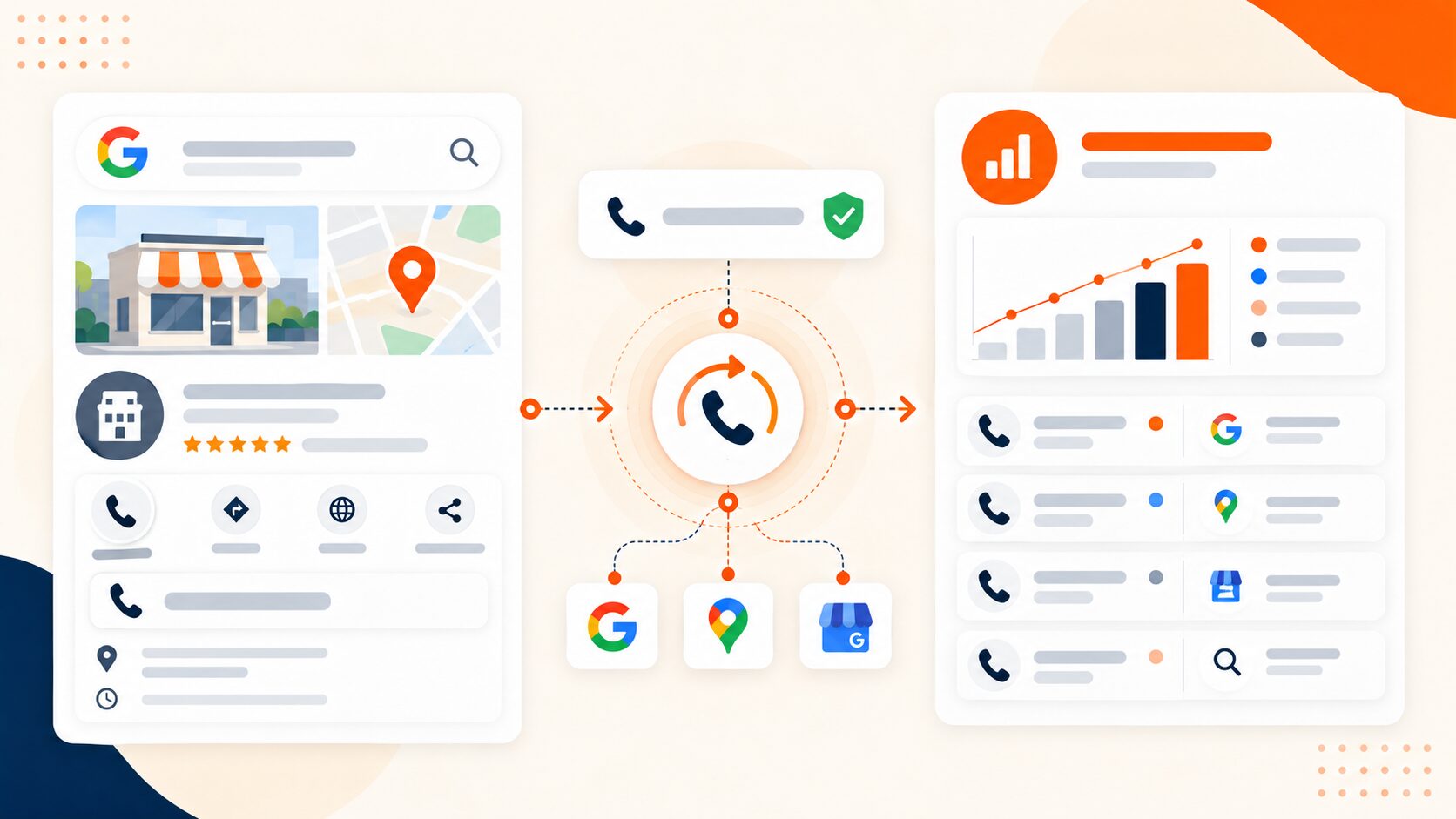
You can track Google Business Profile calls while keeping your existing business phone number and phone system. A common arrangement uses a dedicated tracking number as the profile’s primary number, retains your established number as an additional number, and forwards calls to your current business line.
Your established number stays active. Existing customers can still dial it, and staff can keep answering through the same phone system. This forwarding arrangement does not require transferring that established number to a different carrier.
The distinction is public display: customers using the profile’s call action may dial the tracking number. Keeping your existing line and keeping its digits as the profile’s primary number are separate requirements.
Decide what “keeping your number” means
There are three different decisions:
- Keep your established line active: Use a separate tracking number that forwards to it.
- Keep the established number as the profile’s primary number: Leave that field unchanged. Use Google’s call-click reporting where available; completed calls need another suitable measurement method.
- Move the established number into a tracking service: This is a separate migration decision. It is unnecessary for the forwarding arrangement described here.
Moving a number into a tracking platform does not automatically solve source attribution. If customers find that same number on your profile, website, signage, and other listings, the number alone cannot identify which placement prompted each call.
The primary/additional arrangement is an established implementation pattern. It does not guarantee that Google will display the same number on every surface, so checking the public result is part of the setup.
Check Google’s phone-number requirements first
Google’s guidance requires the number to be under the business’s direct control and connect customers to the actual business location. It prefers a local number over a central call-center number where possible, excludes premium-rate numbers, and prohibits redirects to phone numbers belonging to another business.
Before publishing a tracking number, confirm that:
- The business can manage its use and routing.
- It reaches the correct location or a team serving that location.
- Account access, billing, and responsibility are documented.
- Continued use or transfer arrangements are clear if an agency relationship ends.
Keep the business’s name, address, and established phone details accurate across its website and important listings. This is commonly called NAP consistency. Retaining the established number in the profile helps keep it associated with the business, but it is not a guarantee of unchanged rankings.
How to set up Google Business Profile call tracking
1. Save the current configuration
Record the profile URL, current phone fields, existing destination line, business hours, and any forwarding rules.
For each location, identify who answers calls, what happens when nobody answers, and who can edit the profile and tracking account. Note any linked Google Ads account.
Keep the existing carrier service active. The established line still needs to receive calls in this arrangement.
2. Create a dedicated, stable tracking number
Assign a number specifically to the profile and location. Use a suitable local number where available.
Give it a descriptive label such as GBP number — North Branch. Treat that as a placement label rather than proof of an unpaid acquisition source. Keep a register connecting the profile, tracking number, destination, account owner, and activation date.
Avoid sharing that number across unrelated campaigns. A number used on both a Business Profile and a printed flyer would produce a combined source record.
Keep the published number assigned to this profile. A rotating website-pool number can be reassigned under session rules, so use a separate stable number for the profile.
3. Forward calls to the established business line
Set the current business line as the tracking number’s destination. Check any existing forwarding on that line before testing.
A forwarding loop occurs when the tracking number sends calls to the established number, and the established number sends them back to the tracking number. The route must finish at the intended answering system.
Test the new number before editing the public profile. Confirm the correct team answers, both parties can hear each other, and the call record uses the intended number and source label.
4. Edit the profile’s phone fields
Google’s documented route is:
Business Profile → Edit profile → Contact → Phone number
Set the tracking number as primary and keep the established number in an additional phone field. Google supports one primary number and up to two additional numbers. Save the change.
Use this configuration:
| Setting | Number or rule | Purpose |
| Profile primary phone | Dedicated profile tracking number | Identify activity reaching that number |
| Profile additional phone | Established business number | Keep the established number associated with the business |
| Tracking destination | Existing business line | Reach the current answering team |
| Website and other listings | Established number unless separately planned | Preserve existing contact routes |
| Tracking source label | Profile and location identifier | Keep reports understandable |
Do not assume an additional number will always be visible to customers. Verify the number Google presents through the actual call action.
5. Confirm the accepted public result
Google reviews profile edits. A saved change may be pending or not approved rather than publicly visible. Google can also update business information using reports from other sources.
Check the edit status, then inspect the public profile in Search and Maps. Open the call action and inspect the number in the dialer before placing the test call.
Once the number is live, complete the acceptance checks below. Recheck after changes to routing, profile phone fields, or the receiving phone system.
Separate direct profile calls, website calls, and ad calls
A profile-specific number measures calls reaching that number. It does not automatically establish an unpaid source, a new prospect, or a sale.
Keep these paths distinct.
Direct calls from the profile
Use the dedicated static number to identify calls reaching the profile’s assigned number.
A customer can manually dial it, save it, or share it. Later calls to that number will still reach the assigned source even if the person did not view the profile again.
Calls after a website visit
Someone may click the profile’s website link and call from the landing page.
Website dynamic number insertion can associate calls with supported source or session data. It runs on your website; it does not edit the phone number inside Google Business Profile.
If campaign tags identify the profile’s website traffic, confirm that redirects preserve them and that the tracking rules recognize them. Give this path a separate reporting label, such as GBP website visit, when the evidence supports it.
Calls connected with advertising
Google states that Business Profile performance data can include both organic results and Google Ads. Do not treat the profile dashboard as an exclusively unpaid report.
For linked location assets, inspect:
Business Profile settings → Advanced settings → Google Ads phone number
This setting can supply a different location-asset number from the profile number. Check it alongside the Google Ads configuration before labeling calls organic or paid.
Do not copy a Google Ads forwarding number into the profile as a permanent number. Google controls those numbers, and they can change or be reassigned.
If you also run Local Services Ads, verify its call setup separately.
Example: one reception line, several call paths
A dental practice keeps its established reception number. It adds a profile-specific tracking number and uses separate website tracking.
| What happens | What the evidence supports | What it does not establish |
| A patient calls the profile’s tracking number | A call reached the number assigned to that profile | That the caller is new or arrived through an unpaid result |
| A visitor follows the profile’s website link and calls a website tracking number | A website call associated with the identified visit, if the setup supports it | A direct call from the profile’s call button |
| An existing patient dials the established number from saved contacts | A call reached the existing line | A measurable profile source from the dialed number alone |
| Someone calls a saved profile tracking number again | Another call reached that assigned number | Another new lead or another profile visit |
All four paths can reach the same reception team. Different source records do not require different answering teams.
Test the setup before using the data
Arrange test calls with the answering team and use a phone separate from the destination line. Mark test records so they are excluded from lead totals.
| Check | Test action | Acceptance condition |
| New tracking number | Dial it directly before publication | Correct destination, two-way audio, and expected number/source record |
| Established business number | Dial the original number directly | Existing contact route still works |
| Search profile | Use the public profile’s call action | Dialer number matches the plan; correct team answers |
| Maps profile | Repeat from Maps | Number and destination match the intended setup |
| Fallback routing | Arrange a missed-call or after-hours test | Intended fallback works; record matches the observed result |
| Website path | Visit the website through the profile and call the displayed number | Separate website attribution follows the configured rules |
| CRM or analytics connection | Inspect the corresponding record, if configured | Correct source and location arrive without an unintended duplicate conversion |
Record the timestamp and timezone, dialed number, destination, call ID where available, and observed result for each check.
A successful manual call checks the route and number assignment. It does not prove the public profile is displaying that number. The Search and Maps tests verify that separate requirement.
Also check incoming caller ID on the receiving device before relying on it for callbacks. Caller-ID behavior depends on the forwarding configuration.
A successful launch means the old contact route works, the published call route reaches the correct business, and the resulting records match the agreed reporting definitions.
Read call reports without overstating the results
Google Business Profile’s Calls metric counts call-button clicks. A click does not confirm that the person dialed, reached a staff member, or became a lead.
Google retired Business Profile call history on July 31, 2024. Instructions to activate that feature are outdated.
A tracking platform records phone activity reaching its number. Its count can differ from call-button clicks because people cancel before dialing, manually enter the number, call it repeatedly, or use a saved contact.
Before comparing reports, align the date range, timezone, tracked numbers, exclusions, and event definitions. A platform’s answered status may include an automated system or voicemail; confirm a human conversation separately when it matters.
Keep these measures separate:
- Call activity: Calls or attempts recorded under the platform’s definition.
- Human conversations: Calls confirmed to have reached a person rather than only an automated system or voicemail.
- Qualified inquiries: Calls assessed against the business’s lead criteria.
- Confirmed outcomes: Bookings, sales, or other results verified in the relevant business system.
Call tracking reports can help separate sources, missed calls, timing, and repeat activity according to the available reporting options.
Use CRM call tracking to connect call activity with customer records where configured. Link related calls to the same inquiry before counting new leads, and avoid adding a call event and its CRM record together as two separate business outcomes.
Troubleshoot the first point that fails
| Problem | Check first | Next action |
| Original number still appears | Edit status and live call action | Confirm the saved fields and accepted public result |
| Tracking number is live but calls fail | Destination and forwarding rules | Test the tracking number and destination separately |
| Calls reach the wrong branch | Profile-to-number register and routing schedule | Correct the location mapping and repeat the public-profile test |
| “GBP” calls include other campaigns | Other places using the same number; linked Ads settings | Separate future assignments and qualify historical reports |
| Google clicks and tracked calls differ | Event definitions, actual dialed number, dates, and filters | Reconcile comparable events before treating the gap as an error |
| Platform has the call but CRM does not | Integration status, field mapping, and delivery errors | Follow that specific call record into the receiving system |
For support, provide the profile URL, edit status, affected numbers, timestamp and timezone, call ID, and expected versus observed result. Use an appropriate support channel for customer information.
If the new route is unreliable, restore the last working destination or profile configuration as appropriate. Profile edits still need public verification; keep the tracking number active while resolving the issue.
Remove or replace tracking without losing the contact route
Plan the exit before canceling the tracking service:
- Restore the established number as the profile’s primary number.
- Confirm the accepted public result and place calls from Search and Maps.
- Remove the tracking number from other placements you control.
- Export the records the business needs.
- Keep the tracking number active and correctly forwarded during the agreed transition.
- Review recent calls, saved-number exposure, and provider terms before releasing it.
A profile edit does not update customers’ saved contacts or numbers copied elsewhere. There is no universal waiting period that guarantees a published number will no longer receive calls.
When changing agencies or providers, assign responsibility for billing, routing, access, and any transfer request. Do not release the number before continued service is arranged.
How AvidTrak supports this setup
AvidTrak supports call tracking for local SEO, including dedicated local profile numbers where the setup follows Google’s guidance and keeps the established number associated with the profile. It also supports website DNI for eligible visits.
Its reporting options include source, missed-call, and repeat-call views. AvidTrak also supports CRM integrations including Salesforce, HubSpot, and Zoho; the available data depends on the connection and configuration.
Contact AvidTrak with your existing number, destination line, location count, and linked advertising setup to plan the number assignments and test procedure.
Frequently asked questions
Can customers text the tracking number?
Voice forwarding does not establish that a number can receive texts or send them to your existing inbox. Confirm messaging support, any registration requirements, and the receiving inbox before using the number for customer texts.
Will outbound callbacks show the tracking number?
The inbound forwarding arrangement does not automatically configure outbound caller ID. Check which number your business phone system presents and whether your provider supports authorized outbound use of the tracking number. Test from the actual staff phone before promising customers a particular callback number.
Do I need call recording?
Number-based source tracking can operate without recording conversations. Recording is a separate configuration choice. If you use recording or transcription, check the requirements that apply to the business and callers.
Can the tracking number reveal the exact search keyword?
A static profile number does not, by itself, identify the phrase a person searched before calling. Profile search-term reports describe profile visibility; they do not establish a verified keyword-to-call match for each caller.
How much does this setup cost?
Cost depends on number rental, incoming and forwarded usage, routing, reporting, and any required integrations. Recording, transcription, and messaging may add charges. Compare the same scope across providers, including number-retention and transfer terms.


